1. Obtain a certificate(Let's Encrypt)
1.1 advance preparation
1.Enable mod_ssl
# a2enmod ssl
2.Package management system Snappy installed
Let's Encrypt's SSL certificate issuing tool "certbot" is recommended to be installed using "snap" after 2021, so install Snapd first.

# apt -y install snapd
Bring snapd version up to date
# snap install core
core 16-2.61.4-20260225 from Canonical✓ installed

# snap refresh core
snap "core" has no updates available
Version Check
# snap --version
snap          2.77.1+ubuntu26.10.1
snapd         2.77.1+ubuntu26.10.1
series        16
ubuntu        26.10
kernel        7.3.0-9-generic
architecture  amd64
1.2.certbot package install
# snap install --classic certbot
certbot 5.8.0 from Certbot Project (certbot-eff✓) installed
Create symbolic link to /snap/bin/certbot
# ln -s /snap/bin/certbot /usr/bin/certbot
Confirmation
# ls -la /usr/bin/certbot
lrwxrwxrwx 1 root root 17 Oct 17 09:54 /usr/bin/certbot -> /snap/bin/certbot
# ls -la /snap/bin/certbot
lrwxrwxrwx 1 root root 13 Oct 17 09:54 /snap/bin/certbot -> /usr/bin/snap
1.3 Obtain a Let's Encrypt Certificate
It is assumed that a web server such as Apache httpd or Nginx is running.
If the web server is not running on the server where the work is to be performed, follow the procedure below under "Obtaining a Let's Encrypt certificate when the web server is not running".
It is also assumed that the server on which the work is to be performed (the server with the FQDN of the server from which you want to obtain the certificate) is accessible from the Internet at port 80.
# certbot certonly --webroot -w /var/www/html/[FQDN] -d [FQDN]
・ -w [Document Root]
・ -d [FQDN to get a certificate]
・ You need to register your email address and agree to the terms of use only for the first time Specify the email address that can be received
Saving debug log to /var/log/letsencrypt/letsencrypt.log
Enter email address or hit Enter to skip.
 (Enter 'c' to cancel): [Mail Address]

- - - - - - - - - - - - - - - - - - - - - - - - - - - - - - - - - - - - - - - -
Please read the Terms of Service at:
https://letsencrypt.org/documents/LE-SA-v1.8-July-06-2026.pdf
You must agree in order to register with the ACME server. Do you agree?
- - - - - - - - - - - - - - - - - - - - - - - - - - - - - - - - - - - - - - - -
(Y)es/(N)o: y

- - - - - - - - - - - - - - - - - - - - - - - - - - - - - - - - - - - - - - - -
Would you be willing, once your first certificate is successfully issued, to
share your email address with the Electronic Frontier Foundation, a founding
partner of the Let's Encrypt project and the non-profit organization that
develops Certbot? We'd like to send you email about our work encrypting the web,
EFF news, campaigns, and ways to support digital freedom.
- - - - - - - - - - - - - - - - - - - - - - - - - - - - - - - - - - - - - - - -
(Y)es/(N)o: y
Account registered.
Requesting a certificate for [FQDN]

Successfully received certificate.
Certificate is saved at: /etc/letsencrypt/live/[FQDN]/fullchain.pem
Key is saved at:         /etc/letsencrypt/live/[FQDN]/privkey.pem
This certificate expires on 2027-01-14.
These files will be updated when the certificate renews.
Certbot has set up a scheduled task to automatically renew this certificate in the background.

- - - - - - - - - - - - - - - - - - - - - - - - - - - - - - - - - - - - - - - -
If you like Certbot, please consider supporting our work by:
 * Donating to ISRG / Let's Encrypt:   https://letsencrypt.org/donate
 * Donating to EFF:                    https://eff.org/donate-le
- - - - - - - - - - - - - - - - - - - - - - - - - - - - - - - - - - - - - - - -
"Successfully received a certificate." If it is shown, it will be successful.
The following certificate is obtained under [/etc/letsencrypt/live/[FQDN]/] as described in the message
# cert.pem
#chain.pem
# fullchain.pem
# privkey.pem
Obtaining a Let's Encrypt certificate when the web server is not running
It is a prerequisite that the server on which this work is performed can be accessed from the Internet at port 80
・[--standalone] Use a simple web server function
・ -d [FQDN to get a certificate]
# certbot certonly --standalone -d [FQDN]
1.4 Automatic renewal of certificates (Let's Encrypt)
①Pre-registration testing
First, test the automatic renewal using the following --dry-run option. With this option, the certificate is not renewed, but only the operation is tested, so there is no need to worry about being caught by the limit on the number of times a certificate can be obtained.
# certbot renew --dry-run

Saving debug log to /var/log/letsencrypt/letsencrypt.log

- - - - - - - - - - - - - - - - - - - - - - - - - - - - - - - - - - - - - - - -
Processing /etc/letsencrypt/renewal/[FQDN].conf
- - - - - - - - - - - - - - - - - - - - - - - - - - - - - - - - - - - - - - - -
Account registered.
Simulating renewal of an existing certificate for [FQDN]

- - - - - - - - - - - - - - - - - - - - - - - - - - - - - - - - - - - - - - - -
Congratulations, all simulated renewals succeeded:
  /etc/letsencrypt/live/[FQDN]/fullchain.pem (success)
- - - - - - - - - - - - - - - - - - - - - - - - - - - - - - - - - - - - - - - -
②When you install the snap version of certbot, the automatic certificate renewal function is also installed.
# systemctl list-timers | less
NEXT                             LEFT LAST                              PASSED UNIT                           ACTIVATES
Sat 2026-10-17 10:09:00 JST  4min 18s Sat 2026-10-17 09:39:08 JST    25min ago phpsessionclean.timer          phpsessionclean.service
Sat 2026-10-17 10:10:00 JST      5min Sat 2026-10-17 10:00:00 JST 4min 41s ago sysstat-collect.timer          sysstat-collect.service
Sat 2026-10-17 10:23:00 JST     18min -                                      - snap.certbot.renew.timer       snap.certbot.renew.service
Sat 2026-10-17 11:04:19 JST     59min Sat 2026-10-17 10:01:40 JST  3min 0s ago fwupd-refresh.timer            fwupd-refresh.service
Sat 2026-10-17 11:41:43 JST  1h 37min Fri 2026-10-16 12:35:19 JST            - motd-news.timer                motd-news.service
Sat 2026-10-17 15:40:28 JST  5h 35min Sat 2026-10-17 09:40:28 JST    24min ago upki-fetch.timer               upki-fetch.service
Sat 2026-10-17 19:04:31 JST        8h Fri 2026-10-16 10:22:50 JST            - apt-daily.timer                apt-daily.service
Sun 2026-10-18 00:00:00 JST       13h Sat 2026-10-17 09:30:54 JST    33min ago dpkg-db-backup.timer           dpkg-db-backup.service
Sun 2026-10-18 00:00:00 JST       13h Sat 2026-10-17 09:30:54 JST    33min ago locate.timer                   locate.service
snap.certbot.renew.timer is registered
Check the unit file for snap.certbot.renew.timer
# vi /etc/systemd/system/snap.certbot.renew.timer

[Unit]
# Auto-generated, DO NOT EDIT
Description=Timer renew for snap application certbot.renew
Requires=snap-certbot-5893.mount
After=snap-certbot-5893.mount
X-Snappy=yes

[Timer]
Unit=snap.certbot.renew.service
OnCalendar=*-*-* 10:23
OnCalendar=*-*-* 23:15

[Install]
WantedBy=timers.target
Check the unit file snap.certbot.renew.service
# vi /etc/systemd/system/snap.certbot.renew.service

[Unit]
# Auto-generated, DO NOT EDIT
Description=Service for snap application certbot.renew
Requires=snap-certbot-5893.mount
Wants=network.target
After=snap-certbot-5893.mount network.target snapd.apparmor.service
X-Snappy=yes

[Service]
EnvironmentFile=-/etc/environment
ExecStart=/usr/bin/snap run --timer="00:00~24:00/2" certbot.renew
SyslogIdentifier=certbot.renew
Restart=no
WorkingDirectory=/var/snap/certbot/5893
TimeoutStopSec=30s
Type=oneshot
However, the web server that uses the certificate will not be restarted, so set up a script that will run automatically after the update
# vi /etc/letsencrypt/renewal-hooks/post/web_restart.sh

#!/bin/bash
systemctl restart apache2
Permissions to execute in the script
# chmod 755 /etc/letsencrypt/renewal-hooks/post/web_restart.sh
2. SSL/TLS (Let's Encrypt) configuration for Apache2
①Edit Apache2 SSL-related configuration files
Copy the default vhost-ssl.conf and create vhost-ssl (names may be optional)
# cd /etc/apache2/sites-available/
# cp default-ssl.conf vhost-ssl.conf
Edit the copied configuration file
# vi vhost-ssl.conf

Line 2:Administrator Address Change
ServerAdmin [Addministrator Email Address]

 Line 4:Change
DocumentRoot /var/www/html/[FQDN]/

Line 12,13:Change
ErrorLog ${APACHE_LOG_DIR}/[FQDN].error.log
CustomLog ${APACHE_LOG_DIR}/[FQDN].access.log combined

 Line 31,32:Comment it out and add it below.
#SSLCertificateFile      /etc/ssl/certs/ssl-cert-snakeoil.pem
#SSLCertificateKeyFile   /etc/ssl/private/ssl-cert-snakeoil.key
SSLCertificateFile      /etc/letsencrypt/live/[FQDN]/cert.pem
SSLCertificateKeyFile   /etc/letsencrypt/live/[FQDN]/privkey.pem

Line 43:Add
SSLCertificateChainFile /etc/letsencrypt/live/[FQDN]/chain.pem
②Reflecting and activating the configuration file
# a2ensite vhost-ssl.conf
Enabling site vhost-ssl.
To activate the new configuration, you need to run:
  systemctl reload apache2

Disable default
# a2dissite default-ssl.conf

# systemctl restart apache2
③http to https redirect
# a2enmod rewrite
Enabling module rewrite.
To activate the new configuration, you need to run:
  systemctl restart apache2
Append to the virtual host configuration file
# cd /etc/apache2/sites-available

# vi vhost.conf

<VirtualHost *:80>
        Add the following three lines
        RewriteEngine on
        RewriteCond %{HTTPS} off
        RewriteRule ^(.*)$ https://%{HTTP_HOST}%{REQUEST_URI} [R=301,L]
        # The ServerName directive sets the request scheme, hostname and port that
        # the server uses to identify itself. This is used when creating

---------Omitted-----------

</VirtualHost>
④Apache Restart
# systemctl restart apache2
3. SSL/TLS (Let's Encrypt) settings on the mail server
3.1 Obtaining a certificate for the mail server
Do it once you stop the web server.
# systemctl stop apache2

# certbot certonly --standalone -d mail.[domain]
Saving debug log to /var/log/letsencrypt/letsencrypt.log
Requesting a certificate for mail.[domain]

Successfully received certificate.
Certificate is saved at: /etc/letsencrypt/live/mail.[domain]/fullchain.pem
Key is saved at:         /etc/letsencrypt/live/mail.[domain]/privkey.pem
This certificate expires on 2027-01-15.
These files will be updated when the certificate renews.
Certbot has set up a scheduled task to automatically renew this certificate in the background.

- - - - - - - - - - - - - - - - - - - - - - - - - - - - - - - - - - - - - - - -
If you like Certbot, please consider supporting our work by:
 * Donating to ISRG / Let's Encrypt:   https://letsencrypt.org/donate
 * Donating to EFF:                    https://eff.org/donate-le
- - - - - - - - - - - - - - - - - - - - - - - - - - - - - - - - - - - - - - - -
Apache Restart
# systemctl start apache2
3.2 Postfix Configuration
# vi /etc/postfix/main.cf

Add to the last line
smtpd_use_tls = yes
smtp_tls_mandatory_protocols = !SSLv2, !SSLv3
smtpd_tls_mandatory_protocols = !SSLv2, !SSLv3
smtpd_tls_cert_file = /etc/letsencrypt/live/mail.[domain]/fullchain.pem
smtpd_tls_key_file = /etc/letsencrypt/live/mail.[domain]/privkey.pem
smtpd_tls_session_cache_database = btree:${data_directory}/smtpd_scache
SMTP-Submission is [587/TCP], SMTPS is [465/TCP].
# vi /etc/postfix/master.cf

Line 20,22 : Uncomments
submission inet n       -       y       -       -       smtpd
    -o syslog_name=postfix/submission
#   -o smtpd_forbid_unauth_pipelining=no
    -o smtpd_tls_security_level=encrypt
    -o smtpd_sasl_auth_enable=yes

Add to the last line
smtps     inet  n       -       y       -       -       smtpd
    -o syslog_name=postfix/smtps
    -o smtpd_tls_wrappermode=yes
    -o smtpd_sasl_auth_enable=yes
3.3 Dovecot Configuration
# vi /etc/dovecot/conf.d/10-ssl.conf

Line 6:Confirmation
ssl = yes

Line 18,20:Add the following certificate/key file specification as a comment.
#ssl_server_cert_file = /etc/dovecot/private/dovecot.pem
ssl_server_cert_file = /etc/letsencrypt/live/mail.[domain]/fullchain.pem
#ssl_server_key_file = /etc/dovecot/private/dovecot.key
ssl_server_key_file = /etc/letsencrypt/live/mail.[domain]/privkey.pem
Allow Port 587
# ufw allow 587/tcp
# ufw reload
# systemctl restart postfix dovecot
3.4 Thunderbird Settings
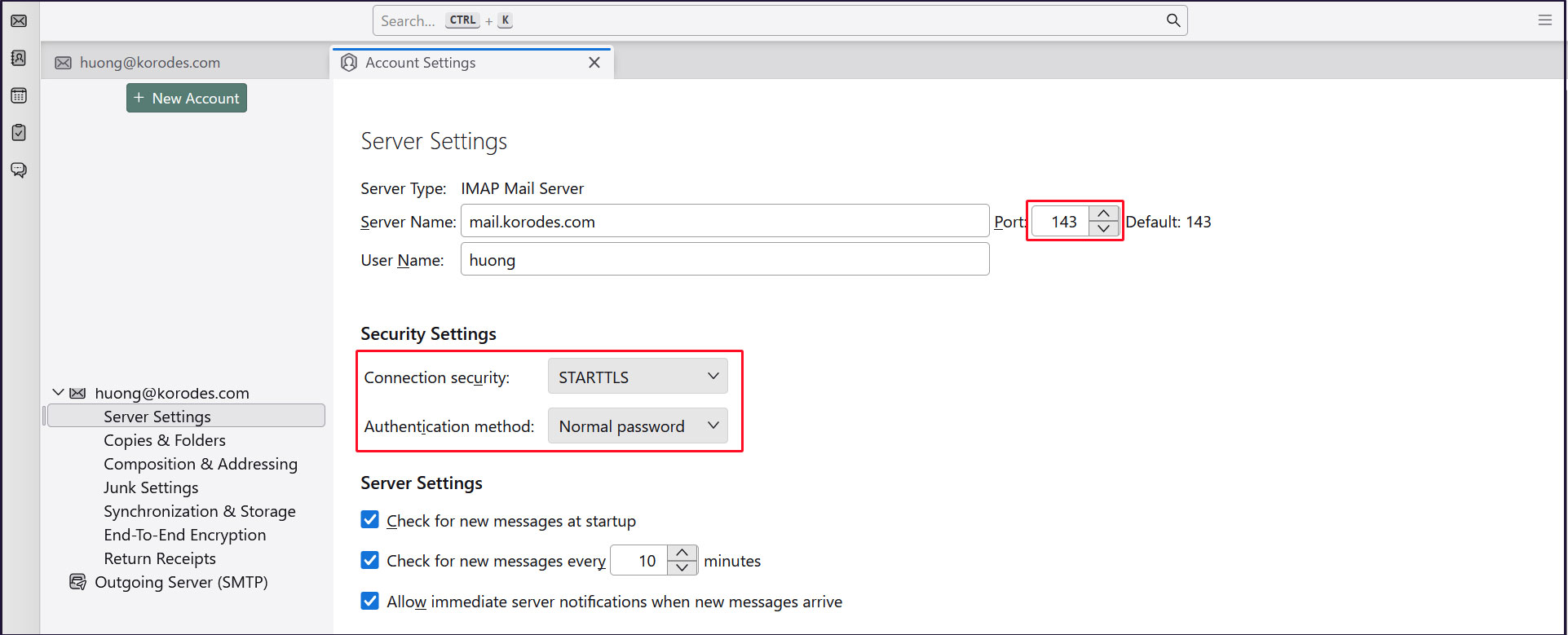
Incoming server
Port : 143
Connection security : STARTTLS
Authentication method : Normal password
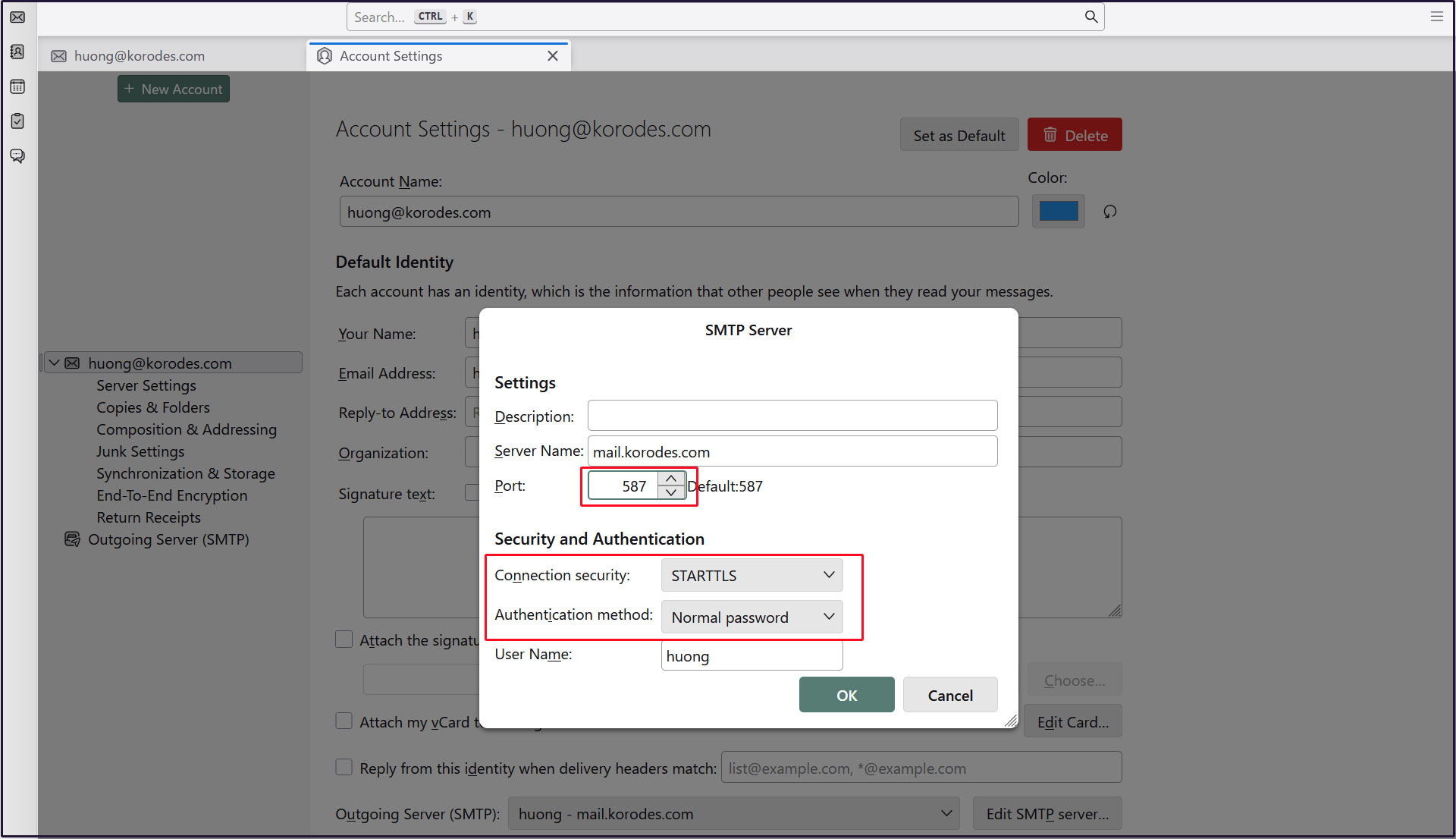
Sending server
Port : 587
Connection security : STARTTLS
Authentication method : Normal password