

Prerequisites
This time, we will install Suricata IDS and ElasticStack on the following server
・First Server Suricata IDS & Filebeat : Ubuntu Server26.10 IP Address(192.168.11.83)
・Second server ElasticSearch & kibana : Ubuntu Server26.10 IP Addtress(192.168.11.85)
Run as a sudo user other than root
First Server Suricata
SURICATA IDS/IPS is an open source IDS that monitors communications on the network and detects suspicious traffic.
The basic mechanism is signature-based, so it can detect predefined unauthorized communications. Suricata is also characterized by its ability to provide protection as well as detection.
1. Suricata Install
# apt -y install suricata
Version Check
# suricata -V
This is Suricata version 8.0.6 RELEASE
Enable the suricata.service
# systemctl enable suricata.service
Since the Suricata service must be configured first, stop the service.。
# systemctl stop suricata.service
2. Configure Suricata
①Determine interface and IP address where Suricata will inspect network packets
# ip --brief add
lo               UNKNOWN        127.0.0.1/8 ::1/128
ens33            UP             192.168.11.83/24 fe80::20c:29ff:fe74:5f8/64
Edit the /etc/suricata/suricata.yaml file
# vi /etc/suricata/suricata.yaml

Line 18 : Change (own network)
HOME_NET: "[192.168.11.0/24]"

Line 157 : Change
community-id: false → community-id: true

Line 660 : Change
af-packet:
  - interface: eth0
↓
af-packet:
  - interface: ens33 ←Change to each interface name
SURICATA supports live rule reloading, allowing you to add, remove, or edit rules without restarting the running SURICATA process.
To enable the live reload option, scroll to the bottom of the configuration file and add the following line:
detect-engine:
- rule-reload: true
This setting allows you to send a SIGUSR2 system signal to the running process, causing SURICATA to reload the modified rules into memory.
The following command notifies the SURICATA process to reload the rule set without restarting the process:
# kill -usr2 $(pidof suricata)
➁Add a rule set
Suricata includes a tool called suricata-update that can retrieve rule sets from external providers.
Executing the following command will download the latest rule set for the SURICATA server:
# suricata-update -o /var/lib/suricata/rules

-------------------------------------------------------------------------------------------
18/10/2026 -- 11:15:37 - <Info> -- Loaded 69166 rules.
18/10/2026 -- 11:15:37 - <Info> -- Disabled 16 rules.
18/10/2026 -- 11:15:37 - <Info> -- Enabled 0 rules.
18/10/2026 -- 11:15:37 - <Info> -- Modified 0 rules.
18/10/2026 -- 11:15:37 - <Info> -- Dropped 0 rules.
18/10/2026 -- 11:15:37 - <Info> -- Enabled 136 rules for flowbit dependencies.
18/10/2026 -- 11:15:37 - <Info> -- Backing up current rules.
18/10/2026 -- 11:15:37 - <Info> -- Writing rules to /var/lib/suricata/rules/suricata.rules: total: 69166; enabled: 53206; added: 69166; removed 0; modified: 0
18/10/2026 -- 11:15:37 - <Info> -- Writing /var/lib/suricata/rules/classification.config
18/10/2026 -- 11:15:37 - <Info> -- Testing with suricata -T.
18/10/2026 -- 11:15:57 - <Info> -- Done.
suricata-update has obtained the free Emerging Threats ET Open Rules and saved them to the /etc/suricata/rules/suricata.rules file in Suricata.
Additionally, it shows the number of processed rules, with 669166 added in this example, of which 53206 became active.
➂Add Rule Set Provider
Display the list of default providers
# suricata-update list-sources

Name: abuse.ch/feodotracker
  Vendor: Abuse.ch
  Summary: Abuse.ch Feodo Tracker Botnet C2 IP ruleset
  License: CC0-1.0
Name: abuse.ch/sslbl-blacklist
  Vendor: Abuse.ch
  Summary: Abuse.ch SSL Blacklist
  License: CC0-1.0
  Replaces: sslbl/ssl-fp-blacklist
Name: abuse.ch/sslbl-ja3
  Vendor: Abuse.ch
  Summary: Abuse.ch Suricata JA3 Fingerprint Ruleset
  License: CC0-1.0
  Replaces: sslbl/ja3-fingerprints
Name: abuse.ch/urlhaus
  Vendor: abuse.ch
  Summary: Abuse.ch URLhaus Suricata Rules
  License: CC0-1.0
Name: aleksibovellan/nmap
  Vendor: aleksibovellan
  Summary: Suricata IDS/IPS Detection Rules Against NMAP Scans
  License: MIT
Name: et/open
  Vendor: Proofpoint
  Summary: Emerging Threats Open Ruleset
  License: MIT
Name: et/pro
  Vendor: Proofpoint
  Summary: Emerging Threats Pro Ruleset
  License: Commercial
  Replaces: et/open
  Parameters: secret-code
  Subscription: https://www.proofpoint.com/us/threat-insight/et-pro-ruleset
Name: etnetera/aggressive
  Vendor: Etnetera a.s.
  Summary: Etnetera aggressive IP blacklist
  License: MIT
Name: ipfire/dbl
  Vendor: IPFire
  Summary: IPFire DBL
  License: CC-BY-SA-4.0
Name: julioliraup/antiphishing
  Vendor: julioliraup
  Summary: Antiphishing for protection against phishing attacks
  License: GPL-3.0
Name: oisf/trafficid
  Vendor: OISF
  Summary: Suricata Traffic ID ruleset
  License: MIT
Name: pawpatrules
  Vendor: pawpatrules
  Summary: PAW Patrules is a collection of rules for IDPS / NSM Suricata engine
  License: CC-BY-SA-4.0
Name: ptrules/open
  Vendor: Positive Technologies
  Summary: Positive Technologies Open Ruleset
  License: Custom
Name: scwx/enhanced
  Vendor: Secureworks
  Summary: Secureworks suricata-enhanced ruleset
  License: Commercial
  Parameters: secret-code
  Subscription: https://www.secureworks.com/contact/ (Please reference CTU Countermeasures)
Name: scwx/malware
  Vendor: Secureworks
  Summary: Secureworks suricata-malware ruleset
  License: Commercial
  Parameters: secret-code
  Subscription: https://www.secureworks.com/contact/ (Please reference CTU Countermeasures)
Name: scwx/security
  Vendor: Secureworks
  Summary: Secureworks suricata-security ruleset
  License: Commercial
  Parameters: secret-code
  Subscription: https://www.secureworks.com/contact/ (Please reference CTU Countermeasures)
Name: stamus/lateral
  Vendor: Stamus Networks
  Summary: Lateral movement rules
  License: GPL-3.0-only
Name: stamus/nrd-14-open
  Vendor: Stamus Networks
  Summary: Newly Registered Domains Open only - 14 day list, complete
  License: Commercial
  Parameters: secret-code
  Subscription: https://www.stamus-networks.com/stamus-labs/subscribe-to-threat-intel-feed
Name: stamus/nrd-30-open
  Vendor: Stamus Networks
  Summary: Newly Registered Domains Open only - 30 day list, complete
  License: Commercial
  Parameters: secret-code
  Subscription: https://www.stamus-networks.com/stamus-labs/subscribe-to-threat-intel-feed
Name: stamus/nrd-entropy-14-open
  Vendor: Stamus Networks
  Summary: Newly Registered Domains Open only - 14 day list, high entropy
  License: Commercial
  Parameters: secret-code
  Subscription: https://www.stamus-networks.com/stamus-labs/subscribe-to-threat-intel-feed
Name: stamus/nrd-entropy-30-open
  Vendor: Stamus Networks
  Summary: Newly Registered Domains Open only - 30 day list, high entropy
  License: Commercial
  Parameters: secret-code
  Subscription: https://www.stamus-networks.com/stamus-labs/subscribe-to-threat-intel-feed
Name: stamus/nrd-phishing-14-open
  Vendor: Stamus Networks
  Summary: Newly Registered Domains Open only - 14 day list, phishing
  License: Commercial
  Parameters: secret-code
  Subscription: https://www.stamus-networks.com/stamus-labs/subscribe-to-threat-intel-feed
Name: stamus/nrd-phishing-30-open
  Vendor: Stamus Networks
  Summary: Newly Registered Domains Open only - 30 day list, phishing
  License: Commercial
  Parameters: secret-code
  Subscription: https://www.stamus-networks.com/stamus-labs/subscribe-to-threat-intel-feed
Name: tgreen/hunting
  Vendor: tgreen
  Summary: Threat hunting rules
  License: GPLv3
For example, when including the tgreen/hunting rule set
# suricata-update enable-source tgreen/hunting -D /var/lib/suricata/rules

18/10/2026 -- 11:20:07 - <Info> -- Using Suricata configuration /etc/suricata/suricata.yaml
18/10/2026 -- 11:20:07 - <Info> -- Using /etc/suricata/rules for Suricata provided rules.
18/10/2026 -- 11:20:07 - <Info> -- Found Suricata version 8.0.6 at /usr/bin/suricata.
18/10/2026 -- 11:20:07 - <Warning> -- Source index does not exist, will use bundled one.
18/10/2026 -- 11:20:07 - <Warning> -- Please run suricata-update update-sources.
18/10/2026 -- 11:20:07 - <Info> -- Creating directory /var/lib/suricata/rules/update/sources
18/10/2026 -- 11:20:07 - <Info> -- Enabling default source et/open
18/10/2026 -- 11:20:07 - <Info> -- Source tgreen/hunting enabled
Perform the update
# suricata-update update-sources
3. Testing Suricata Configuration
Run the verification tool
# suricata -T -c /etc/suricata/suricata.yaml -v

Notice: suricata: This is Suricata version 8.0.6 RELEASE running in SYSTEM mode
Info: cpu: CPUs/cores online: 2
Info: suricata: Running suricata under test mode
Info: suricata: Setting engine mode to IDS mode by default
Info: exception-policy: master exception-policy set to: auto
Info: suricata: Preparing unexpected signal handling
Info: logopenfile: fast output device (regular) initialized: fast.log
Info: logopenfile: eve-log output device (regular) initialized: eve.json
Info: logopenfile: stats output device (regular) initialized: stats.log
Info: detect: 1 rule files processed. 53206 rules successfully loaded, 0 rules failed, 0 rules skipped
Info: threshold-config: Threshold config parsed: 0 rule(s) found
Info: detect: 53211 signatures processed. 1210 are IP-only rules, 4548 are inspecting packet payload, 47217 inspect application layer, 110 are decoder event only
Notice: suricata: Configuration provided was successfully loaded. Exiting.
Restart the Suricata service
# systemctl start suricata
# systemctl status suricata

● suricata.service - Suricata IDS/IDP daemon
     Loaded: loaded (/usr/lib/systemd/system/suricata.service; enabled; preset: enabled)
     Active: active (running) since Sun 2026-10-18 11:23:14 JST; 20s ago
 Invocation: 8dfd8689b56c43b6b2dfa08a7f401dbe
       Docs: man:suricata(8)
             man:suricatasc(8)
             https://suricata.io/documentation/
   Main PID: 6013 (Suricata-Main)
      Tasks: 8 (limit: 3938)
     Memory: 420.4M (peak: 420.4M)
        CPU: 8.937s
     CGroup: /system.slice/suricata.service
             └─6013 /usr/bin/suricata -D --af-packet -c /etc/suricata/suricata.yaml --pidfile /var/run/suricata/suricata.>

Oct 18 11:23:05 Lepard systemd[1]: Starting suricata.service - Suricata IDS/IDP daemon...
Oct 18 11:23:05 Lepard suricata[6012]: i: suricata: This is Suricata version 8.0.6 RELEASE running in SYSTEM mode
Oct 18 11:23:14 Lepard systemd[1]: Started suricata.service - Suricata IDS/IDP daemon.
Check the log file
# tail -f /var/log/suricata/suricata.log

[6013 - Suricata-Main] 2026-10-18 11:23:05 Info: logopenfile: fast output device (regular) initialized: fast.log
[6013 - Suricata-Main] 2026-10-18 11:23:05 Info: logopenfile: eve-log output device (regular) initialized: eve.json
[6013 - Suricata-Main] 2026-10-18 11:23:05 Info: logopenfile: stats output device (regular) initialized: stats.log
[6013 - Suricata-Main] 2026-10-18 11:23:12 Info: detect: 1 rule files processed. 53206 rules successfully loaded, 0 rules failed, 0 rules skipped
[6013 - Suricata-Main] 2026-10-18 11:23:12 Info: threshold-config: Threshold config parsed: 0 rule(s) found
[6013 - Suricata-Main] 2026-10-18 11:23:12 Info: detect: 53211 signatures processed. 1210 are IP-only rules, 4548 are inspecting packet payload, 47217 inspect application layer, 110 are decoder event only
[6013 - Suricata-Main] 2026-10-18 11:23:14 Info: unix-manager: unix socket '/var/run/suricata/suricata-command.socket'
[6013 - Suricata-Main] 2026-10-18 11:23:14 Info: runmodes: ens33: creating 2 threads
[6016 - W#01-ens33] 2026-10-18 11:23:14 Info: ioctl: ens33: MTU 1500
[6013 - Suricata-Main] 2026-10-18 11:23:14 Notice: threads: Threads created -> W: 2 FM: 1 FR: 1   Engine started.
4. Create and test Suricata Custom Rules
①Create a file with customer rules
# vi /var/lib/suricata/rules/local.rules
Describe the following contents
alert icmp any any -> any any (msg:"ICMP Ping"; sid:100001; rev:1;)
②Editing suricata.yaml(Define the path of the new rule)
# vi /etc/suricata/suricata.yaml

# Per Line2332 : Add
default-rule-path: /var/lib/suricata/rules

rule-files:
  - suricata.rules
  - local.rules
③Verify SURICATA Configuration
# suricata -T -c /etc/suricata/suricata.yaml -v

Notice: suricata: This is Suricata version 8.0.6 RELEASE running in SYSTEM mode
Info: cpu: CPUs/cores online: 2
Info: suricata: Running suricata under test mode
Info: suricata: Setting engine mode to IDS mode by default
Info: exception-policy: master exception-policy set to: auto
Info: suricata: Preparing unexpected signal handling
Info: logopenfile: fast output device (regular) initialized: fast.log
Info: logopenfile: eve-log output device (regular) initialized: eve.json
Info: logopenfile: stats output device (regular) initialized: stats.log
Info: detect: 2 rule files processed. 53207 rules successfully loaded, 0 rules failed, 0 rules skipped
Info: threshold-config: Threshold config parsed: 0 rule(s) found
Info: detect: 53212 signatures processed. 1211 are IP-only rules, 4548 are inspecting packet payload, 47217 inspect application layer, 110 are decoder event only
Notice: suricata: Configuration provided was successfully loaded. Exiting.
Suricat service Restart
# systemctl restart suricata
④Custom Rules Application Test
Run ping on another device on the same local network to see if it was recorded in the log
# cat /var/log/suricata/fast.log

10/18/2026-11:42:53.841603  [**] [1:100000:1] ICMP Ping [**] [Classification: (null)] [Priority: 3] {ICMP} 192.168.11.14:8 -> 192.168.11.83:0
10/18/2026-11:42:53.841645  [**] [1:100000:1] ICMP Ping [**] [Classification: (null)] [Priority: 3] {ICMP} 192.168.11.83:0 -> 192.168.11.14:0
To get a log in JSON format, install jq on the system
# apt -y install jq
Run the following command and run ping on another device on the same local network
# tail -f /var/log/suricata/eve.json | jq 'select(.event_type=="alert")'

When ping is executed, it is displayed as follows in the console
{
  "timestamp": "2026-10-18T12:37:37.743567+0900",
  "flow_id": 378695220128799,
  "in_iface": "ens33",
  "event_type": "alert",
  "src_ip": "192.168.11.83",
  "dest_ip": "192.168.11.14",
  "proto": "ICMP",
  "ip_v": 4,
  "icmp_type": 0,
  "icmp_code": 0,
  "pkt_src": "wire/pcap",
  "community_id": "1:K09ijpWpwrp7sSrxOGACqhHkilo=",
  "alert": {
    "action": "allowed",
    "gid": 1,
    "signature_id": 100001,
    "rev": 1,
    "signature": "ICMP Ping",
    "category": "",
    "severity": 3
  },
5.Reset SURICATA and restart it in IPS mode.
SURICATA operates in IDS mode by default and does not actively block network traffic.
To switch to IPS mode, you need to change SURICATA's default settings.
5.1 Enabling nfqueue mode
# vi /usr/lib/systemd/system/suricata.service

Change as follows
[Service]
#ExecStart=/usr/bin/suricata -D --af-packet -c /etc/suricata/suricata.yaml --pidfile /var/run/suricata/suricata.pid

ExecStart=/usr/bin/suricata -D -q 0 -c /etc/suricata/suricata.yaml --pidfile  /var/run/suricata/suricata.pid
Reload the configuration and restart Suricata.
# systemctl daemon-reload
# systemctl restart suricata.service
With this change, you are now ready to send traffic to Suricata using the UFW firewall.
5.2 Configuring UFW to send traffic to Suricata
To add the rules required for Suricata to UFW, you must directly edit the firewall files /etc/ufw/before.rules and /etc/ufw/before6.rules.
# vi /etc/ufw/before.rules

Added the following per 19th line
# Don't delete these required lines, otherwise there will be errors
*filter
:ufw-before-input - [0:0]
:ufw-before-output - [0:0]
:ufw-before-forward - [0:0]
:ufw-not-local - [0:0]
# End required lines

## Start Suricata NFQUEUE rules
-I INPUT 1 -p tcp --dport 2244 -j NFQUEUE --queue-bypass
-I OUTPUT 1 -p tcp --sport 2244 -j NFQUEUE --queue-bypass
-I FORWARD -j NFQUEUE
-I INPUT 2 -j NFQUEUE
-I OUTPUT 2 -j NFQUEUE
## End Suricata NFQUEUE rules
Similarly, change /etc/ufw/before6.rules
# vi /etc/ufw/before6.rules
Restart UFW
# systemctl restart ufw.service
Change /var/lib/suricata/rules/local.rules to drop
# vi /var/lib/suricata/rules/local.rules

drop icmp any any -> any any (msg:"ICMP Ping"; sid:100001; rev:1;)
Suricata restart
# systemctl restart ufw.service
Run ping from another device on the local network and check eve.json
"action": "blocked"
# jq 'select(.alert .signature_id==100001)' /var/log/suricata/eve.json

{
  "timestamp": "2026-10-18T14:17:16.519742+0900",
  "flow_id": 1387854135080381,
  "event_type": "alert",
  "src_ip": "192.168.11.14",
  "dest_ip": "192.168.11.83",
  "proto": "ICMP",
  "ip_v": 4,
  "icmp_type": 8,
  "icmp_code": 0,
  "pkt_src": "wire/pcap",
  "community_id": "1:K09ijpWpwrp7sSrxOGACqhHkilo=",
  "alert": {
    "action": "blocked",
    "gid": 1,
    "signature_id": 100001,
    "rev": 1,
    "signature": "ICMP Ping",
    "category": "",
    "severity": 3
  },
Elastic stack 9.x Install
Install and configure the Elastic Stack to visualize and search SURICATA logs
This section is primarily performed on a second Ubuntu 26.10 server.
①Install the Elastic Stack 9.x repository signing key
# apt update
# apt -y install gnupg2
# wget -qO - https://artifacts.elastic.co/GPG-KEY-elasticsearch | gpg --dearmor -o /usr/share/keyrings/elasticsearch-keyring.gpg
➁Install the Elastic Stack 9.x repository
# echo "deb [signed-by=/usr/share/keyrings/elasticsearch-keyring.gpg] https://artifacts.elastic.co/packages/9.x/apt stable main" | tee /etc/apt/sources.list.d/elastic-9.x.list
update
# apt update
➂Installing Elasticsearch 9.x on Ubuntu 26.10
# apt install -y apt-transport-https
# apt install -y elasticsearch
During installation, security features are enabled by default;
--------------------------- Security autoconfiguration information ------------------------------

Authentication and authorization are enabled.
TLS for the transport and HTTP layers is enabled and configured.

The generated password for the elastic built-in superuser is : -6oTnVUtFlKsW0408Aem

If this node should join an existing cluster, you can reconfigure this with
'/usr/share/elasticsearch/bin/elasticsearch-reconfigure-node --enrollment-token <token-here>'
after creating an enrollment token on your existing cluster.

You can complete the following actions at any time:

Reset the password of the elastic built-in superuser with
'/usr/share/elasticsearch/bin/elasticsearch-reset-password -u elastic'.

Generate an enrollment token for Kibana instances with
 '/usr/share/elasticsearch/bin/elasticsearch-create-enrollment-token -s kibana'.

Generate an enrollment token for Elasticsearch nodes with
'/usr/share/elasticsearch/bin/elasticsearch-create-enrollment-token -s node'.

-------------------------------------------------------------------------------------------------
Authentication and authorization are enabled.
TLS is enabled and configured at the transport layer and HTTP layer.
An Elastic superuser account (elastic) and its password will be created.
④Configuring Elasticsearch 9.x on Ubuntu
Since this is a basic single-node cluster, we will use the default settings.
Checking the Elasticsearch configuration file /etc/elasticsearch/elasticsearch.yml reveals that security settings are enabled.
# cat /etc/elasticsearch/elasticsearch.yml
#----------------------- BEGIN SECURITY AUTO CONFIGURATION -----------------------
#
# The following settings, TLS certificates, and keys have been automatically
# generated to configure Elasticsearch security features on 18-10-2026 06:04:30
#
# --------------------------------------------------------------------------------

# Enable security features
xpack.security.enabled: true

xpack.security.enrollment.enabled: true

# Enable encryption for HTTP API client connections, such as Kibana, Logstash, and Agents
xpack.security.http.ssl:
  enabled: true
  keystore.path: certs/http.p12

# Enable encryption and mutual authentication between cluster nodes
xpack.security.transport.ssl:
  enabled: true
  verification_mode: certificate
  keystore.path: certs/transport.p12
  truststore.path: certs/transport.p12
# Create a new cluster with the current node only
# Additional nodes can still join the cluster later
cluster.initial_master_nodes: ["Lion"]

# Allow HTTP API connections from anywhere
# Connections are encrypted and require user authentication
http.host: 0.0.0.0

# Allow other nodes to join the cluster from anywhere
# Connections are encrypted and mutually authenticated
#transport.host: 0.0.0.0

#----------------------- END SECURITY AUTO CONFIGURATION -------------------------
⑤Starting Elasticsearch
Start Elasticsearch and configure it to run at system startup.
# systemctl daemon-reload
# systemctl enable --now elasticsearch
# systemctl start elasticsearch
Check the status
# systemctl status elasticsearch

● elasticsearch.service - Elasticsearch
     Loaded: loaded (/usr/lib/systemd/system/elasticsearch.service; enabled; preset: enabled)
     Active: active (running) since Sun 2026-10-18 15:10:32 JST; 48s ago
 Invocation: 14bcd644cfb3447eacfd441761f39275
       Docs: https://www.elastic.co
   Main PID: 4075 (server-launcher)
      Tasks: 102 (limit: 3939)
     Memory: 2.2G (peak: 2.2G, swap: 56.5M, swap peak: 56.5M)
        CPU: 1min 11.012s
     CGroup: /system.slice/elasticsearch.service
             ├─4075 /usr/share/elasticsearch/lib/tools/server-launcher/server-launcher -p /run>
             ├─4125 /usr/share/elasticsearch/jdk/bin/java -Des.networkaddress.cache.ttl=60 -De>
             └─4148 /usr/share/elasticsearch/modules/x-pack-ml/platform/linux-x86_64/bin/contr>

Oct 18 15:09:39 Lion systemd[1]: Starting elasticsearch.service - Elasticsearch...
Oct 18 15:09:44 Lion systemd-entrypoint[4075]: WARNING: Unknown module: org.apache.arrow.memor>
Oct 18 15:10:24 Lion systemd-entrypoint[4075]: WARNING: A terminally deprecated method in sun.>
Oct 18 15:10:24 Lion systemd-entrypoint[4075]: WARNING: sun.misc.Unsafe::arrayBaseOffset has b>
Oct 18 15:10:24 Lion systemd-entrypoint[4075]: WARNING: Please consider reporting this to the >
Oct 18 15:10:24 Lion systemd-entrypoint[4075]: WARNING: sun.misc.Unsafe::arrayBaseOffset will >
Oct 18 15:10:32 Lion systemd[1]: Started elasticsearch.service - Elasticsearch.
You can also use the curl command to check the status of Elasticsearch. Replace the IP address as appropriate.
# curl https://192.168.11.85:9200 --cacert /etc/elasticsearch/certs/http_ca.crt -u elastic
When prompted, enter the Elasticsearch password generated during Elasticsearch installation.
The output will appear as follows:
Enter host password for user 'elastic':
{
  "name" : "Lion",
  "cluster_name" : "elasticsearch",
  "cluster_uuid" : "N6xksvcGTwyXSSjL4CudDg",
  "version" : {
    "number" : "9.5.5",
    "build_flavor" : "default",
    "build_type" : "deb",
    "build_hash" : "48acba663b09e70b115dd879329141506c377890",
    "build_date" : "2026-09-30T22:12:03.984586187Z",
    "build_snapshot" : false,
    "lucene_version" : "10.5.1",
    "minimum_wire_compatibility_version" : "8.19.0",
    "minimum_index_compatibility_version" : "8.0.0"
  },
  "tagline" : "You Know, for Search"
}
Also, ensure that both the HTTP port and the transport port are open;
# ss -altnp | grep -E "9200|9300"
LISTEN 0      4096                    *:9200             *:*    users:(("java",pid=4125,fd=883))
LISTEN 0      4096                [::1]:9300          [::]:*    users:(("java",pid=4125,fd=879))
LISTEN 0      4096   [::ffff:127.0.0.1]:9300             *:*    users:(("java",pid=4125,fd=880))
⑥Resetting Elasticsearch Passwords
The automatically generated Elastic user password is too complex, so reset it using the /usr/share/elasticsearch/bin/elasticsearch-reset-password command.
To reset your password, execute the command.
# /usr/share/elasticsearch/bin/elasticsearch-reset-password -u elastic -i
This tool will reset the password of the [elastic] user.
You will be prompted to enter the password.
Please confirm that you would like to continue [y/N]y


Enter password for [elastic]:
Re-enter password for [elastic]:
Password for the [elastic] user successfully reset.
⑦Elasticsearch Logs
Elasticsearch writes logs to the /var/log/elasticsearch path. The log file you need to check when there is an issue with the Elasticsearch instance is /var/log/elasticsearch/CLUSTER_NAME.log.
CLUSTER_NAME is the value of the cluster.name option in the elasticsearch.yaml file.
If this value is not changed, the default is elasticsearch, and the log file will be located at /var/log/elasticsearch/elasticsearch.log.
# tail -f /var/log/elasticsearch/elasticsearch.log
Log
[2026-10-18T15:10:38,112][INFO ][o.e.x.c.s.a.UpdateIndexMigrationVersionAction] [Lion] Updated project=[default] index=[.security-7] to migration-version=[3]
[2026-10-18T15:10:38,112][INFO ][o.e.x.s.s.SecurityMigrationExecutor] [Lion] Security migration not needed. Setting current version to: [3]
[2026-10-18T15:10:43,001][INFO ][o.e.c.m.MetadataCreateIndexService] [Lion] creating index [.ds-ilm-history-7-2026.10.18-000001] in project [default], cause [initialize_data_stream], templates [provided in request], shards [1]/[1]
[2026-10-18T15:10:43,001][INFO ][o.e.c.m.MetadataCreateDataStreamService] [Lion] adding data stream [ilm-history-7] with write index [.ds-ilm-history-7-2026.10.18-000001], backing indices [], and aliases []
[2026-10-18T15:10:43,002][INFO ][o.e.c.r.a.AllocationService] [Lion] in project [default] updating number_of_replicas to [0] for indices [.ds-ilm-history-7-2026.10.18-000001]
[2026-10-18T15:10:43,088][INFO ][o.e.c.r.a.AllocationService] [Lion] current.health="GREEN" message="Cluster health status changed from [YELLOW] to [GREEN] (reason: [shards started [[.ds-ilm-history-7-2026.10.18-000001][0]]])." previous.health="YELLOW" reason="shards started [[.ds-ilm-history-7-2026.10.18-000001][0]]"
[2026-10-18T15:15:26,114][INFO ][o.e.x.s.a.f.FileUserPasswdStore] [Lion] users file [/etc/elasticsearch/users] changed. updating users...
[2026-10-18T15:15:26,118][INFO ][o.e.x.s.a.f.FileUserRolesStore] [Lion] users roles file [/etc/elasticsearch/users_roles] changed. updating users roles...
[2026-10-18T15:15:46,134][INFO ][o.e.x.s.a.f.FileUserPasswdStore] [Lion] users file [/etc/elasticsearch/users] changed. updating users...
[2026-10-18T15:15:46,135][INFO ][o.e.x.s.a.f.FileUserRolesStore] [Lion] users roles file [/etc/elasticsearch/users_roles] changed. updating users roles...
Kibana 9.x Install
This section is primarily performed on a second Ubuntu 26.10 server.
①Install
# apt install kibana
➁Configuring Kibana 9
Kibana is configured by default to run on localhost:5601. To allow external access, edit the configuration file and replace the value of server.host with the interface IP.
# vi /etc/kibana/kibana.yml

Line 6 : Uncomments
server.port: 5601

Line 12 : Add
#server.host: "localhost"
server.host: "192.168.11.85"
➂Generating a Kibana-Elasticsearch Enrollment Token
To configure a Kibana instance to communicate with an existing Elasticsearch cluster with security enabled, an enrollment token is required. An enrollment token for Kibana can be generated using the following command:
# /usr/share/elasticsearch/bin/elasticsearch-create-enrollment-token -s kibana

eyJ2ZXIiOiI4LjE0LjAiLCJhZHIiOlsiMTkyLjE2OC4xMS44NTo5MjAwIl0sImZnciI6IjVkNjVmZjMwOWJkZThiYmJiNWM4NDc5NDhmYTRhNTg5MTFjYzFjNTdhMzI0MTJjNDBiM2E0MWEyMTJmNTQxOTMiLCJrZXkiOiJBMHF5VGFFQm51MjBmb0NhdEZ5Njo5el93bkNwRGN2Yl8yMHg0eXVWVVJnIn0=
④Generating Kibana Encryption Keys
Kibana uses encryption keys in several areas, from encrypting data in Kibana-related indices to storing session information. The required keys are as follows:
xpack.encryptedSavedObjects.encryptionKey:Used to encrypt saved objects such as dashboards and visualizations.xpack.reporting.encryptionKey: Used for encrypting saved reportsxpack.security.encryptionKey: Used for encrypting session information
These are generated using the following command:
# /usr/share/kibana/bin/kibana-encryption-keys generate

Settings:
xpack.encryptedSavedObjects.encryptionKey: 14e9a68a73e2c28bb14d66d2e9373b557165e0f679ec4a3894d9604a5e60f707
xpack.reporting.encryptionKey: 36026ec65eba4443a1dc4736abe151afca134d93e631d0864c2dadb70289d1aa
xpack.security.encryptionKey: 2daf004592b2a54cf6f5bcea4884dcf63a812d1e13a6f1622d2263f4afd17c9c
Insert the above into Kibana's configuration file kibana.yml.
# echo -e "xpack.encryptedSavedObjects.encryptionKey: 14e9a68a73e2c28bb14d66d2e9373b557165e0f679ec4a3894d9604a5e60f707
xpack.reporting.encryptionKey: 36026ec65eba4443a1dc4736abe151afca134d93e631d0864c2dadb70289d1aa
xpack.security.encryptionKey: 2daf004592b2a54cf6f5bcea4884dcf63a812d1e13a6f1622d2263f4afd17c9c" >> /etc/kibana/kibana.yml
⑤Running Kibana
Launch Kibana 9 and configure it to run at system startup.
# systemctl enable --now kibana
# systemctl start kibana
status
# systemctl status kibana

● kibana.service - Kibana
     Loaded: loaded (/usr/lib/systemd/system/kibana.service; enabled; preset: enabled)
     Active: active (running) since Sun 2026-10-18 15:35:13 JST; 1min 3s ago
 Invocation: 2d1d8bfdaa6f4e4aba5b90dc172bedd5
       Docs: https://www.elastic.co
   Main PID: 4654 (MainThread)
      Tasks: 11 (limit: 3939)
     Memory: 846.5M (peak: 846.7M)
        CPU: 25.314s
     CGroup: /system.slice/kibana.service
             └─4654 /usr/share/kibana/bin/../node/default/bin/node /usr/share/kibana/bin/../no>

Oct 18 15:35:21 Lion kibana[4654]: Native global console methods have been overridden in produ>
Oct 18 15:35:28 Lion kibana[4654]: [2026-10-18T15:35:28.180+09:00][INFO ][root] Kibana is star>
Oct 18 15:35:28 Lion kibana[4654]: [2026-10-18T15:35:28.260+09:00][INFO ][node] Kibana process>
Oct 18 15:35:51 Lion kibana[4654]: [2026-10-18T15:35:51.486+09:00][INFO ][plugins-service] The>
Oct 18 15:35:51 Lion kibana[4654]: [2026-10-18T15:35:51.641+09:00][INFO ][http.server.Preboot]>
Oct 18 15:35:52 Lion kibana[4654]: [2026-10-18T15:35:52.614+09:00][INFO ][plugins-system.prebo>
Oct 18 15:35:52 Lion kibana[4654]: [2026-10-18T15:35:52.654+09:00][INFO ][preboot] "interactiv>
Oct 18 15:35:52 Lion kibana[4654]: [2026-10-18T15:35:52.706+09:00][INFO ][root] Holding setup >
Oct 18 15:36:00 Lion kibana[4654]: i Kibana has not been configured.
Oct 18 15:36:00 Lion kibana[4654]: Go to http://192.168.11.85:5601/?code=786389 to get started.
The following appears toward the end of the output:
i Kibana has not been configured.
Go to http://192.168.11.85:5601/?code=786389 to get started.
Copy the provided Kibana URL (including the code) and use it in your browser to access Kibana and complete the setup.
Similarly, Kibana logs are available in /var/log/kibana/kibana.log and /var/log/syslog.
⑥Accessing the Kibana 9 Dashboard
access http://192.168.11.85:5601/?code=786389
(Copy each person's appropriate address)
If UFW is running, open the Kibana port.
# ufw allow 5601/tcp
# ufw reload
When you access Kibana 9, the welcome page prompts you to configure Elastic.
First, enter the generated registration token.
Copy the Kibana token generated using the command /usr/share/elasticsearch/bin/elasticsearch-create-enrollment-token -s kibana and paste it into the box.
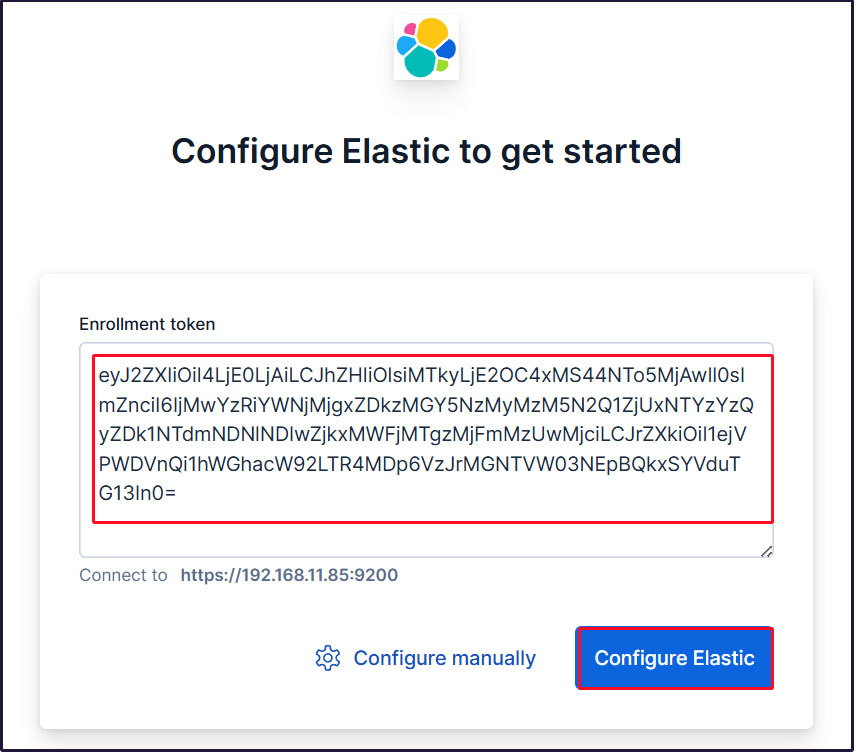
Paste the token, and Kibana will automatically connect to Elasticsearch.
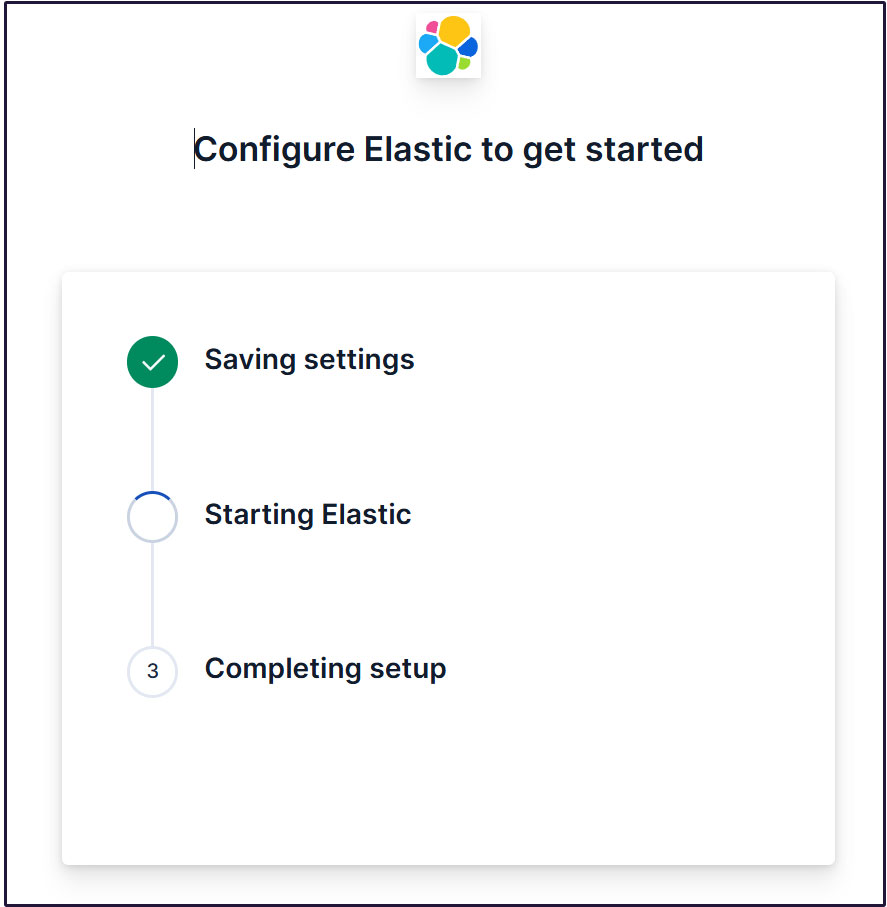
Click Configure Elastic. The settings will be saved, and Elasticsearch will be configured and restarted.
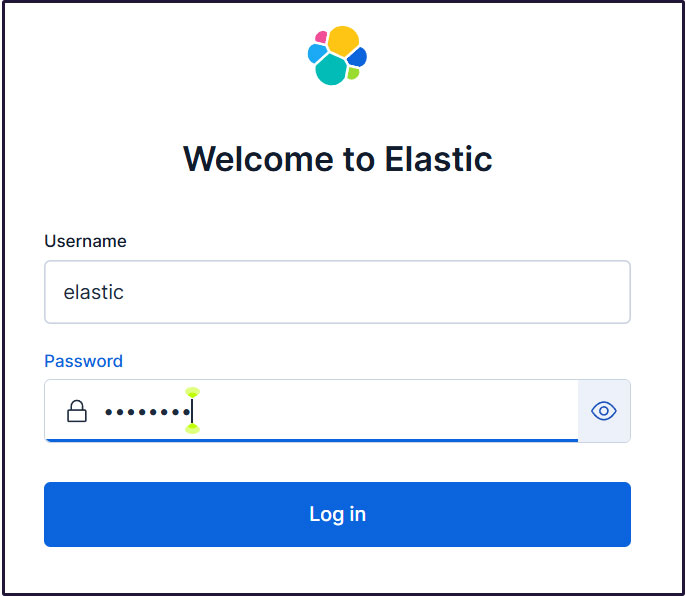
Proceed to the login page. Log in using the generated Elastic user credentials.
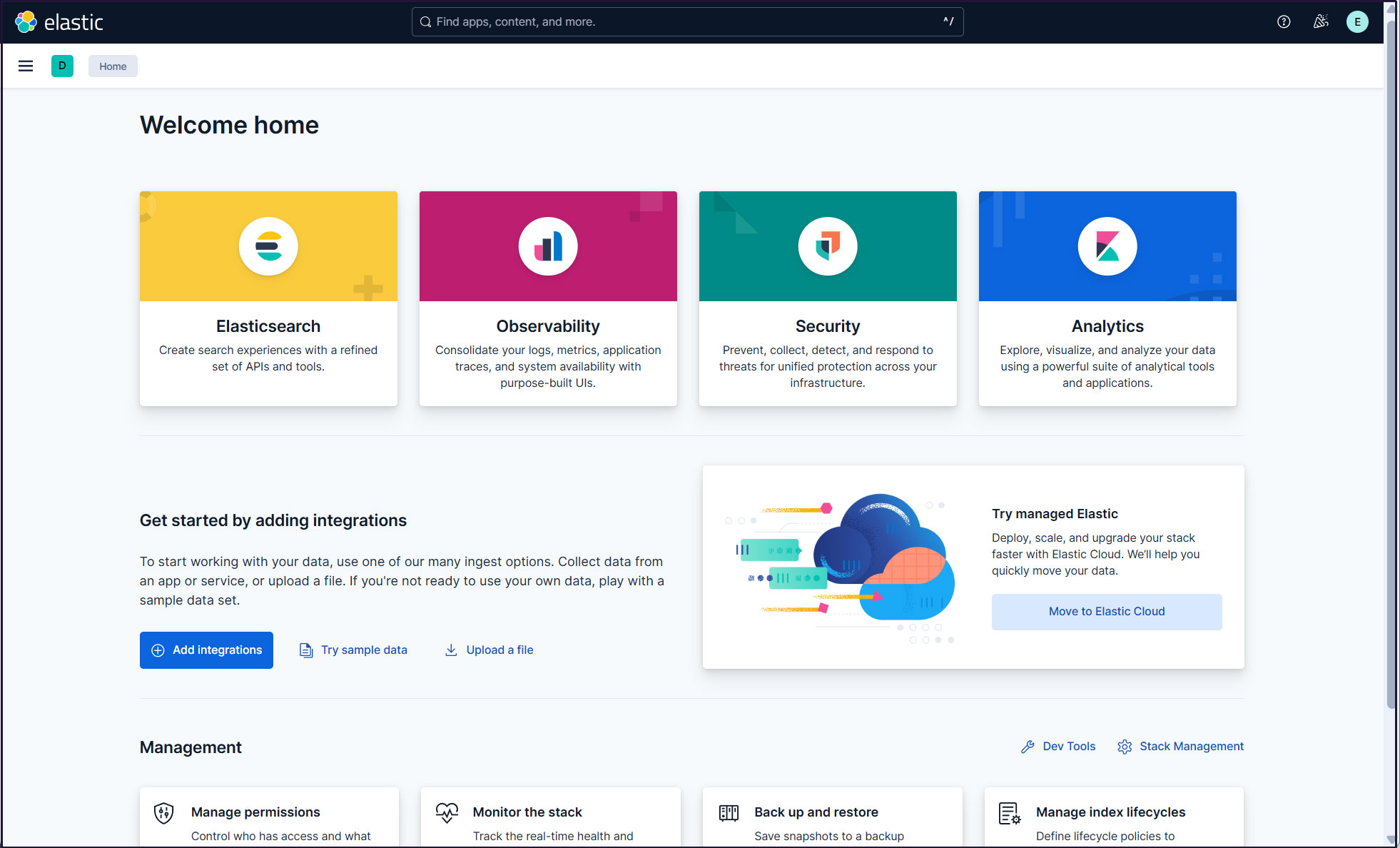
On the welcome page, click "Explore on my own" to proceed to the Kibana 9.x dashboard.

Installing Filebeat 9
To collect and monitor logs from Ubuntu 26.04 using the ELK Stack, you need to install Filebeat.
This task will be performed on the first server, Ubuntu 26.10, with the IP address 192.168.11.83.
①Install the Elastic Stack 9.x repository signing key
# apt update
# apt -y install gnupg2
# wget -qO - https://artifacts.elastic.co/GPG-KEY-elasticsearch | gpg --dearmor -o /usr/share/keyrings/elasticsearch-keyring.gpg
➁Install the Elastic Stack 9.x repository
# echo "deb [signed-by=/usr/share/keyrings/elasticsearch-keyring.gpg] https://artifacts.elastic.co/packages/9.x/apt stable main" | tee /etc/apt/sources.list.d/elastic-9.x.list
update
# apt update
➂Installing filebeat 9.x
# apt -y install apt-transport-https
# apt -y install filebeat
④Filebeat Logging Configuration
The default Filebeat configuration file is located at /etc/filebeat/filebeat.yml.
To configure Filebeat to write logs to its own log file, enter the following setting in the configuration file:
# cat >> /etc/filebeat/filebeat.yml << 'EOL'
logging.level: info
logging.to_files: true
logging.files:
  path: /var/log/filebeat
  name: filebeat
  keepfiles: 7
  permissions: 0640
EOL
⑤Connect Filebeat to the data processing system
Configure Filebeat to connect to the data processing system. In this case, it is Elasticsearch.
To send logs directly to Elasticsearch, edit the Filebeat configuration file and update the output configuration section.
Connecting to Elasticsearch 9 requires SSL and authentication.
Verify that you can connect to Elasticsearch port 9200/tcp (Port 9200 is open on the second server running Ubuntu 26.10).
# telnet 192.168.11.85 9200

Trying 192.168.11.85...
Connected to 192.168.11.85.
Escape character is '^]'.
⑥Creating an Elasticsearch CA Certificate
Download the Elasticsearch CA certificate and save it to any directory (in this case, save it as /etc/filebeat/elastic-ca.crt).
# openssl s_client -connect 192.168.11.85:9200 \
-showcerts </dev/null 2>/dev/null | \
openssl x509 -outform PEM > /etc/filebeat/elastic-ca.crt
Retrieve the credentials Filebeat uses for Elasticsearch authentication. In this case, use the credentials for the default superuser, the Elastic user.
# vi /etc/filebeat/filebeat.yml
●Below the commented-out line #host: "localhost:5601" on line 137, add a line pointing to the private IP address and port of your
host: "192.168.11.85:5601"
●Line 164 : Comment
#hosts: ["localhost:9200"]
●Line 165 :Enter the Elastic Stack IP address and Elasticsearch port number.
hosts: ["https://192.168.11.85:9200"]
●Line 171 : Uncomment
protocol: "https"
●Line 172 : Elasticsearch CA Certificate Specification
ssl.certificate_authorities: ["/etc/filebeat/elastic-ca.crt"]
●Uncomment lines 175 and 176, leave [username] as the default, and enter the password for the [elastic] user in [password].
username: "elastic"
password: “xxxxxxxxx"
⑦Configuration File Test
# filebeat test config
Config OK
⑧Enable the built-in Suricata module in Filebeats
# filebeat modules enable suricata
The above command will change /etc/filebeat/modules.d/suricata.yml.disabled to /etc/filebeat/modules.d/suricata.yml, but the contents remain unchanged. Therefore, edit it as follows:
Modify modules.d/suricata.yml as follows:
# vi /etc/filebeat/modules.d/suricata.yml

Line 6-7 : Change
  eve:
    enabled: true
    var.paths: ["/var/log/suricata/eve.json"]
⑨Set up the initial environment
Load SIEM dashboards and pipelines into Elasticsearch
Execute the filebeat setup command
# filebeat setup -e

 ------------------------------------------------------------------------------
{"log.level":"info","@timestamp":"2026-10-19T08:31:58.782+0900","log.logger":"modules","log.origin":{"function":"github.com/elastic/beats/v7/filebeat/fileset.LoadPipeline","file.name":"fileset/pipelines.go","file.line":134},"message":"Elasticsearch pipeline loaded.","service.name":"filebeat","pipeline":"filebeat-9.5.5-suricata-eve-pipeline","ecs.version":"1.6.0"}
{"log.level":"info","@timestamp":"2026-10-19T08:31:58.872+0900","log.logger":"modules","log.origin":{"function":"github.com/elastic/beats/v7/filebeat/fileset.LoadPipeline","file.name":"fileset/pipelines.go","file.line":134},"message":"Elasticsearch pipeline loaded.","service.name":"filebeat","pipeline":"filebeat-9.5.5-suricata-eve-dns","ecs.version":"1.6.0"}
{"log.level":"info","@timestamp":"2026-10-19T08:31:59.068+0900","log.logger":"modules","log.origin":{"function":"github.com/elastic/beats/v7/filebeat/fileset.LoadPipeline","file.name":"fileset/pipelines.go","file.line":134},"message":"Elasticsearch pipeline loaded.","service.name":"filebeat","pipeline":"filebeat-9.5.5-suricata-eve-dns-answer-v1","ecs.version":"1.6.0"}
{"log.level":"info","@timestamp":"2026-10-19T08:32:13.889+0900","log.logger":"modules","log.origin":{"function":"github.com/elastic/beats/v7/filebeat/fileset.LoadPipeline","file.name":"fileset/pipelines.go","file.line":134},"message":"Elasticsearch pipeline loaded.","service.name":"filebeat","pipeline":"filebeat-9.5.5-suricata-eve-dns-answer-v2","ecs.version":"1.6.0"}
{"log.level":"info","@timestamp":"2026-10-19T08:32:14.025+0900","log.logger":"modules","log.origin":{"function":"github.com/elastic/beats/v7/filebeat/fileset.LoadPipeline","file.name":"fileset/pipelines.go","file.line":134},"message":"Elasticsearch pipeline loaded.","service.name":"filebeat","pipeline":"filebeat-9.5.5-suricata-eve-tls","ecs.version":"1.6.0"}
{"log.level":"info","@timestamp":"2026-10-19T08:32:14.096+0900","log.logger":"modules","log.origin":{"function":"github.com/elastic/beats/v7/filebeat/fileset.LoadPipeline","file.name":"fileset/pipelines.go","file.line":134},"message":"Elasticsearch pipeline loaded.","service.name":"filebeat","pipeline":"filebeat-9.5.5-suricata-eve-http","ecs.version":"1.6.0"}
-------------------------------------------------------------------------------
Loaded Ingest pipelines
⑩Start the Filebeat service
# systemctl start filebeat.service
⑪Check in Kibana
I will log back into Kibana.
accsess http://192.168.11.85:5601
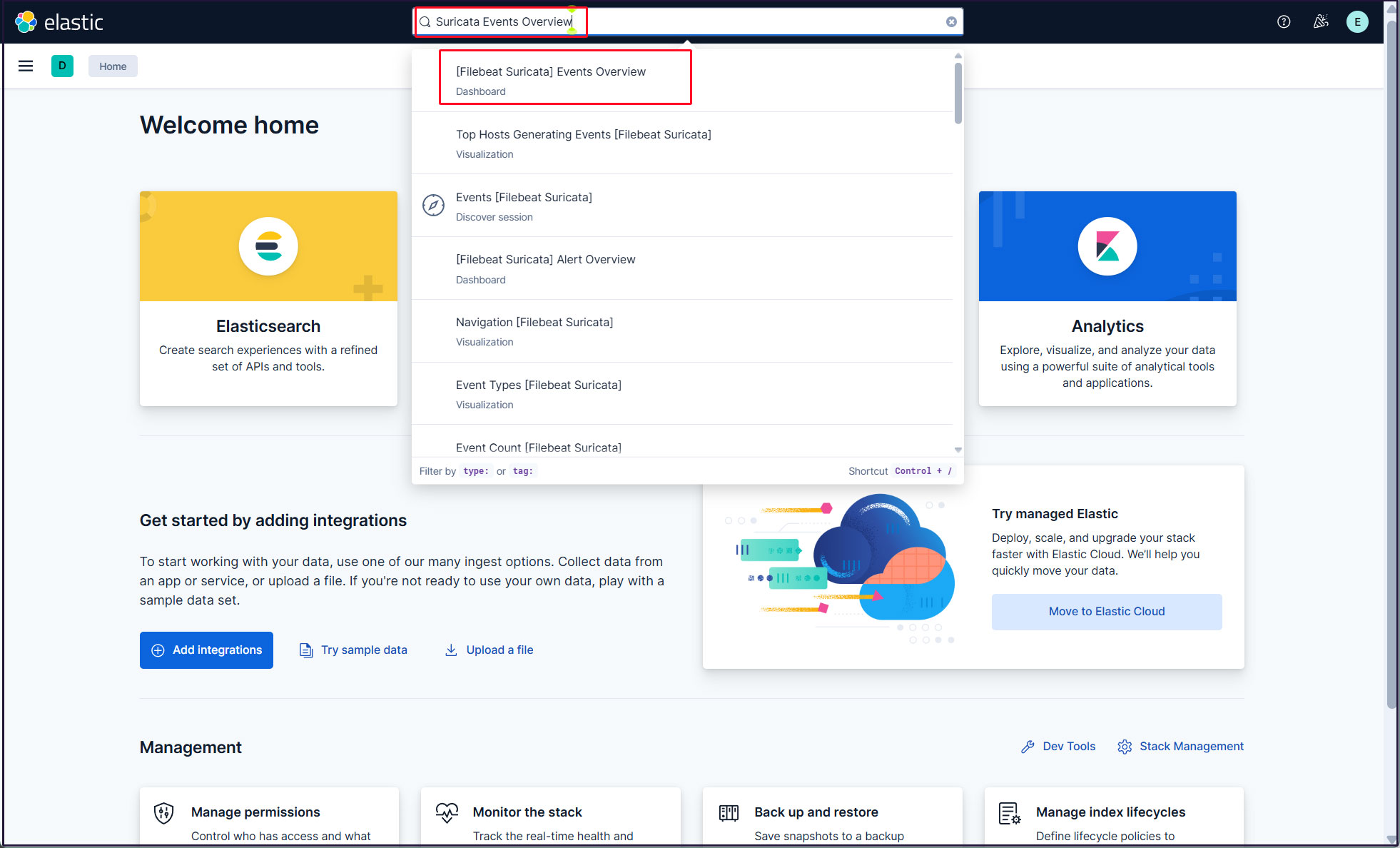
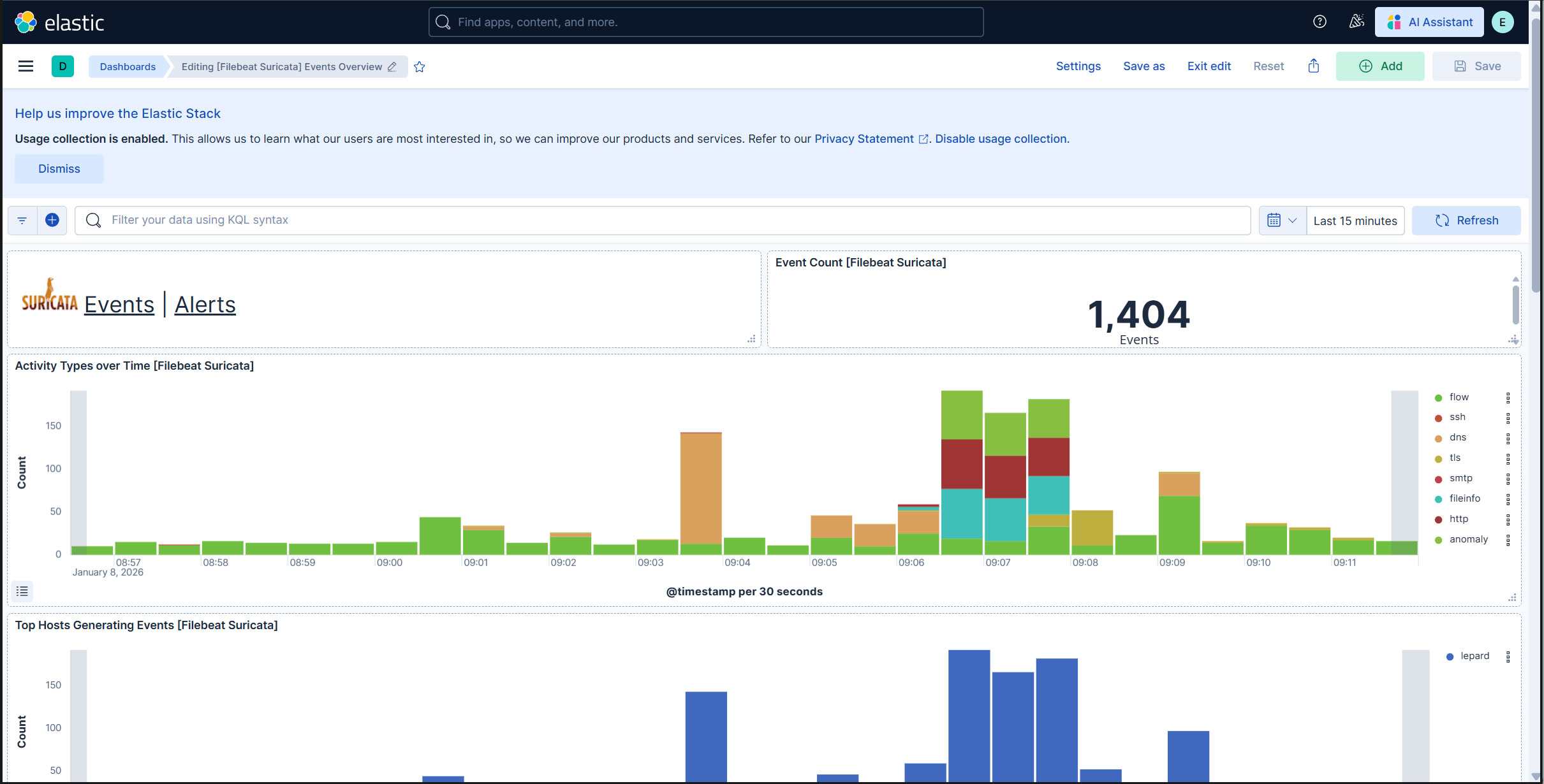
Enter "Suricata Events Overview" in the top search field, then click [Filebeat Suricata]Events Overview.
All Suricata events from the past 15 minutes are displayed.
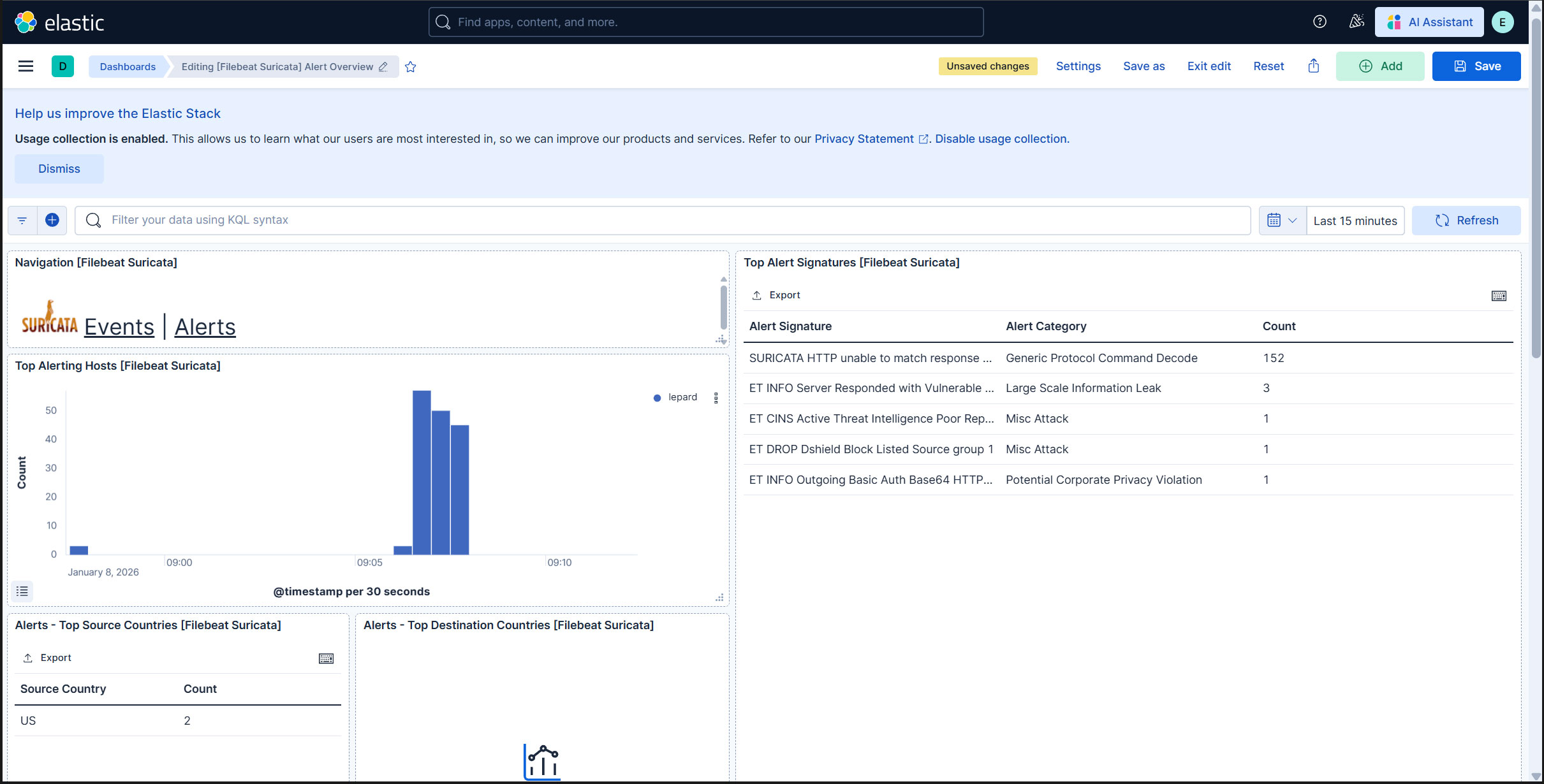
To display alerts for malicious traffic, click the "Alerts" text next to the Suricata logo.
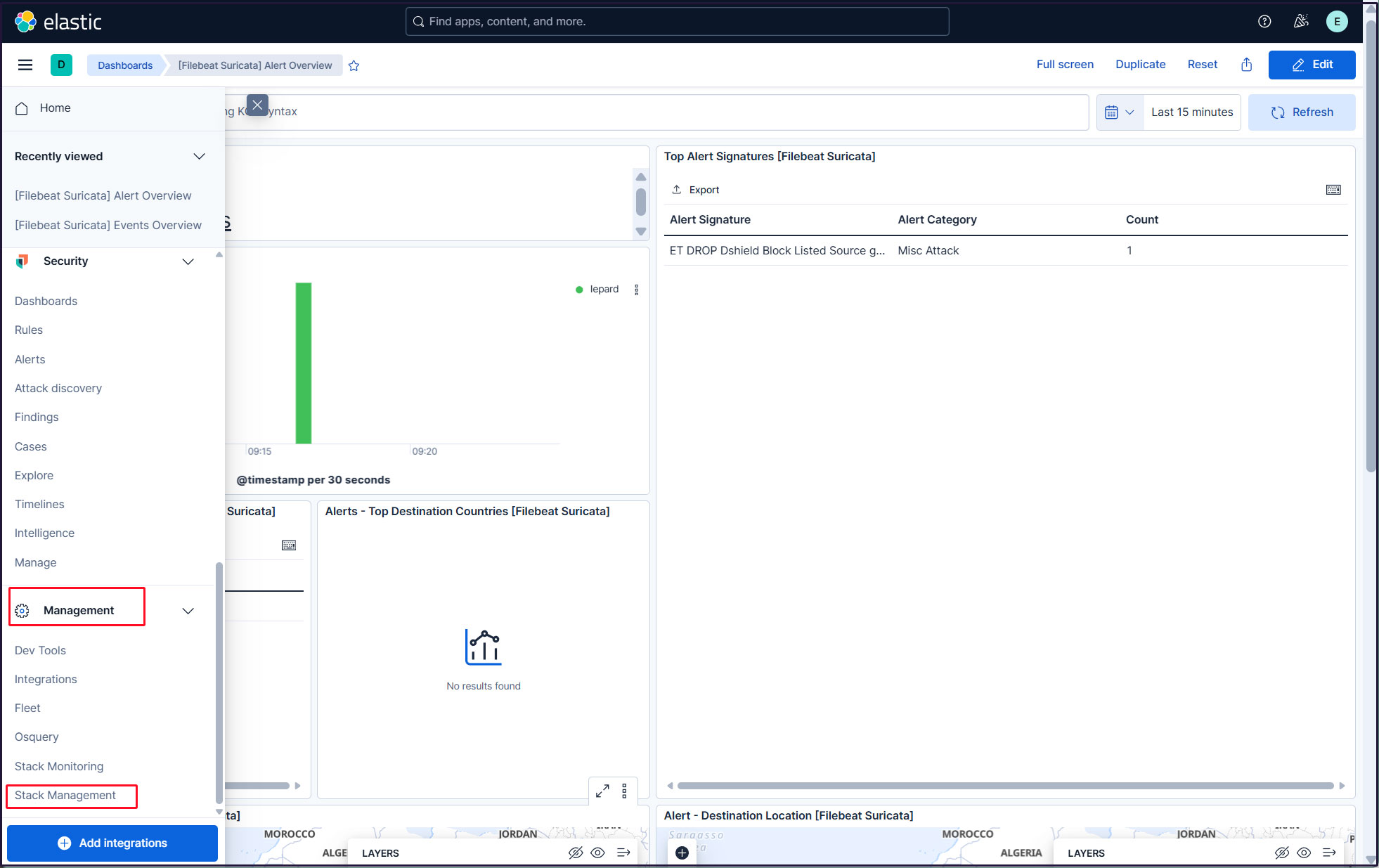
Create a new user account so that you do not need to use the elastic superuser account.
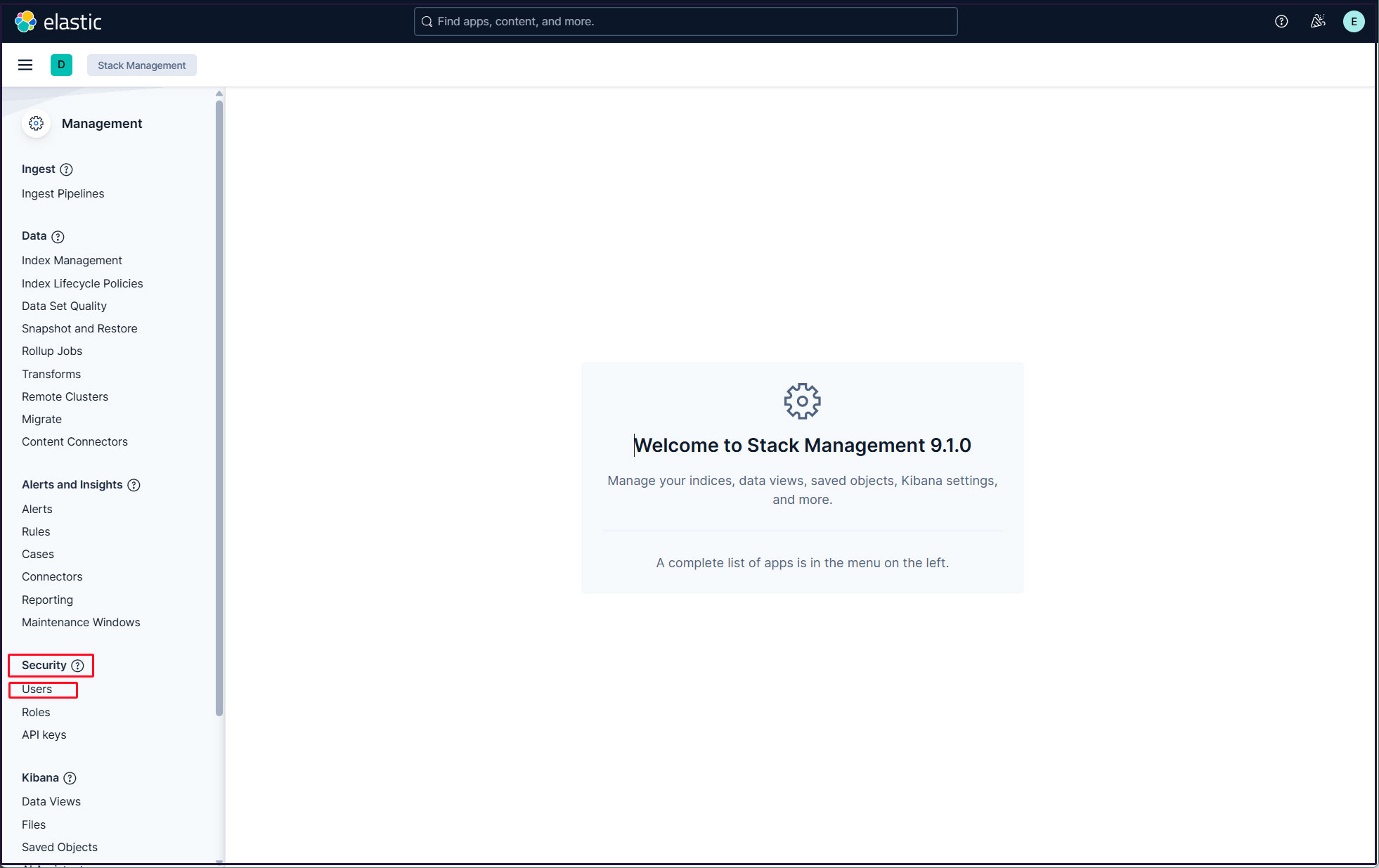
Click the three horizontal lines icon in the upper left corner, then select [Stack Management] under [Management].
Select "Security" and "Users"
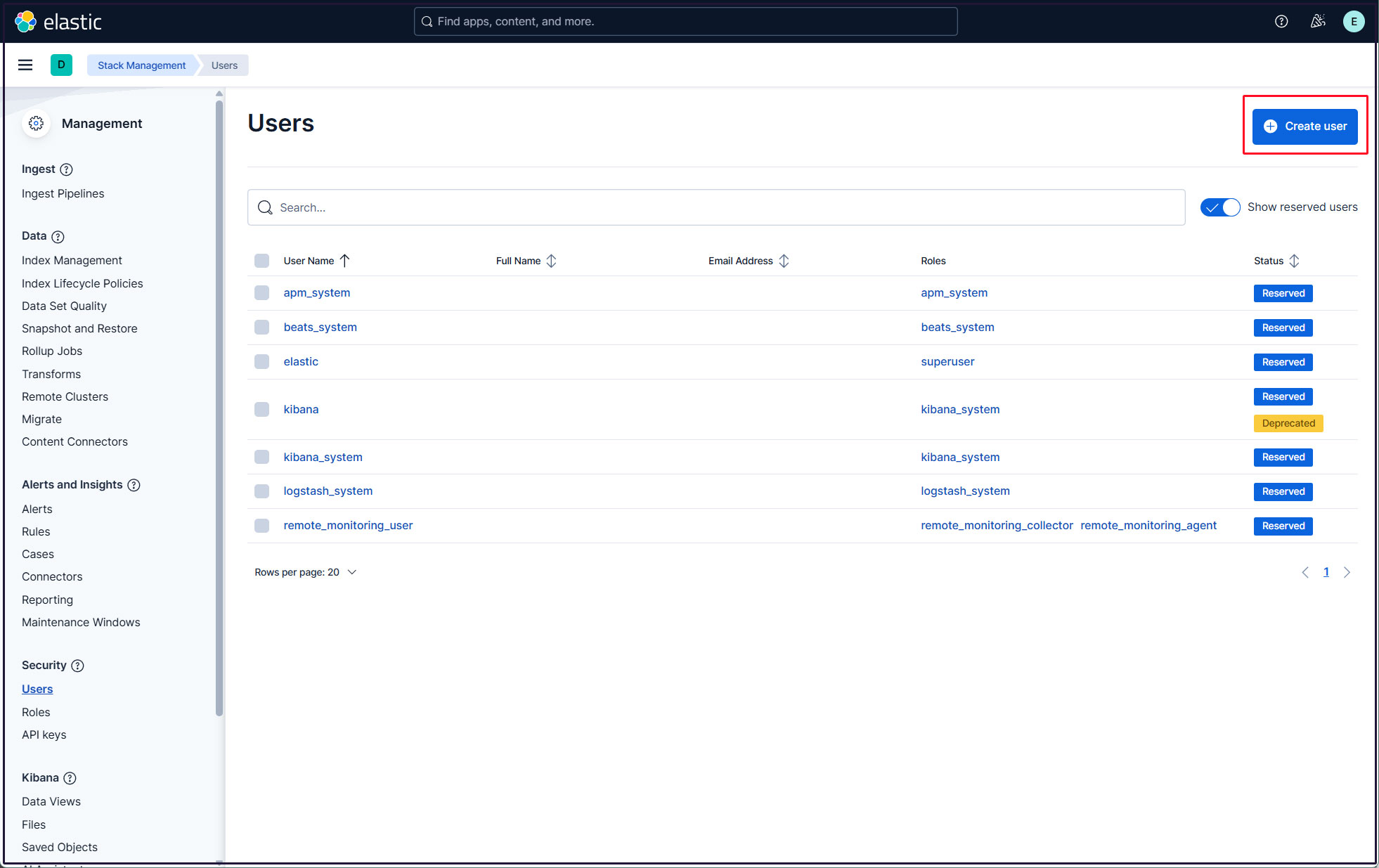
Click the "Create user" button in the upper right corner.
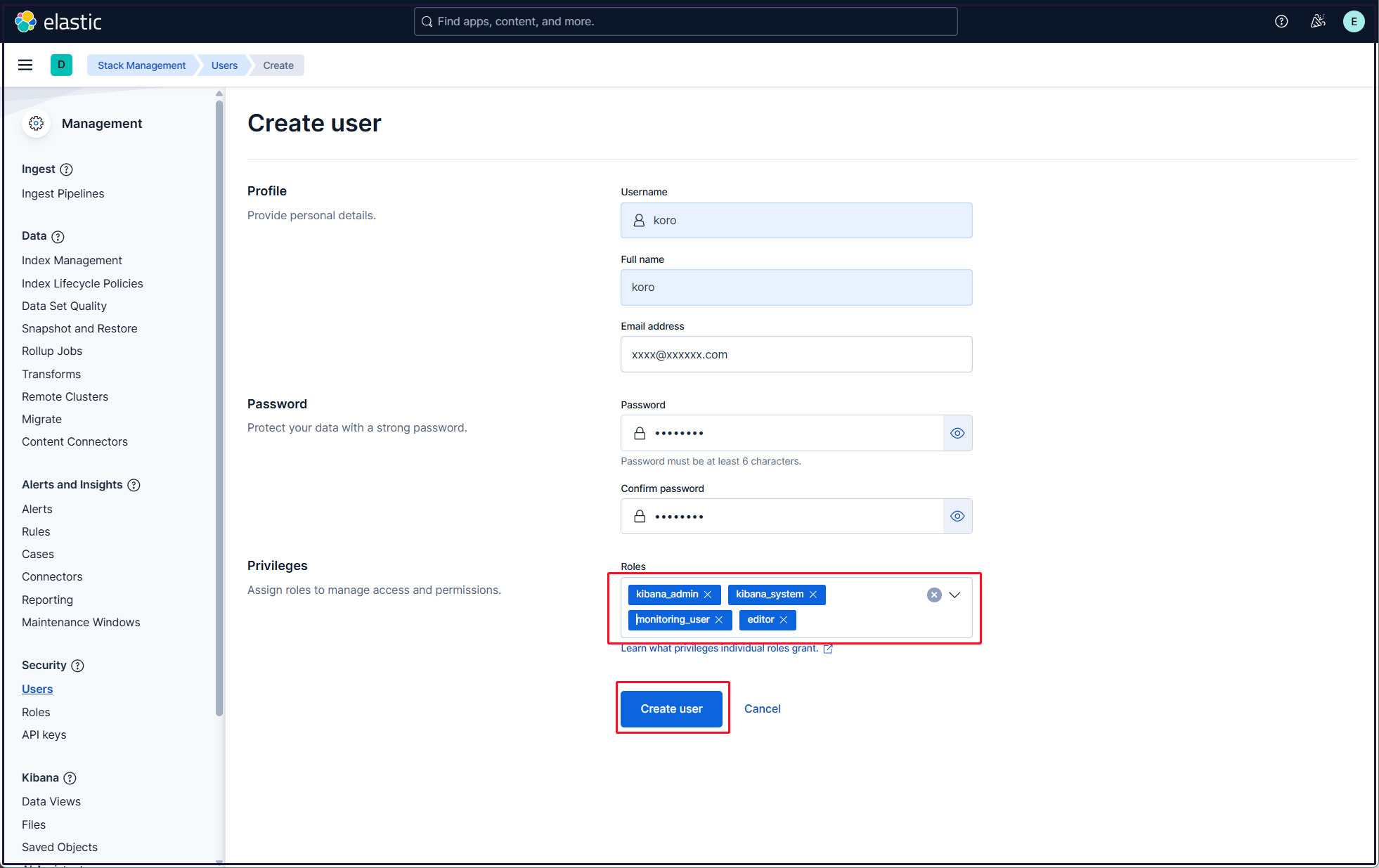
Enter the new user information, assign the kibana_admin, kibana_system, monitoring_user, and editor roles under Privileges, and finally click [Create user].
Log out of the current profile and verify that you can log in with the newly created user account.
Kibana has a variety of features and tools for visualizing logs, so try them out.