

FTP Server (Vsftpd)
1. Create a self-signed certificate
①Private Key Creation
# cd /etc/ssl
# openssl genrsa -des3 -out server.key 2048
Enter PEM pass phrase: [pass phrase:]
Verifying - Enter PEM pass phrase: [pass phrase:]
➁Passphrase Deletion
# openssl rsa -in server.key -out server.key
Enter pass phrase for server.key: ←Enter the passphrase you just entered
writing RSA key
➂change of access permission
# chmod 400 server.key
④Self-certification
# cd /etc/ssl/
# openssl req -new -x509 -days 3650 -key server.key -out ftp.crt
You are about to be asked to enter information that will be incorporated
into your certificate request.
What you are about to enter is what is called a Distinguished Name or a DN.
There are quite a few fields but you can leave some blank
For some fields there will be a default value,
If you enter '.', the field will be left blank.
-----
Country Name (2 letter code) [AU]:JP ←country name
State or Province Name (full name) [Some-State]:Osaka ←prefecture name
Locality Name (eg, city) []:Sakai ←municipalities
Organization Name (eg, company) [Internet Widgits Pty Ltd]:Lepard ←Host name (or company name))
Organizational Unit Name (eg, section) []: ←Enter
Common Name (e.g. server FQDN or YOUR name) []:Admin ←Host name (or administrator name)
Email Address []:hoge@hoge.com ←Administrator's email address
# cat server.key ftp.crt > ftp.pem
# chmod 400 ftp.*
2. Installing and Configuring vsftpd
2.1 vsftpd Install
# cd /usr/ports/ftp/vsftpd
# make BATCH=yes WITH_VSFTPD_SSL=yes install clean
2.2 Edit vsftpd configuration file
# chmod 640 /usr/local/etc/vsftpd.conf

# vi /usr/local/etc/vsftpd.conf
Line 12 : Change (do not allow anonymous login)
anonymous_enable=NO

Line 15 : Uncomment (Allow local login)
local_enable=YES

Line 18 : Uncomment (Allow to write)
write_enable=YES

Line 22 :  Uncomment (new file permission setting)
local_umask=022

Line 51 : Uncomment (specify log file)
xferlog_file=/var/log/vsftpd.log

Line 80 : Uncomment (Allow uploading in ASCII mode)
ascii_upload_enable=YES

Line 81 : Uncomment (Allow downloading in ASCII mode)
ascii_download_enable=YES

Line 98 : Uncomment
chroot_local_user=YES

Line 99 : Uncomment
chroot_list_enable=YES

Line 101 : Uncomment (user-specified file above)
chroot_list_file=/etc/vsftpd.chroot_list

Line 107 : Uncomment (allow per-directory deletion)
ls_recurse_enable=YES

Line 112 : IPv4 enabled
listen=YES

Line 134 : Uncomment
background=YES

# Add the following to the last line
# PASV mode enabled
pasv_enable=YES
# pasv_address
pasv_addr_resolve=YES
# pasv mode port number range
pasv_min_port=4000
pasv_max_port=4009
# Use local time
use_localtime=YES
#  Allow SSL connections
ssl_enable=YES
# Specify SSL certificate file
rsa_cert_file=/etc/ssl/ftp.pem
#  Do not reuse SSL sessions
require_ssl_reuse=NO
# Disable Forced SSL Connection
force_local_logins_ssl=NO
# Disable Forced SSL Connection
force_local_data_ssl=NO
# Show dot file
force_dot_files=YES
Edit /etc/hosts.allow
# echo "vsftpd: ALL" >> /etc/hosts.allow
Edit chroot_list
This time wrote the general user huong
# echo huong >> /etc/vsftpd.chroot_list
Auto Start Enabled
# sysrc vsftpd_enable="YES"

# service vsftpd start
2.3 Open passive ports on the firewall
Open ports 4000-4009
# vi /usr/local/etc/ipfw.rules
Add the following, ensuring that entries 400–419 do not overlap with any others.
$IPF 400 allow tcp from any to any 4000 in
$IPF 401 allow tcp from any to any 4000 out
$IPF 402 allow tcp from any to any 4001 in
$IPF 403 allow tcp from any to any 4001 out
$IPF 404 allow tcp from any to any 4002 in
$IPF 405 allow tcp from any to any 4002 out
$IPF 406 allow tcp from any to any 4003 in
$IPF 407 allow tcp from any to any 4003 out
$IPF 408 allow tcp from any to any 4004 in
$IPF 409 allow tcp from any to any 4004 out
$IPF 410 allow tcp from any to any 4005 in
$IPF 411 allow tcp from any to any 4005 out
$IPF 412 allow tcp from any to any 4006 in
$IPF 413 allow tcp from any to any 4006 out
$IPF 414 allow tcp from any to any 4007 in
$IPF 415 allow tcp from any to any 4007 out
$IPF 416 allow tcp from any to any 4008 in
$IPF 417 allow tcp from any to any 4008 out
$IPF 418 allow tcp from any to any 4009 in
$IPF 419 allow tcp from any to any 4009 out
Reload Firewall Rules
# service ipfw restart
Please refer to the following page.

2.4 Connect with FileZilla
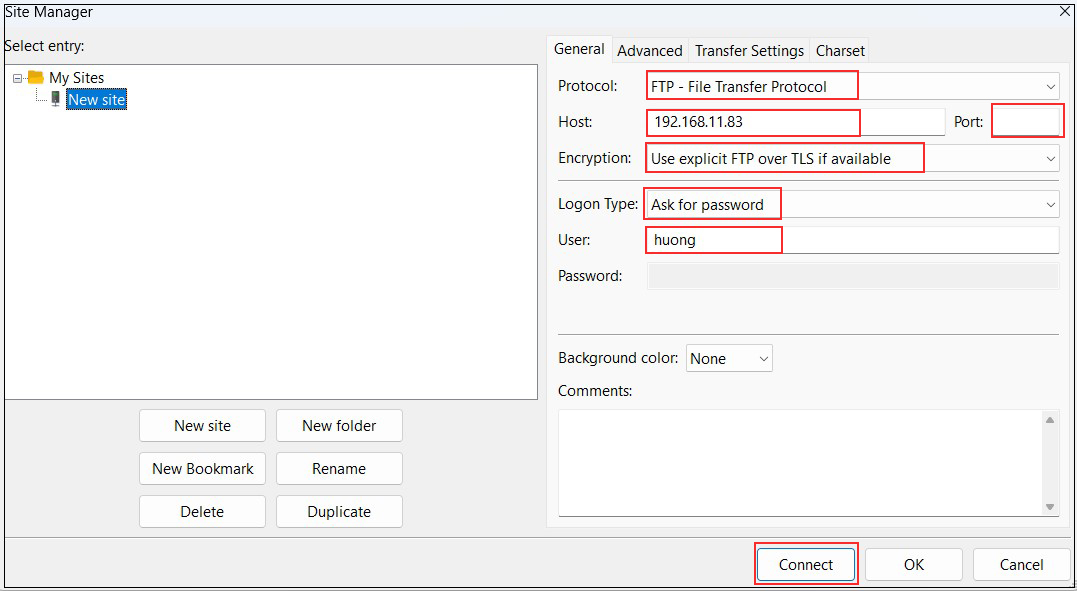
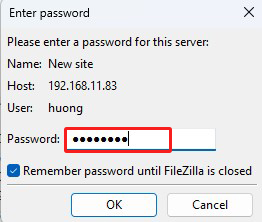
Password : General user huong password
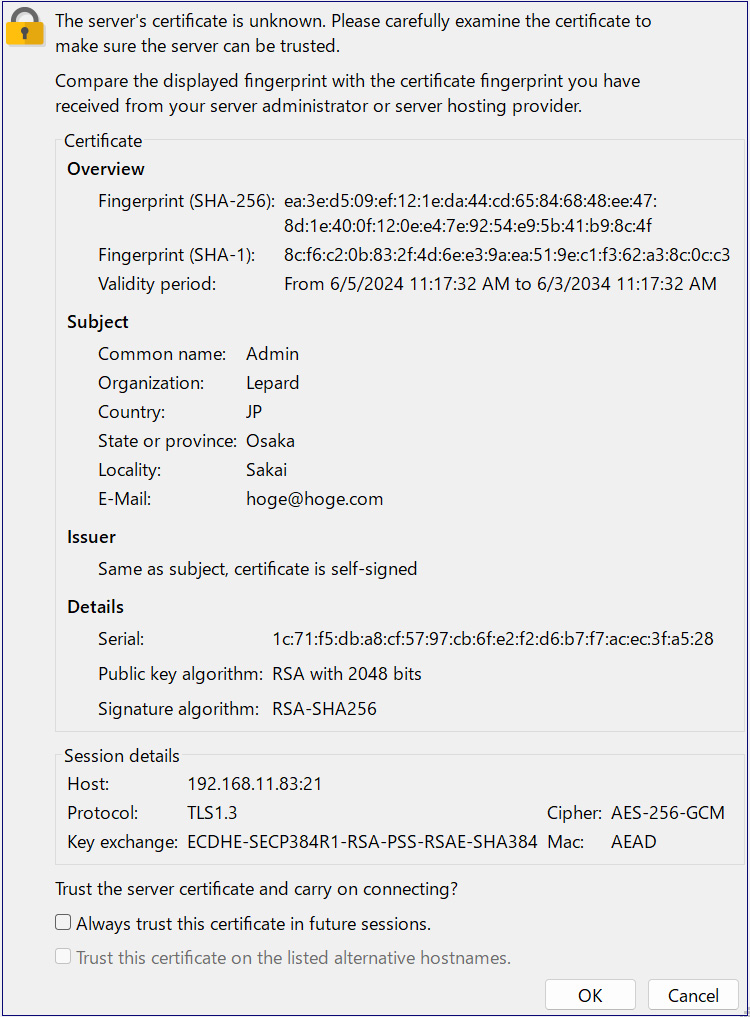
The following security confirmation screen will appear, click OK to connect to the server
File Server with Samba
Use Samba to build a file server for Windows and Mac file sharing
1. Samba Install
Search for Samba versions that can be installed
# pkg search samba
samba-nsupdate-9.16.5_3        nsupdate utility with the GSS-TSIG support
samba416-4.16.11_10            Free SMB/CIFS and AD/DC server and client for Unix
samba419-4.19.9_12             Free SMB/CIFS and AD/DC server and client for Unix
samba420-4.20.8_1              Free SMB/CIFS and AD/DC server and client for Unix
samba422-4.22.7_1              Free SMB/CIFS and AD/DC server and client for Unix
samba423-4.23.6_1              Free SMB/CIFS and AD/DC server and client for Unix
In this post, we'll install Samba 420.
# pkg install samba420
2. Samba Configuration
Create a new /usr/local/etc/smb4.conf
# vi /usr/local/etc/smb4.conf

[global]
dos charset = CP932 ←Character encoding used for communication with Windows clients
unix charset = UTF-8 ←Character encoding used by FreeBSD on the Samba server side
workgroup = WORKGROUP ←Match the workgroup name set on the Windows side.
server string = FreeBSD ←Any name
netbios name = freebsd  ←Any name
security = user

[share]
path = /home/share ←Path of the directory to be shared
create mask = 0770 ←Permissions for files/directories created in shared directories
directory mask = 0770 ←Permissions for files/directories created in shared directories
guest only = No ←No guest users allowed
guest ok = No  ←No guest users allowed
browseable = No
read only = No  ←Shared directories are writable
writable = Yes  ←Shared directories are writable
Create shared directory
Set the shared directory as /home/share, the owner as huong (a general user registered in Freebsd), and the access permissions as read/write/execute for general users and the wheel group
# mkdir /home/share
# chown huong:wheel /home/share
# chmod -R 0770 /home/share
Configure Samba to start automatically and start it.
# sysrc samba_server_enable="YES"

# service samba_server start
Register huong (a general user registered with Freebsd) as a Samba user and set a password (using the pdbedit command)
# pdbedit -a -u huong
new password: Password
retype new password: again Password
Unix username:        huong
NT username:
Account Flags:        [U          ]
User SID:             S-1-5-21-165518207-400400841-3263613001-1000
Primary Group SID:    S-1-5-21-165518207-400400841-3263613001-513
Full Name:            huong
Home Directory:       \\FREEBSD\huong
HomeDir Drive:
Logon Script:
Profile Path:         \\FREEBSD\huong\profile
Domain:               FREEBSD
Account desc:
Workstations:
Munged dial:
Logon time:           0
Logoff time:          Thu, 07 Feb 2036 00:06:39 JST
Kickoff time:         Thu, 07 Feb 2036 00:06:39 JST
Password last set:    Wed, 17 Jun 2026 09:25:27 JST
Password can change:  Wed, 17 Jun 2026 09:25:27 JST
Password must change: never
Last bad password   : 0
Bad password count  : 0
Logon hours         : FFFFFFFFFFFFFFFFFFFFFFFFFFFFFFFFFFFFFFFFFF
f firewall is enabled, open samba use port (445)
xxx should be different from other rule numbers.
# vi /usr/local/etc/ipfw.rules
Add the following
$IPF xxx allow tcp from any to any 445 in
$IPF xxx allow tcp from any to any 445 out

Reload Firewall Rules
# service ipfw restart
3 Confirmation of Samba startup
Windows Settings
・Confirm that the workgroup name is "WORKGROUP
In the File Explorer address bar, type "\\<Samba Server IP address>\<shared directory name>".
(This time '\\192.168.11.83\share')
Enter your registered user name and password when the login screen appears.