1.FTP Server
1. 1 vsftpd Install
# dnf -y install vsftpd

Installed:
  vsftpd-3.0.5-12.el10.x86_64

Complete!
1.2 Vsftpd Configuration
Save the unedited vsftpd.conf
# cp /etc/vsftpd/vsftpd.conf /home/huong/vsftpd.conf.org
①Editing Configuration Files
# vi /etc/vsftpd/vsftpd.conf

Line 12 : No anonymous login (confirmed)
anonymous_enable=NO

Line 39:Log transfer records (confirmation)
xferlog_enable=YES

Line 82,83 : Uncomment ( Allow transfer in ASCII mode )
ascii_upload_enable=YES
ascii_download_enable=YES

Line 100,101:Uncomment ( chrootenable )
chroot_local_user=YES
chroot_list_enable=YES

Line 103 : Uncomment (chroot list file specification  )
chroot_list_file=/etc/vsftpd/chroot_list

Line 109 : Uncomment ( Enable batch transfer by directory )
ls_recurse_enable=YES

Line 114 : Change ( IPv4 enable )
listen=YES

Line 123 : Change ( IPv6 disable )
listen_ipv6=NO

### Add to last line ###
Use local time
use_localtime=YES
②Add users to allow directory access to upper level
In my case I wrote huong
# echo "huong" >> /etc/vsftpd/chroot_list
③Specify IP addresses to allow connections in /etc/hosts.allow
192.168.11.0/24 is the setting that allows all local IP addresses in my environment.
# echo "vsftpd:192.168.11.0/24" >> /etc/hosts.allow
Write vsftpd:ALL (deny all connections) in /etc/hosts.deny
# echo "vsftpd:ALL" >> /etc/hosts.deny
This setting overrides hosts.allow. That is, everything is denied, and IP addresses specified in hosts.allow are allowed.
④Enable vsftpd autostart and start it
# systemctl enable vsftpd
# systemctl start vsftpd
⑤From windows side, check if you can connect with FileZilla.
Open the ftp port with firewall before connecting
# firewall-cmd --permanent --add-service=ftp
# firewall-cmd --reload
Start FileZilla and select "Site Manager" from the "File" menu.
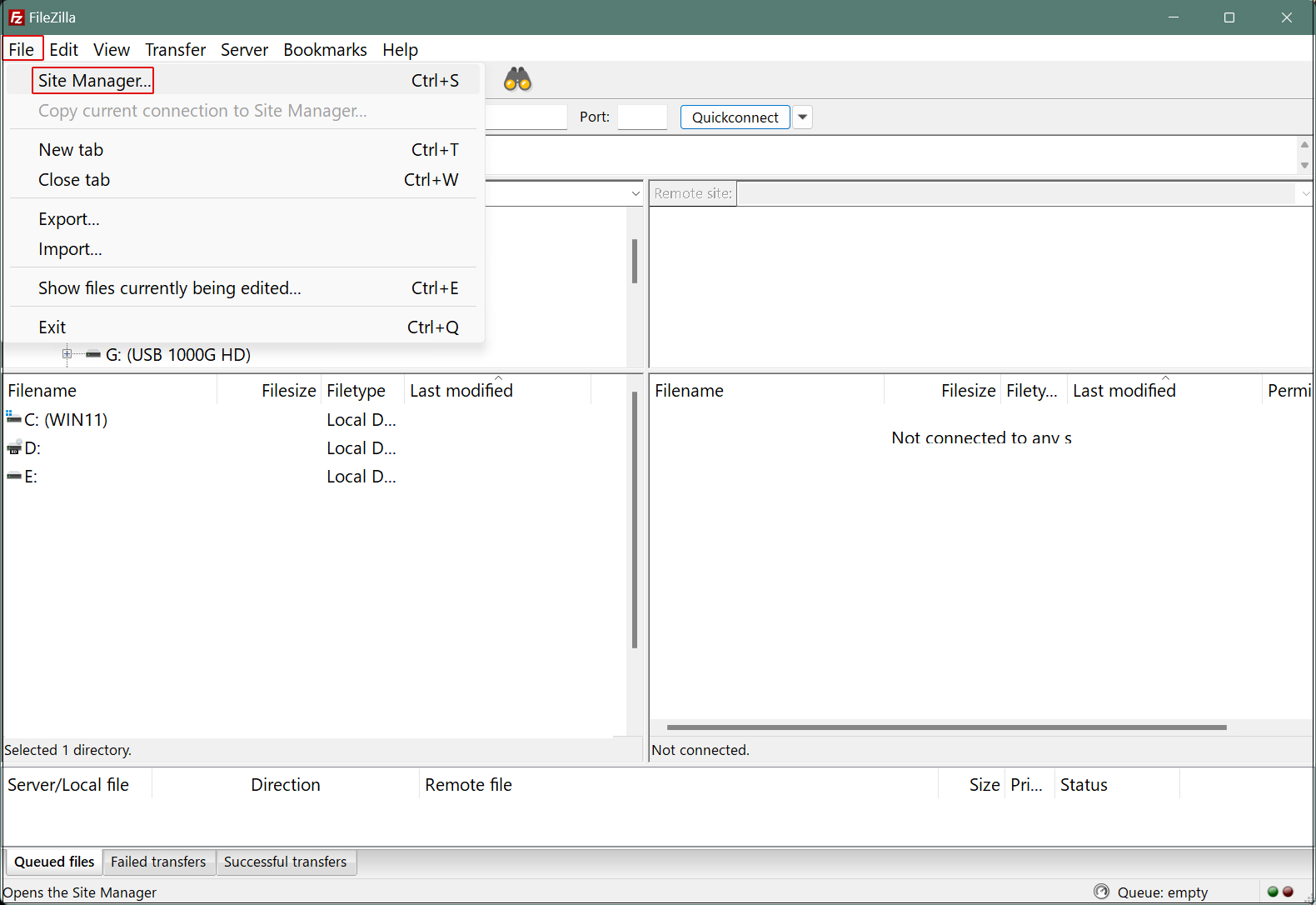
Click on "New site"
Enter the following settings for each item and click "Connect"
Protocol : FTP-File Transfer Protocol
Host : Server IP Address
Port : can be left blank
Encryption : Use expllict FTP ocver TLS if available
Logon Type : Ask for password
User : General user name (server login user)
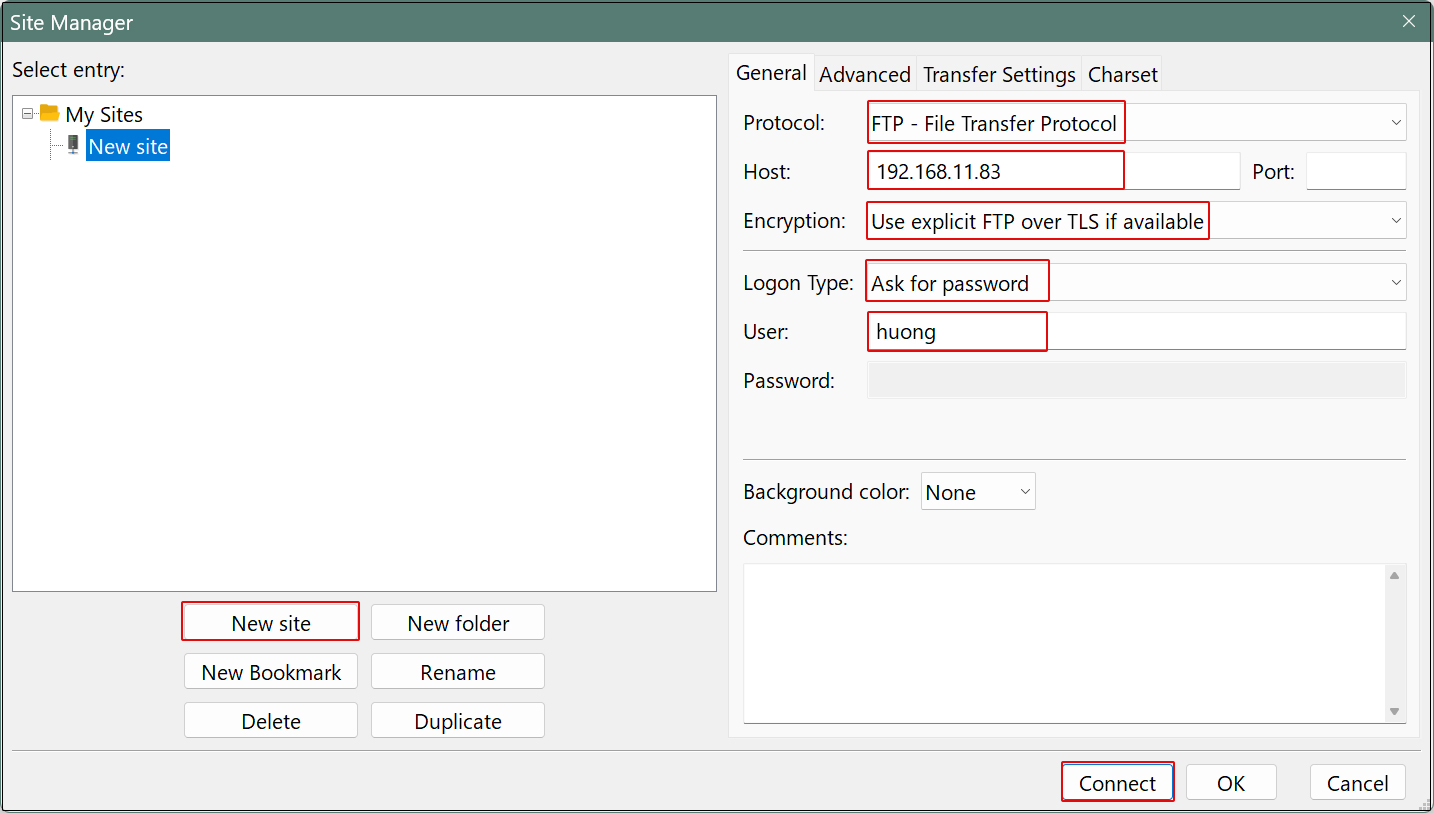
Set the password for the login user in "Password" and click "OK".
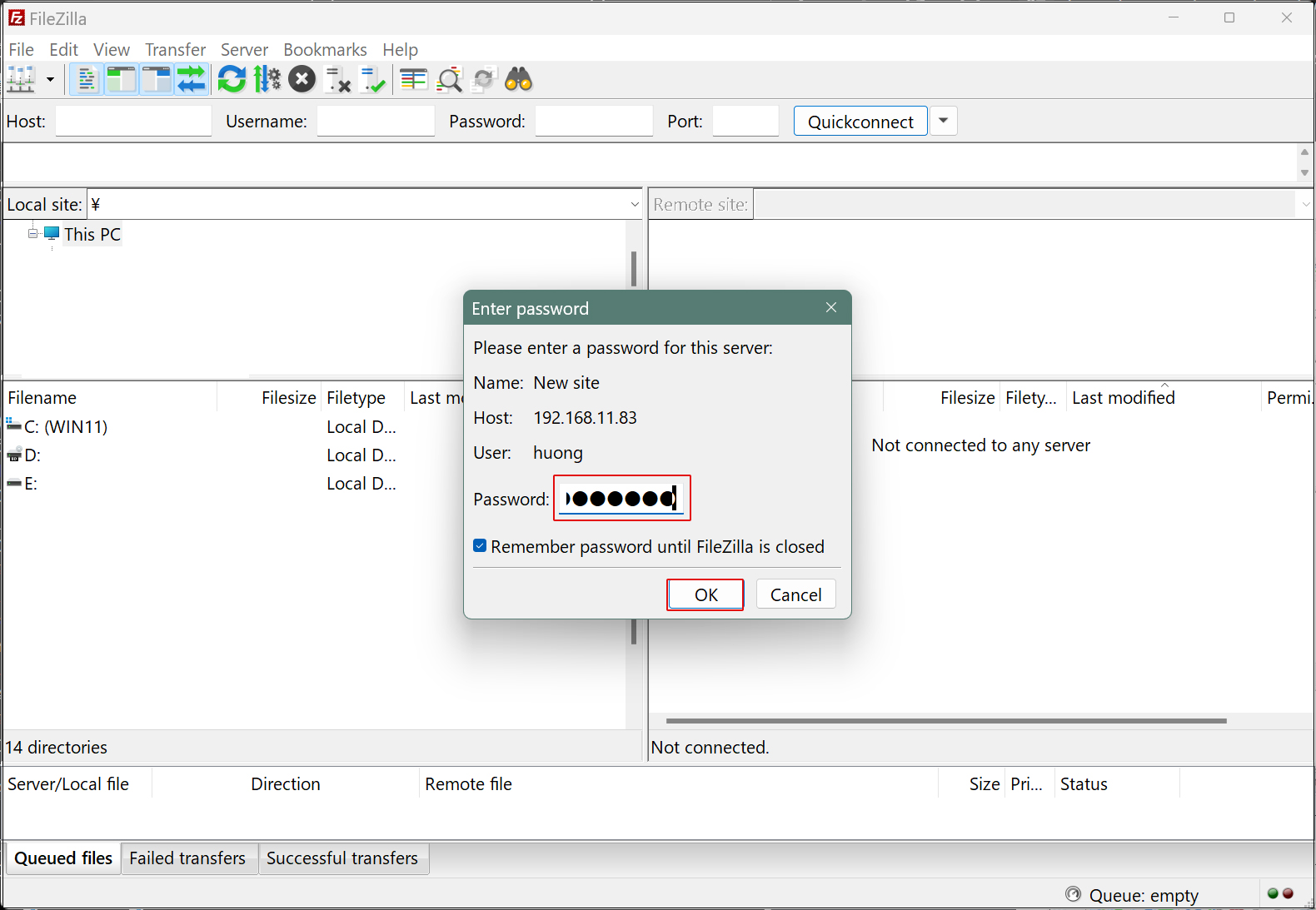
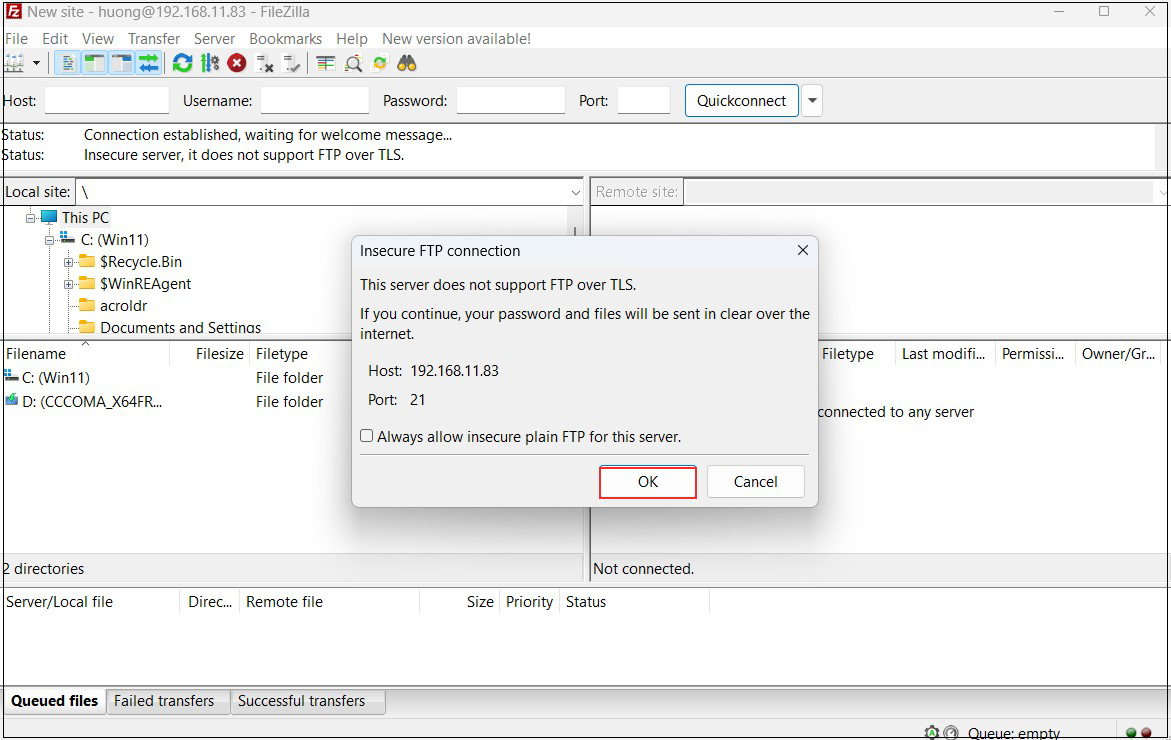
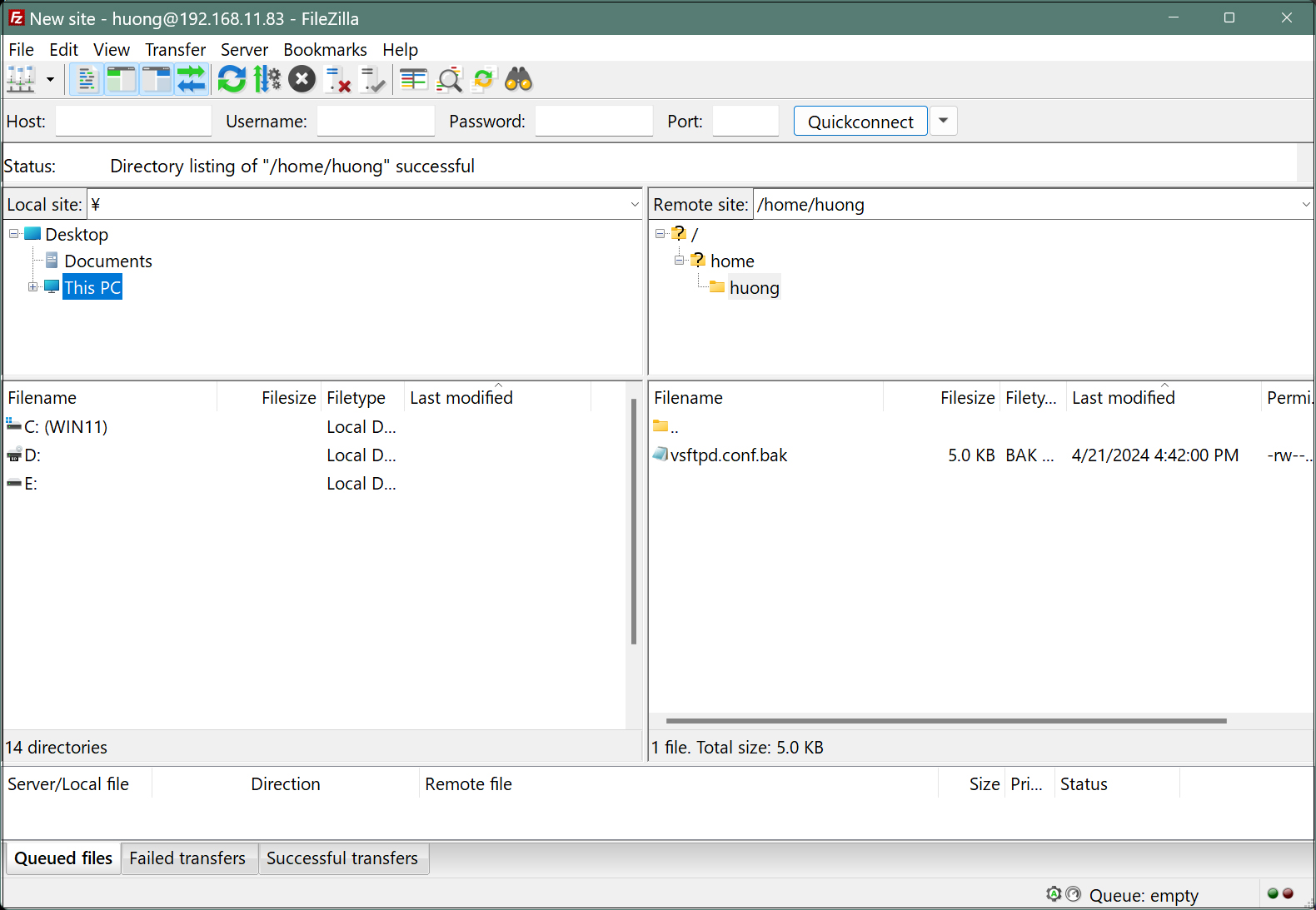
If the connection is successful, the server directory is displayed on the right and the Windows directory on the left.
2. vsftpd SSL/TLS
Configure Vsftpd to use SSL/TLS
2.1 Create self-signed certificates
This work is not required if you are using a trusted, legitimate certificate such as Let's Encrypt.
# cd /etc/pki/tls/certs
# openssl req -x509 -nodes -newkey rsa:2048 -keyout /etc/pki/tls/certs/vsftpd.pem -out /etc/pki/tls/certs/vsftpd.pem
+..+++++++++++++++++++++++++++++++++++++++*...++++++
-----
You are about to be asked to enter information that will be incorporated
into your certificate request.
What you are about to enter is what is called a Distinguished Name or a DN.
There are quite a few fields but you can leave some blank
For some fields there will be a default value,
If you enter '.', the field will be left blank.
-----
Country Name (2 letter code) [XX]:JP # country code
State or Province Name (full name) []:Osaka # Region (Prefecture)
Locality Name (eg, city) [Default City]:Sakai # City
Organization Name (eg, company) [Default Company Ltd]:private # organization name
Organizational Unit Name (eg, section) []:Admin # department
Common Name (eg, your name or your server's hostname) [] Lepard # Server Host Name
Email Address []: # Administrator's email address
# chmod 600 vsftpd.pem
2.2 Vsftpd Configuration
# vi /etc/vsftpd/vsftpd.conf

Add to the last line: SSL/TLS Enable
rsa_cert_file=/etc/pki/tls/certs/vsftpd.pem
ssl_enable=YES
force_local_data_ssl=YES
force_local_logins_ssl=YES

Passive ports allowed if Firewalld is enabled
Add to the last line
Fixed passive ports in any range of ports
pasv_enable=YES
pasv_min_port=60000
pasv_max_port=60100
# systemctl restart vsftpd
Allow passive ports in Firewalld
# firewall-cmd --add-port=60000-60100/tcp --permanent
success
# firewall-cmd --reload
success
When connecting to FileZilla, the following screen appears, check the box and click "OK" to connect as described above.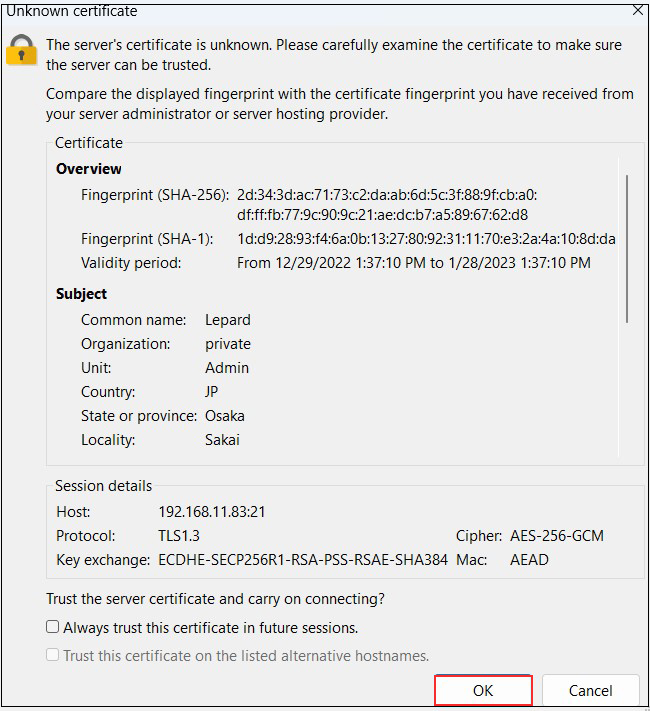
3. File server installation with Samba
Build a file server with access rights that requires user authentication with Samba.
Installation Procedure
①Create shared folders with access rights that require user authentication
②Accessible group creation
③Creation of users belonging to accessible groups
④Configuration File Editing
① samba Install
# dnf -y install samba samba-client samba-common
➁ Create a shared folder (Ex:smbshare)
# mkdir /home/smbshare
➂Accessible group (Ex:smbgroup) creation
# groupadd smbgroup
# chgrp smbgroup /home/smbshare
# chmod 770 /home/smbshare
④ Configuration File Edit
# vi /etc/samba/smb.conf

Line 11-12 :
        unix charset = UTF-8  # Add
        dos charset = CP932   # Add
        workgroup = SAMBA
        security = user
        # Add (Allow access only from the inside)
        hosts allow = 127. 192.168.11.

Add to the last line
Set any share name
[Smbshare]
        # Specify a shared folder
        path = /home/smbshare
        # Allow Write
        writable = yes
        # Do not allow guest users
        guest ok = no
        # Only [smbgroup] is allowed access.
        valid users = @smbgroup
        # Set [smbgroup] as the group for file creation
        force group = smbgroup
        # Set file creation permissions to [770].
        force create mode = 770
        # Set permissions to [770] when creating folders
        force directory mode = 770
        # Inherit permissions of upper folders
        inherit permissions = yes
⑤ SMB Restart
# systemctl enable smb
Created symlink /etc/systemd/system/multi-user.target.wants/smb.service → /usr/lib/systemd/system/smb.service.

# systemctl start smb
⑥ User (Ex:smbuser) registration, password setting, group registration
# useradd smbuser
# smbpasswd -a smbuser
New SMB password:     # Password Setting
Retype new SMB password:
Added user smbuser.

# usermod -aG smbgroup smbuser
⑦ Firewalld allows Samba services
# firewall-cmd --add-service=samba --permanent
success
# firewall-cmd --reload
success
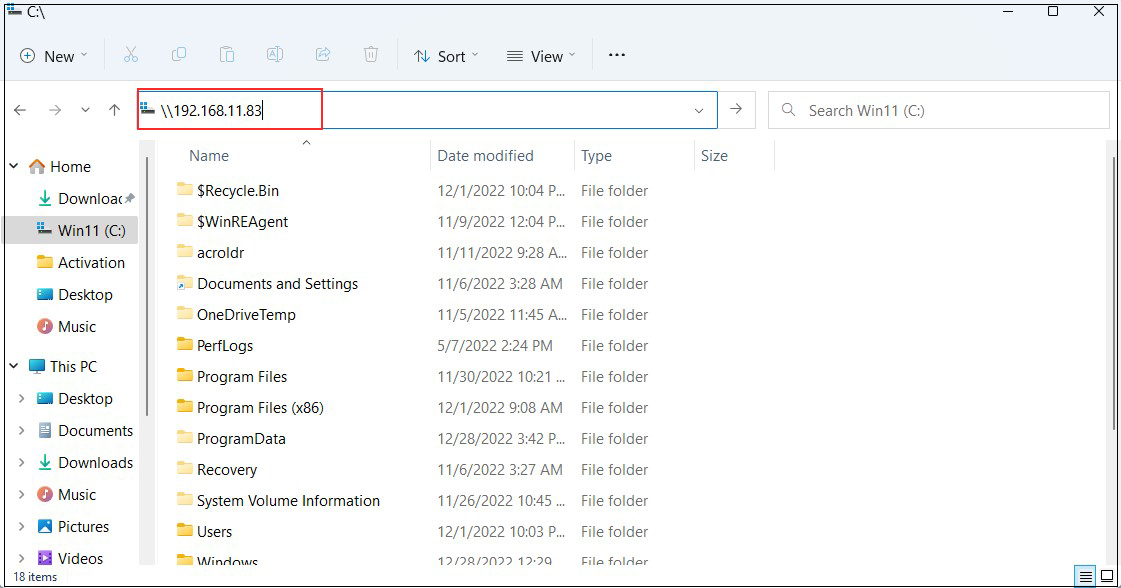
⑧Accessing shared directories from Windows 11
Connect from Windows Explorer
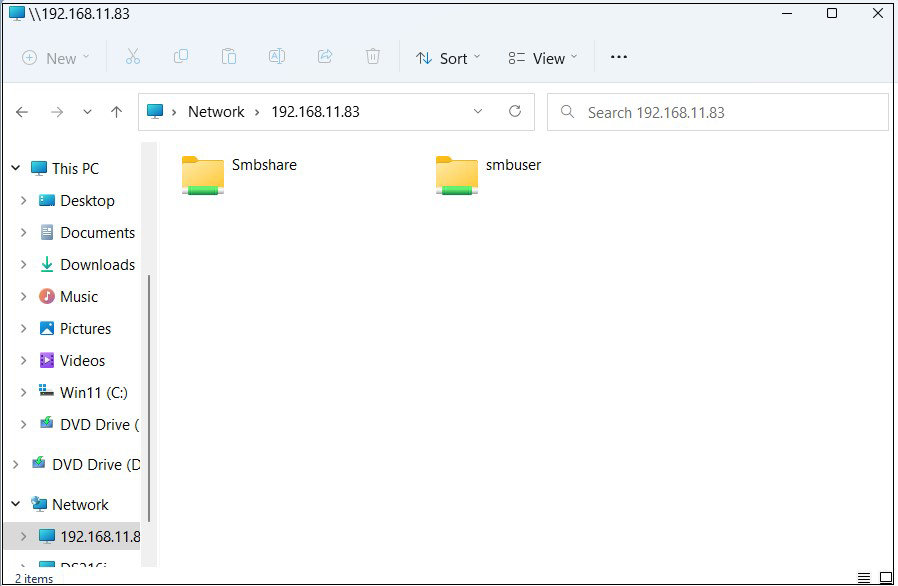
Open File Explorer and enter "\\[server IP]" (in this case 192.168.11.83) in the address field.
Access the server.
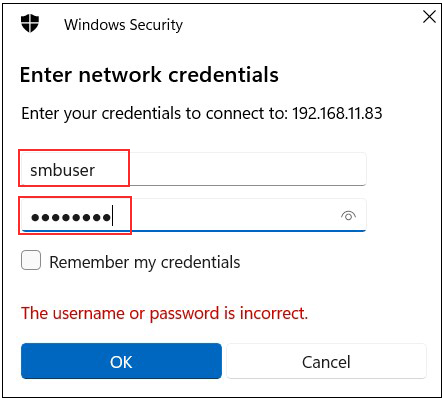
Enter authentication information
User name : User name created in "⑥ User (smbuser) Registration, Password Setting, Group Registration
Password : Password for the above user
Click "OK"
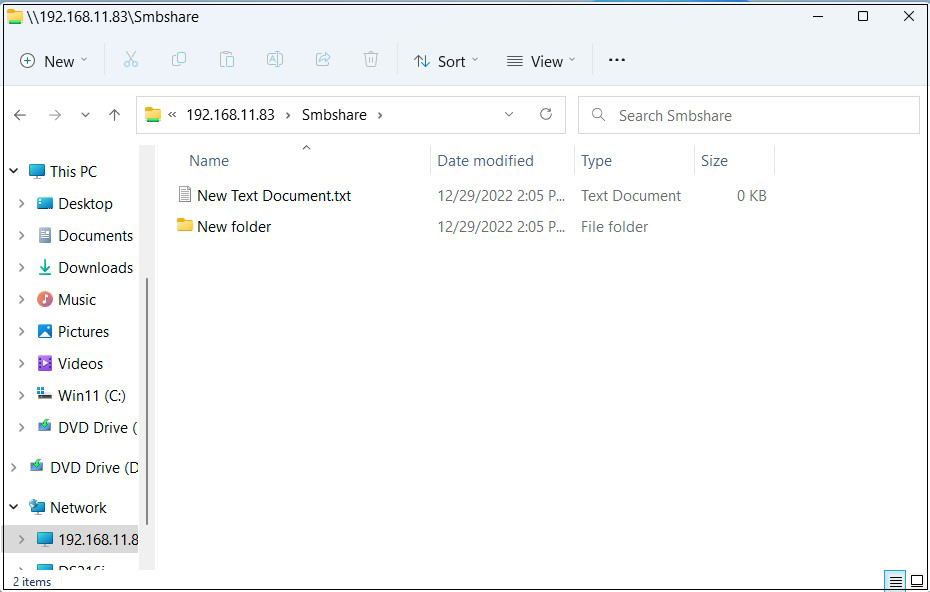
Shared directory information is displayed.