

前提条件
今回はSuricata IDS と ElasticStack を 次のサーバーにインストールします
・1台目サーバー Suricata IDS & Filebeat : Ubuntu Server26.10 IPアドレス(192.168.11.83)
・2台目サーバー ElasticSearch & kibana : Ubuntu Server26.10 IPアドレス(192.168.11.85)
root以外のsudoユーザーで実行する
1台目サーバー Suricata インストール
SURICATA IDS/IPSはネットワーク上の通信を監視し、不審なトラフィックを検知するオープンソースのIDSです。基本的な仕組みはシグネチャ型であるため、あらかじめ設定した不正な通信を検知できます。また、Suricataは検知だけでなく防御も行えることが特徴です。
1.Suricata のインストール
Suricata のインストール
# apt -y install suricata
バージョン確認
# suricata -V
This is Suricata version 8.0.6 RELEASE
システムの再起動時に実行されるように suricata.service を有効にします
# systemctl enable suricata.service
Suricataサービスを最初に構成する必要があるため、サービスを停止します。
# systemctl stop suricata.service
2.Suricataを構成
①Suricataがネットワークパケットを検査するインターフェースとIPアドレスを決定
# ip --brief add
lo               UNKNOWN        127.0.0.1/8 ::1/128
ens33            UP             192.168.11.83/24 fe80::20c:29ff:fe74:5f8/64
/etc/suricata/suricata.yamlファイル編集
# vi /etc/suricata/suricata.yaml

18行目 : 変更(自ネットワーク)
HOME_NET: "[192.168.11.0/24]"

157行目 : 変更
community-id: false → community-id: true

660行目 : 変更
af-packet:
  - interface: eth0
↓
af-packet:
  - interface: ens33 ←各自のインターフェース名に変更
SURICATAはルールのライブリロードをサポートしており、実行中のSURICATAのプロセスを再起動することなく、ルールの追加、削除、編集を行うことができます。ライブリロードオプションを有効にするには、設定ファイルの一番下までスクロールし、以下の行を追加します
detect-engine:
- rule-reload: true
この設定により、実行中のプロセスにSIGUSR2システムシグナルを送ることができ、SURICATAは変更されたルールをメモリに再ロードします。以下のようなコマンドは、プロセスを再起動することなく、SURICATAプロセスにルールセットの再読み込みを通知します:
# kill -usr2 $(pidof suricata)
➁ルールセットを追加
Suricata には suricata-update というツールがあり、外部プロバイダーからルールセットを取得することができます。以下のように実行すると、SURICATAサーバーの最新のルールセットをダウンロードできます
# suricata-update -o /var/lib/suricata/rules

-------------------------------------------------------------------------------------------
18/10/2026 -- 11:15:37 - <Info> -- Loaded 69166 rules.
18/10/2026 -- 11:15:37 - <Info> -- Disabled 16 rules.
18/10/2026 -- 11:15:37 - <Info> -- Enabled 0 rules.
18/10/2026 -- 11:15:37 - <Info> -- Modified 0 rules.
18/10/2026 -- 11:15:37 - <Info> -- Dropped 0 rules.
18/10/2026 -- 11:15:37 - <Info> -- Enabled 136 rules for flowbit dependencies.
18/10/2026 -- 11:15:37 - <Info> -- Backing up current rules.
18/10/2026 -- 11:15:37 - <Info> -- Writing rules to /var/lib/suricata/rules/suricata.rules: total: 69166; enabled: 53206; added: 69166; removed 0; modified: 0
18/10/2026 -- 11:15:37 - <Info> -- Writing /var/lib/suricata/rules/classification.config
18/10/2026 -- 11:15:37 - <Info> -- Testing with suricata -T.
18/10/2026 -- 11:15:57 - <Info> -- Done.
suricata-updateが無料のEmerging Threats ET Open Rulesを取得し、Suricataの/etc/suricata/rules/suricata.rulesファイルに保存したことを示しています。また、処理されたルールの数を示し、この例では69166が追加され、そのうち53206が有効になりました。
➂ルール・セット・プロバイダーの追加
既定のプロバイダー リストを一覧表示
# suricata-update list-sources

Name: abuse.ch/feodotracker
  Vendor: Abuse.ch
  Summary: Abuse.ch Feodo Tracker Botnet C2 IP ruleset
  License: CC0-1.0
Name: abuse.ch/sslbl-blacklist
  Vendor: Abuse.ch
  Summary: Abuse.ch SSL Blacklist
  License: CC0-1.0
  Replaces: sslbl/ssl-fp-blacklist
Name: abuse.ch/sslbl-ja3
  Vendor: Abuse.ch
  Summary: Abuse.ch Suricata JA3 Fingerprint Ruleset
  License: CC0-1.0
  Replaces: sslbl/ja3-fingerprints
Name: abuse.ch/urlhaus
  Vendor: abuse.ch
  Summary: Abuse.ch URLhaus Suricata Rules
  License: CC0-1.0
Name: aleksibovellan/nmap
  Vendor: aleksibovellan
  Summary: Suricata IDS/IPS Detection Rules Against NMAP Scans
  License: MIT
Name: et/open
  Vendor: Proofpoint
  Summary: Emerging Threats Open Ruleset
  License: MIT
Name: et/pro
  Vendor: Proofpoint
  Summary: Emerging Threats Pro Ruleset
  License: Commercial
  Replaces: et/open
  Parameters: secret-code
  Subscription: https://www.proofpoint.com/us/threat-insight/et-pro-ruleset
Name: etnetera/aggressive
  Vendor: Etnetera a.s.
  Summary: Etnetera aggressive IP blacklist
  License: MIT
Name: ipfire/dbl
  Vendor: IPFire
  Summary: IPFire DBL
  License: CC-BY-SA-4.0
Name: julioliraup/antiphishing
  Vendor: julioliraup
  Summary: Antiphishing for protection against phishing attacks
  License: GPL-3.0
Name: oisf/trafficid
  Vendor: OISF
  Summary: Suricata Traffic ID ruleset
  License: MIT
Name: pawpatrules
  Vendor: pawpatrules
  Summary: PAW Patrules is a collection of rules for IDPS / NSM Suricata engine
  License: CC-BY-SA-4.0
Name: ptrules/open
  Vendor: Positive Technologies
  Summary: Positive Technologies Open Ruleset
  License: Custom
Name: scwx/enhanced
  Vendor: Secureworks
  Summary: Secureworks suricata-enhanced ruleset
  License: Commercial
  Parameters: secret-code
  Subscription: https://www.secureworks.com/contact/ (Please reference CTU Countermeasures)
Name: scwx/malware
  Vendor: Secureworks
  Summary: Secureworks suricata-malware ruleset
  License: Commercial
  Parameters: secret-code
  Subscription: https://www.secureworks.com/contact/ (Please reference CTU Countermeasures)
Name: scwx/security
  Vendor: Secureworks
  Summary: Secureworks suricata-security ruleset
  License: Commercial
  Parameters: secret-code
  Subscription: https://www.secureworks.com/contact/ (Please reference CTU Countermeasures)
Name: stamus/lateral
  Vendor: Stamus Networks
  Summary: Lateral movement rules
  License: GPL-3.0-only
Name: stamus/nrd-14-open
  Vendor: Stamus Networks
  Summary: Newly Registered Domains Open only - 14 day list, complete
  License: Commercial
  Parameters: secret-code
  Subscription: https://www.stamus-networks.com/stamus-labs/subscribe-to-threat-intel-feed
Name: stamus/nrd-30-open
  Vendor: Stamus Networks
  Summary: Newly Registered Domains Open only - 30 day list, complete
  License: Commercial
  Parameters: secret-code
  Subscription: https://www.stamus-networks.com/stamus-labs/subscribe-to-threat-intel-feed
Name: stamus/nrd-entropy-14-open
  Vendor: Stamus Networks
  Summary: Newly Registered Domains Open only - 14 day list, high entropy
  License: Commercial
  Parameters: secret-code
  Subscription: https://www.stamus-networks.com/stamus-labs/subscribe-to-threat-intel-feed
Name: stamus/nrd-entropy-30-open
  Vendor: Stamus Networks
  Summary: Newly Registered Domains Open only - 30 day list, high entropy
  License: Commercial
  Parameters: secret-code
  Subscription: https://www.stamus-networks.com/stamus-labs/subscribe-to-threat-intel-feed
Name: stamus/nrd-phishing-14-open
  Vendor: Stamus Networks
  Summary: Newly Registered Domains Open only - 14 day list, phishing
  License: Commercial
  Parameters: secret-code
  Subscription: https://www.stamus-networks.com/stamus-labs/subscribe-to-threat-intel-feed
Name: stamus/nrd-phishing-30-open
  Vendor: Stamus Networks
  Summary: Newly Registered Domains Open only - 30 day list, phishing
  License: Commercial
  Parameters: secret-code
  Subscription: https://www.stamus-networks.com/stamus-labs/subscribe-to-threat-intel-feed
Name: tgreen/hunting
  Vendor: tgreen
  Summary: Threat hunting rules
  License: GPLv3
例としてtgreen/hunting ルールセットを含める場合
# suricata-update enable-source tgreen/hunting -D /var/lib/suricata/rules

18/10/2026 -- 11:20:07 - <Info> -- Using Suricata configuration /etc/suricata/suricata.yaml
18/10/2026 -- 11:20:07 - <Info> -- Using /etc/suricata/rules for Suricata provided rules.
18/10/2026 -- 11:20:07 - <Info> -- Found Suricata version 8.0.6 at /usr/bin/suricata.
18/10/2026 -- 11:20:07 - <Warning> -- Source index does not exist, will use bundled one.
18/10/2026 -- 11:20:07 - <Warning> -- Please run suricata-update update-sources.
18/10/2026 -- 11:20:07 - <Info> -- Creating directory /var/lib/suricata/rules/update/sources
18/10/2026 -- 11:20:07 - <Info> -- Enabling default source et/open
18/10/2026 -- 11:20:07 - <Info> -- Source tgreen/hunting enabled
アップデートを実行
# suricata-update update-sources
3.Suricata 構成のテスト
検証ツールを実行
# suricata -T -c /etc/suricata/suricata.yaml -v

Notice: suricata: This is Suricata version 8.0.6 RELEASE running in SYSTEM mode
Info: cpu: CPUs/cores online: 2
Info: suricata: Running suricata under test mode
Info: suricata: Setting engine mode to IDS mode by default
Info: exception-policy: master exception-policy set to: auto
Info: suricata: Preparing unexpected signal handling
Info: logopenfile: fast output device (regular) initialized: fast.log
Info: logopenfile: eve-log output device (regular) initialized: eve.json
Info: logopenfile: stats output device (regular) initialized: stats.log
Info: detect: 1 rule files processed. 53206 rules successfully loaded, 0 rules failed, 0 rules skipped
Info: threshold-config: Threshold config parsed: 0 rule(s) found
Info: detect: 53211 signatures processed. 1210 are IP-only rules, 4548 are inspecting packet payload, 47217 inspect application layer, 110 are decoder event only
Notice: suricata: Configuration provided was successfully loaded. Exiting.
Suricata service起動
# systemctl start suricata
# systemctl status suricata

● suricata.service - Suricata IDS/IDP daemon
     Loaded: loaded (/usr/lib/systemd/system/suricata.service; enabled; preset: enabled)
     Active: active (running) since Sun 2026-10-18 11:23:14 JST; 20s ago
 Invocation: 8dfd8689b56c43b6b2dfa08a7f401dbe
       Docs: man:suricata(8)
             man:suricatasc(8)
             https://suricata.io/documentation/
   Main PID: 6013 (Suricata-Main)
      Tasks: 8 (limit: 3938)
     Memory: 420.4M (peak: 420.4M)
        CPU: 8.937s
     CGroup: /system.slice/suricata.service
             └─6013 /usr/bin/suricata -D --af-packet -c /etc/suricata/suricata.yaml --pidfile /var/run/suricata/suricata.>

Oct 18 11:23:05 Lepard systemd[1]: Starting suricata.service - Suricata IDS/IDP daemon...
Oct 18 11:23:05 Lepard suricata[6012]: i: suricata: This is Suricata version 8.0.6 RELEASE running in SYSTEM mode
Oct 18 11:23:14 Lepard systemd[1]: Started suricata.service - Suricata IDS/IDP daemon.
ログファイルを確認
# tail -f /var/log/suricata/suricata.log

[6013 - Suricata-Main] 2026-10-18 11:23:05 Info: logopenfile: fast output device (regular) initialized: fast.log
[6013 - Suricata-Main] 2026-10-18 11:23:05 Info: logopenfile: eve-log output device (regular) initialized: eve.json
[6013 - Suricata-Main] 2026-10-18 11:23:05 Info: logopenfile: stats output device (regular) initialized: stats.log
[6013 - Suricata-Main] 2026-10-18 11:23:12 Info: detect: 1 rule files processed. 53206 rules successfully loaded, 0 rules failed, 0 rules skipped
[6013 - Suricata-Main] 2026-10-18 11:23:12 Info: threshold-config: Threshold config parsed: 0 rule(s) found
[6013 - Suricata-Main] 2026-10-18 11:23:12 Info: detect: 53211 signatures processed. 1210 are IP-only rules, 4548 are inspecting packet payload, 47217 inspect application layer, 110 are decoder event only
[6013 - Suricata-Main] 2026-10-18 11:23:14 Info: unix-manager: unix socket '/var/run/suricata/suricata-command.socket'
[6013 - Suricata-Main] 2026-10-18 11:23:14 Info: runmodes: ens33: creating 2 threads
[6016 - W#01-ens33] 2026-10-18 11:23:14 Info: ioctl: ens33: MTU 1500
[6013 - Suricata-Main] 2026-10-18 11:23:14 Notice: threads: Threads created -> W: 2 FM: 1 FR: 1   Engine started.
4.Suricata Custom Rulesを作成し、テストする
①カスタマールールを含むファイルを作成
# vi /var/lib/suricata/rules/local.rules
下記内容を記載
alert icmp any any -> any any (msg:"ICMP Ping"; sid:100001; rev:1;)
②設定ファイルを編集(新しいルールのパスを定義)
# vi /etc/suricata/suricata.yaml

# 2332行目あたりに追記
default-rule-path: /var/lib/suricata/rules

rule-files:
  - suricata.rules
  - local.rules
③設定ファイルのテスト
# suricata -T -c /etc/suricata/suricata.yaml -v

Notice: suricata: This is Suricata version 8.0.6 RELEASE running in SYSTEM mode
Info: cpu: CPUs/cores online: 2
Info: suricata: Running suricata under test mode
Info: suricata: Setting engine mode to IDS mode by default
Info: exception-policy: master exception-policy set to: auto
Info: suricata: Preparing unexpected signal handling
Info: logopenfile: fast output device (regular) initialized: fast.log
Info: logopenfile: eve-log output device (regular) initialized: eve.json
Info: logopenfile: stats output device (regular) initialized: stats.log
Info: detect: 2 rule files processed. 53207 rules successfully loaded, 0 rules failed, 0 rules skipped
Info: threshold-config: Threshold config parsed: 0 rule(s) found
Info: detect: 53212 signatures processed. 1211 are IP-only rules, 4548 are inspecting packet payload, 47217 inspect application layer, 110 are decoder event only
Notice: suricata: Configuration provided was successfully loaded. Exiting.
Suricat service再起動
# systemctl restart suricata
④Custom Rulesの適用テスト
同一ローカルネットワーク上の別のデバイスでpingを実行し、ログに記録されたかどうかを確認する
# cat /var/log/suricata/fast.log

10/18/2026-11:42:53.841603  [**] [1:100000:1] ICMP Ping [**] [Classification: (null)] [Priority: 3] {ICMP} 192.168.11.14:8 -> 192.168.11.83:0
10/18/2026-11:42:53.841645  [**] [1:100000:1] ICMP Ping [**] [Classification: (null)] [Priority: 3] {ICMP} 192.168.11.83:0 -> 192.168.11.14:0
JSON形式のログを取得するには、システムにjqをインストールする
# apt -y install jq
下記コマンドを実行し、同一ローカルネットワーク上の別のデバイスでpingを実行する
# tail -f /var/log/suricata/eve.json | jq 'select(.event_type=="alert")'

pingを実行するとコンソールに下記のように表示される
{
  "timestamp": "2026-10-18T12:37:37.743567+0900",
  "flow_id": 378695220128799,
  "in_iface": "ens33",
  "event_type": "alert",
  "src_ip": "192.168.11.83",
  "dest_ip": "192.168.11.14",
  "proto": "ICMP",
  "ip_v": 4,
  "icmp_type": 0,
  "icmp_code": 0,
  "pkt_src": "wire/pcap",
  "community_id": "1:K09ijpWpwrp7sSrxOGACqhHkilo=",
  "alert": {
    "action": "allowed",
    "gid": 1,
    "signature_id": 100001,
    "rev": 1,
    "signature": "ICMP Ping",
    "category": "",
    "severity": 3
  },
5.SURICATAを再設定し、IPSモードで再起動する
SURICATAはデフォルトではIDSモードで動作し、積極的にネットワークトラフィックをブロックすることはありません。IPSモードに切り替えるには、SURICATAのデフォルト設定を変更する必要がある。
5.1 nfqueueモードの有効化
# vi /usr/lib/systemd/system/suricata.service

下記のとおり変更する
[Service]
#ExecStart=/usr/bin/suricata -D --af-packet -c /etc/suricata/suricata.yaml --pidfile /var/run/suricata/suricata.pid

ExecStart=/usr/bin/suricata -D -q 0 -c /etc/suricata/suricata.yaml --pidfile  /var/run/suricata/suricata.pid
設定をリロードして、suricataを再起動
# systemctl daemon-reload
# systemctl restart suricata.service
この変更で、UFWファイアウォールを使ってSuricataにトラフィックを送る準備ができました。
5.2 Suricataにトラフィックを送信するためのUFWの設定
Suricataに必要なルールをUFWに追加するには、/etc/ufw/before.rulesと/etc/ufw/before6.rulesのファイアウォールファイルを直接編集する必要があります。
# vi /etc/ufw/before.rules

19行目あたりに下記を追加
# Don't delete these required lines, otherwise there will be errors
*filter
:ufw-before-input - [0:0]
:ufw-before-output - [0:0]
:ufw-before-forward - [0:0]
:ufw-not-local - [0:0]
# End required lines

## Start Suricata NFQUEUE rules
-I INPUT 1 -p tcp --dport 2244 -j NFQUEUE --queue-bypass
-I OUTPUT 1 -p tcp --sport 2244 -j NFQUEUE --queue-bypass
-I FORWARD -j NFQUEUE
-I INPUT 2 -j NFQUEUE
-I OUTPUT 2 -j NFQUEUE
## End Suricata NFQUEUE rules
同様に/etc/ufw/before6.rulesも変更する
# vi /etc/ufw/before6.rules
UFWを再起動
# systemctl restart ufw.service
/var/lib/suricata/rules/local.rulesをdropに変更する
# vi /var/lib/suricata/rules/local.rules

drop icmp any any -> any any (msg:"ICMP Ping"; sid:100001; rev:1;)
suricata再起動
# systemctl restart ufw.service
ローカルネットワーク上の別のデバイスよりpingを実行し、eve.jsonを確認すると
"action": "blocked"になっている
# jq 'select(.alert .signature_id==100001)' /var/log/suricata/eve.json

{
  "timestamp": "2026-10-18T14:17:16.519742+0900",
  "flow_id": 1387854135080381,
  "event_type": "alert",
  "src_ip": "192.168.11.14",
  "dest_ip": "192.168.11.83",
  "proto": "ICMP",
  "ip_v": 4,
  "icmp_type": 8,
  "icmp_code": 0,
  "pkt_src": "wire/pcap",
  "community_id": "1:K09ijpWpwrp7sSrxOGACqhHkilo=",
  "alert": {
    "action": "blocked",
    "gid": 1,
    "signature_id": 100001,
    "rev": 1,
    "signature": "ICMP Ping",
    "category": "",
    "severity": 3
  },
Elastic stack 9.x インストール
Elastic Stackをインストール&設定して、SURICATAのログを可視化&検索できるようにする
本セクションは基本的には2台目のUbuntu26.10サーバーで行います
①Elastic stack 9.xのリポジトリ署名キーをインストール
# apt update
# apt -y install gnupg2
# wget -qO - https://artifacts.elastic.co/GPG-KEY-elasticsearch | gpg --dearmor -o /usr/share/keyrings/elasticsearch-keyring.gpg
➁Elastic Stack 9.xのリポジトリをインストール
# echo "deb [signed-by=/usr/share/keyrings/elasticsearch-keyring.gpg] https://artifacts.elastic.co/packages/9.x/apt stable main" | tee /etc/apt/sources.list.d/elastic-9.x.list
update
# apt update
➂Ubuntu 26.10 に Elasticsearch 9.x をインストール
# apt install -y apt-transport-https
# apt install -y elasticsearch
インストール中、デフォルトでセキュリティ機能が有効になります;
--------------------------- Security autoconfiguration information ------------------------------

Authentication and authorization are enabled.
TLS for the transport and HTTP layers is enabled and configured.

The generated password for the elastic built-in superuser is : -6oTnVUtFlKsW0408Aem

If this node should join an existing cluster, you can reconfigure this with
'/usr/share/elasticsearch/bin/elasticsearch-reconfigure-node --enrollment-token <token-here>'
after creating an enrollment token on your existing cluster.

You can complete the following actions at any time:

Reset the password of the elastic built-in superuser with
'/usr/share/elasticsearch/bin/elasticsearch-reset-password -u elastic'.

Generate an enrollment token for Kibana instances with
 '/usr/share/elasticsearch/bin/elasticsearch-create-enrollment-token -s kibana'.

Generate an enrollment token for Elasticsearch nodes with
'/usr/share/elasticsearch/bin/elasticsearch-create-enrollment-token -s node'.

-------------------------------------------------------------------------------------------------
認証と認可が有効になっている。
トランスポート層とHTTP層のTLSが有効化され、設定されます。
Elasticスーパーユーザーアカウント(elastic)とそのパスワードが作成されます。
④Elasticsearch 9.x の設定
今回は基本的なシングルノードのクラスタなので、デフォルトの設定を使用します。
Elasticsearch の設定ファイル /etc/elasticsearch/elasticsearch.yml を確認すると、セキュリティの設定が有効になっていることがわかります
# cat /etc/elasticsearch/elasticsearch.yml
#----------------------- BEGIN SECURITY AUTO CONFIGURATION -----------------------
#
# The following settings, TLS certificates, and keys have been automatically
# generated to configure Elasticsearch security features on 18-10-2026 06:04:30
#
# --------------------------------------------------------------------------------

# Enable security features
xpack.security.enabled: true

xpack.security.enrollment.enabled: true

# Enable encryption for HTTP API client connections, such as Kibana, Logstash, and Agents
xpack.security.http.ssl:
  enabled: true
  keystore.path: certs/http.p12

# Enable encryption and mutual authentication between cluster nodes
xpack.security.transport.ssl:
  enabled: true
  verification_mode: certificate
  keystore.path: certs/transport.p12
  truststore.path: certs/transport.p12
# Create a new cluster with the current node only
# Additional nodes can still join the cluster later
cluster.initial_master_nodes: ["Lion"]

# Allow HTTP API connections from anywhere
# Connections are encrypted and require user authentication
http.host: 0.0.0.0

# Allow other nodes to join the cluster from anywhere
# Connections are encrypted and mutually authenticated
#transport.host: 0.0.0.0

#----------------------- END SECURITY AUTO CONFIGURATION -------------------------
⑤Elasticsearch起動
Elasticsearch を起動し、システム起動時に実行できるようにします
# systemctl daemon-reload
# systemctl enable --now elasticsearch
# systemctl start elasticsearch
ステータスを確認
# systemctl status elasticsearch

● elasticsearch.service - Elasticsearch
     Loaded: loaded (/usr/lib/systemd/system/elasticsearch.service; enabled; preset: enabled)
     Active: active (running) since Sun 2026-10-18 15:10:32 JST; 48s ago
 Invocation: 14bcd644cfb3447eacfd441761f39275
       Docs: https://www.elastic.co
   Main PID: 4075 (server-launcher)
      Tasks: 102 (limit: 3939)
     Memory: 2.2G (peak: 2.2G, swap: 56.5M, swap peak: 56.5M)
        CPU: 1min 11.012s
     CGroup: /system.slice/elasticsearch.service
             ├─4075 /usr/share/elasticsearch/lib/tools/server-launcher/server-launcher -p /run>
             ├─4125 /usr/share/elasticsearch/jdk/bin/java -Des.networkaddress.cache.ttl=60 -De>
             └─4148 /usr/share/elasticsearch/modules/x-pack-ml/platform/linux-x86_64/bin/contr>

Oct 18 15:09:39 Lion systemd[1]: Starting elasticsearch.service - Elasticsearch...
Oct 18 15:09:44 Lion systemd-entrypoint[4075]: WARNING: Unknown module: org.apache.arrow.memor>
Oct 18 15:10:24 Lion systemd-entrypoint[4075]: WARNING: A terminally deprecated method in sun.>
Oct 18 15:10:24 Lion systemd-entrypoint[4075]: WARNING: sun.misc.Unsafe::arrayBaseOffset has b>
Oct 18 15:10:24 Lion systemd-entrypoint[4075]: WARNING: Please consider reporting this to the >
Oct 18 15:10:24 Lion systemd-entrypoint[4075]: WARNING: sun.misc.Unsafe::arrayBaseOffset will >
Oct 18 15:10:32 Lion systemd[1]: Started elasticsearch.service - Elasticsearch.
curlコマンドを使用してESのステータスを確認することもできます。IPは適宜置き換えてください
# curl https://192.168.11.85:9200 --cacert /etc/elasticsearch/certs/http_ca.crt -u elastic
プロンプトが表示されたら、Elasticsearchのインストール時に生成されたElasticsearchパスワードを入力します
以下のように出力される
Enter host password for user 'elastic':
{
  "name" : "Lion",
  "cluster_name" : "elasticsearch",
  "cluster_uuid" : "N6xksvcGTwyXSSjL4CudDg",
  "version" : {
    "number" : "9.5.5",
    "build_flavor" : "default",
    "build_type" : "deb",
    "build_hash" : "48acba663b09e70b115dd879329141506c377890",
    "build_date" : "2026-09-30T22:12:03.984586187Z",
    "build_snapshot" : false,
    "lucene_version" : "10.5.1",
    "minimum_wire_compatibility_version" : "8.19.0",
    "minimum_index_compatibility_version" : "8.0.0"
  },
  "tagline" : "You Know, for Search"
}
また、HTTPポートとトランスポートポートの両方が開いていることを確認する;
# ss -altnp | grep -E "9200|9300"
LISTEN 0      4096                    *:9200             *:*    users:(("java",pid=4125,fd=883))
LISTEN 0      4096                [::1]:9300          [::]:*    users:(("java",pid=4125,fd=879))
LISTEN 0      4096   [::ffff:127.0.0.1]:9300             *:*    users:(("java",pid=4125,fd=880))
⑥Elasticsearch パスワードのリセット
自動生成されたElasticユーザーパスワードが複雑すぎるので、/usr/share/elasticsearch/bin/elasticsearch-reset-passwordコマンドを使ってリセットする
パスワードをリセットするには、コマンドを実行する
# /usr/share/elasticsearch/bin/elasticsearch-reset-password -u elastic -i
This tool will reset the password of the [elastic] user.
You will be prompted to enter the password.
Please confirm that you would like to continue [y/N]y


Enter password for [elastic]:
Re-enter password for [elastic]:
Password for the [elastic] user successfully reset.
⑦Elasticsearch ログ
Elasticsearchは/var/log/elasticsearchパスにログを書き込みます。Elasticsearch インスタンスに問題がある場合に確認する必要があるログは /var/log/elasticsearch/CLUSTER_NAME.log です。
CLUSTER_NAME は elasticsearch.yaml ファイルの cluster.name オプションの値です。もしこの値を変更しなかった場合、デフォルトは elasticsearch となり、ログファイルは /var/log/elasticsearch/elasticsearch.log となります。
# tail -f /var/log/elasticsearch/elasticsearch.log
ログ
[2026-10-18T15:10:38,112][INFO ][o.e.x.c.s.a.UpdateIndexMigrationVersionAction] [Lion] Updated project=[default] index=[.security-7] to migration-version=[3]
[2026-10-18T15:10:38,112][INFO ][o.e.x.s.s.SecurityMigrationExecutor] [Lion] Security migration not needed. Setting current version to: [3]
[2026-10-18T15:10:43,001][INFO ][o.e.c.m.MetadataCreateIndexService] [Lion] creating index [.ds-ilm-history-7-2026.10.18-000001] in project [default], cause [initialize_data_stream], templates [provided in request], shards [1]/[1]
[2026-10-18T15:10:43,001][INFO ][o.e.c.m.MetadataCreateDataStreamService] [Lion] adding data stream [ilm-history-7] with write index [.ds-ilm-history-7-2026.10.18-000001], backing indices [], and aliases []
[2026-10-18T15:10:43,002][INFO ][o.e.c.r.a.AllocationService] [Lion] in project [default] updating number_of_replicas to [0] for indices [.ds-ilm-history-7-2026.10.18-000001]
[2026-10-18T15:10:43,088][INFO ][o.e.c.r.a.AllocationService] [Lion] current.health="GREEN" message="Cluster health status changed from [YELLOW] to [GREEN] (reason: [shards started [[.ds-ilm-history-7-2026.10.18-000001][0]]])." previous.health="YELLOW" reason="shards started [[.ds-ilm-history-7-2026.10.18-000001][0]]"
[2026-10-18T15:15:26,114][INFO ][o.e.x.s.a.f.FileUserPasswdStore] [Lion] users file [/etc/elasticsearch/users] changed. updating users...
[2026-10-18T15:15:26,118][INFO ][o.e.x.s.a.f.FileUserRolesStore] [Lion] users roles file [/etc/elasticsearch/users_roles] changed. updating users roles...
[2026-10-18T15:15:46,134][INFO ][o.e.x.s.a.f.FileUserPasswdStore] [Lion] users file [/etc/elasticsearch/users] changed. updating users...
[2026-10-18T15:15:46,135][INFO ][o.e.x.s.a.f.FileUserRolesStore] [Lion] users roles file [/etc/elasticsearch/users_roles] changed. updating users roles...
Kibana 9.x インストール
本セクションは基本的には2台目のUbuntu26.10サーバーで行います
①インストール
# apt install kibana
➁Kibana 9 を設定
Kibana はデフォルトで localhost:5601 で実行されるように設定されている。外部からのアクセスを許可するには、設定ファイルを編集し、server.hostの値をインターフェイスIPに置き換える。
# vi /etc/kibana/kibana.yml

6行目 : コメント解除
server.port: 5601

12行目 : 追加
#server.host: "localhost"
server.host: "192.168.11.85"
➂Kibana-Elasticsearch Enrollment Token の生成
Kibana インスタンスを、セキュリティ機能が有効になっている既存の Elasticsearch クラスタと通信するように設定するには、登録トークンが必要です。Kibana 用の Enrollment Token は以下のコマンドで生成できる
# /usr/share/elasticsearch/bin/elasticsearch-create-enrollment-token -s kibana

eyJ2ZXIiOiI4LjE0LjAiLCJhZHIiOlsiMTkyLjE2OC4xMS44NTo5MjAwIl0sImZnciI6IjVkNjVmZjMwOWJkZThiYmJiNWM4NDc5NDhmYTRhNTg5MTFjYzFjNTdhMzI0MTJjNDBiM2E0MWEyMTJmNTQxOTMiLCJrZXkiOiJBMHF5VGFFQm51MjBmb0NhdEZ5Njo5el93bkNwRGN2Yl8yMHg0eXVWVVJnIn0=
④Kibana 暗号化キーの生成
Kibana は、Kibana 関連インデックスのデータの暗号化からセッション情報の保存まで、いくつかの領域で暗号化キーを使用する。必要なキーは次のとおりです
xpack.encryptedSavedObjects.encryptionKey:ダッシュボードやビジュアライゼーションなどの保存されたオブジェクトを暗号化するために使用されます。xpack.reporting.encryptionKey: 保存されたレポートの暗号化に使用xpack.security.encryptionKey: セッション情報の暗号化に使用
これらは以下のコマンドで生成する
# /usr/share/kibana/bin/kibana-encryption-keys generate

Settings:
xpack.encryptedSavedObjects.encryptionKey: 14e9a68a73e2c28bb14d66d2e9373b557165e0f679ec4a3894d9604a5e60f707
xpack.reporting.encryptionKey: 36026ec65eba4443a1dc4736abe151afca134d93e631d0864c2dadb70289d1aa
xpack.security.encryptionKey: 2daf004592b2a54cf6f5bcea4884dcf63a812d1e13a6f1622d2263f4afd17c9c
上記をKibanaの設定ファイルkibana.ymlに挿入する
# echo -e "xpack.encryptedSavedObjects.encryptionKey: 14e9a68a73e2c28bb14d66d2e9373b557165e0f679ec4a3894d9604a5e60f707
xpack.reporting.encryptionKey: 36026ec65eba4443a1dc4736abe151afca134d93e631d0864c2dadb70289d1aa
xpack.security.encryptionKey: 2daf004592b2a54cf6f5bcea4884dcf63a812d1e13a6f1622d2263f4afd17c9c" >> /etc/kibana/kibana.yml
⑤Kibana の実行
Kibana 9 を起動し、システム起動時に実行できるようにする。
# systemctl enable --now kibana
# systemctl start kibana
status
# systemctl status kibana

● kibana.service - Kibana
     Loaded: loaded (/usr/lib/systemd/system/kibana.service; enabled; preset: enabled)
     Active: active (running) since Sun 2026-10-18 15:35:13 JST; 1min 3s ago
 Invocation: 2d1d8bfdaa6f4e4aba5b90dc172bedd5
       Docs: https://www.elastic.co
   Main PID: 4654 (MainThread)
      Tasks: 11 (limit: 3939)
     Memory: 846.5M (peak: 846.7M)
        CPU: 25.314s
     CGroup: /system.slice/kibana.service
             └─4654 /usr/share/kibana/bin/../node/default/bin/node /usr/share/kibana/bin/../no>

Oct 18 15:35:21 Lion kibana[4654]: Native global console methods have been overridden in produ>
Oct 18 15:35:28 Lion kibana[4654]: [2026-10-18T15:35:28.180+09:00][INFO ][root] Kibana is star>
Oct 18 15:35:28 Lion kibana[4654]: [2026-10-18T15:35:28.260+09:00][INFO ][node] Kibana process>
Oct 18 15:35:51 Lion kibana[4654]: [2026-10-18T15:35:51.486+09:00][INFO ][plugins-service] The>
Oct 18 15:35:51 Lion kibana[4654]: [2026-10-18T15:35:51.641+09:00][INFO ][http.server.Preboot]>
Oct 18 15:35:52 Lion kibana[4654]: [2026-10-18T15:35:52.614+09:00][INFO ][plugins-system.prebo>
Oct 18 15:35:52 Lion kibana[4654]: [2026-10-18T15:35:52.654+09:00][INFO ][preboot] "interactiv>
Oct 18 15:35:52 Lion kibana[4654]: [2026-10-18T15:35:52.706+09:00][INFO ][root] Holding setup >
Oct 18 15:36:00 Lion kibana[4654]: i Kibana has not been configured.
Oct 18 15:36:00 Lion kibana[4654]: Go to http://192.168.11.85:5601/?code=786389 to get started.
出力の最後のほうに以下のように表示される
i Kibana has not been configured.
Go to http://192.168.11.85:5601/?code=786389 to get started.
提供されたKibanaのURL(codeを含む)をコピーしてブラウザで使用し、Kibanaにアクセスしてセットアップを完了する。
同様に、Kibanaのログは/var/log/kibana/kibana.logと/var/log/syslogで利用できる。
⑥Kibana9 ダッシュボードにアクセスする
http://192.168.11.85:5601/?code=786389 にアクセスする
(各自の適切なアドレスをコピー)
UFWが起動している場合は、Kibanaポートを開く
# ufw allow 5601/tcp
# ufw reload
Kibana 9にアクセスすると、ウェルカムページでElasticの設定を求められます。
最初に、生成した登録トークンを入力する。
/usr/share/elasticsearch/bin/elasticsearch-create-enrollment-token -s kibana, コマンドを使用して生成された Kibana トークンをコピーし、ボックスに貼り付ける
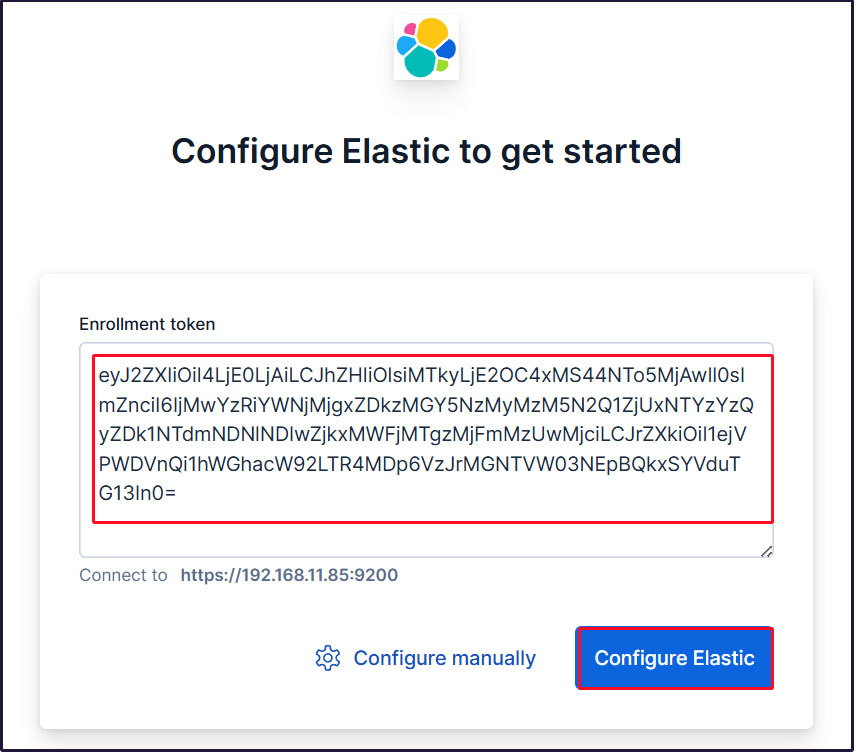
トークンをペーストすると、Kibana が自動的に Elasticsearch に接続します。
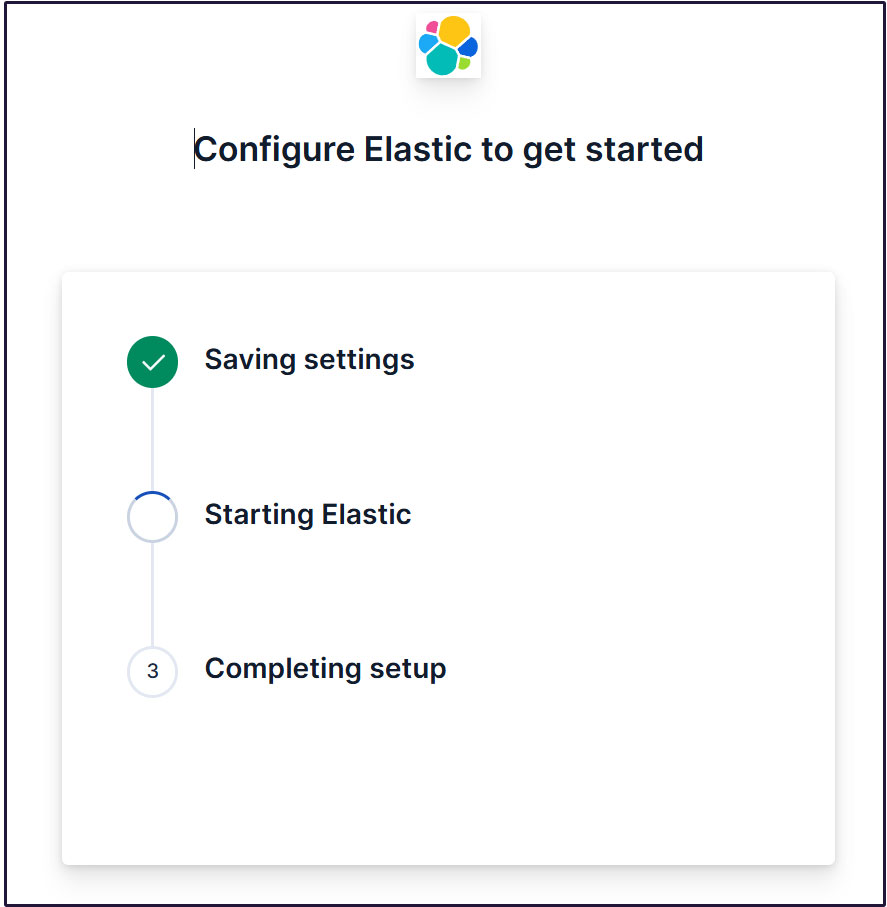
Configure Elastic をクリックします。設定が保存され、Elasticsearch が設定、再起動されます。
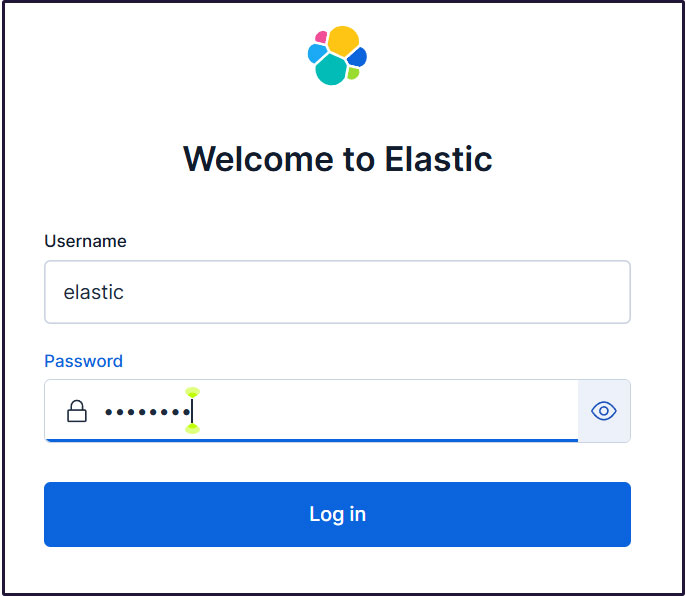
ログインページに移動します。生成されたElasticユーザー認証情報を使用してログインします。
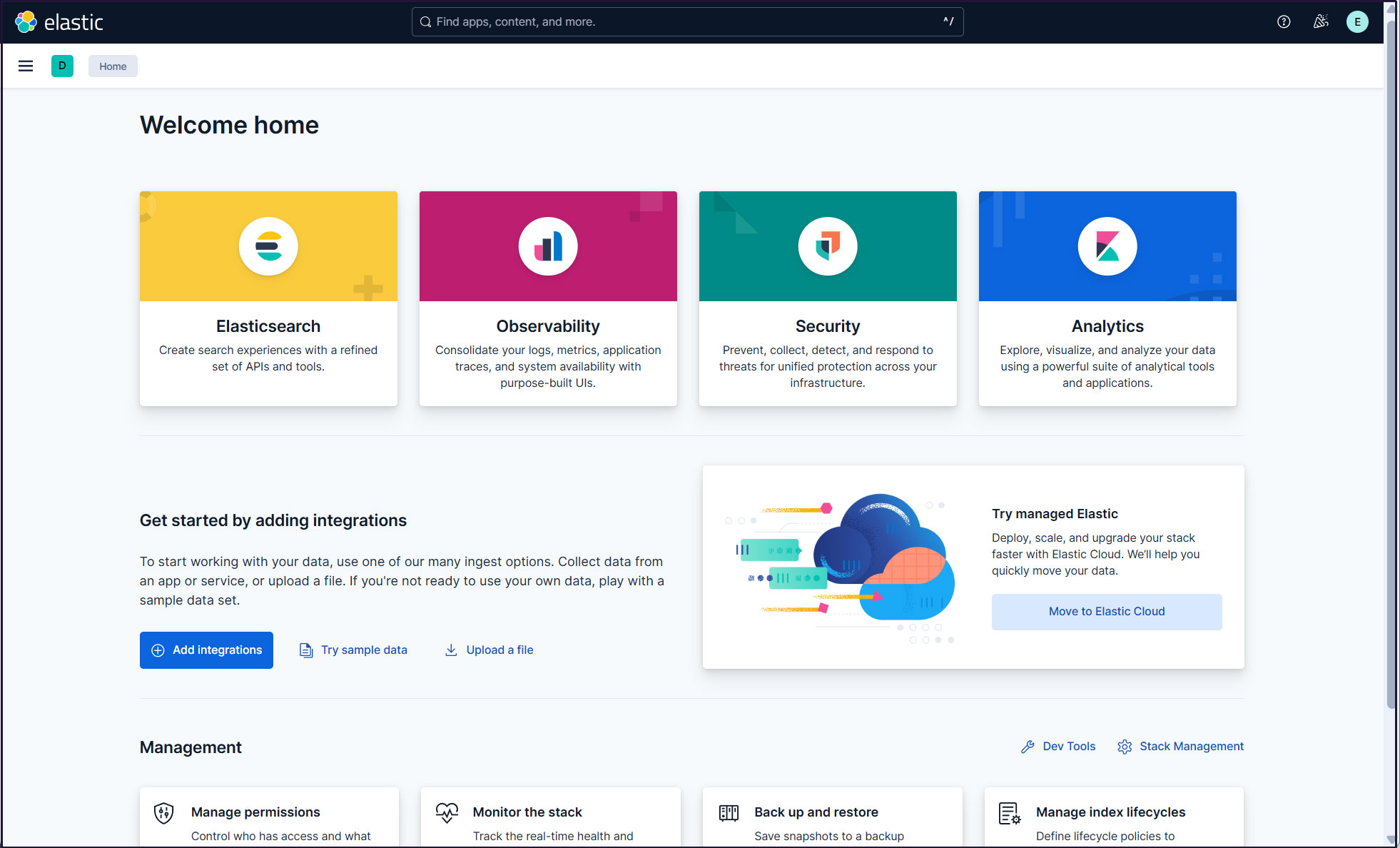
ウェルカムページで、「Explore on my own」をクリックしてKibana 9.xダッシュボードに進む。

Filebeat 9のインストール
ELKスタックを使用してUbuntu26.10からログを収集して監視するには、Filebeatをインストールする必要があります。
本作業は1台目サーバー Ubuntu26.10 IPアドレス(192.168.11.83)で行います。
①Elastic stack 9.xのリポジトリ署名キーをインストール
# apt update
# apt -y install gnupg2
# wget -qO - https://artifacts.elastic.co/GPG-KEY-elasticsearch | gpg --dearmor -o /usr/share/keyrings/elasticsearch-keyring.gpg
➁Elastic Stack 9.xのリポジトリをインストール
# echo "deb [signed-by=/usr/share/keyrings/elasticsearch-keyring.gpg] https://artifacts.elastic.co/packages/9.x/apt stable main" | tee /etc/apt/sources.list.d/elastic-9.x.list
update
# apt update
➂filebeat 9.x をインストール
# apt -y install apt-transport-https
# apt -y install filebeat
④Filebeat Loggingの設定
デフォルトのfilebeat設定ファイルは/etc/filebeat/filebeat.ymlです
Filebeatがログを独自のログファイルに書き込むようにするには、設定ファイルに以下の設定を入力する
# cat >> /etc/filebeat/filebeat.yml << 'EOL'
logging.level: info
logging.to_files: true
logging.files:
  path: /var/log/filebeat
  name: filebeat
  keepfiles: 7
  permissions: 0640
EOL
⑤Filebeatをデータ処理系に接続する
Filebeatをデータ処理系に接続するように設定します。今回はElasticsearchです。
ログを直接Elasticsearchに送信するには、Filebeat設定ファイルを編集し、出力設定セクションを更新します。
Elasticsearch 9への接続にはSSLと認証が必要です。
Elasticsearchのポート9200/tcpに接続できることを確認する(第2サーバー Ubuntu26.10 で9200ボートを開放しておきます)
# telnet 192.168.11.85 9200

Trying 192.168.11.85...
Connected to 192.168.11.85.
Escape character is '^]'.
⑥Elasticsearch CA証明書作成
Elasticsearch CA証明書をダウンロードし、任意のディレクトリに保存します(今回は/etc/filebeat/elastic-ca.crtとして保存します)
# openssl s_client -connect 192.168.11.85:9200 \
-showcerts </dev/null 2>/dev/null | \
openssl x509 -outform PEM > /etc/filebeat/elastic-ca.crt
FilebeatがElasticsearchの認証に使用する認証情報を取得します。今回は、デフォルトのスーパー管理者、Elasticユーザの認証情報を使用します。
# vi /etc/filebeat/filebeat.yml
●137行目コメントアウトされた#host: "localhost:5601"行の下に、KibanaインスタンスのプライベートIPアドレスとポートを指す行を追加する
host: "192.168.11.85:5601"
●164行目 : コメントアウト
#hosts: ["localhost:9200"]
●165行目 : Elastic Stack のipアドレスとelasticsearchのポート番号を入力
hosts: ["https://192.168.11.85:9200"]
●171行目 : コメント解除
protocol: "https"
●172行目 : Elasticsearch CA証明書指定
ssl.certificate_authorities: ["/etc/filebeat/elastic-ca.crt"]
●175,176行目コメント解除し、[username]はデフォルトのままにし、[password]は[elastic]ユーザーのパスワードを入力する
username: "elastic"
password: “xxxxxxxxx"
⑦設定ファイルテスト
# filebeat test config
Config OK
⑧Filebeatsの組み込みSuricataモジュールを有効にする
# filebeat modules enable suricata
上記コマンドにより /etc/filebeat/modules.d/suricata.yml.disabled が/etc/filebeat/modules.d/suricata.yml になりますが内容は変化しませんので以下のように編集します
modules.d/suricata.ymlを下記のように変更する
# vi /etc/filebeat/modules.d/suricata.yml

6-7行目 : 変更
  eve:
    enabled: true
    var.paths: ["/var/log/suricata/eve.json"]
⑨初期環境をセットアップ
SIEMダッシュボードとパイプラインをElasticsearchにロードします
filebeat setupコマンドを実行
# filebeat setup -e

 ------------------------------------------------------------------------------
{"log.level":"info","@timestamp":"2026-10-19T08:31:58.782+0900","log.logger":"modules","log.origin":{"function":"github.com/elastic/beats/v7/filebeat/fileset.LoadPipeline","file.name":"fileset/pipelines.go","file.line":134},"message":"Elasticsearch pipeline loaded.","service.name":"filebeat","pipeline":"filebeat-9.5.5-suricata-eve-pipeline","ecs.version":"1.6.0"}
{"log.level":"info","@timestamp":"2026-10-19T08:31:58.872+0900","log.logger":"modules","log.origin":{"function":"github.com/elastic/beats/v7/filebeat/fileset.LoadPipeline","file.name":"fileset/pipelines.go","file.line":134},"message":"Elasticsearch pipeline loaded.","service.name":"filebeat","pipeline":"filebeat-9.5.5-suricata-eve-dns","ecs.version":"1.6.0"}
{"log.level":"info","@timestamp":"2026-10-19T08:31:59.068+0900","log.logger":"modules","log.origin":{"function":"github.com/elastic/beats/v7/filebeat/fileset.LoadPipeline","file.name":"fileset/pipelines.go","file.line":134},"message":"Elasticsearch pipeline loaded.","service.name":"filebeat","pipeline":"filebeat-9.5.5-suricata-eve-dns-answer-v1","ecs.version":"1.6.0"}
{"log.level":"info","@timestamp":"2026-10-19T08:32:13.889+0900","log.logger":"modules","log.origin":{"function":"github.com/elastic/beats/v7/filebeat/fileset.LoadPipeline","file.name":"fileset/pipelines.go","file.line":134},"message":"Elasticsearch pipeline loaded.","service.name":"filebeat","pipeline":"filebeat-9.5.5-suricata-eve-dns-answer-v2","ecs.version":"1.6.0"}
{"log.level":"info","@timestamp":"2026-10-19T08:32:14.025+0900","log.logger":"modules","log.origin":{"function":"github.com/elastic/beats/v7/filebeat/fileset.LoadPipeline","file.name":"fileset/pipelines.go","file.line":134},"message":"Elasticsearch pipeline loaded.","service.name":"filebeat","pipeline":"filebeat-9.5.5-suricata-eve-tls","ecs.version":"1.6.0"}
{"log.level":"info","@timestamp":"2026-10-19T08:32:14.096+0900","log.logger":"modules","log.origin":{"function":"github.com/elastic/beats/v7/filebeat/fileset.LoadPipeline","file.name":"fileset/pipelines.go","file.line":134},"message":"Elasticsearch pipeline loaded.","service.name":"filebeat","pipeline":"filebeat-9.5.5-suricata-eve-http","ecs.version":"1.6.0"}
-------------------------------------------------------------------------------
Loaded Ingest pipelines
⑩Filebeatサービスを開始
# systemctl start filebeat.service
⑪Kibanaで確認
Kibanaにログインし直します。http://192.168.11.85:5601にアクセスします。
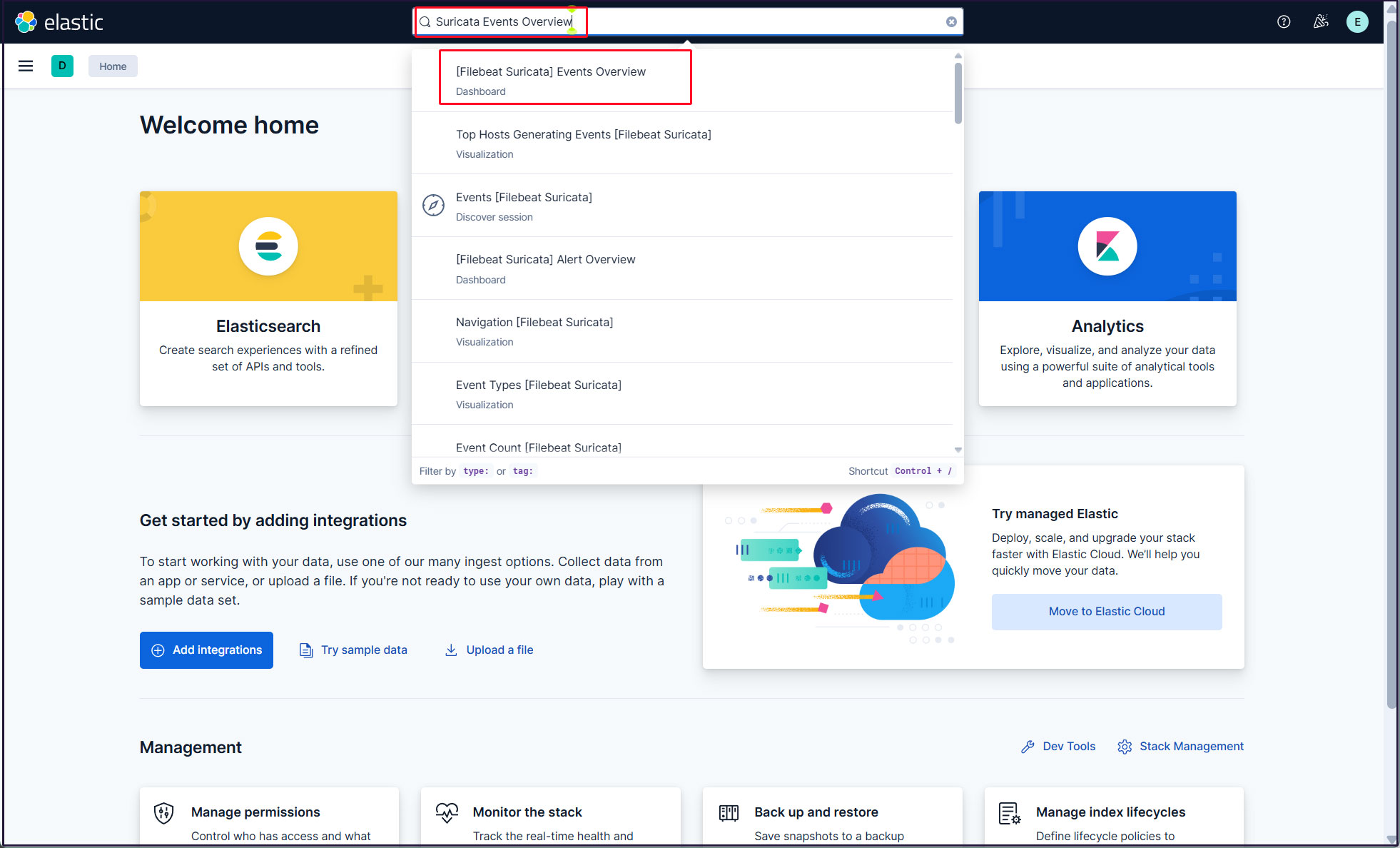
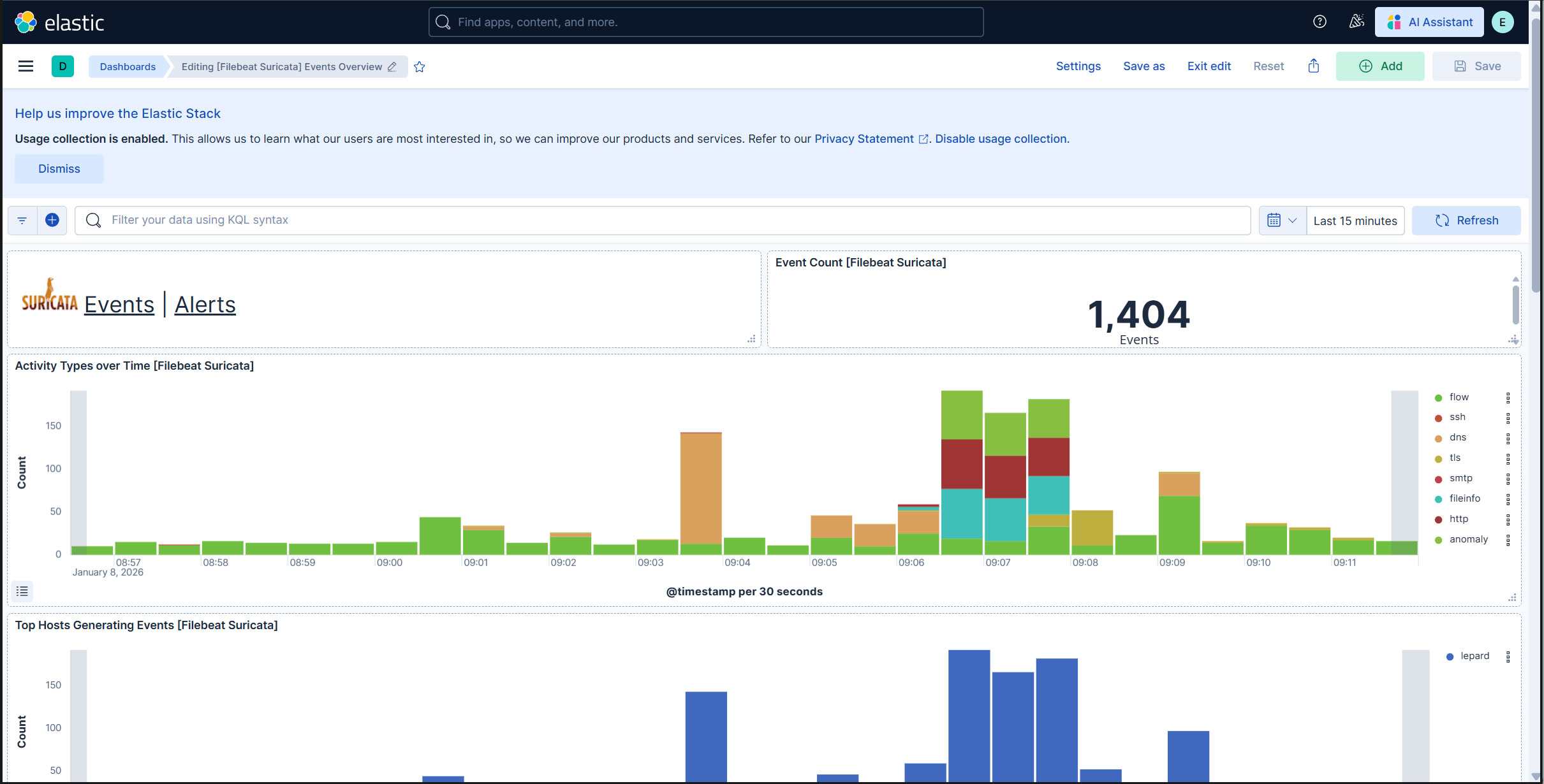
一番上の検索フィールドに「Suricata Events Overview」と入力し、[Filebeat Suricata]Events Overviewをクリック
過去 15 分間のすべての Suricata イベントが表示されます
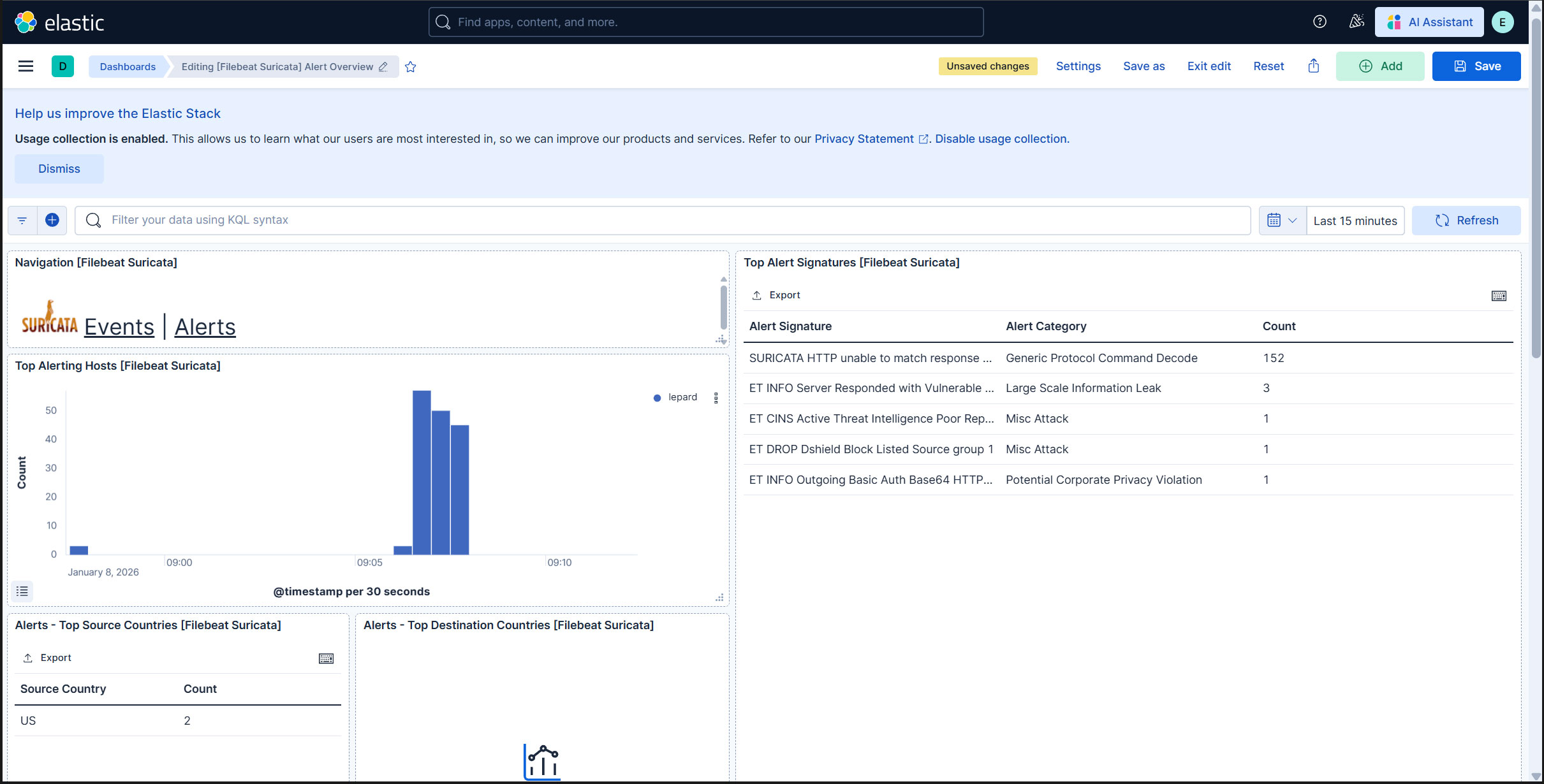
悪質なトラフィックのアラートを表示するにはSuricataロゴの横にあるAlertsテキストをクリック
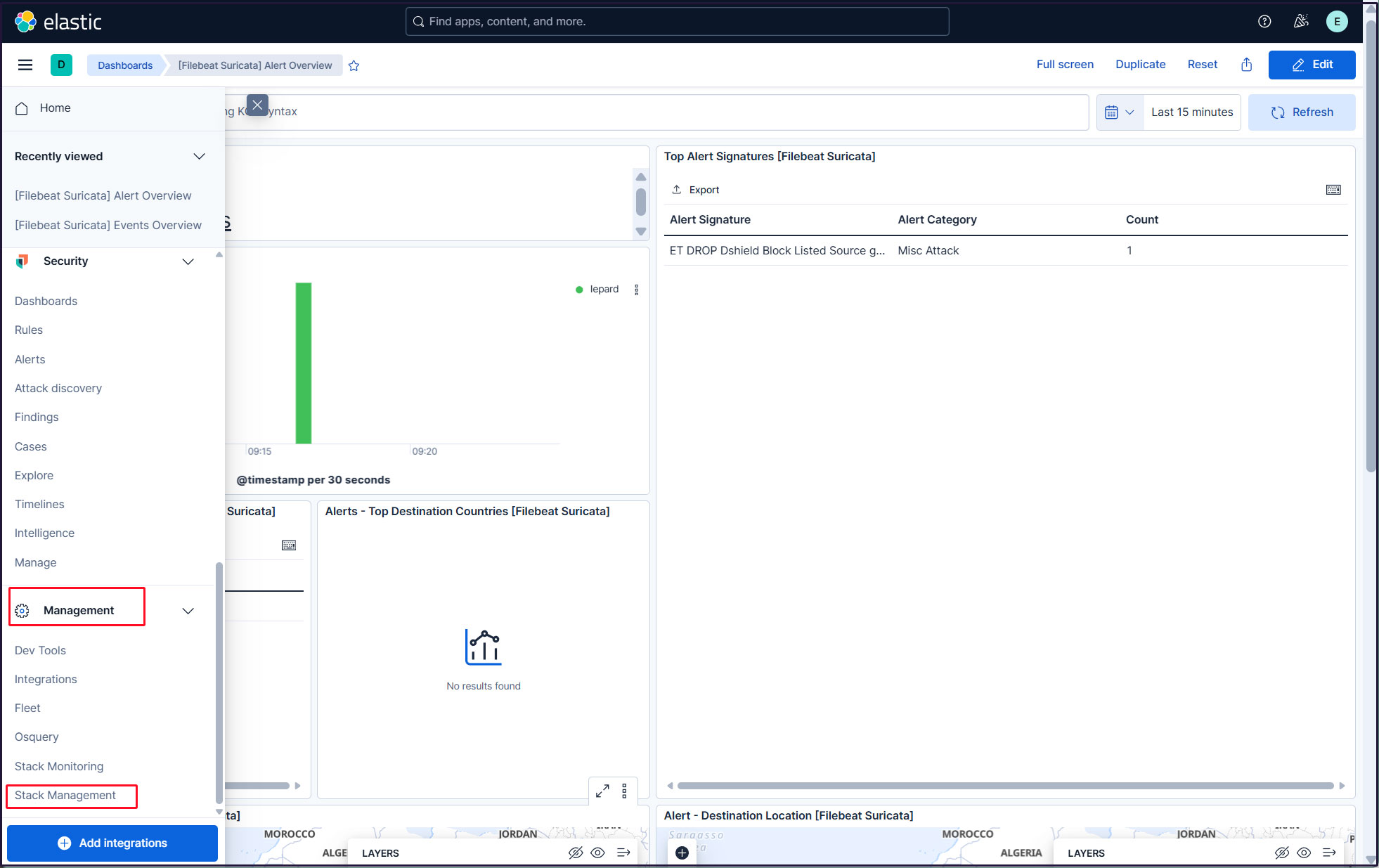
elasticスーパーユーザーアカウントを使う必要がないように、新しいユーザーアカウントを作成します。
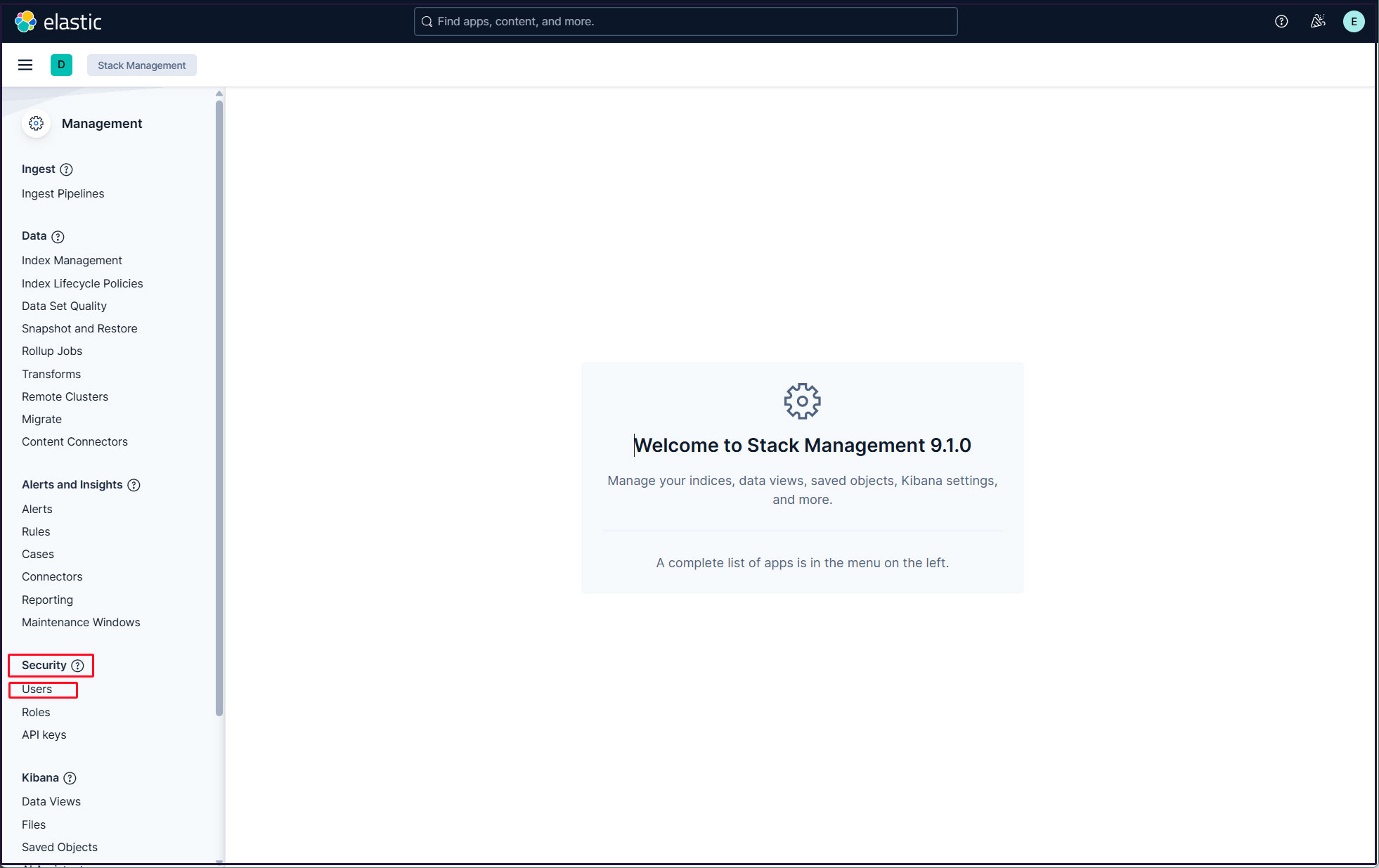
左上三本線マークをクリックし、[Management]の[Stack Management] を選択
「security」「Users」選択
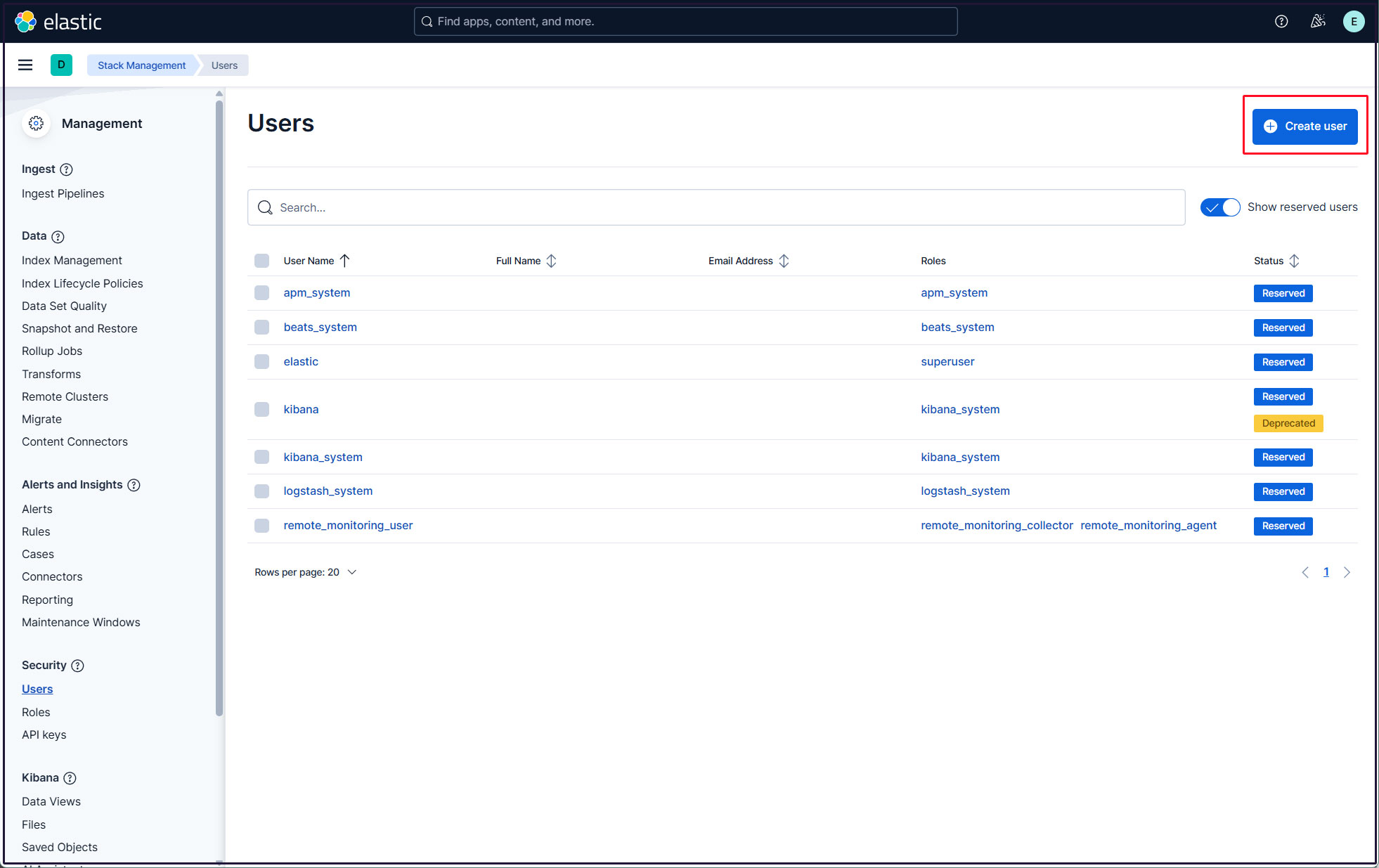
右上の"Create user"ボタンをクリック
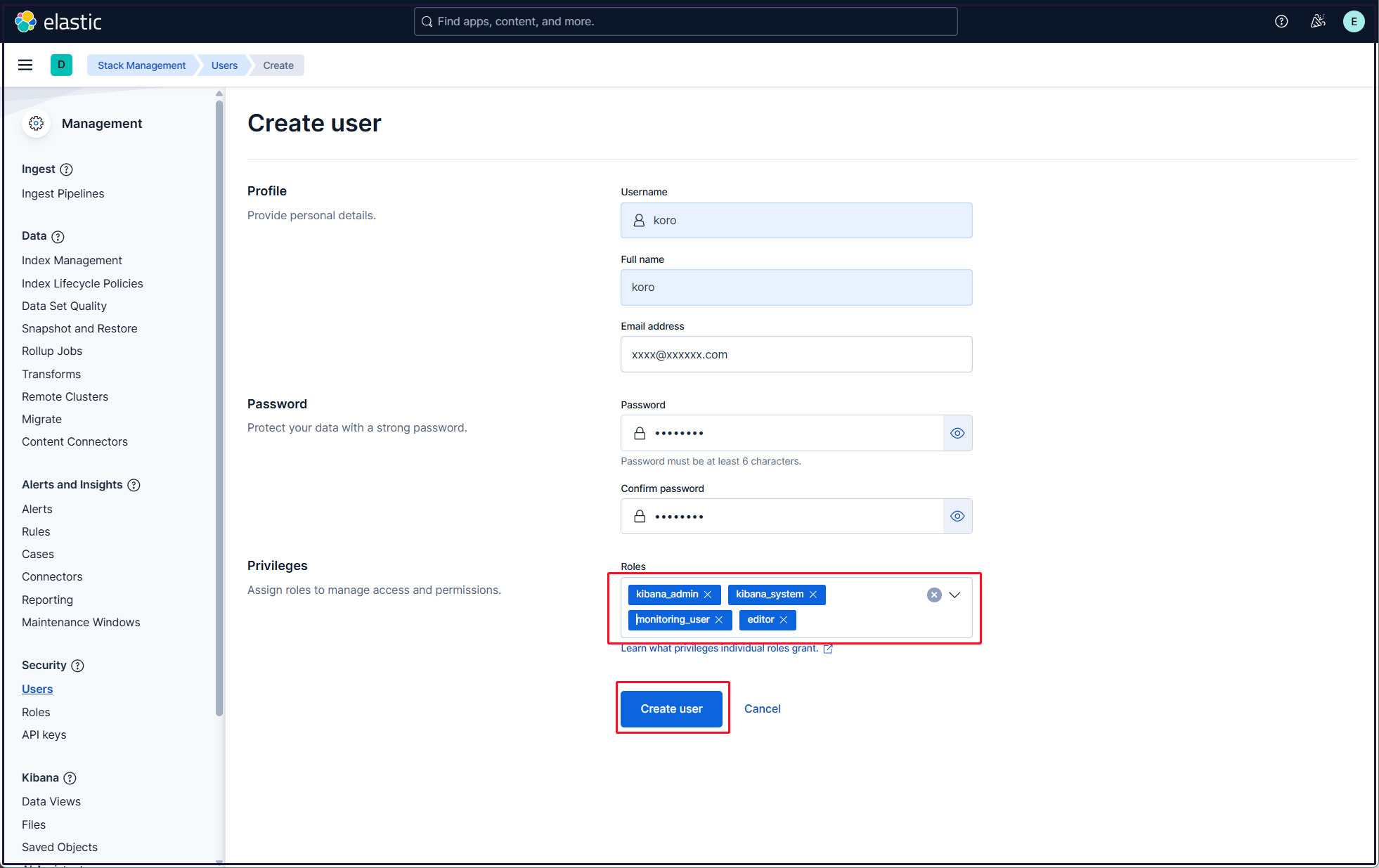
新規ユーザー情報を入力し、Privilegesでkibana_admin、kibana_system、monitoring_user、editorのロールを割り当て、最後に[Create user]をクリック
現在のプロファイルからログアウトし、新しく作成したユーザーアカウントでログインできることを確認する。
Kibana には、ログを視覚化するためのさまざまな機能とツールがありますのでいろいろと試してください。