1. 証明書を取得する (Let's Encrypt)
1.1 事前準備
1.mod_sslを有効にする
# a2enmod ssl
2.パッケージ管理システムSnappyインストール
Let’s EncryptのSSL証明書発行ツール「certbot」は2021年以降は「snap」を利用したインストールが推奨されていますので、まずSnapdをインストールします。

# apt -y install snapd
snapdのバージョンを最新にする
# snap install core
core 16-2.61.4-20260225 from Canonical✓ installed

# snap refresh core
snap "core" has no updates available
バージョン確認
# snap --version
snap          2.77.1+ubuntu26.10.1
snapd         2.77.1+ubuntu26.10.1
series        16
ubuntu        26.10
kernel        7.3.0-9-generic
architecture  amd64
1.2.certbot パッケージインストール
# snap install --classic certbot
certbot 5.8.0 from Certbot Project (certbot-eff✓) installed
/snap/bin/certbotへのシンボリックリンクを作成
# ln -s /snap/bin/certbot /usr/bin/certbot
確認する
# ls -la /usr/bin/certbot
lrwxrwxrwx 1 root root 17 Oct 17 09:54 /usr/bin/certbot -> /snap/bin/certbot
# ls -la /snap/bin/certbot
lrwxrwxrwx 1 root root 13 Oct 17 09:54 /snap/bin/certbot -> /usr/bin/snap
1.3 Let's Encrypt証明書の取得
Apache httpd や Nginx などの Webサーバーが稼働していることが前提となります。
作業を実施するサーバーで Webサーバーが稼働していない場合は 下記の「Webサーバーが稼働していない場合のLet's Encrypt証明書の取得」の手順を実行。
また、インターネット側から、作業を実施するサーバー (証明書を取得したい FQDN のサーバー) の 80 ポート宛てにアクセス可能であることも前提です。
# certbot certonly --webroot -w /var/www/html/[FQDN] -d [FQDN]
・ -w [ドキュメントルート]
・ -d [証明書を取得したいFQDN]
・ 初回のみメールアドレスの登録と利用条件への同意が必要 受信可能なメールアドレスを指定
Saving debug log to /var/log/letsencrypt/letsencrypt.log
Enter email address or hit Enter to skip.
 (Enter 'c' to cancel): [Mail Address]

- - - - - - - - - - - - - - - - - - - - - - - - - - - - - - - - - - - - - - - -
Please read the Terms of Service at:
https://letsencrypt.org/documents/LE-SA-v1.8-July-06-2026.pdf
You must agree in order to register with the ACME server. Do you agree?
- - - - - - - - - - - - - - - - - - - - - - - - - - - - - - - - - - - - - - - -
(Y)es/(N)o: y

- - - - - - - - - - - - - - - - - - - - - - - - - - - - - - - - - - - - - - - -
Would you be willing, once your first certificate is successfully issued, to
share your email address with the Electronic Frontier Foundation, a founding
partner of the Let's Encrypt project and the non-profit organization that
develops Certbot? We'd like to send you email about our work encrypting the web,
EFF news, campaigns, and ways to support digital freedom.
- - - - - - - - - - - - - - - - - - - - - - - - - - - - - - - - - - - - - - - -
(Y)es/(N)o: y
Account registered.
Requesting a certificate for [FQDN]

Successfully received certificate.
Certificate is saved at: /etc/letsencrypt/live/[FQDN]/fullchain.pem
Key is saved at:         /etc/letsencrypt/live/[FQDN]/privkey.pem
This certificate expires on 2027-01-14.
These files will be updated when the certificate renews.
Certbot has set up a scheduled task to automatically renew this certificate in the background.

- - - - - - - - - - - - - - - - - - - - - - - - - - - - - - - - - - - - - - - -
If you like Certbot, please consider supporting our work by:
 * Donating to ISRG / Let's Encrypt:   https://letsencrypt.org/donate
 * Donating to EFF:                    https://eff.org/donate-le
- - - - - - - - - - - - - - - - - - - - - - - - - - - - - - - - - - - - - - - -
「Successfully received certificate.」と表示されれば成功
メッセージ中に記載の通り [/etc/letsencrypt/live/<FQDN>/] 配下に次の証明書が取得されている
# cert.pem
#chain.pem
# fullchain.pem
# privkey.pem
Webサーバーが稼働していない場合のLet's Encrypt証明書の取得
インターネット側から当作業を実施するサーバーの 80 ポート宛てにアクセス可能であることは前提となります
・ [--standalone] 指定で 簡易 Webサーバー機能を使用
・ -d [証明書を取得したいFQDN]
# certbot certonly --standalone -d [FQDN]
1.4 証明書を自動更新 (Let's Encrypt)
①登録前のテスト
まず以下の--dry-runオプションを使って自動更新をテストしてみる。このオプションでは、証明書は更新されずに動作確認のみ実施されるため、証明書の取得回数制限に引っかかる心配もない
# certbot renew --dry-run

Saving debug log to /var/log/letsencrypt/letsencrypt.log

- - - - - - - - - - - - - - - - - - - - - - - - - - - - - - - - - - - - - - - -
Processing /etc/letsencrypt/renewal/[FQDN].conf
- - - - - - - - - - - - - - - - - - - - - - - - - - - - - - - - - - - - - - - -
Account registered.
Simulating renewal of an existing certificate for [FQDN]

- - - - - - - - - - - - - - - - - - - - - - - - - - - - - - - - - - - - - - - -
Congratulations, all simulated renewals succeeded:
  /etc/letsencrypt/live/[FQDN]/fullchain.pem (success)
- - - - - - - - - - - - - - - - - - - - - - - - - - - - - - - - - - - - - - - -
②Snap版certbotをインストールすると、証明書自動更新機能も合わせてインストールされます
# systemctl list-timers | less
NEXT                             LEFT LAST                              PASSED UNIT                           ACTIVATES
Sat 2026-10-17 10:09:00 JST  4min 18s Sat 2026-10-17 09:39:08 JST    25min ago phpsessionclean.timer          phpsessionclean.service
Sat 2026-10-17 10:10:00 JST      5min Sat 2026-10-17 10:00:00 JST 4min 41s ago sysstat-collect.timer          sysstat-collect.service
Sat 2026-10-17 10:23:00 JST     18min -                                      - snap.certbot.renew.timer       snap.certbot.renew.service
Sat 2026-10-17 11:04:19 JST     59min Sat 2026-10-17 10:01:40 JST  3min 0s ago fwupd-refresh.timer            fwupd-refresh.service
Sat 2026-10-17 11:41:43 JST  1h 37min Fri 2026-10-16 12:35:19 JST            - motd-news.timer                motd-news.service
Sat 2026-10-17 15:40:28 JST  5h 35min Sat 2026-10-17 09:40:28 JST    24min ago upki-fetch.timer               upki-fetch.service
Sat 2026-10-17 19:04:31 JST        8h Fri 2026-10-16 10:22:50 JST            - apt-daily.timer                apt-daily.service
Sun 2026-10-18 00:00:00 JST       13h Sat 2026-10-17 09:30:54 JST    33min ago dpkg-db-backup.timer           dpkg-db-backup.service
Sun 2026-10-18 00:00:00 JST       13h Sat 2026-10-17 09:30:54 JST    33min ago locate.timer                   locate.service
snap.certbot.renew.timer が登録されています
snap.certbot.renew.timer のユニットファイルを確認
# vi /etc/systemd/system/snap.certbot.renew.timer

[Unit]
# Auto-generated, DO NOT EDIT
Description=Timer renew for snap application certbot.renew
Requires=snap-certbot-5893.mount
After=snap-certbot-5893.mount
X-Snappy=yes

[Timer]
Unit=snap.certbot.renew.service
OnCalendar=*-*-* 10:23
OnCalendar=*-*-* 23:15

[Install]
WantedBy=timers.target
snap.certbot.renew.serviceのユニットファイルを確認
# vi /etc/systemd/system/snap.certbot.renew.service

[Unit]
# Auto-generated, DO NOT EDIT
Description=Service for snap application certbot.renew
Requires=snap-certbot-5893.mount
Wants=network.target
After=snap-certbot-5893.mount network.target snapd.apparmor.service
X-Snappy=yes

[Service]
EnvironmentFile=-/etc/environment
ExecStart=/usr/bin/snap run --timer="00:00~24:00/2" certbot.renew
SyslogIdentifier=certbot.renew
Restart=no
WorkingDirectory=/var/snap/certbot/5893
TimeoutStopSec=30s
Type=oneshot
ただし、証明書を使用するWebサーバーの再起動は行われませんので、更新後に自動的に実行されるスクリプトを設定します
# vi /etc/letsencrypt/renewal-hooks/post/web_restart.sh

#!/bin/bash
systemctl restart apache2
スクリプトに実行権限設定
# chmod 755 /etc/letsencrypt/renewal-hooks/post/web_restart.sh
2. Apache2にSSL/TLS(Let's Encrypt) の設定
①Apache2のSSL関連設定ファイルの編集
デフォルトのvhost-ssl.confをコピーしてvhost-ssl作成(名称は任意でよい)
# cd /etc/apache2/sites-available/
# cp default-ssl.conf vhost-ssl.conf
コピーした設定ファイルの編集
# vi vhost-ssl.conf

2行目:管理者アドレス変更
ServerAdmin [管理者Email Address]

4行目:変更
DocumentRoot /var/www/html/[FQDN]/

12,13行目:変更
ErrorLog ${APACHE_LOG_DIR}/[FQDN].error.log
CustomLog ${APACHE_LOG_DIR}/[FQDN].access.log combined

31,32行目:コメントアウトして、その下に追加
#SSLCertificateFile      /etc/ssl/certs/ssl-cert-snakeoil.pem
#SSLCertificateKeyFile   /etc/ssl/private/ssl-cert-snakeoil.key
SSLCertificateFile      /etc/letsencrypt/live/[FQDN]/cert.pem
SSLCertificateKeyFile   /etc/letsencrypt/live/[FQDN]/privkey.pem

43行目:追加
SSLCertificateChainFile /etc/letsencrypt/live/[FQDN]/chain.pem
②設定ファイルの反映と有効化
# a2ensite vhost-ssl.conf
Enabling site vhost-ssl.
To activate the new configuration, you need to run:
  systemctl reload apache2

デフォルト無効化
# a2dissite default-ssl.conf

# systemctl restart apache2
③httpからhttpsリダイレクト
# a2enmod rewrite
Enabling module rewrite.
To activate the new configuration, you need to run:
  systemctl restart apache2
バーチャルホスト設定ファイルに追記する
# cd /etc/apache2/sites-available

# vi vhost.conf

<VirtualHost *:80>
        下記3行を追記
        RewriteEngine on
        RewriteCond %{HTTPS} off
        RewriteRule ^(.*)$ https://%{HTTP_HOST}%{REQUEST_URI} [R=301,L]
        # The ServerName directive sets the request scheme, hostname and port that
        # the server uses to identify itself. This is used when creating

---------省略-----------

</VirtualHost>
④Apache起動
# systemctl restart apache2
3. Mail サーバーにSSL/TLS(Let's Encrypt) の設定
3.1 メールサーバー用証明書の取得
一度web サーバーを止めてから行う
# systemctl stop apache2

# certbot certonly --standalone -d mail.[domain]
Saving debug log to /var/log/letsencrypt/letsencrypt.log
Requesting a certificate for mail.[domain]

Successfully received certificate.
Certificate is saved at: /etc/letsencrypt/live/mail.[domain]/fullchain.pem
Key is saved at:         /etc/letsencrypt/live/mail.[domain]/privkey.pem
This certificate expires on 2027-01-15.
These files will be updated when the certificate renews.
Certbot has set up a scheduled task to automatically renew this certificate in the background.

- - - - - - - - - - - - - - - - - - - - - - - - - - - - - - - - - - - - - - - -
If you like Certbot, please consider supporting our work by:
 * Donating to ISRG / Let's Encrypt:   https://letsencrypt.org/donate
 * Donating to EFF:                    https://eff.org/donate-le
- - - - - - - - - - - - - - - - - - - - - - - - - - - - - - - - - - - - - - - -
Apache起動
# systemctl start apache2
3.2 Postfixの設定
# vi /etc/postfix/main.cf

最終行に追記
smtpd_use_tls = yes
smtp_tls_mandatory_protocols = !SSLv2, !SSLv3
smtpd_tls_mandatory_protocols = !SSLv2, !SSLv3
smtpd_tls_cert_file = /etc/letsencrypt/live/mail.[domain]/fullchain.pem
smtpd_tls_key_file = /etc/letsencrypt/live/mail.[domain]/privkey.pem
smtpd_tls_session_cache_database = btree:${data_directory}/smtpd_scache
SMTP-Submission は [587/TCP], SMTPS は [465/TCP],
# vi /etc/postfix/master.cf

20,22行目 : コメント解除
submission inet n       -       y       -       -       smtpd
    -o syslog_name=postfix/submission
#   -o smtpd_forbid_unauth_pipelining=no
    -o smtpd_tls_security_level=encrypt
    -o smtpd_sasl_auth_enable=yes

最終行に追記
smtps     inet  n       -       y       -       -       smtpd
    -o syslog_name=postfix/smtps
    -o smtpd_tls_wrappermode=yes
    -o smtpd_sasl_auth_enable=yes
3.3 Dovecotの設定
# vi /etc/dovecot/conf.d/10-ssl.conf

6行目:確認
ssl = yes

18,20行目:コメントにして下記証明書/鍵ファイル追加
#ssl_server_cert_file = /etc/dovecot/private/dovecot.pem
ssl_server_cert_file = /etc/letsencrypt/live/mail.[domain]/fullchain.pem
#ssl_server_key_file = /etc/dovecot/private/dovecot.key
ssl_server_key_file = /etc/letsencrypt/live/mail.[domain]/privkey.pem
firewallでPort 587を許可する
# ufw allow 587/tcp
# ufw reload
# systemctl restart postfix dovecot
3.4 Thunderbirdの設定
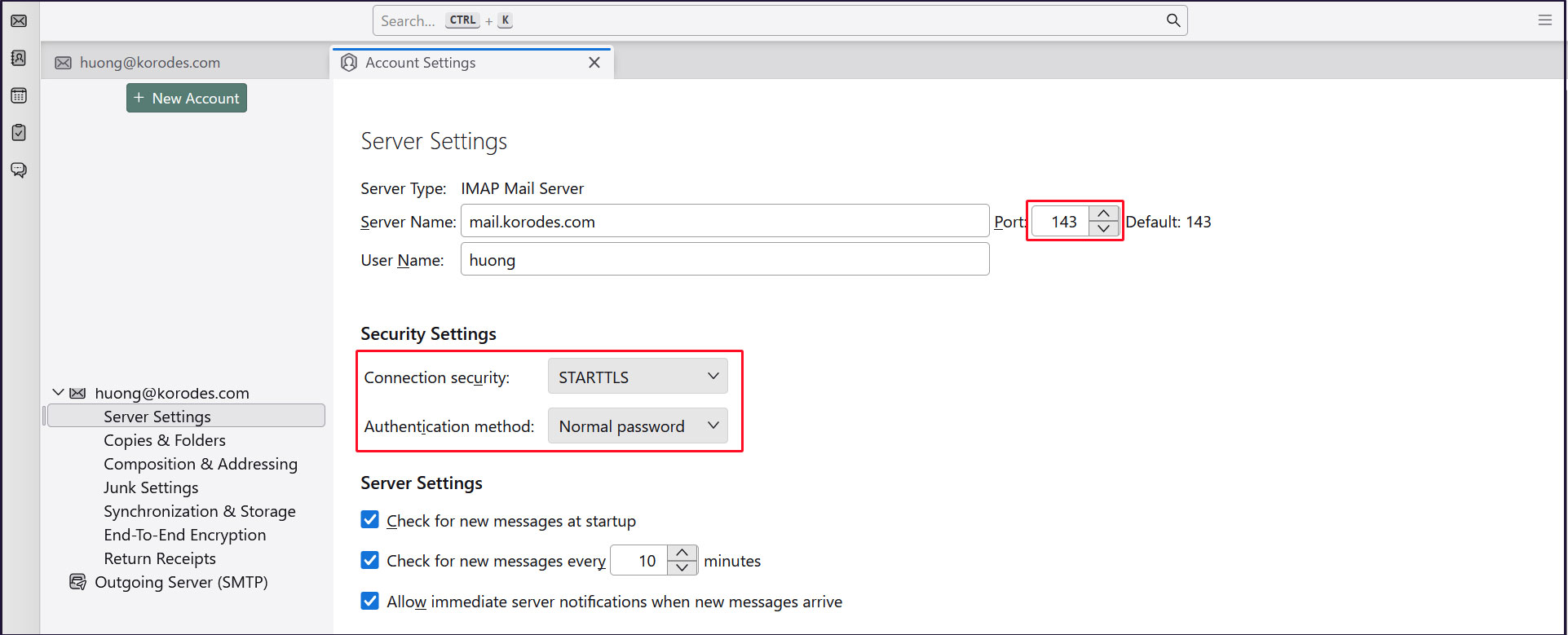
受信サーバー
Port : 143
Connection security : STARTTLS
Authentication method : Normal password
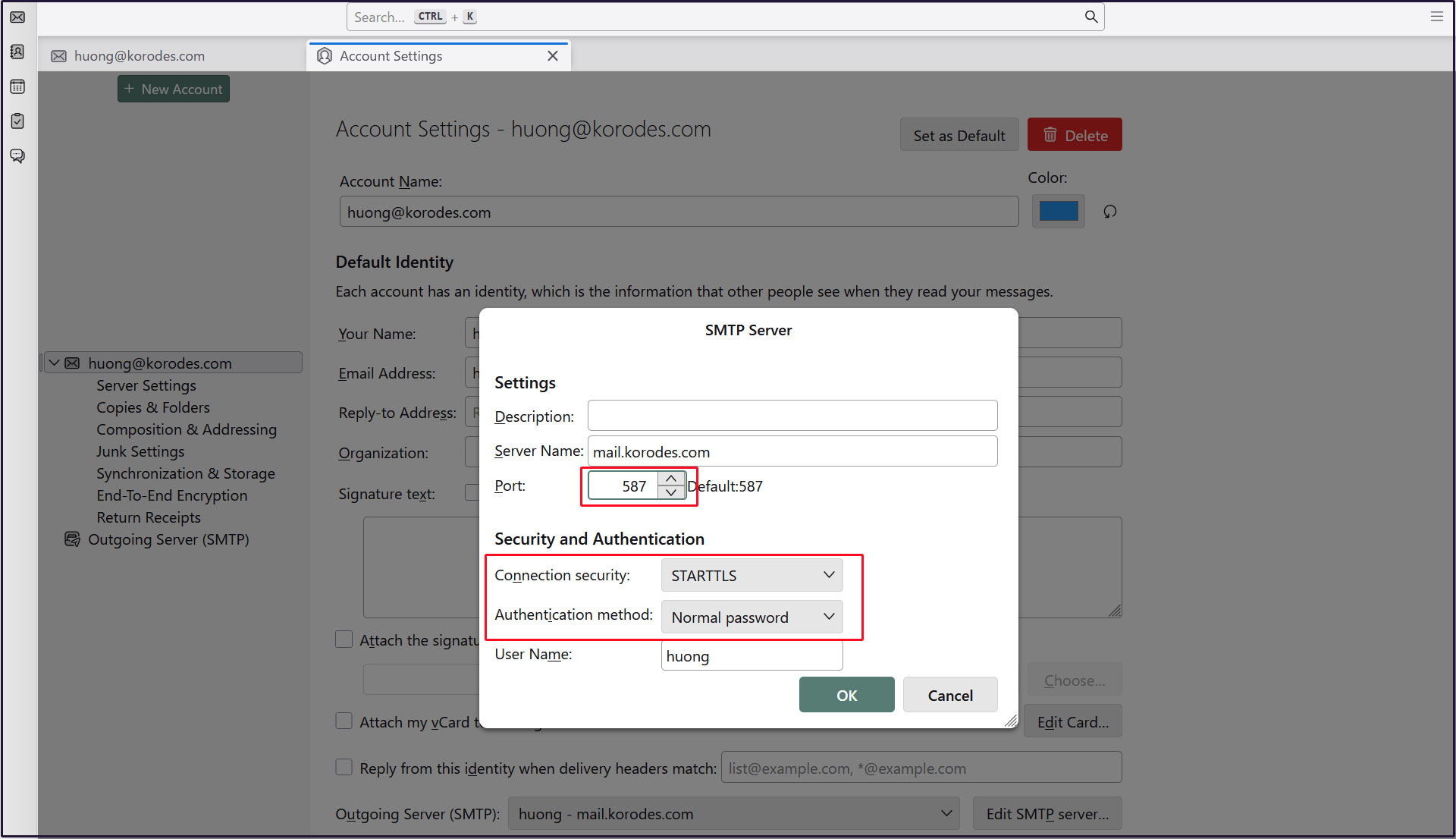
送信サーバー
Port : 587
Connection security : STARTTLS
Authentication method : Normal password