1. 証明書を取得する (Let's Encrypt)
1.1 事前準備
1.mod_sslを有効にする
|
1 |
# a2enmod ssl |
2.パッケージ管理システムSnappyインストール
Let’s EncryptのSSL証明書発行ツール「certbot」は2021年以降は「snap」を利用したインストールが推奨されていますので、まずSnapdをインストールします。

|
1 |
# apt -y install snapd |
snapdのバージョンを最新にする
|
1 2 3 4 5 |
# snap install core core 16-2.61.4-20260225 from Canonical✓ installed # snap refresh core snap "core" has no updates available |
バージョン確認
|
1 2 3 4 5 6 7 |
# snap --version snap 2.74.1+ubuntu26.04.4 snapd 2.74.1+ubuntu26.04.4 series 16 ubuntu 26.04 kernel 7.0.0-14-generic architecture amd64 |
1.2.certbot パッケージインストール
|
1 2 |
# snap install --classic certbot certbot 5.5.0 from Certbot Project (certbot-eff✓) installed |
/snap/bin/certbotへのシンボリックリンクを作成
|
1 |
# ln -s /snap/bin/certbot /usr/bin/certbot |
確認する
|
1 2 3 4 5 |
# ls -la /usr/bin/certbot lrwxrwxrwx 1 root root 17 Jan 11 10:54 /usr/bin/certbot -> /snap/bin/certbot # ls -la /snap/bin/certbot lrwxrwxrwx 1 root root 13 Jan 11 10:53 /snap/bin/certbot -> /usr/bin/snap |
1.3 Let's Encrypt証明書の取得
Apache httpd や Nginx などの Webサーバーが稼働していることが前提となります。
作業を実施するサーバーで Webサーバーが稼働していない場合は 下記の「Webサーバーが稼働していない場合のLet's Encrypt証明書の取得」の手順を実行。
また、インターネット側から、作業を実施するサーバー (証明書を取得したい FQDN のサーバー) の 80 ポート宛てにアクセス可能であることも前提です。
|
1 |
# certbot certonly --webroot -w /var/www/html/[FQDN] -d [FQDN] |
# [--webroot] 指定で稼働中 Web サーバーの公開ディレクトリ配下を認証用の一時領域に使用
-w [ドキュメントルート]
# -d [証明書を取得したいFQDN]
FQDN (Fully Qualified Domain Name) : ホスト名.ドメイン名を省略なしで表記
# ドキュメントルートはバーチャルホストで複数のホスト定義がある場合、該当するホスト定義のものを指定
ドキュメントルート指定の動作としては, 指定したドキュメントルート配下に [.well-known] ディレクトリが作成され, 認
証用のファイルが自動的,一時的に設置されるのみ
# 初回のみメールアドレスの登録と利用条件への同意が必要 受信可能なメールアドレスを指定
|
1 2 3 4 5 6 7 8 9 10 11 12 13 14 15 16 17 18 19 20 21 22 23 24 25 26 27 28 29 30 31 32 33 34 |
Saving debug log to /var/log/letsencrypt/letsencrypt.log Enter email address (used for urgent renewal and security notices) (Enter 'c' to cancel): [Administrator Email Address] - - - - - - - - - - - - - - - - - - - - - - - - - - - - - - - - - - - - - - - - Please read the Terms of Service at https://letsencrypt.org/documents/LE-SA-v1.3-September-21-2022.pdf. You must agree in order to register with the ACME server. Do you agree? - - - - - - - - - - - - - - - - - - - - - - - - - - - - - - - - - - - - - - - - (Y)es/(N)o: Y - - - - - - - - - - - - - - - - - - - - - - - - - - - - - - - - - - - - - - - - Would you be willing, once your first certificate is successfully issued, to share your email address with the Electronic Frontier Foundation, a founding partner of the Let's Encrypt project and the non-profit organization that develops Certbot? We'd like to send you email about our work encrypting the web, EFF news, campaigns, and ways to support digital freedom. - - - - - - - - - - - - - - - - - - - - - - - - - - - - - - - - - - - - - - - - (Y)es/(N)o: Y Account registered. Requesting a certificate for [FQDN] Successfully received certificate. Certificate is saved at: /etc/letsencrypt/live/[FQDN]/fullchain.pem Key is saved at: /etc/letsencrypt/live/[FQDN]/privkey.pem This certificate expires on 2026-07-23. These files will be updated when the certificate renews. Certbot has set up a scheduled task to automatically renew this certificate in the background. - - - - - - - - - - - - - - - - - - - - - - - - - - - - - - - - - - - - - - - - If you like Certbot, please consider supporting our work by: * Donating to ISRG / Let's Encrypt: https://letsencrypt.org/donate * Donating to EFF: https://eff.org/donate-le - - - - - - - - - - - - - - - - - - - - - - - - - - - - - - - - - - - - - - - - |
「Successfully received certificate.」と表示されれば成功
メッセージ中に記載の通り [/etc/letsencrypt/live/<FQDN>/] 配下に次の証明書が取得されている
# cert.pem
#chain.pem
# fullchain.pem
# privkey.pem
Webサーバーが稼働していない場合のLet's Encrypt証明書の取得
インターネット側から当作業を実施するサーバーの 80 ポート宛てにアクセス可能であることは前提となります
# [--standalone] 指定で 簡易 Webサーバー機能を使用
# -d [証明書を取得したいFQDN]
FQDN (Fully Qualified Domain Name) : ホスト名.ドメイン名を省略なしで表記
# 証明書を取得したいFQDNが複数ある場合は、-d [証明書を取得したいFQDN] を複数指定
|
1 |
# certbot certonly --standalone -d [FQDN] |
1.4 証明書を自動更新 (Let's Encrypt)
①登録前のテスト
まず以下の--dry-runオプションを使って自動更新をテストしてみる。このオプションでは、証明書は更新されずに動作確認のみ実施されるため、証明書の取得回数制限に引っかかる心配もない
|
1 2 3 4 5 6 7 8 9 10 11 12 13 14 |
# certbot renew --dry-run Saving debug log to /var/log/letsencrypt/letsencrypt.log - - - - - - - - - - - - - - - - - - - - - - - - - - - - - - - - - - - - - - - - Processing /etc/letsencrypt/renewal/[FQDN].conf - - - - - - - - - - - - - - - - - - - - - - - - - - - - - - - - - - - - - - - - Account registered. Simulating renewal of an existing certificate for [FQDN] - - - - - - - - - - - - - - - - - - - - - - - - - - - - - - - - - - - - - - - - Congratulations, all simulated renewals succeeded: /etc/letsencrypt/live/[FQDN]/fullchain.pem (success) - - - - - - - - - - - - - - - - - - - - - - - - - - - - - - - - - - - - - - - - |
②Snap版certbotをインストールすると、証明書自動更新機能も合わせてインストールされます
|
1 2 3 4 5 6 7 8 9 10 |
# systemctl list-timers | less NEXT LEFT LAST PASSED UNIT ACTIVATES Sat 2026-04-25 09:50:00 JST 6min Sat 2026-04-25 09:40:07 JST 3min 29s ago sysstat-collect.timer sysstat-collect.service Sat 2026-04-25 10:09:00 JST 25min Sat 2026-04-25 09:39:07 JST 4min 29s ago phpsessionclean.timer phpsessionclean.service Sat 2026-04-25 10:16:48 JST 33min Fri 2026-04-24 10:19:59 JST - logrotate.timer logrotate.service Sat 2026-04-25 10:45:33 JST 1h 1min Sat 2026-04-25 09:43:15 JST 21s ago fwupd-refresh.timer fwupd-refresh.service Sat 2026-04-25 15:33:00 JST 5h 49min - - snap.certbot.renew.timer snap.certbot.renew.service Sat 2026-04-25 16:06:55 JST 6h Fri 2026-04-24 10:19:59 JST - man-db.timer man-db.service |
snap.certbot.renew.timer が登録されています
snap.certbot.renew.timer のユニットファイルを確認
|
1 2 3 4 5 6 7 8 9 10 11 12 13 14 15 16 |
# vi /etc/systemd/system/snap.certbot.renew.timer [Unit] # Auto-generated, DO NOT EDIT Description=Timer renew for snap application certbot.renew Requires=snap-certbot-5528.mount After=snap-certbot-5528.mount X-Snappy=yes [Timer] Unit=snap.certbot.renew.service OnCalendar=*-*-* 07:22 OnCalendar=*-*-* 15:33 [Install] WantedBy=timers.target |
上記設定によるとOnCalenderパラメータで指定されている毎日7時22分と15時33分に更新を試みます(ただし、更新ごとにランダムに設定時刻が変更します)
snap.certbot.renew.serviceのユニットファイルを確認
|
1 2 3 4 5 6 7 8 9 10 11 12 13 14 15 16 17 18 |
# vi /etc/systemd/system/snap.certbot.renew.service [Unit] # Auto-generated, DO NOT EDIT Description=Service for snap application certbot.renew Requires=snap-certbot-5528.mount Wants=network.target After=snap-certbot-5528.mount network.target snapd.apparmor.service X-Snappy=yes [Service] EnvironmentFile=-/etc/environment ExecStart=/usr/bin/snap run --timer="00:00~24:00/2" certbot.renew SyslogIdentifier=certbot.renew Restart=no WorkingDirectory=/var/snap/certbot/5528 TimeoutStopSec=30s Type=oneshot |
ただし、証明書を使用するWebサーバーの再起動は行われませんので、更新後に自動的に実行されるスクリプトを設定します
|
1 2 3 4 |
# vi /etc/letsencrypt/renewal-hooks/post/web_restart.sh #!/bin/bash systemctl restart apache2 |
|
1 |
# chmod 755 /etc/letsencrypt/renewal-hooks/post/web_restart.sh |
2. Apache2にSSL/TLS(Let's Encrypt) の設定
①Apache2のSSL関連設定ファイルの編集
vhost-ssl.confのvhost-sslは任意でよい
|
1 2 3 4 5 6 7 8 9 10 11 12 13 14 15 16 17 18 |
# cd /etc/apache2/sites-available/ # cp default-ssl.conf vhost-ssl.conf # vi vhost-ssl.conf # 2行目:管理者アドレス変更 ServerAdmin [管理者Email Address] # 4行目:変更 DocumentRoot /var/www/html/[FQDN]/ # 12,13行目:変更 ErrorLog ${APACHE_LOG_DIR}/[FQDN].error.log CustomLog ${APACHE_LOG_DIR}/[FQDN].access.log combined # 31,32行目:コメントアウトして、その下に追加 #SSLCertificateFile /etc/ssl/certs/ssl-cert-snakeoil.pem #SSLCertificateKeyFile /etc/ssl/private/ssl-cert-snakeoil.key SSLCertificateFile /etc/letsencrypt/live/[FQDN]/cert.pem SSLCertificateKeyFile /etc/letsencrypt/live/[FQDN]/privkey.pem # 43行目:追加 SSLCertificateChainFile /etc/letsencrypt/live/[FQDN]/chain.pem |
②設定ファイルの反映と有効化
|
1 2 3 4 5 6 7 8 9 |
# a2ensite vhost-ssl.conf Enabling site vhost-ssl. To activate the new configuration, you need to run: systemctl reload apache2 # デフォルト無効化 # a2dissite default-ssl.conf # systemctl restart apache2 |
③httpからhttpsリダイレクト
|
1 2 3 4 |
# a2enmod rewrite Enabling module rewrite. To activate the new configuration, you need to run: systemctl restart apache2 |
バーチャルホスト設定ファイルに追記する
|
1 2 3 4 5 6 7 8 9 10 11 12 13 14 15 |
# cd /etc/apache2/sites-available # vi vhost.conf <VirtualHost *:80> # 下記3行を追記 RewriteEngine on RewriteCond %{HTTPS} off RewriteRule ^(.*)$ https://%{HTTP_HOST}%{REQUEST_URI} [R=301,L] # The ServerName directive sets the request scheme, hostname and port that # the server uses to identify itself. This is used when creating ---------省略----------- </VirtualHost> |
④設定反映と起動
|
1 |
# systemctl restart apache2 |
3. Mail サーバーにSSL/TLS(Let's Encrypt) の設定
3.1 メールサーバー用証明書の取得
メールサーバー用の証明書を取得するが上記と同様の方法では取得できないので「--standalone」オプションをつけて下記のようにしても失敗する。
|
1 |
# certbot certonly --standalone -d mail.<domain name> |
一度web サーバーを止めてから行うと下記のとおり成功する
|
1 2 3 4 5 6 7 8 9 10 11 12 13 14 15 16 17 18 |
# systemctl stop apache2 # certbot certonly --standalone -d mail.[domain] Saving debug log to /var/log/letsencrypt/letsencrypt.log Requesting a certificate for mail.[domain] Successfully received certificate. Certificate is saved at: /etc/letsencrypt/live/mail.[domain]/fullchain.pem Key is saved at: /etc/letsencrypt/live/mail.[domain]/privkey.pem This certificate expires on 2026-07-24. These files will be updated when the certificate renews. Certbot has set up a scheduled task to automatically renew this certificate in the background. - - - - - - - - - - - - - - - - - - - - - - - - - - - - - - - - - - - - - - - - If you like Certbot, please consider supporting our work by: * Donating to ISRG / Let's Encrypt: https://letsencrypt.org/donate * Donating to EFF: https://eff.org/donate-le - - - - - - - - - - - - - - - - - - - - - - - - - - - - - - - - - - - - - - - - |
|
1 |
# systemctl start apache2 |
3.2 Postfixの設定
|
1 2 3 4 5 6 7 8 9 |
# vi /etc/postfix/main.cf ● 最終行に追記 smtpd_use_tls = yes smtp_tls_mandatory_protocols = !SSLv2, !SSLv3 smtpd_tls_mandatory_protocols = !SSLv2, !SSLv3 smtpd_tls_cert_file = /etc/letsencrypt/live/mail.[domain]/fullchain.pem smtpd_tls_key_file = /etc/letsencrypt/live/mail.[domain]/privkey.pem smtpd_tls_session_cache_database = btree:${data_directory}/smtpd_scache |
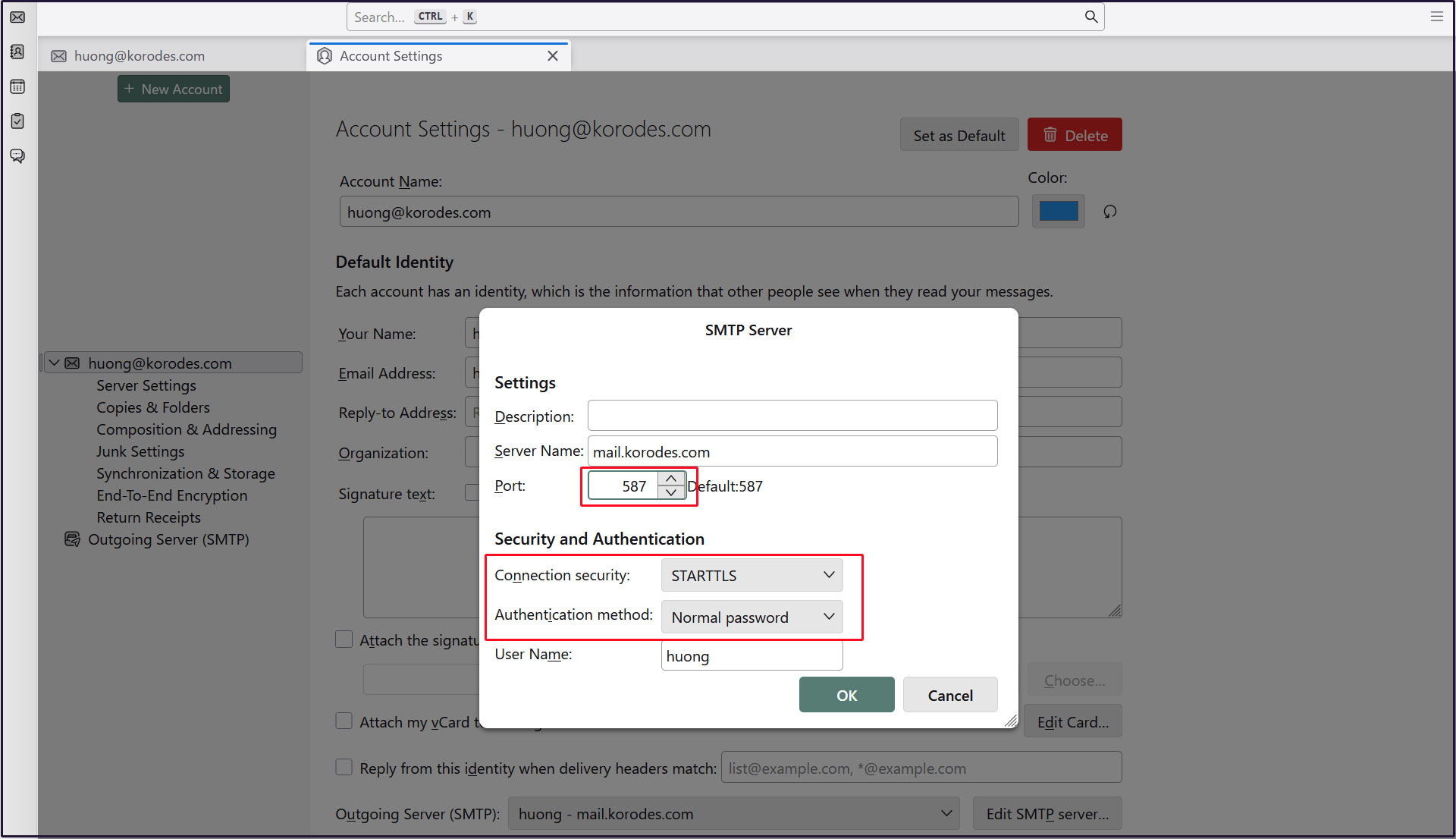
SMTP-Submission は [587/TCP], SMTPS は [465/TCP],
|
1 2 3 4 5 6 7 8 9 10 11 12 13 14 |
# vi /etc/postfix/master.cf 20,22行目 : コメント解除 submission inet n - y - - smtpd -o syslog_name=postfix/submission # -o smtpd_forbid_unauth_pipelining=no -o smtpd_tls_security_level=encrypt -o smtpd_sasl_auth_enable=yes # 最終行に追記 smtps inet n - y - - smtpd -o syslog_name=postfix/smtps -o smtpd_tls_wrappermode=yes -o smtpd_sasl_auth_enable=yes |
3.3 Dovecotの設定
|
1 2 3 4 5 6 7 8 9 |
# vi /etc/dovecot/conf.d/10-ssl.conf 6行目:確認 ssl = yes 18,20行目:コメントにして下記証明書/鍵ファイル追加 #ssl_server_cert_file = /etc/dovecot/private/dovecot.pem ssl_server_cert_file = /etc/letsencrypt/live/mail.[domain]/fullchain.pem #ssl_server_key_file = /etc/dovecot/private/dovecot.key ssl_server_key_file = /etc/letsencrypt/live/mail.[domain]/privkey.pem |
firewallでPort 587を許可する
|
1 2 |
# ufw allow 587/tcp # ufw reload |
|
1 |
# systemctl restart postfix dovecot |
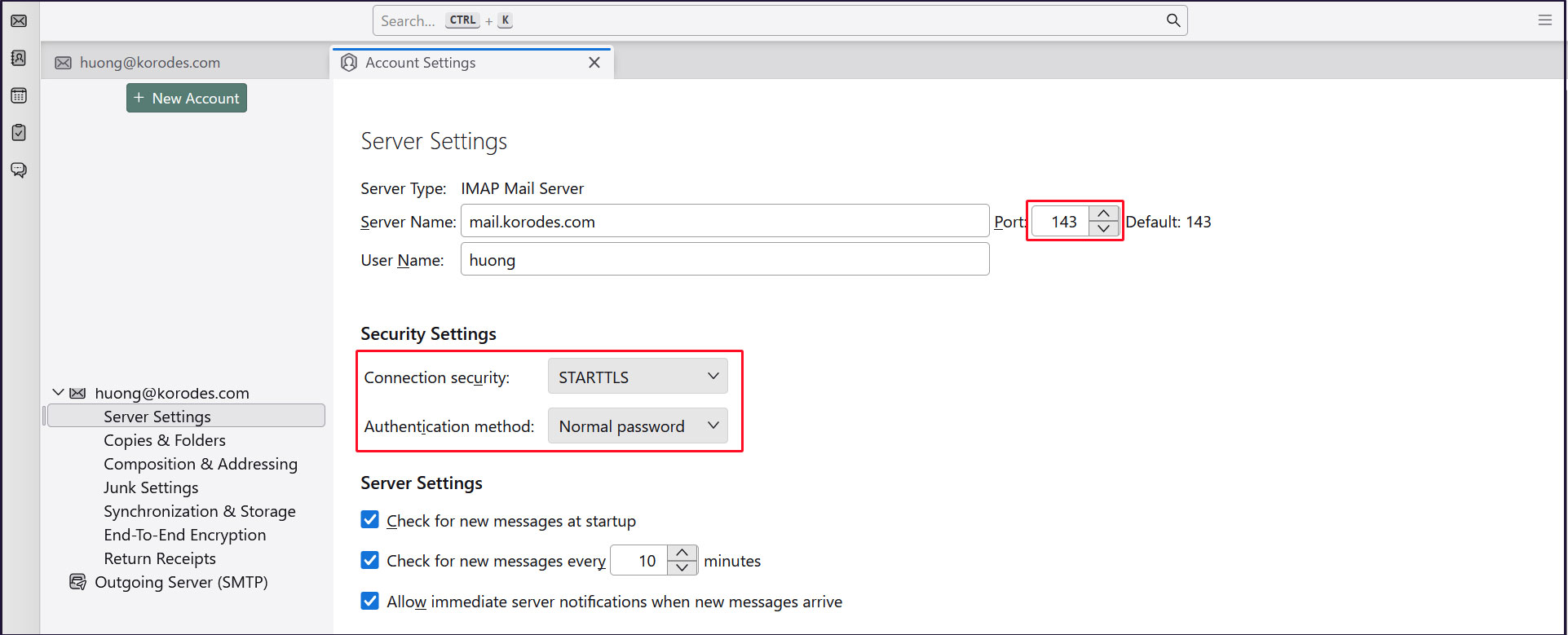
3.4 Thunderbirdの設定
受信サーバー
Port : 143
Connection security : STARTTLS
Authentication method : Normal password
送信サーバー
Port : 587
Connection security : STARTTLS
Authentication method : Normal password