

公開鍵暗号方式を用いた認証によるSSH接続
公開鍵、秘密鍵ペアの作成
OpenSSHを使ってLinux サーバに接続するユーザの公開鍵と秘密鍵のペアを作成します。
鍵ペアの作成は ssh-keygenを使います。
公開鍵と秘密鍵のペアの作成はリモートログインするユーザ権限で実行します。
作成先・ファイル名を指定しなければ、 /home/(ユーザ名)/.ssh/ に id_ed25519, id_ed25519.pub が作成される。 途中、鍵用のパスワードも入力する。
# su - huong
huong@Lepard:~$ ssh-keygen -t ed25519
Generating public/private ed25519 key pair.
Enter file in which to save the key (/home/huong/.ssh/id_ed25519):
Enter passphrase for "/home/huong/.ssh/id_ed25519" (empty for no passphrase):
Enter same passphrase again:
Your identification has been saved in /home/huong/.ssh/id_ed25519
Your public key has been saved in /home/huong/.ssh/id_ed25519.pub
The key fingerprint is:
SHA256:8i8rQxvDTi5SgSgkk95T5V4NKNZL16T/7KhCzVOGGvg huong@Lepard
The key's randomart image is:
+--[ED25519 256]--+
| .    o...o.     |
|+.   +.+ .+.     |
|+o..o +.oo..     |
|o..o...o...o     |
|.   .oo.S o.     |
|    . *E +  o    |
|   . =.+. .  o   |
|  . . *...  o    |
|   . . oo+o. .   |
+----[SHA256]-----+
$ cat ~/.ssh/id_ed25519.pub >> ~/.ssh/authorized_keys
$ chmod 600 ~/.ssh/authorized_keys
$ chmod 700 ~/.ssh/
作成した秘密鍵id_ed25519をwinSCPでWindowsの[c:\USERS\ユーザー\.ssh\]配下に保存する
Winscpを起動する
Host name : サーバーのIPアドレス
Port number : SSHポート
User name : サーバーのログインユーザー
Password : 同上ユーザーのパスワード
を入力し、「Save」
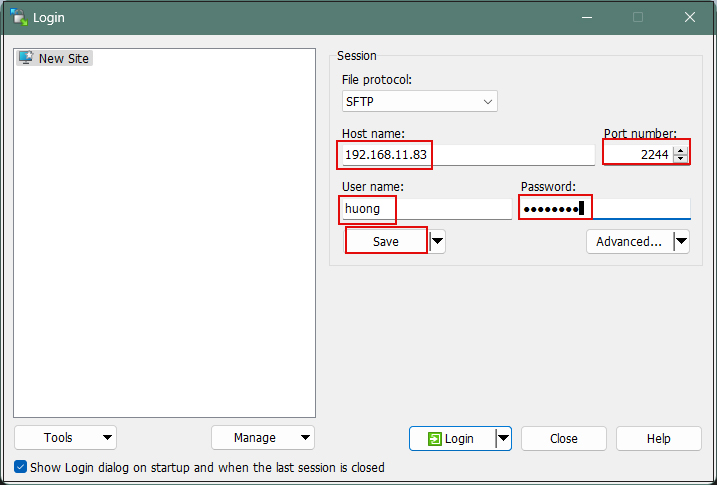
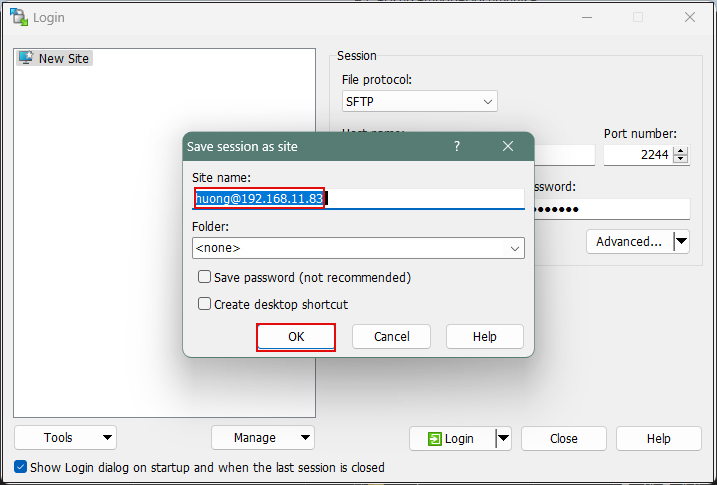
Site name : 任意の名前
「OK」クリック
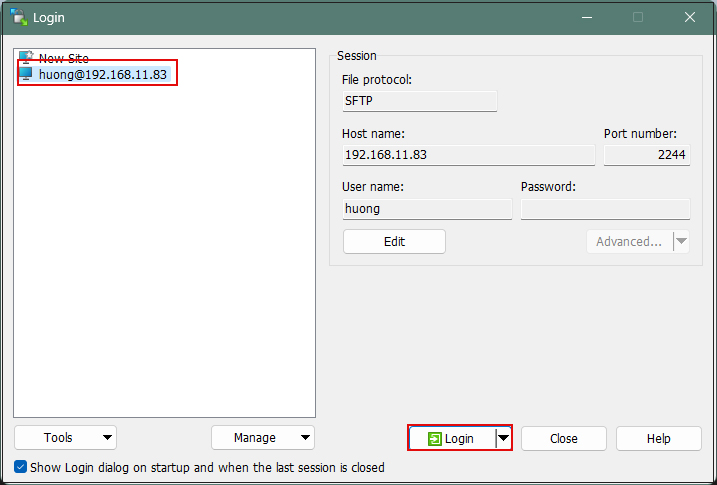
該当サーバーを確認後、「Login」クリック
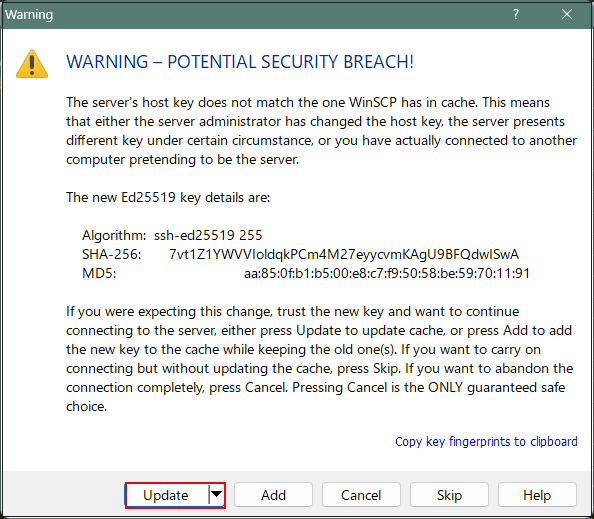
下記画面が出れば「Update」クリック
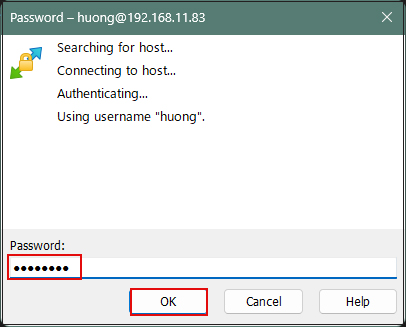
Passwordの欄にはログインユーザーのパスワード
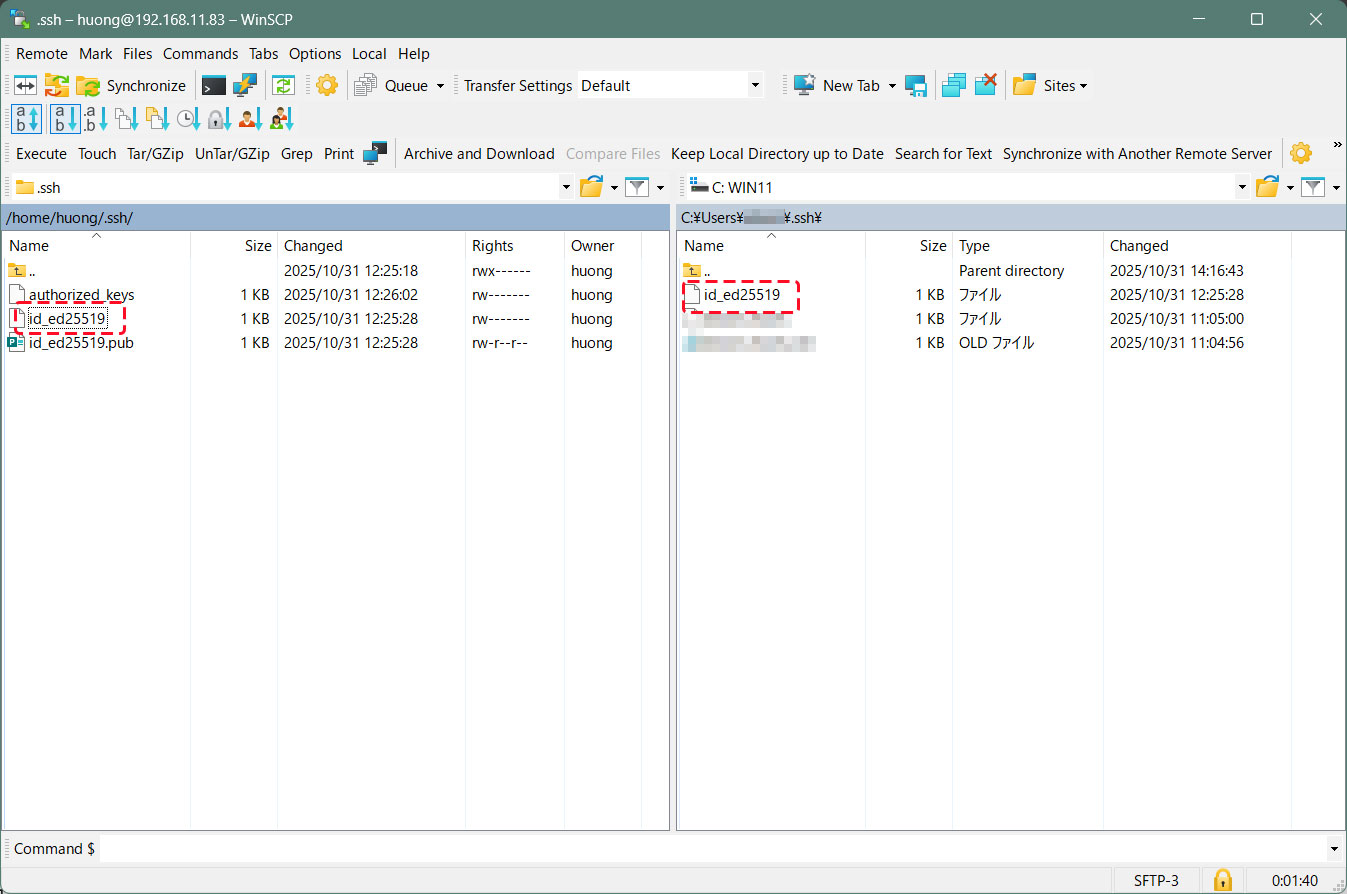
接続されると、左欄サーバー側、右欄PC(Windows)側になる。
.sshディレクトリーにある"id_ed25519"ファイルを右欄Windowsの[c:\USERS\ユーザー\.ssh\]配下にコピーする
SSH 設定ファイルの編集
パスワード認証をできないようにするため、 SSH 設定ファイルを編集する。
今度は一般ユーザではなく、 su - で rootになり行う。
$ su -
Password:

# vi /etc/ssh/sshd_config
# 80行目あたり : コメント解除しパスワード認証不可に変更
PasswordAuthentication no

# systemctl restart ssh
Tabby Terminalで接続する方法
オプション[-i c:\USERS\xxxxx\.ssh\id_ed25519]でkeyを指定する
C:\Users\xxxxx>ssh huong@192.168.11.83 -p 2244 -i c:\USERS\xxxxx\.ssh\id_ed25519
Enter passphrase for key 'c:\USERS\xxxxx\.ssh\id_ed25519':[公開鍵の作成時作成したパスワード]
Welcome to Ubuntu 26.10 (GNU/Linux 7.3.0-9-generic x86_64)
* Documentation: https://docs.ubuntu.com
* Management: https://landscape.canonical.com
* Support: https://ubuntu.com/pro System information as of Fri Oct 16 10:54:55 AM JST 2026
System load: 0.0 Processes: 235
Usage of /: 38.1% of 18.01GB Users logged in: 0
Memory usage: 16% IPv4 address for ens33: 192.168.11.83
Swap usage: 0%
0 updates can be applied immediately.
PuTTYgen を使った秘密鍵の作成
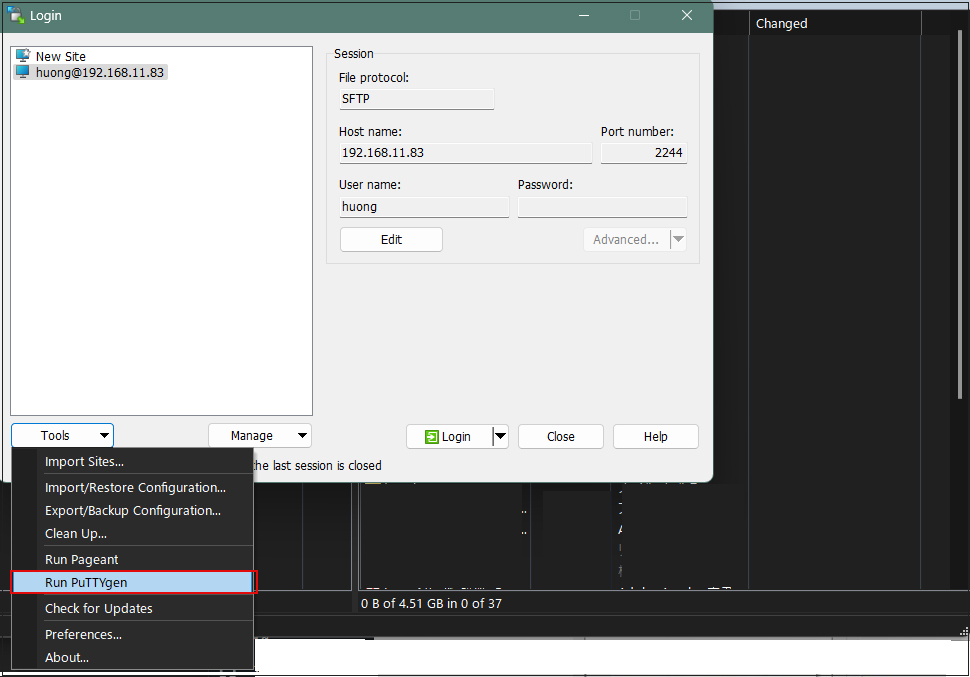
Winscpを起動し、該当サーバーを選択後、「Tools」から[Run Puttygen] を起動する
Loadをクリック
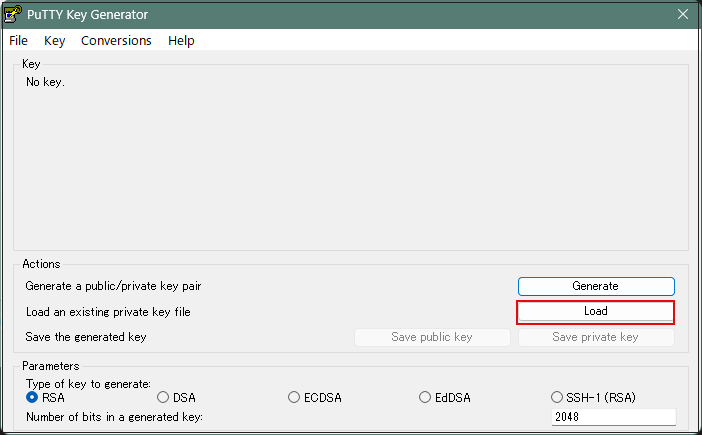
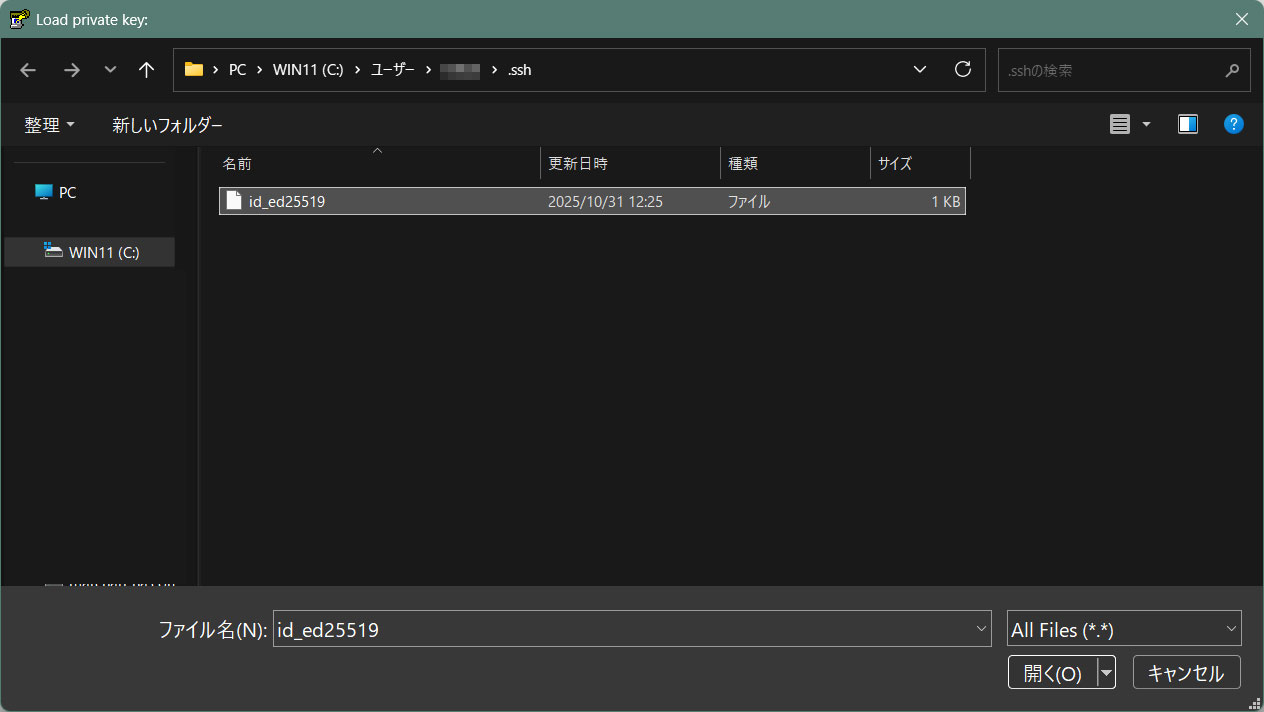
[ ファイルを開くダイアログ ] が開くのでファイルの種類を [ All Files (*.*) ] に変更して Linux サーバから転送した秘密鍵 id_ed25519 を読み込みます。
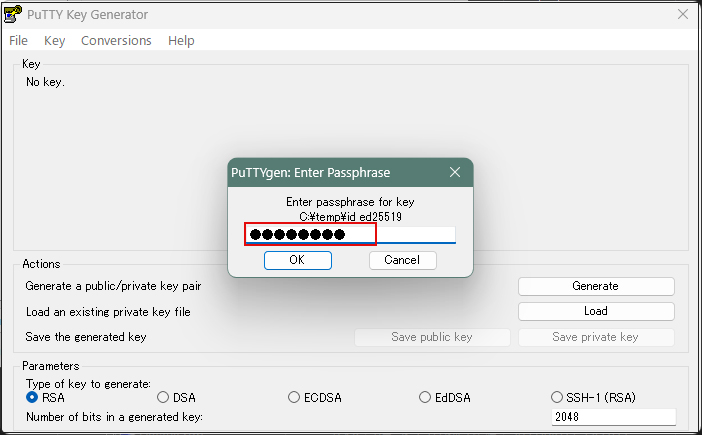
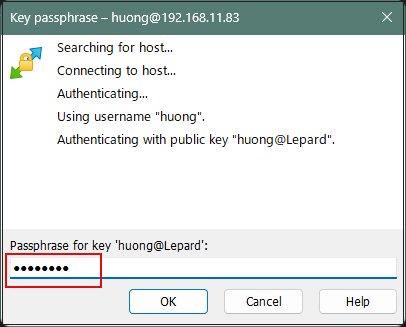
パスワードは上記「公開鍵、秘密鍵ペアの作成」で設定したパスワード
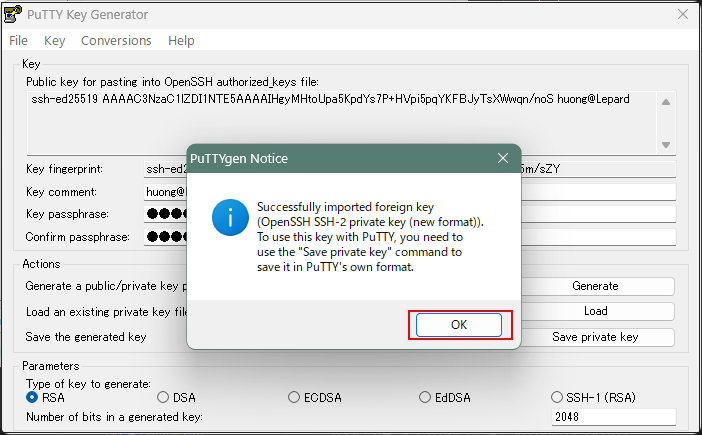
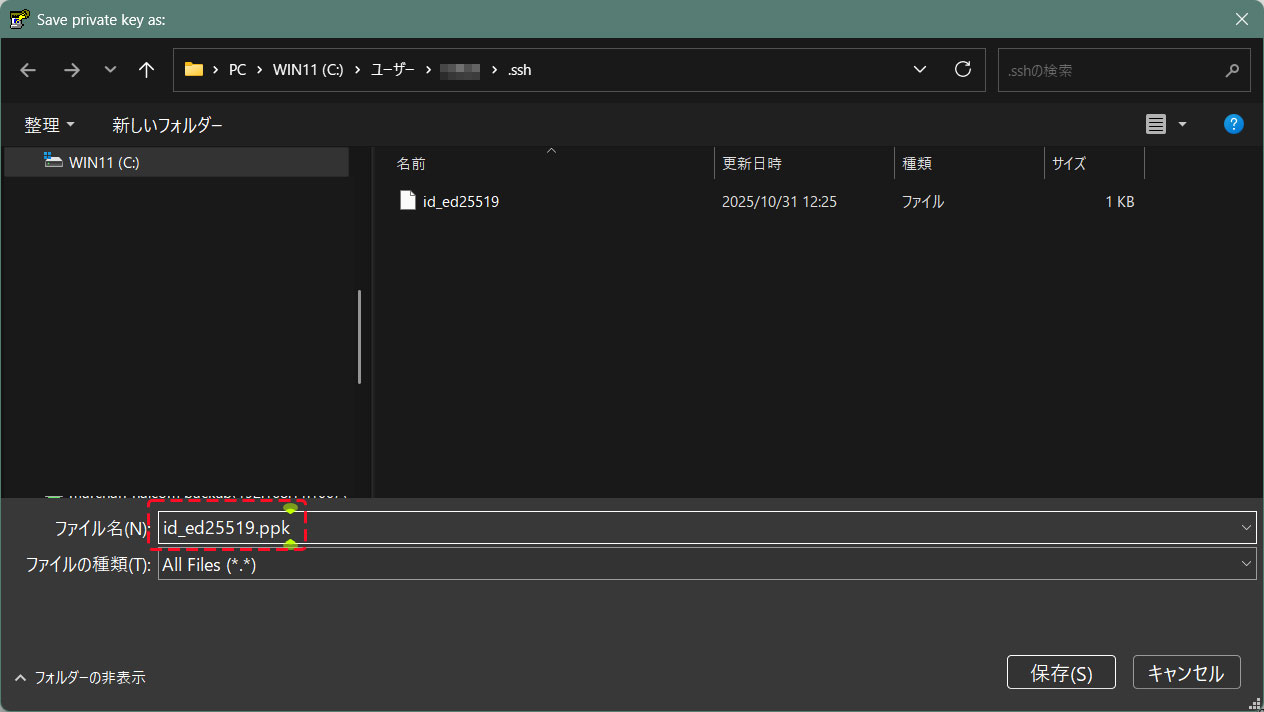
「Save private key」をクリック
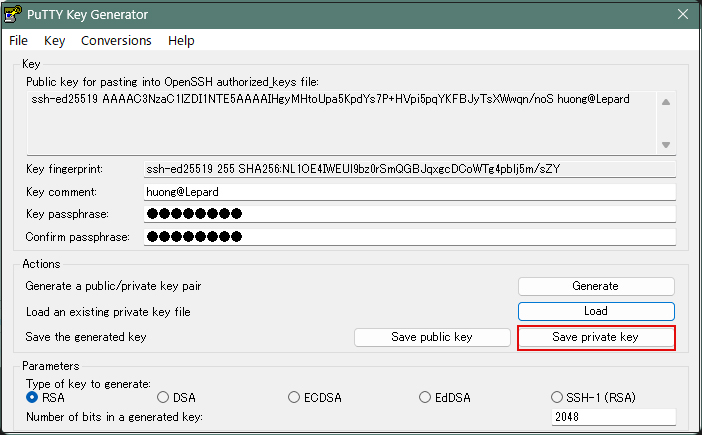
Windows側に先ほど保存した「id_ed25519」と同じところに拡張子「.ppk」として「id_ed25519.ppk」の名称で保存
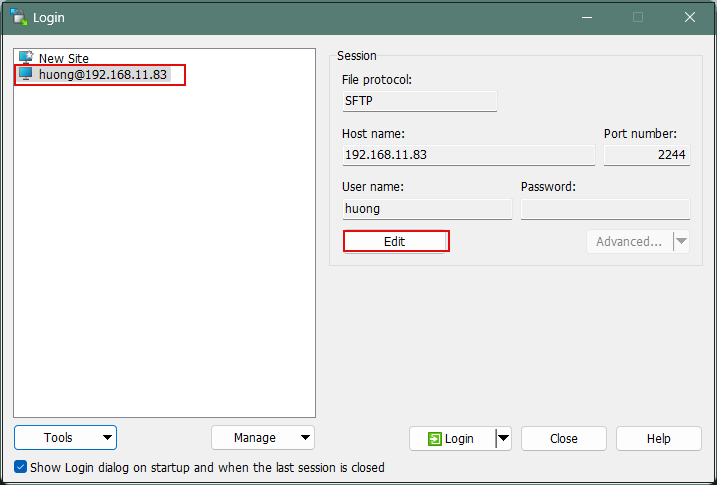
該当サーバーを選択し、「Edit」クリック
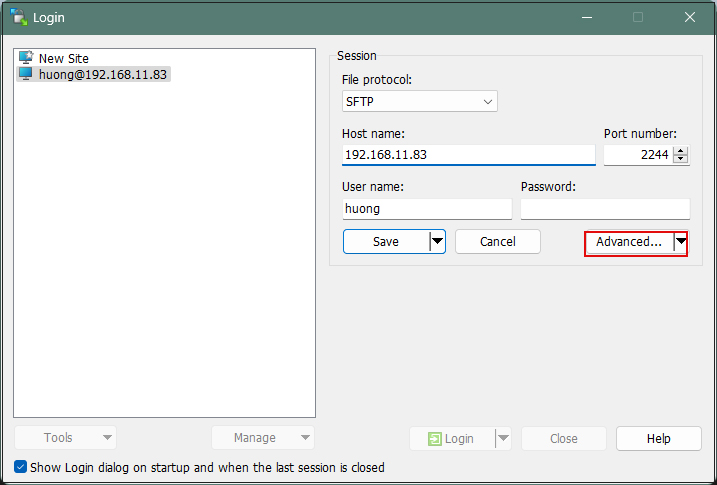
「Advanced」をクリック
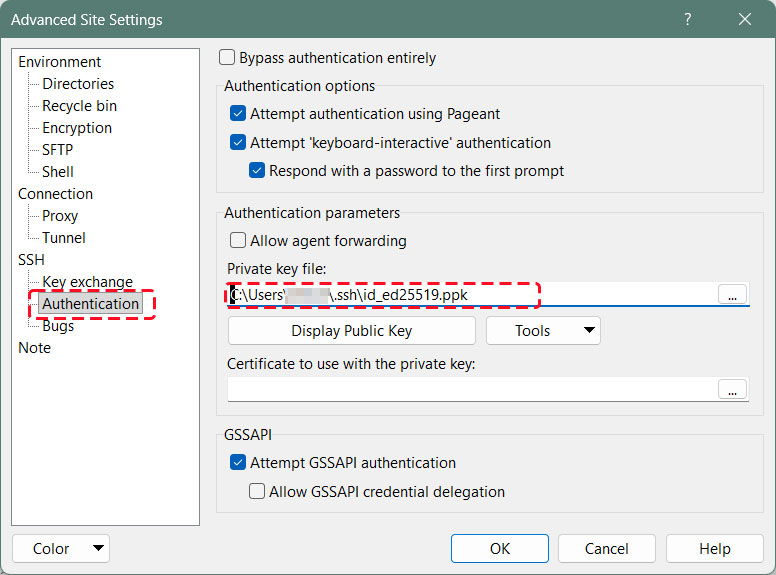
「Authentication」メニューを開き、「Private key file」に先ほどWindowsに保存した「id_ed25519.ppk」を指定する
「Save」をクリック
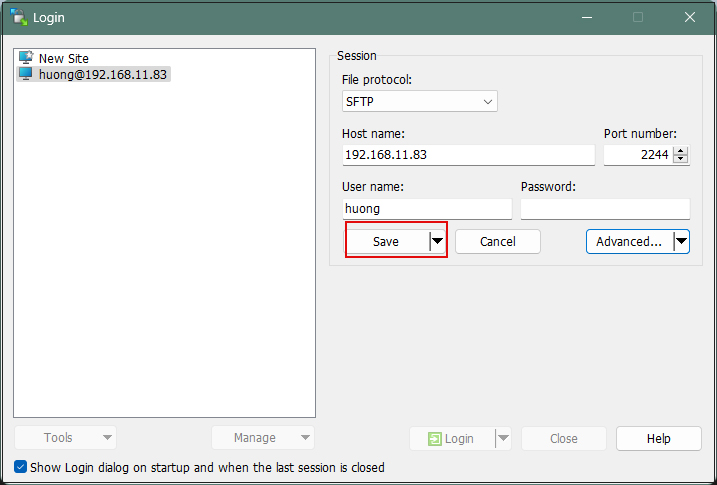
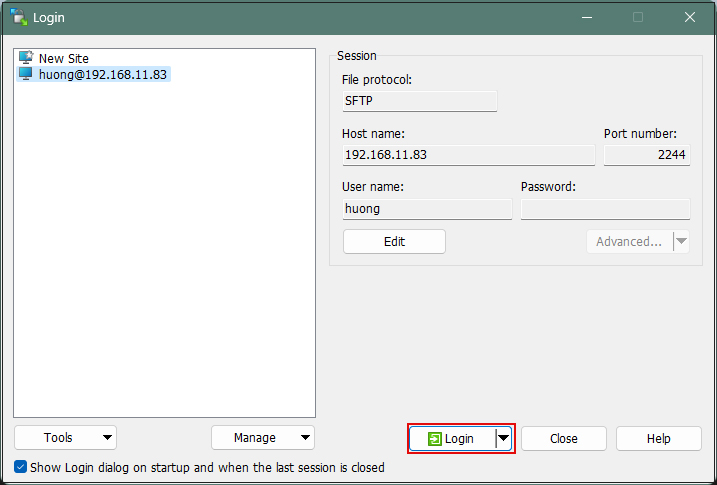
「Login」をクリック
パスワードは上記「公開鍵、秘密鍵ペアの作成」で設定したパスワード
Tabby Terminalで接続する場合は以下のように
C:\Users\xxxxx>ssh huong@192.168.11.83 -p 2244 -i c:\USERS\xxxxx\.ssh\id_ed25519.ppk
Enter passphrase for key 'c:\USERS\xxxxx\.ssh\id_ed25519.ppk': ←公開鍵作成の時に指定したパスワード
もし、下記のようなエラーが出た場合は秘密鍵をOpenSSH形式に変換する
C:\Users\xxxxx>ssh huong@192.168.11.83 -p 2244 -i c:\USERS\xxxxx\.ssh\id_ed25519.ppk
Load key "c:\USERS\xxxxx\.ssh\id_ed25519.ppk": invalid format
huong@192.168.11.83: Permission denied (publickey,gssapi-keyex,gssapi-with-mic).
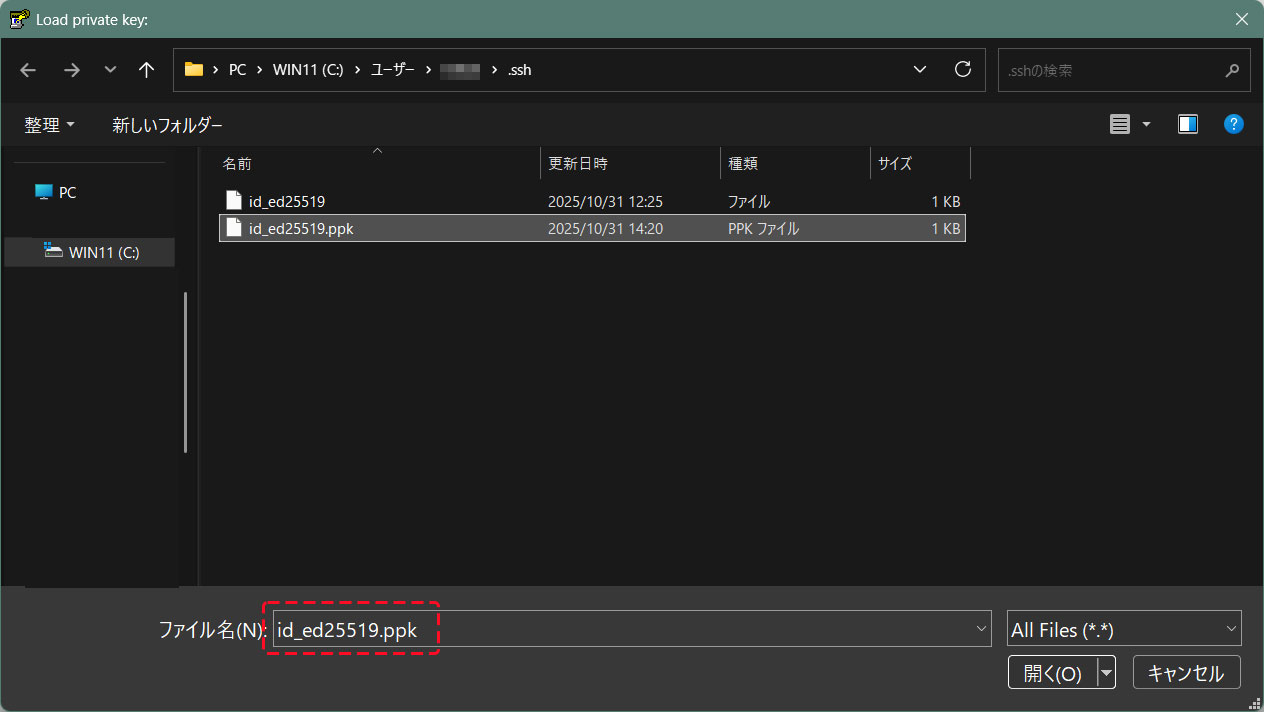
[WinSCP]を起動し、該当サーバーを選択後、[Run PuTTygen]を起動し、[Conversions]タブの[Import key]で秘密キーをインポートする
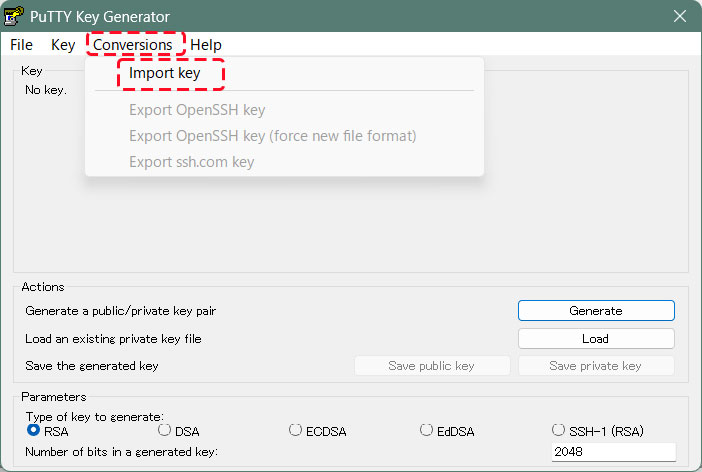
インポートした秘密キーをOpenSSH形式に変換して、別名で保存する
公開鍵作成の時に指定したパスワード
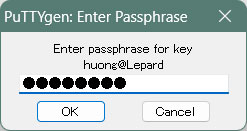
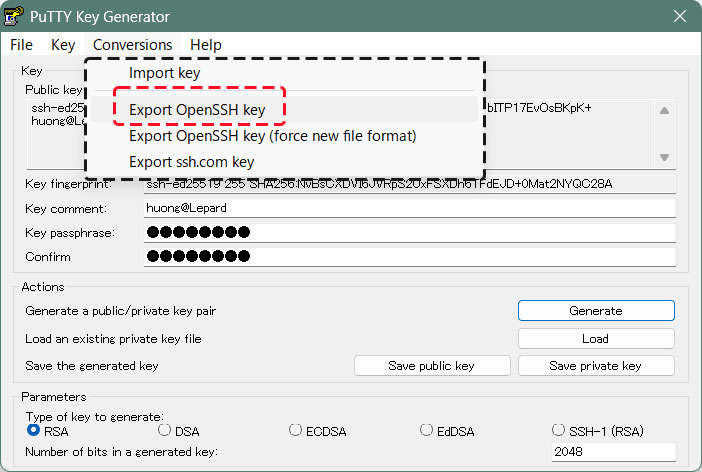
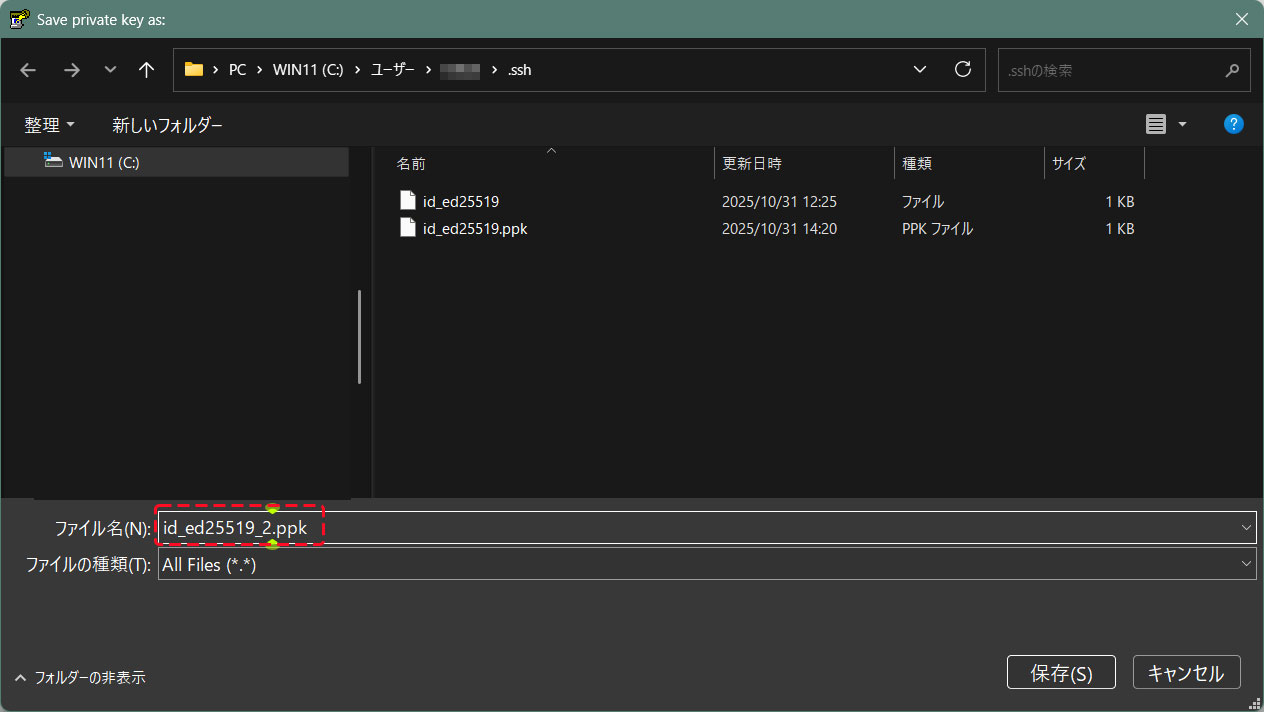
openssh形式に変更した[id_ed25519_2.ppk]を利用し、下記の通り接続できる
C:\Users\xxxxx>ssh huong@192.168.11.83 -p 2244 -i c:\USERS\xxxxx\.ssh\id_ed25519_2.ppk
Enter passphrase for key 'c:\USERS\xxxxx\.ssh\id_ed25519_2.ppk': ←公開鍵作成の時に指定したパスワード
Welcome to Ubuntu 26.10 (GNU/Linux 7.3.0-9-generic x86_64)
* Documentation: https://docs.ubuntu.com
* Management: https://landscape.canonical.com
* Support: https://ubuntu.com/pro
System information as of Fri Oct 16 11:09:37 AM JST 2026
System load: 0.0 Processes: 241
Usage of /: 38.1% of 18.01GB Users logged in: 0
Memory usage: 17% IPv4 address for ens33: 192.168.11.83
Swap usage: 0%
0 updates can be applied immediately.