
1. su コマンド利用
インストール時点でrootパスワードを設定した場合は不要
もし、rootパスワードを設定する場合、次のように設定する
一般ユーザーでログイン後
huong@localhost:~>sudo passwd root
We trust you have received the usual lecture from the local System
Administrator. It usually boils down to these three things:

    #1) Respect the privacy of others.
    #2) Think before you type.
    #3) With great power comes great responsibility.

[sudo] password for root:
New password:
Retype new password:
passwd: password updated successfully
huong@localhost:~>su –
Password: <上記で設定したrootユーザーのパスワード>
localhost:~ #
2. システムを最新化
システムを最新化するには以下のようにコマンド入力します。
# zypper -n update && reboot
3. locateインストール
Linuxシステム全体を対象として、特定のファイルを検索するのにはfindコマンドを利用する場合が多いと思いますが、findはオプションの指定がやや分かりにくいところがあります。そんなときはlocateコマンドが利用できると便利です。locateコマンドは指定したファイル名をもつファイルを全て抽出することが可能です
インストール
# zypper -n install mlocate
データベースを作成
# updatedb
locateコマンドの実行
# locate sshd
/etc/ssh/sshd_config.d
/etc/systemd/system/multi-user.target.wants/sshd.service
/usr/etc/ssh/sshd_config
/usr/etc/ssh/sshd_config.d
/usr/etc/ssh/sshd_config.d/40-suse-crypto-policies.conf
/usr/lib/pam.d/sshd
/usr/lib/systemd/system/sshd.service
/usr/lib/systemd/system/sshd.socket
/usr/lib/systemd/system/sshd@.service
/usr/lib/sysusers.d/sshd.conf
/usr/libexec/ssh/sshd-auth
/usr/libexec/ssh/sshd-session
/usr/sbin/sshd
/usr/sbin/sshd-gen-keys-start
/usr/sbin/sshd.hmac
/usr/share/augeas/lenses/dist/sshd.aug
/usr/share/man/man5/sshd_config.5.gz
/usr/share/man/man8/sshd.8.gz
/usr/share/vim/vim92/ftplugin/sshdconfig.vim
/usr/share/vim/vim92/syntax/sshdconfig.vim
/var/lib/sshd
4. セキュリティ対策のため停止したサービス
不要と思われるサービスを停止 及び 再起動後も停止にしています
# systemctl stop auditd.service
# systemctl disable auditd.service
# systemctl stop mdmonitor.service
# systemctl disable mdmonitor.service
# systemctl stop smartd.service
# systemctl disable smartd.service
# systemctl stop dm-event.socket
# systemctl disable dm-event.socket
5. Vim
Vim の設定
# vi ~/.vimrc

" vim の独自拡張機能を使用(viとの互換性無し)
set nocompatible
" 文字コードを指定
set encoding=utf-8
" ファイルエンコードを指定(先頭から順に成功するまで読み込む)
set fileencodings=utf-8,iso-2022-jp,sjis,euc-jp
" 自動認識させる改行コードを指定
set fileformats=unix,dos
" バックアップを取得
" 逆は [ set nobackup ]
set backup
" バックアップを取得するディレクトリを指定
set backupdir=~/backup
" 検索履歴を残す世代数
set history=50
" 検索時に大文字小文字を区別しない
set ignorecase
" 検索語に大文字を混ぜると検索時に大文字を区別する
set smartcase
" 検索語にマッチした単語をハイライト
" 逆は [ set nohlsearch ]
set hlsearch
" インクリメンタルサーチを使用 (検索語の入力最中から随時マッチする文字列の検索を開始)
" 逆は [ set noincsearch ]
set incsearch
" 行番号を表示
" 逆は [ set nonumber ]
set number
" 改行 ( $ ) やタブ ( ^I ) を可視化
set list
" 括弧入力時に対応する括弧を強調
set showmatch
" ファイルの末尾に改行を入れない
set binary noeol
" 自動インデントを有効にする
" 逆は [ noautoindent ]
set autoindent
" 構文ごとに色分け表示
" 逆は [ syntax off ]
syntax on
" [ syntax on ] の場合のコメント文の色を変更
highlight Comment ctermfg=LightCyan
" ウィンドウ幅で行を折り返す
" 逆は [ set nowrap ]
set wrap
6. ネットワークの設定
6.1 ホスト名及び固定IPアドレス設定
試しに下記のように変更する場合
・ホスト名をLionに変更
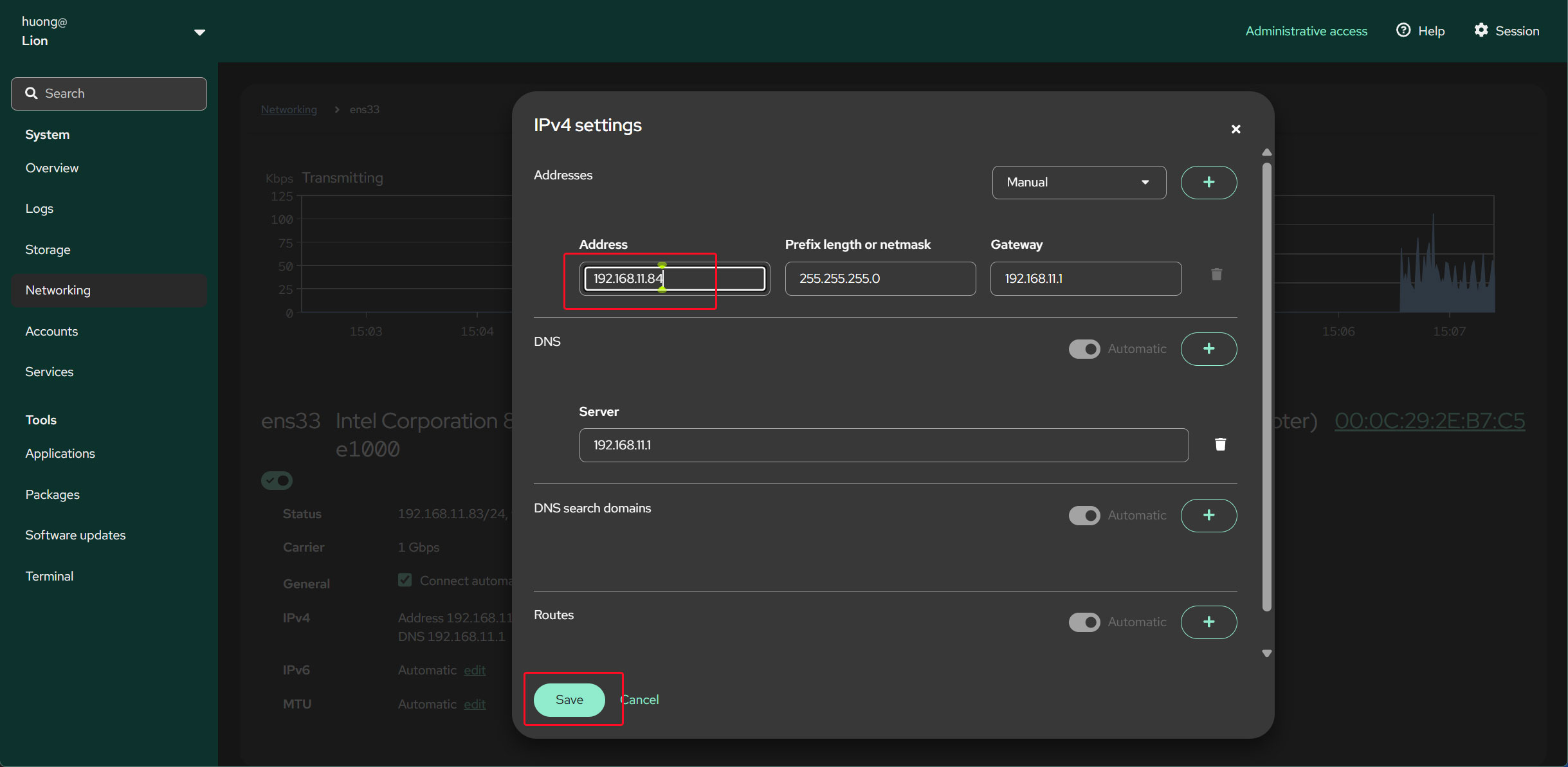
・IPアドレスを固定にする(192.168.11.84)
ほとんどの場合ルーターのアドレスは「192.168.11.1」「192.168.0.1.」のようになっている、今回は「192.168.11.1」を例に進めます
openSUSE16からyast2からCockpitを利用することになりましたのでcockpitをインストールします
# zypper install cockpit
cockpitサービスを有効にして起動します
# systemctl enable --now cockpit.socket
Port:9090を開放
cockpitインストール時すでに解放されているようです
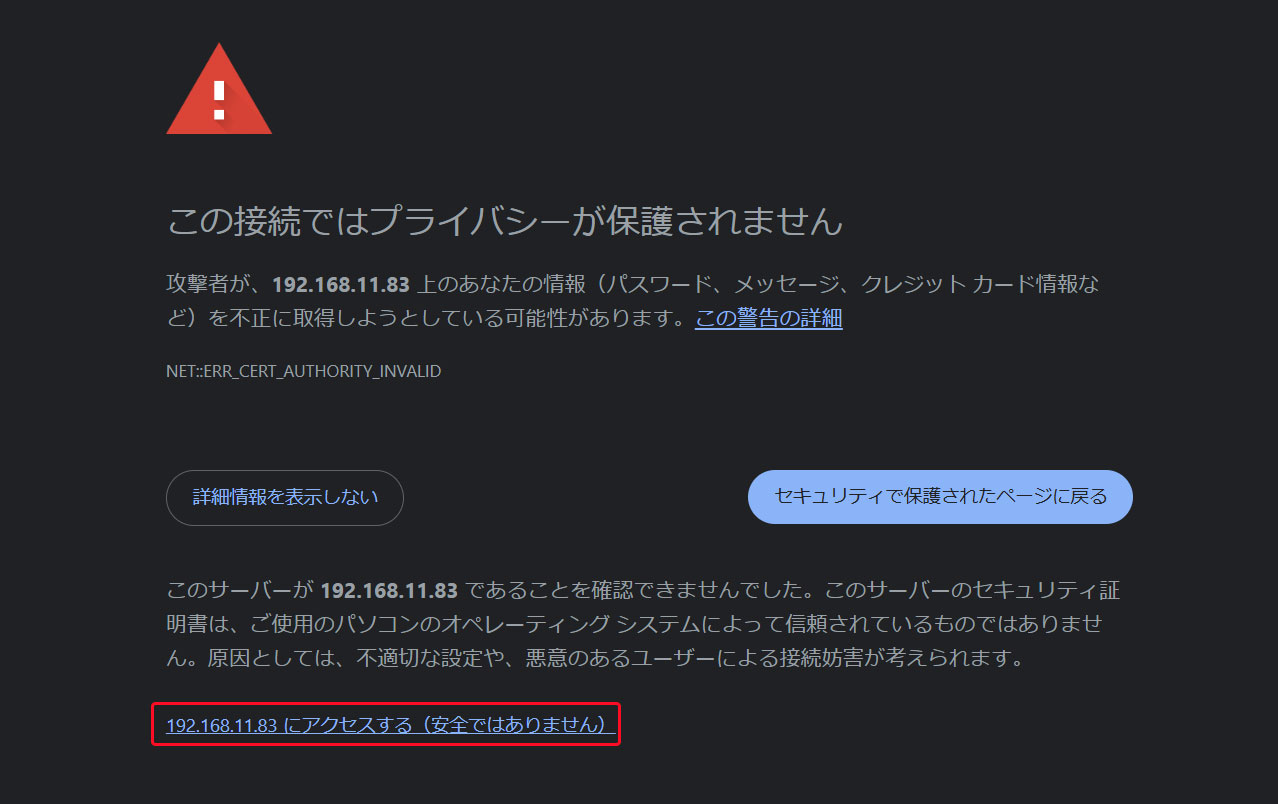
WEBブラウザでhttp://[Server IP address]:9090にアクセスする
下記画面が表示された場合下図の部分をクリックする
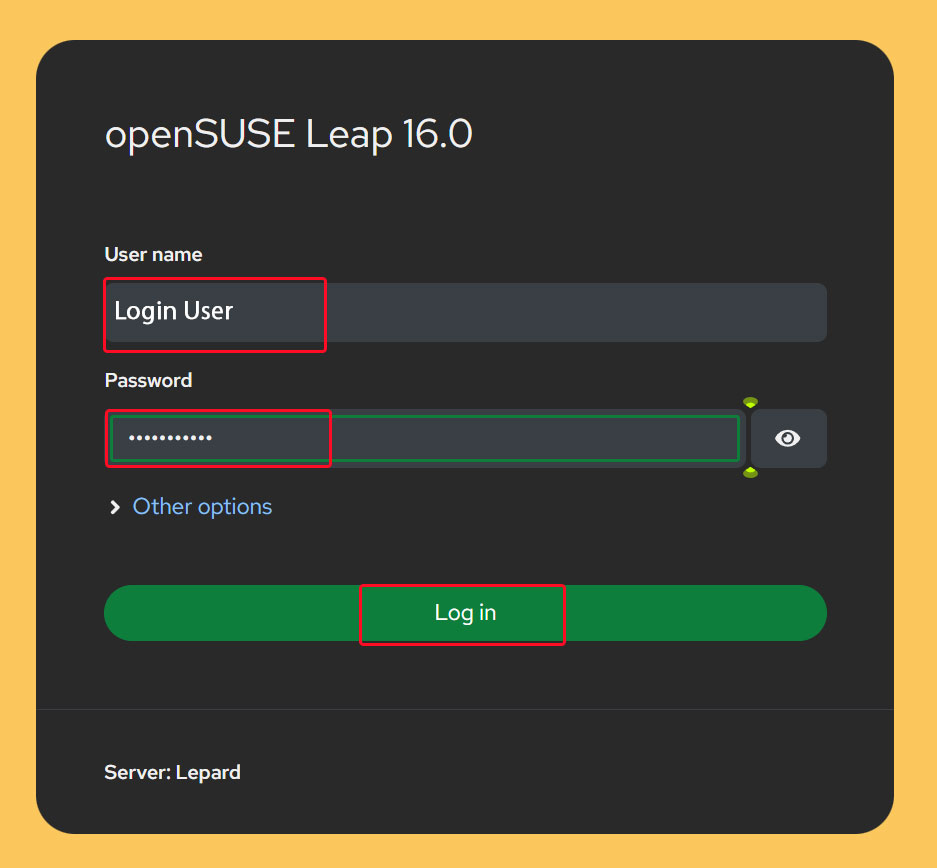
ログイン画面が表示されるのでログインユーザー名とパスワードを入力しログインする
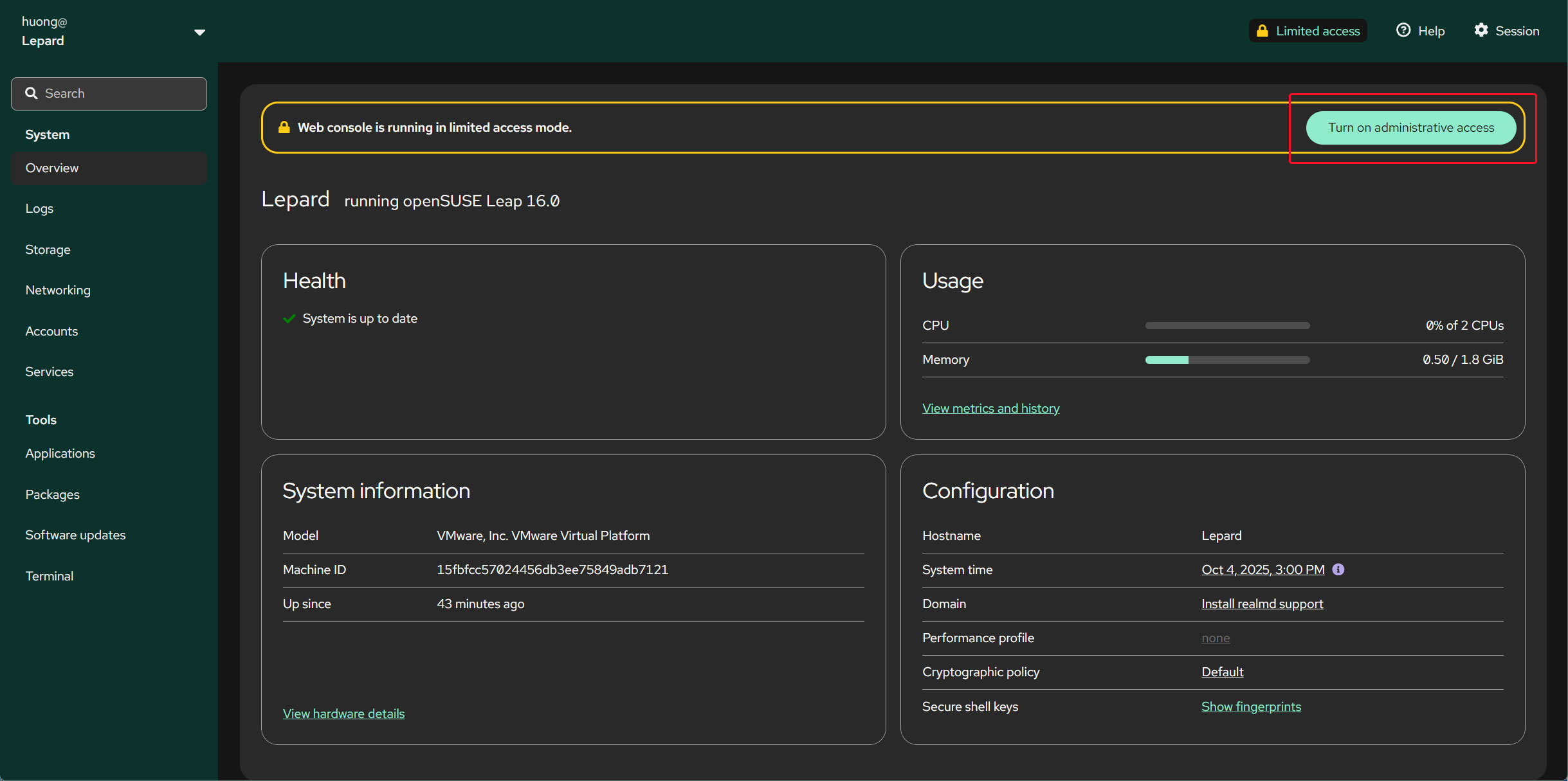
「turn on administrative access」をクリックし、管理者権限にて編集します
ログインユーザーのパスワードを入力し、「Authenticate」をクリックする
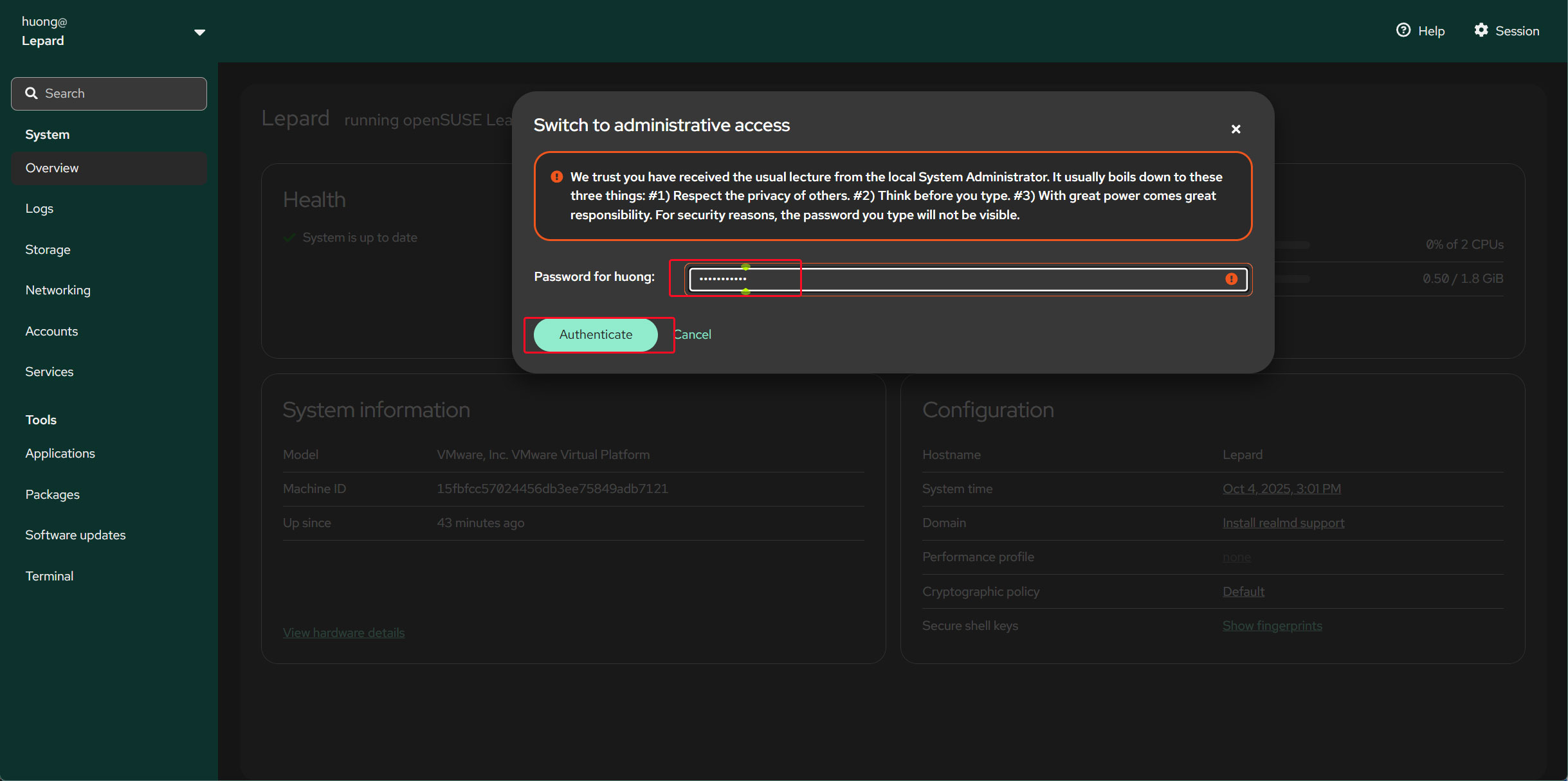
ホスト名の変更
左ペイン「Overview」を開き「Hostname」の「edit」をクリックする
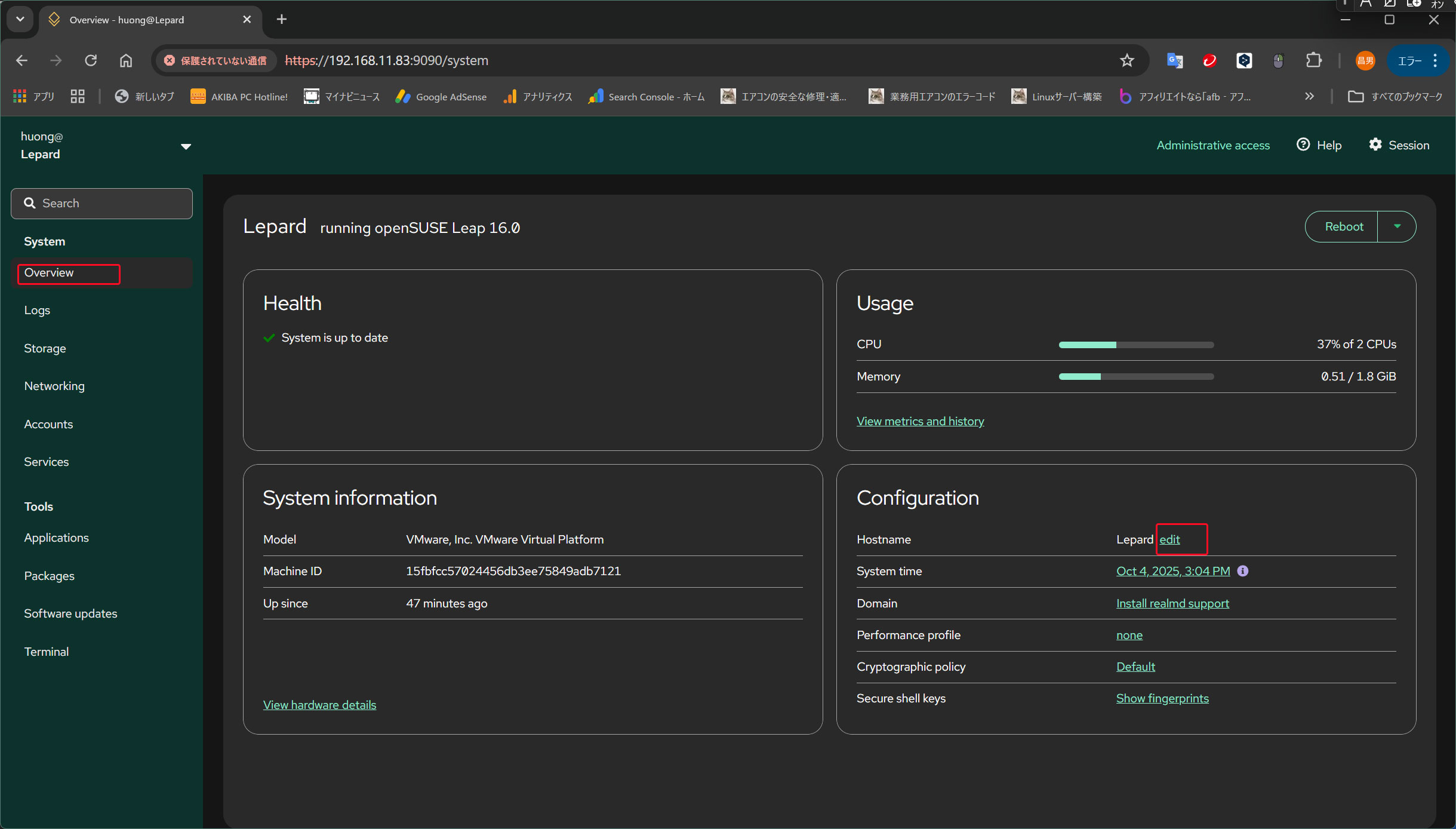
変更するホスト名を入力し、下の「Change」をクリックする
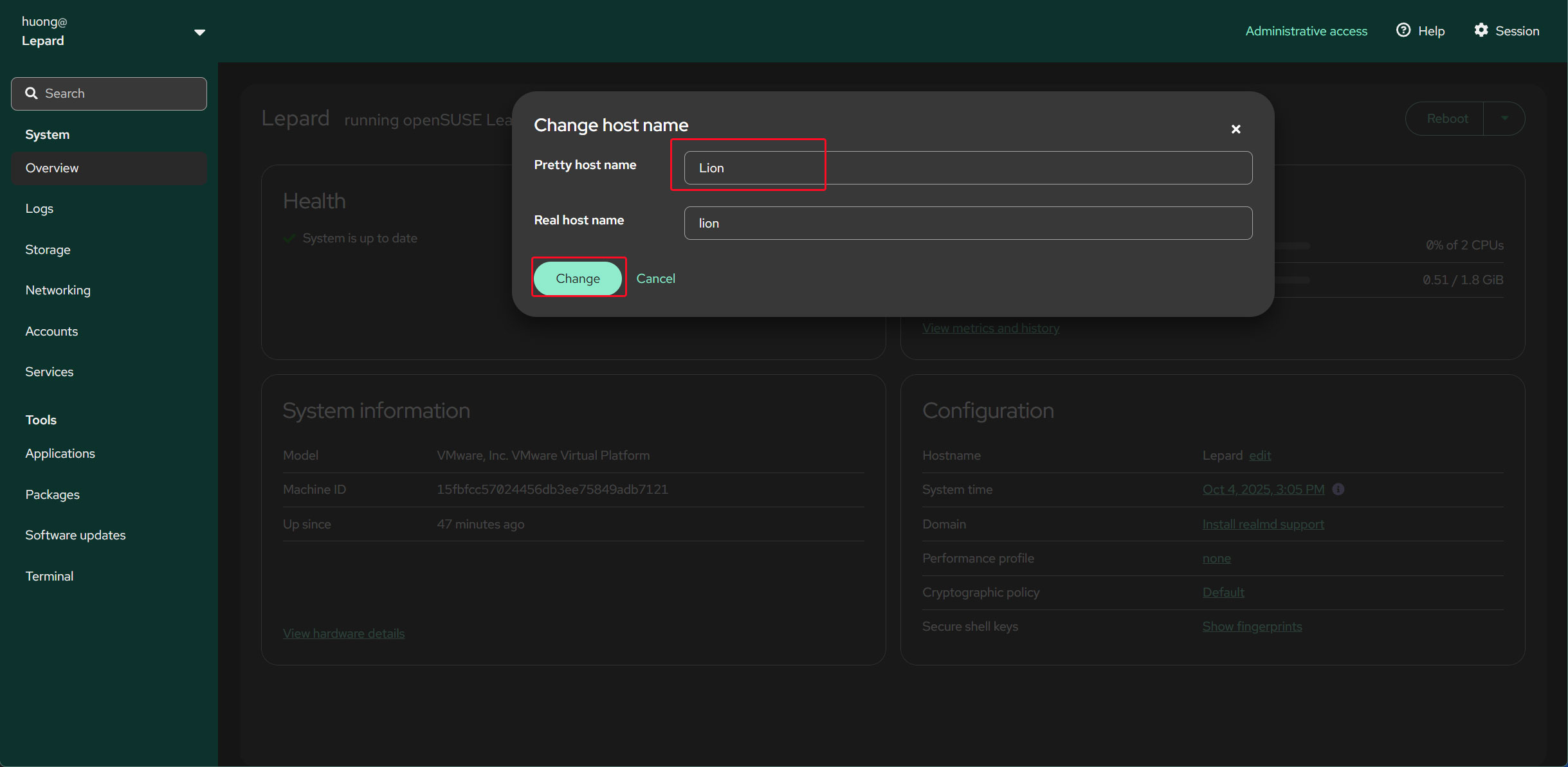
IPv4固定IPアドレスの変更
左ペイン「Networking」を開き、「Interfaces」のインターフェース名をクリックする
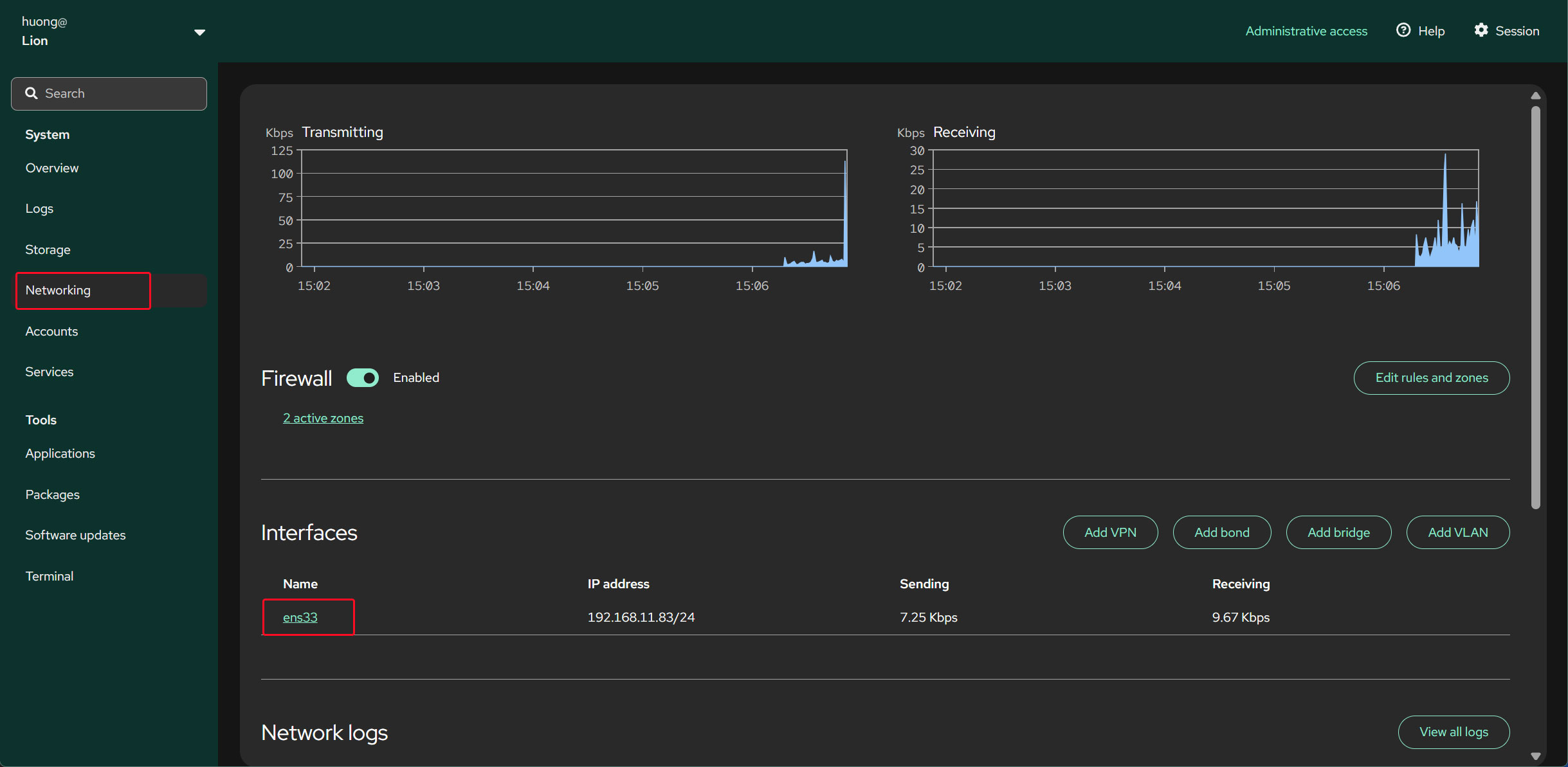
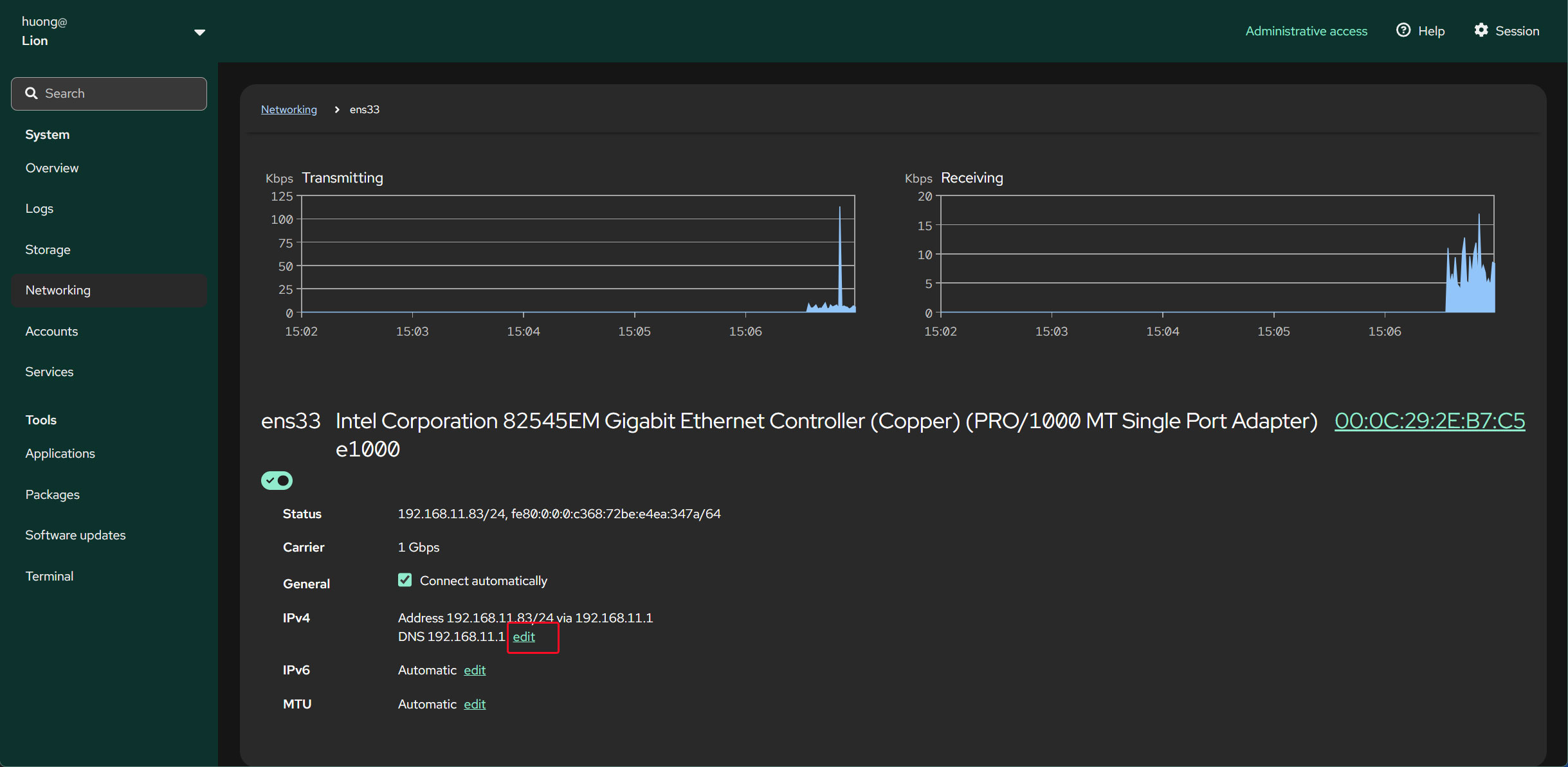
IPv4の「edit」をクリックする
変更するIPアドレスを入力し、「Save」をクリックする
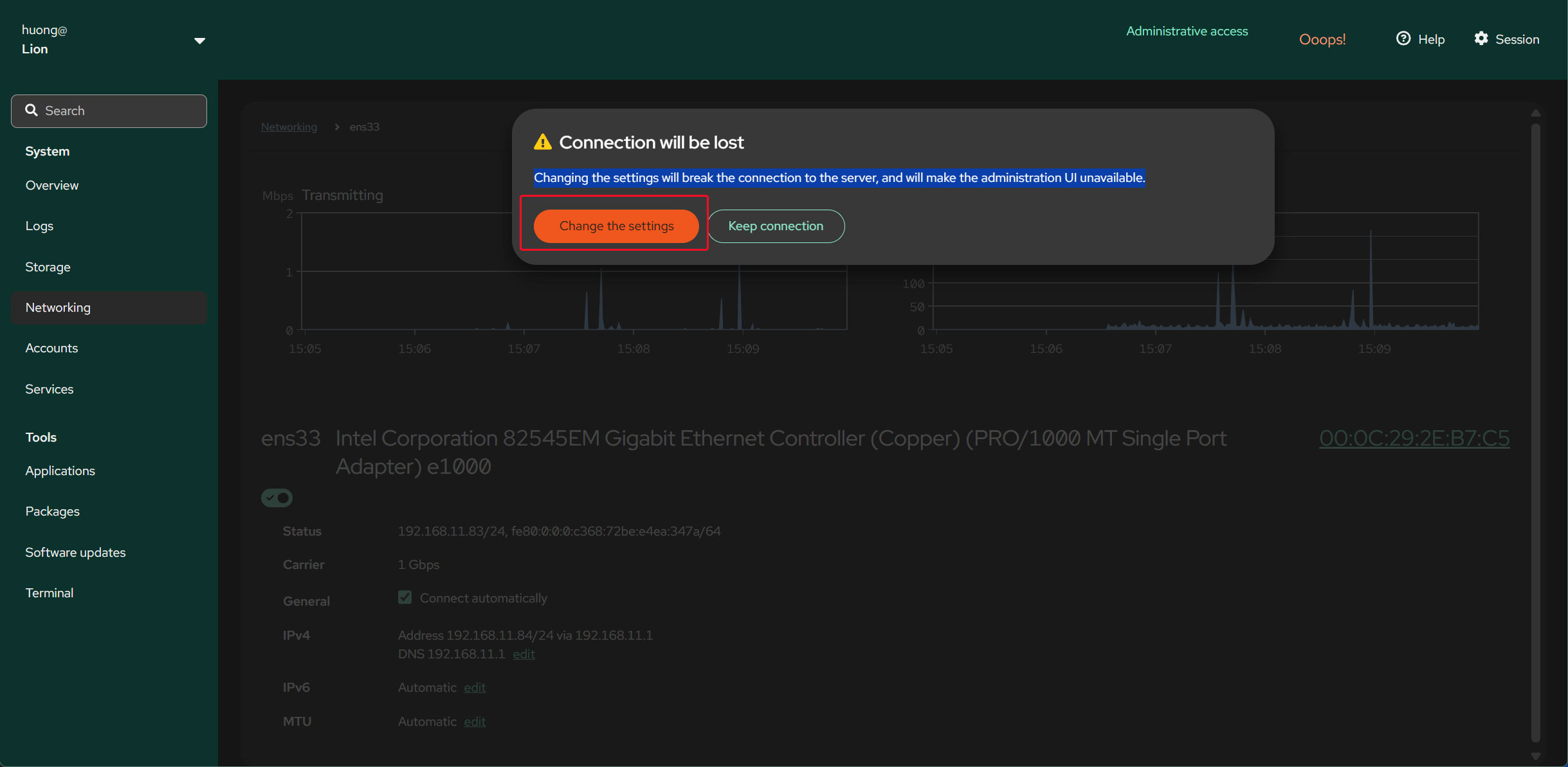
「Change the settings」をクリックする
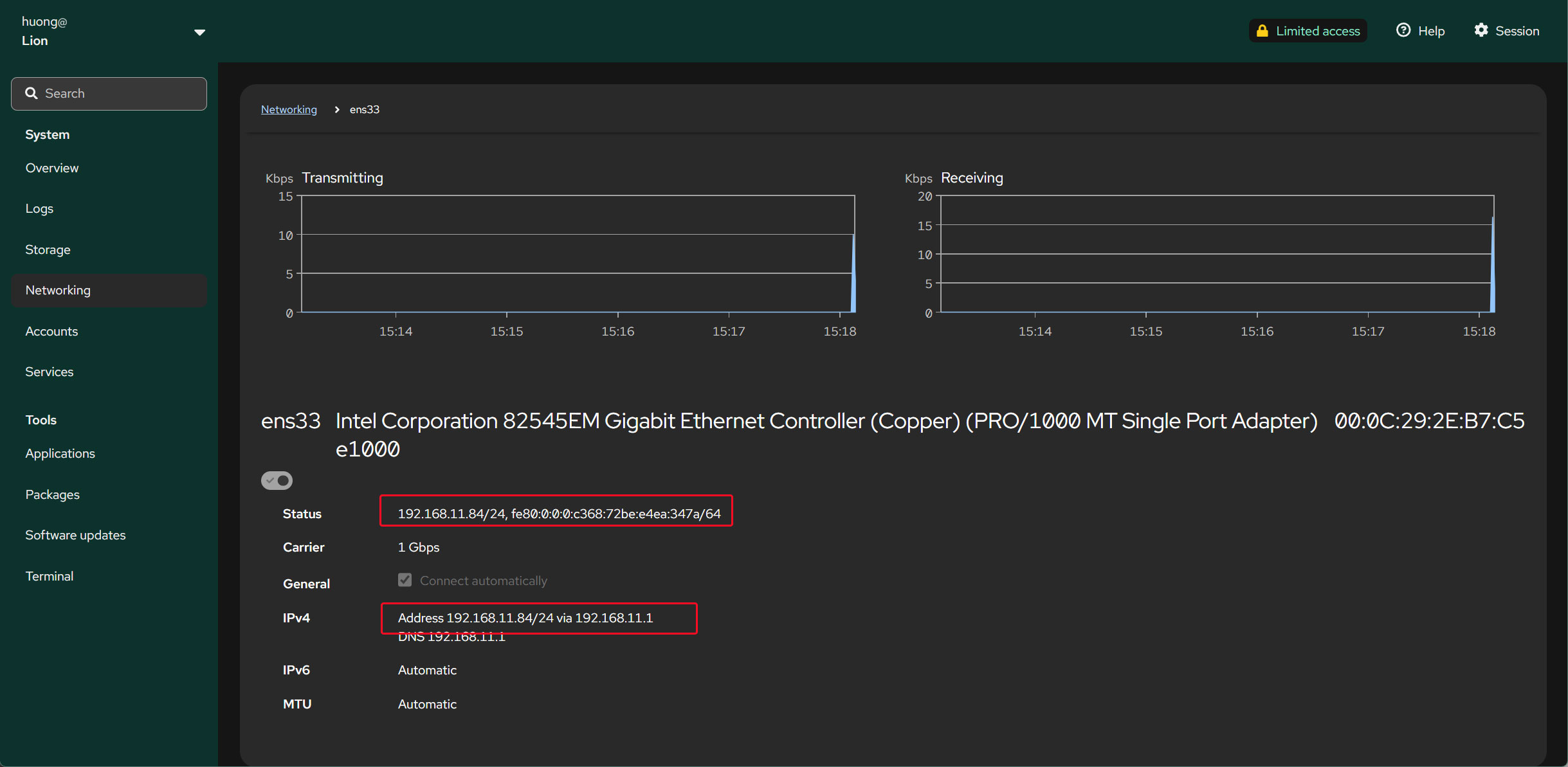
変更後設定を反映させるため、システムを再起動します
再起動後上述の作業を行いIPアドレスが変更されていることを確認したください
なお、元のホスト名(Lepard)、IP不ドレス(192.168.11.83)に戻しておいてください
6.2 IPv6無効化
# vi /etc/default/grub

# 12行目: 追記
GRUB_CMDLINE_LINUX="ipv6.disable=1"
変更を反映
# grub2-mkconfig -o /boot/grub2/grub.cfg
Generating grub configuration file ...
Found theme: /boot/grub2/themes/openSUSE/theme.txt
Found linux image: /boot/vmlinuz-6.12.0-160100.9-default
Found initrd image: /boot/initrd-6.12.0-160100.9-default
Found linux image: /boot/vmlinuz-6.12.0-160100.8-default
Found initrd image: /boot/initrd-6.12.0-160100.8-default
Warning: os-prober will be executed to detect other bootable partitions.
Its output will be used to detect bootable binaries on them and create new boot entries.
845.744348 | DM multipath kernel driver not loaded
Adding boot menu entry for UEFI Firmware Settings ...
done
# reboot
7.SELINUXの無効化
SELINUXを永続的に無効化する場合は /etc/selinux/configを編集する
SELINUX=enforcing を SELINUX=disabled に変更
# vi /etc/selinux/config

14行目 : 変更
SELINUX=enforcing → SELINUX=disabled
# reboot