Apache2
Allow http:80 port and https:443 port in UFW first.
# ufw allow http
# ufw allow https
# ufw reload
1. Apache2 Install
# apt -y install apache2
2. Apache2 Basic Settings
# vi /etc/apache2/conf-enabled/security.conf

Line 12:change
ServerTokens  Prod
# vi /etc/apache2/mods-enabled/dir.conf

Line 1:Check file names accessible by directory name only
DirectoryIndex index.html index.cgi index.pl index.php index.xhtml index.htm
# vi /etc/apache2/apache2.conf

Line 70:Server name added
ServerName <FQDN>

Line 172:change
AllowOverride ALL
# vi /etc/apache2/sites-available/000-default.conf

Line 11:Administrator address change
ServerAdmin <your mailaddress>
Apache Restart
# systemctl enable apache2
# systemctl restart apache2
Apache Startup Verification
# systemctl status apache2
● apache2.service - The Apache HTTP Server
     Loaded: loaded (/usr/lib/systemd/system/apache2.service; enabled; preset: enabled)
     Active: active (running) since Fri 2026-10-16 13:12:36 JST; 27s ago
 Invocation: c6a0757a477c449bbb70073d6e168848
       Docs: https://httpd.apache.org/docs/2.4/
   Main PID: 10706 (apache2)
     Status: "Total requests: 0; Idle/Busy workers 100/0;Requests/sec: 0; Bytes served/sec:   0 B/sec"
      Tasks: 55 (limit: 3938)
     Memory: 5.4M (peak: 5.8M)
        CPU: 39ms
     CGroup: /system.slice/apache2.service
             ├─10706 /usr/sbin/apache2 -k start -DFOREGROUND
             ├─10710 /usr/sbin/apache2 -k start -DFOREGROUND
             └─10711 /usr/sbin/apache2 -k start -DFOREGROUND

Oct 16 13:12:36 Lepard systemd[1]: Starting apache2.service - The Apache HTTP Server...
Oct 16 13:12:36 Lepard systemd[1]: Started apache2.service - The Apache HTTP Server.
3. Apache2 Operation Verification
http://[server IP address] If you access this URL and see the Ubuntu Apache2 Default Page as shown below, it's OK.
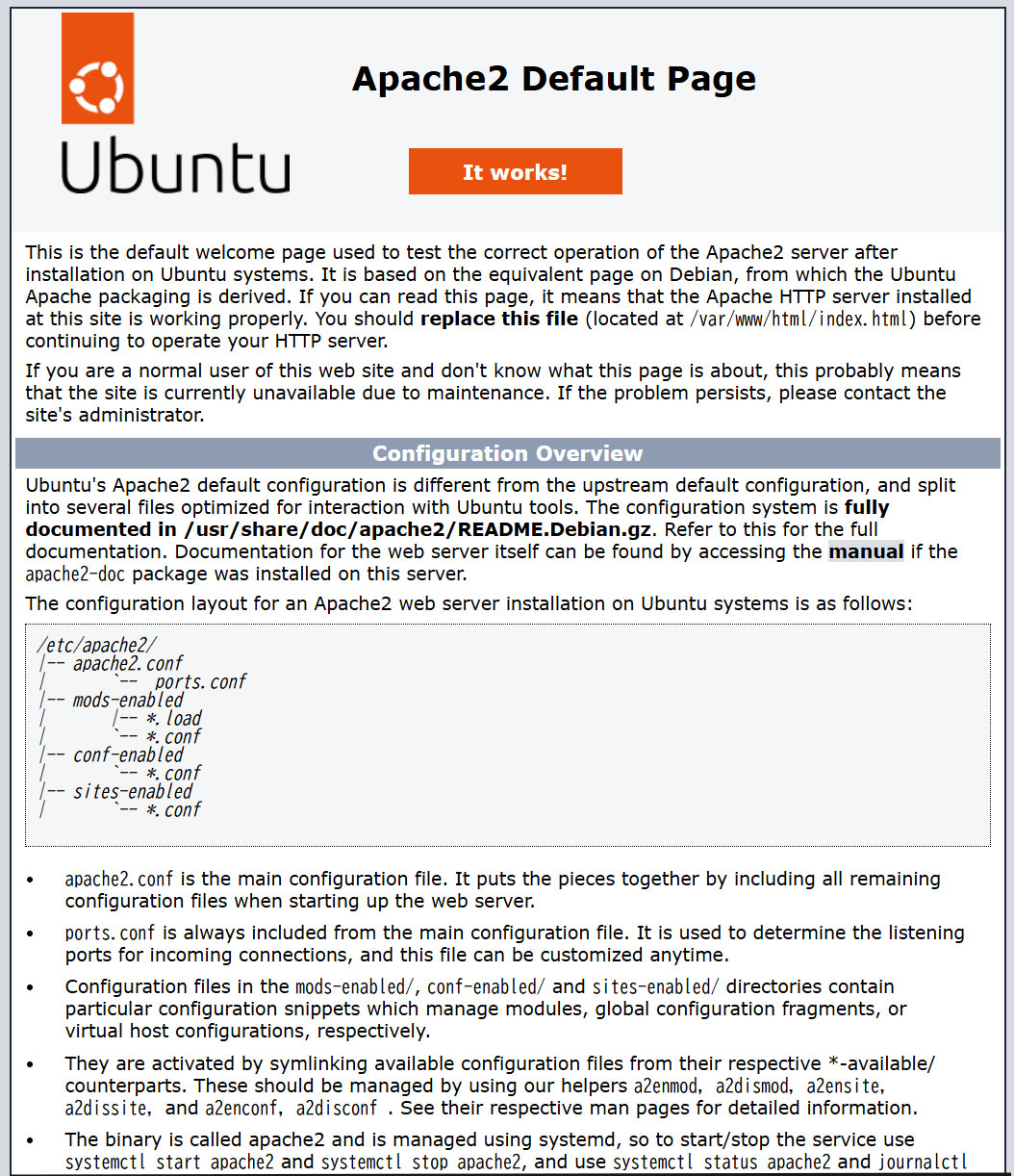
Hide the default page, create a new index.html file as a Test Page, and verify Apache operation
Rename the default page
# mv /var/www/html/index.html /var/www/html/index.html.bak
Create an HTML test page
# vi /var/www/html/index.html

Fill in the following
<html>
<body>
<div style="width: 100%; font-size: 40px; font-weight: bold; text-align: center;">
Apache Test Page
</div>
</body>
</html>
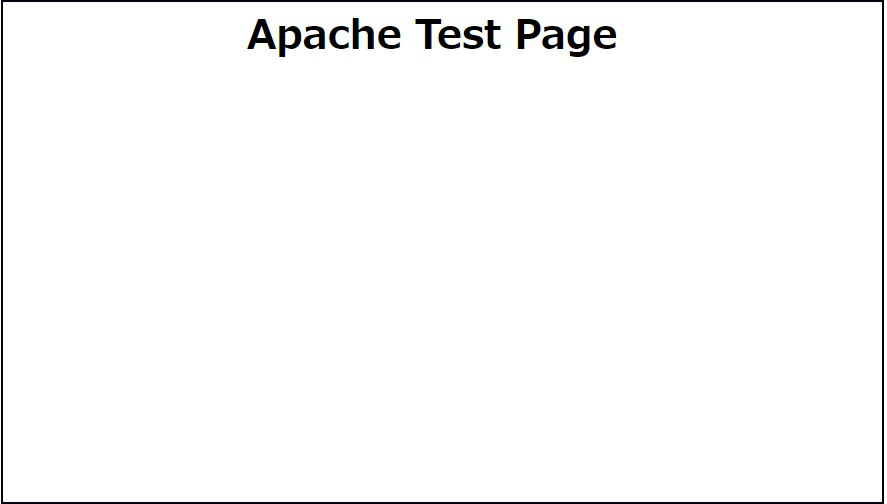
http://[server IP address] If the Test Page appears as shown below when you access it, you're good to go.
4. Apache2 : Virtual Host Configuration
①Copy the default configuration file (name it whatever you like; for this example, use vhost.conf) and configure the virtual host.
# cd /etc/apache2/sites-available/
# cp 000-default.conf vhost.conf
②Edit the created configuration file
The document root is set to /var/www/html/[FQDN]/
# vi vhost.conf

<VirtualHost *:80>
~omission~
ServerName <FQDN>
ServerAdmin  [Administrator's email address]
DocumentRoot /var/www/html/<FQDN>/
~omission~
ErrorLog ${APACHE_LOG_DIR}/<FQDN>.error.log
CustomLog ${APACHE_LOG_DIR}/<FQDN>.access.log combined
~omission~
</VirtualHost>
③Symbolic link to the configuration file to disable the default configuration file
# cd /etc/apache2/sites-available/
# a2ensite vhost.conf

Disable Default
# a2dissite 000-default.conf

Apache Restart
# systemctl restart apache2
④Edit hosts file
# vi /etc/hosts

Add to 3rd line
127.0.0.1  <FQDN>
⑤Directory Create
# mkdir /var/www/html/<FQDN>
⑥Create test pages and check operation
# vi /var/www/html/<FQDN>/index.html

Fill in the following
<html>
<body>
<div style="width: 100%; font-size: 40px; font-weight: bold; text-align: center;">
Virtual Host Test Page
</div>
</body>
</html>
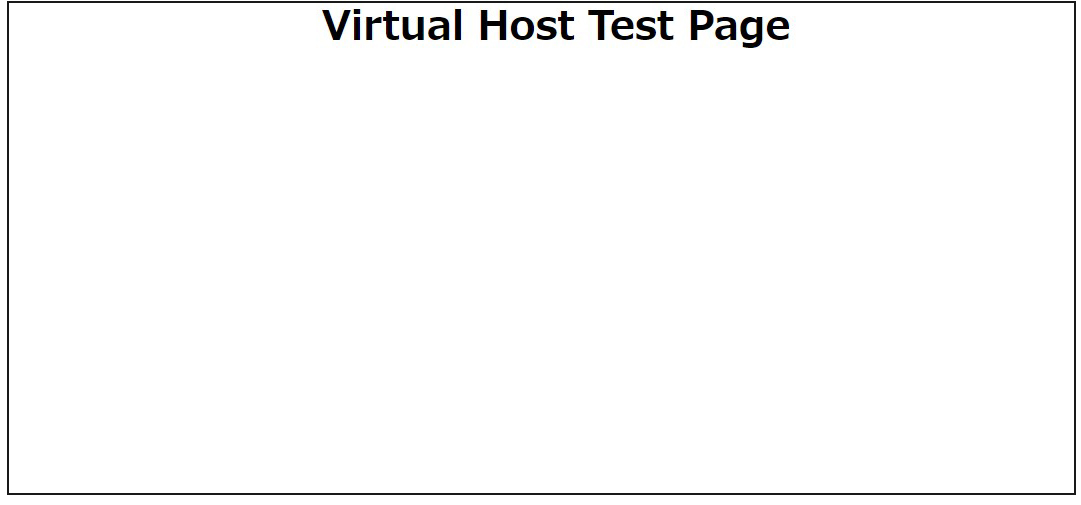
⑦If you access "http://[FQDN]/index.html" in your browser, the following screen should appear
5. Apache2 : Using Perl Scripts
Enable CGI to make Perl scripts available
①Perl Install
# apt -y install perl
②Enable CGI module and restart
# a2enmod cgid
# systemctl restart apache2
③Confirm CGI module is enabled
Create test scripts
# cat > /usr/lib/cgi-bin/test_script <<'EOF'
#!/usr/bin/perl
print "Content-type: text/html\n\n";
print "Hello CGI\n";
EOF
Authorize the script file
# chmod 705 /usr/lib/cgi-bin/test_script
operation check
# curl http://localhost/cgi-bin/test_script

Hello CGI
6. Apache2 : Using PHP Scripts
①PHP Install
# apt -y install php php-cgi libapache2-mod-php php-common php-pear php-mbstring
②Enabling php
# a2enconf php8.5-cgi
Enabling conf php8.5-cgi.
To activate the new configuration, you need to run:
  systemctl reload apache2
➂Apache2 Configuration
# vi /etc/php/8.5/apache2/php.ini

Line 693 : Change
post_max_size = 300M

Line 851 : Change
upload_max_filesize = 200M

Line 964:Uncomments and set time zone
date.timezone = "Asia/Tokyo"
Apache Restart
# systemctl restart apache2
③Create a PHP test page and check its operation
# vi /var/www/html/<FQDN>/test.php
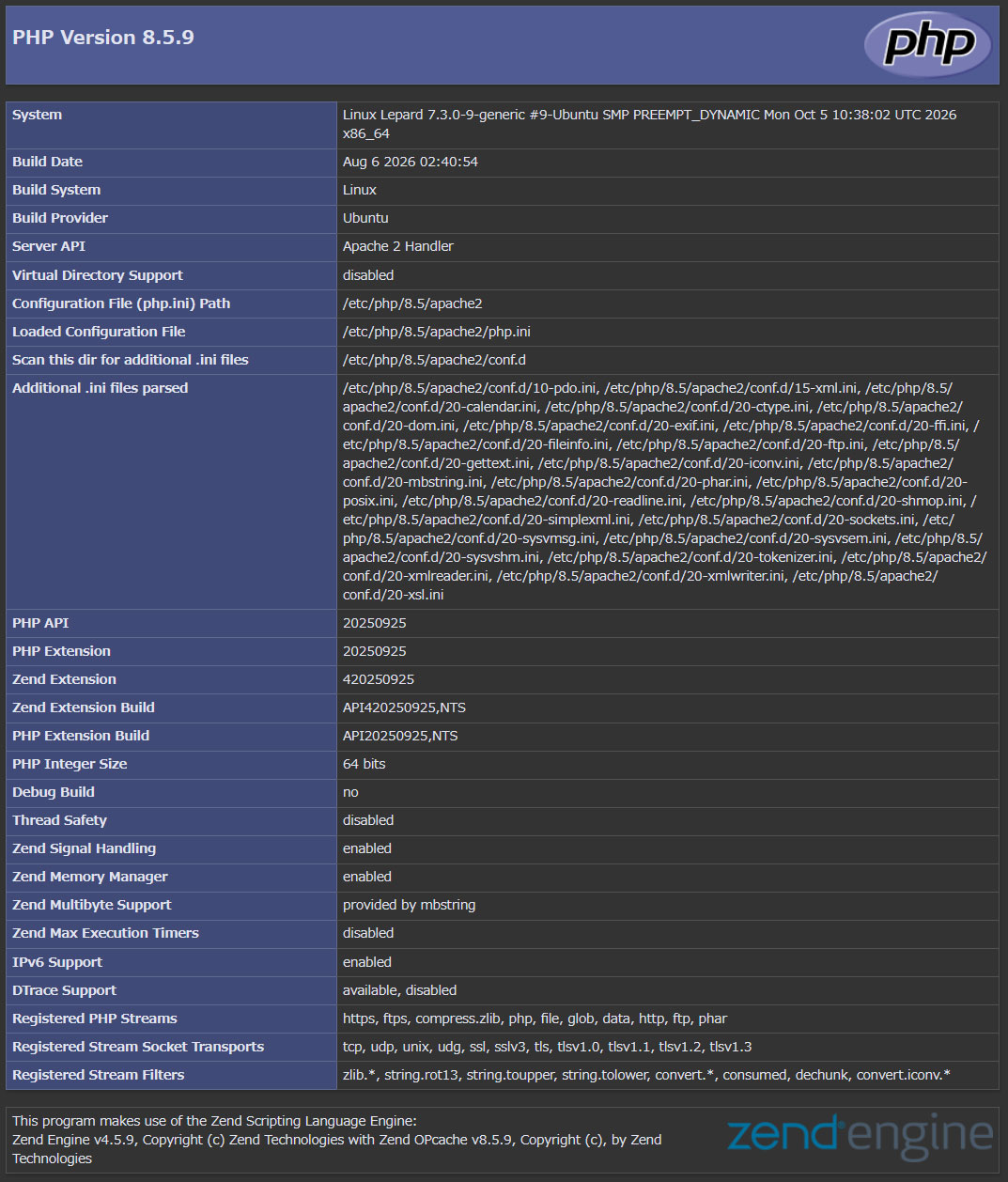
<?php phpinfo(); ?>
If you access http://[FQDN]/test.php with a browser and the following screen appears, success!
7. Digest authentication with Apache2
Since Basic Authentication, a well-known authentication authentication method for http, transmits authentication information in plain text, there is a risk of ID and password leakage if the packet is intercepted.
On the other hand, Digest Authentication encrypts the authentication information and sends it in encrypted form, so there is almost no risk of information leakage.
7.1 Create password file for Digest authentication
Specify an authenticated area called realm. This realm allows the same directory to be accessed as authenticated.
As an example, we will create a user named "secretuser" in the "DigestAuth" realm.
Execute the following command and enter the "secretuser" password.
# /usr/bin/htdigest -c /etc/apache2/.digestauth "DigestAuth" secretuser
Adding password for secretuser in realm DigestAuth.
New password:
Re-type new password:
Confirmation
# cat /etc/apache2/.digestauth
secretuser:DigestAuth:********************************
As above, secretuser and encrypted password are created
7.2 Edit Apache configuration file
Specify the directory to which Digest authentication will be applied. (In this case, specify the secret directory.)
# vi /etc/apache2/apache2.conf

Added to the last end
<Directory /var/www/html/[FQDN]/secret>
AuthType Digest
AuthName "DigestAuth"
AuthDigestDomain /secret/
AuthUserFile /etc/apache2/.digestauth
Require valid-user
</Directory>
Create a directory for Digest authentication
# mkdir /var/www/html/[FQDN]/secret
Enable Digest authentication and restart
# a2enmod auth_digest
# systemctl restart apache2
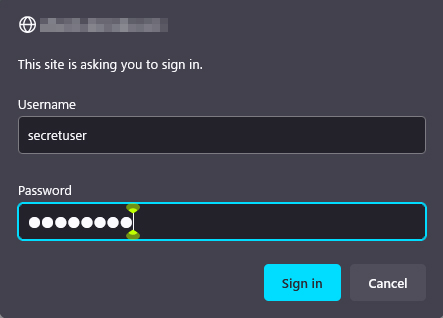
When accessing http://[FQDN]/secret with a browser, a screen appears asking for "user name" and "password".