1.Key Pair Generation
Create a private key for the client and a public key for the server to enable login via key pair authentication.
Create a public and private key pair for users connecting to the Linux server using OpenSSH.
Use ssh-keygen to generate the key pair.
Create the public and private key pair using the user permissions for remote login.
If no destination or filename is specified, id_ed25519 and id_ed25519.pub will be created in /home/huong/.ssh/. You will be prompted to enter a password for the key during the process.
Key Pair Generation
# su - huong
huong@lepard:~>  ssh-keygen -t ed25519
Generating public/private ed25519 key pair.
Enter file in which to save the key (/home/huong/.ssh/id_ed25519):
Enter passphrase for "/home/huong/.ssh/id_ed25519" (empty for no passphrase):
Enter same passphrase again:
Your identification has been saved in /home/huong/.ssh/id_ed25519
Your public key has been saved in /home/huong/.ssh/id_ed25519.pub
The key fingerprint is:
SHA256:3lNhQ5UpBdzzClwkg27ze/rOmgT1L3eUt+FEw5/q0vs huong@Lepard
The key's randomart image is:
+--[ED25519 256]--+
|           o=*+o |
|          ..ooB  |
|         . .=o * |
|          +oo+. *|
|        S..o...*+|
|       . . o. =o+|
|        . o oo.o+|
|           +o+.o.|
|            =O*E |
+----[SHA256]-----+
Confirm created file
huong@lepard:~>  ll ~/.ssh
drwx------. 1 huong huong   0 Nov 15 13:24 agent
-rw-------  1 huong huong 444 Nov 15 13:58 id_ed25519
-rw-r--r--  1 huong huong  94 Nov 15 13:58 id_ed25519.pub
huong@lepard:~> cat ~/.ssh/id_ed25519.pub >> ~/.ssh/authorized_keys
huong@lepard:~> chmod 600 ~/.ssh/authorized_keys
huong@lepard:~> chmod 700 ~/.ssh
Save the generated private key id_ed25519 to a suitable location on Windows using WinSCP.
Launch WinSCP.
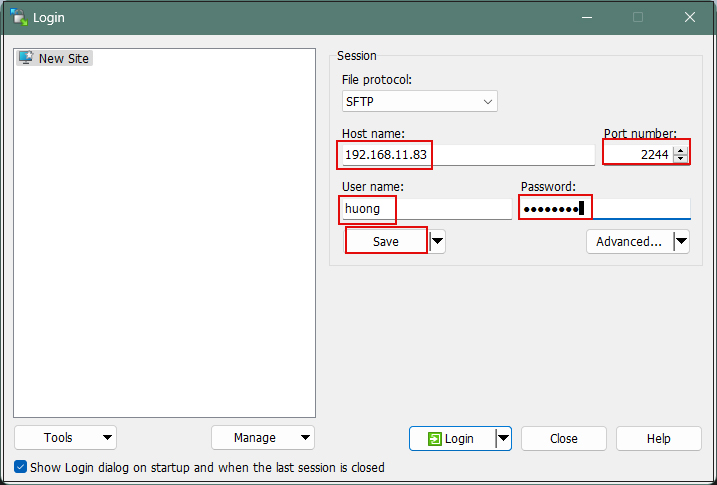
Click New Site.
Host name: Server IP address
Port number: SSH port number
User name: Login username
Password: Password for the above user
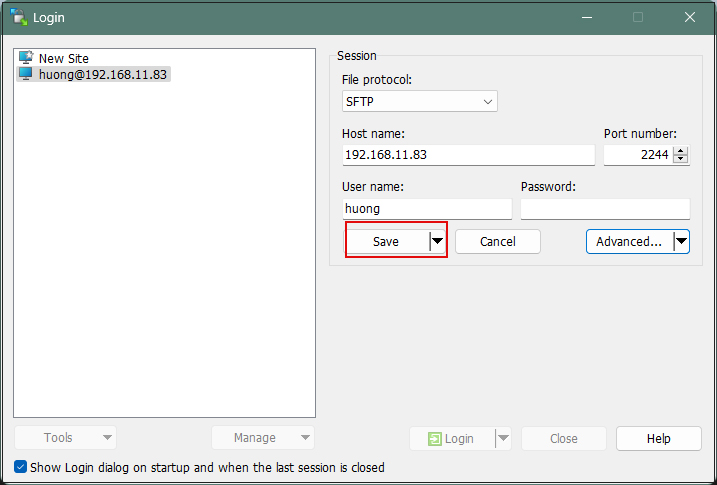
Click Save
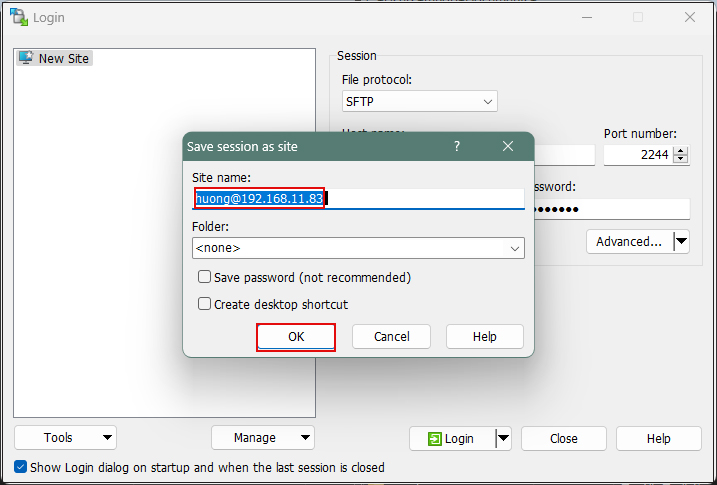
Site name: Enter any name
Click OK
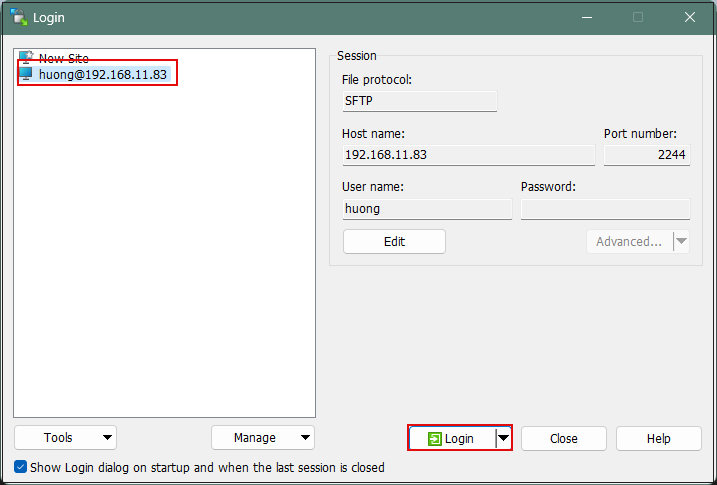
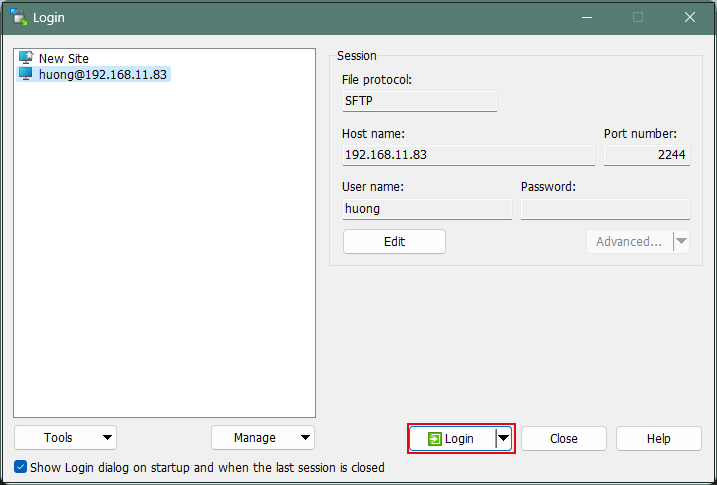
Select the appropriate server and click Login.
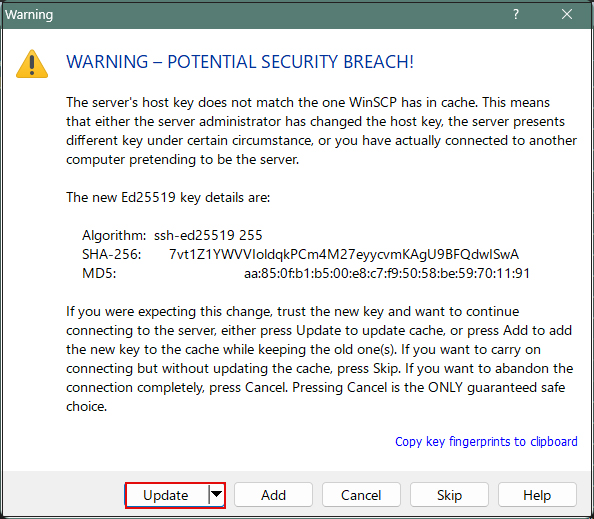
If the following security confirmation screen appears, click "Update".
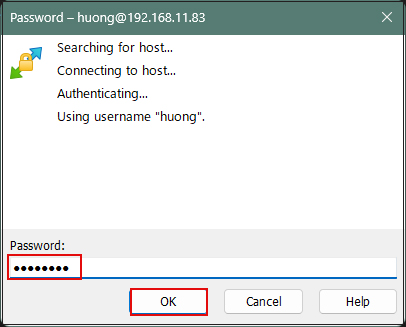
Password: The password for the logged-in user
Click OK
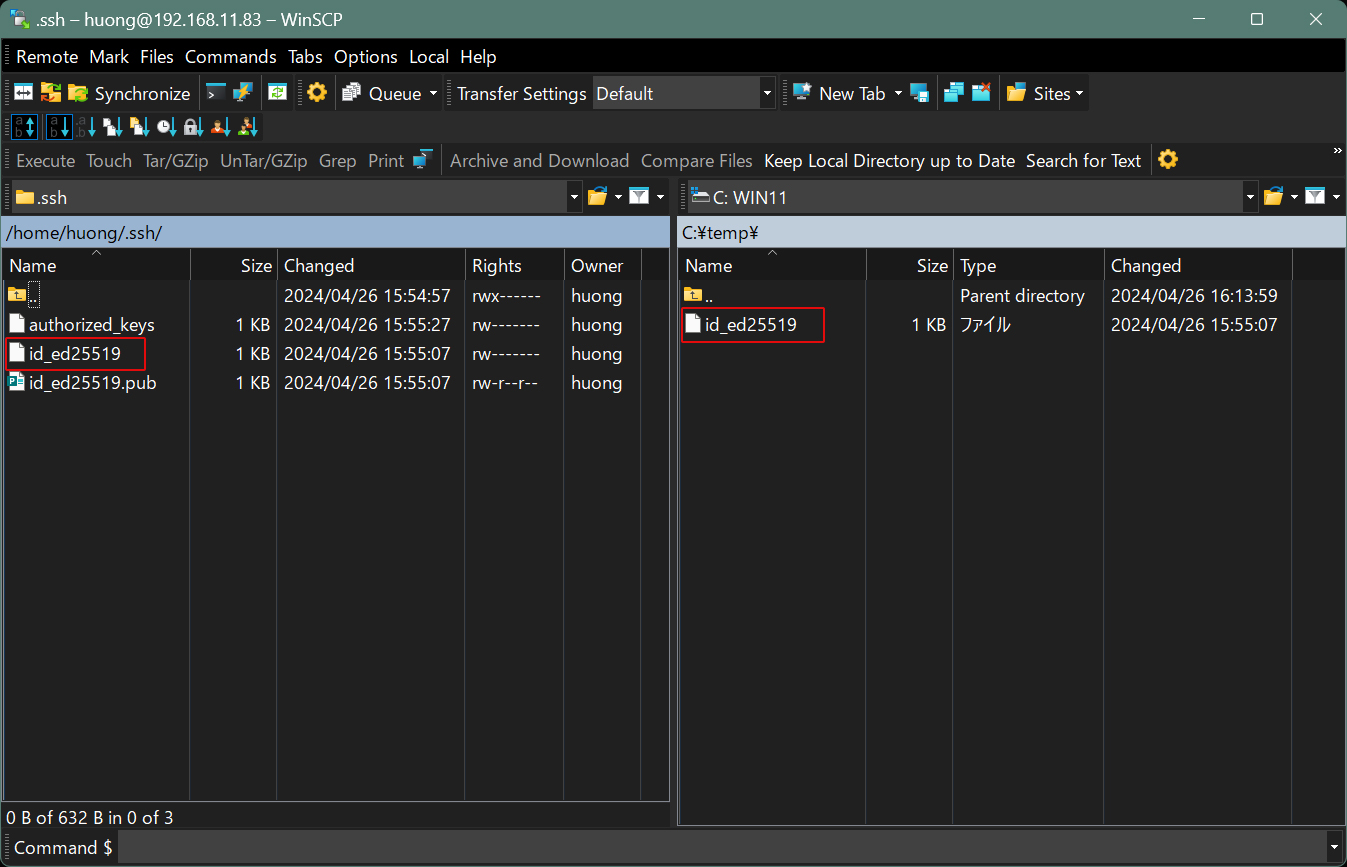
Once connected, the left pane represents the server side, and the right pane represents the PC (Windows) side.
Save the "id_ed25519" file located in the .ssh directory to an appropriate location on the right pane (Windows).
2. Editing SSH Settings
2.1 Editing the configuration file
Additionally, when using key-based authentication, disabling password authentication on the SSH server as follows enables a more secure environment. This time, instead of a regular user, perform the operation by switching to root with su -
# vi /usr/etc/ssh/sshd_config

# Line 64: Changed to disallow password authentication
PasswordAuthentication no
# systemctl restart sshd.service
2.2 Connection Method in Tera Term
Open eraTerm and click "New Connection" from the "File" menu.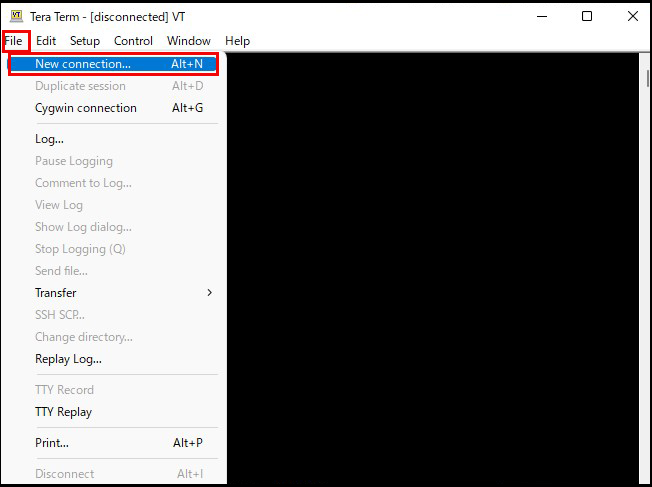
Host: Server IP Address
TCP port: SSH port number
Click OK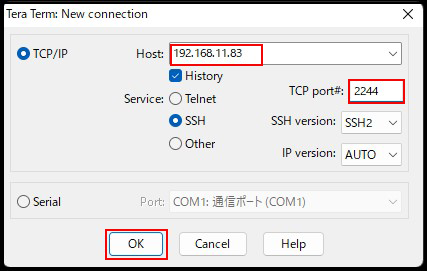
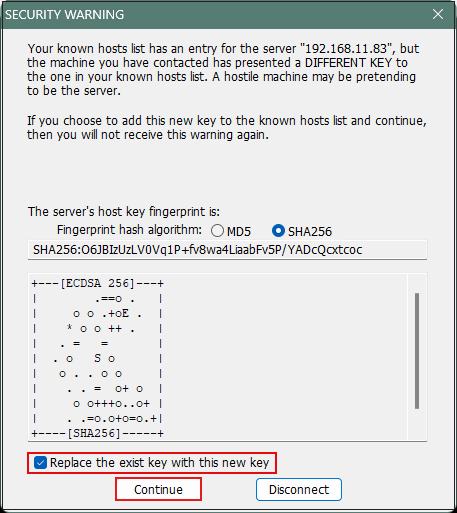
If the following security warning appears, check "Replace…" and click "Continue".
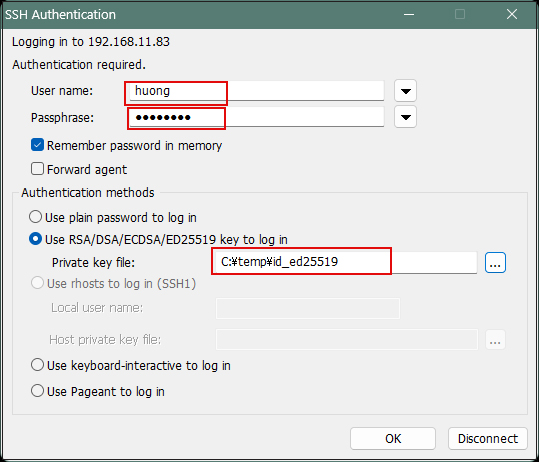
User name: Login username
Password: Password specified when creating the public/private key pair
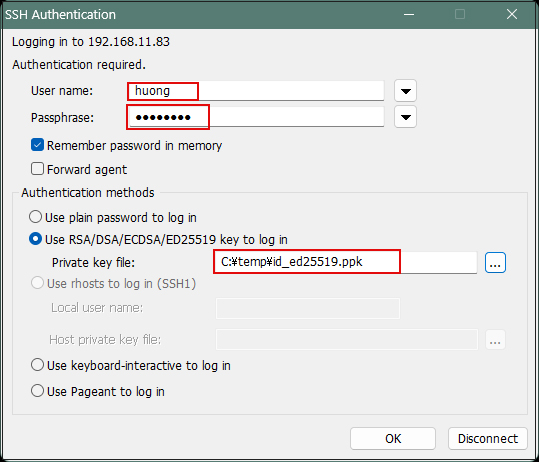
In the "Private key file:" field under "Use RSA/DSA/ECDSA/ED25519 key to log in," set the "id_ed25519" file saved earlier on Windows, then click "OK."
2.3 Creating a Private Key Using PuTTYgen
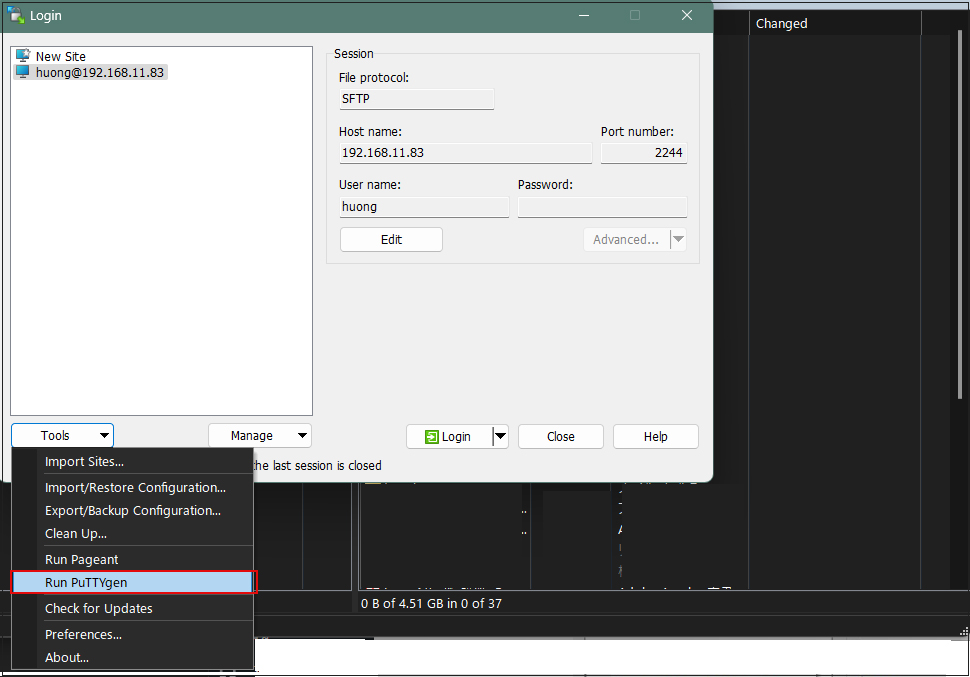
Launch WinSCP and run PuTTYgen from the Tools menu.
Select the applicable server
Click Load
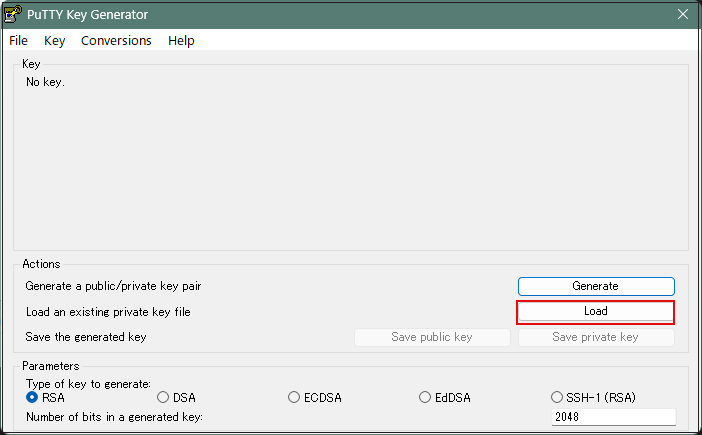
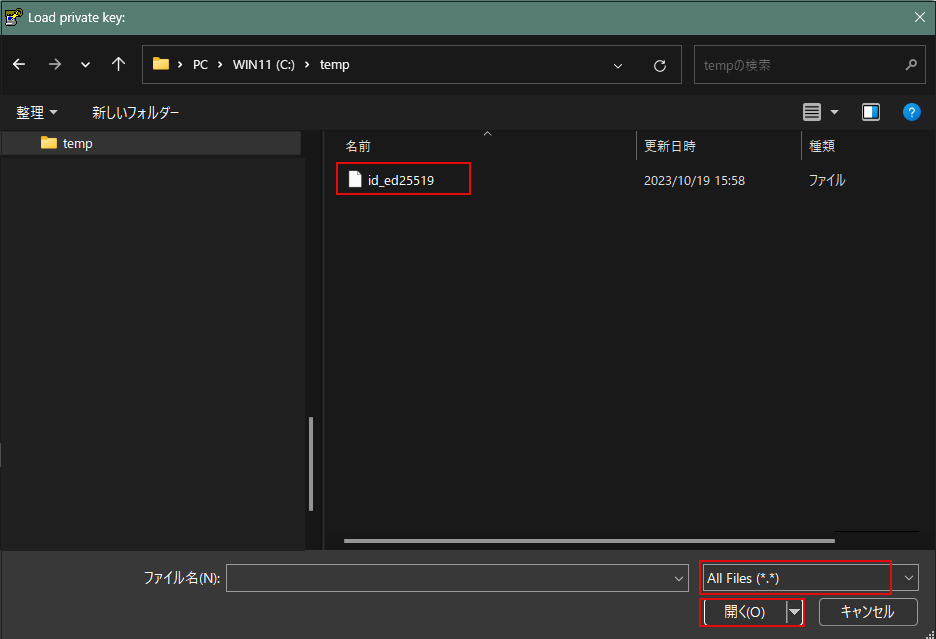
The [Open File Dialog] will open. Change the file type to [All Files (.)], then load the private key id_ed25519 transferred from the Linux server.
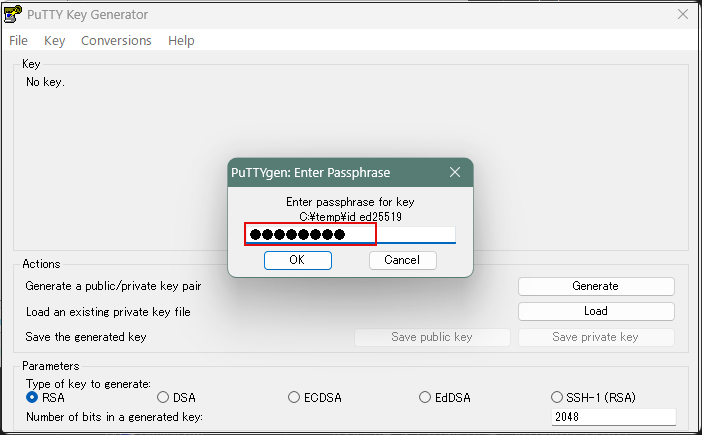
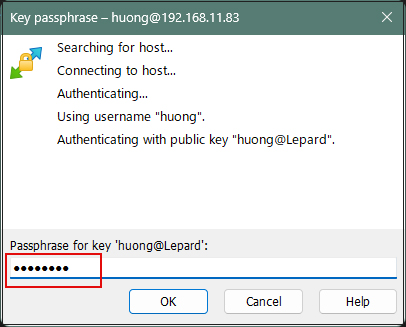
The password is the one you set in the "Creating a Public Key and Private Key Pair" section above.
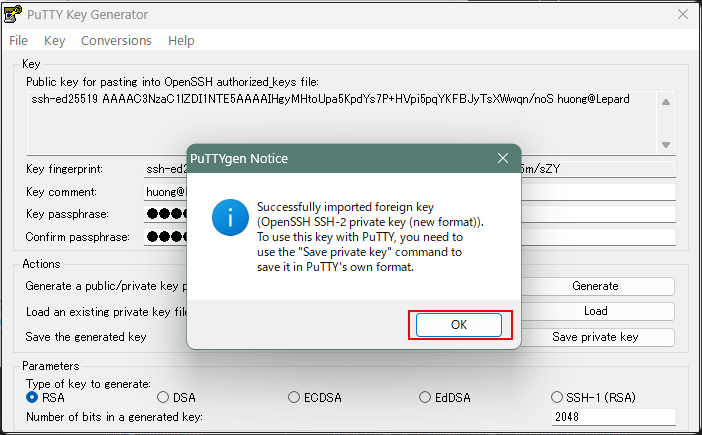
Click "Save private key"
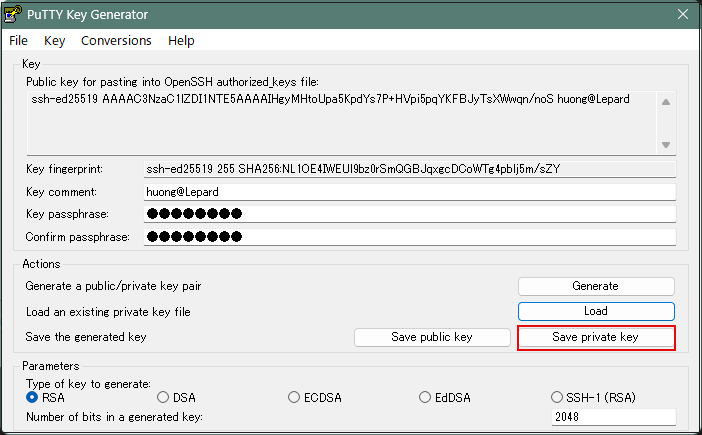
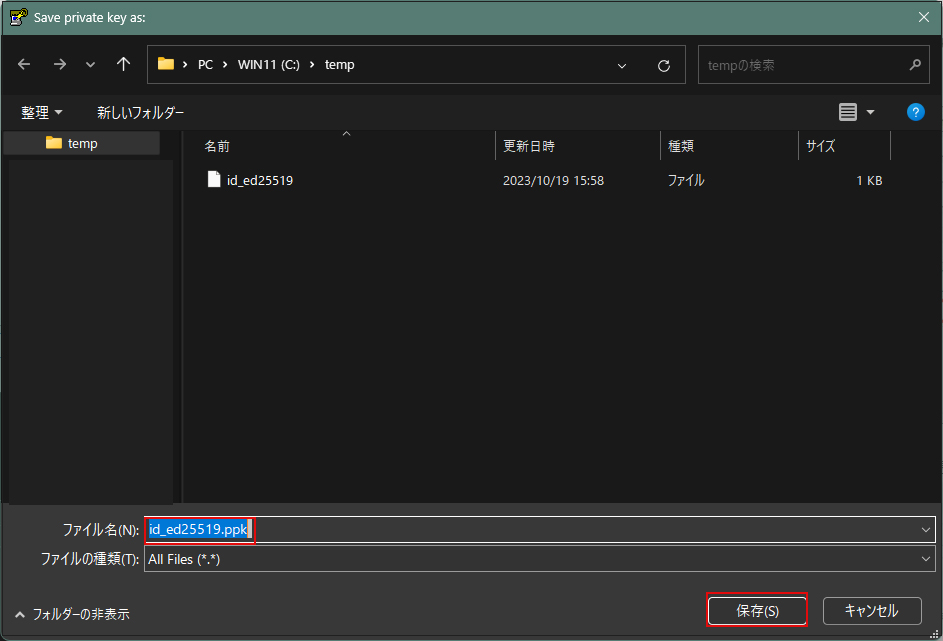
Save the file named "id_ed25519.ppk" with the ".ppk" extension in the same location on the Windows side where you saved "id_ed25519" earlier.
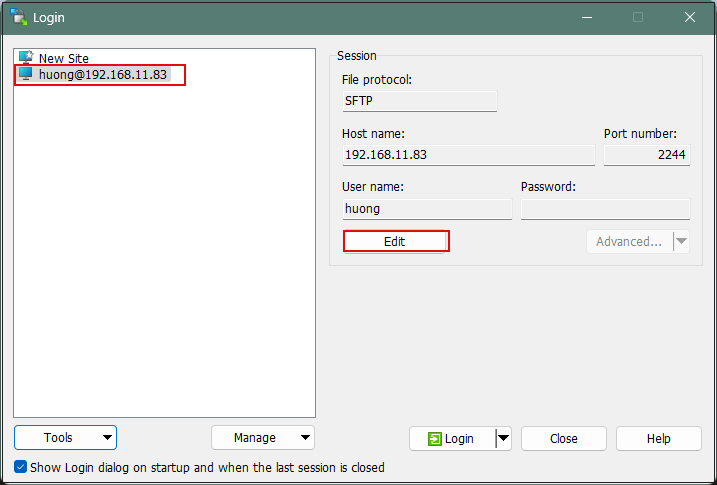
Select the target server and click "Edit".
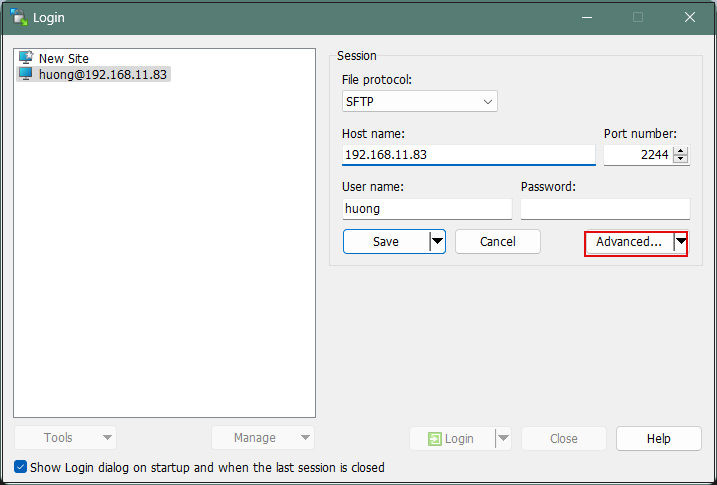
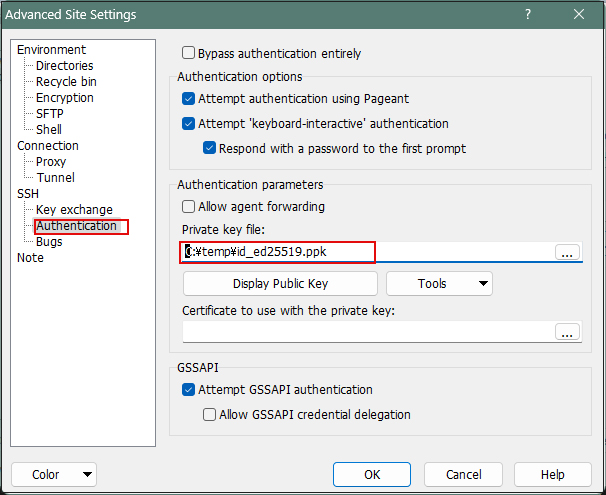
Click Advanced…
Open the "Authentication" menu and specify the "id_ed25519.ppk" file you saved to Windows earlier as the "Private key file".
Click "Save"
Click "Login"
In the password field, enter the password defined during the initial creation of the public key.
This is not the user's login password.
You can now connect using the private key.
When connecting via Tera Term, specify the "id_ed25519.ppk" file saved on Windows in the "Use RSA/DSA/ECDSA/…".