1. Obtain a certificate(Let's Encrypt)
1.1 advance preparation
1.Enable mod_ssl
|
1 |
# a2enmod ssl |
2.Package management system Snappy installed
Let's Encrypt's SSL certificate issuing tool "certbot" is recommended to be installed using "snap" after 2021, so install Snapd first.

|
1 |
# apt -y install snapd |
Bring snapd version up to date
|
1 2 3 4 5 |
# snap install core core 16-2.61.4-20260225 from Canonical✓ installed # snap refresh core snap "core" has no updates available |
Version Check
|
1 2 3 4 5 6 7 |
# snap --version snap 2.74.1+ubuntu26.04.4 snapd 2.74.1+ubuntu26.04.4 series 16 ubuntu 26.04 kernel 7.0.0-14-generic architecture amd64 |
1.2 certbot package install
|
1 2 |
# snap install --classic certbot certbot 5.5.0 from Certbot Project (certbot-eff✓) installed |
Create symbolic link to /snap/bin/certbot
|
1 |
# ln -s /snap/bin/certbot /usr/bin/certbot |
Confirmation
|
1 2 3 4 5 |
# ls -la /usr/bin/certbot lrwxrwxrwx 1 root root 17 Jan 11 10:54 /usr/bin/certbot -> /snap/bin/certbot # ls -la /snap/bin/certbot lrwxrwxrwx 1 root root 13 Jan 11 10:53 /snap/bin/certbot -> /usr/bin/snap |
1.3 Obtain a Let's Encrypt Certificate
It is assumed that a web server such as Apache httpd or Nginx is running.
If the web server is not running on the server where the work is to be performed, follow the procedure below under "Obtaining a Let's Encrypt certificate when the web server is not running".
It is also assumed that the server on which the work is to be performed (the server with the FQDN of the server from which you want to obtain the certificate) is accessible from the Internet at port 80.
|
1 |
# certbot certonly --webroot -w /var/www/html/[FQDN] -d [FQDN] |
|
1 2 3 4 5 6 7 8 9 10 11 12 13 14 15 16 17 18 19 20 21 22 23 24 25 26 27 28 29 30 31 32 33 34 |
Saving debug log to /var/log/letsencrypt/letsencrypt.log Enter email address (used for urgent renewal and security notices) (Enter 'c' to cancel): [Administrator Email Address] - - - - - - - - - - - - - - - - - - - - - - - - - - - - - - - - - - - - - - - - Please read the Terms of Service at https://letsencrypt.org/documents/LE-SA-v1.3-September-21-2022.pdf. You must agree in order to register with the ACME server. Do you agree? - - - - - - - - - - - - - - - - - - - - - - - - - - - - - - - - - - - - - - - - (Y)es/(N)o: Y - - - - - - - - - - - - - - - - - - - - - - - - - - - - - - - - - - - - - - - - Would you be willing, once your first certificate is successfully issued, to share your email address with the Electronic Frontier Foundation, a founding partner of the Let's Encrypt project and the non-profit organization that develops Certbot? We'd like to send you email about our work encrypting the web, EFF news, campaigns, and ways to support digital freedom. - - - - - - - - - - - - - - - - - - - - - - - - - - - - - - - - - - - - - - - - (Y)es/(N)o: Y Account registered. Requesting a certificate for [FQDN] Successfully received certificate. Certificate is saved at: /etc/letsencrypt/live/[FQDN]/fullchain.pem Key is saved at: /etc/letsencrypt/live/[FQDN]/privkey.pem This certificate expires on 2026-07-23. These files will be updated when the certificate renews. Certbot has set up a scheduled task to automatically renew this certificate in the background. - - - - - - - - - - - - - - - - - - - - - - - - - - - - - - - - - - - - - - - - If you like Certbot, please consider supporting our work by: * Donating to ISRG / Let's Encrypt: https://letsencrypt.org/donate * Donating to EFF: https://eff.org/donate-le - - - - - - - - - - - - - - - - - - - - - - - - - - - - - - - - - - - - - - - - |
「Successfully received certificate.」
# The following certificate is obtained under [/etc/letsencrypt/live/[FQDN]/] as described in the message
# cert.pem
#chain.pem
# fullchain.pem
# privkey.pem
Obtaining a Let's Encrypt certificate when the web server is not running
It is a prerequisite that the server on which this work is performed can be accessed from the Internet at port 80
|
1 |
# certbot certonly --standalone -d [FQDN] |
1.4 Automatic renewal of certificates (Let's Encrypt)
①Pre-registration testing
First, test the automatic renewal using the following --dry-run option. With this option, the certificate is not renewed, but only the operation is tested, so there is no need to worry about being caught by the limit on the number of times a certificate can be obtained.
|
1 2 3 4 5 6 7 8 9 10 11 12 13 14 |
# certbot renew --dry-run Saving debug log to /var/log/letsencrypt/letsencrypt.log - - - - - - - - - - - - - - - - - - - - - - - - - - - - - - - - - - - - - - - - Processing /etc/letsencrypt/renewal/[FQDN].conf - - - - - - - - - - - - - - - - - - - - - - - - - - - - - - - - - - - - - - - - Account registered. Simulating renewal of an existing certificate for [FQDN] - - - - - - - - - - - - - - - - - - - - - - - - - - - - - - - - - - - - - - - - Congratulations, all simulated renewals succeeded: /etc/letsencrypt/live/[FQDN]/fullchain.pem (success) - - - - - - - - - - - - - - - - - - - - - - - - - - - - - - - - - - - - - - - - |
②When you install the snap version of certbot, the automatic certificate renewal function is also installed.
|
1 2 3 4 5 6 7 8 9 10 |
# systemctl list-timers | less NEXT LEFT LAST PASSED UNIT ACTIVATES Sat 2026-04-25 09:50:00 JST 6min Sat 2026-04-25 09:40:07 JST 3min 29s ago sysstat-collect.timer sysstat-collect.service Sat 2026-04-25 10:09:00 JST 25min Sat 2026-04-25 09:39:07 JST 4min 29s ago phpsessionclean.timer phpsessionclean.service Sat 2026-04-25 10:16:48 JST 33min Fri 2026-04-24 10:19:59 JST - logrotate.timer logrotate.service Sat 2026-04-25 10:45:33 JST 1h 1min Sat 2026-04-25 09:43:15 JST 21s ago fwupd-refresh.timer fwupd-refresh.service Sat 2026-04-25 15:33:00 JST 5h 49min - - snap.certbot.renew.timer snap.certbot.renew.service Sat 2026-04-25 16:06:55 JST 6h Fri 2026-04-24 10:19:59 JST - man-db.timer man-db.service |
snap.certbot.renew.timer is registered
Check the unit file for snap.certbot.renew.timer
|
1 2 3 4 5 6 7 8 9 10 11 12 13 14 15 16 |
# vi /etc/systemd/system/snap.certbot.renew.timer [Unit] # Auto-generated, DO NOT EDIT Description=Timer renew for snap application certbot.renew Requires=snap-certbot-5528.mount After=snap-certbot-5528.mount X-Snappy=yes [Timer] Unit=snap.certbot.renew.service OnCalendar=*-*-* 07:22 OnCalendar=*-*-* 15:33 [Install] WantedBy=timers.target |
According to the above settings, it will attempt to update at 7:22 and 15:33 every day as specified in the OnCalender parameter (however, the set time will change randomly for each update).
Check the unit file snap.certbot.renew.service
|
1 2 3 4 5 6 7 8 9 10 11 12 13 14 15 16 17 18 |
# vi /etc/systemd/system/snap.certbot.renew.service [Unit] # Auto-generated, DO NOT EDIT Description=Service for snap application certbot.renew Requires=snap-certbot-5528.mount Wants=network.target After=snap-certbot-5528.mount network.target snapd.apparmor.service X-Snappy=yes [Service] EnvironmentFile=-/etc/environment ExecStart=/usr/bin/snap run --timer="00:00~24:00/2" certbot.renew SyslogIdentifier=certbot.renew Restart=no WorkingDirectory=/var/snap/certbot/5528 TimeoutStopSec=30s Type=oneshot |
However, the web server that uses the certificate will not be restarted, so set up a script that will run automatically after the update
|
1 2 3 4 |
# vi /etc/letsencrypt/renewal-hooks/post/web_restart.sh #!/bin/bash systemctl restart apache2 |
|
1 |
# chmod 755 /etc/letsencrypt/renewal-hooks/post/web_restart.sh |
2. SSL/TLS (Let's Encrypt) configuration for Apache2
①Edit Apache2 SSL-related configuration files
The vhost-ssl in vhost-ssl.conf is optional.
|
1 2 3 4 5 6 7 8 9 10 11 12 13 14 15 16 17 18 |
# cd /etc/apache2/sites-available/ # cp default-ssl.conf vhost-ssl.conf # vi vhost-ssl.conf # Line 2:Administrator Address Change ServerAdmin [Addministrator Email Address] # Line 4:Change DocumentRoot /var/www/html/[FQDN]/ # Line 12,13:Change ErrorLog ${APACHE_LOG_DIR}/[FQDN].error.log CustomLog ${APACHE_LOG_DIR}/[FQDN].access.log combined # Line 31,32:Comment it out and add it below. #SSLCertificateFile /etc/ssl/certs/ssl-cert-snakeoil.pem #SSLCertificateKeyFile /etc/ssl/private/ssl-cert-snakeoil.key SSLCertificateFile /etc/letsencrypt/live/[FQDN]/cert.pem SSLCertificateKeyFile /etc/letsencrypt/live/[FQDN]/privkey.pem # Line 43:Add SSLCertificateChainFile /etc/letsencrypt/live/[FQDN]/chain.pem |
②Reflecting and activating the configuration file
|
1 2 3 4 5 6 7 8 9 |
# a2ensite vhost-ssl.conf Enabling site vhost-ssl. To activate the new configuration, you need to run: systemctl reload apache2 # Disable default # a2dissite default-ssl.conf # systemctl restart apache2 |
③http to https redirect
|
1 2 3 4 |
# a2enmod rewrite Enabling module rewrite. To activate the new configuration, you need to run: systemctl restart apache2 |
Append to the virtual host configuration file
|
1 2 3 4 5 6 7 8 9 10 11 12 13 14 15 |
# cd /etc/apache2/sites-available # vi vhost.conf <VirtualHost *:80> # Add the following three lines RewriteEngine on RewriteCond %{HTTPS} off RewriteRule ^(.*)$ https://%{HTTP_HOST}%{REQUEST_URI} [R=301,L] # The ServerName directive sets the request scheme, hostname and port that # the server uses to identify itself. This is used when creating ---------Omitted----------- </VirtualHost> |
④Reflection of settings and startup
|
1 |
# systemctl restart apache2 |
3. SSL/TLS (Let's Encrypt) settings on the mail server
3.1 Obtaining a certificate for the mail server
Obtain a certificate for the mail server, but it cannot be obtained in the same way as above, so the following with the "--standalone" option fails.
|
1 |
# certbot certonly --standalone -d mail.<domain name> |
If I stop the web server once and then do it, it succeeds as follows
|
1 2 3 4 5 6 7 8 9 10 11 12 13 14 15 16 17 18 |
# systemctl stop apache2 # certbot certonly --standalone -d mail.[domain] Saving debug log to /var/log/letsencrypt/letsencrypt.log Requesting a certificate for mail.[domain] Successfully received certificate. Certificate is saved at: /etc/letsencrypt/live/mail.[domain]/fullchain.pem Key is saved at: /etc/letsencrypt/live/mail.[domain]/privkey.pem This certificate expires on 2026-07-24. These files will be updated when the certificate renews. Certbot has set up a scheduled task to automatically renew this certificate in the background. - - - - - - - - - - - - - - - - - - - - - - - - - - - - - - - - - - - - - - - - If you like Certbot, please consider supporting our work by: * Donating to ISRG / Let's Encrypt: https://letsencrypt.org/donate * Donating to EFF: https://eff.org/donate-le - - - - - - - - - - - - - - - - - - - - - - - - - - - - - - - - - - - - - - - - |
|
1 |
# systemctl start apache2 |
3.2 Postfix Configuration
|
1 2 3 4 5 6 7 8 9 |
# vi /etc/postfix/main.cf ● Add to the last line smtpd_use_tls = yes smtp_tls_mandatory_protocols = !SSLv2, !SSLv3 smtpd_tls_mandatory_protocols = !SSLv2, !SSLv3 smtpd_tls_cert_file = /etc/letsencrypt/live/mail.[domain]/fullchain.pem smtpd_tls_key_file = /etc/letsencrypt/live/mail.[domain]/privkey.pem smtpd_tls_session_cache_database = btree:${data_directory}/smtpd_scache |
SMTP-Submission is [587/TCP], SMTPS is [465/TCP].
|
1 2 3 4 5 6 7 8 9 10 11 12 13 14 |
# vi /etc/postfix/master.cf Line 20,22 : Uncomments submission inet n - y - - smtpd -o syslog_name=postfix/submission # -o smtpd_forbid_unauth_pipelining=no -o smtpd_tls_security_level=encrypt -o smtpd_sasl_auth_enable=yes # Add to the last line smtps inet n - y - - smtpd -o syslog_name=postfix/smtps -o smtpd_tls_wrappermode=yes -o smtpd_sasl_auth_enable=yes |
3.3 Dovecot Configuration
|
1 2 3 4 5 6 7 8 9 |
# vi /etc/dovecot/conf.d/10-ssl.conf Line 6:Confirmation ssl = yes Line 18,20:Add the following certificate/key file specification as a comment. #ssl_server_cert_file = /etc/dovecot/private/dovecot.pem ssl_server_cert_file = /etc/letsencrypt/live/mail.[domain]/fullchain.pem #ssl_server_key_file = /etc/dovecot/private/dovecot.key ssl_server_key_file = /etc/letsencrypt/live/mail.[domain]/privkey.pem |
Allow Port 587
|
1 2 |
# ufw allow 587/tcp # ufw reload |
|
1 |
# systemctl restart postfix dovecot |
3.4 Thunderbird Settings
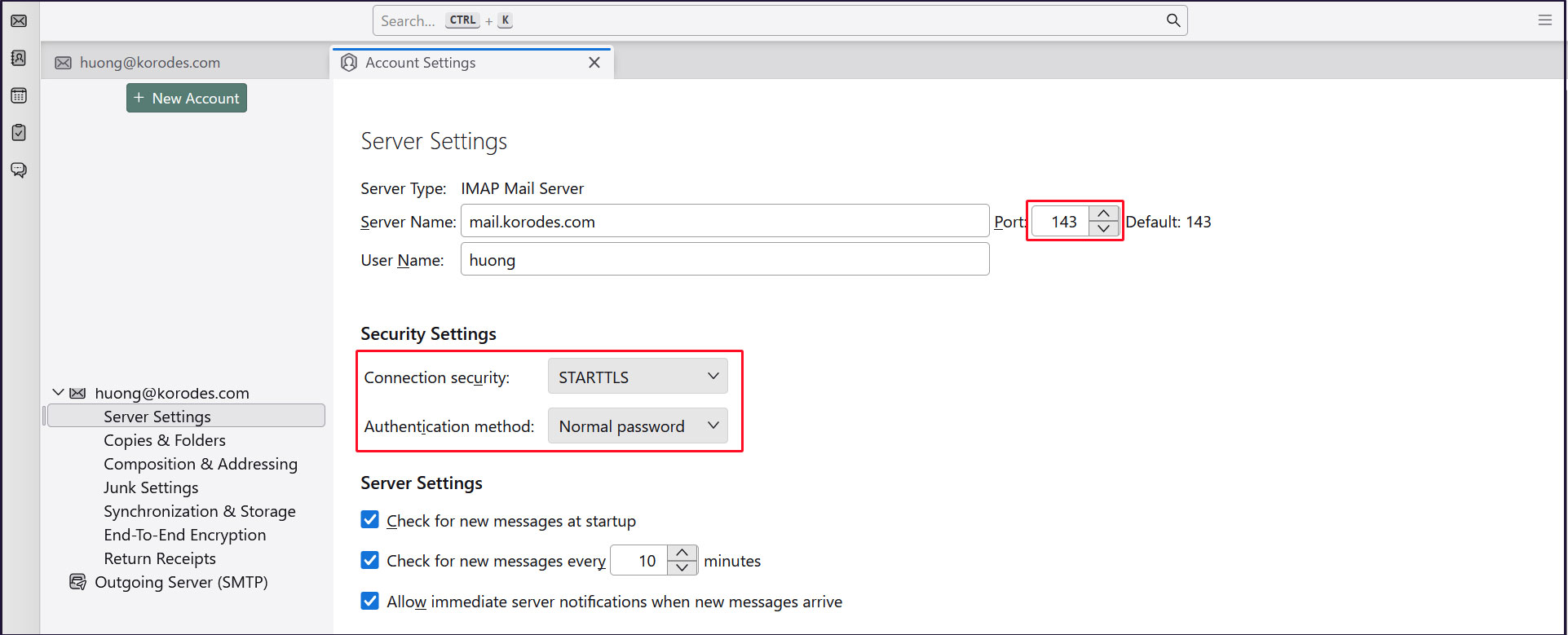
Incoming server
Port : 143
Connection security : STARTTLS
Authentication method : Normal password
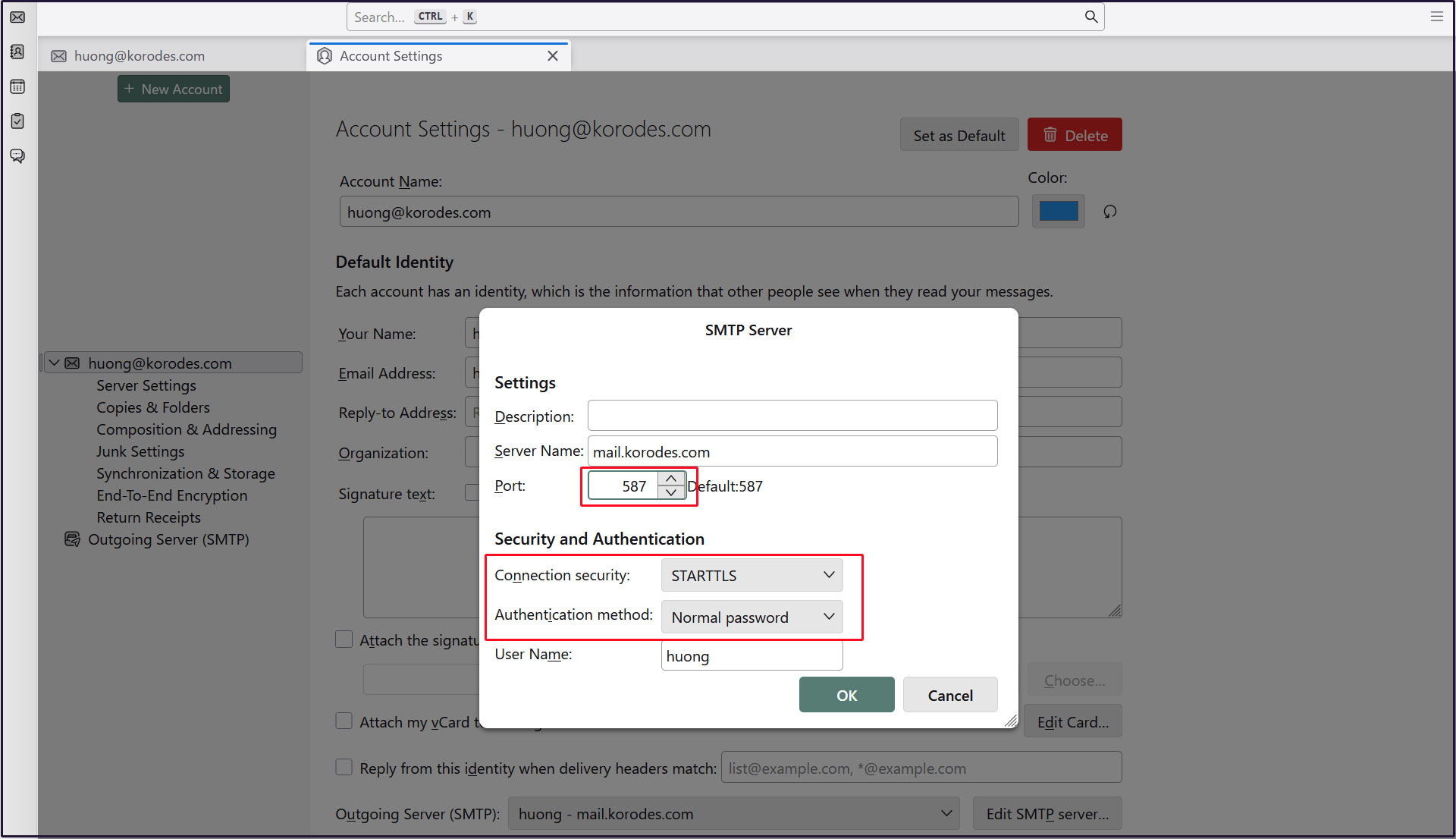
Sending server
Port : 587
Connection security : STARTTLS
Authentication method : Normal password