Contents
1. MySQL Install
Currently, MySQL versions 8.0, 8.4, 9.1, and 9.4 are available for installation. In this guide, we will install MySQL 8.4.
|
1 |
# pkg install -y mysql84-client mysql84-server |
Check the version
|
1 2 |
# mysql --version ysql Ver 8.4.7 for FreeBSD14.3 on amd64 (Source distribution) |
Enable and start MySQL
|
1 2 3 4 |
# sysrc mysql_enable=yes mysql_enable: -> yes # service mysql-server start Starting mysql. |
MySQL Startup Verification
|
1 2 |
# service mysql-server status mysql is running as pid 2643. |
Running Security Scripts
|
1 2 3 4 5 6 7 8 9 10 11 12 13 14 15 16 17 18 19 20 21 22 23 24 25 26 27 28 29 30 31 32 33 34 35 36 37 38 39 40 41 42 43 44 45 46 47 48 49 50 51 52 53 54 55 56 57 58 59 60 61 62 63 64 65 66 |
# mysql_secure_installation Securing the MySQL server deployment. Connecting to MySQL using a blank password. VALIDATE PASSWORD COMPONENT can be used to test passwords and improve security. It checks the strength of password and allows the users to set only those passwords which are secure enough. Would you like to setup VALIDATE PASSWORD component? Press y|Y for Yes, any other key for No: y There are three levels of password validation policy: LOW Length >= 8 MEDIUM Length >= 8, numeric, mixed case, and special characters STRONG Length >= 8, numeric, mixed case, special characters and dictionary file Please enter 0 = LOW, 1 = MEDIUM and 2 = STRONG: 0 Please set the password for root here. New password: Re-enter new password: Estimated strength of the password: 100 Do you wish to continue with the password provided?(Press y|Y for Yes, any other key for No) : y By default, a MySQL installation has an anonymous user, allowing anyone to log into MySQL without having to have a user account created for them. This is intended only for testing, and to make the installation go a bit smoother. You should remove them before moving into a production environment. Remove anonymous users? (Press y|Y for Yes, any other key for No) : y Success. Normally, root should only be allowed to connect from 'localhost'. This ensures that someone cannot guess at the root password from the network. Disallow root login remotely? (Press y|Y for Yes, any other key for No) : y Success. By default, MySQL comes with a database named 'test' that anyone can access. This is also intended only for testing, and should be removed before moving into a production environment. Remove test database and access to it? (Press y|Y for Yes, any other key for No) : y - Dropping test database... Success. - Removing privileges on test database... Success. Reloading the privilege tables will ensure that all changes made so far will take effect immediately. Reload privilege tables now? (Press y|Y for Yes, any other key for No) : y Success. All done! |
To log in to the mysql server afterwards
mysql -u root -p
Enter password: Password set above
|
1 2 3 4 5 6 7 8 9 10 11 12 13 14 15 |
# mysql -u root -p Enter password: The password you set above Welcome to the MySQL monitor. Commands end with ; or \g. Your MySQL connection id is 10 Server version: 8.4.7 Source distribution Copyright (c) 2000, 2025, Oracle and/or its affiliates. Oracle is a registered trademark of Oracle Corporation and/or its affiliates. Other names may be trademarks of their respective owners. Type 'help;' or '\h' for help. Type '\c' to clear the current input statement. mysql> |
2.WordPress Install
2.1 Creating a Database
Create a database for WordPress (for this example, we’ll use the database name “wp_db”, the username “wp_user”, and the password “?Y123456y”)
|
1 2 3 4 5 6 7 8 9 10 11 12 13 14 15 16 17 18 19 20 21 22 23 24 25 26 27 28 29 |
# mysql -u root -p Enter password: Welcome to the MySQL monitor. Commands end with ; or \g. Your MySQL connection id is 10 Server version: 8.4.7 Source distribution Copyright (c) 2000, 2025, Oracle and/or its affiliates. Oracle is a registered trademark of Oracle Corporation and/or its affiliates. Other names may be trademarks of their respective owners. Type 'help;' or '\h' for help. Type '\c' to clear the current input statement. mysql> ^C mysql> CREATE DATABASE wp_db; Query OK, 1 row affected (0.01 sec) mysql> create user 'wp_user'@'localhost' identified by '?Y123456y'; Query OK, 0 rows affected (0.01 sec) mysql> grant all on wp_db.* to 'wp_user'@'localhost'; Query OK, 0 rows affected (0.00 sec) mysql> flush privileges; Query OK, 0 rows affected (0.00 sec) mysql> exit Bye |
2.2 Downloading and Installing WordPress
①Download and Extract
|
1 2 3 |
# cd /usr/local/www/apache24/data/[FQDN]/ # wget http://wordpress.org/latest.tar.gz # tar xvf latest.tar.gz |
②WEditing WordPress Configuration Files
|
1 2 3 |
# cd wordpress/ # cp wp-config-sample.php wp-config.php # vi wp-config.php |
Changes made to wp-config.php
|
1 2 3 4 5 6 7 8 9 10 11 12 13 |
// ** Database settings - You can get this info from your web host ** // /** The name of the database for WordPress */ define('DB_NAME', 'wp_db'); ←The database name created in "2.1 Creating a Database" /** Database username */ define('DB_USER', 'wp_user'); ←The username created in "2.1 Creating a Database" /** Database hostname */ define('DB_PASSWORD', '?Y123456y'); ←The password for the user created in "2.1 Creating a Database" Also, add the following line to the end of the file. If you don't do this, you'll be prompted for FTP connection information when adding a plugin. define('FS_METHOD', 'direct'); |
③Moving Files
|
1 2 |
# cd /usr/local/www/apache24/data/<FQDN> # mv wordpress/* . |
After confirming that the files have been moved, delete the WordPress directory and the downloaded latest.tar.gz file.
|
1 2 |
# rm -R -f wordpress # rm latest.tar.gz |
④Set the owner of the WordPress directory to Apache
|
1 |
# chown -R www:www /usr/local/www/apache24/data/<FQDN> |
⑤Access via a web browser
Go to http://[FQDN]/wp-admin.
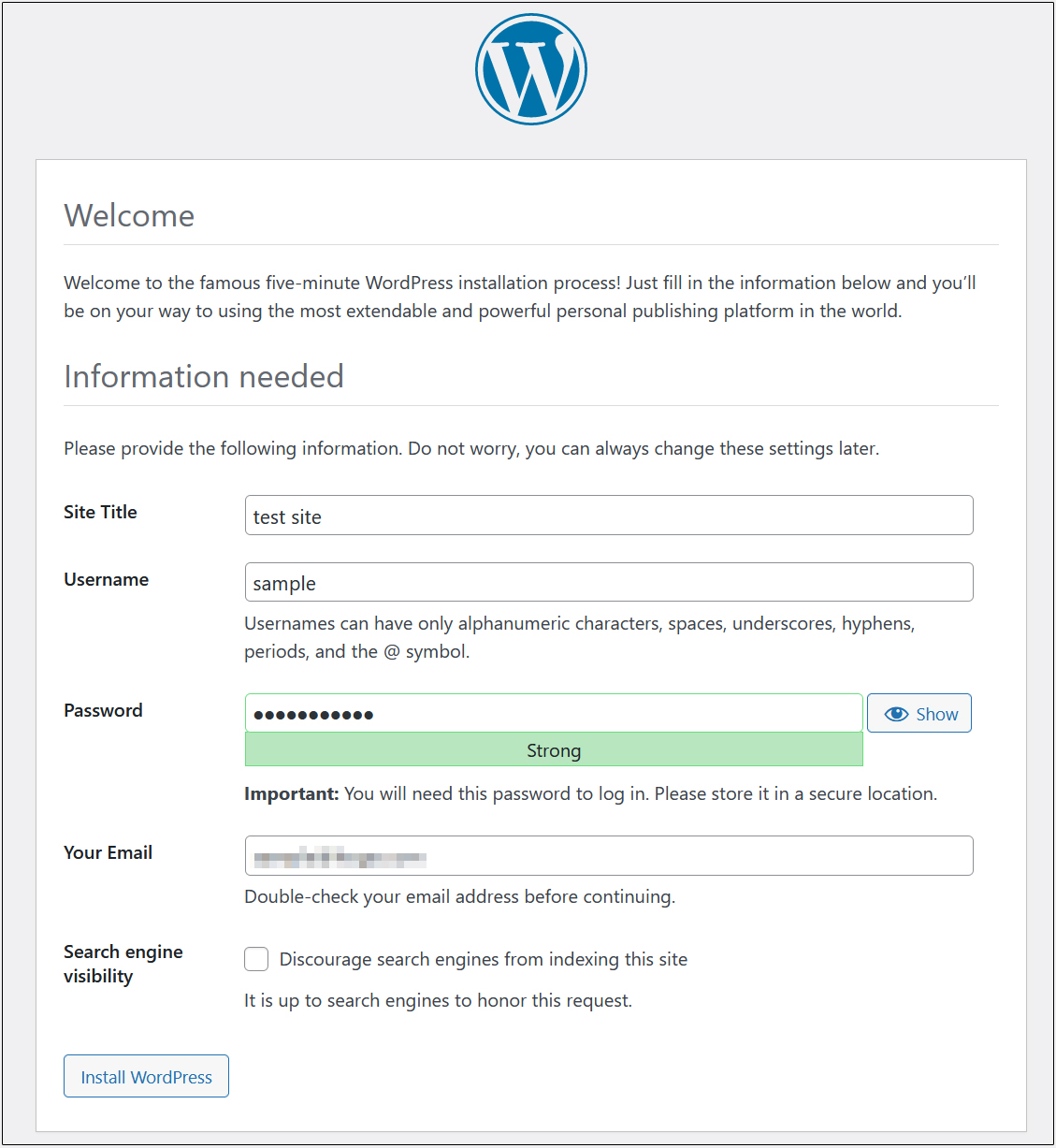
If successful, the following screen for entering WordPress installation information will appear.
「Your PHP installation appears to be missing the MySQL extension which is required by WordPress.」When displayed
Installing the MySQL Module
|
1 |
# pkg install php84-mysqli |
Edit php.ini to enable extension=mysqli
|
1 2 3 4 |
# vi /usr/local/etc/php.ini Per Line 930 : Uncomments extension=mysqli |
In rare cases, an error may occur due to the absence of the PHP extension zlib.
In that case, install php84-zlib.
|
1 |
# pkg install php84-zlib |
Once the installation is complete, restart Apache and php-fpm.
|
1 2 |
# service php_fpm restart # service apache24 restart |
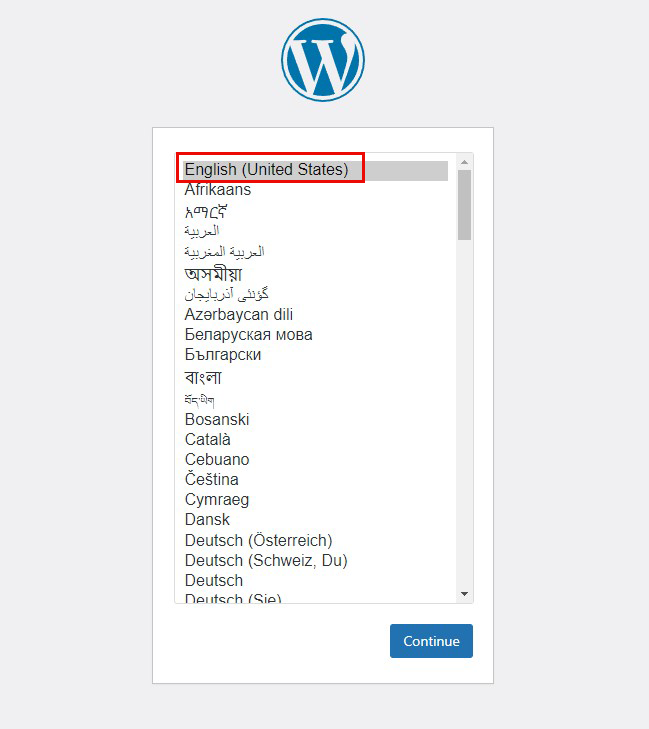
On the following input screen
Site Title Any name
Username Any name
Password Any password
Your Email Administrator's email address
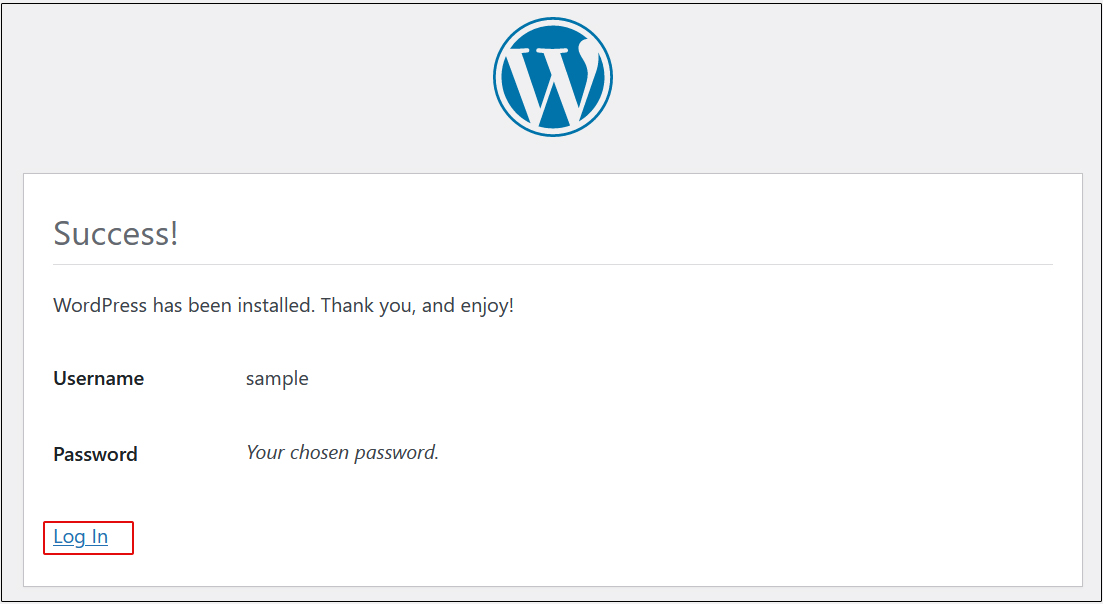
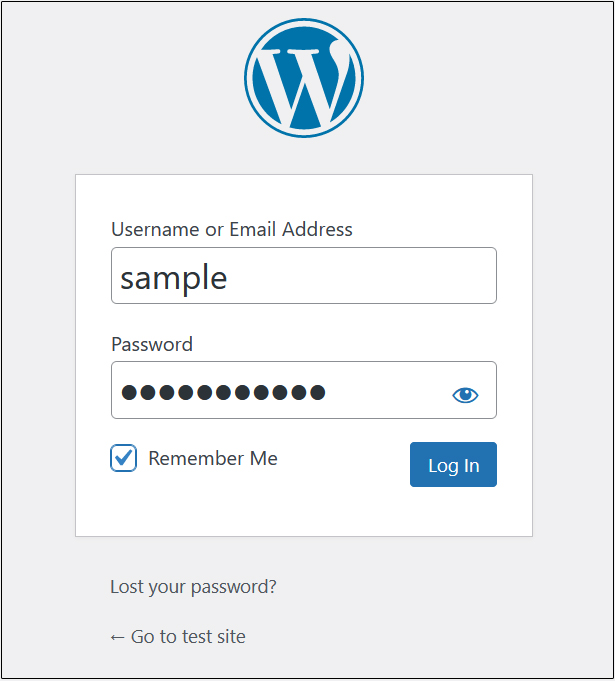
Enter the information and click "Install WordPress". Remember to enter your "username" and "password" as they are required to access the WordPress administration screen.