

Tripwire
Implement a system to detect file tampering on Linux servers by crackers.
This time, Tripwire, a host-based IDS (IDS=Intrusion Detection System), will be installed as the file tampering detection system.
Tripwire detects file additions/changes/deletions by creating a database of file status at the time of installation and comparing the database with the current status of the file.
1 Install
|
1 |
# apt -y install tripwire |
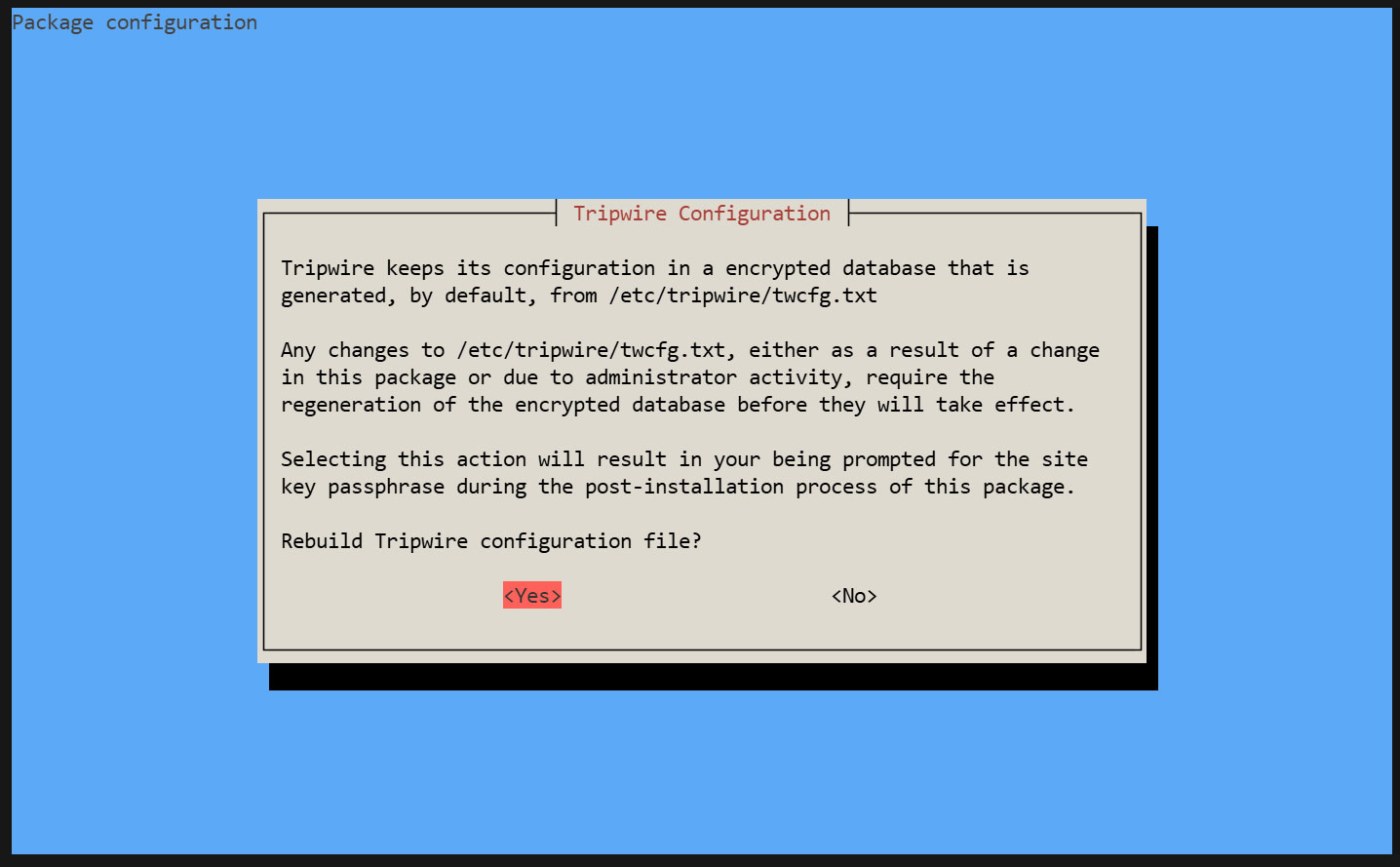
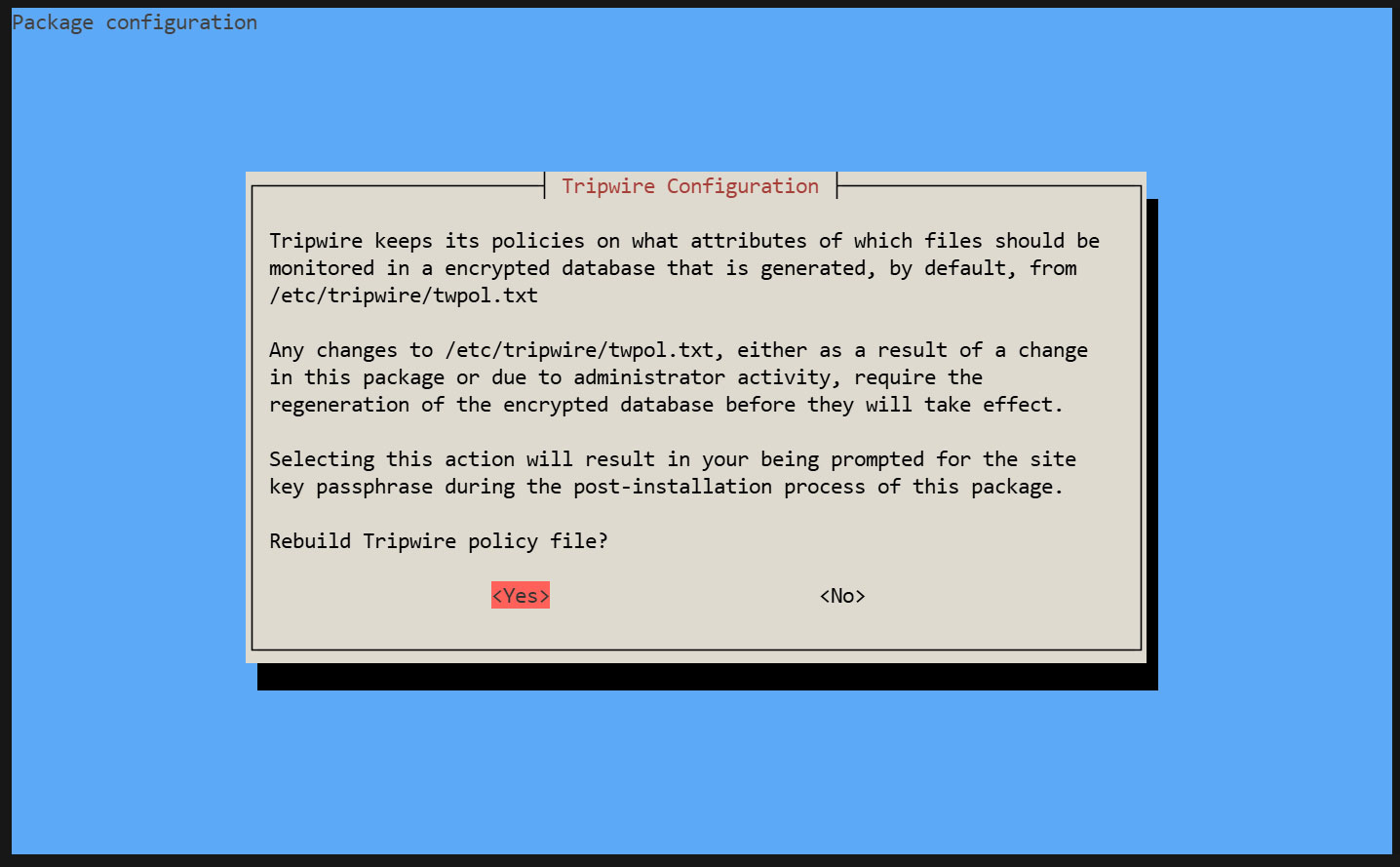
Tripwire requires a site passphrase to secure the "tw.cfg" Tripwire configuration file and the "tw.pol" Tripwire policy file.
Encrypt both files using the specified passphrase. A site passphrase is also required for a single instance of Tripwire.
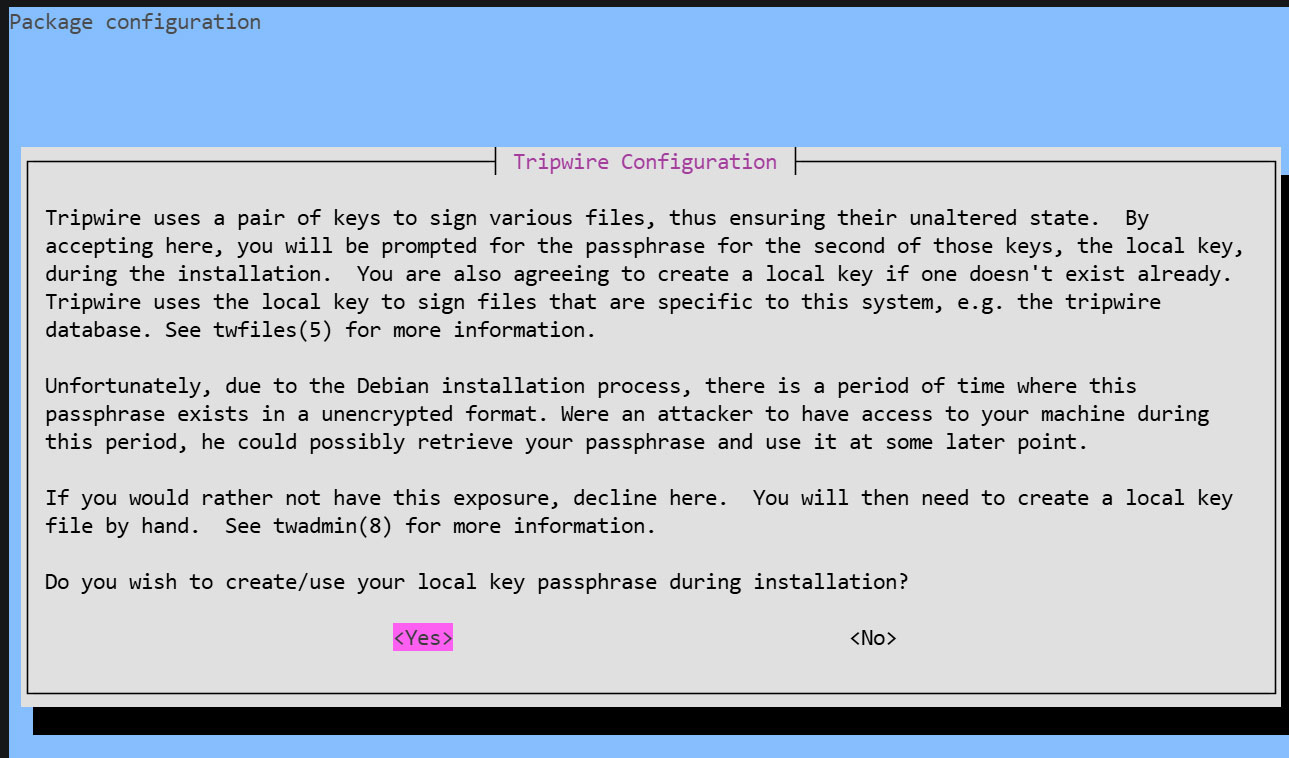
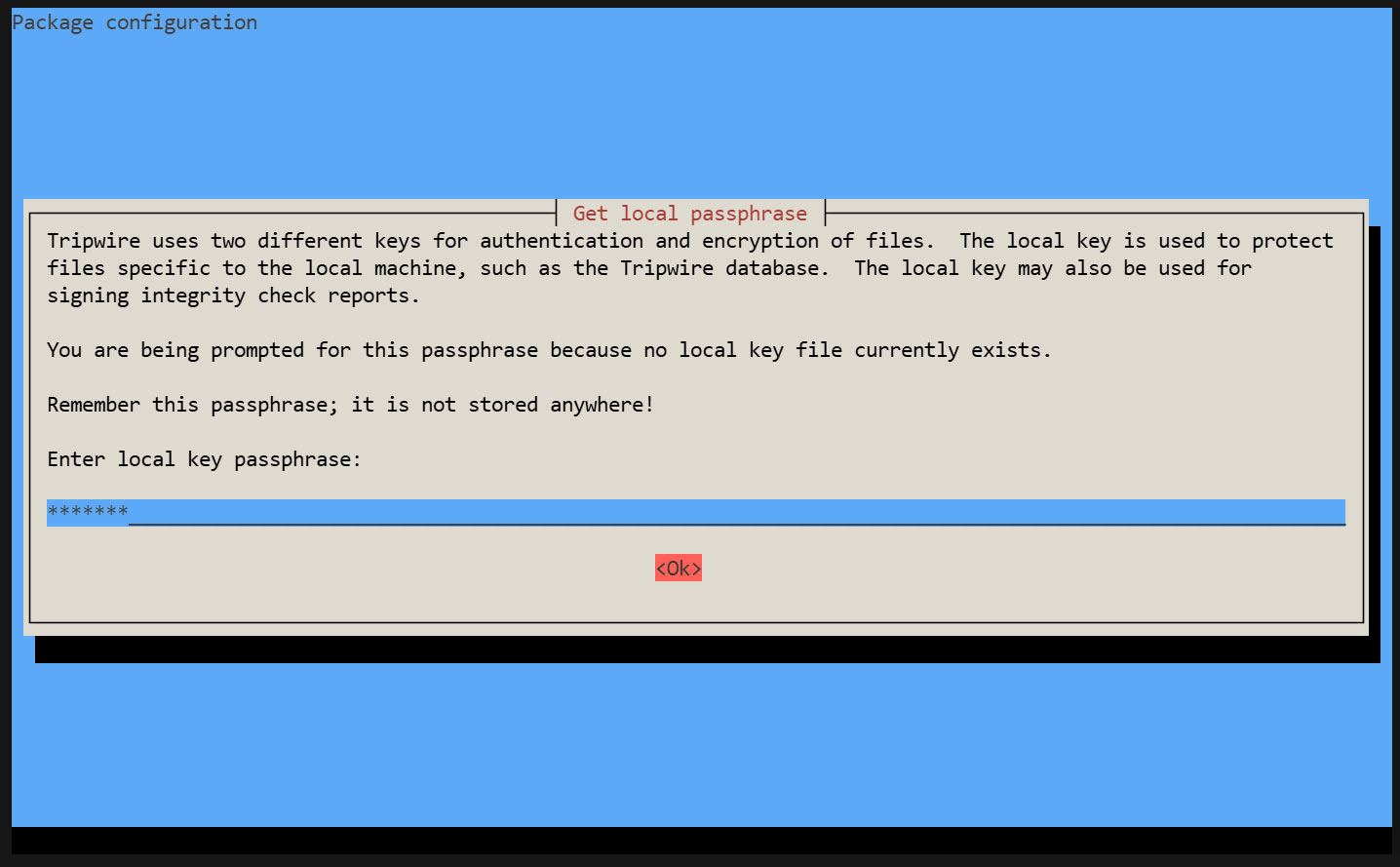
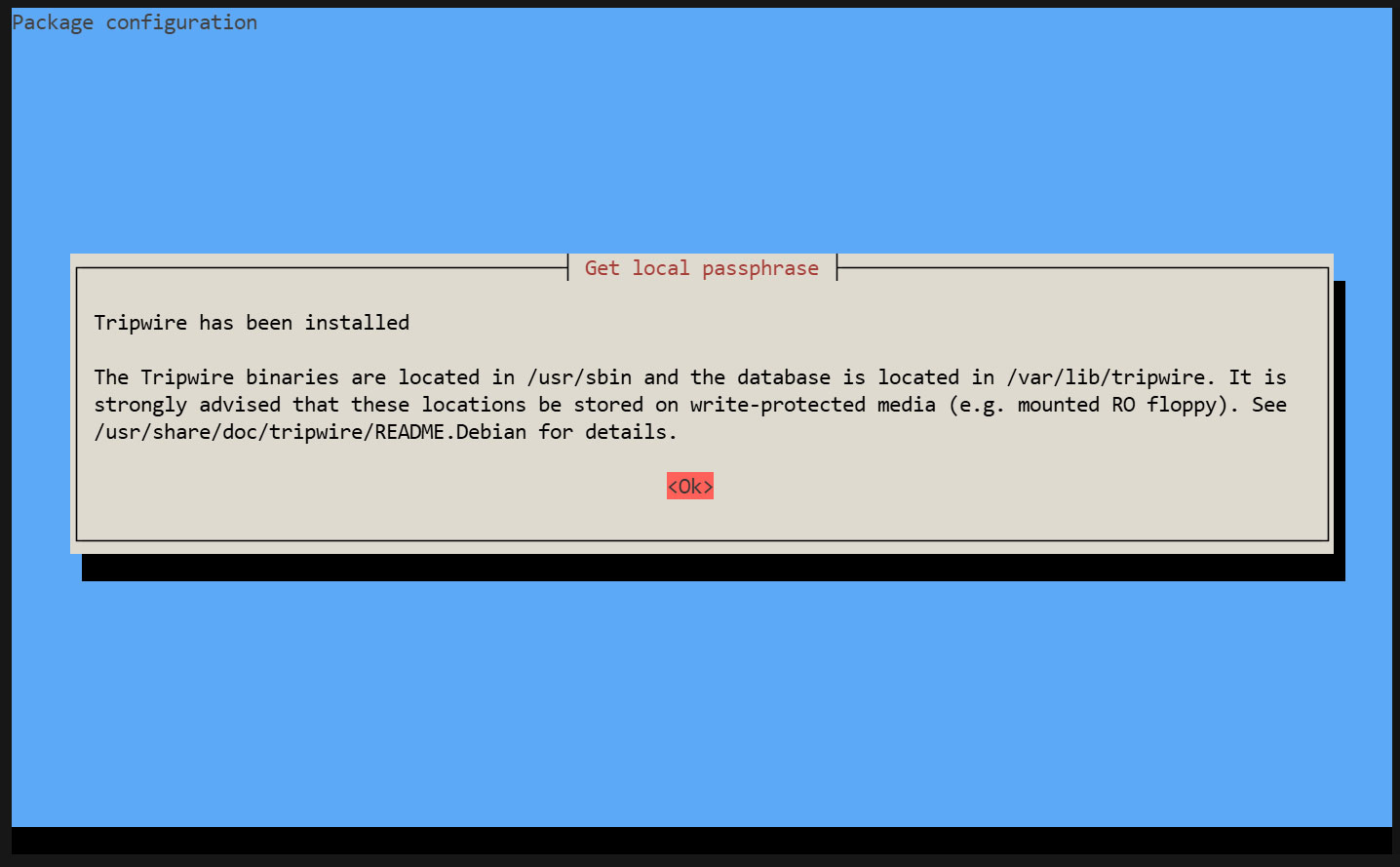
During the installation process, you will be prompted to enter the "site key passphrase" and the "local key passphrase".
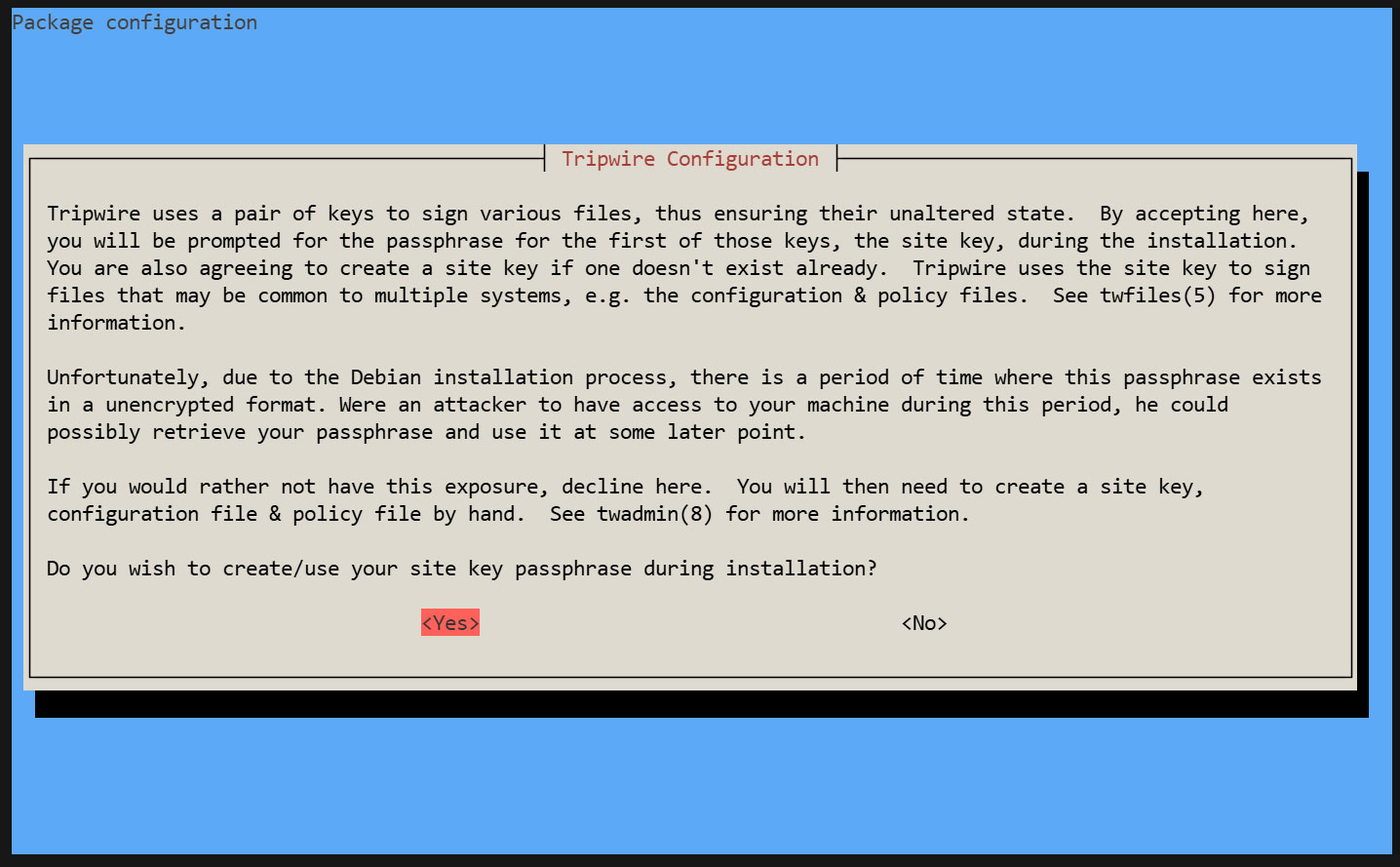
Creating a Site Key Passphrase
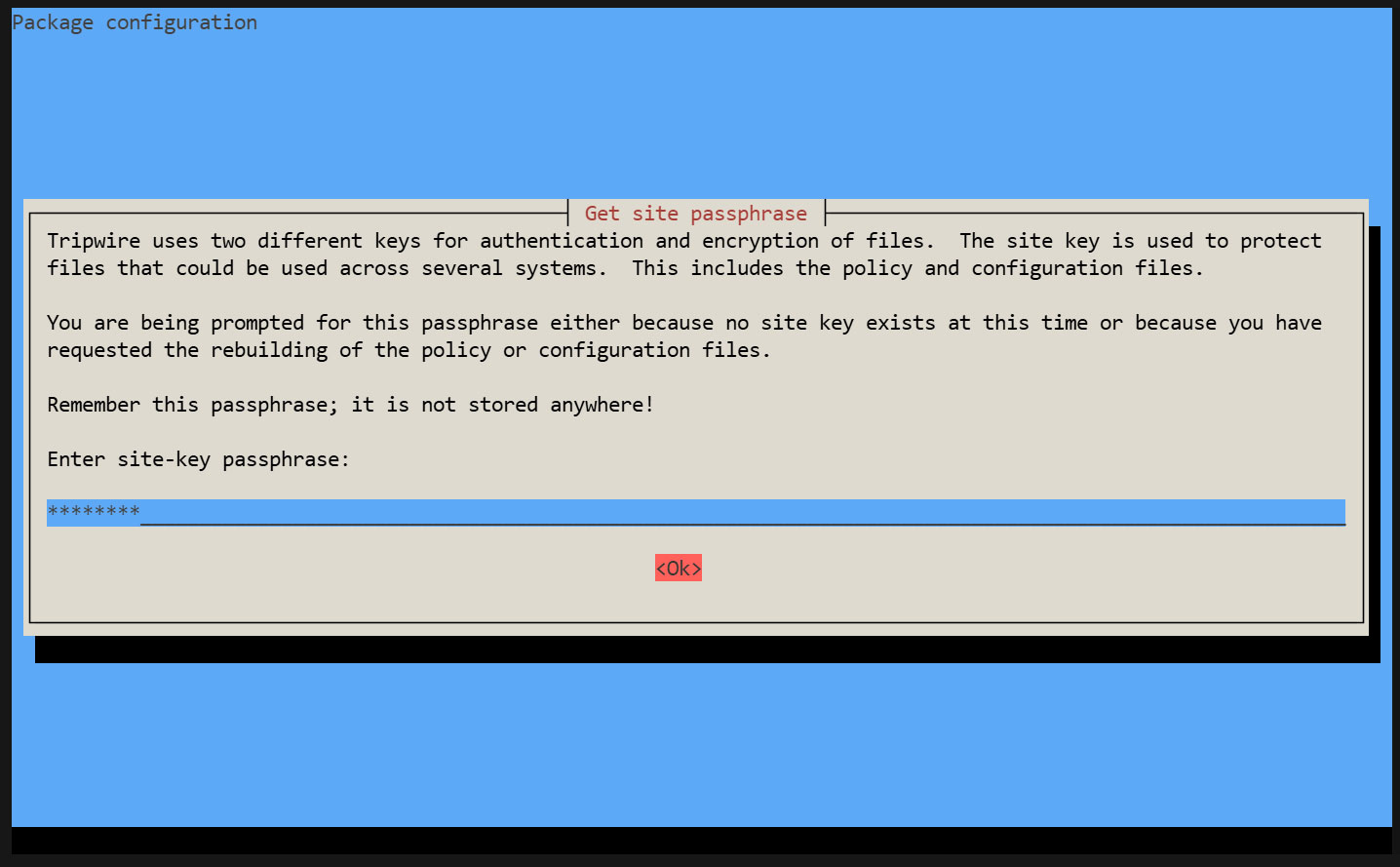
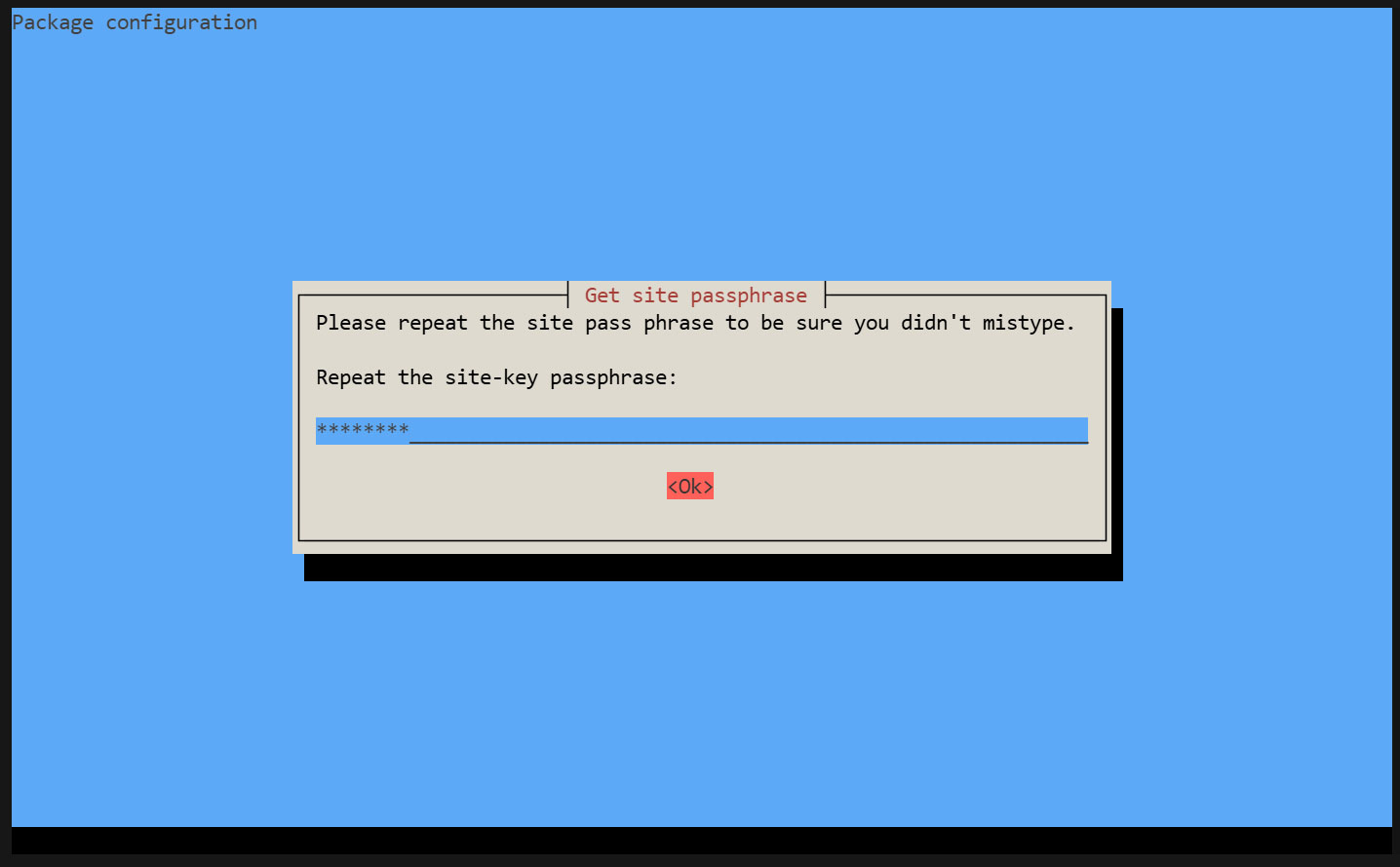
Creating a Local Key Passphrase
A local passphrase is required to protect the Tripwire database and report files. The local key used by Tripwire to prevent unauthorized changes to the Tripwire baseline database.
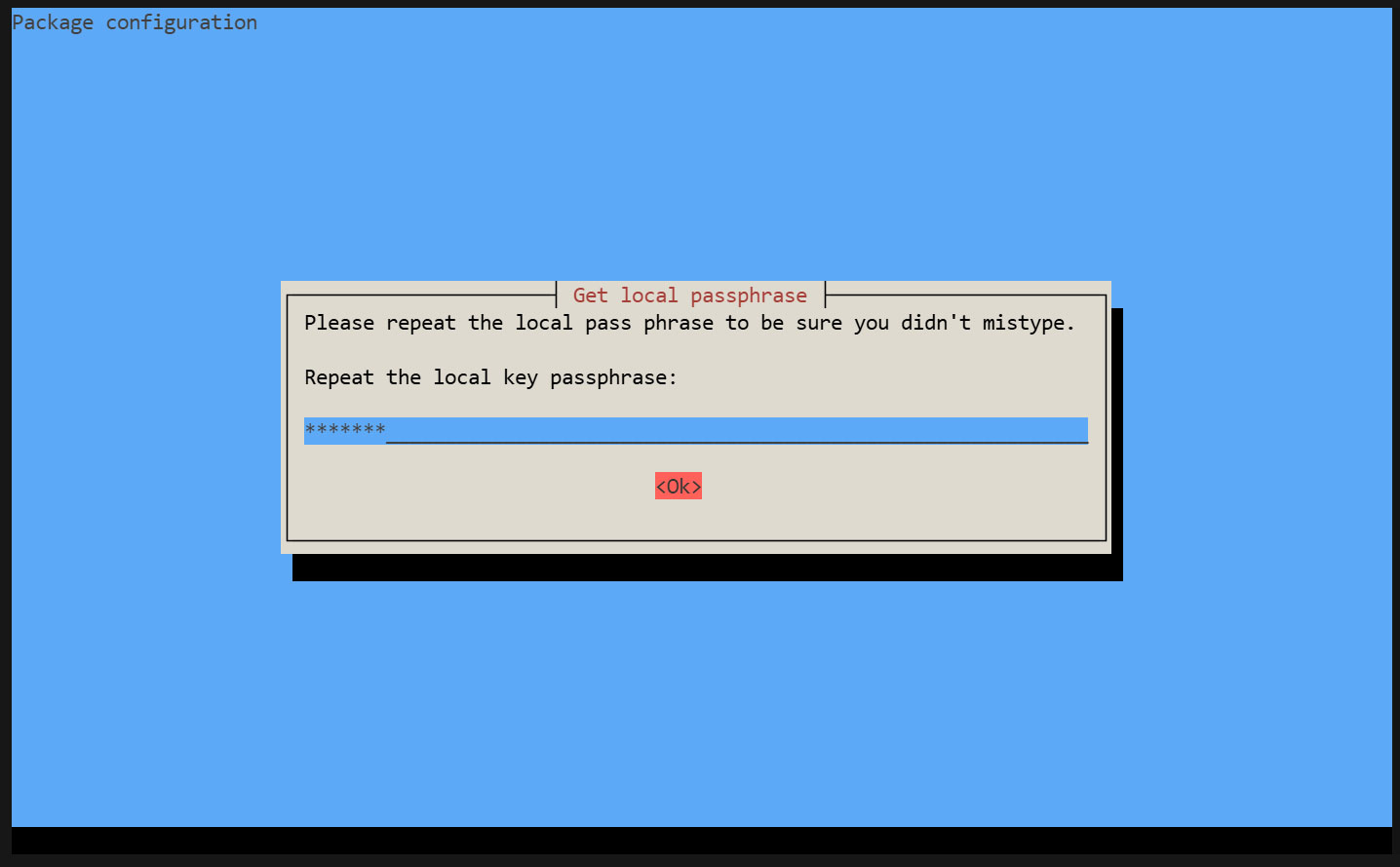
The installation is progressing and will complete.
2. Configuration File Settings
①twcfg.txt Edit
|
1 2 3 4 5 6 |
# cd /etc/tripwire # vi twcfg.txt Line 9 : Change LOOSEDIRECTORYCHECKING =true Line 12:Change as needed (maximum report level: 4) REPORTLEVEL =4 |
② Create a configuration file (encrypted signature version)
|
1 2 3 |
# twadmin -m F -c tw.cfg -S site.key twcfg.txt Please enter your site passphrase: <site pass> Wrote configuration file: /etc/tripwire/tw.cfg |
③ Optimize Policy
Use the following policy optimization scripts to optimize your policy
|
1 |
# vi twpolmake.pl |
Policy Optimization Script Contents
|
1 2 3 4 5 6 7 8 9 10 11 12 13 14 15 16 17 18 19 20 21 22 23 24 25 26 27 28 29 30 31 32 33 34 35 36 |
#!/usr/bin/perl $POLFILE=$ARGV[0]; open(POL,"$POLFILE") or die "open error: $POLFILE" ; my($myhost,$thost) ; my($sharp,$tpath,$cond) ; my($INRULE) = 0 ; while (<POL>) { chomp; if (($thost) = /^HOSTNAME\s*=\s*(.*)\s*;/) { $myhost = `hostname` ; chomp($myhost) ; if ($thost ne $myhost) { $_="HOSTNAME=\"$myhost\";" ; } } elsif ( /^{/ ) { $INRULE=1 ; } elsif ( /^}/ ) { $INRULE=0 ; } elsif ($INRULE == 1 and ($sharp,$tpath,$cond) = /^(\s*\#?\s*)(\/\S+)\b(\s+->\s+.+)$/) { $ret = ($sharp =~ s/\#//g) ; if ($tpath eq '/sbin/e2fsadm' ) { $cond =~ s/;\s+(tune2fs.*)$/; \#$1/ ; } if (! -s $tpath) { $_ = "$sharp#$tpath$cond" if ($ret == 0) ; } else { $_ = "$sharp$tpath$cond" ; } } print "$_\n" ; } close(POL) ; |
Policy File Optimization
|
1 |
# perl twpolmake.pl twpol.txt > twpol.txt.new |
Create a policy file (encrypted and signed version) based on the optimized policy file.
|
1 2 3 |
# twadmin -m P -c tw.cfg -p tw.pol -S site.key twpol.txt.new Please enter your site passphrase: <site pass> Wrote policy file: /etc/tripwire/tw.pol |
Exclude the Tripwire database itself from being checked
|
1 |
# echo ! "/var/lib/tripwire/`hostname`.twd ;" >> /etc/tripwire/twpol.txt.new |
④Database Creation
|
1 2 |
# tripwire -m i -s -c tw.cfg Please enter your local passphrase: <local pass> |
3. Functionality Verification
①Create test file
|
1 |
# echo test > /root/test.txt |
②Check Tripwire operation
|
1 |
# tripwire -m c -s -c /etc/tripwire/tw.cfg |
If successful, the following display appears
|
1 2 3 4 5 6 7 8 9 10 11 12 13 14 15 16 17 18 19 20 21 22 23 24 25 26 27 28 29 30 31 32 33 34 35 36 37 38 39 40 41 42 43 44 45 46 47 48 49 50 51 52 53 54 55 56 57 58 59 60 61 62 63 64 65 66 67 68 69 70 71 72 73 74 75 76 77 78 79 80 81 82 83 84 85 86 87 |
Open Source Tripwire(R) 2.4.3.7 Integrity Check Report Report generated by: root Report created on: Sat 25 Apr 2026 04:40:29 PM JST Database last updated on: Never =============================================================================== Report Summary: =============================================================================== Host name: Lepard Host IP address: 127.0.1.1 Host ID: None Policy file used: /etc/tripwire/tw.pol Configuration file used: /etc/tripwire/tw.cfg Database file used: /var/lib/tripwire/Lepard.twd Command line used: tripwire -m c -s -c /etc/tripwire/tw.cfg =============================================================================== Rule Summary: =============================================================================== ------------------------------------------------------------------------------- Section: Unix File System ------------------------------------------------------------------------------- Rule Name Severity Level Added Removed Modified --------- -------------- ----- ------- -------- Other binaries 66 0 0 0 Tripwire Binaries 100 0 0 0 Other libraries 66 0 0 0 Root file-system executables 100 0 0 0 * Tripwire Data Files 100 1 0 0 System boot changes 100 0 0 0 Root file-system libraries 100 0 0 0 (/lib) Critical system boot files 100 0 0 0 Other configuration files 66 0 0 0 (/etc) Boot Scripts 100 0 0 0 Security Control 66 0 0 0 * Root config files 100 1 0 0 Devices & Kernel information 100 0 0 0 (/dev) Invariant Directories 66 0 0 0 Total objects scanned: 53932 Total violations found: 2 =============================================================================== Object Summary: =============================================================================== ------------------------------------------------------------------------------- # Section: Unix File System ------------------------------------------------------------------------------- ------------------------------------------------------------------------------- Rule Name: Tripwire Data Files (/var/lib/tripwire/Lepard.twd) Severity Level: 100 ------------------------------------------------------------------------------- Added: "/var/lib/tripwire/Lepard.twd" ------------------------------------------------------------------------------- Rule Name: Root config files (/root) Severity Level: 100 ------------------------------------------------------------------------------- Added: "/root/test.txt" =============================================================================== Error Report: =============================================================================== No Errors ------------------------------------------------------------------------------- *** End of report *** Open Source Tripwire 2.4 Portions copyright 2000-2018 Tripwire, Inc. Tripwire is a registered trademark of Tripwire, Inc. This software comes with ABSOLUTELY NO WARRANTY; for details use --version. This is free software which may be redistributed or modified only under certain conditions; see COPYING for details. All rights reserved. |
Delete the test file.
|
1 |
# rm -f /root/test.txt |
4. Tripwire Autorun
①Create a script (tripwire.sh) for reporting results via email and set it to run automatically.
|
1 2 |
# cd /opt/script # vi tripwire.sh |
|
1 2 3 4 5 6 7 8 9 10 11 12 13 14 15 16 17 18 19 20 21 22 23 24 25 |
#!/bin/bash PATH=/usr/sbin:/usr/bin:/bin:/usr/local/tripwire/sbin # Passphrase Setup LOCALPASS=xxxxx # Local Key Passphrase SITEPASS=xxxxx # Site Key Passphrase #Specify notification email address MAIL="<your mailaddress> " cd /etc/tripwire # Tripwire Check Execution tripwire -m c -s -c tw.cfg|mail -s "Tripwire(R) Integrity Check Report in `hostname`" $MAIL # Policy File Update twadmin -m p -c tw.cfg -p tw.pol -S site.key > twpol.txt perl twpolmake.pl twpol.txt > twpol.txt.new twadmin -m P -c tw.cfg -p tw.pol -S site.key -Q $SITEPASS twpol.txt.new > /dev/null rm -f twpol.txt* *.bak # Database Update rm -f /usr/local/tripwire/lib/tripwire/*.twd* tripwire -m i -s -c tw.cfg -P $LOCALPASS |
②Give execute permission and execute periodically by Cron.
|
1 2 3 |
# chmod 700 tripwire.sh # crontab -e 0 5 * * * /opt/script/tripwire.sh |
Execute the following and verify that the results are delivered to the specified email address.
|
1 |
# /opt/script/tripwire.sh |
Logwatch
Logwatch aggregates various logs and sends them as a daily report via email. It's a useful tool for detecting unauthorized access and issues, as well as monitoring servers.
①Install
|
1 |
# apt -y install logwatch |
②Copy the default configuration file
|
1 |
# cp /usr/share/logwatch/default.conf/logwatch.conf /etc/logwatch/conf/ |
➂Change email address, etc.
|
1 2 3 4 5 6 7 8 |
# vi /etc/logwatch/conf/logwatch.conf ● Line 76 : Add the email address where you want to receive notifications #MailTo = root MailTo = [Email address] ● Line 115 : Set the level of detail for log notifications #Detail = Low Detail = High |
④Creating Directories
|
1 |
# mkdir /var/cache/logwatch |
⑤operation check
When logwatch is installed, cron is registered by default, so you will receive daily report emails.
If you want to check it immediately, do the following
|
1 |
# /etc/cron.daily/00logwatch |
Disk Usage Check Script
1. Script creation
|
1 2 |
# cd /opt/script/ # vi disk_capacity_check.sh |
Contents of disk_capacity_check.sh
|
1 2 3 4 5 6 7 8 9 10 |
#!/bin/bash #Specify notification email address MAIL="<your mailaddress> " DVAL=`/bin/df / | /usr/bin/tail -1 | /bin/sed 's/^.* \([0-9]*\)%.*$/\1/'` if [ $DVAL -gt 80 ]; then echo "Disk usage alert: $DVAL %" | mail -s "Disk Space Alert in `hostname`" $MAIL fi |
|
1 |
# chmod 700 disk_capacity_check.sh |
2. Execution Confirmation
①Check the current usage rate
|
1 |
# df -h |
It will be displayed as follows:
|
1 2 3 4 5 6 7 8 9 10 11 12 13 |
Filesystem Size Used Avail Use% Mounted on tmpfs 671M 5.8M 665M 1% /run /dev/mapper/ubuntu--vg-ubuntu--lv 14G 7.6G 5.0G 61% / tmpfs 1.7G 0 1.7G 0% /dev/shm efivarfs 256K 75K 177K 30% /sys/firmware/efi/efivars none 1.0M 0 1.0M 0% /run/credentials/systemd-journald.service none 1.0M 0 1.0M 0% /run/credentials/systemd-resolved.service tmpfs 1.7G 1.1M 1.7G 1% /tmp /dev/sda2 2.0G 97M 1.7G 6% /boot /dev/sda1 1.1G 6.4M 1.1G 1% /boot/efi none 1.0M 0 1.0M 0% /run/credentials/systemd-networkd.service none 1.0M 0 1.0M 0% /run/credentials/getty@tty1.service tmpfs 336M 8.0K 336M 1% /run/user/1000 |
②Create dummy files to achieve a usage rate of 80% or higher (in this example, a file named dummyfile approximately 4GB in size).
|
1 |
# dd if=/dev/zero of=dummyfile bs=1M count=4000 |
③Confirm again
|
1 |
# df -h |
Verify that it is running and has reached over 80%.
④Run the disk capacity check script
|
1 |
# /opt/script/disk_capacity_check.sh |
An email with the subject line "Disk usage alert: 92%" will be sent to the specified email address.
⑤Delete the created "dummyfile"
|
1 |
# rm dummyfile |
⑥Scheduled Execution Settings
|
1 2 |
# crontab -e 30 2 * * * /opt/script/disk_capacity_check.sh |
DNS Update
Whenever the internet connection is lost or the router reboots, causing the global IP address to change, you must access the dynamic DNS service to notify it of the new IP address.
Create a dedicated Python file and schedule it for regular execution via Cron.
This time, it's about DNS settings in Valudomain.
|
1 2 |
# cd /opt/script # vi ddnsset.py |
Content of ddnsset.py
|
1 2 3 4 5 6 7 8 9 10 11 12 13 14 15 16 17 18 19 20 21 22 23 24 25 26 27 28 29 30 31 32 33 34 35 36 37 38 39 40 41 42 43 44 45 46 47 48 49 50 51 52 53 54 55 56 57 58 59 60 61 62 63 64 65 66 67 68 69 70 71 72 73 74 75 76 77 78 79 80 81 82 83 84 85 86 87 |
#setddns.py import requests import ipaddress from datetime import datetime from pathlib import Path # SETTING DATA MY_DOMAIN = "example.jp" ←Self-hosted domain MY_PASS = "xxxxxxxxxx" ←Password MY_HOSTNAME = "xxxx" ←Host name OUT_FILE = Path("/tmp/ipadress") ←IP Address Log File def time_msg(): now = datetime.now() return now.strftime("%Y/%m/%d %H:%M:%S") def is_valid_ip(ip_str): try: ipaddress.ip_address(ip_str) return True except ValueError: return False def main(): # Check Global IP Address url_get_ip = "https://dyn.value-domain.com/cgi-bin/dyn.fcg?ip" try: response = requests.get(url_get_ip, timeout=10) response.raise_for_status() current_ip = response.text.strip() except requests.RequestException as e: print(f"{time_msg()} Failed to get IP: {e}") return # IP check mssg = time_msg() if not current_ip: print(f"{mssg} invalid IP NULL") return if not is_valid_ip(current_ip): print(f"{mssg} invalid IP={current_ip}") return # Read previous IP previous_ip = "" if OUT_FILE.exists(): with open(OUT_FILE, "r") as f: previous_ip = f.read().strip() if current_ip == previous_ip: print(f"{time_msg()} no change IP={current_ip}") return else: print(f"change IP from {previous_ip} to {current_ip}") # Update DDNS mssg = time_msg() print(f"{mssg} access to value-domain") url_set_ddns = ( f"https://dyn.value-domain.com/cgi-bin/dyn.fcg?" f"d={MY_DOMAIN}&p={MY_PASS}&h={MY_HOSTNAME}" ) try: response = requests.get(url_set_ddns, timeout=10) response.raise_for_status() # Convert line breaks to spaces and consolidate consecutive spaces into a single space. result = ' '.join(response.text.strip().split()) except requests.RequestException as e: print(f"{time_msg()} Failed to update DDNS: {e}") return mssg = time_msg() print(f"{mssg} {MY_HOSTNAME}.{MY_DOMAIN} {result} IP={current_ip}") # Only save the IP address if the DDNS update is successful. if "status=0" in result: with open(OUT_FILE, "w") as f: f.write(current_ip) print(f"{mssg} Successfully saved new IP: {current_ip}") else: print(f"{mssg} DDNS update failed, IP not saved") if __name__ == "__main__": main() |
IP Address Log File Creation
|
1 |
# touch /tmp/ipadress |
Run periodically
|
1 2 3 |
# crontab -e * 00 * * * /usr/bin/python3 /opt/script/ddnsset.py >> /var/log/ddns_updater.log 2>&1 |