

Prerequisite.
1.Suricata
SURICATA IDS/IPS is an open-source intrusion detection system that monitors network traffic and detects suspicious activity.
The basic mechanism is signature-based, enabling detection of predefined malicious communications.
Furthermore, Suricata is characterized by its ability to not only detect threats but also defend against them.
2.Elastic Stack,Kibana,Filebeat
Install and configure the Elastic Stack to enable visualization and search of SURICATA logs using Kibana and Filebeat.
This time, we will install Suricata IDS and ElasticStack on the following server.
・First server Suricata IDS & Filebeat : openSUSE 15.6 IP(192.168.11.83)
・Second server ElasticStack & kibana : openSUSE15.6 IP(192.168.11.85)
First Server: Suricata Installation
1.Installing and Configuring Suricata
①Add a repository
|
1 2 |
# zypper addrepo https://download.opensuse.org/repositories/server:monitoring/15.6/server:monitoring.repo # zypper refresh |
➁Installing Suricata
|
1 2 3 4 5 |
# zypper -n install suricata Version Check # suricata -V This is Suricata version 8.0.3 RELEASE |
➂Creating Suricata User Groups
|
1 2 3 4 5 |
Group Creation # groupadd suricata User-created # useradd --no-create-home --system --shell /sbin/nologin -g suricata suricata |
④Set directory ownership and permissions
|
1 2 3 |
# mkdir -p /var/run/suricata # chown -R suricata:suricata /var/run/suricata/ # chmod 755 /var/run/suricata/ |
|
1 2 3 4 5 6 7 8 9 10 11 12 |
# Change the owner of the log directory # chown -R suricata:suricata /var/log/suricata # Change the owner of the configuration file directory # chown -R suricata:suricata /etc/suricata # Change the owner of the rules file directory # chown -R suricata:suricata /var/lib/suricata # Modify permissions (Grant write permissions to the group) # chmod 2770 /var/log/suricata # chmod 2770 /var/lib/suricata |
⑤Suricata determines the interface and IP address for inspecting network packets.
|
1 2 3 |
# ip --brief add lo UNKNOWN 127.0.0.1/8 ::1/128 eth0 UP 192.168.11.83/24 fe80::20c:29ff:fecb:26b0/64 |
⑥Edit the configuration file
|
1 2 3 4 5 6 7 8 9 10 11 |
# vi /etc/suricata/suricata.yaml # Line 15 : Define the network in the vars section. HOME_NET: "[192.168.11.0/24]" # Per Line 158 : Change community-id: false → community-id: true # Line 661 : Verify the interface name in the af-packet section af-packet: - interface: eth0 |
|
1 2 3 4 5 |
# vi /etc/sysconfig/suricata # Line 8 :Specify the interface # Add options to be passed to the daemon SURICATA_OPTIONS="-i eth0 --user suricata" |
⑦Starting Suricata
|
1 2 3 |
# systemctl start suricata # systemctl enable --now suricata Created symlink /etc/systemd/system/multiuser.target.wants/suricata.service → /usr/lib/systemd/system/suricata.service. |
⑧Suricataの起動確認
|
1 2 3 4 5 6 7 8 9 10 11 12 13 14 15 |
# systemctl status suricata ● suricata.service - Suricata Intrusion Detection and Prevention Tool Loaded: loaded (/usr/lib/systemd/system/suricata.service; enabled; preset: disabled) Active: active (running) since Sun 2026-03-01 18:34:28 JST; 20s ago Docs: man:suricata(1) Main PID: 18584 (Suricata-Main) Tasks: 8 (limit: 4587) CPU: 19.468s CGroup: /system.slice/suricata.service mq18584 /usr/bin/suricata -c /etc/suricata/suricata.yaml -i eth0 --user suricata Mar 01 18:34:28 Lepard systemd[1]: Started Suricata Intrusion Detection and Prevention Tool. Mar 01 18:34:28 Lepard suricata[18584]: i: suricata: This is Suricata version 8.0.3 RELEASE running in SYSTEM m> Mar 01 18:34:48 Lepard suricata[18584]: i: mpm-hs: Rule group caching - loaded: 113 newly cached: 0 total cache> Mar 01 18:34:48 Lepard suricata[18584]: i: threads: Threads created -> W: 2 FM: 1 FR: 1 Engine started. |
Check the log
|
1 2 3 4 5 6 7 8 9 10 11 12 |
# tail /var/log/suricata/suricata.log [18584 - Suricata-Main] 2026-03-01 18:34:28 Info: logopenfile: eve-log output device (regular) initialized: eve.json [18584 - Suricata-Main] 2026-03-01 18:34:28 Info: logopenfile: stats output device (regular) initialized: stats.log [18584 - Suricata-Main] 2026-03-01 18:34:46 Info: detect: 1 rule files processed. 48793 rules successfully loaded, 0 rules failed, 0 rules skipped [18584 - Suricata-Main] 2026-03-01 18:34:46 Info: threshold-config: Threshold config parsed: 0 rule(s) found [18584 - Suricata-Main] 2026-03-01 18:34:46 Info: detect: 48798 signatures processed. 1242 are IP-only rules, 4477 are inspecting packet payload, 42844 inspect application layer, 110 are decoder event only [18584 - Suricata-Main] 2026-03-01 18:34:48 Notice: mpm-hs: Rule group caching - loaded: 113 newly cached: 0 total cacheable: 113 [18584 - Suricata-Main] 2026-03-01 18:34:48 Info: unix-manager: unix socket '/var/run/suricata/suricata-command.socket' [18584 - Suricata-Main] 2026-03-01 18:34:48 Info: runmodes: eth0: creating 2 threads [18631 - W#01-eth0] 2026-03-01 18:34:48 Info: ioctl: eth0: MTU 1500 [18584 - Suricata-Main] 2026-03-01 18:34:48 Notice: threads: Threads created -> W: 2 FM: 1 FR: 1 Engine started. |
To check the statistics, review the stats.log file (updated every 8 seconds by default).
|
1 |
# tail -f /var/log/suricata/stats.log |
The more advanced output format, EVE JSON, can be generated using the following command:
|
1 |
# tail -f /var/log/suricata/eve.json |
2.Suricata Testing
①Perform a ping test using the curl utility
|
1 2 |
# curl http://testmynids.org/uid/index.html uid=0(root) gid=0(root) groups=0(root) |
②Check the log file using the specified rule number.
Suricata comes with the following two log files enabled by default.
/var/log/suricata/fast.log
/var/log/suricata/eve.log
To check the log entries corresponding to the curl request, use the grep command to examine the /var/log/suricata/fast.log log file.
2100498 Searches for log entries using the rule identifier. (For IPv4)
|
1 2 3 |
# grep 2100498 /var/log/suricata/fast.log 03/01/2026-18:37:40.421873 [**] [1:2100498:7] GPL ATTACK_RESPONSE id check returned root [**] [Classification: Potentially Bad Traffic] [Priority: 2] {TCP} 13.249.165.123:80 -> 192.168.11.83:32872 |
③Checking events in /var/log/suricata/eve.log
Install jq
|
1 |
# zypper -n install jq |
Search for signature 2100498 and filter EVE log events
Display alert objects with a signature_id key matching the value 2100498
|
1 2 3 4 5 6 7 8 9 10 11 12 13 14 15 16 17 18 19 20 21 22 23 24 25 26 27 28 29 30 31 32 33 34 35 36 37 38 39 40 41 42 43 44 45 46 47 48 49 50 51 |
# jq 'select(.alert .signature_id==2100498)' /var/log/suricata/eve.json { "timestamp": "2026-03-01T18:37:40.421873+0900", "flow_id": 1142564690122428, "in_iface": "eth0", "event_type": "alert", "src_ip": "13.249.165.123", "src_port": 80, "dest_ip": "192.168.11.83", "dest_port": 32872, "proto": "TCP", "ip_v": 4, "pkt_src": "wire/pcap", "community_id": "1:FcQtw9iGgOeIg7wK/hifVhgX8rg=", "alert": { "action": "allowed", "gid": 1, "signature_id": 2100498, "rev": 7, "signature": "GPL ATTACK_RESPONSE id check returned root", "category": "Potentially Bad Traffic", "severity": 2, "metadata": { "confidence": [ "Medium" ], "created_at": [ "2010_09_23" ], "signature_severity": [ "Informational" ], "updated_at": [ "2019_07_26" ] } }, "app_proto": "http", "direction": "to_client", "flow": { "pkts_toserver": 5, "pkts_toclient": 4, "bytes_toserver": 430, "bytes_toclient": 809, "start": "2026-03-01T18:37:40.397096+0900", "src_ip": "192.168.11.83", "dest_ip": "13.249.165.123", "src_port": 32872, "dest_port": 80 } |
3.Suricata Rules Configuration
①Displaying the rule set packaged in Suricata
|
1 2 3 4 5 6 |
# ls -al /var/lib/suricata/rules/ total 41660 drwxr-x--- 1 suricata suricata 70 Mar 1 17:38 . drwxrws--- 1 suricata suricata 32 Jan 31 02:28 .. -rw-r--r-- 1 suricata suricata 3228 Mar 1 17:38 classification.config -rw-r--r-- 1 suricata suricata 42654947 Mar 1 17:38 suricata.rules |
②Index of sources providing rule sets
|
1 2 3 4 5 6 7 8 9 10 11 12 13 14 15 16 17 18 19 20 21 22 23 24 25 26 27 28 29 30 31 32 33 34 35 36 37 38 39 40 41 42 43 44 45 46 47 48 49 50 51 52 53 54 55 56 57 58 59 60 61 62 63 64 65 66 67 68 69 70 71 72 73 74 75 76 77 78 79 80 81 82 83 84 85 86 87 88 89 90 91 92 93 94 95 96 97 98 99 100 101 102 103 104 105 106 107 108 109 110 111 112 113 114 115 116 117 |
# suricata-update list-sources Name: abuse.ch/feodotracker Vendor: Abuse.ch Summary: Abuse.ch Feodo Tracker Botnet C2 IP ruleset License: CC0-1.0 Name: abuse.ch/sslbl-blacklist Vendor: Abuse.ch Summary: Abuse.ch SSL Blacklist License: CC0-1.0 Replaces: sslbl/ssl-fp-blacklist Name: abuse.ch/sslbl-c2 Vendor: Abuse.ch Summary: Abuse.ch Suricata Botnet C2 IP Ruleset License: CC0-1.0 Name: abuse.ch/sslbl-ja3 Vendor: Abuse.ch Summary: Abuse.ch Suricata JA3 Fingerprint Ruleset License: CC0-1.0 Replaces: sslbl/ja3-fingerprints Name: abuse.ch/urlhaus Vendor: abuse.ch Summary: Abuse.ch URLhaus Suricata Rules License: CC0-1.0 Name: aleksibovellan/nmap Vendor: aleksibovellan Summary: Suricata IDS/IPS Detection Rules Against NMAP Scans License: MIT Name: et/open Vendor: Proofpoint Summary: Emerging Threats Open Ruleset License: MIT Name: et/pro Vendor: Proofpoint Summary: Emerging Threats Pro Ruleset License: Commercial Replaces: et/open Parameters: secret-code Subscription: https://www.proofpoint.com/us/threat-insight/et-pro-ruleset Name: etnetera/aggressive Vendor: Etnetera a.s. Summary: Etnetera aggressive IP blacklist License: MIT Name: oisf/trafficid Vendor: OISF Summary: Suricata Traffic ID ruleset License: MIT Name: pawpatrules Vendor: pawpatrules Summary: PAW Patrules is a collection of rules for IDPS / NSM Suricata engine License: CC-BY-SA-4.0 Name: ptrules/open Vendor: Positive Technologies Summary: Positive Technologies Open Ruleset License: Custom Name: scwx/enhanced Vendor: Secureworks Summary: Secureworks suricata-enhanced ruleset License: Commercial Parameters: secret-code Subscription: https://www.secureworks.com/contact/ (Please reference CTU Countermeasures) Name: scwx/malware Vendor: Secureworks Summary: Secureworks suricata-malware ruleset License: Commercial Parameters: secret-code Subscription: https://www.secureworks.com/contact/ (Please reference CTU Countermeasures) Name: scwx/security Vendor: Secureworks Summary: Secureworks suricata-security ruleset License: Commercial Parameters: secret-code Subscription: https://www.secureworks.com/contact/ (Please reference CTU Countermeasures) Name: stamus/lateral Vendor: Stamus Networks Summary: Lateral movement rules License: GPL-3.0-only Name: stamus/nrd-14-open Vendor: Stamus Networks Summary: Newly Registered Domains Open only - 14 day list, complete License: Commercial Parameters: secret-code Subscription: https://www.stamus-networks.com/stamus-labs/subscribe-to-threat-intel-feed Name: stamus/nrd-30-open Vendor: Stamus Networks Summary: Newly Registered Domains Open only - 30 day list, complete License: Commercial Parameters: secret-code Subscription: https://www.stamus-networks.com/stamus-labs/subscribe-to-threat-intel-feed Name: stamus/nrd-entropy-14-open Vendor: Stamus Networks Summary: Newly Registered Domains Open only - 14 day list, high entropy License: Commercial Parameters: secret-code Subscription: https://www.stamus-networks.com/stamus-labs/subscribe-to-threat-intel-feed Name: stamus/nrd-entropy-30-open Vendor: Stamus Networks Summary: Newly Registered Domains Open only - 30 day list, high entropy License: Commercial Parameters: secret-code Subscription: https://www.stamus-networks.com/stamus-labs/subscribe-to-threat-intel-feed Name: stamus/nrd-phishing-14-open Vendor: Stamus Networks Summary: Newly Registered Domains Open only - 14 day list, phishing License: Commercial Parameters: secret-code Subscription: https://www.stamus-networks.com/stamus-labs/subscribe-to-threat-intel-feed Name: stamus/nrd-phishing-30-open Vendor: Stamus Networks Summary: Newly Registered Domains Open only - 30 day list, phishing License: Commercial Parameters: secret-code Subscription: https://www.stamus-networks.com/stamus-labs/subscribe-to-threat-intel-feed Name: tgreen/hunting Vendor: tgreen Summary: Threat hunting rules License: GPLv3 |
③Enable source (when enabling tgreen/hunting)
|
1 2 3 4 5 6 7 8 9 10 |
# suricata-update enable-source tgreen/hunting 1/3/2026 -- 18:44:12 - <Info> -- Using data-directory /var/lib/suricata. 1/3/2026 -- 18:44:12 - <Info> -- Using Suricata configuration /etc/suricata/suricata.yaml 1/3/2026 -- 18:44:12 - <Info> -- Using /usr/share/suricata/rules for Suricata provided rules. 1/3/2026 -- 18:44:12 - <Info> -- Found Suricata version 8.0.3 at /usr/bin/suricata. 1/3/2026 -- 18:44:12 - <Warning> -- Source index does not exist, will use bundled one. 1/3/2026 -- 18:44:12 - <Warning> -- Please run suricata-update update-sources. 1/3/2026 -- 18:44:12 - <Info> -- Creating directory /var/lib/suricata/update/sources 1/3/2026 -- 18:44:12 - <Info> -- Enabling default source et/open 1/3/2026 -- 18:44:12 - <Info> -- Source tgreen/hunting enabled |
Perform the update
|
1 |
# suricata-update update-sources |
Restart the Suricata service
|
1 |
# systemctl restart suricata |
4. Configuring Suricata as an IPS
Configure Suricata to start in IPS mode to drop malicious network traffic.
Create the following custom signature to scan SSH traffic to non-SSH ports, and include it in the file /var/lib/suricata/rules/local.rules (assuming the SSH port is 22):
|
1 2 |
# vi /var/lib/suricata/rules/local.rules alert ssh any any -> 192.168.11.100 !22 (msg:"SSH TRAFFIC on non-SSH port"; flow:to_client, not_established; classtype: misc-attack; target: dest_ip; sid:1000000;) |
Edit the /etc/suricata/suricata.yaml configuration file and include local.rules.
|
1 2 3 4 5 |
# vi /etc/suricata/suricata.yaml Added on line 2313 rule-files: - suricata.rules - local.rules |
Verify SURICATA Configuration
|
1 2 3 4 5 6 7 8 9 10 11 12 13 14 15 |
# suricata -T -c /etc/suricata/suricata.yaml -v Notice: suricata: This is Suricata version 8.0.3 RELEASE running in SYSTEM mode Info: cpu: CPUs/cores online: 2 Info: suricata: Running suricata under test mode Info: suricata: Setting engine mode to IDS mode by default Info: exception-policy: master exception-policy set to: auto Info: logopenfile: fast output device (regular) initialized: fast.log Info: logopenfile: eve-log output device (regular) initialized: eve.json Info: logopenfile: stats output device (regular) initialized: stats.log Info: detect: 2 rule files processed. 48794 rules successfully loaded, 0 rules failed, 0 rules skipped Info: threshold-config: Threshold config parsed: 0 rule(s) found Info: detect: 48799 signatures processed. 1242 are IP-only rules, 4477 are inspecting packet payload, 42845 inspect application layer, 110 are decoder event only Notice: mpm-hs: Rule group caching - loaded: 33 newly cached: 80 total cacheable: 113 Notice: suricata: Configuration provided was successfully loaded. Exiting. |
Edit the SURICATA configuration file located at /etc/sysconfig/suricata
|
1 2 3 4 5 6 7 |
# vi /etc/sysconfig/suricata OPTIONS="-i ens160 --user suricata " # Add a # at the beginning of a line to comment it out. OPTIONS="-q 0 -vvv --user suricata " # Add and instruct SURICATA to run in IPS mode. . . . # SURICATA_OPTIONS="-i eth0 --user suricata" SURICATA_OPTIONS="-q 0 -vvv --user suricata" |
Restart Suricata
|
1 2 |
# systemctl daemon-reload # systemctl restart suricata.service |
Status Check
|
1 2 3 4 5 6 7 8 9 10 11 12 13 14 15 16 17 18 19 20 21 22 |
# systemctl status suricata.service ● suricata.service - Suricata Intrusion Detection and Prevention Tool Loaded: loaded (/usr/lib/systemd/system/suricata.service; enabled; preset: disabled) Active: active (running) since Sun 2026-03-01 18:52:51 JST; 15s ago Docs: man:suricata(1) Main PID: 18779 (Suricata-Main) Tasks: 1 (limit: 4587) CPU: 15.937s CGroup: /system.slice/suricata.service mq18779 /usr/bin/suricata -c /etc/suricata/suricata.yaml -q 0 -vvv --user suricata Mar 01 18:52:51 Lepard suricata[18779]: [18779] Config: logopenfile: Setting output to /var/log/suricata//stats> Mar 01 18:52:51 Lepard suricata[18779]: [18779] Info: logopenfile: stats output device (regular) initialized: s> Mar 01 18:52:51 Lepard suricata[18779]: [18779] Config: landlock: Landlock is not enabled in configuration Mar 01 18:52:51 Lepard suricata[18779]: [18779] Config: suricata: Delayed detect disabled Mar 01 18:52:51 Lepard suricata[18779]: [18779] Config: detect: pattern matchers: MPM: hs, SPM: hs Mar 01 18:52:51 Lepard suricata[18779]: [18779] Config: detect: grouping: tcp-priority-ports (default) 53, 80, > Mar 01 18:52:51 Lepard suricata[18779]: [18779] Config: detect: grouping: udp-priority-ports (default) 53, 135,> Mar 01 18:52:51 Lepard suricata[18779]: [18779] Config: detect: prefilter engines: MPM Mar 01 18:52:51 Lepard suricata[18779]: [18779] Config: reputation: IP reputation disabled Mar 01 18:52:51 Lepard suricata[18779]: [18779] Config: detect: Loading rule file: /var/lib/suricata/rules/suri> |
Direct incoming network traffic to Suricata's NFQUEUE
Firewalld is installed and enabled, so add the necessary rules for Suricata to Firewalld.
|
1 2 3 4 5 6 7 8 9 10 11 12 13 14 15 16 17 18 |
# firewall-cmd --permanent --direct --add-rule ipv4 filter INPUT 0 -p tcp --dport 22 -j NFQUEUE --queue-bypass # firewall-cmd --permanent --direct --add-rule ipv4 filter OUTPUT 0 -p tcp --sport 22 -j NFQUEUE --queue-bypass Add a FORWARD rule so that when the server acts as a gateway for other systems, all that traffic is also sent to SURICATA for processing. # firewall-cmd --permanent --direct --add-rule ipv4 filter FORWARD 0 -j NFQUEUE # firewall-cmd --permanent --direct --add-rule ipv6 filter FORWARD 0 -j NFQUEUE The last two INPUT and OUTPUT rules send all remaining traffic that is not SSH traffic to Suricata for processing. # firewall-cmd --permanent --direct --add-rule ipv4 filter INPUT 1 -j NFQUEUE # firewall-cmd --permanent --direct --add-rule ipv4 filter OUTPUT 1 -j NFQUEUE Do the same for IPv6. # firewall-cmd --permanent --direct --add-rule ipv6 filter INPUT 1 -j NFQUEUE # firewall-cmd --permanent --direct --add-rule ipv6 filter OUTPUT 1 -j NFQUEUE Reload Firewalld # firewall-cmd --reload |
Display direct rules in the configuration file (persistent)
|
1 2 3 4 5 6 7 8 9 |
# firewall-cmd --direct --get-all-rules --permanent ipv4 filter INPUT 1 -j NFQUEUE ipv4 filter INPUT 0 -p tcp --dport 22 -j NFQUEUE --queue-bypass ipv4 filter OUTPUT 1 -j NFQUEUE ipv4 filter OUTPUT 0 -p tcp --sport 22 -j NFQUEUE --queue-bypass ipv6 filter INPUT 1 -j NFQUEUE ipv6 filter OUTPUT 1 -j NFQUEUE ipv4 filter FORWARD 0 -j NFQUEUE ipv6 filter FORWARD 0 -j NFQUEUE |
Verify whether a direct rule exists
|
1 2 3 4 5 6 7 8 9 10 11 12 |
# cat /etc/firewalld/direct.xml <?xml version="1.0" encoding="utf-8"?> <direct> <rule ipv="ipv4" table="filter" chain="INPUT" priority="1">-j NFQUEUE</rule> <rule ipv="ipv4" table="filter" chain="INPUT" priority="0">-p tcp --dport 22 -j NFQUEUE --queue-bypass</rule> <rule ipv="ipv4" table="filter" chain="OUTPUT" priority="1">-j NFQUEUE</rule> <rule ipv="ipv4" table="filter" chain="OUTPUT" priority="0">-p tcp --sport 22 -j NFQUEUE --queue-bypass</rule> <rule ipv="ipv6" table="filter" chain="INPUT" priority="1">-j NFQUEUE</rule> <rule ipv="ipv6" table="filter" chain="OUTPUT" priority="1">-j NFQUEUE</rule> <rule ipv="ipv4" table="filter" chain="FORWARD" priority="0">-j NFQUEUE</rule> <rule ipv="ipv6" table="filter" chain="FORWARD" priority="0">-j NFQUEUE</rule> </direct> |
Verify that SURICATA is correctly dropping traffic.
Change the default action for signatures from alert or log to active dropping traffic.
Open the /var/lib/suricata/rules/suricata.rules file and comment out any entries matching sid:2100498.
|
1 2 |
# vi /var/lib/suricata/rules/suricata.rules #alert ip any any -> any any (msg:"GPL ATTACK_RESPONSE id check returned root"; content:"uid=0|28|root|29|"; classtype:bad-unknown; sid:2100498; rev:7; metadata:created_at 2010_09_23, confidence Medium, signature_severity Informational, updated_at 2019_07_26;) |
Create a new rule named sid:2100498 in /var/lib/suricata/rules/local.rules.
|
1 2 3 |
# vi /var/lib/suricata/rules/local.rules drop ip any any -> any any (msg:"GPL ATTACK_RESPONSE id check returned root"; content:"uid=0|28|root|29|"; classtype:bad-unknown; sid:2100498; rev:7; metadata:created_at 2010_09_23, confidence Medium, signature_severity Informational, updated_at 2019_07_26;) |
Suricata restart
|
1 |
# systemctl restart suricata |
Test this rule using curl
|
1 2 |
# curl --max-time 5 http://testmynids.org/uid/index.html curl: (28) Operation timed out after 5001 milliseconds with 0 out of 39 bytes received |
Use jq to examine the eve.log file
|
1 2 3 4 5 6 7 8 9 10 11 12 13 14 15 16 17 18 19 20 21 22 23 24 25 26 27 28 29 30 31 32 33 34 35 36 37 38 39 40 41 42 43 44 45 46 47 48 49 50 51 |
# jq 'select(.alert .signature_id==2100498)' /var/log/suricata/eve.json { "timestamp": "2026-03-01T19:00:04.310624+0900", "flow_id": 1262251671524556, "event_type": "alert", "src_ip": "13.249.165.82", "src_port": 80, "dest_ip": "192.168.11.83", "dest_port": 39504, "proto": "TCP", "ip_v": 4, "pkt_src": "wire/pcap", "community_id": "1:RfePRJ5sABiDJ6RtIp0KYC8Ht8o=", "alert": { "action": "blocked", "gid": 1, "signature_id": 2100498, "rev": 7, "signature": "GPL ATTACK_RESPONSE id check returned root", "category": "Potentially Bad Traffic", "severity": 2, "metadata": { "confidence": [ "Medium" ], "created_at": [ "2010_09_23" ], "signature_severity": [ "Informational" ], "updated_at": [ "2019_07_26" ] } }, "app_proto": "http", "direction": "to_client", "flow": { "pkts_toserver": 3, "pkts_toclient": 4, "bytes_toserver": 256, "bytes_toclient": 753, "start": "2026-03-01T19:00:04.293890+0900", "src_ip": "192.168.11.83", "dest_ip": "13.249.165.82", "src_port": 39504, "dest_port": 80 } } |
"action": "blocked", is set
Integration of the ELK Stack and SURICATA
Install and configure the Elastic Stack to visualize and search SURICATA logs more efficiently.
This section is primarily performed on the second openSUSE 15.6 server (IP: 192.168.11.85).
1. Installing Elasticsearch
1.1 Download and install the public key
|
1 |
# rpm --import https://artifacts.elastic.co/GPG-KEY-elasticsearch |
1.2 Create the repository definition in the /etc/zypp/repos.d directory.
|
1 2 3 4 5 6 7 8 9 10 11 |
# vi /etc/zypp/repos.d/elasticsearch.repo The following content description [elasticsearch] name=Elasticsearch repository for 9.x packages baseurl=https://artifacts.elastic.co/packages/9.x/yum gpgcheck=1 gpgkey=https://artifacts.elastic.co/GPG-KEY-elasticsearch enabled=0 autorefresh=1 type=rpm-md |
1.3 Elasticsearch Installation
|
1 2 3 |
# zypper modifyrepo --enable elasticsearch # zypper install elasticsearch; # zypper modifyrepo --disable elasticsearch |
2. Elasticsearch Configuration
Elasticsearch is configured by default to accept only local connections. Furthermore, since authentication is disabled, tools like Filebeat cannot send logs. In this session, we will configure Elasticsearch's network settings and enable the xpack security module built into Elasticsearch.
2.1 Elasticsearch Network Configuration
Since the Elasticsearch and SURICATA servers are separate, Elasticsearch must be configured to listen for connections on the private network interface.
|
1 2 3 4 5 6 7 8 |
# vi /etc/elasticsearch/elasticsearch.yml Line 57 : Add the local address of the Elasticsearch server #network.host: 192.168.0.1 network.host: 192.168.11.85 Line 62 : Uncomments http.port: 9200 |
2.2 Start Elasticsearch
|
1 2 3 |
# systemctl daemon-reload # systemctl enable elasticsearch.service # systemctl start elasticsearch.service |
2.3 Create passwords for elastic and kibana_system
Be sure to copy the passwords for the elastic user and kibana_system user, as they will be needed later.
The kibana_system user is used for Kibana configuration.
If you forget the password used for Filebeat, Auditbeat configuration, and Kibana login, you can reset it again using the command.
[elastic] User password creation
|
1 2 3 4 5 6 7 8 9 10 |
# cd /usr/share/elasticsearch/bin # ./elasticsearch-reset-password -u elastic This tool will reset the password of the [elastic] user to an autogenerated value. The password will be printed in the console. Please confirm that you would like to continue [y/N]y Password for the [elastic] user successfully reset. New value: gB6nmHIFkvl18dteL6gw |
※Resetting Elasticsearch Passwords
The automatically generated Elastic user password is too complex, so you can reset it using the /usr/share/elasticsearch/bin/elasticsearch-reset-password command.
To reset your password, execute the command.
|
1 |
# /usr/share/elasticsearch/bin/elasticsearch-reset-password -u elastic -i |
|
1 2 3 4 5 6 7 8 |
This tool will reset the password of the [elastic] user. You will be prompted to enter the password. Please confirm that you would like to continue [y/N]y Enter password for [elastic]: Re-enter password for [elastic]: Password for the [elastic] user successfully reset. |
[kibana_system] User Password Creation
|
1 2 3 4 5 6 7 8 9 10 |
# cd /usr/share/elasticsearch/bin # ./elasticsearch-reset-password -u kibana_system This tool will reset the password of the [kibana_system] user to an autogenerated value. The password will be printed in the console. Please confirm that you would like to continue [y/N]y Password for the [kibana_system] user successfully reset. New value: hpfuys6FHEOSHvoC-h3b |
3. Installing and Configuring Kibana
This section is primarily performed on the second openSUSE 15.6 server.
3.1 Create the repository definition in the /etc/zypp/repos.d directory.
|
1 2 3 4 5 6 7 8 9 10 11 |
# vi /etc/zypp/repos.d/kibana.repo The following content description [kibana-9.X] name=Kibana repository for 9.x packages baseurl=https://artifacts.elastic.co/packages/9.x/yum gpgcheck=1 gpgkey=https://artifacts.elastic.co/GPG-KEY-elasticsearch enabled=1 autorefresh=1 type=rpm-md |
3.2 Kibana Installation
|
1 |
# zypper install kibana |
3.3 xpack Security Module Configuration
Enable Kibana's xpack security features and generate several encryption keys that Kibana uses to store data in Elasticsearch.
Encryption keys are created using the kibana-encryption-keys utility located in the /usr/share/kibana/bin directory.
Store the three keys you created in a secure location.
|
1 2 3 4 5 |
# cd /usr/share/kibana/bin/ # ./kibana-encryption-keys generate -q --force xpack.encryptedSavedObjects.encryptionKey: 76e64d77a2403e647a97e22c7ad0e343 xpack.reporting.encryptionKey: 7c573c7473cc15c6caf69eec0f7a700c xpack.security.encryptionKey: ed96ed12a346adefb6fe209f0797afba |
Add these keys to Kibana's /etc/kibana/kibana.yml configuration file.
|
1 2 3 4 5 6 |
# vi /etc/kibana/kibana.yml Described in the last line xpack.encryptedSavedObjects.encryptionKey: 76e64d77a2403e647a97e22c7ad0e343 xpack.reporting.encryptionKey: 7c573c7473cc15c6caf69eec0f7a700c xpack.security.encryptionKey: ed96ed12a346adefb6fe209f0797afba |
3.2 Kibana Network Configuration
|
1 2 3 4 5 6 7 8 |
# vi /etc/kibana/kibana.yml Line 6 : Uncomment server.port: 5601 Line 12 : Add the server's private IP address (192.168.11.85) #server.host: "localhost" server.host: "192.168.11.85" |
3.3 Generating a Kibana-Elasticsearch Enrollment Token
To configure a Kibana instance to communicate with an existing Elasticsearch cluster with security enabled, an enrollment token is required. An enrollment token for Kibana can be generated using the following command:
|
1 2 3 |
# /usr/share/elasticsearch/bin/elasticsearch-create-enrollment-token -s kibana eyJ2ZXIiOiI4LjE0LjAiLCJhZHIiOlsiMTkyLjE2OC4xMS44NTo5MjAwIl0sImZnciI6IjBhNzdhMDU5Mzc3NzAwMDJiYjA5ZWUyYzNlNTdjODBkNmYyN2I5ZDlkM2YzODFiY2MzNzQ5NjAzYzZiZDQxNmEiLCJrZXkiOiJNT2J2cTV3QjVXd1QtOExiSm1jdzo3MzB1NHhEOFlMbXNpWlptbjhOQXBBIn0= |
3.4 Starting Kibana
Launch Kibana 9 and configure it to run at system startup.
|
1 2 |
# systemctl enable --now kibana # systemctl start kibana |
Status Check
|
1 2 3 4 5 6 7 8 9 10 11 12 13 14 15 16 17 18 19 20 21 22 |
# systemctl status kibana ● kibana.service - Kibana Loaded: loaded (/usr/lib/systemd/system/kibana.service; enabled; preset: disabled) Active: active (running) since Mon 2026-03-02 09:25:57 JST; 1min 5s ago Docs: https://www.elastic.co Main PID: 22630 (node) Tasks: 11 (limit: 2250) CPU: 20.079s CGroup: /system.slice/kibana.service └─22630 /usr/share/kibana/bin/../node/glibc-217/bin/node /usr/share/kibana/bin/../src/cli/kibana/dist Mar 02 09:25:59 Lion kibana[22630]: Native global console methods have been overridden in production environment. Mar 02 09:26:01 Lion kibana[22630]: [2026-03-02T09:26:01.895+09:00][INFO ][root] Kibana is starting Mar 02 09:26:01 Lion kibana[22630]: [2026-03-02T09:26:01.974+09:00][INFO ][node] Kibana process configured with roles: [background_tasks, ui] Mar 02 09:26:17 Lion kibana[22630]: [2026-03-02T09:26:16.993+09:00][INFO ][plugins-service] The following plugins are disabled: "automaticImportVTwo,cloudChat,cloudExperiments,clou> Mar 02 09:26:17 Lion kibana[22630]: [2026-03-02T09:26:17.095+09:00][INFO ][http.server.Preboot] http server running at http://192.168.11.85:5601 Mar 02 09:26:17 Lion kibana[22630]: [2026-03-02T09:26:17.221+09:00][INFO ][plugins-system.preboot] Setting up [1] plugins: [interactiveSetup] Mar 02 09:26:17 Lion kibana[22630]: [2026-03-02T09:26:17.243+09:00][INFO ][preboot] "interactiveSetup" plugin is holding setup: Validating Elasticsearch connection configuration… Mar 02 09:26:17 Lion kibana[22630]: [2026-03-02T09:26:17.278+09:00][INFO ][root] Holding setup until preboot stage is completed. Mar 02 09:26:25 Lion kibana[22630]: i Kibana has not been configured. Mar 02 09:26:25 Lion kibana[22630]: Go to http://192.168.11.85:5601/?code=466649 to get started. |
The following appears toward the end of the output:
Go to http://192.168.11.85:5601/?code=466649 to get started.
Copy the provided Kibana URL (including the code) and use it in your browser to access Kibana and complete the setup.
4. Accessing the Kibana 9 Dashboard
access http://192.168.11.85:5601/?code=466649
(Copy each person's appropriate address)
If the firewall is running, open the Kibana port.
|
1 2 |
# firewall-cmd --add-port=5601/tcp --permanent # firewall-cmd --reload |
When you access Kibana 9, the welcome page prompts you to configure Elastic.
First, enter the generated registration token.
Copy the Kibana token generated using the command /usr/share/elasticsearch/bin/elasticsearch-create-enrollment-token -s kibana and paste it into the box.
access http://192.168.11.85:5601/?code=466649
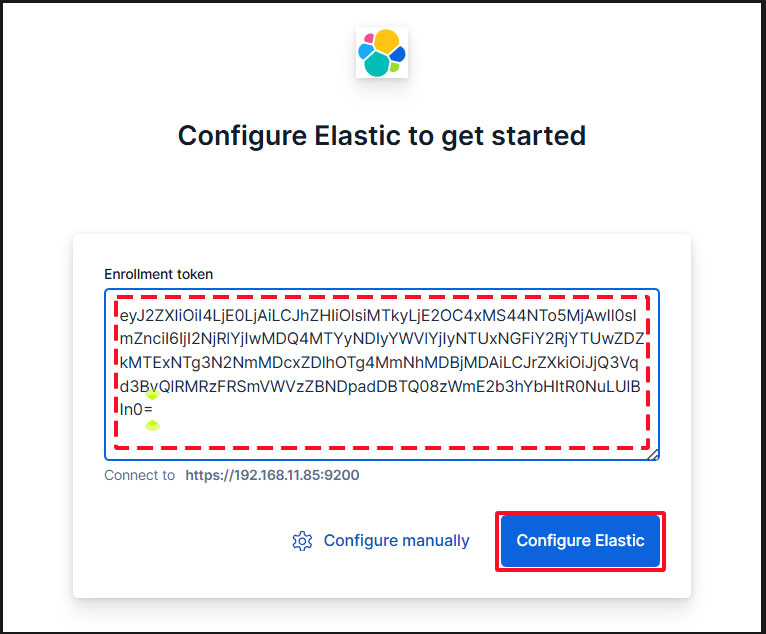
Paste the token, and Kibana will automatically connect to Elasticsearch.
Click Configure Elastic. The settings will be saved, and Elasticsearch will be configured and restarted.
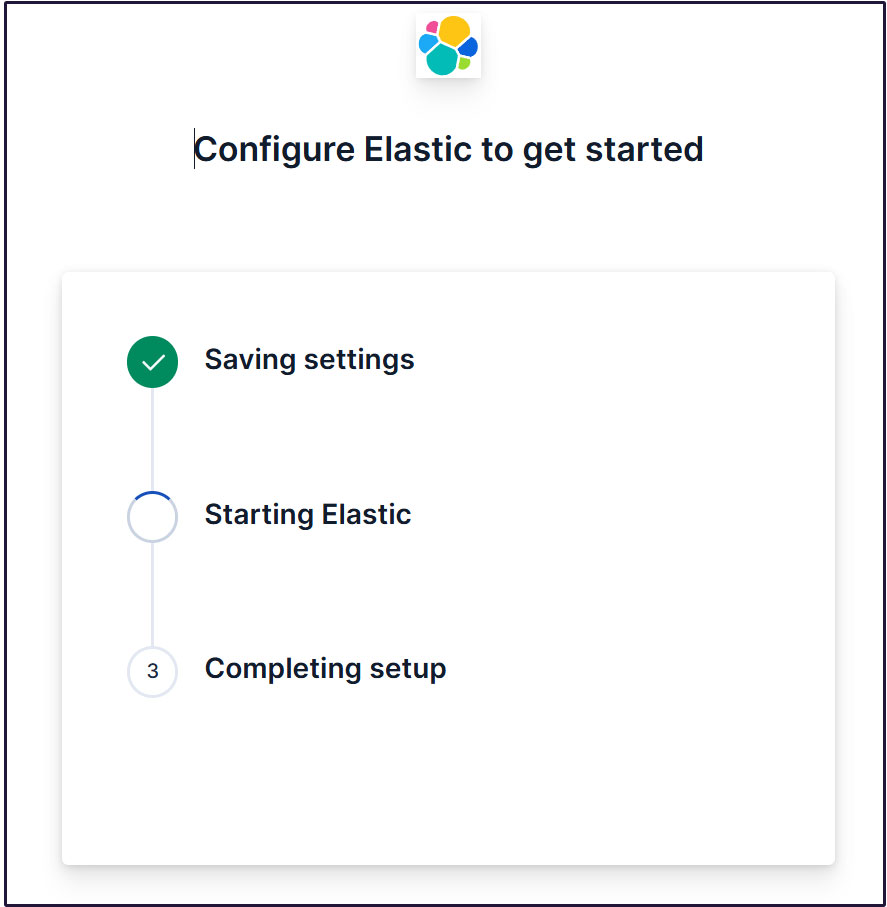
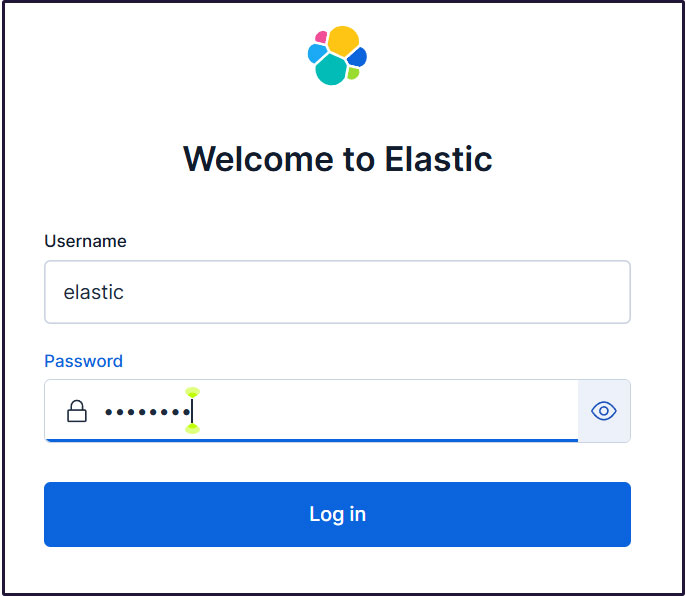
Proceed to the login page. Log in using the generated Elastic user credentials.
Username : elastic
Password : Password regenerated for clarity
On the welcome page, click "Explore on my own" to proceed to the Kibana 9.x dashboard.

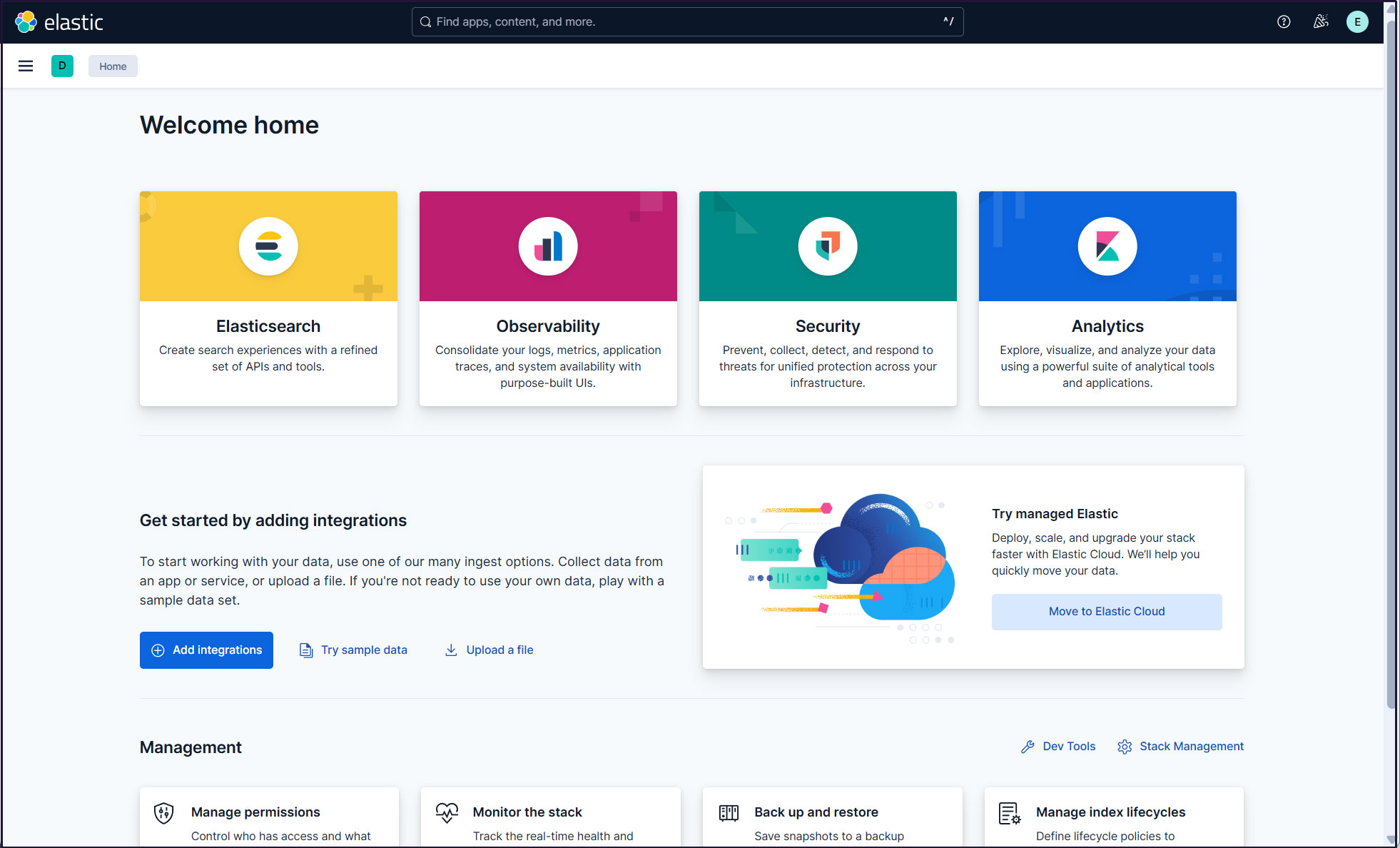
Create a new user account so you don't need to use the elastic superuser account.
Open the main menu, then navigate to Stack Management > Security > Users.
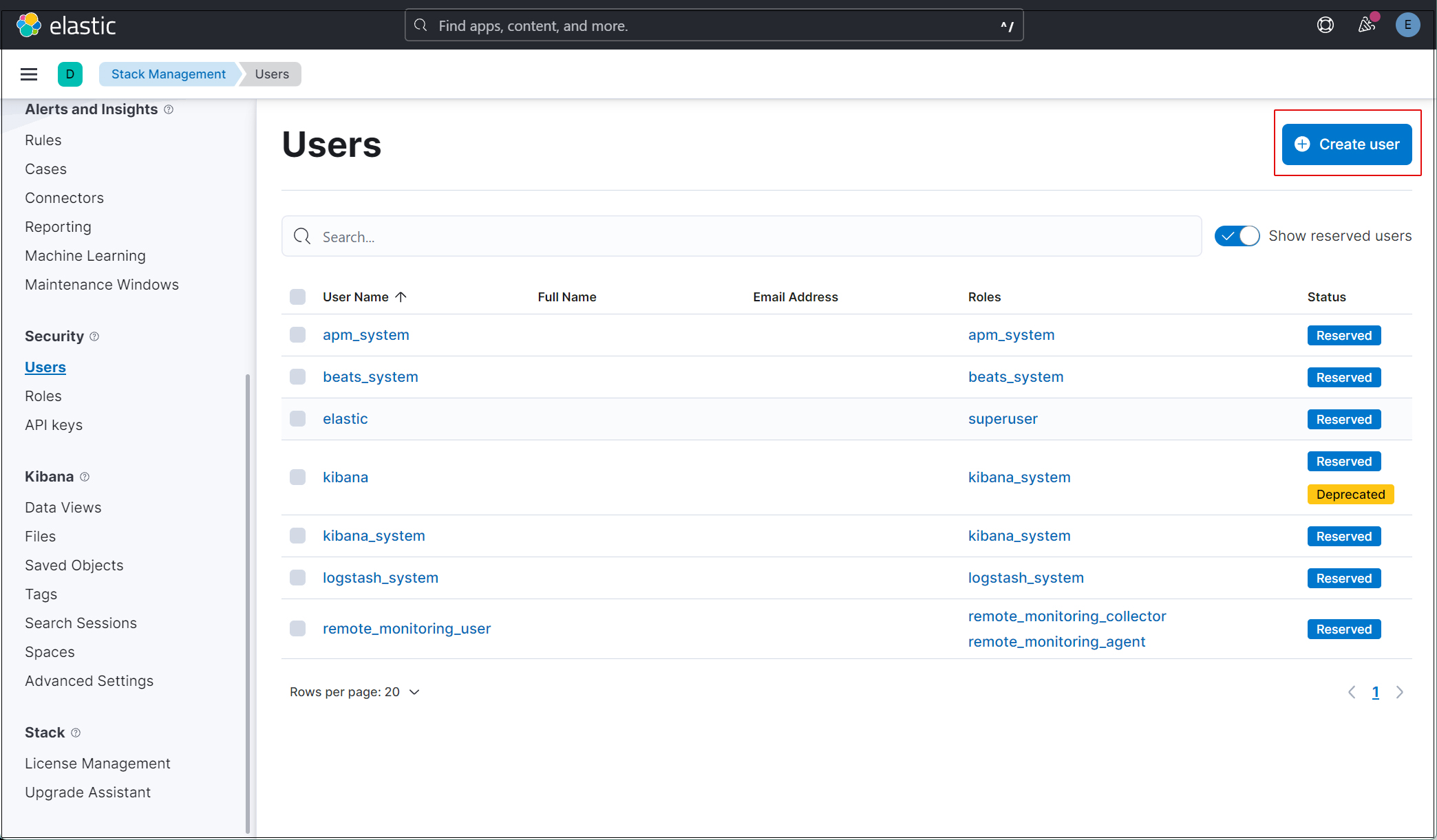
Click the "Create user" button in the upper right corner.
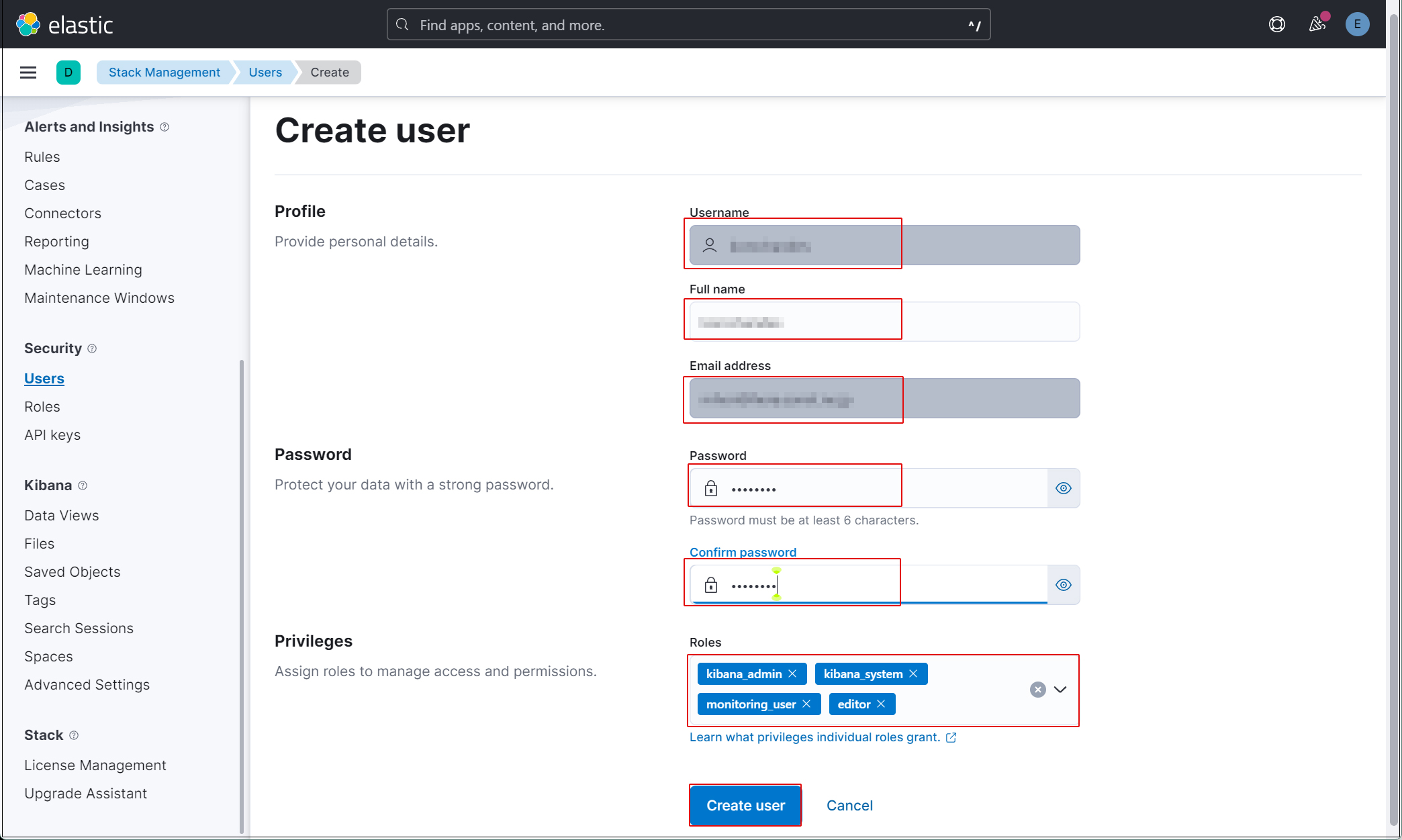
Enter the new user information and assign the kibana_admin, kibana_system, monitoring_user, and editor roles under Privileges.
Finally, click [Create user].
Log out of the current profile and verify that you can log in with the newly created user account. Currently, since Filebeat and Auditbeat are not configured on the SURICATA host, there is no data available to display in Kibana.
Install Filebeat on the SURICATA server
This task will be performed on the first openSUSE 15.6 server (IP: 192.168.11.83) where Suricata is installed.
1. Filebeat Installation
1.1 Download and install the public key
|
1 |
# rpm --import https://artifacts.elastic.co/GPG-KEY-elasticsearch |
1.2 Create the repository definition in the /etc/zypp/repos.d directory.
|
1 2 3 4 5 6 7 8 9 10 11 |
# vi /etc/zypp/repos.d/elasticsearch.repo The following content description [elasticsearch] name=Elasticsearch repository for 9.x packages baseurl=https://artifacts.elastic.co/packages/9.x/yum gpgcheck=1 gpgkey=https://artifacts.elastic.co/GPG-KEY-elasticsearch enabled=1 autorefresh=1 type=rpm-md |
1.3 Install Filebeat
|
1 |
# zypper -n install filebeat |
1.4 Creating an Elasticsearch CA Certificate
Download the Elasticsearch CA certificate and save it to any directory (in this case, save it as /etc/filebeat/elastic-ca.crt).
※Keep port 9200 open on the second server (the server running openSUSE 15.6 with Elasticsearch installed).
|
1 2 3 |
# openssl s_client -connect 192.168.11.85:9200 \ -showcerts </dev/null 2>/dev/null | \ openssl x509 -outform PEM > /etc/filebeat/elastic-ca.crt |
1.5 Configure Filebeat to connect to Elasticsearch and Kibana
|
1 2 3 4 5 6 7 8 9 10 11 12 13 14 15 16 17 18 19 20 |
# vi /etc/filebeat/filebeat.yml Line 137 : Add a line pointing to the Kibana instance's private IP address and port below the commented-out line `#host: "localhost:5601"`. host: "192.168.11.85:5601" Line 164 : comment out #hosts: ["localhost:9200"] Line 165 : Enter the Elastic Stack IP address and Elasticsearch port number. hosts: ["https://192.168.11.85:9200"] Line 171 : Uncomment protocol: "https" Line 172 : Elasticsearch CA Certificate Specification ssl.certificate_authorities: ["/etc/filebeat/elastic-ca.crt"] Line 175,176 : Uncomment the line, leave [username] as the default, and enter the password for the [elastic] user in [password]. username: "elastic" password: “xxxxxxxxx" |
1.6 Configuration File Test
|
1 2 |
# filebeat test config Config OK |
1.7 Enable the built-in Suricata module in Filebeats
|
1 |
# filebeat modules enable suricata |
The above command will change /etc/filebeat/modules.d/suricata.yml.disabled to /etc/filebeat/modules.d/suricata.yml, but the contents remain unchanged. Therefore, edit it as follows:
|
1 2 3 4 5 6 7 8 9 10 11 12 13 14 |
# vi /etc/filebeat/modules.d/suricata.yml # Module: suricata # Docs: https://www.elastic.co/guide/en/beats/filebeat/main/filebeat-module-suricata.html - module: suricata # All logs eve: enabled: true var.paths: ["/var/log/suricata/eve.json"] # Set custom paths for the log files. If left empty, # Filebeat will choose the paths depending on your OS. #var.paths: |
1.8 Set up the initial environment
Load the pipeline into the Suricata service
Load the SIEM dashboard into Elasticsearch
|
1 2 3 4 5 6 7 8 9 10 |
# filebeat setup -e -------------------------------------------------------------------------------- {"log.level":"info","@timestamp":"2026-03-02T10:14:35.519+0900","log.logger":"modules","log.origin":{"function":"github.com/elastic/beats/v7/filebeat/fileset.LoadPipeline","file.name":"fileset/pipelines.go","file.line":134},"message":"Elasticsearch pipeline loaded.","service.name":"filebeat","pipeline":"filebeat-9.3.1-suricata-eve-pipeline","ecs.version":"1.6.0"} {"log.level":"info","@timestamp":"2026-03-02T10:14:35.600+0900","log.logger":"modules","log.origin":{"function":"github.com/elastic/beats/v7/filebeat/fileset.LoadPipeline","file.name":"fileset/pipelines.go","file.line":134},"message":"Elasticsearch pipeline loaded.","service.name":"filebeat","pipeline":"filebeat-9.3.1-suricata-eve-dns","ecs.version":"1.6.0"} {"log.level":"info","@timestamp":"2026-03-02T10:14:35.652+0900","log.logger":"modules","log.origin":{"function":"github.com/elastic/beats/v7/filebeat/fileset.LoadPipeline","file.name":"fileset/pipelines.go","file.line":134},"message":"Elasticsearch pipeline loaded.","service.name":"filebeat","pipeline":"filebeat-9.3.1-suricata-eve-dns-answer-v1","ecs.version":"1.6.0"} {"log.level":"info","@timestamp":"2026-03-02T10:14:35.708+0900","log.logger":"modules","log.origin":{"function":"github.com/elastic/beats/v7/filebeat/fileset.LoadPipeline","file.name":"fileset/pipelines.go","file.line":134},"message":"Elasticsearch pipeline loaded.","service.name":"filebeat","pipeline":"filebeat-9.3.1-suricata-eve-dns-answer-v2","ecs.version":"1.6.0"} {"log.level":"info","@timestamp":"2026-03-02T10:14:35.758+0900","log.logger":"modules","log.origin":{"function":"github.com/elastic/beats/v7/filebeat/fileset.LoadPipeline","file.name":"fileset/pipelines.go","file.line":134},"message":"Elasticsearch pipeline loaded.","service.name":"filebeat","pipeline":"filebeat-9.3.1-suricata-eve-tls","ecs.version":"1.6.0"} {"log.level":"info","@timestamp":"2026-03-02T10:14:35.805+0900","log.logger":"modules","log.origin":{"function":"github.com/elastic/beats/v7/filebeat/fileset.LoadPipeline","file.name":"fileset/pipelines.go","file.line":134},"message":"Elasticsearch pipeline loaded.","service.name":"filebeat","pipeline":"filebeat-9.3.1-suricata-eve-http","ecs.version":"1.6.0"} ------------------------------------------------------------------------------------- |
1.9 Start the Filebeat service
|
1 |
# systemctl start filebeat.service |
2. Verify in Kibana
Log back into Kibana using the user you created. accsess http://192.168.11.85:5601
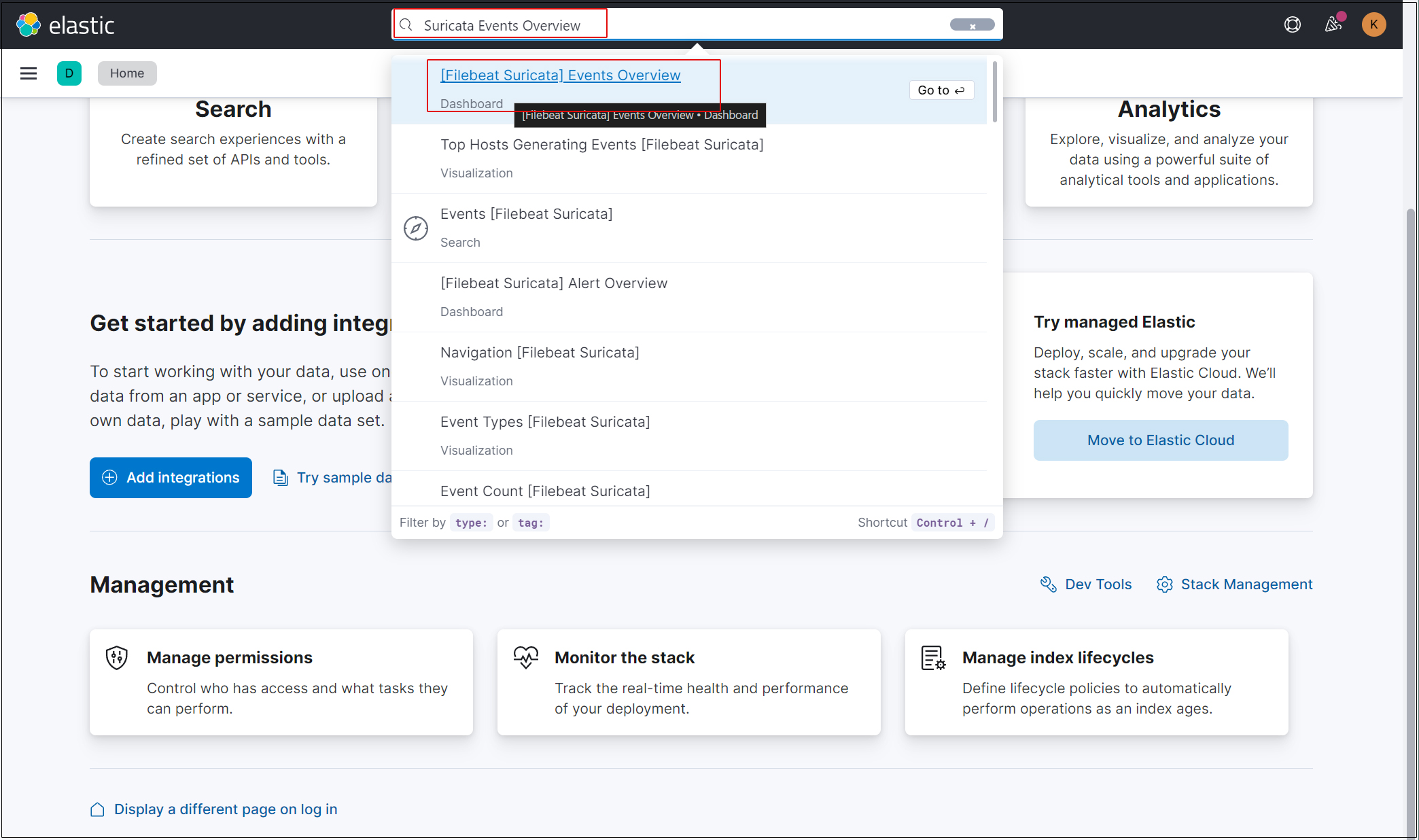
Enter "Suricata Events Overview" in the top search field, then click Events Overview.
All Suricata events from the past 15 minutes are displayed.
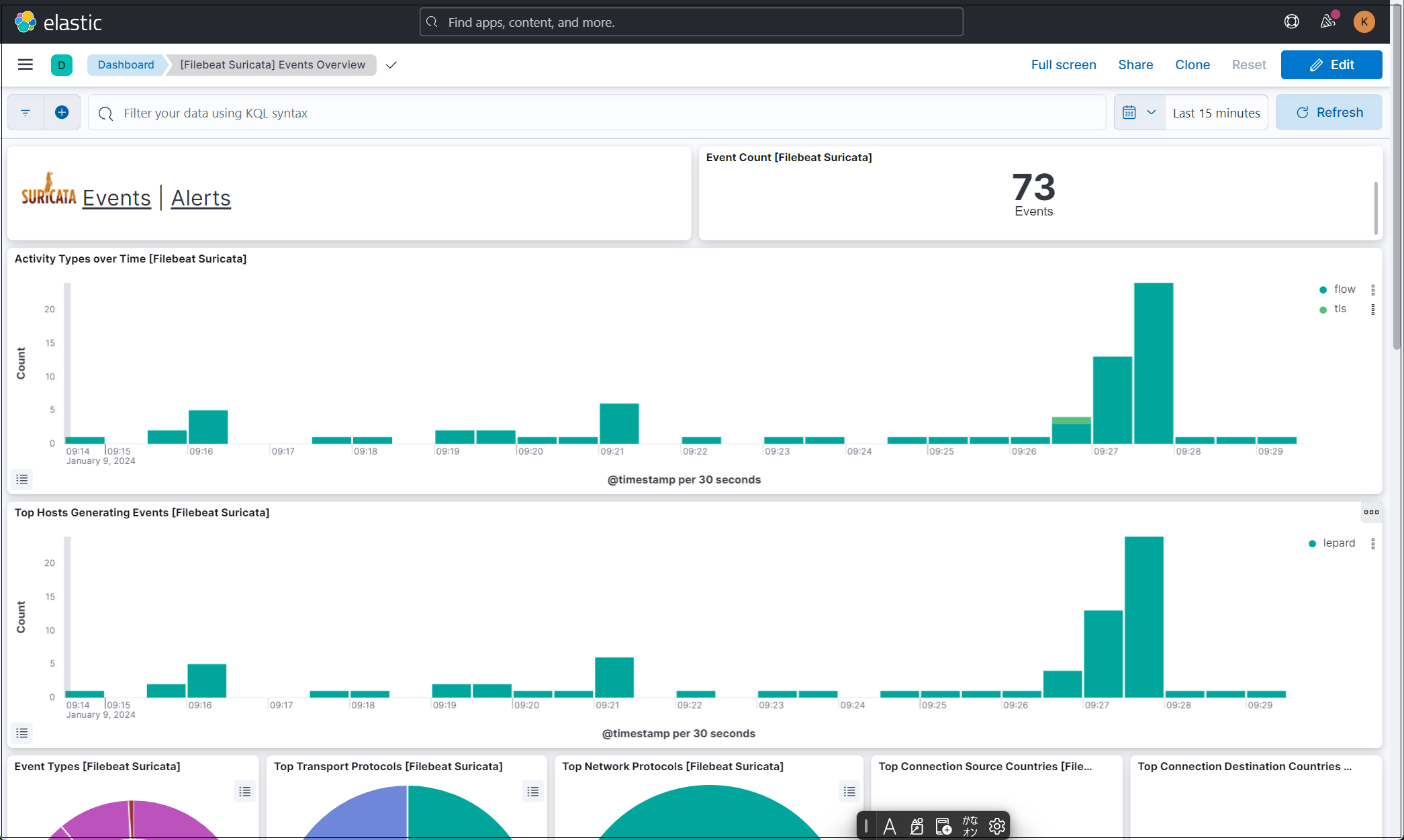
To display alerts for malicious traffic, click the "Alerts" text next to the Suricata logo.
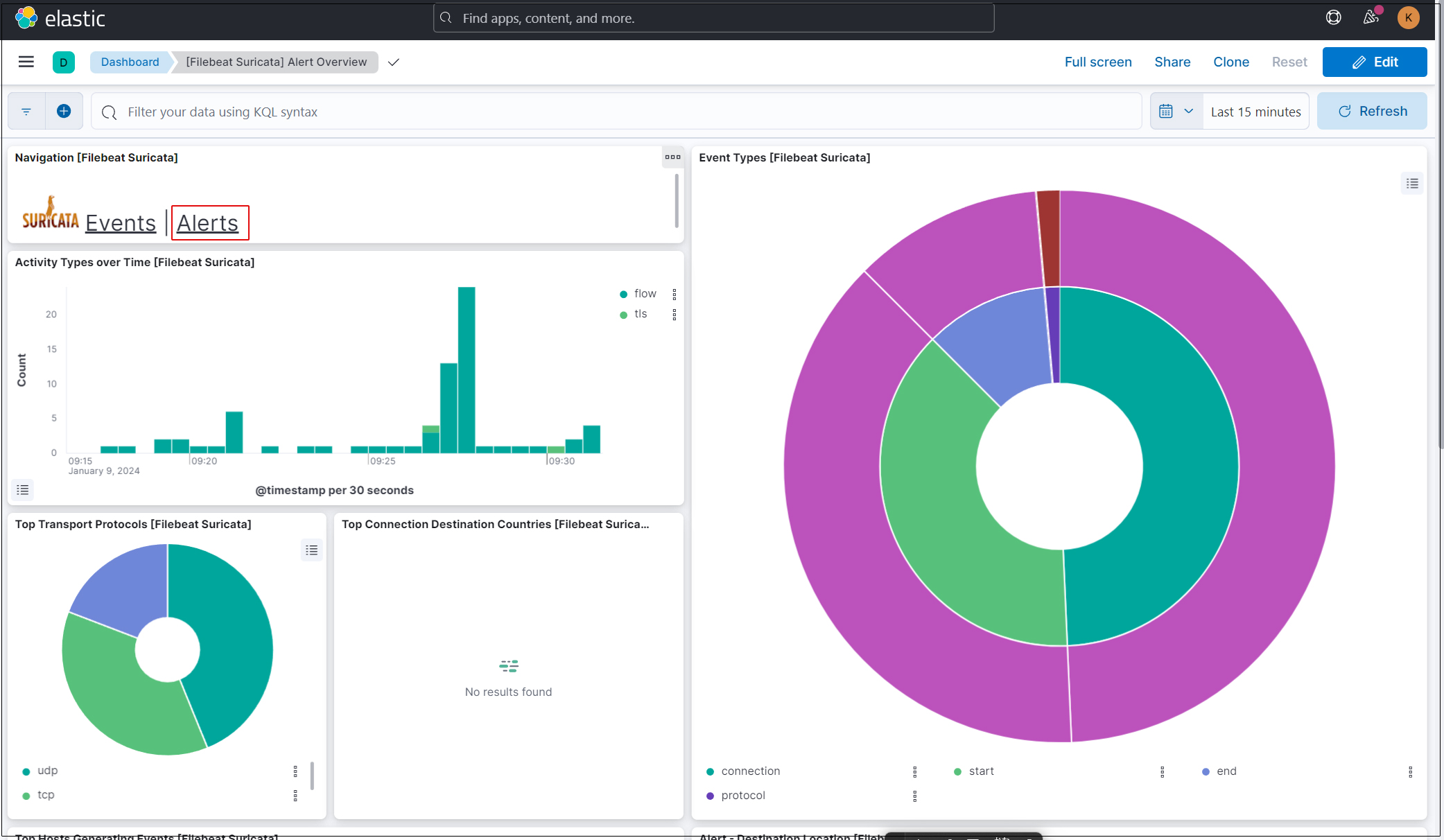
Kibana offers a variety of features and tools for visualizing logs, so feel free to experiment with them.