Contents
1.Apache2
1.1 httpd Install
|
1 |
# dnf -y install httpd |
Version Check
|
1 2 3 |
# httpd -v Server version: Apache/2.4.63 (Oracle Linux Server) Server built: Sep 2 2025 00:00:00 |
1.2 Apache Configuration
①Edit httpd.conf file
|
1 |
# cp /etc/httpd/conf/httpd.conf /etc/httpd/conf/httpd.conf_org |
|
1 2 3 4 5 6 7 8 9 10 11 12 13 14 15 16 17 18 19 20 |
# vi /etc/httpd/conf/httpd.conf Line 91 : Specify administrator address ServerAdmin <mail address> Add per line 101 「#ServerName www.example.com:80」 ServerName <Domain name> Line 149 : Change (Indexes is deleted) Options FollowSymLinks Line 156 : Change AllowOverride All Line 169 : file name accessible only by directory name Add "index.php index.cgi index.htm" Add to the last line ServerTokens Prod |
②If Firewalld is enabled, HTTP service permission is required; HTTP uses [80/TCP]
|
1 2 |
# firewall-cmd --add-service=http --permanent # firewall-cmd --reload |
➂Apache Auto-Start Configuration
|
1 2 3 |
# systemctl start httpd # systemctl enable httpd Created symlink /etc/systemd/system/multi-user.target.wants/httpd.service → /usr/lib/systemd/system/httpd.service. |
Startup Confirmation
|
1 2 3 4 5 6 7 8 9 10 11 12 13 14 15 16 17 18 19 20 21 |
# systemctl status httpd ● httpd.service - The Apache HTTP Server Loaded: loaded (/usr/lib/systemd/system/httpd.service; enabled; preset: disabled) Active: active (running) since Mon 2025-12-08 14:53:54 JST; 2s ago Invocation: 70389cf9372f4e9fb7622484c1fb5466 Docs: man:httpd.service(8) Main PID: 16084 (httpd) Status: "Started, listening on: port 80" Tasks: 177 (limit: 21604) Memory: 13.2M (peak: 13.5M) CPU: 59ms CGroup: /system.slice/httpd.service ├─16084 /usr/sbin/httpd -DFOREGROUND ├─16086 /usr/sbin/httpd -DFOREGROUND ├─16087 /usr/sbin/httpd -DFOREGROUND ├─16088 /usr/sbin/httpd -DFOREGROUND └─16089 /usr/sbin/httpd -DFOREGROUND Dec 08 14:53:54 Lepard systemd[1]: Starting httpd.service - The Apache HTTP Server... Dec 08 14:53:54 Lepard httpd[16084]: Server configured, listening on: port 80 Dec 08 14:53:54 Lepard systemd[1]: Started httpd.service - The Apache HTTP Server. |
④operation check
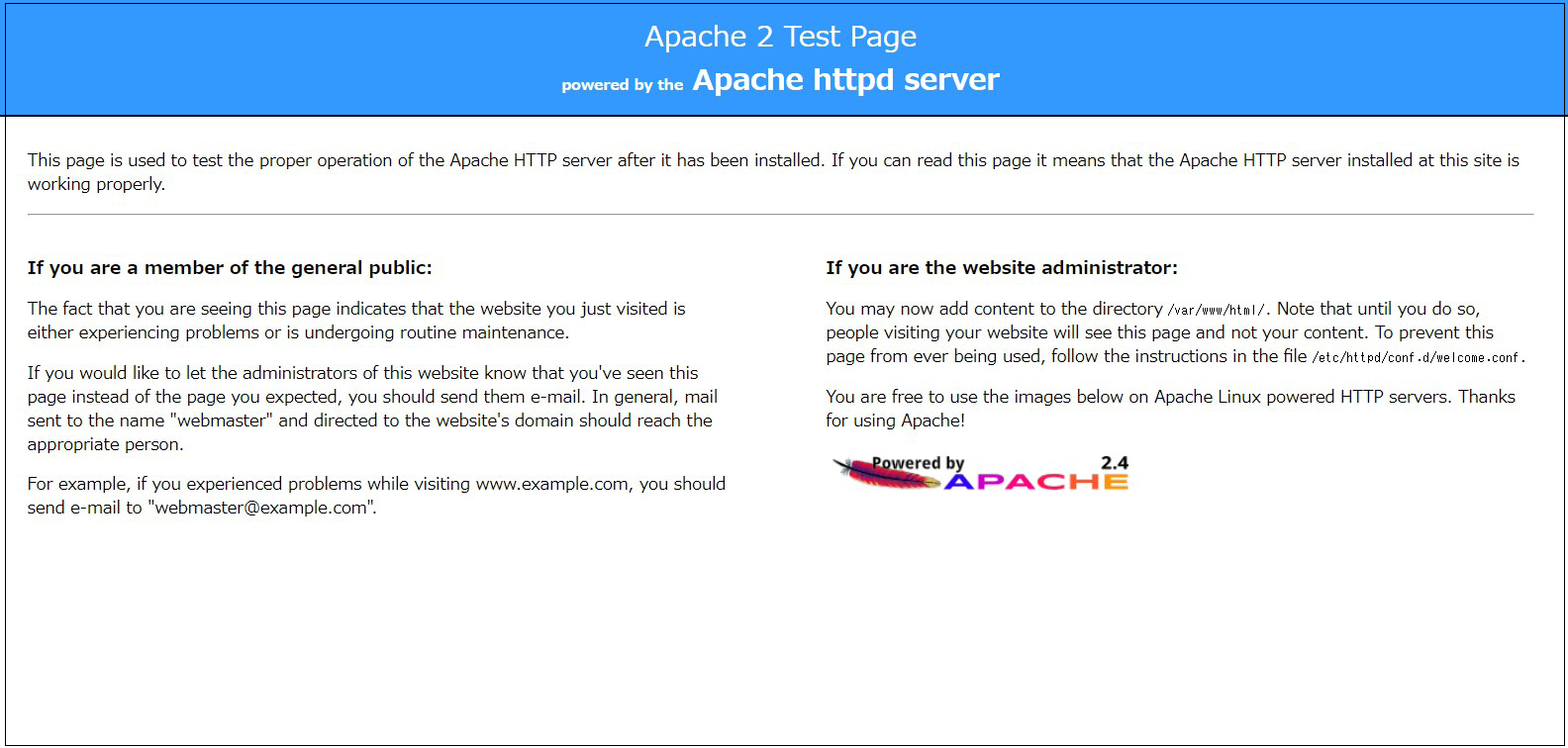
If you access http://[server IP address] and you see the Oracle Apache2 Test Page as shown below, it is OK
⑤Hide the Oracle Welcome page, create a new index.html file as a Test Page, and check the operation of apache.
Rename the welcome page
|
1 |
# mv /etc/httpd/conf.d/welcome.conf /etc/httpd/conf.d/welcome.conf.org |
Create HTML test page
|
1 2 3 4 5 6 7 8 |
# vi /var/www/html/index.html <html> <body> <div style="width: 100%; font-size: 40px; font-weight: bold; text-align: center;"> Apache Test Page </div> </body> </html> |
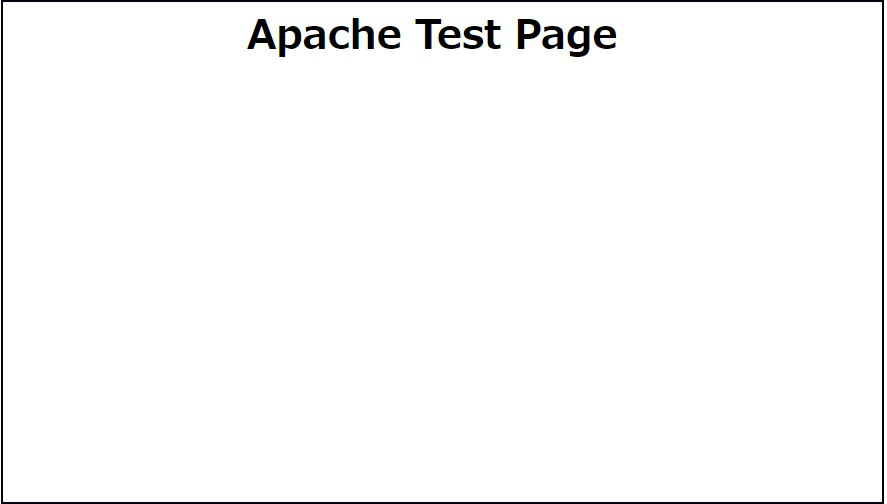
If you access http://[server IP] and the Test Page is displayed as shown below, it is OK.
1.3 Virtual Host Settings
Assign and configure the domain name [FQDN] to the document root [/var/www/html/[FQDN]] directory for virtual host operation
|
1 2 3 4 5 6 7 8 9 10 11 12 13 |
# vi /etc/httpd/conf.d/vhost.conf Virtual Host Domain Settings <VirtualHost *:80> DocumentRoot /var/www/html/[FQDN] ServerName [FQDN] ServerAdmin <Email Address> ErrorLog logs/[FQDN].error_log CustomLog logs/[FQDN].access_log combined </VirtualHost> <Directory "/var/www/html/[FQDN]"> Options FollowSymLinks AllowOverride All </Directory> |
Creating a Document Directory
|
1 |
# mkdir /var/www/html/[FQDN] |
Restart Apache
|
1 |
# systemctl restart httpd |
2. Confirmation of CGI Script Usage
①Confirmation of CGI availability
The following is displayed and available under “/var/www/cgi-bin/”.
|
1 2 |
# grep -n "^ *ScriptAlias" /etc/httpd/conf/httpd.conf 252: ScriptAlias /cgi-bin/ "/var/www/cgi-bin/" |
②Create test scripts and check operation
|
1 2 3 4 5 |
# vi /var/www/cgi-bin/index.cgi Describe the following #!/usr/bin/python3 print("Content-type: text/html\n") print("CGI Script Test Page") |
|
1 2 3 |
# chmod 755 /var/www/cgi-bin/index.cgi # curl localhost/cgi-bin/index.cgi CGI Script Test Page |
3. PHP installation and configuration
①Install
|
1 |
# dnf -y install php php-mbstring php-pear |
②Version Check
|
1 2 3 4 5 |
# php -v PHP 8.3.19 (cli) (built: Mar 12 2025 13:10:27) (NTS gcc x86_64) Copyright (c) The PHP Group Zend Engine v4.3.19, Copyright (c) Zend Technologies with Zend OPcache v8.3.19, Copyright (c), by Zend Technologies |
php-fpm configuration
|
1 2 |
# systemctl enable php-fpm Created symlink /etc/systemd/system/multi-user.target.wants/php-fpm.service → /usr/lib/systemd/system/php-fpm.service. |
③Restart Apache
After PHP installation, restarting Apache will invoke PHP-FPM (FPM : FastCGI Process Manager) by default, and php-fpm service will be started in conjunction with httpd startup.
|
1 2 3 4 5 6 7 8 9 10 11 12 13 14 15 16 17 18 19 20 21 |
# systemctl restart httpd # systemctl status php-fpm ● php-fpm.service - The PHP FastCGI Process Manager Loaded: loaded (/usr/lib/systemd/system/php-fpm.service; enabled; preset: disabled) Active: active (running) since Mon 2025-12-08 15:05:41 JST; 10s ago Invocation: 1c80d548ef264223944487a4b5de0812 Main PID: 18029 (php-fpm) Status: "Processes active: 0, idle: 5, Requests: 0, slow: 0, Traffic: 0.00req/sec" Tasks: 6 (limit: 21604) Memory: 21M (peak: 21.2M) CPU: 41ms CGroup: /system.slice/php-fpm.service ├─18029 "php-fpm: master process (/etc/php-fpm.conf)" ├─18031 "php-fpm: pool www" ├─18032 "php-fpm: pool www" ├─18033 "php-fpm: pool www" ├─18034 "php-fpm: pool www" └─18035 "php-fpm: pool www" Dec 08 15:05:41 Lepard systemd[1]: Starting php-fpm.service - The PHP FastCGI Process Manager... Dec 08 15:05:41 Lepard systemd[1]: Started php-fpm.service - The PHP FastCGI Process Manager. |
④Confirmation of PHP operation
Create the following files
|
1 2 3 4 |
# vi /var/www/html/[FQDN]/test.php <?php phpinfo(); ?> |
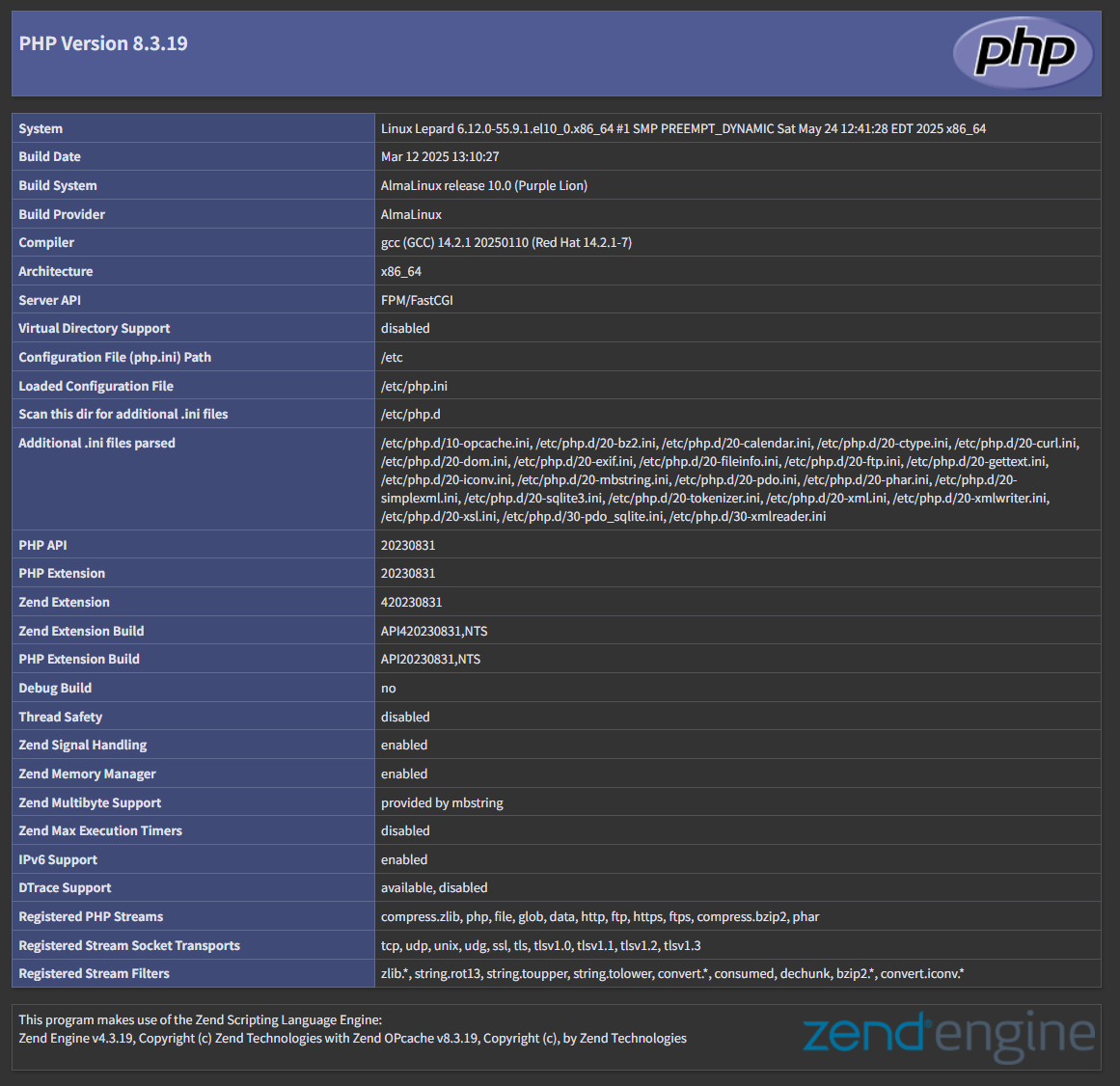
Access http://[FQDN]/test.php in your browser and if you see the following screen, it is OK
4. Digest authentication with Apache2
Since Basic Authentication, a well-known authentication authorization method for http, sends authentication information in plain text, there is a risk of ID and password leakage if the packet is intercepted.
On the other hand, Digest Authentication encrypts and transmits authentication information, so there is almost no risk of information leakage.
4.1 Create password file for Digest authentication
Specify an authenticated area called realm. This realm allows the same directory to be accessed as authenticated.
For this example, the realm is "DigestAuth" and a user and password file named "secretuser" ".digestauth" is created.
|
1 2 3 |
# /usr/bin/htdigest -c /etc/httpd/.digestauth "DigestAuth" secretuser New password: Re-type new password: |
Confirmation
|
1 2 |
# cat /etc/httpd/.digestauth secretuser:DigestAuth:xxxxxxxxxxxxxxxxxxxxxxxxxxxxxx |
As above, secretuser and encrypted password are created
4.2 Edit Apache configuration file
Specify the directory to which Digest authentication will be applied. (In this case, specify the "secret" directory.)
|
1 |
# vi /etc/httpd/conf/httpd.conf |
Add the following at the end
|
1 2 3 4 5 6 7 |
<Directory "/var/www/html/[FQDN]/secret"> AuthType Digest AuthName "DigestAuth" AuthDigestDomain /[FQDN]/secret/ AuthUserFile "/etc/httpd/.digestauth" Require valid-user </Directory> |
Create a directory for Digest authentication
|
1 |
# mkdir /var/www/html/[FQDN]/secret |
Enable Digest authentication and reboot
|
1 |
# systemctl restart httpd.service |
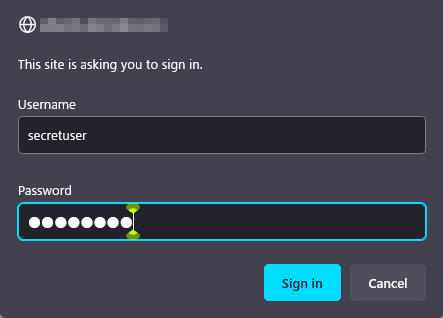
When accessing "http://[FQDN]/secret" with a browser, a screen appears asking for "user name" and "password".