

Contents
AlmaLinux 10.1
AlmaLinux OS is a project launched by CloudLinux in the US as an alternative to CentOS.
Currently, the AlmaLinux OS Foundation is the development parent organization.
General availability of Red Hat Enterprise Linux 10.1 was followed by the release of AlmaLinux 10.1 on November 25, 2025.
1.AlmaLinux 10.1 Dopwnload
To download the AlmaLinux 10.1 installation image, go to the following site and download “AlmaLinux-10.1-x86_64-dvd.iso”.
https://ftp.riken.jp/Linux/almalinux/10.1/isos/x86_64/
2.AlmaLinux 10.1 Install
Install USB media Change BIOS settings to boot from USB media.
Initial installation screen
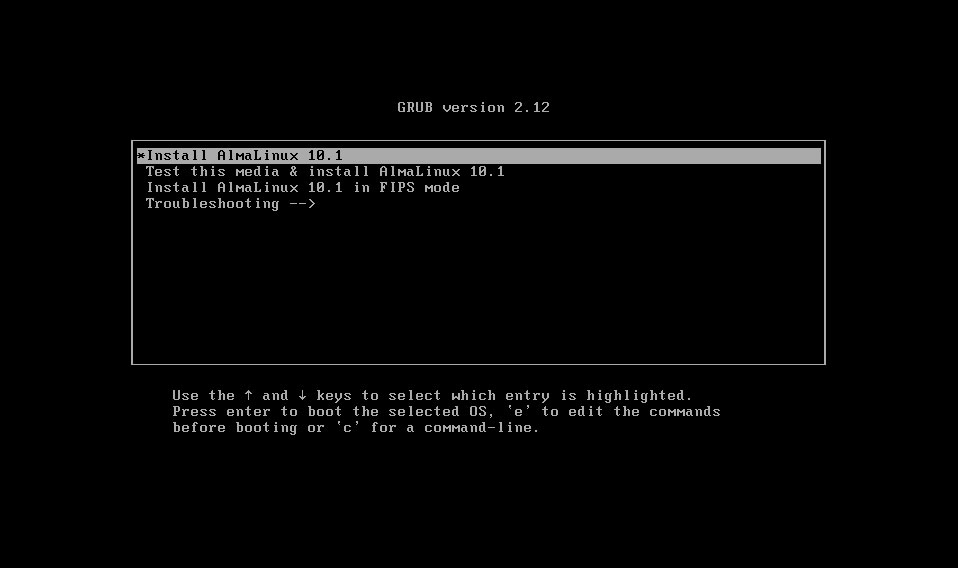
The installation procedure is the same as for AlmaLinux 10.0, so it will be omitted here. Please refer to the page below.

However, AlmaLinux OS 10.1 now supports the Btrfs file system.
Btrfs
Btrfs is a modern Copy-on-Write (CoW) file system that implements advanced features while also focusing on fault tolerance, repair, and easy administration.
It provides snapshots, built-in volume management, checksums for data and metadata, transparent compression, and efficient copying via reflink.
These features enhance performance for most common workloads and strengthen resilience against potential storage media issues such as bit loss.
Btrfs is already supported in various Linux distributions and has become the default file system in many distributions, such as Fedora Linux and openSUSE.
When using Btrfs on AlmaLinux 10.1
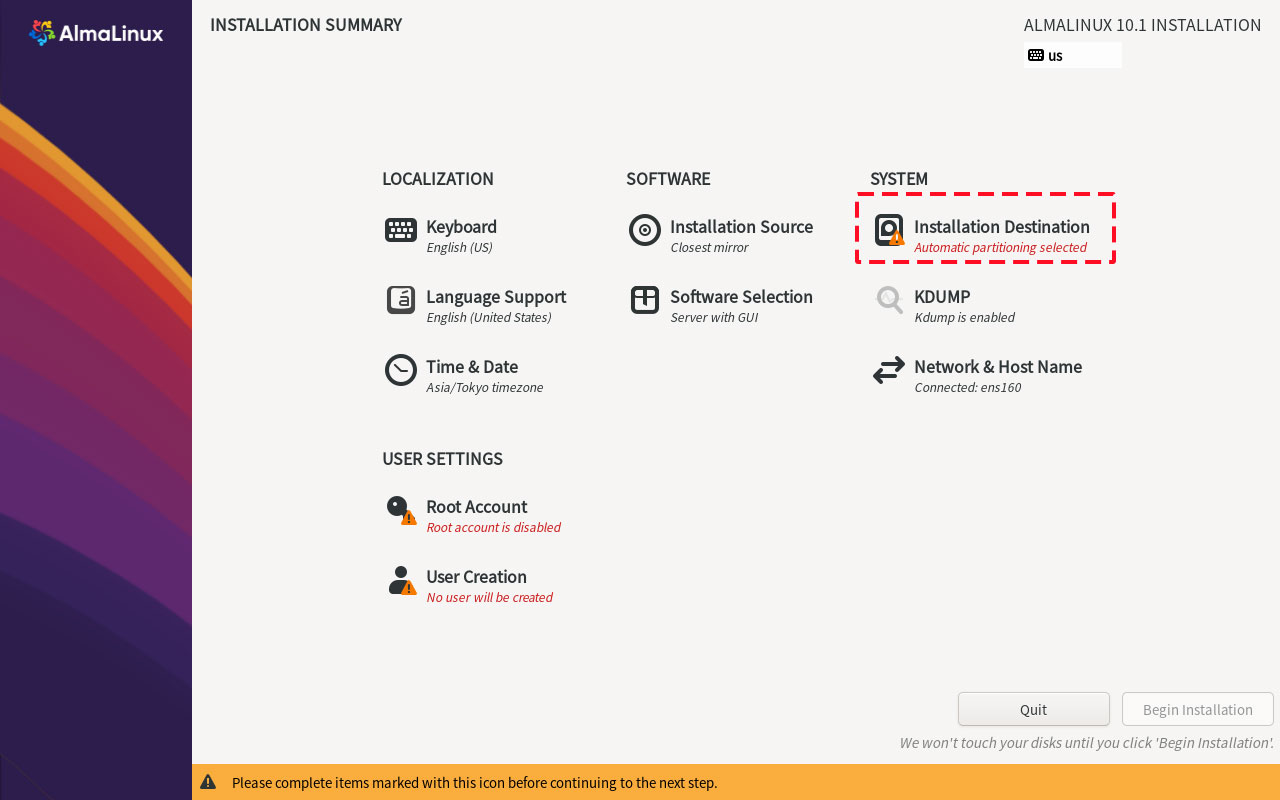
During the AlmaLinux 10.1 installation process, when configuring the "Installation Destination," select Custom Partitions as shown below. In the Custom Partitions panel, choose the Btrfs partition scheme.
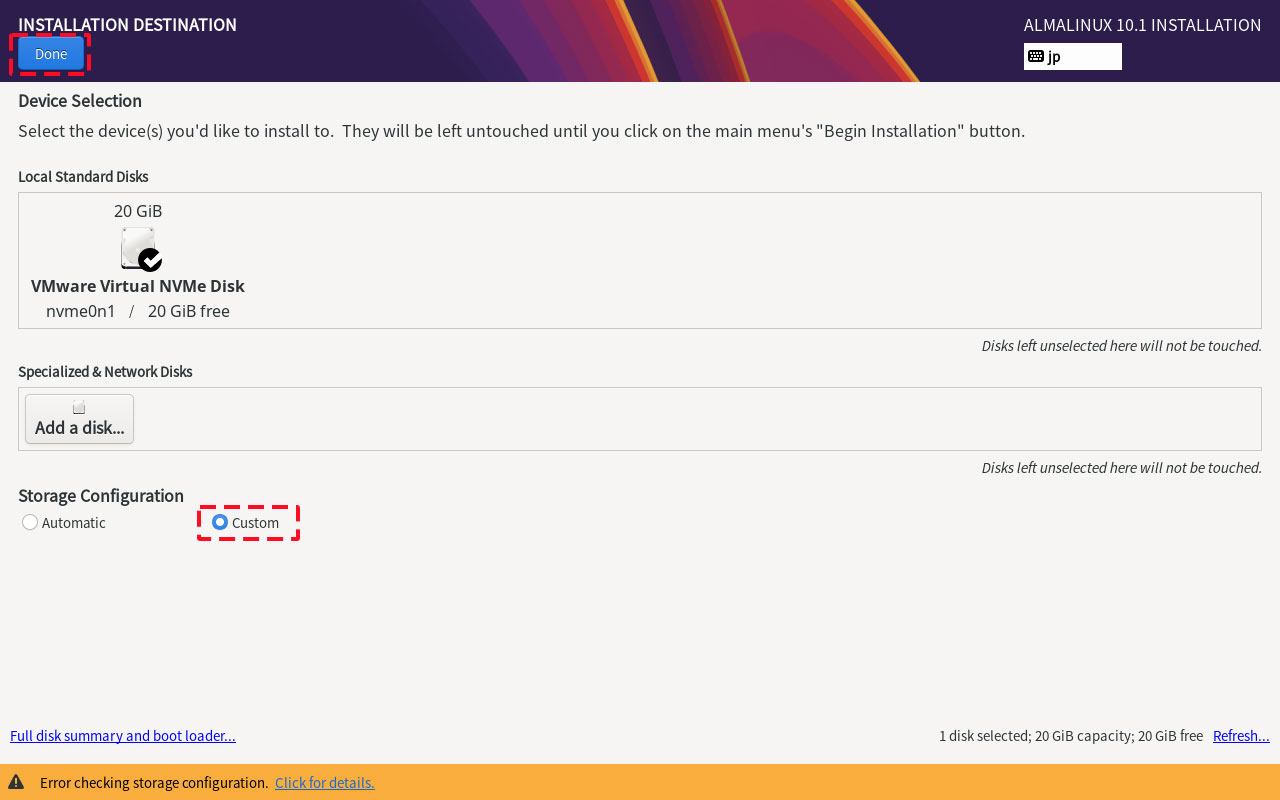
Select the "Btrfs" scheme, and if you want to choose automatic partitioning, click the "Click here to create them automatically" link above.
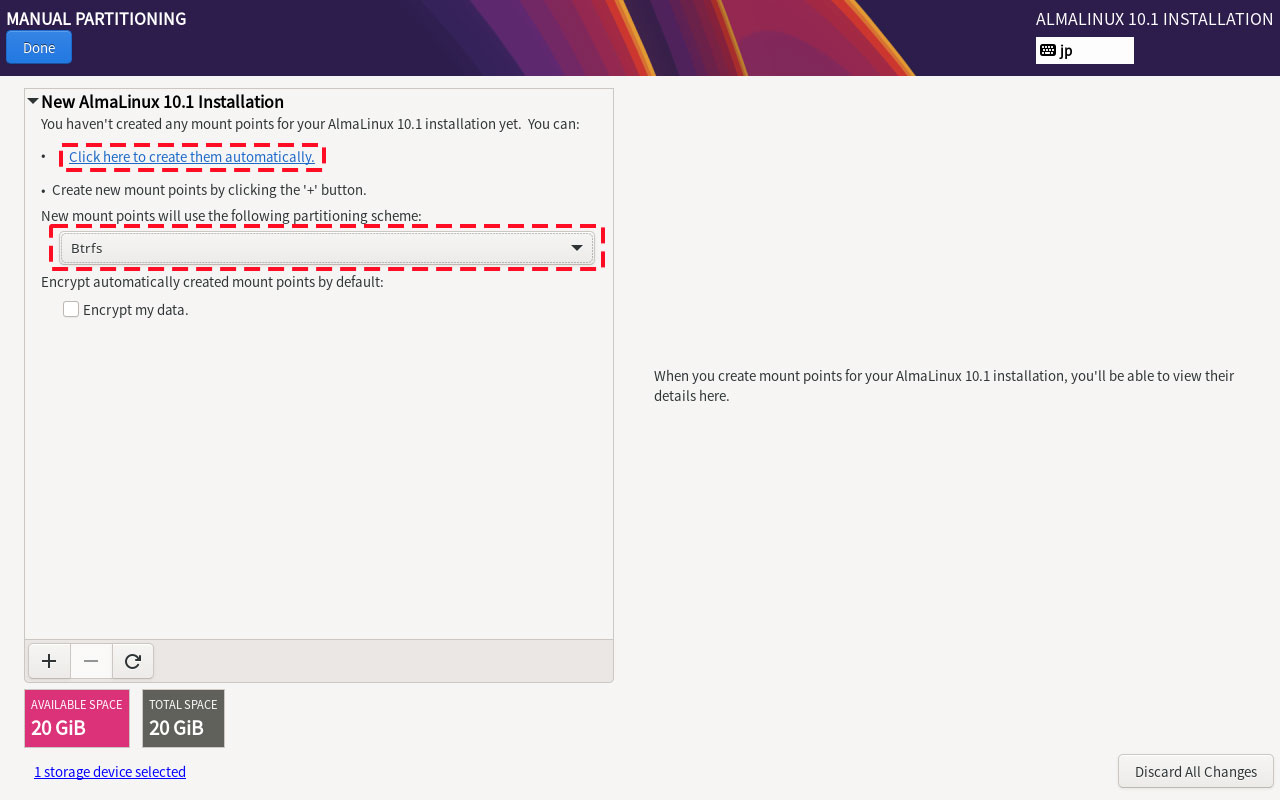
The partition details will be displayed. If you agree, click "Done".
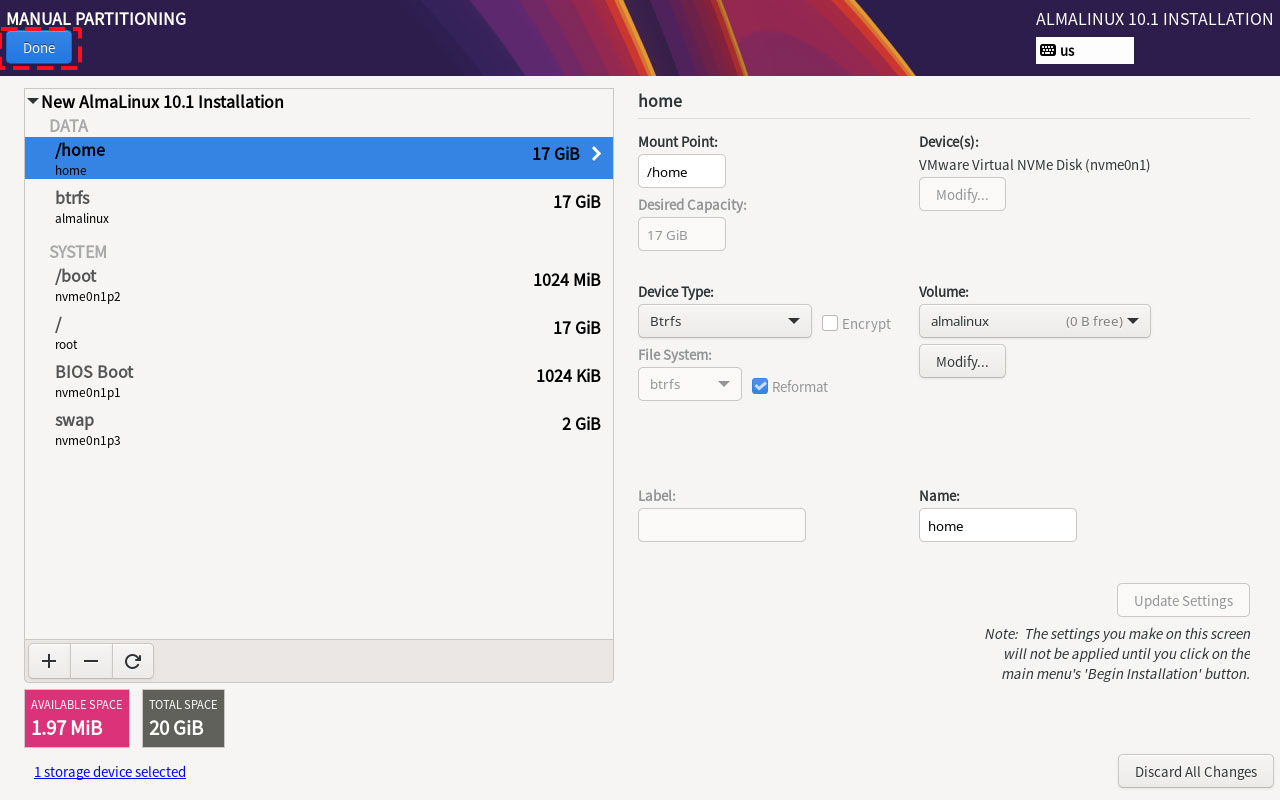
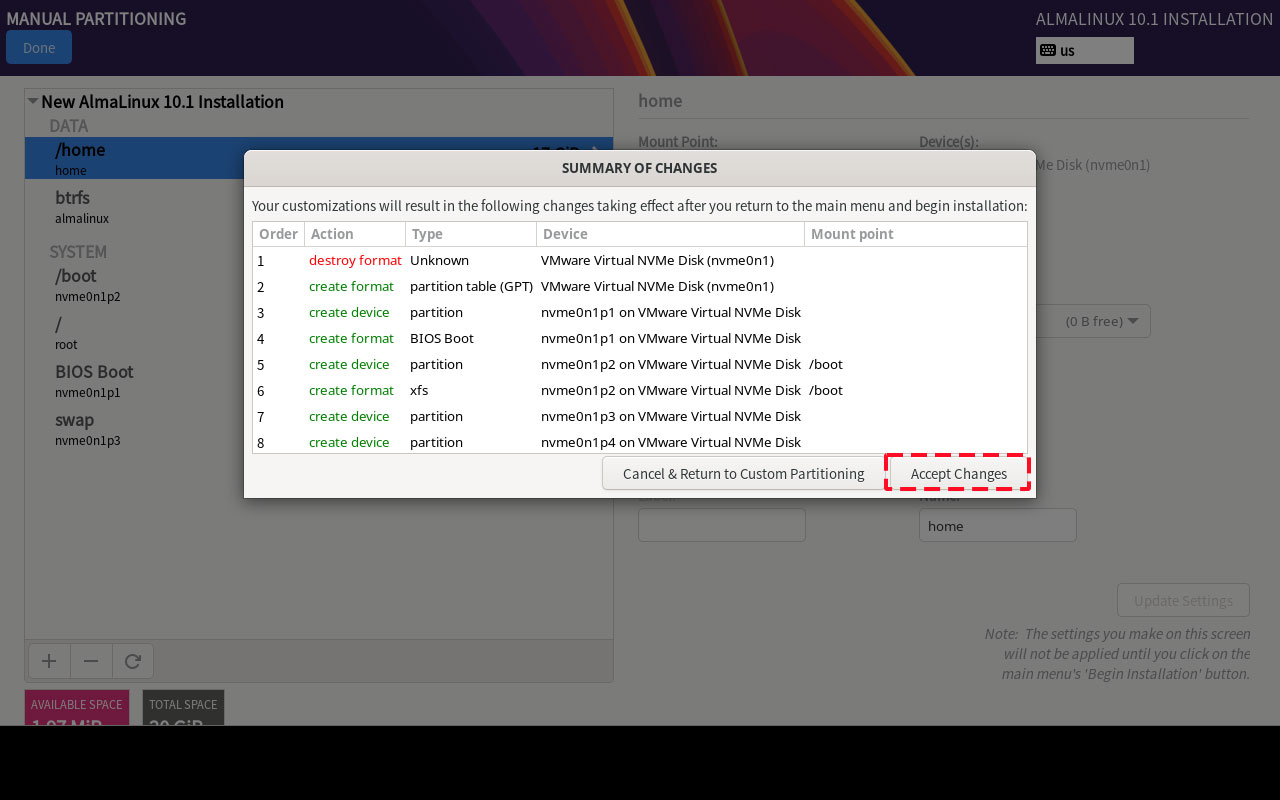
A final confirmation will be displayed. If you agree, click "Accept Changes" to create the partition.
Disabling SELinux
First, disable selinux. selinux is a feature that improves auditing and security in Linux, but when enabled, it places considerable restrictions on the behavior of services and on what can be configured. Therefore, it is basically disabled in many cases.
SELinux operating modes
Enforcing : SELinux functionality is enabled and access control is enabled
Permissive : SElinux will warn, but no access restrictions will be placed
disabled : Both SElinux function and access control are disabled
①Current SELinux status
|
1 2 |
# getenforce Enforcing |
②Switching to [permissive] mode
|
1 2 3 |
# setenforce 0 # getenforce Permissive |
③Switching to [enforcing] mode
|
1 2 3 |
# setenforce 1 # getenforce Enforcing |
④To completely disable SELinux, a reboot is required by adding selinux=0 to the kernel command line as follows
|
1 2 |
# grubby --update-kernel ALL --args selinux=0 # reboot |
※ To return SELinux to active, do the following (reboot after changes)
|
1 2 |
# grubby --update-kernel ALL --remove-args selinux # reboot |
System Modernization
Update packages as soon as possible after OS installation.
A kernel update may require rebooting the system or stopping services, or worse, a kernel panic may occur and the system may not boot. It is wiser to exclude the kernel from the update.
The kernel can be excluded from updates by running dnf -y update with "--exclude=kernel*" after it.
|
1 |
# dnf -y update --exclude=kernel* |
Services to be stopped due to security measures
|
1 2 3 4 5 6 7 8 9 10 11 12 |
# systemctl stop atd.service # systemctl disable atd.service # systemctl stop kdump.service # systemctl disable kdump.service # systemctl stop lvm2-monitor.service # systemctl disable lvm2-monitor.service # systemctl stop mdmonitor.service # systemctl disable mdmonitor.service # systemctl stop smartd.service # systemctl disable smartd.service # systemctl stop dm-event.socket # systemctl disable dm-event.socket |
Adding Repositories
1. Add EPEL repository
|
1 2 |
# dnf config-manager --set-enabled crb # dnf -y install epel-release |
|
1 |
# vi /etc/yum.repos.d/epel.repo |
|
1 2 3 4 5 6 7 8 9 10 11 12 13 14 15 16 17 18 |
[epel] name=Extra Packages for Enterprise Linux $releasever - $basearch # It is much more secure to use the metalink, but if you wish to use a local mirror # place its address here. #baseurl=https://download.example/pub/epel/$releasever${releasever_minor:+z}/Everything/$basearch/ metalink=https://mirrors.fedoraproject.org/metalink?repo=epel${releasever_minor:+-z}-$releasever&arch=$basearch gpgkey=file:///etc/pki/rpm-gpg/RPM-GPG-KEY-EPEL-$releasever_major gpgcheck=1 repo_gpgcheck=0 metadata_expire=24h countme=1 enabled=1 priority=10 [epel-debuginfo] name=Extra Packages for Enterprise Linux $releasever - $basearch - Debug ------------------------------------------------------------ ------------------------------------------------------------ |
2. Added Remi's RPM repository
|
1 2 |
# dnf -y install https://rpms.remirepo.net/enterprise/remi-release-10.rpm # dnf -y config-manager --set-enabled remi |
|
1 |
# vi /etc/yum.repos.d/remi-safe.repo |
|
1 2 3 4 5 6 7 8 9 10 11 12 13 14 15 16 17 18 19 20 21 22 23 |
# This repository is safe to use with RHEL/CentOS base repository # it only provides additional packages for the PHP stack # all dependencies are in base repository or in EPEL [remi-safe] name=Safe Remi's RPM repository for Enterprise Linux $releasever_major - $basearch #baseurl=http://rpms.remirepo.net/enterprise/$releasever_major/safe/$basearch/ #mirrorlist=https://rpms.remirepo.net/enterprise/$releasever_major/safe/$basearch/httpsmirror mirrorlist=http://cdn.remirepo.net/enterprise/$releasever_major/safe/$basearch/mirror enabled=1 priority=10 gpgcheck=1 # can be enabled if not behind a proxy because of possible cache issue repo_gpgcheck=0 gpgkey=file:///etc/pki/rpm-gpg/RPM-GPG-KEY-remi.el$releasever_major [remi-safe-debuginfo] name=Remi's RPM repository for Enterprise Linux $releasever_major - $basearch - debuginfo baseurl=http://rpms.remirepo.net/enterprise/$releasever_major/debug-remi/$basearch/ enabled=0 gpgcheck=1 repo_gpgcheck=0 gpgkey=file:///etc/pki/rpm-gpg/RPM-GPG-KEY-remi.el$releasever_major |
Network Settings
1. Check network device name
|
1 2 3 4 |
# nmcli dev s DEVICE TYPE STATE CONNECTION ens160 ethernet connected ens160 lo loopback connected (externally) lo |
The network device name can be found as "ens160"
2. Host Name Change
Change the host name to Lepard to try it out
|
1 2 3 4 |
# hostnamectl set-hostname Lepard Log in again [huong@Lepard:~]$ |
3. Static IPv4 address configuration
The name of the network interface is "ens160".
Change by "nmcli" command
Change the static IPv4 address to "192.168.11.83".
①Change by "nmcli" command
|
1 2 3 4 5 6 7 8 9 10 11 12 13 14 15 16 17 18 19 |
# Fixed IPv4 address setting # nmcli connection modify ens160 ipv4.addresses 192.168.11.83/24 # Gateway Configuration # nmcli connection modify ens160 ipv4.gateway 192.168.11.1 # Referenced DNS settings # nmcli connection modify ens160 ipv4.dns 192.168.11.1 # DNS search base settings (own domain name) # nmcli connection modify ens160 ipv4.dns-search [domain] # Set to fixed IP address assignment # nmcli connection modify ens160 ipv4.method manual # Reboot interface to reflect settings # nmcli connection down ens160; nmcli connection up ens160 Connection 'ens160' successfully deactivated (D-Bus active path: /org/freedesktop/NetworkManager/ActiveConnection/1) Connection successfully activated (D-Bus active path: /org/freedesktop/NetworkManager/ActiveConnection/2) |
➁Change in GUI
|
1 |
# nmtui |
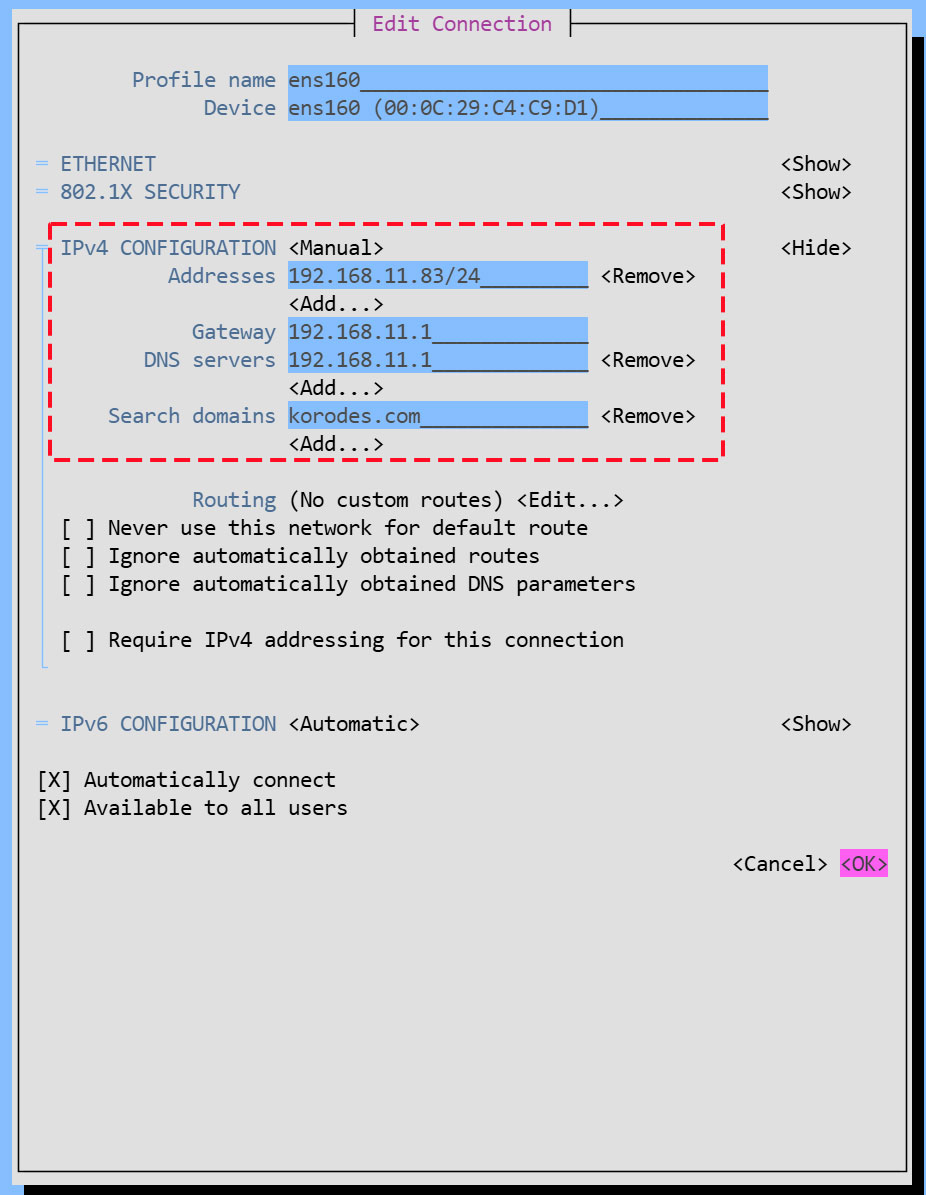
Change the fixed IPv4 address to "192.168.11.83" as above.
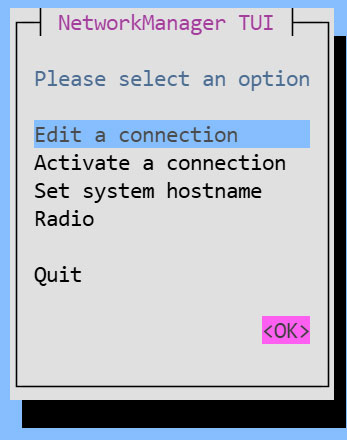
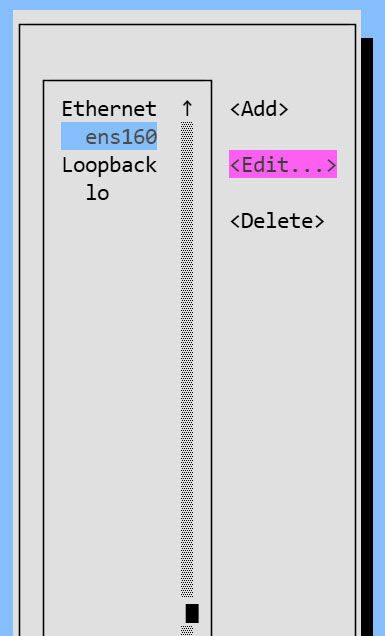
Change the address of the IPv4 configuration
4. Host Name Change
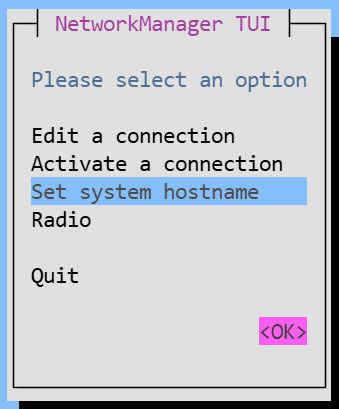
Change the hostname to Lepard
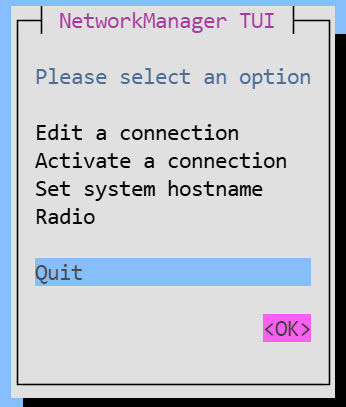
Return to the first screen of [NetworkManager TUI], select [Set system hostname], and click <OK>.
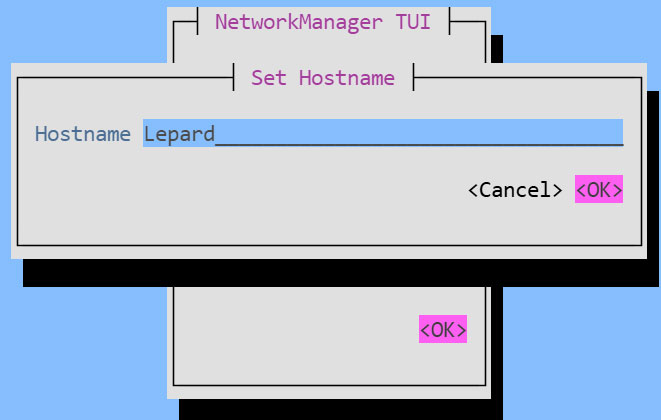
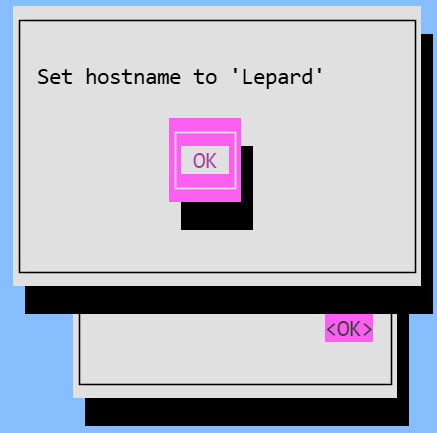
Enter [Hostname] and click <OK>
Vim Configuration
①Vim Install
|
1 |
# dnf -y install vim-enhanced |
②Apply and reflect Vim
|
1 2 3 |
# vi ~/.bashrc # Alias appended to the last line alias vi='vim' |
|
1 |
# source ~/.bashrc |
③Configure Vim as a user-specific environment
|
1 |
# vi ~/.vimrc |
|
1 2 3 4 5 6 7 8 9 10 11 12 13 14 15 16 17 18 19 20 21 22 23 24 25 26 27 28 29 30 31 32 33 34 35 36 37 38 |
" Use vim's own extensions (not compatible with vi) set nocompatible " Specify character code set encoding=utf-8 " Specify file encoding (read from the beginning until success) set fileencodings=utf-8,iso-2022-jp,sjis,euc-jp " Specify the line feed code to be recognized automatically set fileformats=unix,dos " Get Backup set backup " Specify the directory from which to obtain backups set backupdir=~/backup " Number of generations to keep search history set history=50 " Do not distinguish between upper and lower case letters when searching set ignorecase " Mixing capital letters in search terms makes the search case sensitive set smartcase " Highlight words matching your search term set hlsearch " Use incremental search set incsearch " Display line number set number " Visualize line breaks ( $ ) and tabs ( ^I ) set list " Highlight corresponding parentheses when entering parentheses set showmatch " No newlines at the end of files set binary noeol " Enable automatic indentation set autoindent " Color-coded display by syntax syntax on " Change color of comment text in case of syntax on highlight Comment ctermfg=LightCyan " Wrap lines by window width set wrap |
