

Prerequisites
This time, we will install Suricata IDS and ElasticStack on the following server.
・First Server Suricata IDS & Filebeat : Ubuntu Server25.10 IP Address(192.168.11.83)
・Second server ElasticStack & kibana : Ubuntu Server24.04 IP Addtress(192.168.11.85)
Run as a sudo user other than root
First Server Suricata
SURICATA IDS/IPS is an open source IDS that monitors communications on the network and detects suspicious traffic.
The basic mechanism is signature-based, so it can detect predefined unauthorized communications. Suricata is also characterized by its ability to provide protection as well as detection.。
1.Suricata Install
|
1 |
# apt -y install suricata |
Version Check
|
1 2 |
# suricata -V This is Suricata version 7.0.10 RELEASE |
Enable the suricata.service
|
1 2 3 4 |
# systemctl enable suricata.service Synchronizing state of suricata.service with SysV service script with /usr/lib/systemd/systemd-sysv-install. Executing: /usr/lib/systemd/systemd-sysv-install enable suricata |
Since the Suricata service must be configured first, stop the service.
|
1 |
# systemctl stop suricata.service |
2.Configure Suricata
①Determine interface and IP address where Suricata will inspect network packets
|
1 2 3 |
# ip --brief add lo UNKNOWN 127.0.0.1/8 ens33 UP 192.168.11.83/24 |
Edit the /etc/suricata/suricata.yaml file
|
1 2 3 4 5 6 7 8 9 10 11 12 13 14 |
# vi /etc/suricata/suricata.yaml # Line 18 : Change (own network) HOME_NET: "[192.168.11.0/24]" # Line 137 : Change community-id: false → community-id: true # Line 623 : Change af-packet: - interface: eth0 ↓ af-packet: - interface: ens33 ←Change to each interface name |
SURICATA supports live rule reloading, allowing you to add, remove, or edit rules without restarting the running SURICATA process.
To enable the live reload option, scroll to the bottom of the configuration file and add the following line:
detect-engine:
- rule-reload: true
This setting allows you to send a SIGUSR2 system signal to the running process, causing SURICATA to reload the modified rules into memory.
The following command notifies the SURICATA process to reload the rule set without restarting the process:
|
1 |
# kill -usr2 $(pidof suricata) |
➁Add a rule set
Suricata includes a tool called suricata-update that can retrieve rule sets from external providers.
Executing the following command will download the latest rule set for the SURICATA server:
|
1 2 3 4 5 6 7 8 9 |
# suricata-update -o /etc/suricata/rules ------------------------------------ 12/1/2026 -- 17:19:41 - <Info> -- Enabled 136 rules for flowbit dependencies. 12/1/2026 -- 17:19:41 - <Info> -- Backing up current rules. 12/1/2026 -- 17:19:41 - <Info> -- Writing rules to /etc/suricata/rules/suricata.rules: total: 63373; enabled: 47545; added: 63373; removed 0; modified: 0 12/1/2026 -- 17:19:41 - <Info> -- Writing /etc/suricata/rules/classification.config 12/1/2026 -- 17:19:42 - <Info> -- Testing with suricata -T. 12/1/2026 -- 17:20:09 - <Info> -- Done. |
suricata-update has obtained the free Emerging Threats ET Open Rules and saved them to the /etc/suricata/rules/suricata.rules file in Suricata.
Additionally, it shows the number of processed rules, with 63,373 added in this example, of which 47,545 became active.
➂Add Rule Set Provider
Display the list of default providers
|
1 2 3 4 5 6 7 8 9 10 11 12 13 14 15 16 17 18 19 20 21 22 23 24 25 26 27 28 29 30 31 32 33 34 35 36 37 38 39 40 41 42 43 44 45 46 47 48 49 50 51 52 53 54 55 56 57 58 59 60 61 62 63 64 65 66 67 68 69 70 71 72 73 74 75 76 77 78 79 80 81 82 83 84 85 86 87 88 89 90 91 92 93 94 95 96 97 98 99 100 101 102 103 104 105 106 107 108 109 110 111 112 113 114 115 116 117 |
# suricata-update list-sources Name: abuse.ch/feodotracker Vendor: Abuse.ch Summary: Abuse.ch Feodo Tracker Botnet C2 IP ruleset License: CC0-1.0 Name: abuse.ch/sslbl-blacklist Vendor: Abuse.ch Summary: Abuse.ch SSL Blacklist License: CC0-1.0 Replaces: sslbl/ssl-fp-blacklist Name: abuse.ch/sslbl-c2 Vendor: Abuse.ch Summary: Abuse.ch Suricata Botnet C2 IP Ruleset License: CC0-1.0 Name: abuse.ch/sslbl-ja3 Vendor: Abuse.ch Summary: Abuse.ch Suricata JA3 Fingerprint Ruleset License: CC0-1.0 Replaces: sslbl/ja3-fingerprints Name: abuse.ch/urlhaus Vendor: abuse.ch Summary: Abuse.ch URLhaus Suricata Rules License: CC0-1.0 Name: aleksibovellan/nmap Vendor: aleksibovellan Summary: Suricata IDS/IPS Detection Rules Against NMAP Scans License: MIT Name: et/open Vendor: Proofpoint Summary: Emerging Threats Open Ruleset License: MIT Name: et/pro Vendor: Proofpoint Summary: Emerging Threats Pro Ruleset License: Commercial Replaces: et/open Parameters: secret-code Subscription: https://www.proofpoint.com/us/threat-insight/et-pro-ruleset Name: etnetera/aggressive Vendor: Etnetera a.s. Summary: Etnetera aggressive IP blacklist License: MIT Name: oisf/trafficid Vendor: OISF Summary: Suricata Traffic ID ruleset License: MIT Name: pawpatrules Vendor: pawpatrules Summary: PAW Patrules is a collection of rules for IDPS / NSM Suricata engine License: CC-BY-SA-4.0 Name: ptrules/open Vendor: Positive Technologies Summary: Positive Technologies Open Ruleset License: Custom Name: scwx/enhanced Vendor: Secureworks Summary: Secureworks suricata-enhanced ruleset License: Commercial Parameters: secret-code Subscription: https://www.secureworks.com/contact/ (Please reference CTU Countermeasures) Name: scwx/malware Vendor: Secureworks Summary: Secureworks suricata-malware ruleset License: Commercial Parameters: secret-code Subscription: https://www.secureworks.com/contact/ (Please reference CTU Countermeasures) Name: scwx/security Vendor: Secureworks Summary: Secureworks suricata-security ruleset License: Commercial Parameters: secret-code Subscription: https://www.secureworks.com/contact/ (Please reference CTU Countermeasures) Name: stamus/lateral Vendor: Stamus Networks Summary: Lateral movement rules License: GPL-3.0-only Name: stamus/nrd-14-open Vendor: Stamus Networks Summary: Newly Registered Domains Open only - 14 day list, complete License: Commercial Parameters: secret-code Subscription: https://www.stamus-networks.com/stamus-labs/subscribe-to-threat-intel-feed Name: stamus/nrd-30-open Vendor: Stamus Networks Summary: Newly Registered Domains Open only - 30 day list, complete License: Commercial Parameters: secret-code Subscription: https://www.stamus-networks.com/stamus-labs/subscribe-to-threat-intel-feed Name: stamus/nrd-entropy-14-open Vendor: Stamus Networks Summary: Newly Registered Domains Open only - 14 day list, high entropy License: Commercial Parameters: secret-code Subscription: https://www.stamus-networks.com/stamus-labs/subscribe-to-threat-intel-feed Name: stamus/nrd-entropy-30-open Vendor: Stamus Networks Summary: Newly Registered Domains Open only - 30 day list, high entropy License: Commercial Parameters: secret-code Subscription: https://www.stamus-networks.com/stamus-labs/subscribe-to-threat-intel-feed Name: stamus/nrd-phishing-14-open Vendor: Stamus Networks Summary: Newly Registered Domains Open only - 14 day list, phishing License: Commercial Parameters: secret-code Subscription: https://www.stamus-networks.com/stamus-labs/subscribe-to-threat-intel-feed Name: stamus/nrd-phishing-30-open Vendor: Stamus Networks Summary: Newly Registered Domains Open only - 30 day list, phishing License: Commercial Parameters: secret-code Subscription: https://www.stamus-networks.com/stamus-labs/subscribe-to-threat-intel-feed Name: tgreen/hunting Vendor: tgreen Summary: Threat hunting rules License: GPLv3 |
For example, when including the tgreen/hunting rule set
|
1 2 3 4 5 6 7 8 9 10 |
# suricata-update enable-source tgreen/hunting -D /etc/suricata/rules 12/1/2026 -- 17:22:15 - <Info> -- Using Suricata configuration /etc/suricata/suricata.yaml 12/1/2026 -- 17:22:15 - <Info> -- Using /etc/suricata/rules for Suricata provided rules. 12/1/2026 -- 17:22:15 - <Info> -- Found Suricata version 7.0.10 at /usr/bin/suricata. 12/1/2026 -- 17:22:15 - <Warning> -- Source index does not exist, will use bundled one. 12/1/2026 -- 17:22:15 - <Warning> -- Please run suricata-update update-sources. 12/1/2026 -- 17:22:15 - <Info> -- Creating directory /etc/suricata/rules/update/sources 12/1/2026 -- 17:22:15 - <Info> -- Enabling default source et/open 12/1/2026 -- 17:22:15 - <Info> -- Source tgreen/hunting enabled |
Perform the update
|
1 |
# suricata-update update-sources |
3.Testing Suricata Configuration
①Changing the Default Rule Path
|
1 2 3 4 |
# vi /etc/suricata/suricata.yaml Line 2188: Change default-rule-path: /etc/suricata/rules |
➁Run the verification tool
|
1 2 3 4 5 6 7 8 9 10 11 12 13 14 |
# suricata -T -c /etc/suricata/suricata.yaml -v Notice: suricata: This is Suricata version 7.0.10 RELEASE running in SYSTEM mode Info: cpu: CPUs/cores online: 2 Info: suricata: Running suricata under test mode Info: suricata: Setting engine mode to IDS mode by default Info: exception-policy: master exception-policy set to: auto Info: logopenfile: fast output device (regular) initialized: fast.log Info: logopenfile: eve-log output device (regular) initialized: eve.json Info: logopenfile: stats output device (regular) initialized: stats.log Info: detect: 1 rule files processed. 47545 rules successfully loaded, 0 rules failed, 0 Info: threshold-config: Threshold config parsed: 0 rule(s) found Info: detect: 47548 signatures processed. 1251 are IP-only rules, 4445 are inspecting packet payload, 41618 inspect application layer, 109 are decoder event only Notice: suricata: Configuration provided was successfully loaded. Exiting. |
Restart the Suricata service
|
1 |
# systemctl start suricata |
|
1 2 3 4 5 6 7 8 9 10 11 12 13 14 15 16 17 18 19 20 |
# systemctl status suricata ● suricata.service - Suricata IDS/IDP daemon Loaded: loaded (/usr/lib/systemd/system/suricata.service; enabled; preset: enabled) Active: active (running) since Mon 2026-01-12 18:57:07 JST; 18s ago Invocation: 76d12e4203ab4decb9c1263d51a3cce8 Docs: man:suricata(8) man:suricatasc(8) https://suricata.io/documentation/ Process: 41860 ExecStart=/usr/bin/suricata -D --af-packet -c /etc/suricata/suricata.yaml --pidfile /run/suricata.pid (code=exited, status=0/SUCCE> Main PID: 41861 (Suricata-Main) Tasks: 1 (limit: 3911) Memory: 428M (peak: 428M) CPU: 18.155s CGroup: /system.slice/suricata.service └─41861 /usr/bin/suricata -D --af-packet -c /etc/suricata/suricata.yaml --pidfile /run/suricata.pid Jan 12 18:57:07 Lepard systemd[1]: Starting suricata.service - Suricata IDS/IDP daemon... Jan 12 18:57:07 Lepard suricata[41860]: i: suricata: This is Suricata version 7.0.10 RELEASE running in SYSTEM mode Jan 12 18:57:07 Lepard systemd[1]: Started suricata.service - Suricata IDS/IDP daemon |
Check the log file
|
1 2 3 4 5 6 7 8 9 10 11 12 |
# tail -f /var/log/suricata/suricata.log [41861 - Suricata-Main] 2026-01-12 18:57:07 Info: logopenfile: fast output device (regular) initialized: fast.log [41861 - Suricata-Main] 2026-01-12 18:57:07 Info: logopenfile: eve-log output device (regular) initialized: eve.json [41861 - Suricata-Main] 2026-01-12 18:57:07 Info: logopenfile: stats output device (regular) initialized: stats.log [41861 - Suricata-Main] 2026-01-12 18:57:22 Info: detect: 1 rule files processed. 47545 rules successfully loaded, 0 rules failed, 0 [41861 - Suricata-Main] 2026-01-12 18:57:22 Info: threshold-config: Threshold config parsed: 0 rule(s) found [41861 - Suricata-Main] 2026-01-12 18:57:22 Info: detect: 47548 signatures processed. 1251 are IP-only rules, 4445 are inspecting packet payload, 41618 inspect application layer, 109 are decoder event only [41861 - Suricata-Main] 2026-01-12 18:57:34 Warning: af-packet: ens33: AF_PACKET tpacket-v3 is recommended for non-inline operation [41861 - Suricata-Main] 2026-01-12 18:57:34 Info: runmodes: ens33: creating 2 threads [41861 - Suricata-Main] 2026-01-12 18:57:34 Info: unix-manager: unix socket '/var/run/suricata-command.socket' [41861 - Suricata-Main] 2026-01-12 18:57:34 Notice: threads: Threads created -> W: 2 FM: 1 FR: 1 Engine started. |
4.Testing Suricata Rules
①Test ET Open rule number 2100498 using the following command:
|
1 2 |
# curl http://testmynids.org/uid/index.html uid=0(root) gid=0(root) groups=0(root) |
②Check the log file using the specified rule number.
|
1 2 3 |
# grep 2100498 /var/log/suricata/fast.log 01/12/2026-18:59:06.628210 [**] [1:2100498:7] GPL ATTACK_RESPONSE id check returned root [**] [Classification: Potentially Bad Traffic] [Priority: 2] {TCP} 143.204.80.33:80 -> 192.168.11.83:42880 |
③Checking events in /var/log/suricata/eve.log
Install jq
|
1 |
# apt -y install jq |
Search for signature 2100498 to filter EVE log events
Display the alert object with a signature_id key matching the value 2100498
|
1 2 3 4 5 6 7 8 9 10 11 12 13 14 15 16 17 18 19 20 21 22 23 24 25 26 27 28 29 30 31 32 33 34 35 36 37 38 39 40 41 42 43 44 45 46 47 48 49 50 51 52 53 54 55 56 57 58 59 60 61 62 63 64 65 66 67 68 69 70 71 72 73 74 |
# jq 'select(.alert .signature_id==2100498)' /var/log/suricata/eve.json { "timestamp": "2026-01-12T18:59:06.628210+0900", "flow_id": 806221784431553, "in_iface": "ens33", "event_type": "alert", "src_ip": "143.204.80.33", "src_port": 80, "dest_ip": "192.168.11.83", "dest_port": 42880, "proto": "TCP", "pkt_src": "wire/pcap", "community_id": "1:AbSqGFUYHp+KpoGPHfn6OIfEFws=", "tx_id": 0, "tx_guessed": true, "alert": { "action": "allowed", "gid": 1, "signature_id": 2100498, "rev": 7, "signature": "GPL ATTACK_RESPONSE id check returned root", "category": "Potentially Bad Traffic", "severity": 2, "metadata": { "confidence": [ "Medium" ], "created_at": [ "2010_09_23" ], "signature_severity": [ "Informational" ], "updated_at": [ "2019_07_26" ] } }, "http": { "hostname": "testmynids.org", "url": "/uid/index.html", "http_user_agent": "curl/8.14.1", "http_content_type": "text/html", "http_method": "GET", "protocol": "HTTP/1.1", "status": 200, "length": 39 }, "files": [ { "filename": "/uid/index.html", "gaps": false, "state": "CLOSED", "stored": false, "size": 39, "tx_id": 0 } ], "app_proto": "http", "direction": "to_client", "flow": { "pkts_toserver": 5, "pkts_toclient": 4, "bytes_toserver": 430, "bytes_toclient": 809, "start": "2026-01-12T18:59:06.580929+0900", "src_ip": "192.168.11.83", "dest_ip": "143.204.80.33", "src_port": 42880, "dest_port": 80 } } roo |
④Creating and Applying Custom Rules
Create the following custom signature to scan SSH traffic to non-SSH ports, and include it in the file /etc/suricata/rules/local.rules (IPv4 only in this case).
|
1 2 |
# vi /etc/suricata/rules/local.rules alert ssh any any -> 192.168.11.83 !2244 (msg:"SSH TRAFFIC on non-SSH port"; flow:to_client, not_established; classtype: misc-attack; target: dest_ip; sid:1000000;) |
Editing suricata.yaml
|
1 2 3 4 5 6 |
# vi /etc/suricata/suricata.yaml Add local.rules on line 2192 rule-files: - suricata.rules - local.rules |
Verify SURICATA Configuration
|
1 2 3 4 5 6 7 8 9 10 11 12 13 14 |
# suricata -T -c /etc/suricata/suricata.yaml -v Notice: suricata: This is Suricata version 7.0.10 RELEASE running in SYSTEM mode Info: cpu: CPUs/cores online: 2 Info: suricata: Running suricata under test mode Info: suricata: Setting engine mode to IDS mode by default Info: exception-policy: master exception-policy set to: auto Info: logopenfile: fast output device (regular) initialized: fast.log Info: logopenfile: eve-log output device (regular) initialized: eve.json Info: logopenfile: stats output device (regular) initialized: stats.log Info: detect: 2 rule files processed. 47546 rules successfully loaded, 0 rules failed, 0 Info: threshold-config: Threshold config parsed: 0 rule(s) found Info: detect: 47549 signatures processed. 1251 are IP-only rules, 4445 are inspecting packet payload, 41619 inspect application layer, 109 are decoder event only Notice: suricata: Configuration provided was successfully loaded. Exiting. |
Edit the custom signature from earlier and convert it to use a drop action.
|
1 2 3 |
# vi /etc/suricata/rules/local.rules drop ssh any any -> 192.168.11.83 !2244 (msg:"SSH TRAFFIC on non-SSH port"; flow:to_client, not_established; classtype: misc-attack; target: dest_ip; sid:1000000;) |
⑤Reset SURICATA and restart it in IPS mode.
SURICATA operates in IDS mode by default and does not actively block network traffic.
To switch to IPS mode, you need to change SURICATA's default settings.
Use the systemctl edit command to create a new systemd override file:
|
1 |
# systemctl edit suricata.service |
Add the following text in red at the beginning
###Editing /etc/systemd/system/suricata.service.d/override.conf
###Anything between here and the comment below will become the new contents of the file
[Service]
ExecStart=
ExecStart=/usr/bin/suricata -c /etc/suricata/suricata.yaml --pidfile /run/suricata.pid -q 0 -vvv
Type=simple
###Lines below this comment will be discarded
Reload the configuration and restart Suricata.
|
1 2 |
# systemctl daemon-reload # systemctl restart suricata.service |
|
1 2 3 4 5 6 7 8 9 10 11 12 13 14 15 16 17 18 19 20 21 22 23 24 25 26 27 |
# systemctl status suricata.service ● suricata.service - Suricata IDS/IDP daemon Loaded: loaded (/usr/lib/systemd/system/suricata.service; enabled; preset: enabled) Drop-In: /etc/systemd/system/suricata.service.d └─override.conf Active: active (running) since Mon 2026-01-12 19:07:30 JST; 13s ago Invocation: 61013970276a4bbea74868f2a5400574 Docs: man:suricata(8) man:suricatasc(8) https://suricata.io/documentation/ Main PID: 42298 (Suricata-Main) Tasks: 1 (limit: 3911) Memory: 313M (peak: 313M) CPU: 13.323s CGroup: /system.slice/suricata.service └─42298 /usr/bin/suricata -c /etc/suricata/suricata.yaml --pidfile /run/suricata.pid -q 0 -vvv Jan 12 19:07:30 Lepard suricata[42298]: [42298] Config: runmodes: enabling 'eve-log' module 'flow' Jan 12 19:07:30 Lepard suricata[42298]: [42298] Info: logopenfile: stats output device (regular) initialized: stats.log Jan 12 19:07:30 Lepard suricata[42298]: [42298] Config: landlock: Landlock is not enabled in configuration Jan 12 19:07:30 Lepard suricata[42298]: [42298] Config: suricata: Delayed detect disabled Jan 12 19:07:30 Lepard suricata[42298]: [42298] Config: detect: pattern matchers: MPM: hs, SPM: hs Jan 12 19:07:30 Lepard suricata[42298]: [42298] Config: detect: grouping: tcp-whitelist (default) 53, 80, 139, 443, 445, 1433, 3306, 3389, 6666, 6667> Jan 12 19:07:30 Lepard suricata[42298]: [42298] Config: detect: grouping: udp-whitelist (default) 53, 135, 5060 Jan 12 19:07:30 Lepard suricata[42298]: [42298] Config: detect: prefilter engines: MPM Jan 12 19:07:30 Lepard suricata[42298]: [42298] Config: reputation: IP reputation disabled Jan 12 19:07:30 Lepard suricata[42298]: [42298] Config: detect: Loading rule file: /etc/suricata/rules/suricata.rules |
With this change, you are now ready to send traffic to Suricata using the UFW firewall.
⑥Configuring UFW to send traffic to Suricata
To add the rules required for Suricata to UFW, you must directly edit the firewall files /etc/ufw/before.rules and /etc/ufw/before6.rules.
|
1 |
# vi /etc/ufw/before.rules |
|
1 2 3 4 5 6 7 8 9 10 11 12 13 14 15 16 17 18 19 20 21 22 23 24 25 26 27 28 29 |
# # rules.before # # Rules that should be run before the ufw command line added rules. Custom # rules should be added to one of these chains: # ufw-before-input # ufw-before-output # ufw-before-forward # # Don't delete these required lines, otherwise there will be errors *filter :ufw-before-input - [0:0] :ufw-before-output - [0:0] :ufw-before-forward - [0:0] :ufw-not-local - [0:0] # End required lines #Add the following 7 lines: ## Start Suricata NFQUEUE rules -I INPUT 1 -p tcp --dport 2244 -j NFQUEUE --queue-bypass -I OUTPUT 1 -p tcp --sport 2244 -j NFQUEUE --queue-bypass -I FORWARD -j NFQUEUE -I INPUT 2 -j NFQUEUE -I OUTPUT 2 -j NFQUEUE ## End Suricata NFQUEUE rules # allow all on loopback |
Similarly, modify /etc/ufw/before6.rules.
Restart UFW
|
1 |
# systemctl restart ufw.service |
Verify that SURICATA is correctly dropping traffic.
Switch the signature's default action from alert or log to active dropping traffic.
Open the /etc/suricata/rules/suricata.rules file and comment out any entries matching sid:2100498.
|
1 2 |
# vi /etc/suricata/rules/suricata.rules # alert ip any any -> any any (msg:"GPL ATTACK_RESPONSE id check returned root"; content:"uid=0|28|root|29|"; classtype:bad-unknown; sid:2100498; rev:7; metadata:created_at 2010_09_23, confidence Medium, signature_severity Informational, updated_at 2019_07_26;) |
Create a new entry as sid:2100498 in /etc/suricata/rules/local.rules
|
1 2 3 |
# vi /etc/suricata/rules/local.rules drop ip any any -> any any (msg:"GPL ATTACK_RESPONSE id check returned root"; content:"uid=0|28|root|29|"; classtype:bad-unknown; sid:2100498; rev:7; metadata:created_at 2010_09_23, confidence Medium, signature_severity Informational, updated_at 2019_07_26;) |
Suricata restart
|
1 |
# systemctl restart suricata |
Test this rule using curl
|
1 2 |
# curl --max-time 5 http://testmynids.org/uid/index.html curl: (28) Operation timed out after 5000 milliseconds with 0 out of 39 bytes received |
Using jq to check eve.log for "action": "blocked"
|
1 2 3 4 5 6 7 8 9 10 11 12 13 14 15 16 17 18 19 20 21 22 23 24 25 26 27 28 29 30 31 32 33 34 35 36 37 38 39 40 41 42 43 44 45 46 47 48 49 50 51 52 53 54 55 56 57 58 59 60 61 62 63 64 65 66 67 68 69 70 71 72 |
# jq 'select(.alert .signature_id==2100498)' /var/log/suricata/eve.json { "timestamp": "2026-01-12T19:23:05.258243+0900", "flow_id": 493672710528945, "event_type": "alert", "src_ip": "143.204.80.116", "src_port": 80, "dest_ip": "192.168.11.83", "dest_port": 43596, "proto": "TCP", "pkt_src": "wire/pcap", "community_id": "1:rBQ3c2cnicrWtei01TjJFES7Wy8=", "tx_id": 0, "tx_guessed": true, "alert": { "action": "blocked", "gid": 1, "signature_id": 2100498, "rev": 7, "signature": "GPL ATTACK_RESPONSE id check returned root", "category": "Potentially Bad Traffic", "severity": 2, "metadata": { "confidence": [ "Medium" ], "created_at": [ "2010_09_23" ], "signature_severity": [ "Informational" ], "updated_at": [ "2019_07_26" ] } }, "http": { "hostname": "testmynids.org", "url": "/uid/index.html", "http_user_agent": "curl/8.14.1", "http_content_type": "text/html", "http_method": "GET", "protocol": "HTTP/1.1", "status": 200, "length": 39 }, "files": [ { "filename": "/uid/index.html", "gaps": false, "state": "CLOSED", "stored": false, "size": 39, "tx_id": 0 } ], "app_proto": "http", "direction": "to_client", "flow": { "pkts_toserver": 3, "pkts_toclient": 4, "bytes_toserver": 256, "bytes_toclient": 753, "start": "2026-01-12T19:23:05.246014+0900", "src_ip": "192.168.11.83", "dest_ip": "143.204.80.116", "src_port": 43596, "dest_port": 80 } } |
Elastic stack 9.x Install
Install and configure the Elastic Stack to visualize and search SURICATA logs
This section is primarily performed on a second Ubuntu 24.04 server.
①Install the Elastic Stack 9.x repository signing key
|
1 |
# apt update |
|
1 |
# apt install gnupg2 -y |
|
1 |
# wget -qO - https://artifacts.elastic.co/GPG-KEY-elasticsearch | gpg --dearmor -o /usr/share/keyrings/elasticsearch-keyring.gpg |
➁Install the Elastic Stack 9.x repository
|
1 |
# echo "deb [signed-by=/usr/share/keyrings/elasticsearch-keyring.gpg] https://artifacts.elastic.co/packages/9.x/apt stable main" | tee /etc/apt/sources.list.d/elastic-9.x.list |
update
|
1 |
# apt update |
➂Installing Elasticsearch 9.x on Ubuntu 24.04
|
1 2 |
# apt install -y apt-transport-https # apt install elasticsearch -y |
During installation, security features are enabled by default;
|
1 2 3 4 5 6 7 8 9 10 11 12 13 14 15 16 17 18 19 20 21 22 23 24 25 26 27 28 29 30 31 32 33 34 35 36 37 38 39 40 41 42 43 44 45 46 47 |
--------------------------------------------------------------------------------------- Preparing to unpack .../elasticsearch_9.2.3_amd64.deb ... Creating elasticsearch group... OK Creating elasticsearch user... OK Unpacking elasticsearch (9.2.3) ... Setting up elasticsearch (9.2.3) ... --------------------------- Security autoconfiguration information ------------------------------ Authentication and authorization are enabled. TLS for the transport and HTTP layers is enabled and configured. The generated password for the elastic built-in superuser is : -wbo4xvl7zTNKE1=Pb0H If this node should join an existing cluster, you can reconfigure this with '/usr/share/elasticsearch/bin/elasticsearch-reconfigure-node --enrollment-token <token-here>' after creating an enrollment token on your existing cluster. You can complete the following actions at any time: Reset the password of the elastic built-in superuser with '/usr/share/elasticsearch/bin/elasticsearch-reset-password -u elastic'. Generate an enrollment token for Kibana instances with '/usr/share/elasticsearch/bin/elasticsearch-create-enrollment-token -s kibana'. Generate an enrollment token for Elasticsearch nodes with '/usr/share/elasticsearch/bin/elasticsearch-create-enrollment-token -s node'. ------------------------------------------------------------------------------------------------- ### NOT starting on installation, please execute the following statements to configure elasticsearch service to start automatically using systemd sudo systemctl daemon-reload sudo systemctl enable elasticsearch.service ### You can start elasticsearch service by executing sudo systemctl start elasticsearch.service Scanning processes... Scanning candidates... Scanning linux images... Running kernel seems to be up-to-date. Restarting services... Service restarts being deferred: /etc/needrestart/restart.d/dbus.service systemctl restart getty@tty1.service systemctl restart systemd-logind.service systemctl restart unattended-upgrades.service |
Authentication and authorization are enabled.
TLS is enabled and configured at the transport layer and HTTP layer.
An Elastic superuser account (elastic) and its password will be created.
④Configuring Elasticsearch 9.x on Ubuntu
Since this is a basic single-node cluster, we will use the default settings.
Checking the Elasticsearch configuration file /etc/elasticsearch/elasticsearch.yml reveals that security settings are enabled.
|
1 |
# cat /etc/elasticsearch/elasticsearch.yml |
|
1 2 3 4 5 6 7 8 9 10 11 12 13 14 15 16 17 18 19 20 21 22 23 24 25 26 27 28 29 30 31 32 33 34 35 36 |
#----------------------- BEGIN SECURITY AUTO CONFIGURATION ----------------------- # # The following settings, TLS certificates, and keys have been automatically # generated to configure Elasticsearch security features on 13-01-2026 02:02:45 # # -------------------------------------------------------------------------------- # Enable security features xpack.security.enabled: true xpack.security.enrollment.enabled: true # Enable encryption for HTTP API client connections, such as Kibana, Logstash, and Agents xpack.security.http.ssl: enabled: true keystore.path: certs/http.p12 # Enable encryption and mutual authentication between cluster nodes xpack.security.transport.ssl: enabled: true verification_mode: certificate keystore.path: certs/transport.p12 truststore.path: certs/transport.p12 # Create a new cluster with the current node only # Additional nodes can still join the cluster later cluster.initial_master_nodes: ["Lion"] # Allow HTTP API connections from anywhere # Connections are encrypted and require user authentication http.host: 0.0.0.0 # Allow other nodes to join the cluster from anywhere # Connections are encrypted and mutually authenticated #transport.host: 0.0.0.0 #----------------------- END SECURITY AUTO CONFIGURATION ------------------------- |
⑤Starting Elasticsearch
Start Elasticsearch and configure it to run at system startup.
|
1 |
# systemctl daemon-reload |
|
1 2 |
# systemctl enable --now elasticsearch # systemctl start elasticsearch |
Check the status
|
1 2 3 4 5 6 7 8 9 10 11 12 13 14 15 16 17 |
# systemctl status elasticsearch ● elasticsearch.service - Elasticsearch Loaded: loaded (/usr/lib/systemd/system/elasticsearch.service; enabled; preset: enabled) Active: active (running) since Tue 2026-01-13 11:10:21 JST; 19s ago Docs: https://www.elastic.co Main PID: 13009 (java) Tasks: 103 (limit: 4547) Memory: 2.4G (peak: 2.4G) CPU: 1min 455ms CGroup: /system.slice/elasticsearch.service ├─13009 /usr/share/elasticsearch/jdk/bin/java -Xms4m -Xmx64m -XX:+UseSerialGC -Dcli.name=server -Dcli.script=/usr/share/elasticsearch/bin> ├─13068 /usr/share/elasticsearch/jdk/bin/java -Des.networkaddress.cache.ttl=60 -Des.networkaddress.cache.negative.ttl=10 -XX:+AlwaysPreTo> └─13088 /usr/share/elasticsearch/modules/x-pack-ml/platform/linux-x86_64/bin/controller Jan 13 11:09:44 Lion systemd[1]: Starting elasticsearch.service - Elasticsearch... Jan 13 11:10:21 Lion systemd[1]: Started elasticsearch.service - Elasticsearch. |
You can also use the curl command to check the status of Elasticsearch. Replace the IP address as appropriate.
|
1 |
# curl https://192.168.11.85:9200 --cacert /etc/elasticsearch/certs/http_ca.crt -u elastic |
When prompted, enter the Elasticsearch password generated during Elasticsearch installation.
The output will appear as follows:
|
1 2 3 4 5 6 7 8 9 10 11 12 13 14 15 16 17 18 |
Enter host password for user 'elastic': { "name" : "Lion", "cluster_name" : "elasticsearch", "cluster_uuid" : "E2GVtDmHTLq1Gqcih9XaBA", "version" : { "number" : "9.2.3", "build_flavor" : "default", "build_type" : "deb", "build_hash" : "d8972a71dbbd64ff17f2f4dba9ca2c3fe09fb100", "build_date" : "2025-12-16T10:09:08.849001802Z", "build_snapshot" : false, "lucene_version" : "10.3.2", "minimum_wire_compatibility_version" : "8.19.0", "minimum_index_compatibility_version" : "8.0.0" }, "tagline" : "You Know, for Search" } |
Also, ensure that both the HTTP port and the transport port are open;
|
1 2 3 4 |
# ss -altnp | grep -E "9200|9300" LISTEN 0 4096 [::ffff:127.0.0.1]:9300 *:* users:(("java",pid=13068,fd=582)) LISTEN 0 4096 [::1]:9300 [::]:* users:(("java",pid=13068,fd=581)) LISTEN 0 4096 *:9200 *:* users:(("java",pid=13068,fd=584)) |
⑥Resetting Elasticsearch Passwords
The automatically generated Elastic user password is too complex, so reset it using the /usr/share/elasticsearch/bin/elasticsearch-reset-password command.
To reset your password, execute the command.
|
1 |
# /usr/share/elasticsearch/bin/elasticsearch-reset-password -u elastic -i |
|
1 2 3 4 5 6 7 8 |
This tool will reset the password of the [elastic] user. You will be prompted to enter the password. Please confirm that you would like to continue [y/N]y Enter password for [elastic]: Re-enter password for [elastic]: Password for the [elastic] user successfully reset. |
⑦Elasticsearch Logs
Elasticsearch writes logs to the /var/log/elasticsearch path. The log file you need to check when there is an issue with the Elasticsearch instance is /var/log/elasticsearch/CLUSTER_NAME.log.
CLUSTER_NAME is the value of the cluster.name option in the elasticsearch.yaml file.
If this value is not changed, the default is elasticsearch, and the log file will be located at /var/log/elasticsearch/elasticsearch.log.
|
1 |
# tail -f /var/log/elasticsearch/elasticsearch.log |
Log
|
1 2 3 4 5 6 7 8 9 10 |
[2026-01-13T11:10:26,417][INFO ][o.e.x.i.IndexLifecycleTransition] [Lion] moving index [.ds-.logs-elasticsearch.deprecation-default-2026.01.13-000001] from [{"phase":"new","action":"complete","name":"complete"}] to [{"phase":"hot","action":"unfollow","name":"branch-check-unfollow-prerequisites"}] in policy [.deprecation-indexing-ilm-policy] [2026-01-13T11:10:26,442][INFO ][o.e.x.i.IndexLifecycleTransition] [Lion] moving index [.ds-.logs-elasticsearch.deprecation-default-2026.01.13-000001] from [{"phase":"hot","action":"unfollow","name":"branch-check-unfollow-prerequisites"}] to [{"phase":"hot","action":"rollover","name":"check-rollover-ready"}] in policy [.deprecation-indexing-ilm-policy] [2026-01-13T11:10:31,330][INFO ][o.e.c.m.MetadataCreateIndexService] [Lion] creating index [.ds-ilm-history-7-2026.01.13-000001] in project [default], cause [initialize_data_stream], templates [provided in request], shards [1]/[1] [2026-01-13T11:10:31,331][INFO ][o.e.c.m.MetadataCreateDataStreamService] [Lion] adding data stream [ilm-history-7] with write index [.ds-ilm-history-7-2026.01.13-000001], backing indices [], and aliases [] [2026-01-13T11:10:31,332][INFO ][o.e.c.r.a.AllocationService] [Lion] in project [default] updating number_of_replicas to [0] for indices [.ds-ilm-history-7-2026.01.13-000001] [2026-01-13T11:10:31,422][INFO ][o.e.c.r.a.AllocationService] [Lion] current.health="GREEN" message="Cluster health status changed from [YELLOW] to [GREEN] (reason: [shards started [[.ds-ilm-history-7-2026.01.13-000001][0]]])." previous.health="YELLOW" reason="shards started [[.ds-ilm-history-7-2026.01.13-000001][0]]" [2026-01-13T11:13:47,897][INFO ][o.e.x.s.a.f.FileUserPasswdStore] [Lion] users file [/etc/elasticsearch/users] changed. updating users... [2026-01-13T11:13:47,899][INFO ][o.e.x.s.a.f.FileUserRolesStore] [Lion] users roles file [/etc/elasticsearch/users_roles] changed. updating users roles... [2026-01-13T11:14:02,907][INFO ][o.e.x.s.a.f.FileUserPasswdStore] [Lion] users file [/etc/elasticsearch/users] changed. updating users... [2026-01-13T11:14:02,907][INFO ][o.e.x.s.a.f.FileUserRolesStore] [Lion] users roles file [/etc/elasticsearch/users_roles] changed. updating users roles... |
Kibana 9.x Install
This section is primarily performed on a second Ubuntu 24.04 server.
①Install
|
1 |
# apt install kibana |
|
1 2 3 4 5 6 7 8 9 10 11 12 13 14 15 16 17 18 |
Reading package lists... Done Building dependency tree... Done Reading state information... Done The following NEW packages will be installed: kibana 0 upgraded, 1 newly installed, 0 to remove and 0 not upgraded. Need to get 371 MB of archives. After this operation, 1,147 MB of additional disk space will be used. Get:1 https://artifacts.elastic.co/packages/9.x/apt stable/main amd64 kibana amd64 9.2.3 [371 MB] Fetched 371 MB in 17s (21.6 MB/s) Selecting previously unselected package kibana. (Reading database ... 89818 files and directories currently installed.) Preparing to unpack .../kibana_9.2.3_amd64.deb ... Unpacking kibana (9.2.3) ... Setting up kibana (9.2.3) ... Creating kibana group... OK Creating kibana user... OK Created Kibana keystore in /etc/kibana/kibana.keystore |
➁Configuring Kibana 9
Kibana is configured by default to run on localhost:5601. To allow external access, edit the configuration file and replace the value of server.host with the interface IP.
|
1 |
# vi /etc/kibana/kibana.yml |
Rewrite as follows:
|
1 2 3 4 5 6 7 8 |
Line 6 : Uncomments # Kibana is served by a back end server. This setting specifies the port to use. server.port: 5601 Line 12 : Add # To allow connections from remote users, set this parameter to a non-loopback address. #server.host: "localhost" server.host: "192.168.11.85" |
➂Generating a Kibana-Elasticsearch Enrollment Token
To configure a Kibana instance to communicate with an existing Elasticsearch cluster with security enabled, an enrollment token is required. An enrollment token for Kibana can be generated using the following command:
|
1 2 3 |
# /usr/share/elasticsearch/bin/elasticsearch-create-enrollment-token -s kibana eyJ2ZXIiOiI4LjE0LjAiLCJhZHIiOlsiMTkyLjE2OC4xMS44NTo5MjAwIl0sImZnciI6IjgwNjRjZGM4MjM4NmEwYWZjMWU1YmIzZWYwY2I0Y2VhYWFmNjM3MjkxN2RiNzFlMDQyYjA1NWE0NTFlZWE4NTIiLCJrZXkiOiJ4a0FtdFpzQlJsS0FsS3J2cmJPeTo2RC1ESDAzbktIM1FkRWJFZklXRkt3In0= |
④Generating Kibana Encryption Keys
Kibana uses encryption keys in several areas, from encrypting data in Kibana-related indices to storing session information. The required keys are as follows:
xpack.encryptedSavedObjects.encryptionKey:Used to encrypt saved objects such as dashboards and visualizations.xpack.reporting.encryptionKey: Used for encrypting saved reportsxpack.security.encryptionKey: Used for encrypting session information
These are generated using the following command:
|
1 |
# /usr/share/kibana/bin/kibana-encryption-keys generate |
The output will be as follows:
|
1 2 3 |
xpack.encryptedSavedObjects.encryptionKey: ab3062e775831416a4969d1a0112b14b xpack.reporting.encryptionKey: 351a7ab85850fb5373b327c355c7f2c9 xpack.security.encryptionKey: 2ba9a9197d4a27db02325e628e8ff7fd |
Insert the above into Kibana's configuration file kibana.yml.
|
1 2 3 |
# echo -e "xpack.encryptedSavedObjects.encryptionKey: ab3062e775831416a4969d1a0112b14b xpack.reporting.encryptionKey: 351a7ab85850fb5373b327c355c7f2c9 xpack.security.encryptionKey: 2ba9a9197d4a27db02325e628e8ff7fd" >> /etc/kibana/kibana.yml |
⑤Running Kibana
Launch Kibana 9 and configure it to run at system startup.
|
1 2 |
# systemctl enable --now kibana # systemctl start kibana |
status
|
1 2 3 4 5 6 7 8 9 10 11 12 13 14 15 16 17 18 19 20 21 22 23 |
# systemctl status kibana ● kibana.service - Kibana Loaded: loaded (/usr/lib/systemd/system/kibana.service; enabled; preset: enabled) Active: active (running) since Tue 2026-01-13 11:22:37 JST; 42s ago Docs: https://www.elastic.co Main PID: 13506 (node) Tasks: 11 (limit: 4547) Memory: 356.7M (peak: 467.5M) CPU: 18.752s CGroup: /system.slice/kibana.service └─13506 /usr/share/kibana/bin/../node/glibc-217/bin/node /usr/share/kibana/bin/../src/cli/kibana/dist Jan 13 11:22:39 Lion kibana[13506]: Native global console methods have been overridden in production environment. Jan 13 11:22:42 Lion kibana[13506]: [2026-01-13T11:22:42.279+09:00][INFO ][root] Kibana is starting Jan 13 11:22:42 Lion kibana[13506]: [2026-01-13T11:22:42.327+09:00][INFO ][node] Kibana process configured with roles: [background_tasks, ui] Jan 13 11:22:55 Lion kibana[13506]: [2026-01-13T11:22:55.809+09:00][INFO ][plugins-service] The following plugins are disabled: "cloudChat,cloudExperi> Jan 13 11:22:55 Lion kibana[13506]: [2026-01-13T11:22:55.911+09:00][INFO ][http.server.Preboot] http server running at http://192.168.11.85:5601 Jan 13 11:22:56 Lion kibana[13506]: [2026-01-13T11:22:56.048+09:00][INFO ][plugins-system.preboot] Setting up [1] plugins: [interactiveSetup] Jan 13 11:22:56 Lion kibana[13506]: [2026-01-13T11:22:56.080+09:00][INFO ][preboot] "interactiveSetup" plugin is holding setup: Validating Elasticsear> Jan 13 11:22:56 Lion kibana[13506]: [2026-01-13T11:22:56.119+09:00][INFO ][root] Holding setup until preboot stage is completed. Jan 13 11:23:03 Lion kibana[13506]: i Kibana has not been configured. Jan 13 11:23:03 Lion kibana[13506]: Go to http://192.168.11.85:5601/?code=983617 to get started. |
The following appears toward the end of the output:
i Kibana has not been configured.
Go to http://192.168.11.85:5601/?code=983617 to get started.
Copy the provided Kibana URL (including the code) and use it in your browser to access Kibana and complete the setup.
Similarly, Kibana logs are available in /var/log/kibana/kibana.log and /var/log/syslog.
⑥Accessing the Kibana 9 Dashboard
access http://192.168.11.85:5601/?code=983617
(Copy each person's appropriate address)
If UFW is running, open the Kibana port.
|
1 2 3 4 |
# ufw allow 5601/tcp Rule added # ufw reload Firewall reloaded |
When you access Kibana 9, the welcome page prompts you to configure Elastic.
First, enter the generated registration token.
Copy the Kibana token generated using the command /usr/share/elasticsearch/bin/elasticsearch-create-enrollment-token -s kibana and paste it into the box.
access http://192.168.11.85:5601/?code=983617
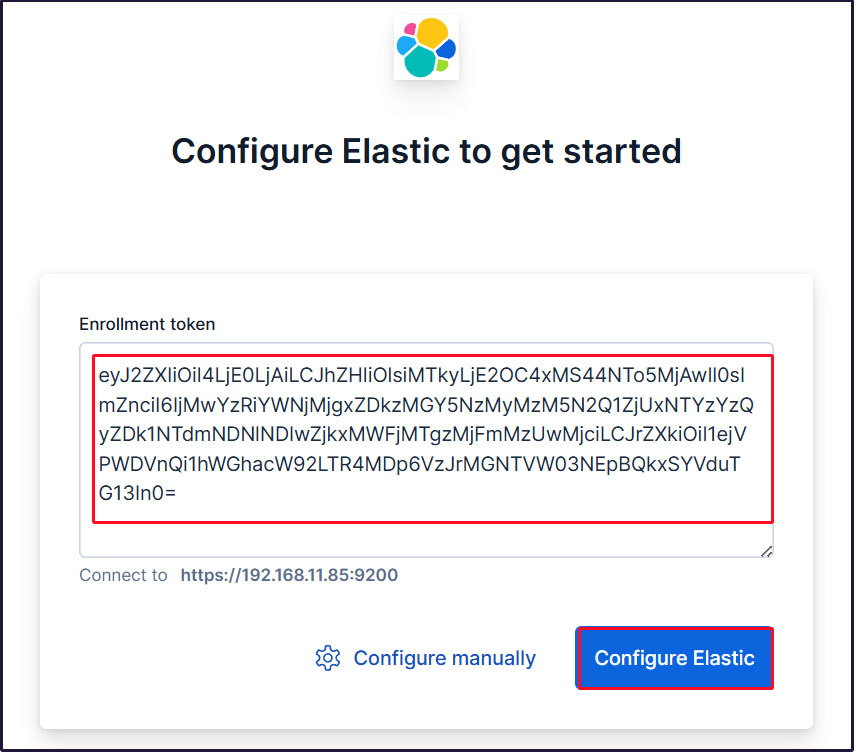
Paste the token, and Kibana will automatically connect to Elasticsearch.
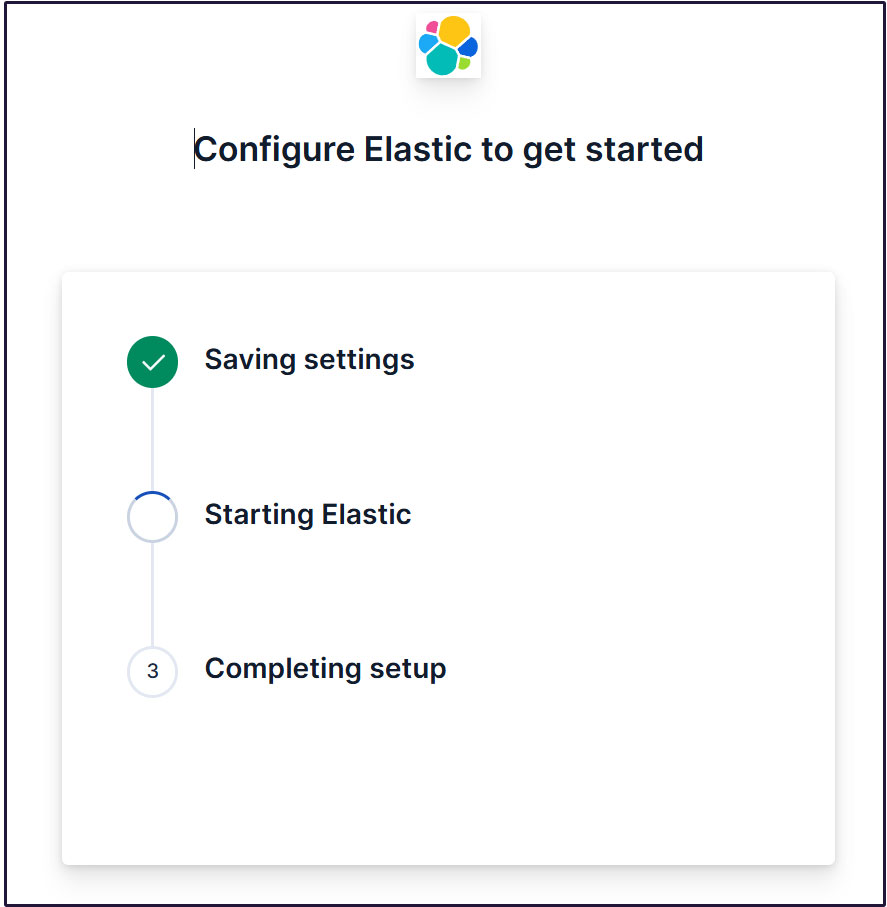
Click Configure Elastic. The settings will be saved, and Elasticsearch will be configured and restarted.
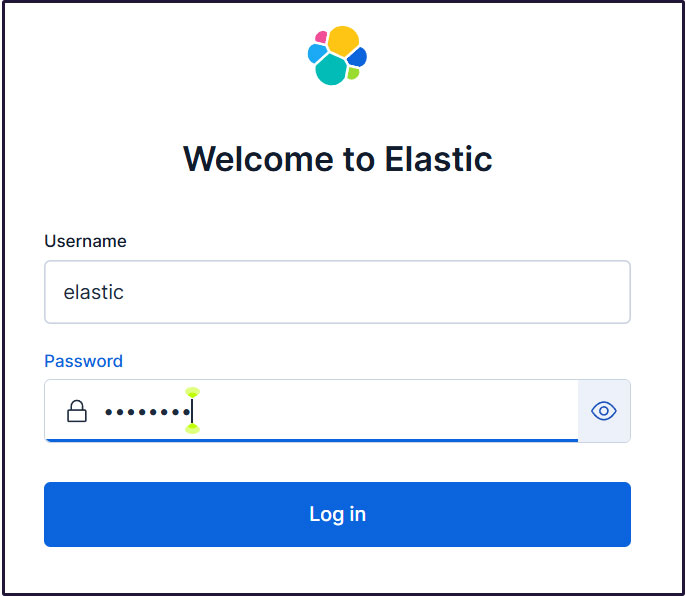
Proceed to the login page. Log in using the generated Elastic user credentials.
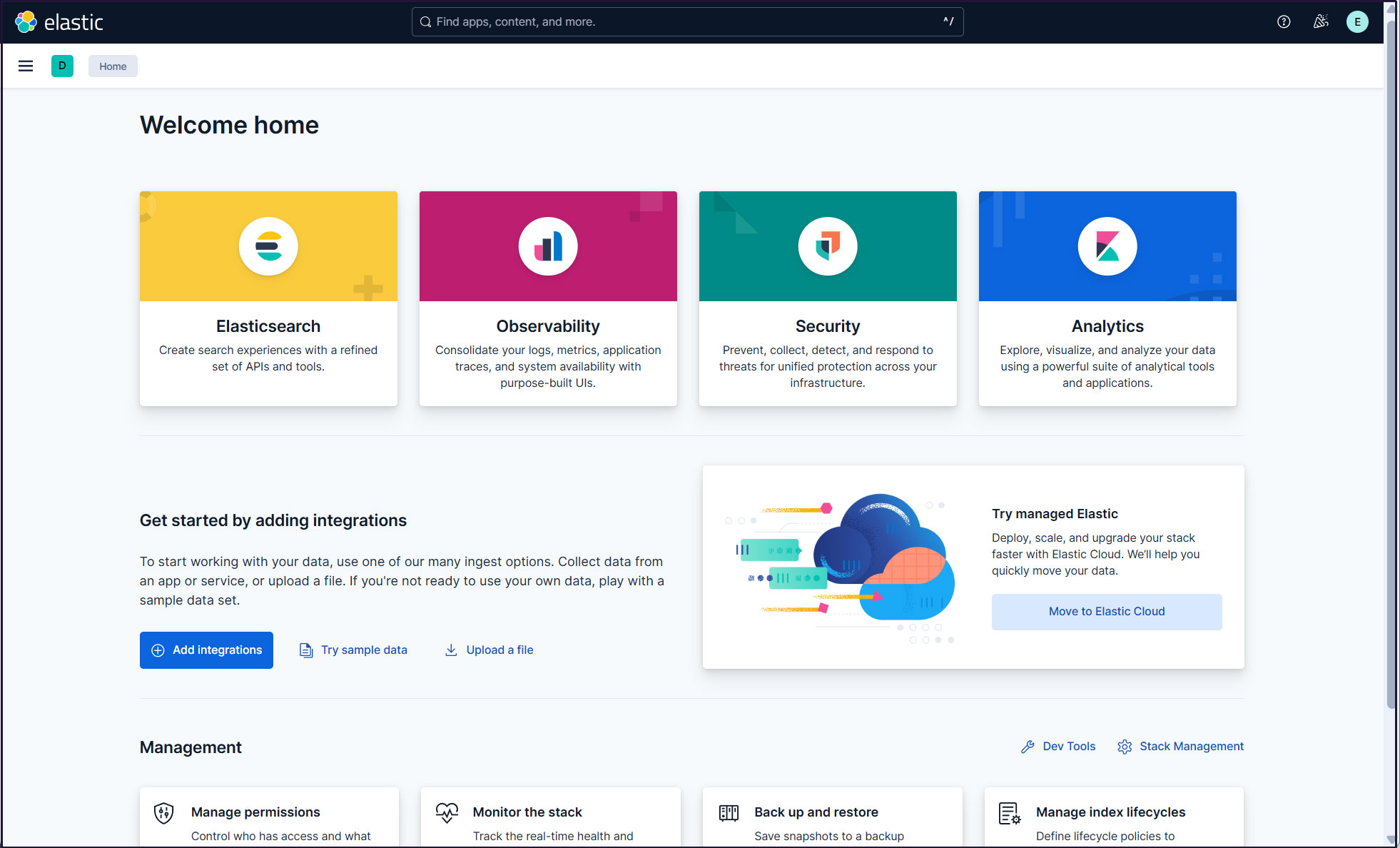
On the welcome page, click "Explore on my own" to proceed to the Kibana 9.x dashboard.

Installing Filebeat 9
To collect and monitor logs from Ubuntu 25.10 using the ELK Stack, you need to install Filebeat.
This task will be performed on the first server, Ubuntu 25.10, with the IP address 192.168.11.83.
①Install the Elastic Stack 9.x repository signing key
|
1 |
# apt update |
|
1 |
# apt install gnupg2 -y |
|
1 |
# wget -qO - https://artifacts.elastic.co/GPG-KEY-elasticsearch | gpg --dearmor -o /usr/share/keyrings/elasticsearch-keyring.gpg |
➁Install the Elastic Stack 9.x repository
|
1 |
# echo "deb [signed-by=/usr/share/keyrings/elasticsearch-keyring.gpg] https://artifacts.elastic.co/packages/9.x/apt stable main" | tee /etc/apt/sources.list.d/elastic-9.x.list |
update
|
1 |
# apt update |
➂Installing filebeat 9.x on Ubuntu 25.10
|
1 2 |
# apt install -y apt-transport-https # apt install filebeat -y |
④Filebeat Logging Configuration
The default Filebeat configuration file is located at /etc/filebeat/filebeat.yml.
To configure Filebeat to write logs to its own log file, enter the following setting in the configuration file:
|
1 2 3 4 5 6 7 8 9 |
# cat >> /etc/filebeat/filebeat.yml << 'EOL' logging.level: info logging.to_files: true logging.files: path: /var/log/filebeat name: filebeat keepfiles: 7 permissions: 0640 EOL |
⑤Connect Filebeat to the data processing system
Configure Filebeat to connect to the data processing system. In this case, it is Elasticsearch.
To send logs directly to Elasticsearch, edit the Filebeat configuration file and update the output configuration section.
Connecting to Elasticsearch 9 requires SSL and authentication.
Verify that you can connect to Elasticsearch port 9200/tcp (Port 9200 is open on the second server running Ubuntu 24.04).
|
1 2 3 4 5 |
# telnet 192.168.11.85 9200 Trying 192.168.11.85... Connected to 192.168.11.85. Escape character is '^]'. |
⑥Creating an Elasticsearch CA Certificate
Download the Elasticsearch CA certificate and save it to any directory (in this case, save it as /etc/filebeat/elastic-ca.crt).
|
1 2 3 |
# openssl s_client -connect 192.168.11.85:9200 \ -showcerts </dev/null 2>/dev/null | \ openssl x509 -outform PEM > /etc/filebeat/elastic-ca.crt |
Retrieve the credentials Filebeat uses for Elasticsearch authentication. In this case, use the credentials for the default superuser, the Elastic user.
|
1 |
# vi /etc/filebeat/filebeat.yml |
●Below the commented-out line #host: "localhost:5601" on line 137, add a line pointing to the private IP address and port of your Kibana instance.
host: "192.168.11.85:5601"
●Line 164 : Comment
#hosts: ["localhost:9200"]
●Line 165 :Enter the Elastic Stack IP address and Elasticsearch port number.
hosts: ["https://192.168.11.85:9200"]
●Line 171 : Uncomment
protocol: "https"
●Line 172 : Elasticsearch CA Certificate Specification
ssl.certificate_authorities: ["/etc/filebeat/elastic-ca.crt"]
●Uncomment lines 175 and 176, leave [username] as the default, and enter the password for the [elastic] user in [password].
username: "elastic"
password: “xxxxxxxxx"
⑤Configuration File Test
|
1 2 |
# filebeat test config Config OK |
⑦Enable the built-in Suricata module in Filebeats
|
1 |
# filebeat modules enable suricata |
The above command will change /etc/filebeat/modules.d/suricata.yml.disabled to /etc/filebeat/modules.d/suricata.yml, but the contents remain unchanged. Therefore, edit it as follows:
Modify modules.d/suricata.yml as follows:
|
1 2 3 4 5 6 7 8 9 10 11 12 13 14 |
# vi /etc/filebeat/modules.d/suricata.yml # Module: suricata # Docs: https://www.elastic.co/guide/en/beats/filebeat/main/filebeat-module-suricata.html - module: suricata # All logs eve: enabled: true var.paths: ["/var/log/suricata/eve.json"] # Set custom paths for the log files. If left empty, # Filebeat will choose the paths depending on your OS. #var.paths: |
⑧Set up the initial environment
Load SIEM dashboards and pipelines into Elasticsearch
Execute the filebeat setup command
|
1 |
# filebeat setup -e |
|
1 2 3 4 5 6 |
{"log.level":"info","@timestamp":"2026-01-13T13:05:58.661+0900","log.logger":"modules","log.origin":{"function":"github.com/elastic/beats/v7/filebeat/fileset.LoadPipeline","file.name":"fileset/pipelines.go","file.line":134},"message":"Elasticsearch pipeline loaded.","service.name":"filebeat","pipeline":"filebeat-9.2.3-suricata-eve-pipeline","ecs.version":"1.6.0"} {"log.level":"info","@timestamp":"2026-01-13T13:05:58.725+0900","log.logger":"modules","log.origin":{"function":"github.com/elastic/beats/v7/filebeat/fileset.LoadPipeline","file.name":"fileset/pipelines.go","file.line":134},"message":"Elasticsearch pipeline loaded.","service.name":"filebeat","pipeline":"filebeat-9.2.3-suricata-eve-dns","ecs.version":"1.6.0"} {"log.level":"info","@timestamp":"2026-01-13T13:05:58.775+0900","log.logger":"modules","log.origin":{"function":"github.com/elastic/beats/v7/filebeat/fileset.LoadPipeline","file.name":"fileset/pipelines.go","file.line":134},"message":"Elasticsearch pipeline loaded.","service.name":"filebeat","pipeline":"filebeat-9.2.3-suricata-eve-dns-answer-v1","ecs.version":"1.6.0"} {"log.level":"info","@timestamp":"2026-01-13T13:05:58.844+0900","log.logger":"modules","log.origin":{"function":"github.com/elastic/beats/v7/filebeat/fileset.LoadPipeline","file.name":"fileset/pipelines.go","file.line":134},"message":"Elasticsearch pipeline loaded.","service.name":"filebeat","pipeline":"filebeat-9.2.3-suricata-eve-dns-answer-v2","ecs.version":"1.6.0"} {"log.level":"info","@timestamp":"2026-01-13T13:05:58.916+0900","log.logger":"modules","log.origin":{"function":"github.com/elastic/beats/v7/filebeat/fileset.LoadPipeline","file.name":"fileset/pipelines.go","file.line":134},"message":"Elasticsearch pipeline loaded.","service.name":"filebeat","pipeline":"filebeat-9.2.3-suricata-eve-tls","ecs.version":"1.6.0"} {"log.level":"info","@timestamp":"2026-01-13T13:05:58.968+0900","log.logger":"modules","log.origin":{"function":"github.com/elastic/beats/v7/filebeat/fileset.LoadPipeline","file.name":"fileset/pipelines.go","file.line":134},"message":"Elasticsearch pipeline loaded.","service.name":"filebeat","pipeline":"filebeat-9.2.3-suricata-eve-http","ecs.version":"1.6.0"} |
⑨Start the Filebeat service
|
1 |
# systemctl start filebeat.service |
⑩Check in Kibana
I will log back into Kibana.
accsess http://192.168.11.85:5601
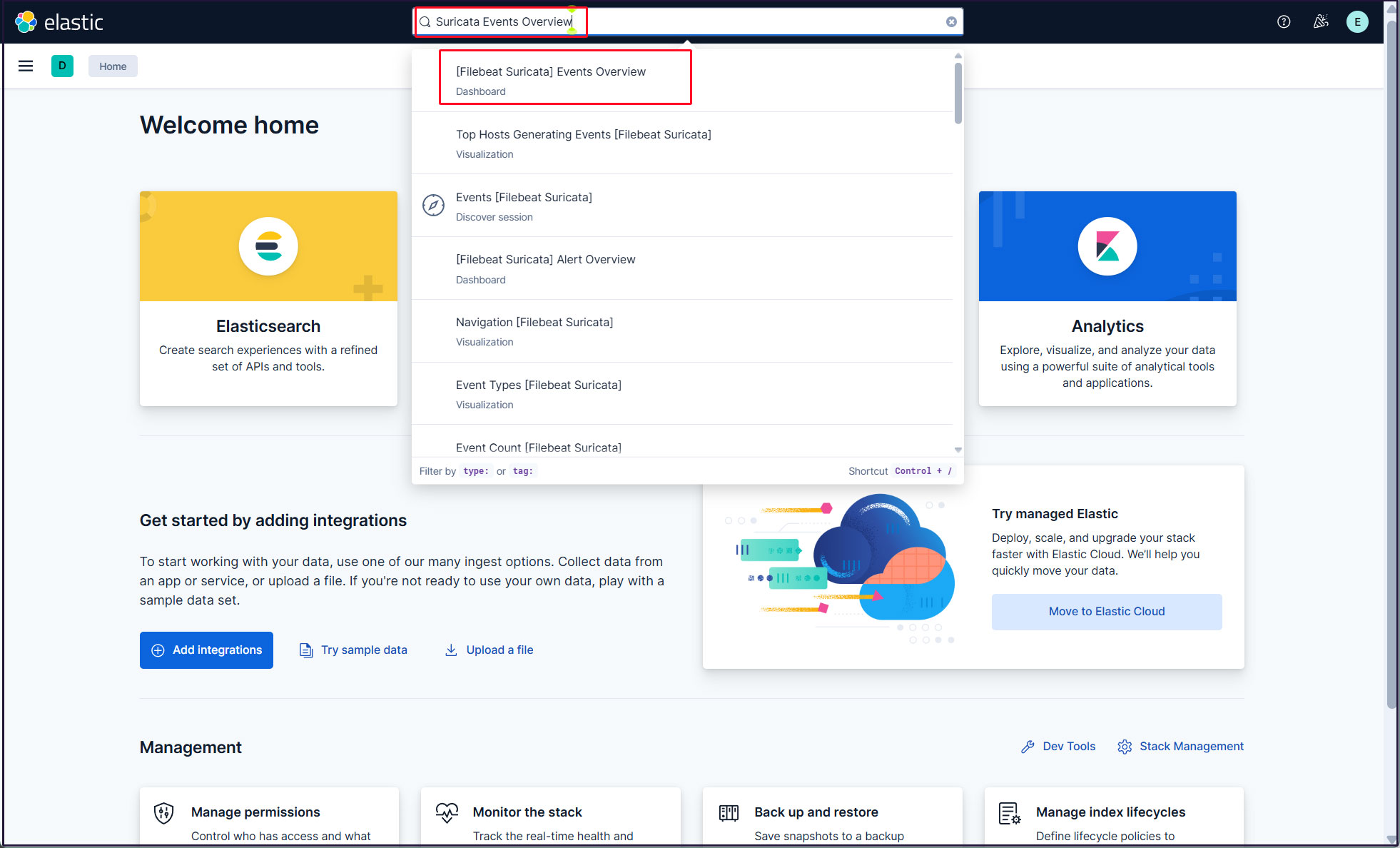
Enter "Suricata Events Overview" in the top search field, then click [Filebeat Suricata]Events Overview.
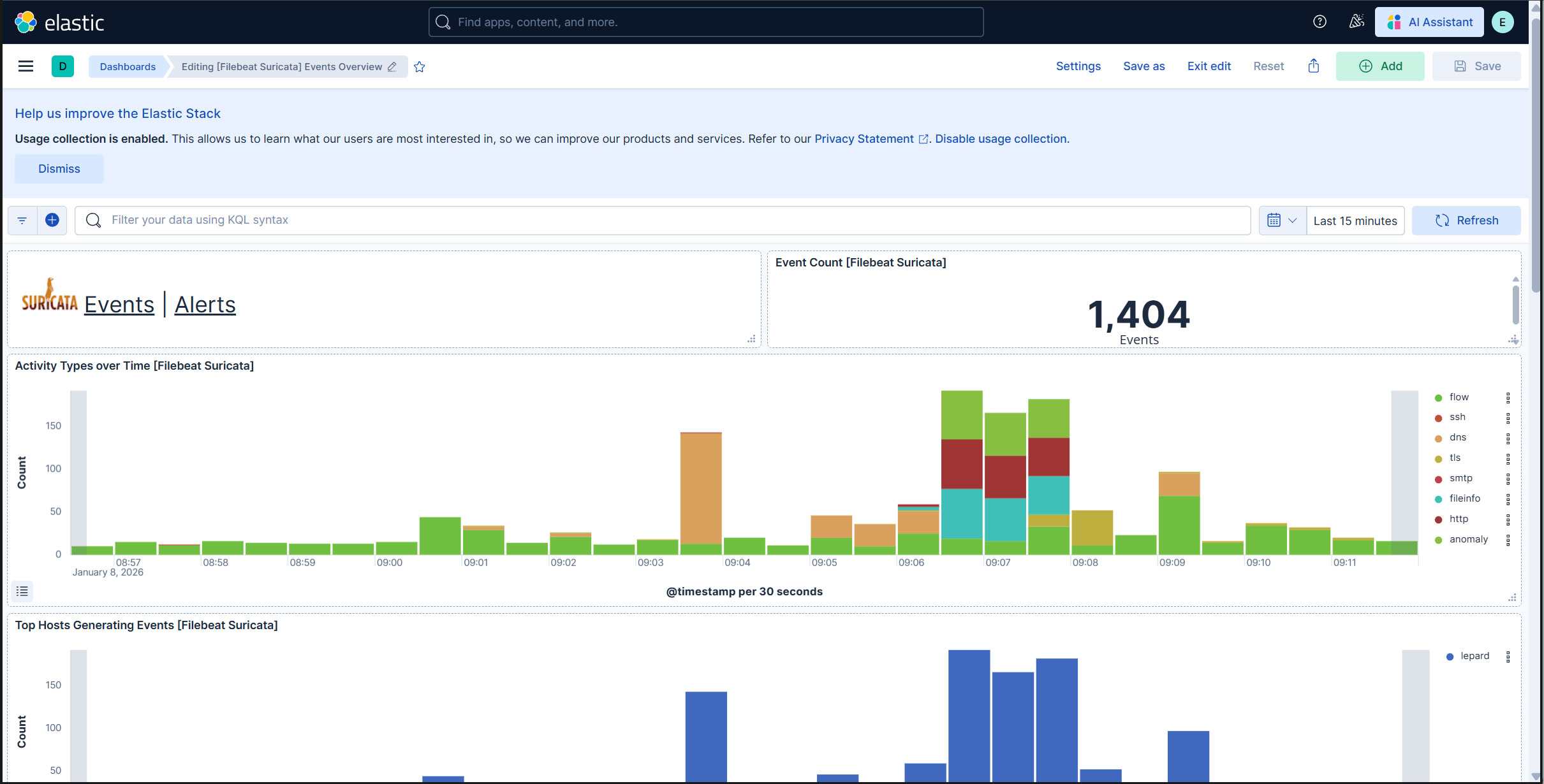
All Suricata events from the past 15 minutes are displayed.
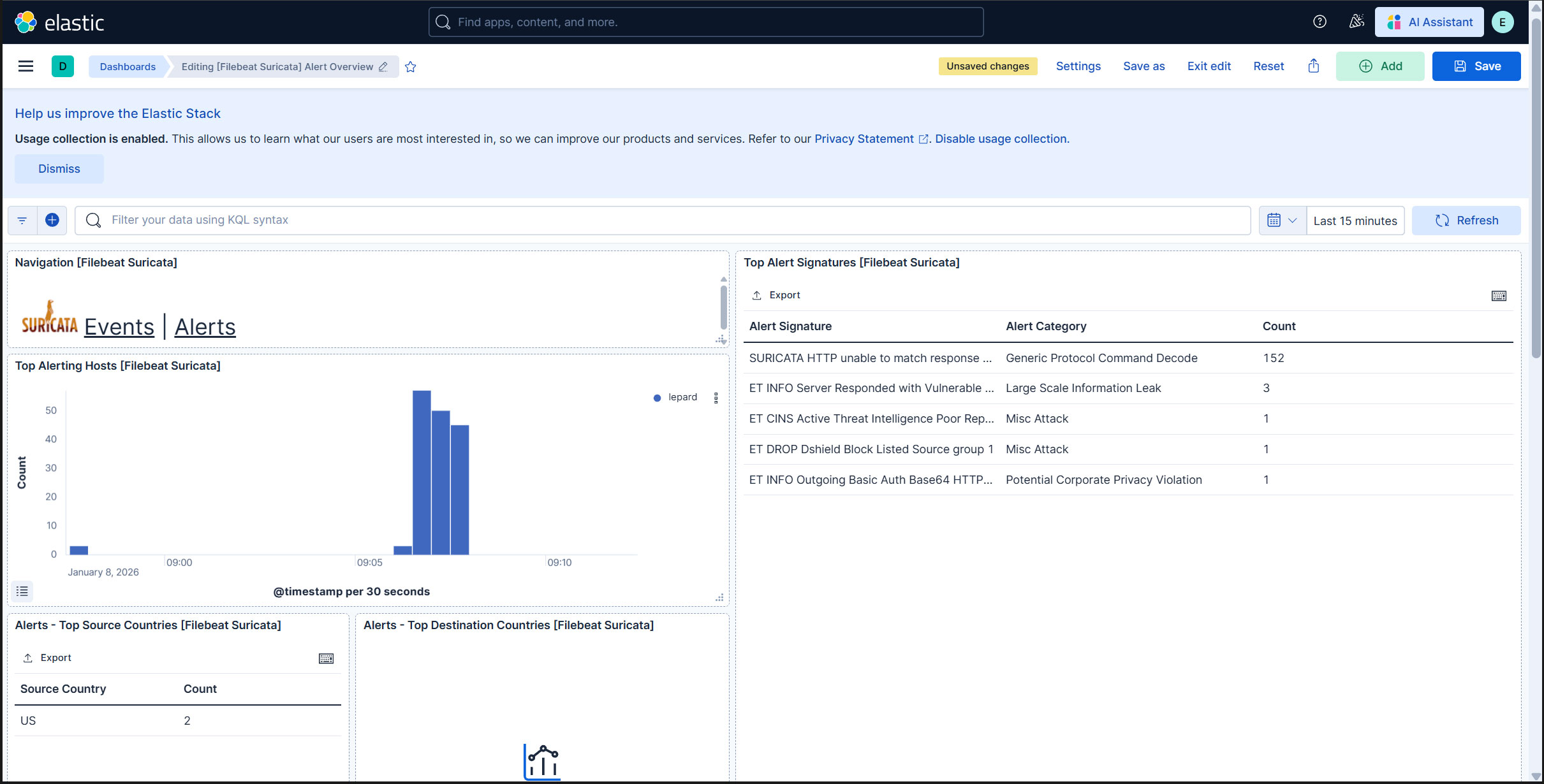
To display alerts for malicious traffic, click the "Alerts" text next to the Suricata logo.
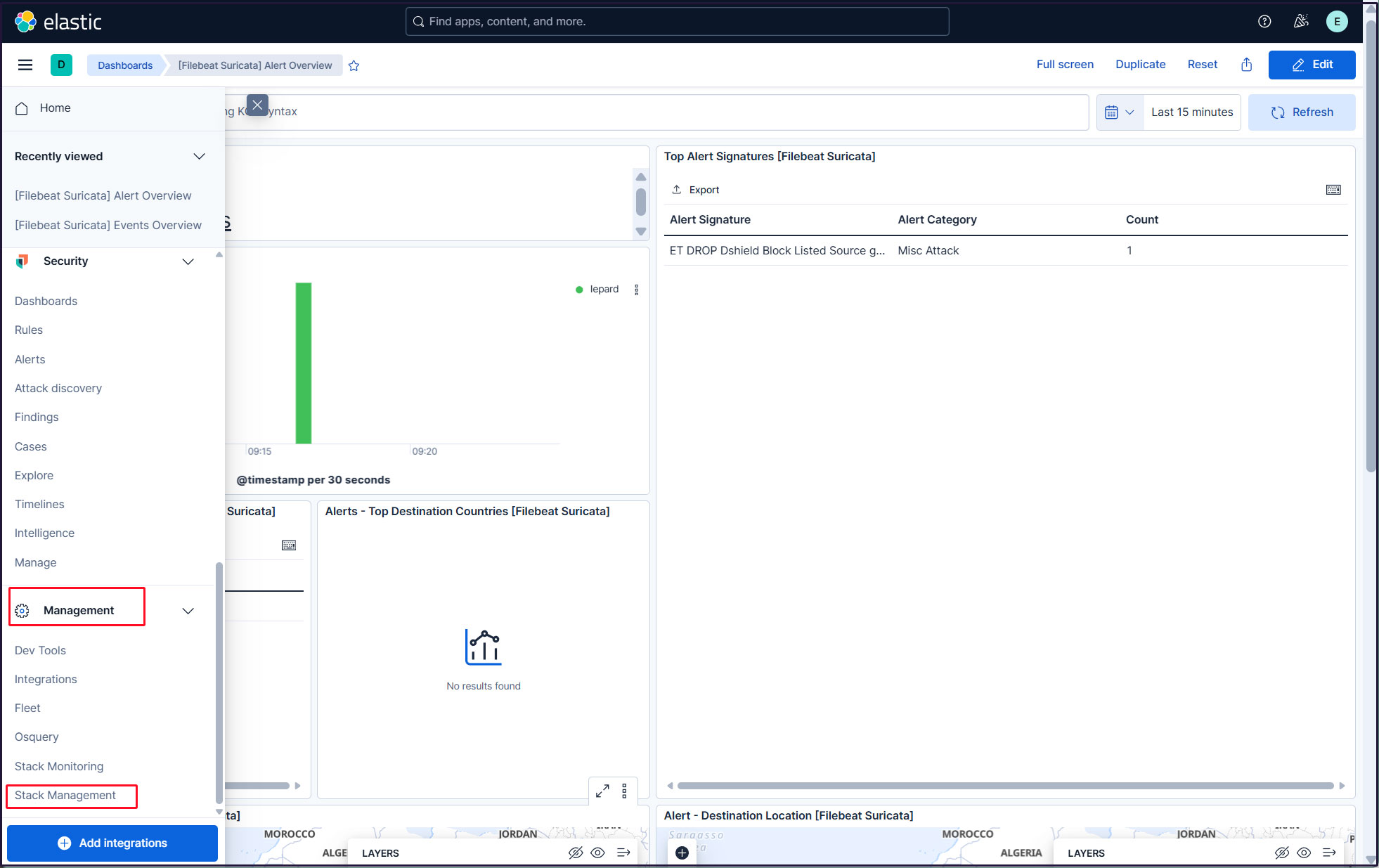
Create a new user account so that you do not need to use the elastic superuser account.
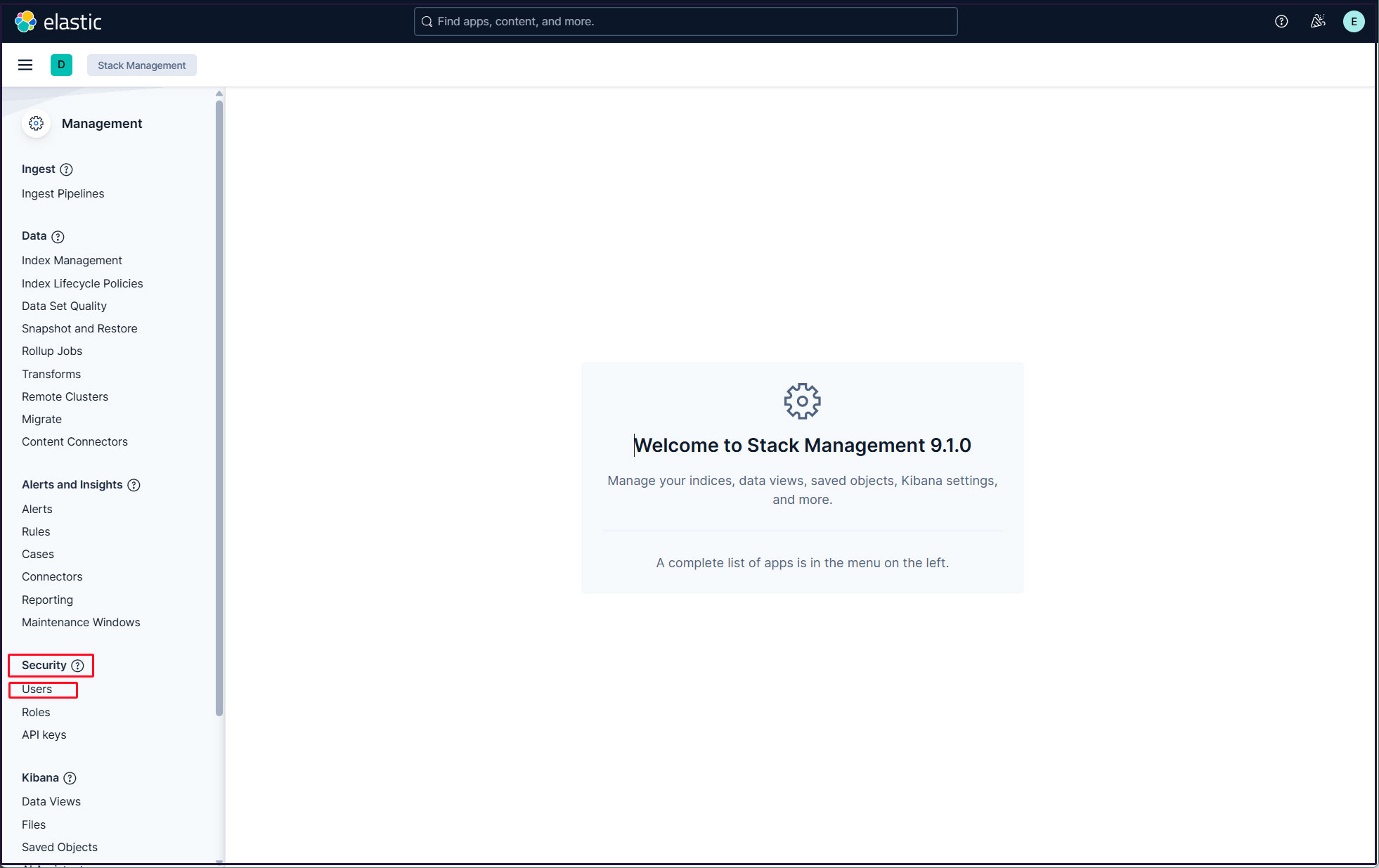
Click the three horizontal lines icon in the upper left corner, then select [Stack Management] under [Management].
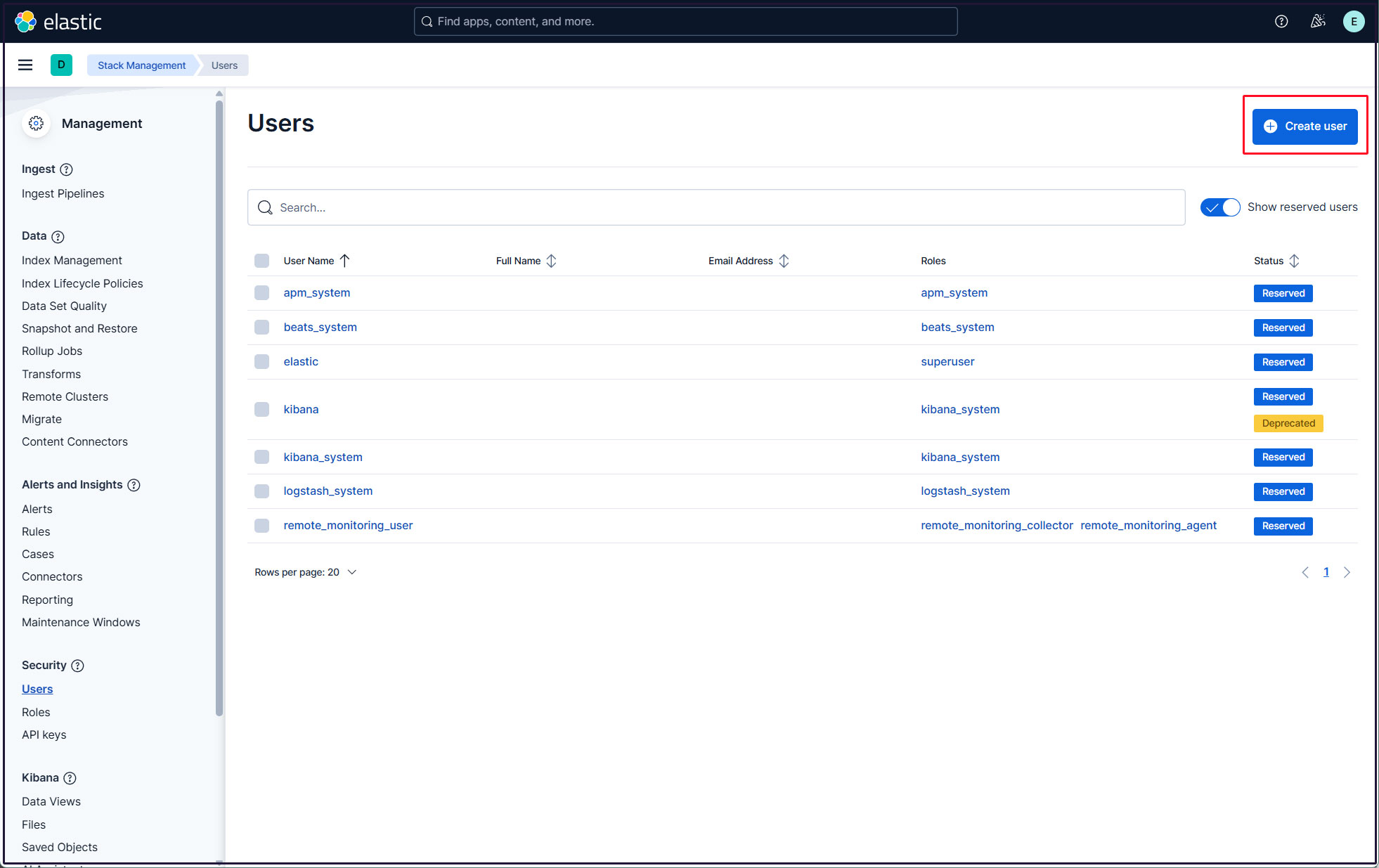
Select "Security" and "Users"
Click the "Create user" button in the upper right corner.
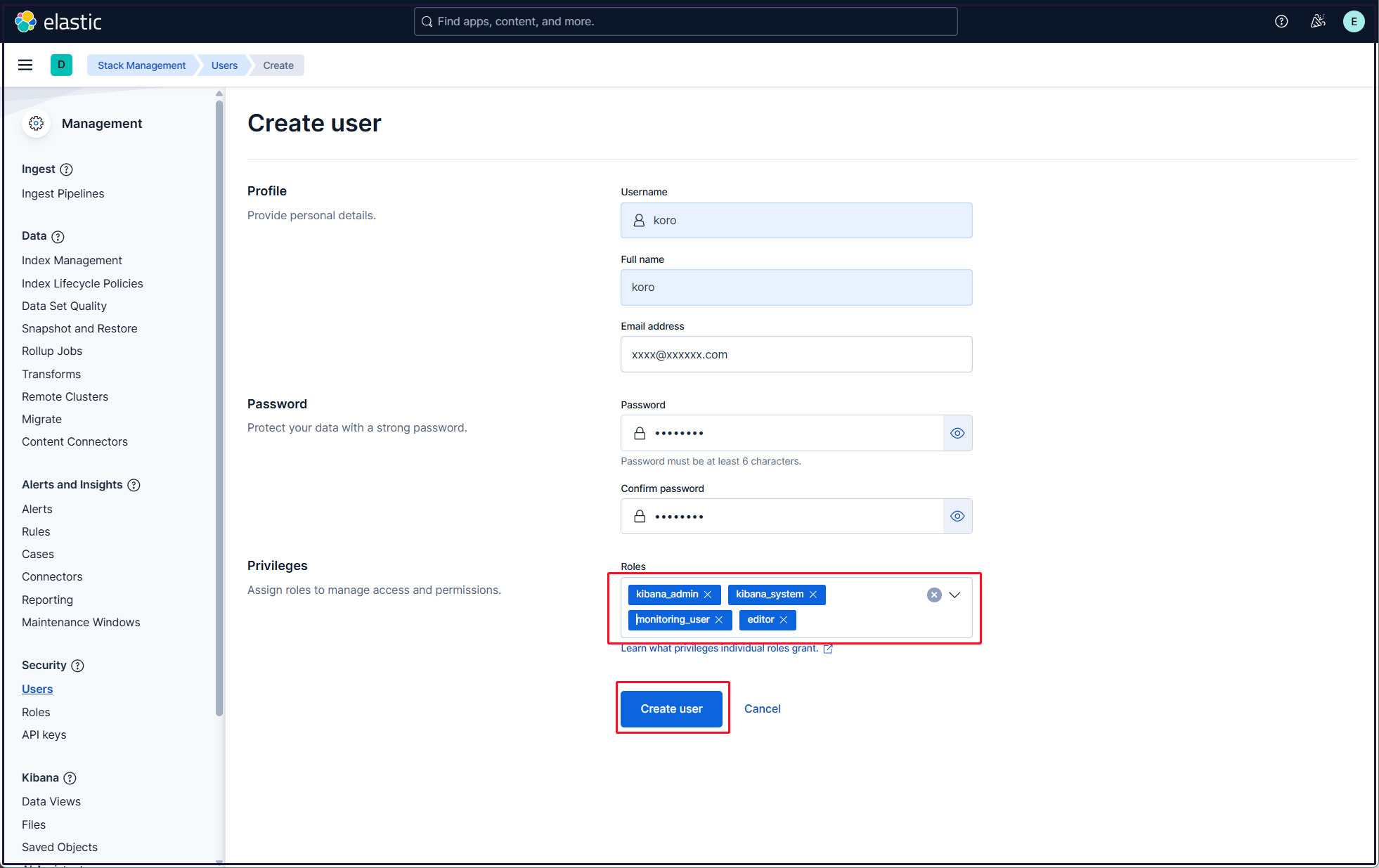
Enter the new user information, assign the kibana_admin, kibana_system, monitoring_user, and editor roles under Privileges, and finally click [Create user].
Log out of the current profile and verify that you can log in with the newly created user account.