

1.Remote connection by SSH
SSH is a service for connecting remotely to a server, basically running immediately after OS installation, but the default settings are somewhat insecure.
Here you can change the default settings to increase the security of ssh connections.
1.1 SSH service configuration file changes
The SSH service configuration file is "/etc/ssh/sshd_config".
# vi /etc/ssh/sshd_config
# $OpenBSD: sshd_config,v 1.100 2016/08/15 12:32:04 naddy Exp $

# This is the sshd server system-wide configuration file. See
# sshd_config(5) for more information.

# This sshd was compiled with PATH=/usr/local/bin:/usr/bin

# The strategy used for options in the default sshd_config shipped with
# OpenSSH is to specify options with their default value where
# possible, but leave them commented. Uncommented options override the
# default value.

# If you want to change the port on a SELinux system, you have to tell
# SELinux about this change.
# semanage port -a -t ssh_port_t -p tcp #PORTNUMBER
#
#Port 22
Port 2244
#AddressFamily any
ListenAddress 0.0.0.0
#ListenAddress ::

HostKey /etc/ssh/ssh_host_rsa_key
#HostKey /etc/ssh/ssh_host_dsa_key
HostKey /etc/ssh/ssh_host_ecdsa_key
HostKey /etc/ssh/ssh_host_ed25519_key

# Ciphers and keying
#RekeyLimit default none

# Logging
#SyslogFacility AUTH
SyslogFacility AUTHPRIV
#LogLevel INFO

# Authentication:

#LoginGraceTime 2m
PermitRootLogin no
#StrictModes yes
#MaxAuthTries 6
#MaxSessions 10
Line 17 "Port 22" This time change to "Port 2244" and proceed
Delete the "#" in line 20 "#ListenAddress 0.0.0.0"
Change "PermitRootLogin yes" to "PermitRootLogin no" on line 39.
The root user can log in to the server with administrator privileges if the user name is already known and the password is known, so the settings are set to deny this.
SSH restart
# systemctl restart sshd.service
If this is not done, the next time you reboot, you will not be able to connect remotely via SSH. Please free SSH port 2244 in the following firewall settings.
2.How to set up a firewall (firewalld)
To briefly explain "firewalld," when setting communication control policies, communication permission/blocking rules are applied to predefined zones, and these zones are then assigned to each NIC (network adapter).
2.1 How to use the "firewall-cmd" command to control "firewalld"
1)Command to check the status and settings of "firewalld"
①Check firewalld operation status
# firewall-cmd --state
running
If "firewalld" is running, the message "running" will be displayed; if it is not running, the message "not running" will be displayed.
OR
# systemctl status firewalld
● firewalld.service - firewalld - dynamic firewall daemon
Loaded: loaded (/usr/lib/systemd/system/firewalld.service; enabled; vendor preset: enabled)
Active: active (running) since Tue 2022-06-07 22:09:30 JST; 4min 27s ago
Docs: man:firewalld(1)
Main PID: 993 (firewalld)
Tasks: 2 (limit: 11170)
Memory: 34.1M
CGroup: /system.slice/firewalld.service
mq993 /usr/libexec/platform-python -s /usr/sbin/firewalld --nofork --nopid
※If stopped
Active: inactive (dead) is displayed, indicating that the firewall is stopped
➁View default zone settings
# firewall-cmd --list-all
public (active)
  target: default
  icmp-block-inversion: no
  interfaces: ens33
  sources:
  services: dhcpv6-client ssh
  ports:
  protocols:
  masquerade: no
  forward-ports:
  source-ports:
  icmp-blocks:
  rich rules:
In the above example, we can see that the services "dhcpv6-client" and "ssh" are allowed, etc.
③About the "--permanent" option
To prevent the settings from disappearing when the server is restarted or the "firewalld" service is restarted, the
The "--permanent" option must be used to configure the settings.
If the "--permanent" option is specified, the setting is not reflected in "firewalld" as it is, so it is necessary to reflect the setting by "fiewall-cmd --reload".
As an example, to use the HTTP service permanently without initialization even if the system is rebooted
# firewall-cmd --add-service=http --permanent
# firewall-cmd --reload
④How to start/stop
Since "firewalld" is controlled by "systemd", use the "systemctl" command to start and stop it.
Start firewalld
# systemctl start firewalld
Stopping firewalld
# systemctl stop firewalld
2.2 Release modified SSH port 2244
# firewall-cmd --add-port=2244/tcp --permanent
# firewall-cmd --reload
# firewall-cmd --list-all
public (active)
  target: default
  icmp-block-inversion: no
  interfaces: ens33
  sources:
  services: dhcpv6-client ssh
  ports: 2244/tcp
  protocols:
  masquerade: no
  forward-ports:
  source-ports:
  icmp-blocks:
  rich rules:
2244 ports have been added
3.Remote connection from Windows
Configuration in Windows
Start the setup for remote connection from Windows, using "Tera Term" as the terminal emulator.
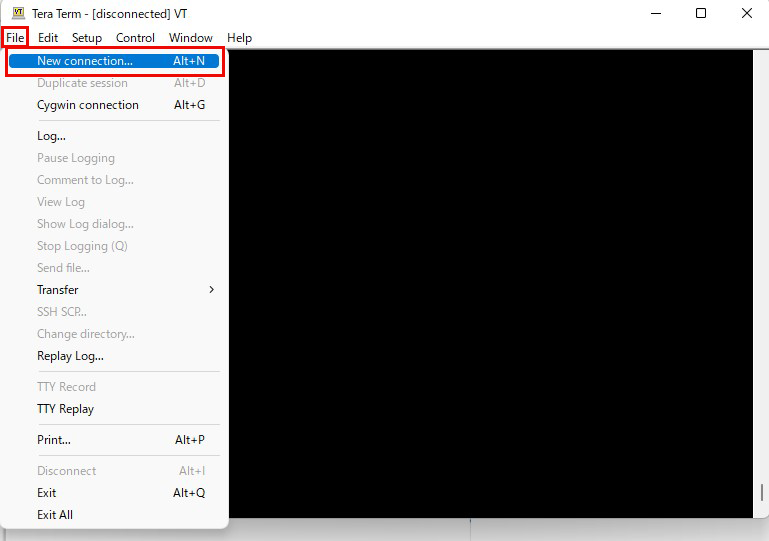
Start Tera Term, cancel the startup screen, and then select "New Connection" from "File" in the Tera Term menu.
Enter your own settings in the "Server IP Address" and "TCP Port Number" fields. Finally, click "OK.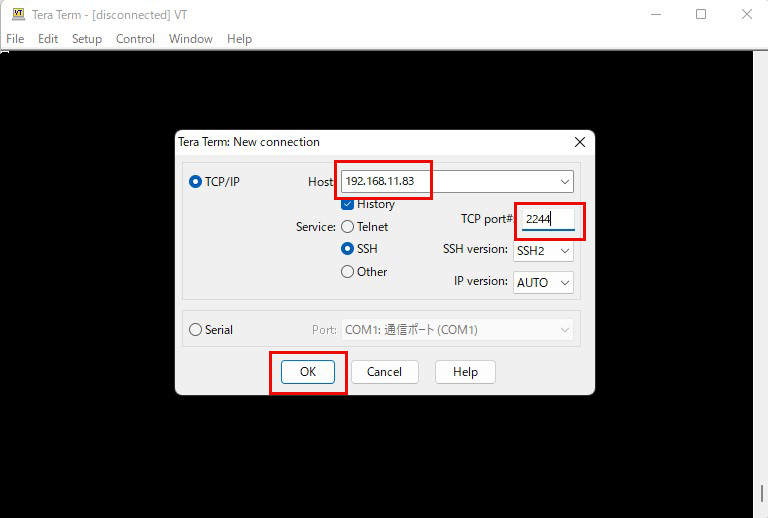
After clicking "OK," click "Continue" on the security confirmation screen.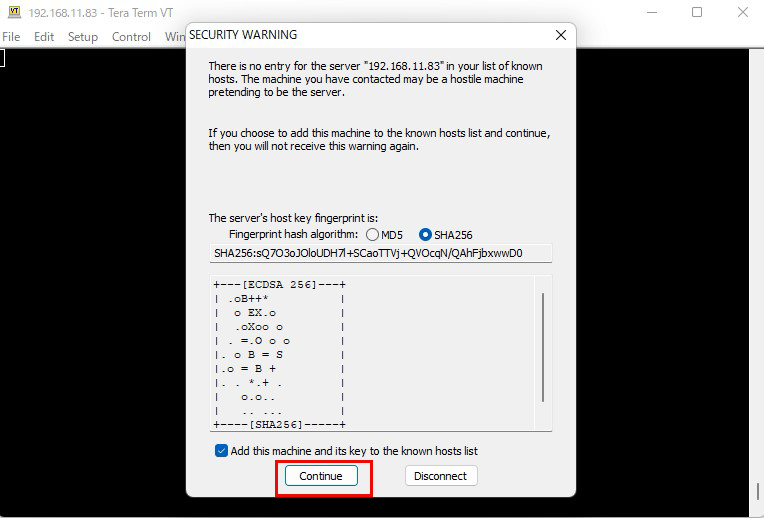
Enter "User name" "Passphrase" and click "OK".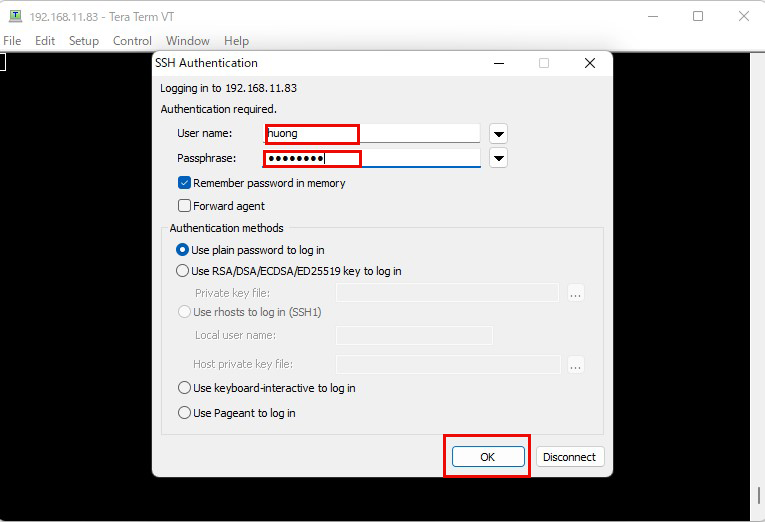
If the information is correct, you should be able to log in normally as shown below.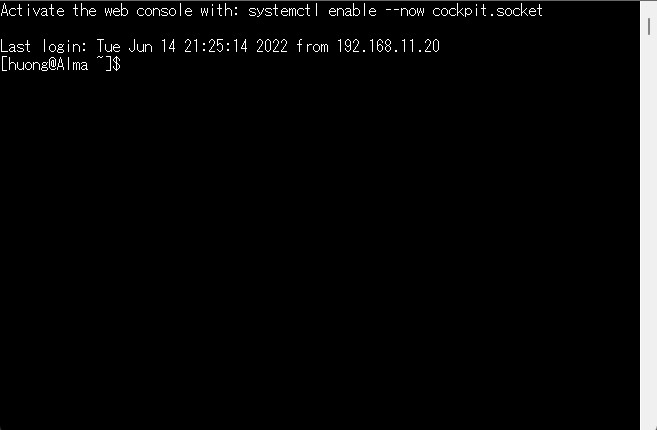
4.NTP Server Settings
Build an NTP server to synchronize the server time with Japan Standard Time
①Chrony Installation and Configuration
# yum -y install chrony
# vi /etc/chrony.conf
Line 3-6 : Comment out and add under it
#server 0.centos.pool.ntp.org iburst
#server 1.centos.pool.ntp.org iburst
#server 2.centos.pool.ntp.org iburst
#server 3.centos.pool.ntp.org iburst
server ntp.nict.jp iburst
server ntp1.jst.mfeed.ad.jp iburst
server ntp2.jst.mfeed.ad.jp iburst
# systemctl enable chronyd.service
# systemctl restart chronyd.service
# firewall-cmd --add-service=ntp --permanent
# firewall-cmd --reload
# chronyc sources
MS Name/IP address         Stratum Poll Reach LastRx Last sample
===============================================================================
^* ntp-a2.nict.go.jp             1   6    17    19   +149us[ -568us] +/- 6950us
^- ntp1.jst.mfeed.ad.jp          2   6    17    19  -2196us[-2913us] +/-   54ms
^- ntp2.jst.mfeed.ad.jp          2   6    17    19  +1407us[ +690us] +/-   65ms
If it is marked with *, it has been synchronized.