

公開鍵、秘密鍵ペアの作成
OpenSSH 使って Linux サーバに接続するユーザの公開鍵と秘密鍵のペアを作成します。
鍵ペアの作成は ssh-keygen をを使います。
公開鍵と秘密鍵のペアの作成はリモートログインするユーザ権限で実行します。
作成先・ファイル名を指定しなければ、 /home/(ユーザ名)/.ssh/ に id_ed25519, id_ed25519.pub が作成される。 途中、鍵用のパスワードも入力する。
|
1 2 3 4 5 6 7 8 9 10 11 12 13 14 15 16 17 18 19 20 21 22 23 24 25 26 27 28 |
# su - huong JOHN PAUL ELECTED POPE!! (George and Ringo miffed.) huong@Lepard:~$ ssh-keygen -t ed25519 Generating public/private ed25519 key pair. Enter file in which to save the key (/home/huong/.ssh/id_ed25519): Created directory '/home/huong/.ssh'. Enter passphrase (empty for no passphrase): ←パスワード Enter same passphrase again: ←再度パスワード Your identification has been saved in /home/huong/.ssh/id_ed25519 Your public key has been saved in /home/huong/.ssh/id_ed25519.pub The key fingerprint is: SHA256:iUVyHjgxzM3ddeM1CvUJ0pcywF2NKti3O5as/RbBQeA huong@Lepard.korodes.com The key's randomart image is: +--[ED25519 256]--+ | o+=+..=**+==| | =*o..o+=B+*| | .oo E++= | | o..o o o | | . S o . . | | . . | | . o . | | .* . | | .o.+. | +----[SHA256]-----+ |
|
1 2 3 |
$ cat ~/.ssh/id_ed25519.pub >> ~/.ssh/authorized_keys $ chmod 600 ~/.ssh/authorized_keys $ chmod 700 ~/.ssh/ |
作成した秘密鍵id_ed25519 をwinSCPでWindowsの[c:\USERS\ユーザー\.ssh\]配下に保存する
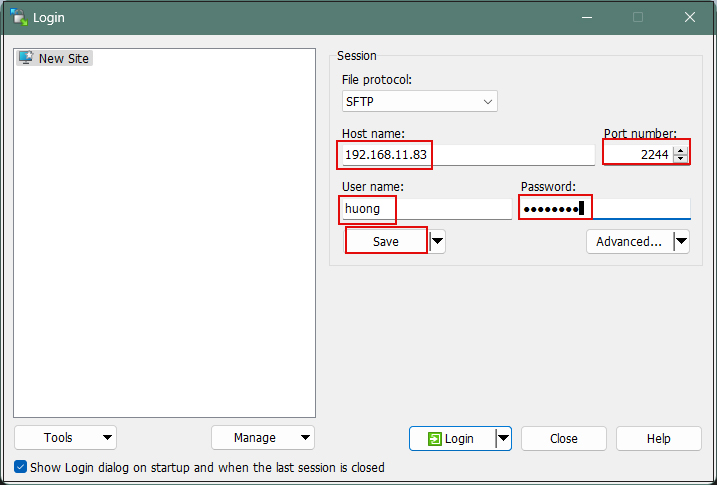
Winscpを起動
Host name : サーバーのIPアドレス
Port number : SSHポート
User name : サーバーのログインユーザー
Password : 同上ユーザーのパスワード
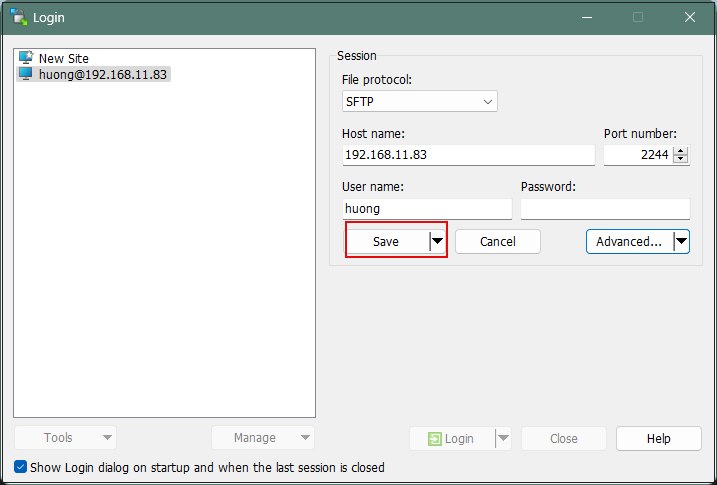
を入力し、「Save」
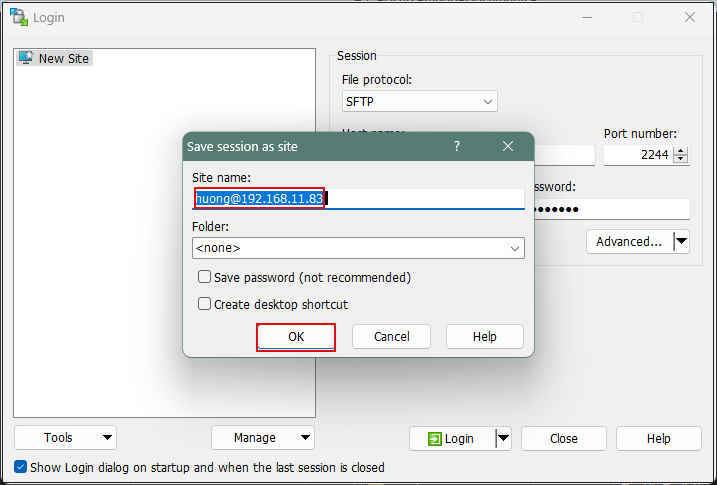
Site name : 任意の名前
「OK」クリック
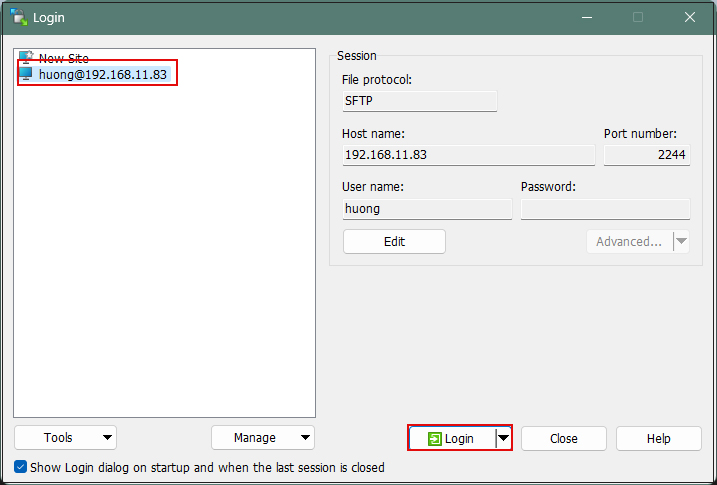
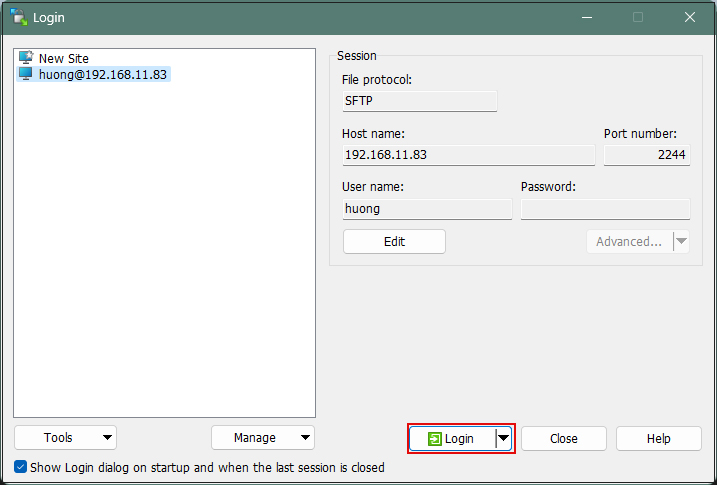
該当サーバーを確認後、「Login」クリック
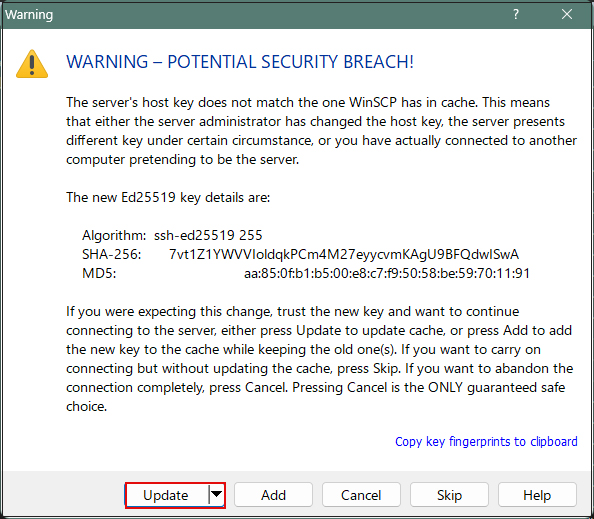
下記画面が出れば「Update」クリック
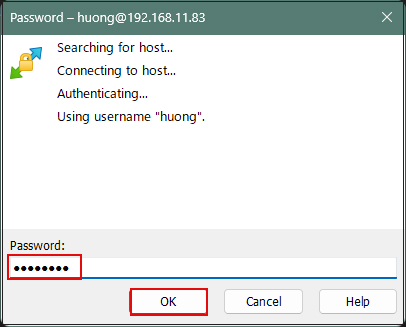
Passwordの欄にはログインユーザーのパスワード
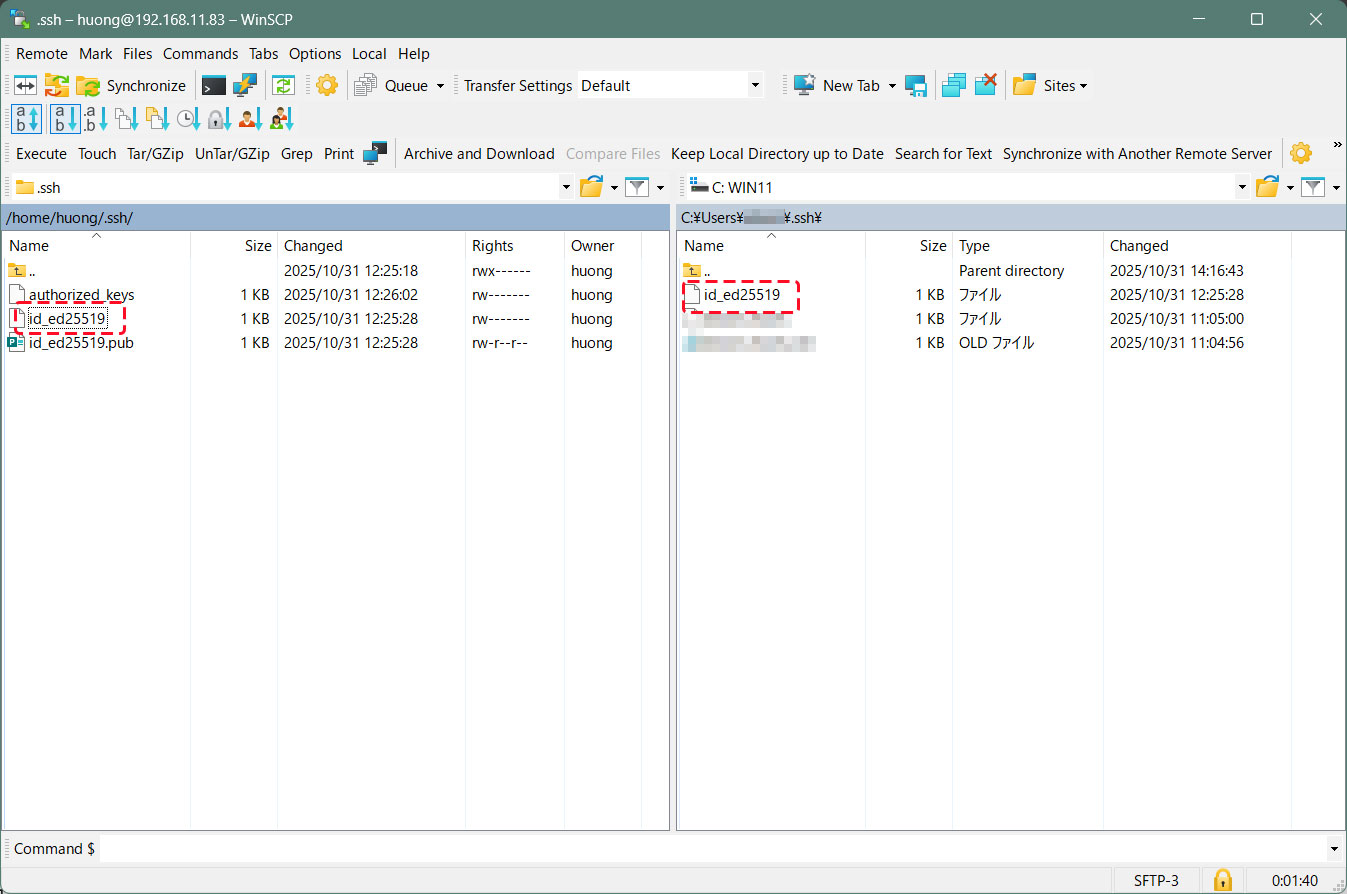
接続されると、左欄サーバー側、右欄PC(Windows)側になる。
.sshディレクトリーにある"id_ed25519"ファイルを右欄Windowsの[c:\USERS\ユーザー\.ssh\]配下にコピーする
SSH 設定ファイルの編集
パスワード認証をできないようにするため、 SSH 設定ファイルを編集する。
今度は一般ユーザではなく、 su - で rootになり行う。
|
1 2 3 4 5 6 7 8 |
$ su - Password: # vi /etc/ssh/sshd_config # 57行目 : パスワード認証不可に変更 PasswordAuthentication no # /etc/rc.d/rc.sshd stop # /etc/rc.d/rc.sshd start |
Tabby Terminalで接続する方法
オプション[-i c:\USERS\xxxxx\.ssh\id_ed25519]でkeyを指定する
C:\Users\xxxxx>ssh huong@192.168.11.83 -p 2244 -i c:\USERS\xxxxx\.ssh\id_ed25519
Enter passphrase for key 'c:\USERS\xxxxx\.ssh\id_ed25519': [公開鍵の作成時作成したパスワード]
Last login: Tue Dec 23 11:36:03 2025 from 192.168.11.6
Linux 5.15.193.
An elephant is a mouse with an operating system.
huong@Lepard:~$
PuTTYgen を使った秘密鍵の作成
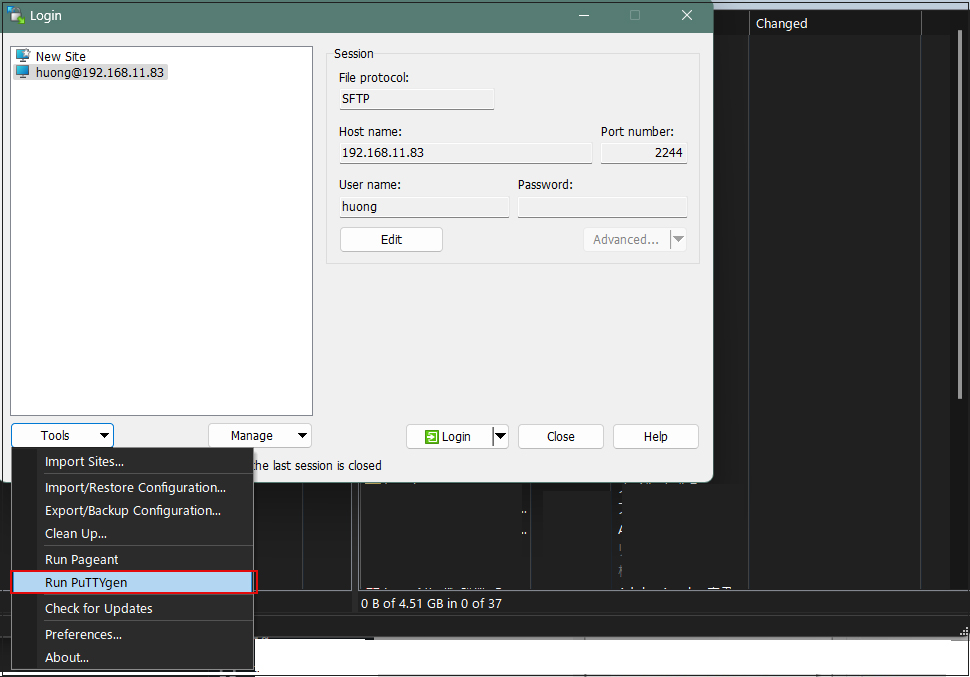
Winscpを起動し該当サーバーを選択「Tools」からRun Puttygen を起動する
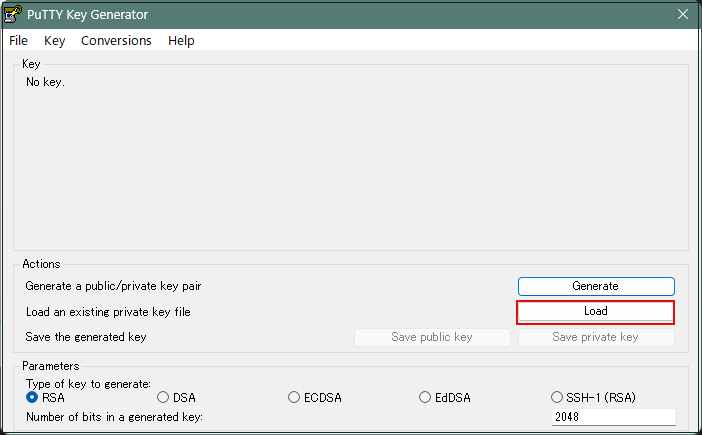
Loadをクリック
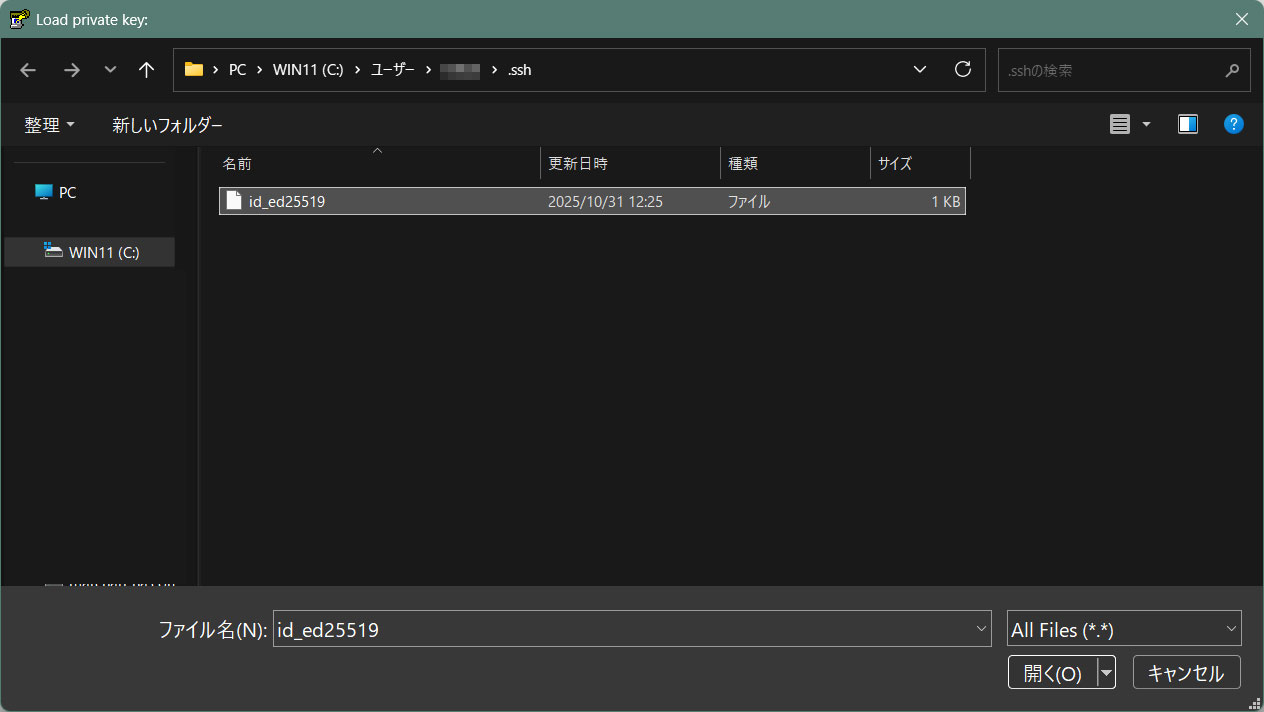
[ ファイルを開くダイアログ ] が開くのでファイルの種類を [ All Files (*.*) ] に変更して Linux サーバから転送した秘密鍵 id_ed25519 を読み込みます。
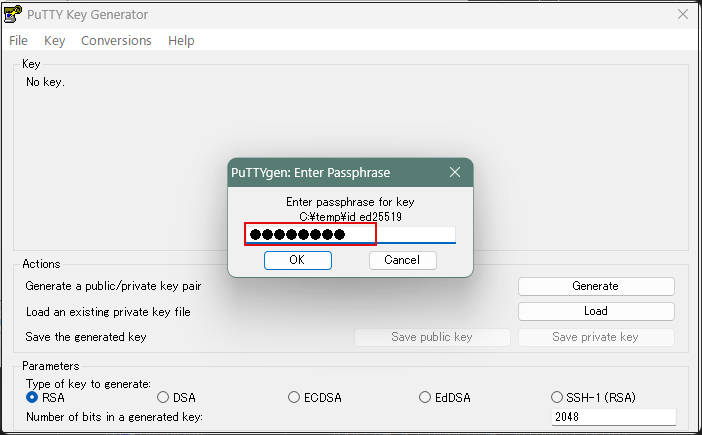
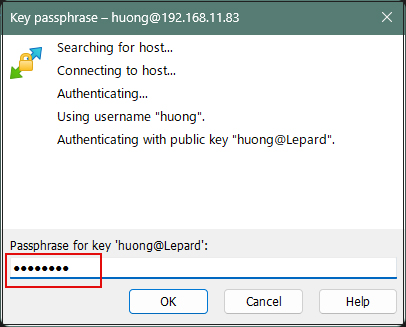
パスワードは上記「公開鍵、秘密鍵ペアの作成」で設定したパスワード
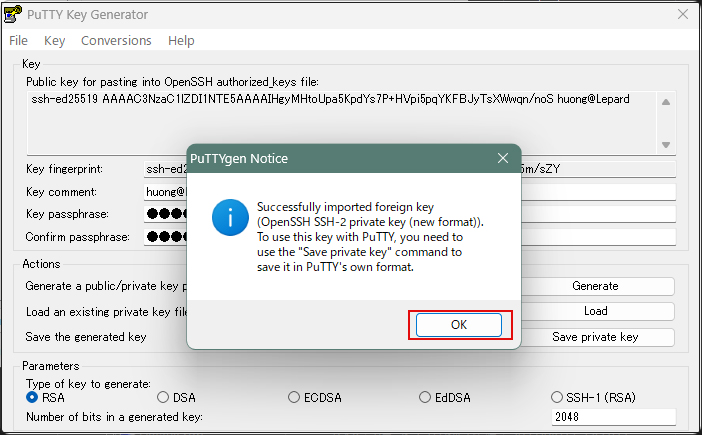
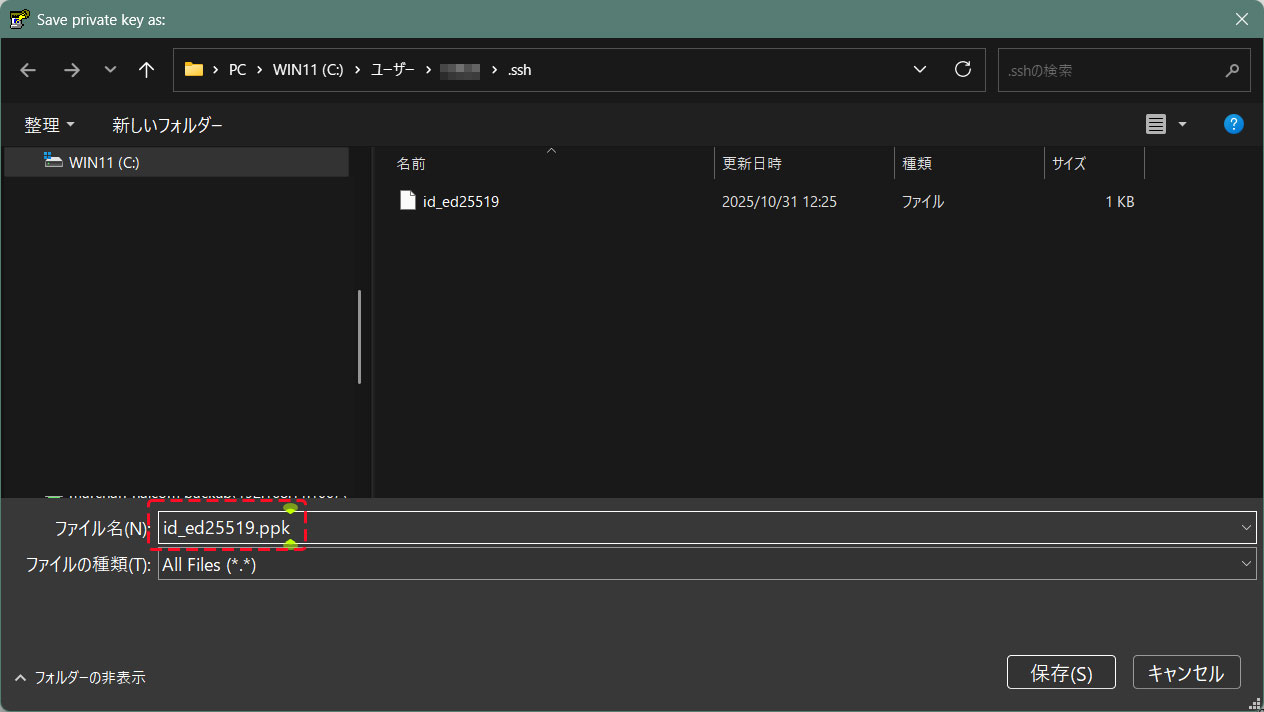
「Save private key」をクリック
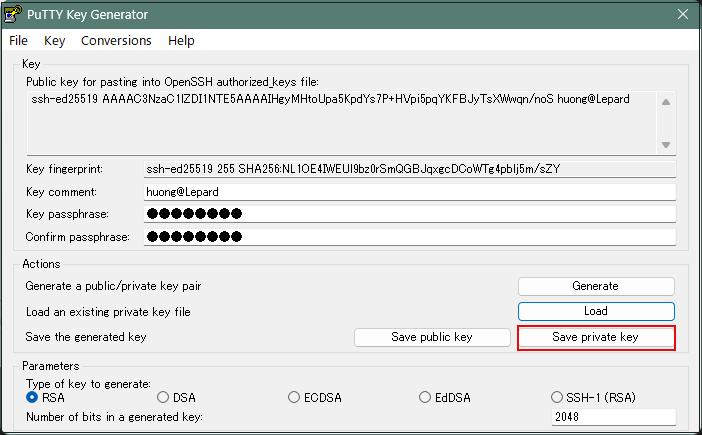
Windows側に先ほど保存した「id_ed25519」と同じところに拡張子「.ppk」として「id_ed25519.ppk」の名称で保存
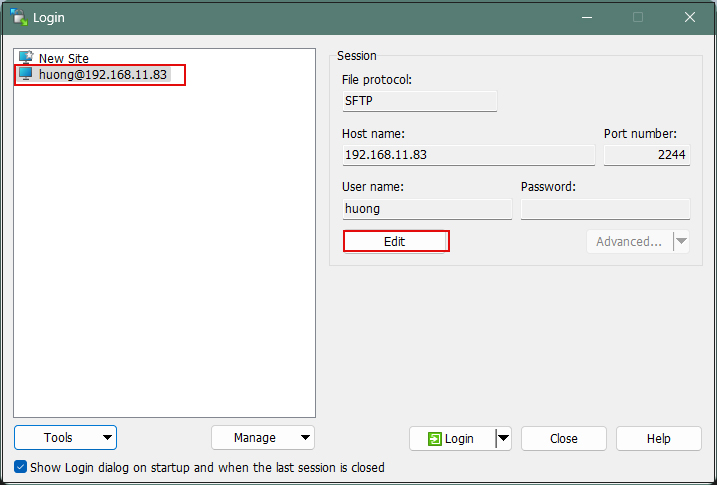
該当サーバーを選択し、「Edit」クリック
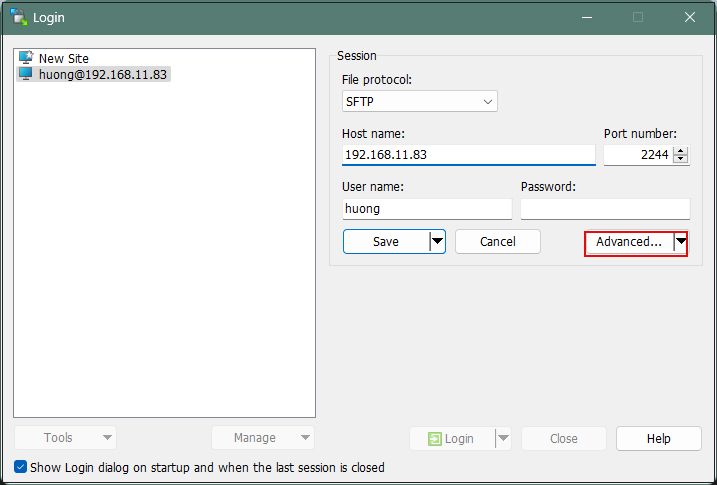
「Advanced」をクリック
「Authentication」メニューを開き、「Private key file」に先ほどWindowsに保存した「id_ed25519.ppk」を指定する
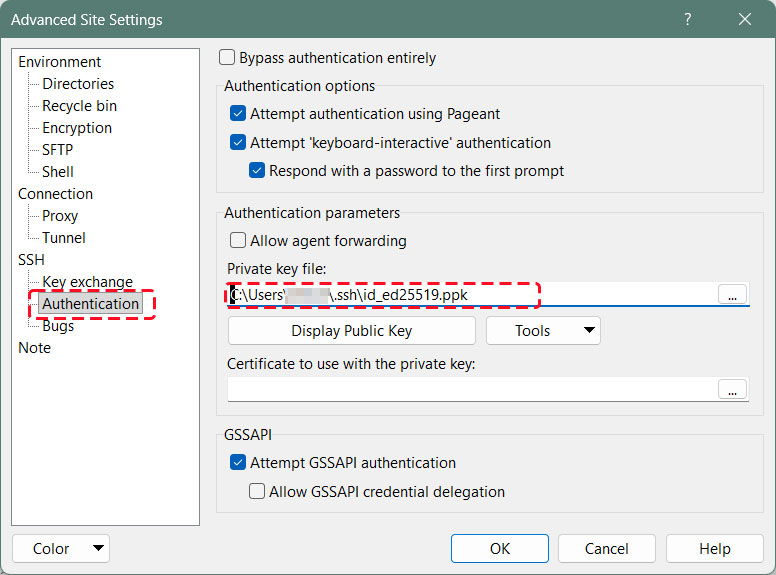
「Save」をクリック
「Login」をクリック
パスワードは上記「公開鍵、秘密鍵ペアの作成」で設定したパスワード
Tabby Terminalで接続する場合は以下のように
C:\Users\xxxxx>ssh huong@192.168.11.83 -p 2244 -i c:\USERS\xxxxx\.ssh\id_ed25519.ppk
Enter passphrase for key 'c:\USERS\xxxxx\.ssh\id_ed25519.ppk': ←公開鍵作成の時に指定したパスワード
Last login: Tue Dec 23 13:03:25 2025 from 192.168.11.6
Linux 5.15.193.
もし、下記のようなエラーが出た場合は秘密鍵をOpenSSH形式に変換する
C:\Users\xxxxx>ssh huong@192.168.11.83 -p 2244 -i c:\USERS\xxxxx\.ssh\id_ed25519.ppk
Load key "c:\USERS\xxxxx\.ssh\id_ed25519.ppk": invalid format
huong@192.168.11.83: Permission denied (publickey,gssapi-keyex,gssapi-with-mic).
[WinSCP]-[Run PuTTygen]を起動し、[Conversions]タブの[Import key]で秘密キーをインポートする
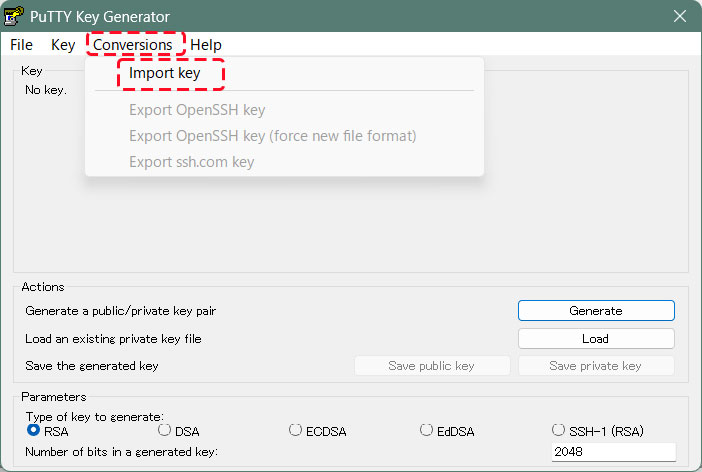
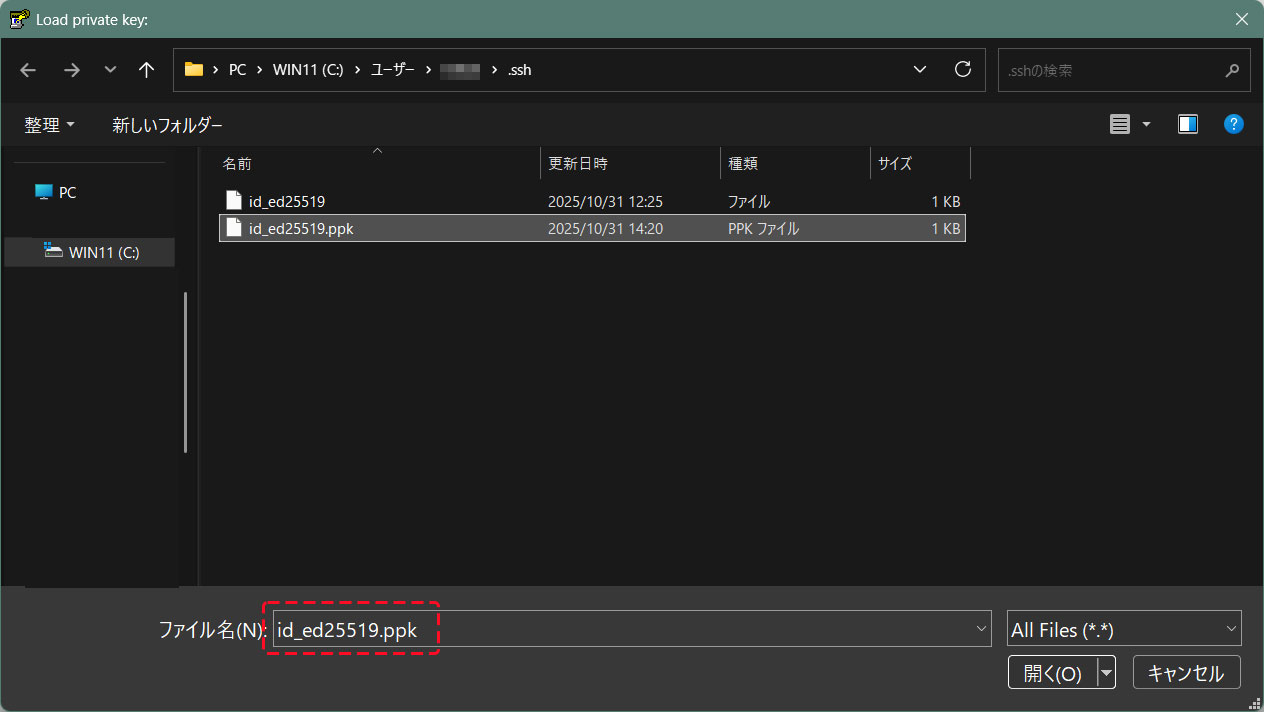
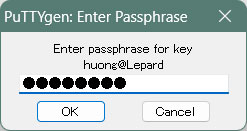
インポートした秘密キーをOpenSSH形式に変換して、別名で保存する
公開鍵作成の時に指定したパスワード
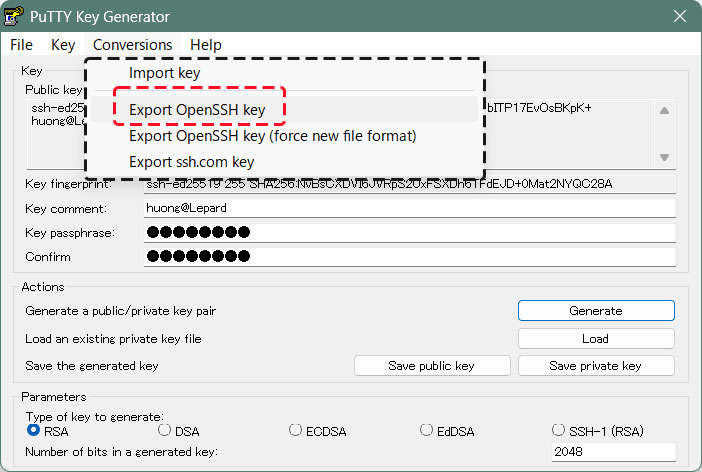
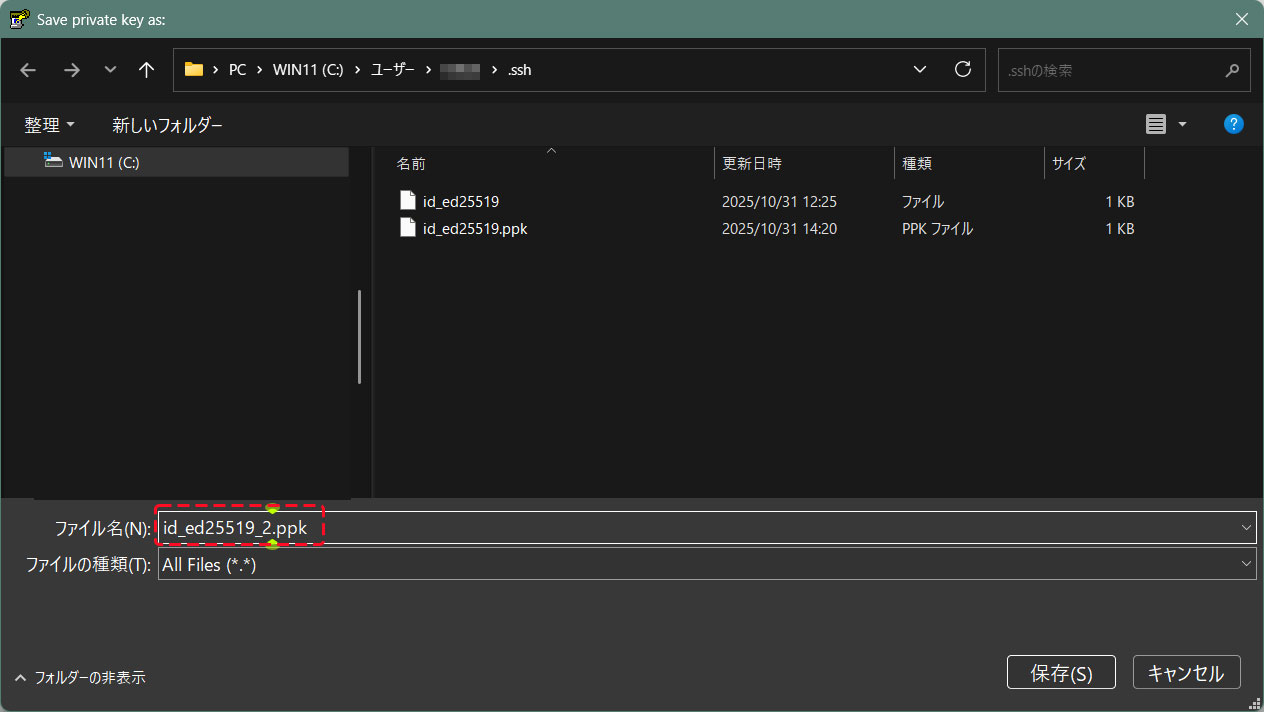
下記の通り接続できる
C:\Users\xxxxx>ssh huong@192.168.11.83 -p 2244 -i c:\USERS\xxxxx\.ssh\id_ed25519_2.ppk
Enter passphrase for key 'c:\USERS\xxxxx\.ssh\id_ed25519_2.ppk': ←公開鍵作成の時に指定したパスワード
Last login: Tue Dec 23 13:03:25 2025 from 192.168.11.6
Linux 5.15.193.