

Contents
前提条件
1.Suricata
SURICATA IDS/IPSはネットワーク上の通信を監視し、不審なトラフィックを検知するオープンソースのIDSです。基本的な仕組みはシグネチャ型であるため、あらかじめ設定した不正な通信を検知できます。また、Suricataは検知だけでなく防御も行えることが特徴です。
2.Elastic Stack,Kibana,Filebeat
Elastic Stackをインストール&設定して、Kibana,Filebeatを使用してSURICATAのログを可視化&検索できるようにする
今回はSuricata IDS と ElasticStack を 次のサーバーにインストールします
・1台目サーバー Suricata IDS & Filebeat : AlmaLinux10.1 IPアドレス(192.168.11.83)
・2台目サーバー ElasticStack & kibana : AlmaLinux10.0 IPアドレス(192.168.11.85)
root以外のsudoユーザーで実行する
1台目サーバー Suricata インストール
1.Suricata のインストールと設定
①Suricata のインストール
|
1 2 3 4 5 6 7 8 9 |
# dnf install https://dl.fedoraproject.org/pub/epel/epel-release-latest-10.noarch.rpm # dnf install yum-plugin-copr # dnf copr enable @oisf/suricata-8.0 # dnf install suricata -y バージョンチェック # suricata -V This is Suricata version 8.0.2 RELEASE |
②Suricataがネットワークパケットを検査するインターフェースとIPアドレスを決定
|
1 2 3 |
# ip --brief add lo UNKNOWN 127.0.0.1/8 ::1/128 ens160 UP 192.168.11.83/24 fe80::20c:29ff:fec4:c9d1/64 |
③設定ファイルを編集
|
1 2 3 4 5 6 7 8 9 10 11 12 13 |
# vi /etc/suricata/suricata.yaml # 18行目 : コメントアウトしてその下に追加(varsセクションで、ネットワークを定義する) #HOME_NET: "[192.168.0.0/16,10.0.0.0/8,172.16.0.0/12]" HOME_NET: "[192.168.11.0/24]" EXTRNAL_NET: "!$HOME_NET" # 158行目あたり : 変更 community-id: false → community-id: true # 661行目あたり : af-packetセクションのインターフェース名を設定 af-packet: - interface: ens160 |
|
1 2 3 4 5 |
# vi /etc/sysconfig/suricata # 8行目 :インターフェイスを指定 # Add options to be passed to the daemon OPTIONS="-i ens160 --user suricata " |
④Suricataのルール更新
|
1 |
# suricata-update |
⑤Suricataの起動
|
1 2 |
# systemctl enable --now suricata Created symlink /etc/systemd/system/multiuser.target.wants/suricata.service → /usr/lib/systemd/system/suricata.service. |
⑥Suricataの起動確認
|
1 2 3 4 5 6 7 8 9 10 11 12 13 14 15 16 17 18 |
# systemctl status suricata ● suricata.service - Suricata Intrusion Detection Service Loaded: loaded (/usr/lib/systemd/system/suricata.service; enabled; preset: disabled) Active: active (running) since Wed 2025-11-26 14:43:55 JST; 1min 5s ago Invocation: 65e8ed1c88de49d3a6dc1e79ada0b488 Docs: man:suricata(1) Process: 30824 ExecStartPre=/bin/rm -f /var/run/suricata.pid (code=exited, status=0/SUCCESS) Main PID: 30825 (Suricata-Main) Tasks: 8 (limit: 16792) Memory: 1G (peak: 1.1G) CPU: 5.152s CGroup: /system.slice/suricata.service └─30825 /sbin/suricata -c /etc/suricata/suricata.yaml --pidfile /var/run/suricata.pid -i ens160 --user suricata Nov 26 14:43:55 Lepard systemd[1]: Starting suricata.service - Suricata Intrusion Detection Service... Nov 26 14:43:55 Lepard systemd[1]: Started suricata.service - Suricata Intrusion Detection Service. Nov 26 14:43:55 Lepard suricata[30825]: i: suricata: This is Suricata version 8.0.2 RELEASE running in SYSTEM mode Nov 26 14:44:00 Lepard suricata[30825]: i: threads: Threads created -> W: 2 FM: 1 FR: 1 Engine started. |
ログを確認
|
1 2 3 4 5 6 7 8 9 10 11 12 |
# tail /var/log/suricata/suricata.log [30825 - Suricata-Main] 2025-11-26 14:43:55 Info: logopenfile: fast output device (regular) initialized: fast.log [30825 - Suricata-Main] 2025-11-26 14:43:55 Info: logopenfile: eve-log output device (regular) initialized: eve.json [30825 - Suricata-Main] 2025-11-26 14:43:55 Info: logopenfile: stats output device (regular) initialized: stats.log [30825 - Suricata-Main] 2025-11-26 14:43:56 Info: detect: 1 rule files processed. 46530 rules successfully loaded, 0 rules failed, 0 rules skipped [30825 - Suricata-Main] 2025-11-26 14:43:56 Info: threshold-config: Threshold config parsed: 0 rule(s) found [30825 - Suricata-Main] 2025-11-26 14:43:56 Info: detect: 46533 signatures processed. 974 are IP-only rules, 4423 are inspecting packet payload, 40903 inspect application layer, 110 are decoder event only [30825 - Suricata-Main] 2025-11-26 14:44:00 Info: unix-manager: unix socket '/var/run/suricata/suricata-command.socket' [30825 - Suricata-Main] 2025-11-26 14:44:00 Info: runmodes: ens160: creating 2 threads [30829 - W#01-ens160] 2025-11-26 14:44:00 Info: ioctl: ens160: MTU 1500 [30825 - Suricata-Main] 2025-11-26 14:44:00 Notice: threads: Threads created -> W: 2 FM: 1 FR: 1 Engine started. |
統計情報を確認するには、stats.log ファイルを確認します(デフォルトで8秒ごとに更新)
|
1 |
# tail -f /var/log/suricata/stats.log |
より高度な出力であるEVE JSONは、以下のコマンドで生成することができる
|
1 |
# tail -f /var/log/suricata/eve.json |
2.Suricata のテスト
①curl ユーティリティで ping テストを実行
|
1 2 |
# curl http://testmynids.org/uid/index.html uid=0(root) gid=0(root) groups=0(root) |
②指定されたルール番号を使用してログファイルを確認する
Suricataには、デフォルトで有効になっている次の2つのログファイルが付属しています。
/var/log/suricata/fast.log
/var/log/suricata/eve.log
curlリクエストに対応するログエントリーを確認するために、/var/log/suricata/fast.log ログファイルをgrepコマンドを使用してチェックします。2100498 ルール識別子を使用してログエントリーを検索します。(IPv4の場合)
|
1 2 3 |
# grep 2100498 /var/log/suricata/fast.log 11/26/2025-14:56:33.030657 [**] [1:2100498:7] GPL ATTACK_RESPONSE id check returned root [**] [Classification: Potentially Bad Traffic] [Priority: 2] {TCP} 143.204.80.116:80 -> 192.168.11.83:45006 |
③/var/log/suricata/eve.log のイベント確認
jq をインストール
|
1 |
# dnf -y install jq |
2100498シグネチャを検索して、EVEログのイベントをフィルタリング
2100498の値と一致するsignature_idキーを持つalertオブジェクトを表示
|
1 2 3 4 5 6 7 8 9 10 11 12 13 14 15 16 17 18 19 20 21 22 23 24 25 26 27 28 29 30 31 32 33 34 35 36 37 38 39 |
# jq 'select(.alert .signature_id==2100498)' /var/log/suricata/eve.json { "timestamp": "2025-11-26T14:56:33.030657+0900", "flow_id": 318839977757728, "in_iface": "ens160", "event_type": "alert", "src_ip": "143.204.80.116", "src_port": 80, "dest_ip": "192.168.11.83", "dest_port": 45006, "proto": "TCP", "ip_v": 4, "pkt_src": "wire/pcap", "alert": { "action": "allowed", "gid": 1, "signature_id": 2100498, "rev": 7, "signature": "GPL ATTACK_RESPONSE id check returned root", "category": "Potentially Bad Traffic", "severity": 2, "metadata": { "confidence": [ "Medium" ], "created_at": [ "2010_09_23" ], "signature_severity": [ "Informational" ], "updated_at": [ "2019_07_26" ] } }, -------------------------------------------- -------------------------------------------- |
3.Suricata Rulesの設定
①Suricataにパッケージされているルールセットの表示
|
1 2 3 4 5 6 |
# ls -al /var/lib/suricata/rules/ total 39900 drwxr-s--- 2 root suricata 57 Nov 26 14:42 . drwxrws--- 4 suricata suricata 33 Nov 26 14:41 .. -rw-r--r-- 1 root suricata 3228 Nov 26 14:42 classification.config -rw-r--r-- 1 root suricata 40853329 Nov 26 14:42 suricata.rules |
②ルールセットを提供するソースのインデックス一覧
|
1 2 3 4 5 6 7 8 9 10 11 12 13 14 15 16 17 18 19 20 21 22 23 24 25 26 27 28 29 30 31 32 33 34 35 36 37 38 39 40 41 42 43 44 45 46 47 48 49 50 51 52 53 54 55 56 57 58 59 60 61 62 63 64 65 66 67 68 69 70 71 72 73 74 75 76 77 78 79 80 81 82 83 84 85 86 87 88 89 90 91 92 93 94 95 96 97 98 99 100 101 102 103 104 105 106 107 108 109 110 111 112 113 114 115 116 117 |
# suricata-update list-sources Name: abuse.ch/feodotracker Vendor: Abuse.ch Summary: Abuse.ch Feodo Tracker Botnet C2 IP ruleset License: CC0-1.0 Name: abuse.ch/sslbl-blacklist Vendor: Abuse.ch Summary: Abuse.ch SSL Blacklist License: CC0-1.0 Replaces: sslbl/ssl-fp-blacklist Name: abuse.ch/sslbl-c2 Vendor: Abuse.ch Summary: Abuse.ch Suricata Botnet C2 IP Ruleset License: CC0-1.0 Name: abuse.ch/sslbl-ja3 Vendor: Abuse.ch Summary: Abuse.ch Suricata JA3 Fingerprint Ruleset License: CC0-1.0 Replaces: sslbl/ja3-fingerprints Name: abuse.ch/urlhaus Vendor: abuse.ch Summary: Abuse.ch URLhaus Suricata Rules License: CC0-1.0 Name: aleksibovellan/nmap Vendor: aleksibovellan Summary: Suricata IDS/IPS Detection Rules Against NMAP Scans License: MIT Name: et/open Vendor: Proofpoint Summary: Emerging Threats Open Ruleset License: MIT Name: et/pro Vendor: Proofpoint Summary: Emerging Threats Pro Ruleset License: Commercial Replaces: et/open Parameters: secret-code Subscription: https://www.proofpoint.com/us/threat-insight/et-pro-ruleset Name: etnetera/aggressive Vendor: Etnetera a.s. Summary: Etnetera aggressive IP blacklist License: MIT Name: oisf/trafficid Vendor: OISF Summary: Suricata Traffic ID ruleset License: MIT Name: pawpatrules Vendor: pawpatrules Summary: PAW Patrules is a collection of rules for IDPS / NSM Suricata engine License: CC-BY-SA-4.0 Name: ptrules/open Vendor: Positive Technologies Summary: Positive Technologies Open Ruleset License: Custom Name: scwx/enhanced Vendor: Secureworks Summary: Secureworks suricata-enhanced ruleset License: Commercial Parameters: secret-code Subscription: https://www.secureworks.com/contact/ (Please reference CTU Countermeasures) Name: scwx/malware Vendor: Secureworks Summary: Secureworks suricata-malware ruleset License: Commercial Parameters: secret-code Subscription: https://www.secureworks.com/contact/ (Please reference CTU Countermeasures) Name: scwx/security Vendor: Secureworks Summary: Secureworks suricata-security ruleset License: Commercial Parameters: secret-code Subscription: https://www.secureworks.com/contact/ (Please reference CTU Countermeasures) Name: stamus/lateral Vendor: Stamus Networks Summary: Lateral movement rules License: GPL-3.0-only Name: stamus/nrd-14-open Vendor: Stamus Networks Summary: Newly Registered Domains Open only - 14 day list, complete License: Commercial Parameters: secret-code Subscription: https://www.stamus-networks.com/stamus-labs/subscribe-to-threat-intel-feed Name: stamus/nrd-30-open Vendor: Stamus Networks Summary: Newly Registered Domains Open only - 30 day list, complete License: Commercial Parameters: secret-code Subscription: https://www.stamus-networks.com/stamus-labs/subscribe-to-threat-intel-feed Name: stamus/nrd-entropy-14-open Vendor: Stamus Networks Summary: Newly Registered Domains Open only - 14 day list, high entropy License: Commercial Parameters: secret-code Subscription: https://www.stamus-networks.com/stamus-labs/subscribe-to-threat-intel-feed Name: stamus/nrd-entropy-30-open Vendor: Stamus Networks Summary: Newly Registered Domains Open only - 30 day list, high entropy License: Commercial Parameters: secret-code Subscription: https://www.stamus-networks.com/stamus-labs/subscribe-to-threat-intel-feed Name: stamus/nrd-phishing-14-open Vendor: Stamus Networks Summary: Newly Registered Domains Open only - 14 day list, phishing License: Commercial Parameters: secret-code Subscription: https://www.stamus-networks.com/stamus-labs/subscribe-to-threat-intel-feed Name: stamus/nrd-phishing-30-open Vendor: Stamus Networks Summary: Newly Registered Domains Open only - 30 day list, phishing License: Commercial Parameters: secret-code Subscription: https://www.stamus-networks.com/stamus-labs/subscribe-to-threat-intel-feed Name: tgreen/hunting Vendor: tgreen Summary: Threat hunting rules License: GPLv3 |
③ソースを有効にする(tgreen/huntingを有効にする場合)
|
1 2 3 4 5 6 7 8 9 10 11 |
# suricata-update enable-source tgreen/hunting 26/11/2025 -- 15:14:08 - <Info> -- Loaded 62630 rules. 26/11/2025 -- 15:14:08 - <Info> -- Disabled 13 rules. 26/11/2025 -- 15:14:08 - <Info> -- Enabled 0 rules. 26/11/2025 -- 15:14:08 - <Info> -- Modified 0 rules. 26/11/2025 -- 15:14:08 - <Info> -- Dropped 0 rules. 26/11/2025 -- 15:14:08 - <Info> -- Enabled 136 rules for flowbit dependencies. 26/11/2025 -- 15:14:08 - <Info> -- Backing up current rules. 26/11/2025 -- 15:14:11 - <Info> -- Writing rules to /var/lib/suricata/rules/suricata.rules: total: 62630; enabled: 46785; added: 0; removed 0; modified: 0 26/11/2025 -- 15:14:11 - <Info> -- Writing /var/lib/suricata/rules/classification.config 26/11/2025 -- 14:06:26 - <Info> -- Source tgreen/hunting enabled |
アップデートを実行
|
1 |
# suricata-update update-sources |
Suricata service再起動
|
1 |
# systemctl restart suricata |
4. SuricataをIPSに設定する
悪意のあるネットワーク・トラフィックをドロップするようにSuricataをIPSモードで起動するように設定する
非SSHポートへのSSHトラフィックをスキャンする以下のカスタム署名を作成し、/var/lib/suricata/rules/local.rulesというファイルにインクルードする(SSHポートを22と仮定)
|
1 2 |
# vi /var/lib/suricata/rules/local.rules alert ssh any any -> 192.168.11.100 !22 (msg:"SSH TRAFFIC on non-SSH port"; flow:to_client, not_established; classtype: misc-attack; target: dest_ip; sid:1000000;) |
/etc/suricata/suricata.yaml設定ファイルを編集し、local.rulesをインクルードする
|
1 2 3 4 5 |
# vi /etc/suricata/suricata.yaml 2303行目に追加 rule-files: - suricata.rules - local.rules |
SURICATAの設定を検証
|
1 2 3 4 |
# suricata -T -c /etc/suricata/suricata.yaml -v Info: detect: 46789 signatures processed. 974 are IP-only rules, 4541 are inspecting packet payload, 41041 inspect application layer, 110 are decoder event only Notice: suricata: Configuration provided was successfully loaded. Exiting. |
SURICATAの/etc/sysconfig/suricata設定ファイルを編集する
|
1 2 3 4 5 6 7 8 |
# vi /etc/sysconfig/suricata OPTIONS="-i ens160 --user suricata "行を見つけ、行頭に#を追加してコメントアウトする。 次に、OPTIONS="-q 0 -vvv --user suricata "行を追加し、SURICATAにIPSモードで実行するように指示する . . . # OPTIONS="-i ens160 --user suricata" OPTIONS="-q 0 -vvv --user suricata" . . . |
Suricataを再起動
|
1 |
# systemctl restart suricata.service |
ステータス確認
|
1 2 3 4 5 6 7 8 9 10 11 12 13 14 15 16 17 18 19 20 21 22 23 24 25 |
# systemctl status suricata.service ● suricata.service - Suricata Intrusion Detection Service Loaded: loaded (/usr/lib/systemd/system/suricata.service; enabled; preset: disabled) Active: active (running) since Wed 2025-11-26 15:29:50 JST; 12s ago Invocation: ad1b7464bd0e447fa3ed0679abea5f48 Docs: man:suricata(1) Process: 5533 ExecStartPre=/bin/rm -f /var/run/suricata.pid (code=exited, status=0/SUCCESS) Main PID: 5535 (Suricata-Main) Tasks: 10 (limit: 16792) Memory: 1G (peak: 1.1G, swap: 4K, swap peak: 4K) CPU: 4.246s CGroup: /system.slice/suricata.service └─5535 /sbin/suricata -c /etc/suricata/suricata.yaml --pidfile /var/run/suricata.pid -q 0 -vvv --user suricata Nov 26 15:29:52 Lepard suricata[5535]: [5535] Perf: detect: Pkt MPM "ipv6.hdr": 1 Nov 26 15:30:01 Lepard suricata[5535]: [5535] Info: unix-manager: unix socket '/var/run/suricata/suricata-command.socket' Nov 26 15:30:01 Lepard suricata[5535]: [5535] Config: tmqh-flow: AutoFP mode using "Hash" flow load balancer Nov 26 15:30:01 Lepard suricata[5535]: [5541] Info: nfq: binding this thread 0 to queue '0' Nov 26 15:30:01 Lepard suricata[5535]: [5541] Info: nfq: setting queue length to 4096 Nov 26 15:30:01 Lepard suricata[5535]: [5541] Info: nfq: setting nfnl bufsize to 6144000 Nov 26 15:30:01 Lepard suricata[5535]: [5535] Config: flow-manager: using 1 flow manager threads Nov 26 15:30:01 Lepard suricata[5535]: [5535] Config: flow-manager: using 1 flow recycler threads Nov 26 15:30:01 Lepard suricata[5535]: [5535] Config: log-flush: log flusher thread not used with heartbeat.output-flush-interval of 0 Nov 26 15:30:01 Lepard suricata[5535]: [5535] Notice: threads: Threads created -> RX: 1 W: 2 TX: 1 FM: 1 FR: 1 Engine started. |
入ってくるネットワーク・トラフィックをSuricataのNFQUEUEに向ける
Firewalld がインストールされ、有効になっているのでSuricataに必要なルールをFirewalldに追加する(SSHポートを22と仮定)
|
1 2 3 4 5 6 7 8 9 10 11 12 13 14 15 16 17 18 19 20 21 |
# firewall-cmd --permanent --direct --add-rule ipv4 filter INPUT 0 -p tcp --dport 22 -j NFQUEUE --queue-bypass # firewall-cmd --permanent --direct --add-rule ipv4 filter OUTPUT 0 -p tcp --sport 22 -j NFQUEUE --queue-bypass IPv6用の同じルールを追加する: # firewall-cmd --permanent --direct --add-rule ipv6 filter INPUT 0 -p tcp --dport 22 -j NFQUEUE --queue-bypass # firewall-cmd --permanent --direct --add-rule ipv6 filter OUTPUT 0 -p tcp --sport 22 -j NFQUEUE --queue-bypas FORWARDルールを追加して、サーバーが他のシステムのゲートウェイとして動作している場合、そのトラフィックもすべてSURICATAに行って処理されるようにします。 # firewall-cmd --permanent --direct --add-rule ipv4 filter FORWARD 0 -j NFQUEUE # firewall-cmd --permanent --direct --add-rule ipv6 filter FORWARD 0 -j NFQUEUE 最後の2つのINPUTとOUTPUTルールは、SSHトラフィックでない残りのトラフィックをすべてSuricataに送って処理させる。 # firewall-cmd --permanent --direct --add-rule ipv4 filter INPUT 1 -j NFQUEUE # firewall-cmd --permanent --direct --add-rule ipv4 filter OUTPUT 1 -j NFQUEUE IPv6も同様にする # firewall-cmd --permanent --direct --add-rule ipv6 filter INPUT 1 -j NFQUEUE # firewall-cmd --permanent --direct --add-rule ipv6 filter OUTPUT 1 -j NFQUEUE Firewalldをリロード # firewall-cmd --reload |
SURICATA がトラフィックを正しくドロップしていることを確認
シグネチャのデフォルトアクションをalertやlogからactive dropping trafficに切り替える
/var/lib/suricata/rules/suricata.rulesファイルを開き、sid:2100498に該当するものがあれば コメントアウトする
|
1 2 |
# vi /var/lib/suricata/rules/suricata.rules #alert ip any any -> any any (msg:"GPL ATTACK_RESPONSE id check returned root"; content:"uid=0|28|root|29|"; classtype:bad-unknown; sid:2100498; rev:7; metadata:created_at 2010_09_23, confidence Medium, signature_severity Informational, updated_at 2019_07_26;) |
/var/lib/suricata/rules/local.rulesにsid:2100498として新規作成する
|
1 2 3 |
# vi /var/lib/suricata/rules/local.rules drop ip any any -> any any (msg:"GPL ATTACK_RESPONSE id check returned root"; content:"uid=0|28|root|29|"; classtype:bad-unknown; sid:2100498; rev:7; metadata:created_at 2010_09_23, confidence Medium, signature_severity Informational, updated_at 2019_07_26;) |
シグネチャを再読み込み
|
1 |
# kill -usr2 $(pidof suricata) |
curlを使ってこのルールをテスト
|
1 2 |
# curl --max-time 5 http://testmynids.org/uid/index.html curl: (28) Operation timed out after 5001 milliseconds with 0 out of 39 bytes received |
jqを使ってeve.logファイルを調べる
|
1 2 3 4 5 6 7 8 9 10 11 12 13 14 15 16 17 18 19 20 21 22 23 24 25 26 27 28 29 30 31 32 33 34 35 36 37 38 39 40 41 42 43 44 45 46 47 48 49 50 51 |
# jq 'select(.alert .signature_id==2100498)' /var/log/suricata/eve.json { "timestamp": "2025-11-26T15:41:33.124342+0900", "flow_id": 1568738346888606, "event_type": "alert", "src_ip": "143.204.80.116", "src_port": 80, "dest_ip": "192.168.11.83", "dest_port": 48144, "proto": "TCP", "ip_v": 4, "pkt_src": "wire/pcap", "community_id": "1:Jil6tlIG4ACz4Efo4MNLNXCJVDk=", "alert": { "action": "blocked", "gid": 1, "signature_id": 2100498, "rev": 7, "signature": "GPL ATTACK_RESPONSE id check returned root", "category": "Potentially Bad Traffic", "severity": 2, "metadata": { "confidence": [ "Medium" ], "created_at": [ "2010_09_23" ], "signature_severity": [ "Informational" ], "updated_at": [ "2019_07_26" ] } }, "app_proto": "http", "direction": "to_client", "flow": { "pkts_toserver": 3, "pkts_toclient": 4, "bytes_toserver": 256, "bytes_toclient": 754, "start": "2025-11-26T15:41:33.103106+0900", "src_ip": "192.168.11.83", "dest_ip": "143.204.80.116", "src_port": 48144, "dest_port": 80 } } |
"action": "blocked",になっている
ELK StackとSURICATAの統合
Elastic Stackをインストール&設定して、SURICATAのログをより効率的に可視化&検索できるようにする
本セクションは基本的には2台目のAlmaLinux10.0サーバーで行います
1. Elasticsearchのインストール
1.1 公開署名キーをダウンロードしてインストール
|
1 |
# rpm --import https://artifacts.elastic.co/GPG-KEY-elasticsearch |
1.2 リポジトリ定義を/etc/yum/yum.repos.d ディレクトリに作成
|
1 2 3 4 5 6 7 8 9 10 11 |
# vi /etc/yum.repos.d/elasticsearch.repo 下記内容記述 [elasticsearch] name=Elasticsearch repository for 9.x packages baseurl=https://artifacts.elastic.co/packages/9.x/yum gpgcheck=1 gpgkey=https://artifacts.elastic.co/GPG-KEY-elasticsearch enabled=0 autorefresh=1 type=rpm-md |
1.3 Elasticsearch インストール
|
1 |
# dnf -y install --enablerepo=elasticsearch elasticsearch |
2. Elasticsearch 設定
Elasticsearchはデフォルトでローカル接続のみを受け付けるように設定されています。また、認証が有効になっていないため、Filebeatなどのツールはログを送信できません。今回は、Elasticsearchのネットワーク設定を行い、Elasticsearchに組み込まれているxpackセキュリティモジュールを有効にします。
2.1 Elasticsearchネットワークの設定
ElasticsearchとSURICATAのサーバは別々なので、Elasticsearchがプライベートネットワークインターフェースで接続をリッスンするように設定する必要がある
|
1 2 3 4 5 6 7 8 |
# vi /etc/elasticsearch/elasticsearch.yml 57行目 : Elasticsearch serverのローカルアドレス追加 #network.host: 192.168.0.1 network.host: 192.168.11.85 62行目コメント解除 http.port: 9200 |
2.2 Elasticsearch を起動
|
1 2 3 |
# systemctl daemon-reload # systemctl enable elasticsearch.service # systemctl start elasticsearch.service |
2.3 elasticとkibana_systemのパスワードを作成
elasticユーザとkibana_systemユーザのパスワードは後で使用するので必ずコピーしておく
kibana_systemユーザはKibanaの設定に使用する
elasticユーザはFilebeat、Auditbeatの設定およびKibanaへのログインに使用する
パスワードを忘れた場合は、再度コマンドを使用してパスワードをリセットできます。
[elastic] userのパスワード作成
|
1 2 3 4 5 6 7 8 9 10 |
# cd /usr/share/elasticsearch/bin # ./elasticsearch-reset-password -u elastic This tool will reset the password of the [elastic] user to an autogenerated value. The password will be printed in the console. Please confirm that you would like to continue [y/N]y Password for the [elastic] user successfully reset. New value: e3ABOUZpDfRREpqyX-_s |
※Elasticsearch パスワードのリセット
自動生成されたElasticユーザーパスワードが複雑すぎるので、/usr/share/elasticsearch/bin/elasticsearch-reset-passwordコマンドを使ってリセットできます
パスワードをリセットするには、コマンドを実行する
|
1 |
# /usr/share/elasticsearch/bin/elasticsearch-reset-password -u elastic -i |
|
1 2 3 4 5 6 7 8 |
This tool will reset the password of the [elastic] user. You will be prompted to enter the password. Please confirm that you would like to continue [y/N]y Enter password for [elastic]: Re-enter password for [elastic]: Password for the [elastic] user successfully reset. |
[kibana_system]userのパスワード作成
|
1 2 3 4 5 6 7 8 9 10 |
# cd /usr/share/elasticsearch/bin # ./elasticsearch-reset-password -u kibana_system This tool will reset the password of the [kibana_system] user to an autogenerated value. The password will be printed in the console. Please confirm that you would like to continue [y/N]y Password for the [kibana_system] user successfully reset. New value: KQtW6F3vaM63MUQ2RSvc |
3. Kibana のインストールと設定
本セクションは基本的には2台目のAlmaLinux10.0サーバーで行います
3.1 Kibanaインストール
|
1 |
# dnf -y install --enablerepo=elasticsearch kibana |
3.2 xpackセキュリティモジュールの設定
Kibana の xpack セキュリティ機能を有効にして、Kibana が Elasticsearch にデータを保存するために使用するいくつかの暗号化キーを作成する。
暗号化キーは、/usr/share/kibana/bin ディレクトリに含まれる kibana-encryption-keys ユーティリティを使用して作成する。
作成した3つのキーを安全な場所に保存しておく
|
1 2 3 4 5 |
# cd /usr/share/kibana/bin/ # ./kibana-encryption-keys generate -q --force xpack.encryptedSavedObjects.encryptionKey: 013d3f165f67c3057bc7127ad442beb5 xpack.reporting.encryptionKey: e0eb69e8fa00cf827557be116b7a5e1e xpack.security.encryptionKey: 66ebdeba5666d8aeca69d26f4e6ea371 |
これらのキーをKibanaの/etc/kibana/kibana.yml設定ファイルに追加する
|
1 2 3 4 5 6 |
# vi /etc/kibana/kibana.yml 最終行に記述 xpack.encryptedSavedObjects.encryptionKey: 013d3f165f67c3057bc7127ad442beb5 xpack.reporting.encryptionKey: e0eb69e8fa00cf827557be116b7a5e1e xpack.security.encryptionKey: 66ebdeba5666d8aeca69d26f4e6ea371 |
3.2 Kibana ネットワークの設定
|
1 2 3 4 5 6 7 8 |
# vi /etc/kibana/kibana.yml 6行目 : コメント解除 server.port: 5601 12行目サーバーのプライベートIPアドレス(192.168.11.85)を追加 #server.host: "localhost" server.host: "192.168.11.85" |
3.3 Kibana-Elasticsearch Enrollment Token の生成
Kibana インスタンスを、セキュリティ機能が有効になっている既存の Elasticsearch クラスタと通信するように設定するには、登録トークンが必要です。Kibana 用の Enrollment Token は以下のコマンドで生成できる
|
1 2 3 |
# /usr/share/elasticsearch/bin/elasticsearch-create-enrollment-token -s kibana eyJ2ZXIiOiI4LjE0LjAiLCJhZHIiOlsiMTkyLjE2OC4xMS44NTo5MjAwIl0sImZnciI6IjI2NjRlYjIwMDQ4MTYyNDIyYWVlYjIyNTUxNGFiY2RjYTUwZDZkMTExNTg3N2NmMDcxZDlhOTg4MmNhMDBjMDAiLCJrZXkiOiJjQ3Vqd3BvQlRMRzFRSmVWVzZBNDpadDBTQ08zWmE2b3hYbHItR0NuLUlBIn0= |
3.4 Kibanaの起動
Kibana 9 を起動し、システム起動時に実行できるようにする。
|
1 2 |
# systemctl enable --now kibana # systemctl start kibana |
ステータス確認
|
1 2 3 4 5 6 7 8 9 10 11 12 13 14 15 16 17 18 19 20 21 22 23 24 |
# systemctl status kibana ● kibana.service - Kibana Loaded: loaded (/usr/lib/systemd/system/kibana.service; enabled; preset: disabled) Active: active (running) since Thu 2025-11-27 09:08:54 JST; 1min 39s ago Invocation: 4081e2530c23441693b720ed9c2cb7c0 Docs: https://www.elastic.co Main PID: 118796 (node) Tasks: 11 (limit: 22946) Memory: 463M (peak: 463.5M) CPU: 17.766s CGroup: /system.slice/kibana.service └─118796 /usr/share/kibana/bin/../node/glibc-217/bin/node /usr/share/kibana/bin/../src/cli/dist Nov 27 09:08:59 Lion kibana[118796]: Native global console methods have been overridden in production environment. Nov 27 09:09:05 Lion kibana[118796]: [2025-11-27T09:09:05.309+09:00][INFO ][root] Kibana is starting Nov 27 09:09:05 Lion kibana[118796]: [2025-11-27T09:09:05.342+09:00][INFO ][node] Kibana process configured with roles: [background_tasks, ui] Nov 27 09:10:23 Lion kibana[118796]: [2025-11-27T09:10:23.803+09:00][INFO ][plugins-service] The following plugins are disabled: "cloudChat,cloudExperiments,cloudFullStor> Nov 27 09:10:23 Lion kibana[118796]: [2025-11-27T09:10:23.904+09:00][INFO ][http.server.Preboot] http server running at http://192.168.11.85:5601 Nov 27 09:10:24 Lion kibana[118796]: [2025-11-27T09:10:24.140+09:00][INFO ][plugins-system.preboot] Setting up [1] plugins: [interactiveSetup] Nov 27 09:10:24 Lion kibana[118796]: [2025-11-27T09:10:24.188+09:00][INFO ][preboot] "interactiveSetup" plugin is holding setup: Validating Elasticsearch connection confi> Nov 27 09:10:24 Lion kibana[118796]: [2025-11-27T09:10:24.225+09:00][INFO ][root] Holding setup until preboot stage is completed. Nov 27 09:10:30 Lion kibana[118796]: i Kibana has not been configured. Nov 27 09:10:30 Lion kibana[118796]: Go to http://192.168.11.85:5601/?code=078825 to get started. |
出力の最後のほうに以下のように表示される
Go to http://192.168.11.85:5601/?code=078825 to get started.
提供されたKibanaのURL(codeを含む)をコピーしてブラウザで使用し、Kibanaにアクセスしてセットアップを完了する。
4. Kibana9 ダッシュボードにアクセスする
http://192.168.11.85:5601/?code=078825にアクセスする
(各自の適切なアドレスをコピー)
Firewallが起動している場合は、Kibanaポートを開く
|
1 2 3 |
# firewall-cmd --add-port=5601/tcp --permanent # firewall-cmd reload |
Kibana 9にアクセスすると、ウェルカムページでElasticの設定を求められます。
最初に、生成した登録トークンを入力する。
/usr/share/elasticsearch/bin/elasticsearch-create-enrollment-token -s kibana, コマンドを使用して生成された Kibana トークンをコピーし、ボックスに貼り付ける
http://192.168.11.85:5601/?code=078825にアクセス
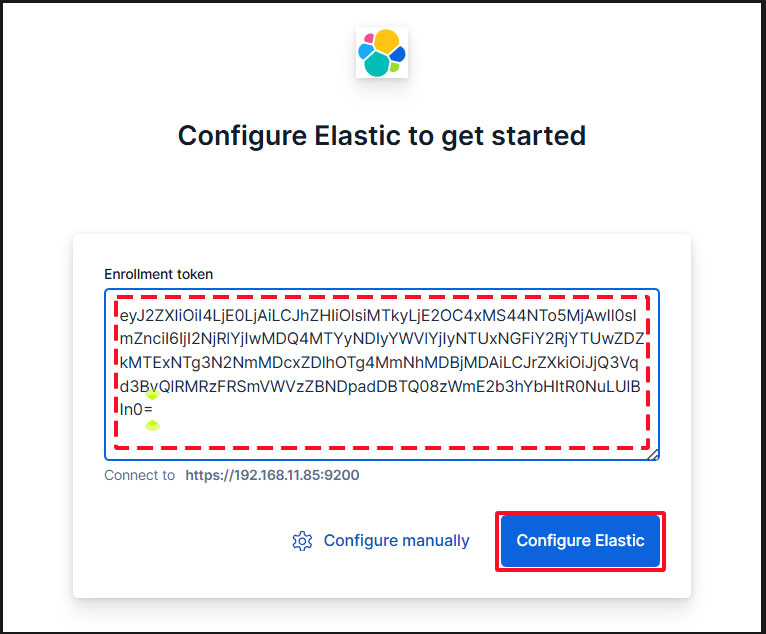
トークンをペーストすると、Kibana が自動的に Elasticsearch に接続します。
Configure Elastic をクリックします。設定が保存され、Elasticsearch が設定、再起動されます。
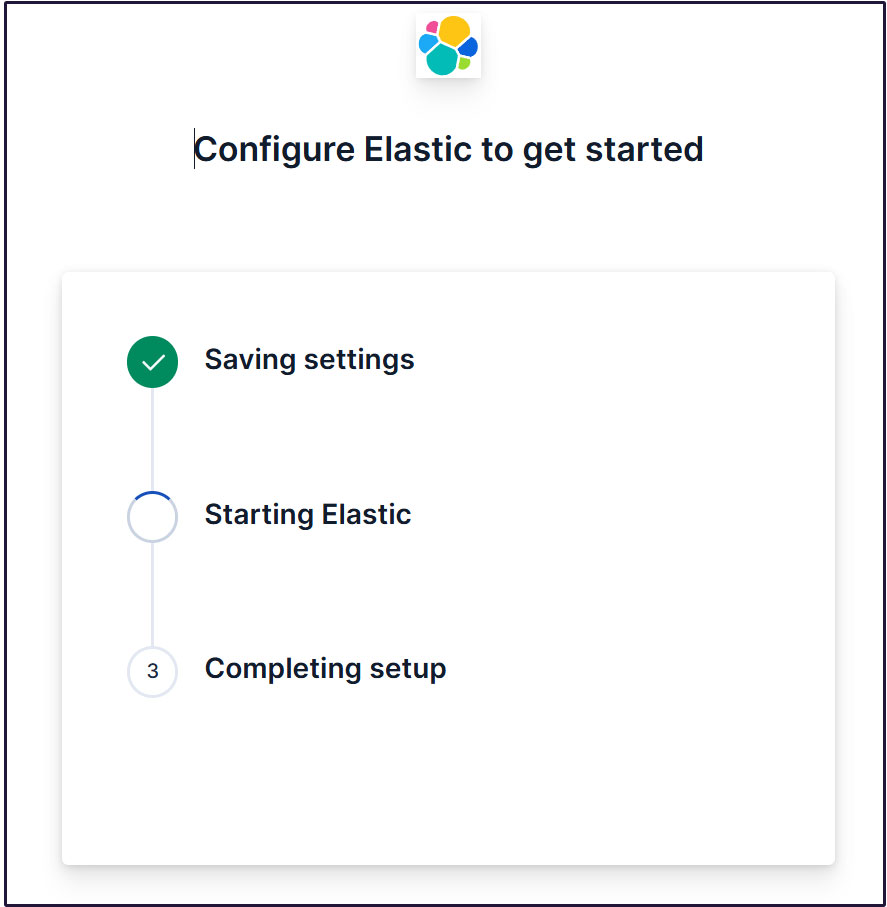
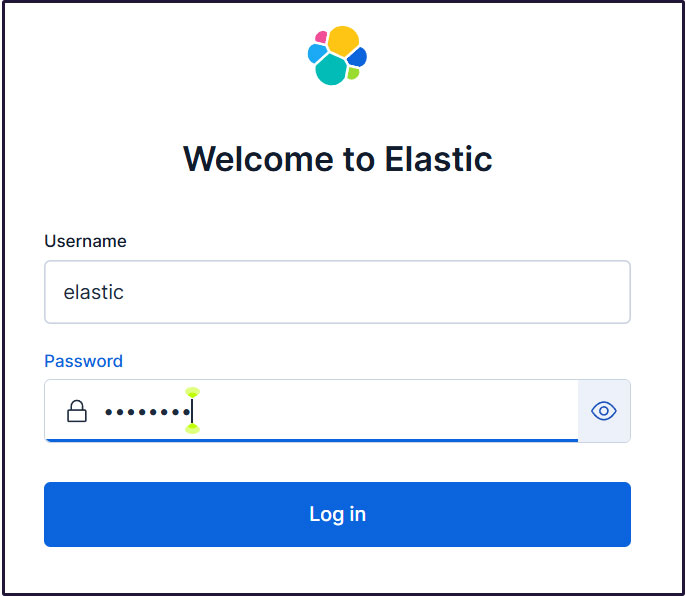
ログインページに移動します。生成されたElasticユーザー認証情報を使用してログインします。
Username : elastic
Password : わかりやすく再生成したパスワード
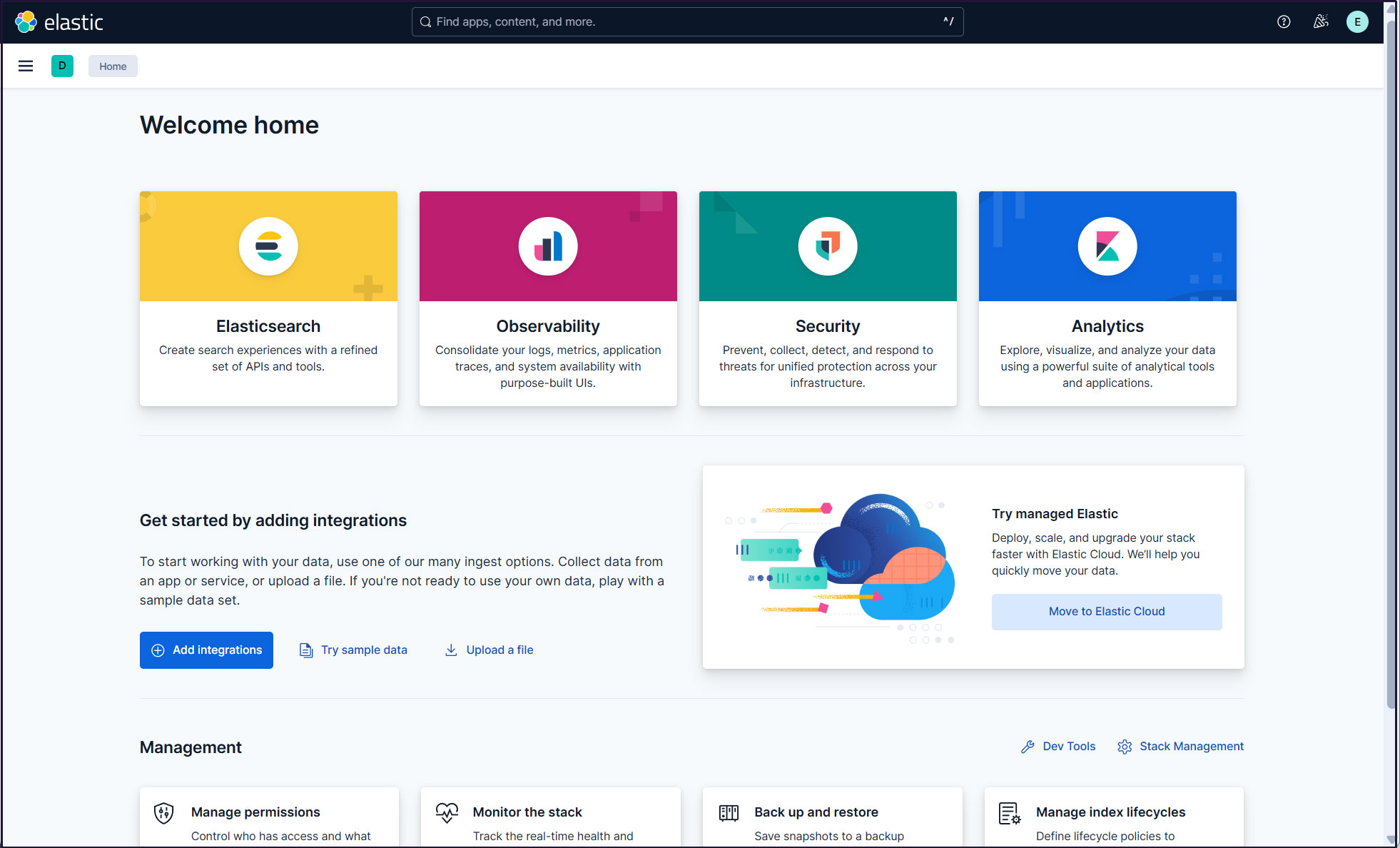
ウェルカムページで、「Explore on my own」をクリックしてKibana 9.xダッシュボードに進む。

elasticスーパーユーザーアカウントを使う必要がないように、新しいユーザーアカウントを作成します。
メインメニューを開き、Stack Management >Security> Users
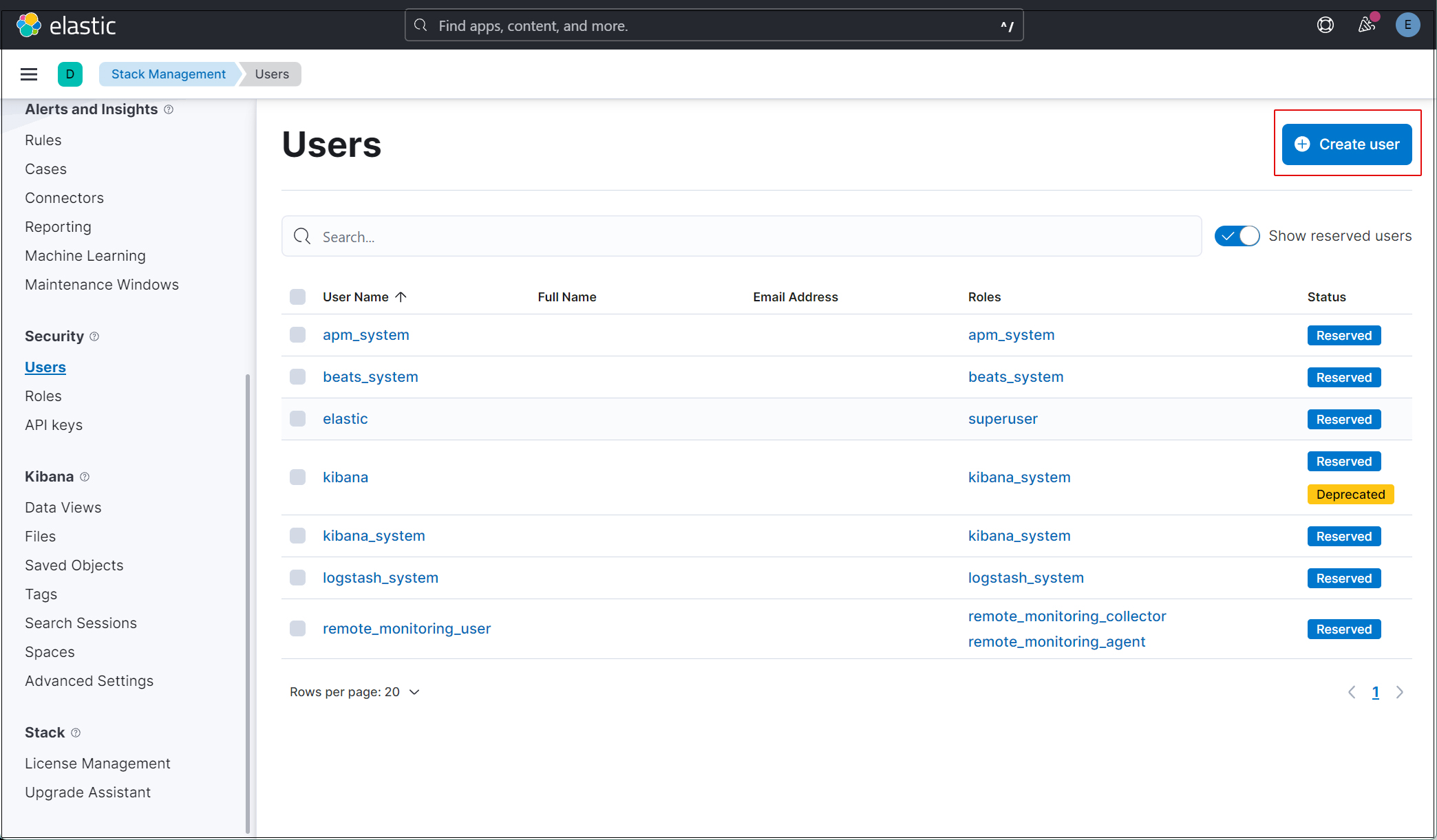
右上の"Create user"ボタンをクリック
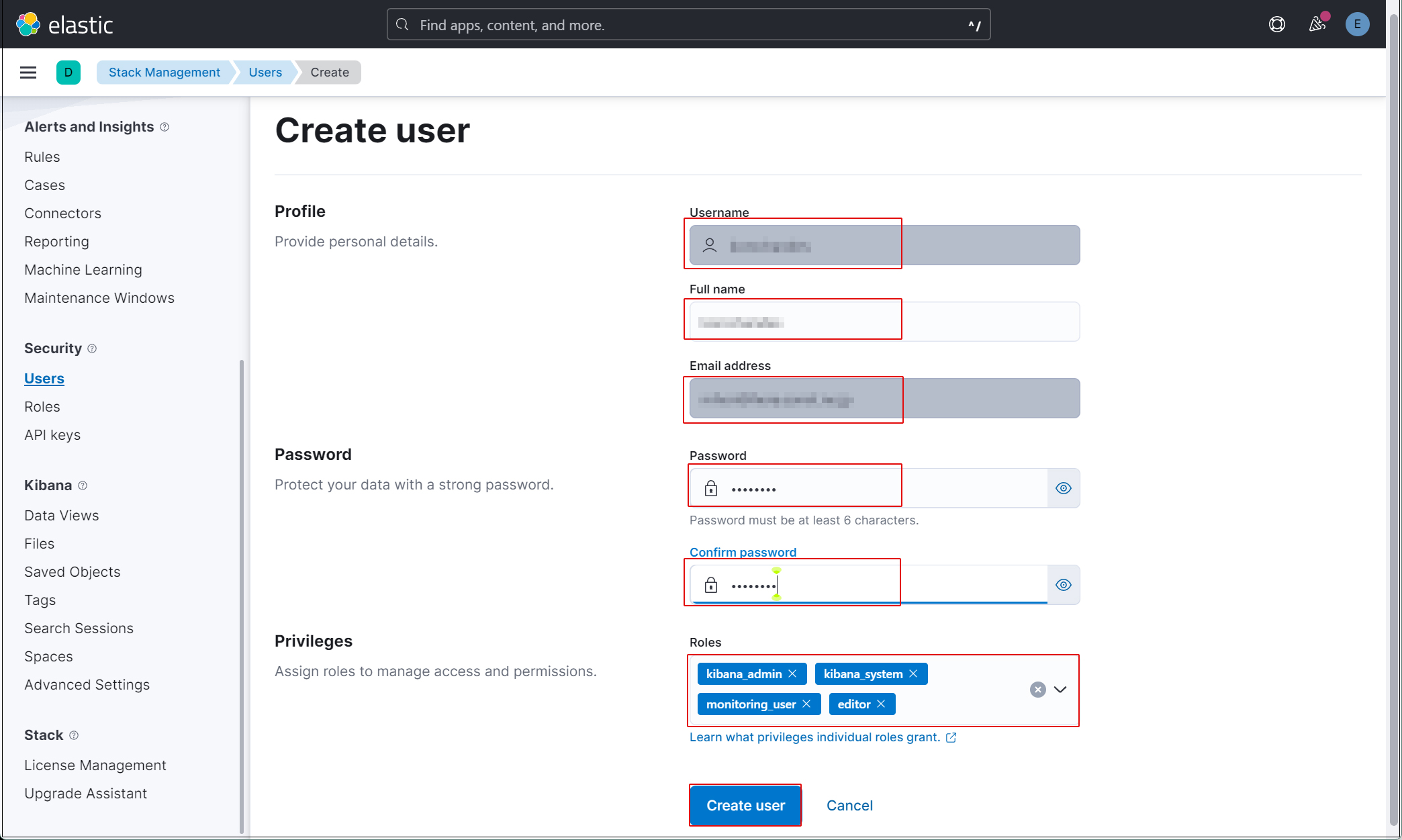
新規ユーザー情報を入力し、Privilegesでkibana_admin、kibana_system、monitoring_user、editorのロールを割り当てる
最後に[Create user]をクリックする
現在のプロファイルからログアウトし、新しく作成したユーザーアカウントでログインできることを確認する。現在、SURICATAのホストでFilebeatとAuditbeatを設定していないため、Kibanaで表示できるデータがありません。
SURICATAサーバにFilebeatをインストール
本作業はSuricataをインストールした1台目のAlmaLinux10.1サーバーで作業する
1. Filebeat インストール
1.1 Elastic GPGキーをダウンロード
|
1 |
# rpm --import https://artifacts.elastic.co/GPG-KEY-elasticsearch |
1.2 /etc/yum/yum.repos.dディレクトリにelasticsearch.repoファイルを以下の内容で、作成
|
1 2 3 4 5 6 7 8 9 10 11 |
# vi /etc/yum.repos.d/elasticsearch.repo 以下内容を記述 [elasticsearch] name=Elasticsearch repository for 9.x packages baseurl=https://artifacts.elastic.co/packages/9.x/yum gpgcheck=1 gpgkey=https://artifacts.elastic.co/GPG-KEY-elasticsearch enabled=0 autorefresh=1 type=rpm-md |
1.3 Filebeatをインストール
|
1 2 3 |
# dnf -y install --enablerepo=elasticsearch filebeat Installed: filebeat-9.2.1-1.x86_64 |
1.4 Elasticsearch CA証明書作成
Elasticsearch CA証明書をダウンロードし、任意のディレクトリに保存します(今回は/etc/filebeat/elastic-ca.crtとして保存します)
※第2サーバー(AlmaLinux10.0 Elasticsearchを導入したサーバー)で9200ポートを開放しておく
|
1 2 3 |
# openssl s_client -connect 192.168.11.85:9200 \ -showcerts </dev/null 2>/dev/null | \ openssl x509 -outform PEM > /etc/filebeat/elastic-ca.crt |
1.4 FilebeatをElasticsearchとKibanaに接続するように設定
|
1 2 3 4 5 6 7 8 9 10 11 12 13 14 15 16 17 18 19 20 |
# vi /etc/filebeat/filebeat.yml 137行目コメントアウトされた#host: "localhost:5601"行の下に、KibanaインスタンスのプライベートIPアドレスとポートを指す行を追加する host: "192.168.11.85:5601" 164行目 : コメントアウト #hosts: ["localhost:9200"] 165行目 : Elastic Stack のipアドレスとelasticsearchのポート番号を入力 hosts: ["https://192.168.11.85:9200"] 171行目 : コメント解除 protocol: "https" 172行目 : Elasticsearch CA証明書指定 ssl.certificate_authorities: ["/etc/filebeat/elastic-ca.crt"] 175,176行目コメント解除し、[username]はデフォルトのままにし、[password]は[elastic]ユーザーのパスワードを入力する username: "elastic" password: “xxxxxxxxx" |
1.5 設定ファイルテスト
|
1 2 |
# filebeat test config Config OK |
1.6 Filebeatsの組み込みSuricataモジュールを有効にする
|
1 |
# filebeat modules enable suricata |
上記コマンドにより /etc/filebeat/modules.d/suricata.yml.disabled が/etc/filebeat/modules.d/suricata.yml になりますが内容は変化しませんので以下のように編集します
|
1 2 3 4 5 6 7 8 9 10 11 12 13 14 |
# vi /etc/filebeat/modules.d/suricata.yml # Module: suricata # Docs: https://www.elastic.co/guide/en/beats/filebeat/main/filebeat-module-suricata.html - module: suricata # All logs eve: enabled: true var.paths: ["/var/log/suricata/eve.json"] # Set custom paths for the log files. If left empty, # Filebeat will choose the paths depending on your OS. #var.paths: |
1.7 初期環境をセットアップ
Suricataサービスにpipeline
SIEMダッシュボードをElasticsearchにロードします
|
1 2 3 4 5 6 7 8 9 10 11 |
# filebeat setup -e -------------------------------------------------------------------------------- {"log.level":"info","@timestamp":"2025-11-27T10:17:27.556+0900","log.logger":"modules","log.origin":{"function":"github.com/elastic/beats/v7/filebeat/fileset.LoadPipeline","file.name":"fileset/pipelines.go","file.line":134},"message":"Elasticsearch pipeline loaded.","service.name":"filebeat","pipeline":"filebeat-9.2.1-suricata-eve-pipeline","ecs.version":"1.6.0"} {"log.level":"info","@timestamp":"2025-11-27T10:17:27.608+0900","log.logger":"modules","log.origin":{"function":"github.com/elastic/beats/v7/filebeat/fileset.LoadPipeline","file.name":"fileset/pipelines.go","file.line":134},"message":"Elasticsearch pipeline loaded.","service.name":"filebeat","pipeline":"filebeat-9.2.1-suricata-eve-dns","ecs.version":"1.6.0"} {"log.level":"info","@timestamp":"2025-11-27T10:17:27.645+0900","log.logger":"modules","log.origin":{"function":"github.com/elastic/beats/v7/filebeat/fileset.LoadPipeline","file.name":"fileset/pipelines.go","file.line":134},"message":"Elasticsearch pipeline loaded.","service.name":"filebeat","pipeline":"filebeat-9.2.1-suricata-eve-dns-answer-v1","ecs.version":"1.6.0"} {"log.level":"info","@timestamp":"2025-11-27T10:17:27.697+0900","log.logger":"modules","log.origin":{"function":"github.com/elastic/beats/v7/filebeat/fileset.LoadPipeline","file.name":"fileset/pipelines.go","file.line":134},"message":"Elasticsearch pipeline loaded.","service.name":"filebeat","pipeline":"filebeat-9.2.1-suricata-eve-dns-answer-v2","ecs.version":"1.6.0"} {"log.level":"info","@timestamp":"2025-11-27T10:17:27.859+0900","log.logger":"modules","log.origin":{"function":"github.com/elastic/beats/v7/filebeat/fileset.LoadPipeline","file.name":"fileset/pipelines.go","file.line":134},"message":"Elasticsearch pipeline loaded.","service.name":"filebeat","pipeline":"filebeat-9.2.1-suricata-eve-tls","ecs.version":"1.6.0"} {"log.level":"info","@timestamp":"2025-11-27T10:17:27.948+0900","log.logger":"modules","log.origin":{"function":"github.com/elastic/beats/v7/filebeat/fileset.LoadPipeline","file.name":"fileset/pipelines.go","file.line":134},"message":"Elasticsearch pipeline loaded.","service.name":"filebeat","pipeline":"filebeat-9.2.1-suricata-eve-http","ecs.version":"1.6.0"} ------------------------------------------------------------------------------------- |
1.6 Filebeatサービスを開始
|
1 |
# systemctl start filebeat.service |
2. Kibanaで確認
作成したユーザーでKibanaにログインし直します。http://192.168.11.85:5601にアクセスします。
一番上の検索フィールドに「Suricata Events Overview」と入力し、Events Overviewをクリック
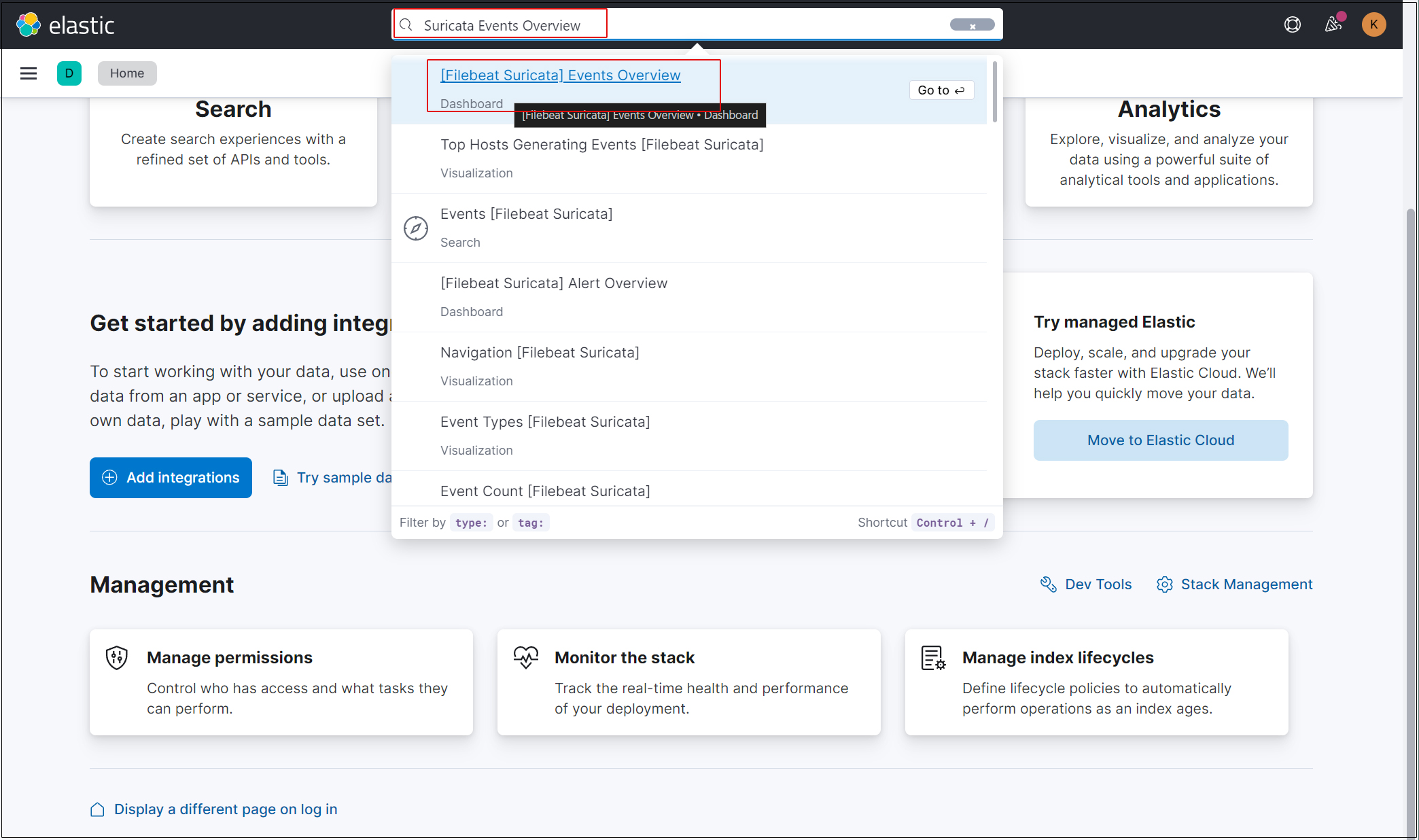
過去 15 分間のすべての Suricata イベントが表示されます
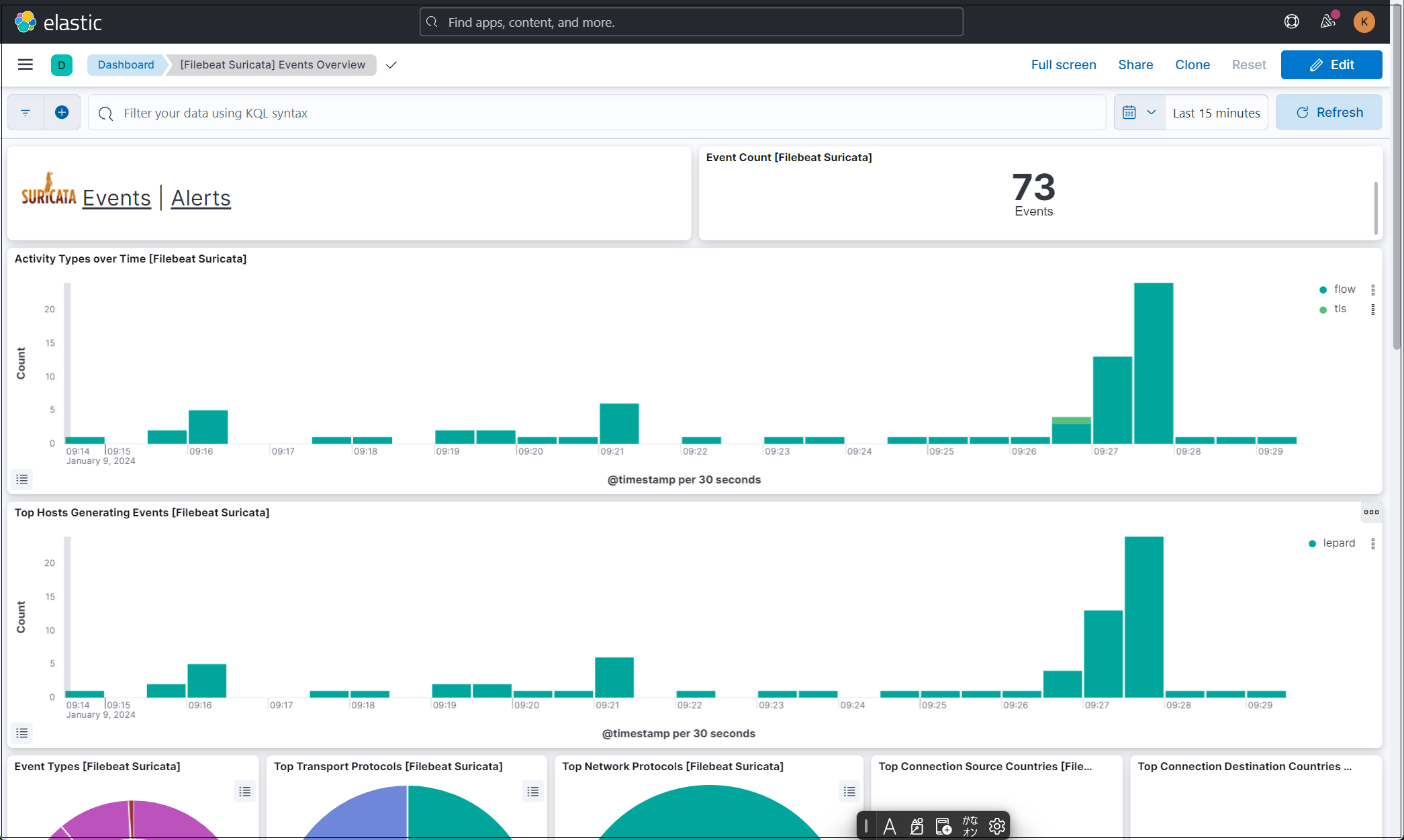
悪質なトラフィックのアラートを表示するにはSuricataロゴの横にあるAlertsテキストをクリック
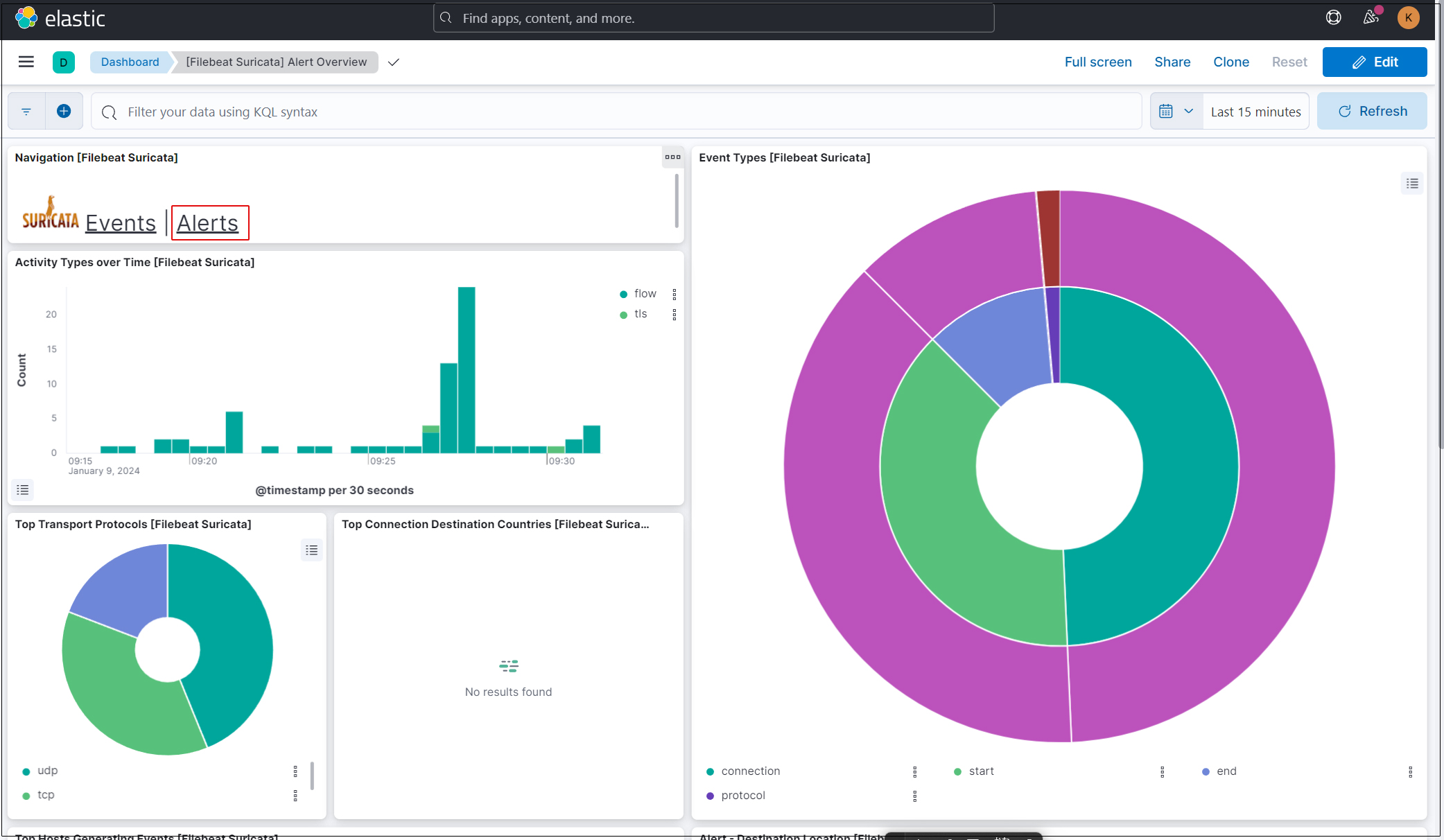
Kibana には、ログを視覚化するためのさまざまな機能とツールがありますのでいろいろと試してください。
