

前提条件
今回はSuricata IDS と ElasticStack を 次のサーバーにインストールします
・1台目サーバー Suricata IDS & Filebeat : Ubuntu Server25.10 IPアドレス(192.168.11.83)
・2台目サーバー ElasticStack & kibana : Ubuntu Server24.04 IPアドレス(192.168.11.85)
root以外のsudoユーザーで実行する
1台目サーバー Suricata インストール
SURICATA IDS/IPSはネットワーク上の通信を監視し、不審なトラフィックを検知するオープンソースのIDSです。基本的な仕組みはシグネチャ型であるため、あらかじめ設定した不正な通信を検知できます。また、Suricataは検知だけでなく防御も行えることが特徴です。
1.Suricata のインストール
Suricata のインストール
|
1 |
# apt -y install suricata |
バージョン確認
|
1 2 |
# suricata -V This is Suricata version 7.0.10 RELEASE |
システムの再起動時に実行されるように suricata.service を有効にします
|
1 2 3 4 |
# systemctl enable suricata.service Synchronizing state of suricata.service with SysV service script with /usr/lib/systemd/systemd-sysv-install. Executing: /usr/lib/systemd/systemd-sysv-install enable suricata |
Suricataサービスを最初に構成する必要があるため、サービスを停止します。
|
1 |
# systemctl stop suricata.service |
2.Suricataを構成
①Suricataがネットワークパケットを検査するインターフェースとIPアドレスを決定
|
1 2 3 |
# ip --brief add lo UNKNOWN 127.0.0.1/8 ens33 UP 192.168.11.83/24 |
/etc/suricata/suricata.yamlファイル編集
|
1 2 3 4 5 6 7 8 9 10 11 12 13 14 |
# vi /etc/suricata/suricata.yaml # 18行目 : 変更(自ネットワーク) HOME_NET: "[192.168.11.0/24]" # 137行目 : 変更 community-id: false → community-id: true # 623行目 : 変更 af-packet: - interface: eth0 ↓ af-packet: - interface: ens33 ←各自のインターフェース名に変更 |
SURICATAはルールのライブリロードをサポートしており、実行中のSURICATAのプロセスを再起動することなく、ルールの追加、削除、編集を行うことができます。ライブリロードオプションを有効にするには、設定ファイルの一番下までスクロールし、以下の行を追加します
detect-engine:
- rule-reload: true
この設定により、実行中のプロセスにSIGUSR2システムシグナルを送ることができ、SURICATAは変更されたルールをメモリに再ロードします。以下のようなコマンドは、プロセスを再起動することなく、SURICATAプロセスにルールセットの再読み込みを通知します:
|
1 |
# kill -usr2 $(pidof suricata) |
➁ルールセットを追加
Suricata には suricata-update というツールがあり、外部プロバイダーからルールセットを取得することができます。以下のように実行すると、SURICATAサーバーの最新のルールセットをダウンロードできます
|
1 2 3 4 5 6 7 8 9 |
# suricata-update -o /etc/suricata/rules ------------------------------------ 12/1/2026 -- 17:19:41 - <Info> -- Enabled 136 rules for flowbit dependencies. 12/1/2026 -- 17:19:41 - <Info> -- Backing up current rules. 12/1/2026 -- 17:19:41 - <Info> -- Writing rules to /etc/suricata/rules/suricata.rules: total: 63373; enabled: 47545; added: 63373; removed 0; modified: 0 12/1/2026 -- 17:19:41 - <Info> -- Writing /etc/suricata/rules/classification.config 12/1/2026 -- 17:19:42 - <Info> -- Testing with suricata -T. 12/1/2026 -- 17:20:09 - <Info> -- Done. |
suricata-updateが無料のEmerging Threats ET Open Rulesを取得し、Suricataの/etc/suricata/rules/suricata.rulesファイルに保存したことを示しています。また、処理されたルールの数を示し、この例では63373が追加され、そのうち47545が有効になりました。
➂ルール・セット・プロバイダーの追加
既定のプロバイダー リストを一覧表示
|
1 2 3 4 5 6 7 8 9 10 11 12 13 14 15 16 17 18 19 20 21 22 23 24 25 26 27 28 29 30 31 32 33 34 35 36 37 38 39 40 41 42 43 44 45 46 47 48 49 50 51 52 53 54 55 56 57 58 59 60 61 62 63 64 65 66 67 68 69 70 71 72 73 74 75 76 77 78 79 80 81 82 83 84 85 86 87 88 89 90 91 92 93 94 95 96 97 98 99 100 101 102 103 104 105 106 107 108 109 110 111 112 113 114 115 116 117 |
# suricata-update list-sources Name: abuse.ch/feodotracker Vendor: Abuse.ch Summary: Abuse.ch Feodo Tracker Botnet C2 IP ruleset License: CC0-1.0 Name: abuse.ch/sslbl-blacklist Vendor: Abuse.ch Summary: Abuse.ch SSL Blacklist License: CC0-1.0 Replaces: sslbl/ssl-fp-blacklist Name: abuse.ch/sslbl-c2 Vendor: Abuse.ch Summary: Abuse.ch Suricata Botnet C2 IP Ruleset License: CC0-1.0 Name: abuse.ch/sslbl-ja3 Vendor: Abuse.ch Summary: Abuse.ch Suricata JA3 Fingerprint Ruleset License: CC0-1.0 Replaces: sslbl/ja3-fingerprints Name: abuse.ch/urlhaus Vendor: abuse.ch Summary: Abuse.ch URLhaus Suricata Rules License: CC0-1.0 Name: aleksibovellan/nmap Vendor: aleksibovellan Summary: Suricata IDS/IPS Detection Rules Against NMAP Scans License: MIT Name: et/open Vendor: Proofpoint Summary: Emerging Threats Open Ruleset License: MIT Name: et/pro Vendor: Proofpoint Summary: Emerging Threats Pro Ruleset License: Commercial Replaces: et/open Parameters: secret-code Subscription: https://www.proofpoint.com/us/threat-insight/et-pro-ruleset Name: etnetera/aggressive Vendor: Etnetera a.s. Summary: Etnetera aggressive IP blacklist License: MIT Name: oisf/trafficid Vendor: OISF Summary: Suricata Traffic ID ruleset License: MIT Name: pawpatrules Vendor: pawpatrules Summary: PAW Patrules is a collection of rules for IDPS / NSM Suricata engine License: CC-BY-SA-4.0 Name: ptrules/open Vendor: Positive Technologies Summary: Positive Technologies Open Ruleset License: Custom Name: scwx/enhanced Vendor: Secureworks Summary: Secureworks suricata-enhanced ruleset License: Commercial Parameters: secret-code Subscription: https://www.secureworks.com/contact/ (Please reference CTU Countermeasures) Name: scwx/malware Vendor: Secureworks Summary: Secureworks suricata-malware ruleset License: Commercial Parameters: secret-code Subscription: https://www.secureworks.com/contact/ (Please reference CTU Countermeasures) Name: scwx/security Vendor: Secureworks Summary: Secureworks suricata-security ruleset License: Commercial Parameters: secret-code Subscription: https://www.secureworks.com/contact/ (Please reference CTU Countermeasures) Name: stamus/lateral Vendor: Stamus Networks Summary: Lateral movement rules License: GPL-3.0-only Name: stamus/nrd-14-open Vendor: Stamus Networks Summary: Newly Registered Domains Open only - 14 day list, complete License: Commercial Parameters: secret-code Subscription: https://www.stamus-networks.com/stamus-labs/subscribe-to-threat-intel-feed Name: stamus/nrd-30-open Vendor: Stamus Networks Summary: Newly Registered Domains Open only - 30 day list, complete License: Commercial Parameters: secret-code Subscription: https://www.stamus-networks.com/stamus-labs/subscribe-to-threat-intel-feed Name: stamus/nrd-entropy-14-open Vendor: Stamus Networks Summary: Newly Registered Domains Open only - 14 day list, high entropy License: Commercial Parameters: secret-code Subscription: https://www.stamus-networks.com/stamus-labs/subscribe-to-threat-intel-feed Name: stamus/nrd-entropy-30-open Vendor: Stamus Networks Summary: Newly Registered Domains Open only - 30 day list, high entropy License: Commercial Parameters: secret-code Subscription: https://www.stamus-networks.com/stamus-labs/subscribe-to-threat-intel-feed Name: stamus/nrd-phishing-14-open Vendor: Stamus Networks Summary: Newly Registered Domains Open only - 14 day list, phishing License: Commercial Parameters: secret-code Subscription: https://www.stamus-networks.com/stamus-labs/subscribe-to-threat-intel-feed Name: stamus/nrd-phishing-30-open Vendor: Stamus Networks Summary: Newly Registered Domains Open only - 30 day list, phishing License: Commercial Parameters: secret-code Subscription: https://www.stamus-networks.com/stamus-labs/subscribe-to-threat-intel-feed Name: tgreen/hunting Vendor: tgreen Summary: Threat hunting rules License: GPLv3 |
例としてtgreen/hunting ルールセットを含める場合
|
1 2 3 4 5 6 7 8 9 10 |
# suricata-update enable-source tgreen/hunting -D /etc/suricata/rules 12/1/2026 -- 17:22:15 - <Info> -- Using Suricata configuration /etc/suricata/suricata.yaml 12/1/2026 -- 17:22:15 - <Info> -- Using /etc/suricata/rules for Suricata provided rules. 12/1/2026 -- 17:22:15 - <Info> -- Found Suricata version 7.0.10 at /usr/bin/suricata. 12/1/2026 -- 17:22:15 - <Warning> -- Source index does not exist, will use bundled one. 12/1/2026 -- 17:22:15 - <Warning> -- Please run suricata-update update-sources. 12/1/2026 -- 17:22:15 - <Info> -- Creating directory /etc/suricata/rules/update/sources 12/1/2026 -- 17:22:15 - <Info> -- Enabling default source et/open 12/1/2026 -- 17:22:15 - <Info> -- Source tgreen/hunting enabled |
アップデートを実行
|
1 |
# suricata-update update-sources |
3.Suricata 構成のテスト
①デフォルトルールパスの変更
|
1 2 3 4 |
# vi /etc/suricata/suricata.yaml 2188行目: 変更 default-rule-path: /etc/suricata/rules |
➁検証ツールを実行
|
1 2 3 4 5 6 7 8 9 10 11 12 13 14 |
# suricata -T -c /etc/suricata/suricata.yaml -v Notice: suricata: This is Suricata version 7.0.10 RELEASE running in SYSTEM mode Info: cpu: CPUs/cores online: 2 Info: suricata: Running suricata under test mode Info: suricata: Setting engine mode to IDS mode by default Info: exception-policy: master exception-policy set to: auto Info: logopenfile: fast output device (regular) initialized: fast.log Info: logopenfile: eve-log output device (regular) initialized: eve.json Info: logopenfile: stats output device (regular) initialized: stats.log Info: detect: 1 rule files processed. 47545 rules successfully loaded, 0 rules failed, 0 Info: threshold-config: Threshold config parsed: 0 rule(s) found Info: detect: 47548 signatures processed. 1251 are IP-only rules, 4445 are inspecting packet payload, 41618 inspect application layer, 109 are decoder event only Notice: suricata: Configuration provided was successfully loaded. Exiting. |
Suricata service再起動
|
1 |
# systemctl start suricata |
|
1 2 3 4 5 6 7 8 9 10 11 12 13 14 15 16 17 18 19 20 |
# systemctl status suricata ● suricata.service - Suricata IDS/IDP daemon Loaded: loaded (/usr/lib/systemd/system/suricata.service; enabled; preset: enabled) Active: active (running) since Mon 2026-01-12 18:57:07 JST; 18s ago Invocation: 76d12e4203ab4decb9c1263d51a3cce8 Docs: man:suricata(8) man:suricatasc(8) https://suricata.io/documentation/ Process: 41860 ExecStart=/usr/bin/suricata -D --af-packet -c /etc/suricata/suricata.yaml --pidfile /run/suricata.pid (code=exited, status=0/SUCCE> Main PID: 41861 (Suricata-Main) Tasks: 1 (limit: 3911) Memory: 428M (peak: 428M) CPU: 18.155s CGroup: /system.slice/suricata.service └─41861 /usr/bin/suricata -D --af-packet -c /etc/suricata/suricata.yaml --pidfile /run/suricata.pid Jan 12 18:57:07 Lepard systemd[1]: Starting suricata.service - Suricata IDS/IDP daemon... Jan 12 18:57:07 Lepard suricata[41860]: i: suricata: This is Suricata version 7.0.10 RELEASE running in SYSTEM mode Jan 12 18:57:07 Lepard systemd[1]: Started suricata.service - Suricata IDS/IDP daemon |
ログファイルを確認
|
1 2 3 4 5 6 7 8 9 10 11 12 |
# tail -f /var/log/suricata/suricata.log [41861 - Suricata-Main] 2026-01-12 18:57:07 Info: logopenfile: fast output device (regular) initialized: fast.log [41861 - Suricata-Main] 2026-01-12 18:57:07 Info: logopenfile: eve-log output device (regular) initialized: eve.json [41861 - Suricata-Main] 2026-01-12 18:57:07 Info: logopenfile: stats output device (regular) initialized: stats.log [41861 - Suricata-Main] 2026-01-12 18:57:22 Info: detect: 1 rule files processed. 47545 rules successfully loaded, 0 rules failed, 0 [41861 - Suricata-Main] 2026-01-12 18:57:22 Info: threshold-config: Threshold config parsed: 0 rule(s) found [41861 - Suricata-Main] 2026-01-12 18:57:22 Info: detect: 47548 signatures processed. 1251 are IP-only rules, 4445 are inspecting packet payload, 41618 inspect application layer, 109 are decoder event only [41861 - Suricata-Main] 2026-01-12 18:57:34 Warning: af-packet: ens33: AF_PACKET tpacket-v3 is recommended for non-inline operation [41861 - Suricata-Main] 2026-01-12 18:57:34 Info: runmodes: ens33: creating 2 threads [41861 - Suricata-Main] 2026-01-12 18:57:34 Info: unix-manager: unix socket '/var/run/suricata-command.socket' [41861 - Suricata-Main] 2026-01-12 18:57:34 Notice: threads: Threads created -> W: 2 FM: 1 FR: 1 Engine started. |
4.Suricataルールのテスト
①次のコマンドを使用してET Openルール番号2100498をテストする
|
1 2 |
# curl http://testmynids.org/uid/index.html uid=0(root) gid=0(root) groups=0(root) |
②指定されたルール番号を使用してログファイルを確認する
|
1 2 3 |
# grep 2100498 /var/log/suricata/fast.log 01/12/2026-18:59:06.628210 [**] [1:2100498:7] GPL ATTACK_RESPONSE id check returned root [**] [Classification: Potentially Bad Traffic] [Priority: 2] {TCP} 143.204.80.33:80 -> 192.168.11.83:42880 |
③/var/log/suricata/eve.log のイベント確認
jq をインストール
|
1 |
# apt -y install jq |
2100498シグネチャを検索して、EVEログのイベントをフィルタリング
2100498の値と一致するsignature_idキーを持つalertオブジェクトを表示
|
1 2 3 4 5 6 7 8 9 10 11 12 13 14 15 16 17 18 19 20 21 22 23 24 25 26 27 28 29 30 31 32 33 34 35 36 37 38 39 40 41 42 43 44 45 46 47 48 49 50 51 52 53 54 55 56 57 58 59 60 61 62 63 64 65 66 67 68 69 70 71 72 73 74 |
# jq 'select(.alert .signature_id==2100498)' /var/log/suricata/eve.json { "timestamp": "2026-01-12T18:59:06.628210+0900", "flow_id": 806221784431553, "in_iface": "ens33", "event_type": "alert", "src_ip": "143.204.80.33", "src_port": 80, "dest_ip": "192.168.11.83", "dest_port": 42880, "proto": "TCP", "pkt_src": "wire/pcap", "community_id": "1:AbSqGFUYHp+KpoGPHfn6OIfEFws=", "tx_id": 0, "tx_guessed": true, "alert": { "action": "allowed", "gid": 1, "signature_id": 2100498, "rev": 7, "signature": "GPL ATTACK_RESPONSE id check returned root", "category": "Potentially Bad Traffic", "severity": 2, "metadata": { "confidence": [ "Medium" ], "created_at": [ "2010_09_23" ], "signature_severity": [ "Informational" ], "updated_at": [ "2019_07_26" ] } }, "http": { "hostname": "testmynids.org", "url": "/uid/index.html", "http_user_agent": "curl/8.14.1", "http_content_type": "text/html", "http_method": "GET", "protocol": "HTTP/1.1", "status": 200, "length": 39 }, "files": [ { "filename": "/uid/index.html", "gaps": false, "state": "CLOSED", "stored": false, "size": 39, "tx_id": 0 } ], "app_proto": "http", "direction": "to_client", "flow": { "pkts_toserver": 5, "pkts_toclient": 4, "bytes_toserver": 430, "bytes_toclient": 809, "start": "2026-01-12T18:59:06.580929+0900", "src_ip": "192.168.11.83", "dest_ip": "143.204.80.33", "src_port": 42880, "dest_port": 80 } } roo |
④Custom Rulesの作成と適用
非SSHポートへのSSHトラフィックをスキャンするための以下のカスタム署名を作成し、/etc/suricata/rules/local.rulesというファイルにインクルードする(今回はIPv4のみ)
|
1 2 |
# vi /etc/suricata/rules/local.rules alert ssh any any -> 192.168.11.83 !2244 (msg:"SSH TRAFFIC on non-SSH port"; flow:to_client, not_established; classtype: misc-attack; target: dest_ip; sid:1000000;) |
suricata.yamlの編集
|
1 2 3 4 5 6 |
# vi /etc/suricata/suricata.yaml 2192行目にlocal.rulesを追加 rule-files: - suricata.rules - local.rules |
SURICATAの設定を検証
|
1 2 3 4 5 6 7 8 9 10 11 12 13 14 |
# suricata -T -c /etc/suricata/suricata.yaml -v Notice: suricata: This is Suricata version 7.0.10 RELEASE running in SYSTEM mode Info: cpu: CPUs/cores online: 2 Info: suricata: Running suricata under test mode Info: suricata: Setting engine mode to IDS mode by default Info: exception-policy: master exception-policy set to: auto Info: logopenfile: fast output device (regular) initialized: fast.log Info: logopenfile: eve-log output device (regular) initialized: eve.json Info: logopenfile: stats output device (regular) initialized: stats.log Info: detect: 2 rule files processed. 47546 rules successfully loaded, 0 rules failed, 0 Info: threshold-config: Threshold config parsed: 0 rule(s) found Info: detect: 47549 signatures processed. 1251 are IP-only rules, 4445 are inspecting packet payload, 41619 inspect application layer, 109 are decoder event only Notice: suricata: Configuration provided was successfully loaded. Exiting. |
先ほどのカスタム署名を編集し、ドロップアクションを使うように変換する
|
1 2 3 |
# vi /etc/suricata/rules/local.rules drop ssh any any -> 192.168.11.83 !2244 (msg:"SSH TRAFFIC on non-SSH port"; flow:to_client, not_established; classtype: misc-attack; target: dest_ip; sid:1000000;) |
⑤SURICATAを再設定し、IPSモードで再起動する
SURICATAはデフォルトではIDSモードで動作し、積極的にネットワークトラフィックをブロックすることはありません。IPSモードに切り替えるには、SURICATAのデフォルト設定を変更する必要がある。
systemctl edit コマンドを使って新しい systemd override ファイルを作成します:
|
1 |
# systemctl edit suricata.service |
冒頭に下記赤字部分を追加
###Editing /etc/systemd/system/suricata.service.d/override.conf
###Anything between here and the comment below will become the new contents of the file
[Service]
ExecStart=
ExecStart=/usr/bin/suricata -c /etc/suricata/suricata.yaml --pidfile /run/suricata.pid -q 0 -vvv
Type=simple
###Lines below this comment will be discarded
設定をリロードして、suricataを再起動
|
1 2 |
# systemctl daemon-reload # systemctl restart suricata.service |
|
1 2 3 4 5 6 7 8 9 10 11 12 13 14 15 16 17 18 19 20 21 22 23 24 25 26 27 |
# systemctl status suricata.service ● suricata.service - Suricata IDS/IDP daemon Loaded: loaded (/usr/lib/systemd/system/suricata.service; enabled; preset: enabled) Drop-In: /etc/systemd/system/suricata.service.d └─override.conf Active: active (running) since Mon 2026-01-12 19:07:30 JST; 13s ago Invocation: 61013970276a4bbea74868f2a5400574 Docs: man:suricata(8) man:suricatasc(8) https://suricata.io/documentation/ Main PID: 42298 (Suricata-Main) Tasks: 1 (limit: 3911) Memory: 313M (peak: 313M) CPU: 13.323s CGroup: /system.slice/suricata.service └─42298 /usr/bin/suricata -c /etc/suricata/suricata.yaml --pidfile /run/suricata.pid -q 0 -vvv Jan 12 19:07:30 Lepard suricata[42298]: [42298] Config: runmodes: enabling 'eve-log' module 'flow' Jan 12 19:07:30 Lepard suricata[42298]: [42298] Info: logopenfile: stats output device (regular) initialized: stats.log Jan 12 19:07:30 Lepard suricata[42298]: [42298] Config: landlock: Landlock is not enabled in configuration Jan 12 19:07:30 Lepard suricata[42298]: [42298] Config: suricata: Delayed detect disabled Jan 12 19:07:30 Lepard suricata[42298]: [42298] Config: detect: pattern matchers: MPM: hs, SPM: hs Jan 12 19:07:30 Lepard suricata[42298]: [42298] Config: detect: grouping: tcp-whitelist (default) 53, 80, 139, 443, 445, 1433, 3306, 3389, 6666, 6667> Jan 12 19:07:30 Lepard suricata[42298]: [42298] Config: detect: grouping: udp-whitelist (default) 53, 135, 5060 Jan 12 19:07:30 Lepard suricata[42298]: [42298] Config: detect: prefilter engines: MPM Jan 12 19:07:30 Lepard suricata[42298]: [42298] Config: reputation: IP reputation disabled Jan 12 19:07:30 Lepard suricata[42298]: [42298] Config: detect: Loading rule file: /etc/suricata/rules/suricata.rules |
この変更で、UFWファイアウォールを使ってSuricataにトラフィックを送る準備ができました。
⑥Suricataにトラフィックを送るためのUFWの設定
Suricataに必要なルールをUFWに追加するには、/etc/ufw/before.rulesと/etc/ufw/before6.rulesのファイアウォールファイルを直接編集する必要があります。
|
1 |
# vi /etc/ufw/before.rules |
|
1 2 3 4 5 6 7 8 9 10 11 12 13 14 15 16 17 18 19 20 21 22 23 24 25 26 27 28 29 |
# # rules.before # # Rules that should be run before the ufw command line added rules. Custom # rules should be added to one of these chains: # ufw-before-input # ufw-before-output # ufw-before-forward # # Don't delete these required lines, otherwise there will be errors *filter :ufw-before-input - [0:0] :ufw-before-output - [0:0] :ufw-before-forward - [0:0] :ufw-not-local - [0:0] # End required lines #下記7行追加 ## Start Suricata NFQUEUE rules -I INPUT 1 -p tcp --dport 2244 -j NFQUEUE --queue-bypass -I OUTPUT 1 -p tcp --sport 2244 -j NFQUEUE --queue-bypass -I FORWARD -j NFQUEUE -I INPUT 2 -j NFQUEUE -I OUTPUT 2 -j NFQUEUE ## End Suricata NFQUEUE rules # allow all on loopback |
同様に/etc/ufw/before6.rulesも変更する
UFWを再起動
|
1 |
# systemctl restart ufw.service |
SURICATA がトラフィックを正しくドロップしていることを確認
シグネチャのデフォルトアクションをalertやlogからactive dropping trafficに切り替える
/etc/suricata/rules/suricata.rulesファイルを開き、sid:2100498に該当するものがあれば コメントアウトする
|
1 2 |
# vi /etc/suricata/rules/suricata.rules # alert ip any any -> any any (msg:"GPL ATTACK_RESPONSE id check returned root"; content:"uid=0|28|root|29|"; classtype:bad-unknown; sid:2100498; rev:7; metadata:created_at 2010_09_23, confidence Medium, signature_severity Informational, updated_at 2019_07_26;) |
/etc/suricata/rules/local.rulesにsid:2100498として新規作成する
|
1 2 3 |
# vi /etc/suricata/rules/local.rules drop ip any any -> any any (msg:"GPL ATTACK_RESPONSE id check returned root"; content:"uid=0|28|root|29|"; classtype:bad-unknown; sid:2100498; rev:7; metadata:created_at 2010_09_23, confidence Medium, signature_severity Informational, updated_at 2019_07_26;) |
suricata再起動
|
1 |
# systemctl restart suricata |
curlを使ってこのルールをテストする
|
1 2 |
# curl --max-time 5 http://testmynids.org/uid/index.html curl: (28) Operation timed out after 5000 milliseconds with 0 out of 39 bytes received |
jqを使ってeve.log確認 "action": "blocked"になっている
|
1 2 3 4 5 6 7 8 9 10 11 12 13 14 15 16 17 18 19 20 21 22 23 24 25 26 27 28 29 30 31 32 33 34 35 36 37 38 39 40 41 42 43 44 45 46 47 48 49 50 51 52 53 54 55 56 57 58 59 60 61 62 63 64 65 66 67 68 69 70 71 72 |
# jq 'select(.alert .signature_id==2100498)' /var/log/suricata/eve.json { "timestamp": "2026-01-12T19:23:05.258243+0900", "flow_id": 493672710528945, "event_type": "alert", "src_ip": "143.204.80.116", "src_port": 80, "dest_ip": "192.168.11.83", "dest_port": 43596, "proto": "TCP", "pkt_src": "wire/pcap", "community_id": "1:rBQ3c2cnicrWtei01TjJFES7Wy8=", "tx_id": 0, "tx_guessed": true, "alert": { "action": "blocked", "gid": 1, "signature_id": 2100498, "rev": 7, "signature": "GPL ATTACK_RESPONSE id check returned root", "category": "Potentially Bad Traffic", "severity": 2, "metadata": { "confidence": [ "Medium" ], "created_at": [ "2010_09_23" ], "signature_severity": [ "Informational" ], "updated_at": [ "2019_07_26" ] } }, "http": { "hostname": "testmynids.org", "url": "/uid/index.html", "http_user_agent": "curl/8.14.1", "http_content_type": "text/html", "http_method": "GET", "protocol": "HTTP/1.1", "status": 200, "length": 39 }, "files": [ { "filename": "/uid/index.html", "gaps": false, "state": "CLOSED", "stored": false, "size": 39, "tx_id": 0 } ], "app_proto": "http", "direction": "to_client", "flow": { "pkts_toserver": 3, "pkts_toclient": 4, "bytes_toserver": 256, "bytes_toclient": 753, "start": "2026-01-12T19:23:05.246014+0900", "src_ip": "192.168.11.83", "dest_ip": "143.204.80.116", "src_port": 43596, "dest_port": 80 } } |
Elastic stack 9.x インストール
Elastic Stackをインストール&設定して、SURICATAのログを可視化&検索できるようにする
本セクションは基本的には2台目のUbuntu24.04サーバーで行います
①Elastic stack 9.xのリポジトリ署名キーをインストール
|
1 |
# apt update |
|
1 |
# apt install gnupg2 -y |
|
1 |
# wget -qO - https://artifacts.elastic.co/GPG-KEY-elasticsearch | gpg --dearmor -o /usr/share/keyrings/elasticsearch-keyring.gpg |
➁Elastic Stack 9.xのリポジトリをインストール
|
1 |
# echo "deb [signed-by=/usr/share/keyrings/elasticsearch-keyring.gpg] https://artifacts.elastic.co/packages/9.x/apt stable main" | tee /etc/apt/sources.list.d/elastic-9.x.list |
update
|
1 |
# apt update |
➂Ubuntu 24.04 に Elasticsearch 9.x をインストール
|
1 2 |
# apt install -y apt-transport-https # apt install elasticsearch -y |
インストール中、デフォルトでセキュリティ機能が有効になります;
|
1 2 3 4 5 6 7 8 9 10 11 12 13 14 15 16 17 18 19 20 21 22 23 24 25 26 27 28 29 30 31 32 33 34 35 36 37 38 39 40 41 42 43 44 45 46 47 |
--------------------------------------------------------------------------------------- Preparing to unpack .../elasticsearch_9.2.3_amd64.deb ... Creating elasticsearch group... OK Creating elasticsearch user... OK Unpacking elasticsearch (9.2.3) ... Setting up elasticsearch (9.2.3) ... --------------------------- Security autoconfiguration information ------------------------------ Authentication and authorization are enabled. TLS for the transport and HTTP layers is enabled and configured. The generated password for the elastic built-in superuser is : -wbo4xvl7zTNKE1=Pb0H If this node should join an existing cluster, you can reconfigure this with '/usr/share/elasticsearch/bin/elasticsearch-reconfigure-node --enrollment-token <token-here>' after creating an enrollment token on your existing cluster. You can complete the following actions at any time: Reset the password of the elastic built-in superuser with '/usr/share/elasticsearch/bin/elasticsearch-reset-password -u elastic'. Generate an enrollment token for Kibana instances with '/usr/share/elasticsearch/bin/elasticsearch-create-enrollment-token -s kibana'. Generate an enrollment token for Elasticsearch nodes with '/usr/share/elasticsearch/bin/elasticsearch-create-enrollment-token -s node'. ------------------------------------------------------------------------------------------------- ### NOT starting on installation, please execute the following statements to configure elasticsearch service to start automatically using systemd sudo systemctl daemon-reload sudo systemctl enable elasticsearch.service ### You can start elasticsearch service by executing sudo systemctl start elasticsearch.service Scanning processes... Scanning candidates... Scanning linux images... Running kernel seems to be up-to-date. Restarting services... Service restarts being deferred: /etc/needrestart/restart.d/dbus.service systemctl restart getty@tty1.service systemctl restart systemd-logind.service systemctl restart unattended-upgrades.service |
認証と認可が有効になっている。
トランスポート層とHTTP層のTLSが有効化され、設定されます。
Elasticスーパーユーザーアカウント(elastic)とそのパスワードが作成されます。
④Ubuntu 上での Elasticsearch 9.x の設定
今回は基本的なシングルノードのクラスタなので、デフォルトの設定を使用します。
Elasticsearch の設定ファイル /etc/elasticsearch/elasticsearch.yml を確認すると、セキュリティの設定が有効になっていることがわかります
|
1 |
# cat /etc/elasticsearch/elasticsearch.yml |
|
1 2 3 4 5 6 7 8 9 10 11 12 13 14 15 16 17 18 19 20 21 22 23 24 25 26 27 28 29 30 31 32 33 34 35 36 |
#----------------------- BEGIN SECURITY AUTO CONFIGURATION ----------------------- # # The following settings, TLS certificates, and keys have been automatically # generated to configure Elasticsearch security features on 13-01-2026 02:02:45 # # -------------------------------------------------------------------------------- # Enable security features xpack.security.enabled: true xpack.security.enrollment.enabled: true # Enable encryption for HTTP API client connections, such as Kibana, Logstash, and Agents xpack.security.http.ssl: enabled: true keystore.path: certs/http.p12 # Enable encryption and mutual authentication between cluster nodes xpack.security.transport.ssl: enabled: true verification_mode: certificate keystore.path: certs/transport.p12 truststore.path: certs/transport.p12 # Create a new cluster with the current node only # Additional nodes can still join the cluster later cluster.initial_master_nodes: ["Lion"] # Allow HTTP API connections from anywhere # Connections are encrypted and require user authentication http.host: 0.0.0.0 # Allow other nodes to join the cluster from anywhere # Connections are encrypted and mutually authenticated #transport.host: 0.0.0.0 #----------------------- END SECURITY AUTO CONFIGURATION ------------------------- |
⑤Elasticsearch起動
Elasticsearch を起動し、システム起動時に実行できるようにします
|
1 |
# systemctl daemon-reload |
|
1 2 |
# systemctl enable --now elasticsearch # systemctl start elasticsearch |
ステータスを確認
|
1 2 3 4 5 6 7 8 9 10 11 12 13 14 15 16 17 |
# systemctl status elasticsearch ● elasticsearch.service - Elasticsearch Loaded: loaded (/usr/lib/systemd/system/elasticsearch.service; enabled; preset: enabled) Active: active (running) since Tue 2026-01-13 11:10:21 JST; 19s ago Docs: https://www.elastic.co Main PID: 13009 (java) Tasks: 103 (limit: 4547) Memory: 2.4G (peak: 2.4G) CPU: 1min 455ms CGroup: /system.slice/elasticsearch.service ├─13009 /usr/share/elasticsearch/jdk/bin/java -Xms4m -Xmx64m -XX:+UseSerialGC -Dcli.name=server -Dcli.script=/usr/share/elasticsearch/bin> ├─13068 /usr/share/elasticsearch/jdk/bin/java -Des.networkaddress.cache.ttl=60 -Des.networkaddress.cache.negative.ttl=10 -XX:+AlwaysPreTo> └─13088 /usr/share/elasticsearch/modules/x-pack-ml/platform/linux-x86_64/bin/controller Jan 13 11:09:44 Lion systemd[1]: Starting elasticsearch.service - Elasticsearch... Jan 13 11:10:21 Lion systemd[1]: Started elasticsearch.service - Elasticsearch. |
curlコマンドを使用してESのステータスを確認することもできます。IPは適宜置き換えてください
|
1 |
# curl https://192.168.11.85:9200 --cacert /etc/elasticsearch/certs/http_ca.crt -u elastic |
プロンプトが表示されたら、Elasticsearchのインストール時に生成されたElasticsearchパスワードを入力します
以下のように出力される
|
1 2 3 4 5 6 7 8 9 10 11 12 13 14 15 16 17 18 |
Enter host password for user 'elastic': { "name" : "Lion", "cluster_name" : "elasticsearch", "cluster_uuid" : "E2GVtDmHTLq1Gqcih9XaBA", "version" : { "number" : "9.2.3", "build_flavor" : "default", "build_type" : "deb", "build_hash" : "d8972a71dbbd64ff17f2f4dba9ca2c3fe09fb100", "build_date" : "2025-12-16T10:09:08.849001802Z", "build_snapshot" : false, "lucene_version" : "10.3.2", "minimum_wire_compatibility_version" : "8.19.0", "minimum_index_compatibility_version" : "8.0.0" }, "tagline" : "You Know, for Search" } |
また、HTTPポートとトランスポートポートの両方が開いていることを確認する;
|
1 2 3 4 |
# ss -altnp | grep -E "9200|9300" LISTEN 0 4096 [::ffff:127.0.0.1]:9300 *:* users:(("java",pid=13068,fd=582)) LISTEN 0 4096 [::1]:9300 [::]:* users:(("java",pid=13068,fd=581)) LISTEN 0 4096 *:9200 *:* users:(("java",pid=13068,fd=584)) |
⑥Elasticsearch パスワードのリセット
自動生成されたElasticユーザーパスワードが複雑すぎるので、/usr/share/elasticsearch/bin/elasticsearch-reset-passwordコマンドを使ってリセットする
パスワードをリセットするには、コマンドを実行する
|
1 |
# /usr/share/elasticsearch/bin/elasticsearch-reset-password -u elastic -i |
|
1 2 3 4 5 6 7 8 |
This tool will reset the password of the [elastic] user. You will be prompted to enter the password. Please confirm that you would like to continue [y/N]y Enter password for [elastic]: Re-enter password for [elastic]: Password for the [elastic] user successfully reset. |
⑦Elasticsearch ログ
Elasticsearchは/var/log/elasticsearchパスにログを書き込みます。Elasticsearch インスタンスに問題がある場合に確認する必要があるログは /var/log/elasticsearch/CLUSTER_NAME.log です。
CLUSTER_NAME は elasticsearch.yaml ファイルの cluster.name オプションの値です。もしこの値を変更しなかった場合、デフォルトは elasticsearch となり、ログファイルは /var/log/elasticsearch/elasticsearch.log となります。
|
1 |
# tail -f /var/log/elasticsearch/elasticsearch.log |
ログ
|
1 2 3 4 5 6 7 8 9 10 |
[2026-01-13T11:10:26,417][INFO ][o.e.x.i.IndexLifecycleTransition] [Lion] moving index [.ds-.logs-elasticsearch.deprecation-default-2026.01.13-000001] from [{"phase":"new","action":"complete","name":"complete"}] to [{"phase":"hot","action":"unfollow","name":"branch-check-unfollow-prerequisites"}] in policy [.deprecation-indexing-ilm-policy] [2026-01-13T11:10:26,442][INFO ][o.e.x.i.IndexLifecycleTransition] [Lion] moving index [.ds-.logs-elasticsearch.deprecation-default-2026.01.13-000001] from [{"phase":"hot","action":"unfollow","name":"branch-check-unfollow-prerequisites"}] to [{"phase":"hot","action":"rollover","name":"check-rollover-ready"}] in policy [.deprecation-indexing-ilm-policy] [2026-01-13T11:10:31,330][INFO ][o.e.c.m.MetadataCreateIndexService] [Lion] creating index [.ds-ilm-history-7-2026.01.13-000001] in project [default], cause [initialize_data_stream], templates [provided in request], shards [1]/[1] [2026-01-13T11:10:31,331][INFO ][o.e.c.m.MetadataCreateDataStreamService] [Lion] adding data stream [ilm-history-7] with write index [.ds-ilm-history-7-2026.01.13-000001], backing indices [], and aliases [] [2026-01-13T11:10:31,332][INFO ][o.e.c.r.a.AllocationService] [Lion] in project [default] updating number_of_replicas to [0] for indices [.ds-ilm-history-7-2026.01.13-000001] [2026-01-13T11:10:31,422][INFO ][o.e.c.r.a.AllocationService] [Lion] current.health="GREEN" message="Cluster health status changed from [YELLOW] to [GREEN] (reason: [shards started [[.ds-ilm-history-7-2026.01.13-000001][0]]])." previous.health="YELLOW" reason="shards started [[.ds-ilm-history-7-2026.01.13-000001][0]]" [2026-01-13T11:13:47,897][INFO ][o.e.x.s.a.f.FileUserPasswdStore] [Lion] users file [/etc/elasticsearch/users] changed. updating users... [2026-01-13T11:13:47,899][INFO ][o.e.x.s.a.f.FileUserRolesStore] [Lion] users roles file [/etc/elasticsearch/users_roles] changed. updating users roles... [2026-01-13T11:14:02,907][INFO ][o.e.x.s.a.f.FileUserPasswdStore] [Lion] users file [/etc/elasticsearch/users] changed. updating users... [2026-01-13T11:14:02,907][INFO ][o.e.x.s.a.f.FileUserRolesStore] [Lion] users roles file [/etc/elasticsearch/users_roles] changed. updating users roles... |
Kibana 9.x インストール
本セクションは基本的には2台目のUbuntu24.04サーバーで行います
①インストール
|
1 |
# apt install kibana |
|
1 2 3 4 5 6 7 8 9 10 11 12 13 14 15 16 17 18 |
Reading package lists... Done Building dependency tree... Done Reading state information... Done The following NEW packages will be installed: kibana 0 upgraded, 1 newly installed, 0 to remove and 0 not upgraded. Need to get 371 MB of archives. After this operation, 1,147 MB of additional disk space will be used. Get:1 https://artifacts.elastic.co/packages/9.x/apt stable/main amd64 kibana amd64 9.2.3 [371 MB] Fetched 371 MB in 17s (21.6 MB/s) Selecting previously unselected package kibana. (Reading database ... 89818 files and directories currently installed.) Preparing to unpack .../kibana_9.2.3_amd64.deb ... Unpacking kibana (9.2.3) ... Setting up kibana (9.2.3) ... Creating kibana group... OK Creating kibana user... OK Created Kibana keystore in /etc/kibana/kibana.keystore |
➁Kibana 9 を設定
Kibana はデフォルトで localhost:5601 で実行されるように設定されている。外部からのアクセスを許可するには、設定ファイルを編集し、server.hostの値をインターフェイスIPに置き換える。
|
1 |
# vi /etc/kibana/kibana.yml |
以下のように書き換える
|
1 2 3 4 5 6 7 8 |
6行目 : コメント解除 # Kibana is served by a back end server. This setting specifies the port to use. server.port: 5601 12行目 : 追加 # To allow connections from remote users, set this parameter to a non-loopback address. #server.host: "localhost" server.host: "192.168.11.85" |
➂Kibana-Elasticsearch Enrollment Token の生成
Kibana インスタンスを、セキュリティ機能が有効になっている既存の Elasticsearch クラスタと通信するように設定するには、登録トークンが必要です。Kibana 用の Enrollment Token は以下のコマンドで生成できる
|
1 2 3 |
# /usr/share/elasticsearch/bin/elasticsearch-create-enrollment-token -s kibana eyJ2ZXIiOiI4LjE0LjAiLCJhZHIiOlsiMTkyLjE2OC4xMS44NTo5MjAwIl0sImZnciI6IjgwNjRjZGM4MjM4NmEwYWZjMWU1YmIzZWYwY2I0Y2VhYWFmNjM3MjkxN2RiNzFlMDQyYjA1NWE0NTFlZWE4NTIiLCJrZXkiOiJ4a0FtdFpzQlJsS0FsS3J2cmJPeTo2RC1ESDAzbktIM1FkRWJFZklXRkt3In0= |
④Kibana 暗号化キーの生成
Kibana は、Kibana 関連インデックスのデータの暗号化からセッション情報の保存まで、いくつかの領域で暗号化キーを使用する。必要なキーは次のとおりです
xpack.encryptedSavedObjects.encryptionKey:ダッシュボードやビジュアライゼーションなどの保存されたオブジェクトを暗号化するために使用されます。xpack.reporting.encryptionKey: 保存されたレポートの暗号化に使用xpack.security.encryptionKey: セッション情報の暗号化に使用
これらは以下のコマンドで生成する
|
1 |
# /usr/share/kibana/bin/kibana-encryption-keys generate |
次のように出力される
|
1 2 3 |
xpack.encryptedSavedObjects.encryptionKey: ab3062e775831416a4969d1a0112b14b xpack.reporting.encryptionKey: 351a7ab85850fb5373b327c355c7f2c9 xpack.security.encryptionKey: 2ba9a9197d4a27db02325e628e8ff7fd |
上記ををKibanaの設定ファイルkibana.ymlに挿入する
|
1 2 3 |
# echo -e "xpack.encryptedSavedObjects.encryptionKey: ab3062e775831416a4969d1a0112b14b xpack.reporting.encryptionKey: 351a7ab85850fb5373b327c355c7f2c9 xpack.security.encryptionKey: 2ba9a9197d4a27db02325e628e8ff7fd" >> /etc/kibana/kibana.yml |
⑤Kibana の実行
Kibana 9 を起動し、システム起動時に実行できるようにする。
|
1 2 |
# systemctl enable --now kibana # systemctl start kibana |
status
|
1 2 3 4 5 6 7 8 9 10 11 12 13 14 15 16 17 18 19 20 21 22 23 |
# systemctl status kibana ● kibana.service - Kibana Loaded: loaded (/usr/lib/systemd/system/kibana.service; enabled; preset: enabled) Active: active (running) since Tue 2026-01-13 11:22:37 JST; 42s ago Docs: https://www.elastic.co Main PID: 13506 (node) Tasks: 11 (limit: 4547) Memory: 356.7M (peak: 467.5M) CPU: 18.752s CGroup: /system.slice/kibana.service └─13506 /usr/share/kibana/bin/../node/glibc-217/bin/node /usr/share/kibana/bin/../src/cli/kibana/dist Jan 13 11:22:39 Lion kibana[13506]: Native global console methods have been overridden in production environment. Jan 13 11:22:42 Lion kibana[13506]: [2026-01-13T11:22:42.279+09:00][INFO ][root] Kibana is starting Jan 13 11:22:42 Lion kibana[13506]: [2026-01-13T11:22:42.327+09:00][INFO ][node] Kibana process configured with roles: [background_tasks, ui] Jan 13 11:22:55 Lion kibana[13506]: [2026-01-13T11:22:55.809+09:00][INFO ][plugins-service] The following plugins are disabled: "cloudChat,cloudExperi> Jan 13 11:22:55 Lion kibana[13506]: [2026-01-13T11:22:55.911+09:00][INFO ][http.server.Preboot] http server running at http://192.168.11.85:5601 Jan 13 11:22:56 Lion kibana[13506]: [2026-01-13T11:22:56.048+09:00][INFO ][plugins-system.preboot] Setting up [1] plugins: [interactiveSetup] Jan 13 11:22:56 Lion kibana[13506]: [2026-01-13T11:22:56.080+09:00][INFO ][preboot] "interactiveSetup" plugin is holding setup: Validating Elasticsear> Jan 13 11:22:56 Lion kibana[13506]: [2026-01-13T11:22:56.119+09:00][INFO ][root] Holding setup until preboot stage is completed. Jan 13 11:23:03 Lion kibana[13506]: i Kibana has not been configured. Jan 13 11:23:03 Lion kibana[13506]: Go to http://192.168.11.85:5601/?code=983617 to get started. |
出力の最後のほうに以下のように表示される
i Kibana has not been configured.
Go to http://192.168.11.85:5601/?code=983617 to get started.
提供されたKibanaのURL(codeを含む)をコピーしてブラウザで使用し、Kibanaにアクセスしてセットアップを完了する。
同様に、Kibanaのログは/var/log/kibana/kibana.logと/var/log/syslogで利用できる。
⑥Kibana9 ダッシュボードにアクセスする
http://192.168.11.85:5601/?code=983617.にアクセスする
(各自の適切なアドレスをコピー)
UFWが起動している場合は、Kibanaポートを開く
|
1 2 3 4 |
# ufw allow 5601/tcp Rule added # ufw reload Firewall reloaded |
Kibana 9にアクセスすると、ウェルカムページでElasticの設定を求められます。
最初に、生成した登録トークンを入力する。
/usr/share/elasticsearch/bin/elasticsearch-create-enrollment-token -s kibana, コマンドを使用して生成された Kibana トークンをコピーし、ボックスに貼り付ける

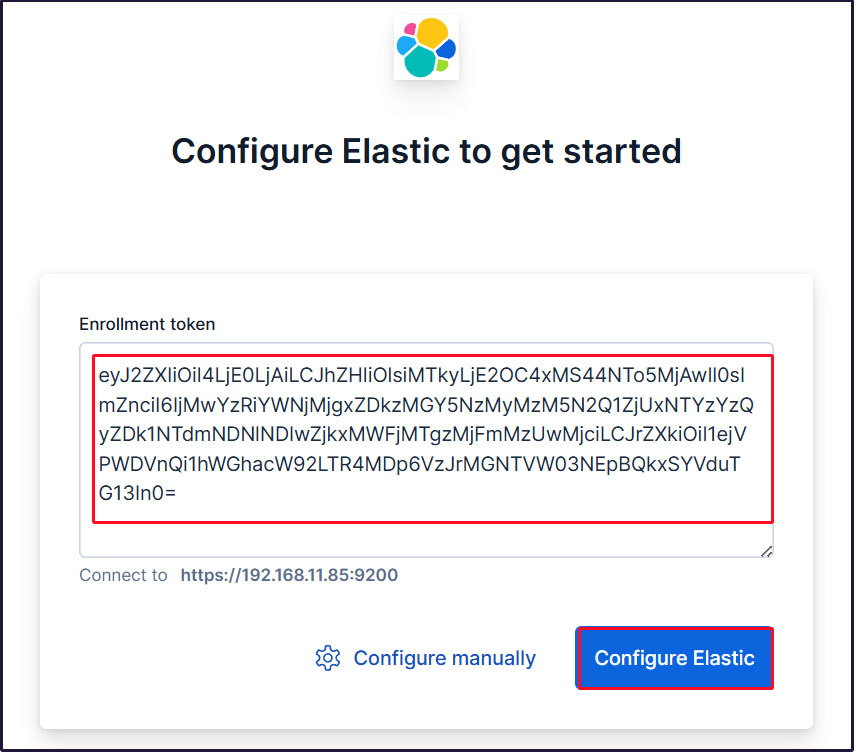
トークンをペーストすると、Kibana が自動的に Elasticsearch に接続します。
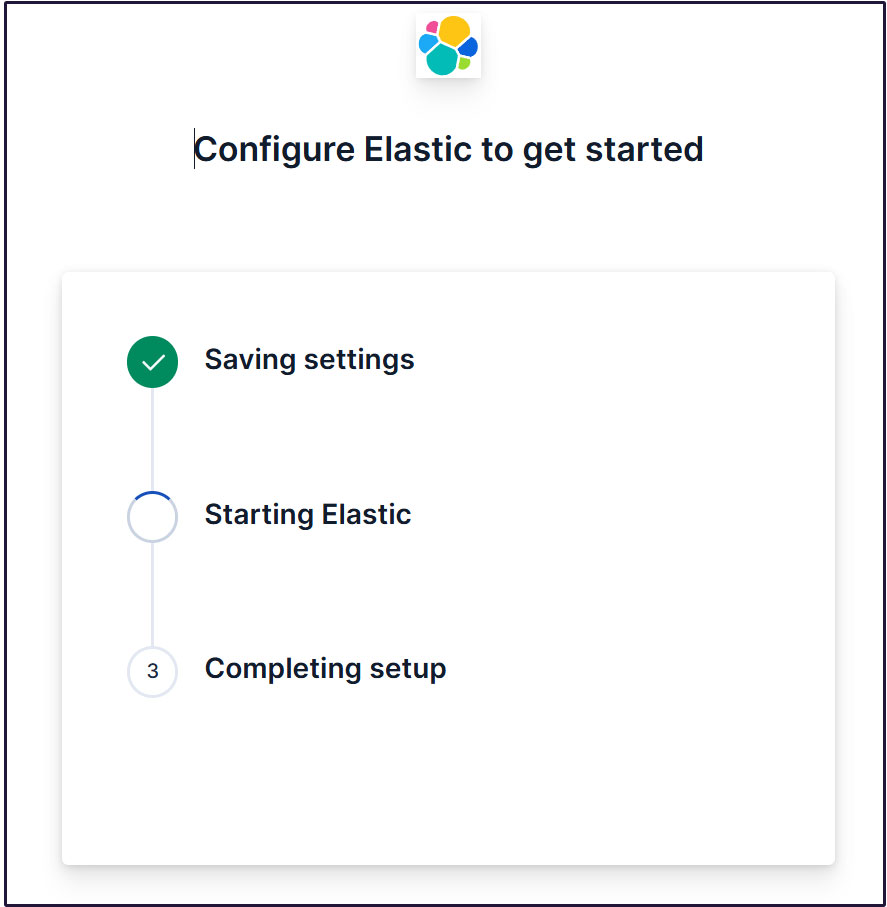
Configure Elastic をクリックします。設定が保存され、Elasticsearch が設定、再起動されます。
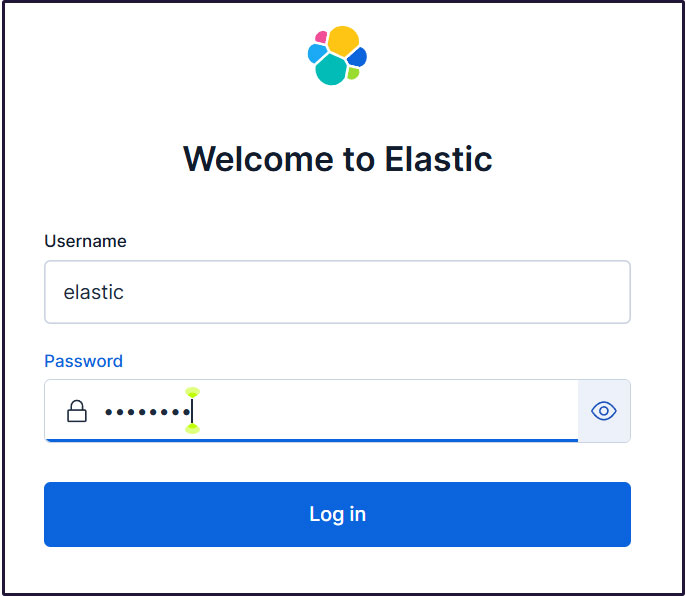
ログインページに移動します。生成されたElasticユーザー認証情報を使用してログインします。
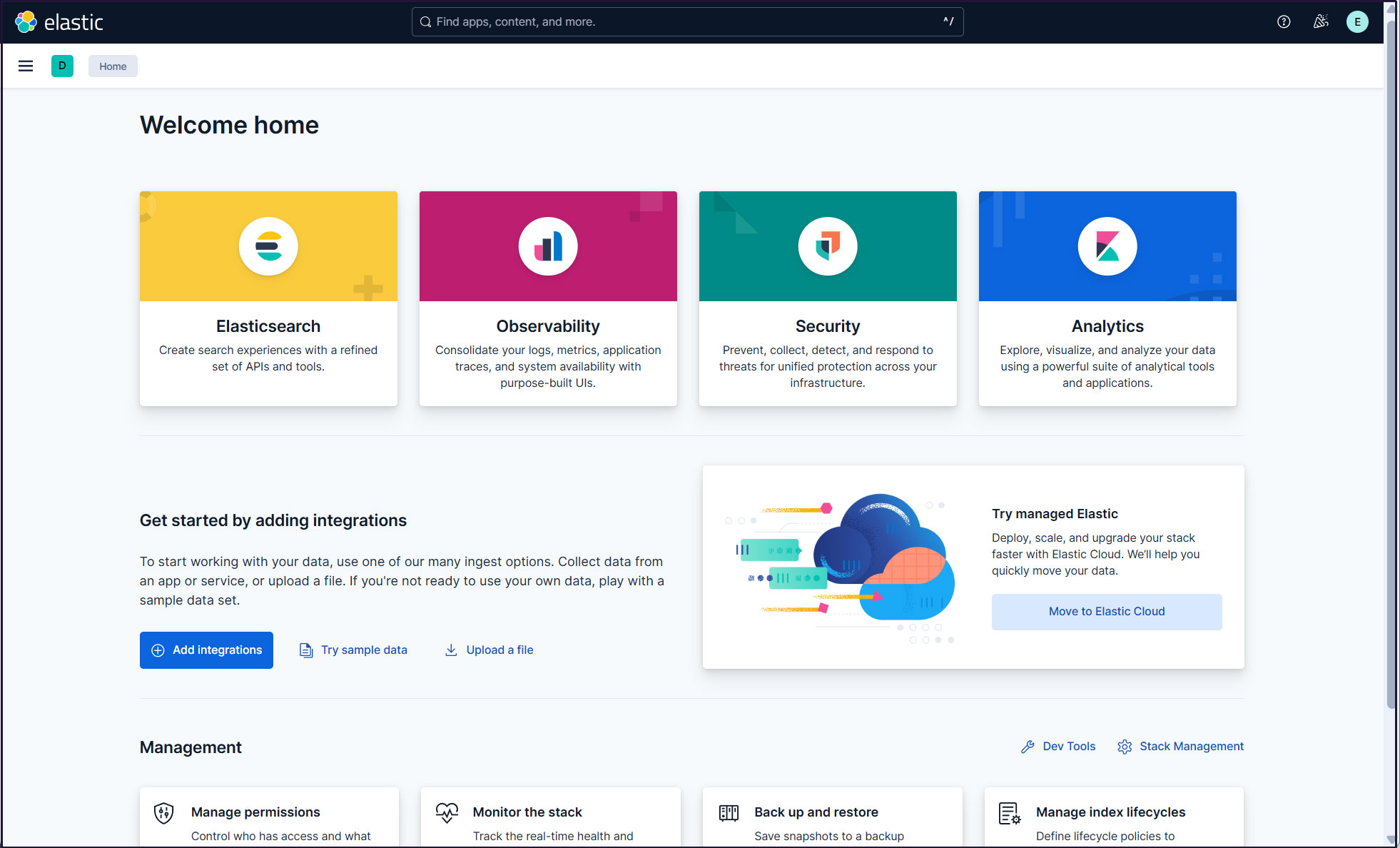
ウェルカムページで、「Explore on my own」をクリックしてKibana 9.xダッシュボードに進む。

Filebeat 9のインストール
ELKスタックを使用してUbuntu25.10からログを収集して監視するには、Filebeatをインストールする必要があります。
本作業は1台目サーバー Ubuntu25.10 IPアドレス(192.168.11.83)で行います。
①Elastic stack 9.xのリポジトリ署名キーをインストール
|
1 |
# apt update |
|
1 |
# apt install gnupg2 -y |
|
1 |
# wget -qO - https://artifacts.elastic.co/GPG-KEY-elasticsearch | gpg --dearmor -o /usr/share/keyrings/elasticsearch-keyring.gpg |
➁Elastic Stack 9.xのリポジトリをインストール
|
1 |
# echo "deb [signed-by=/usr/share/keyrings/elasticsearch-keyring.gpg] https://artifacts.elastic.co/packages/9.x/apt stable main" | tee /etc/apt/sources.list.d/elastic-9.x.list |
update
|
1 |
# apt update |
➂Ubuntu 25.10 に filebeat 9.x をインストール
|
1 2 |
# apt install -y apt-transport-https # apt install filebeat -y |
④Filebeat Loggingの設定
デフォルトのfilebeat設定ファイルは/etc/filebeat/filebeat.ymlです
Filebeatがログを独自のログファイルに書き込むようにするには、設定ファイルに以下の設定を入力する
|
1 2 3 4 5 6 7 8 9 |
# cat >> /etc/filebeat/filebeat.yml << 'EOL' logging.level: info logging.to_files: true logging.files: path: /var/log/filebeat name: filebeat keepfiles: 7 permissions: 0640 EOL |
⑤Filebeatをデータ処理系に接続する
Filebeatをデータ処理系に接続するように設定します。今回はElasticsearchです。
ログを直接Elasticsearchに送信するには、Filebeat設定ファイルを編集し、出力設定セクションを更新します。
Elasticsearch 9への接続にはSSLと認証が必要です。
Elasticsearchのポート9200/tcpに接続できることを確認する(第2サーバー Ubuntu24.04 で9200ボートを開放しておきます)
|
1 2 3 4 5 |
# telnet 192.168.11.85 9200 Trying 192.168.11.85... Connected to 192.168.11.85. Escape character is '^]'. |
⑥Elasticsearch CA証明書作成
Elasticsearch CA証明書をダウンロードし、任意のディレクトリに保存します(今回は/etc/filebeat/elastic-ca.crtとして保存します)
|
1 2 3 |
# openssl s_client -connect 192.168.11.85:9200 \ -showcerts </dev/null 2>/dev/null | \ openssl x509 -outform PEM > /etc/filebeat/elastic-ca.crt |
FilebeatがElasticsearchの認証に使用する認証情報を取得します。今回は、デフォルトのスーパー管理者、Elasticユーザの認証情報を使用します。
|
1 |
# vi /etc/filebeat/filebeat.yml |
●137行目コメントアウトされた#host: "localhost:5601"行の下に、KibanaインスタンスのプライベートIPアドレスとポートを指す行を追加する
host: "192.168.11.85:5601"
●164行目 : コメントアウト
#hosts: ["localhost:9200"]
●165行目 : Elastic Stack のipアドレスとelasticsearchのポート番号を入力
hosts: ["https://192.168.11.85:9200"]
●171行目 : コメント解除
protocol: "https"
●172行目 : Elasticsearch CA証明書指定
ssl.certificate_authorities: ["/etc/filebeat/elastic-ca.crt"]
●175,176行目コメント解除し、[username]はデフォルトのままにし、[password]は[elastic]ユーザーのパスワードを入力する
username: "elastic"
password: “xxxxxxxxx"
⑤設定ファイルテスト
|
1 2 |
# filebeat test config Config OK |
⑦Filebeatsの組み込みSuricataモジュールを有効にする
|
1 |
# filebeat modules enable suricata |
上記コマンドにより /etc/filebeat/modules.d/suricata.yml.disabled が/etc/filebeat/modules.d/suricata.yml になりますが内容は変化しませんので以下のように編集します
modules.d/suricata.ymlを下記のように変更する
|
1 2 3 4 5 6 7 8 9 10 11 12 13 14 |
# vi /etc/filebeat/modules.d/suricata.yml # Module: suricata # Docs: https://www.elastic.co/guide/en/beats/filebeat/main/filebeat-module-suricata.html - module: suricata # All logs eve: enabled: true var.paths: ["/var/log/suricata/eve.json"] # Set custom paths for the log files. If left empty, # Filebeat will choose the paths depending on your OS. #var.paths: |
⑧初期環境をセットアップ
SIEMダッシュボードとパイプラインをElasticsearchにロードします
filebeat setupコマンドを実行
|
1 |
# filebeat setup -e |
|
1 2 3 4 5 6 |
{"log.level":"info","@timestamp":"2026-01-13T13:05:58.661+0900","log.logger":"modules","log.origin":{"function":"github.com/elastic/beats/v7/filebeat/fileset.LoadPipeline","file.name":"fileset/pipelines.go","file.line":134},"message":"Elasticsearch pipeline loaded.","service.name":"filebeat","pipeline":"filebeat-9.2.3-suricata-eve-pipeline","ecs.version":"1.6.0"} {"log.level":"info","@timestamp":"2026-01-13T13:05:58.725+0900","log.logger":"modules","log.origin":{"function":"github.com/elastic/beats/v7/filebeat/fileset.LoadPipeline","file.name":"fileset/pipelines.go","file.line":134},"message":"Elasticsearch pipeline loaded.","service.name":"filebeat","pipeline":"filebeat-9.2.3-suricata-eve-dns","ecs.version":"1.6.0"} {"log.level":"info","@timestamp":"2026-01-13T13:05:58.775+0900","log.logger":"modules","log.origin":{"function":"github.com/elastic/beats/v7/filebeat/fileset.LoadPipeline","file.name":"fileset/pipelines.go","file.line":134},"message":"Elasticsearch pipeline loaded.","service.name":"filebeat","pipeline":"filebeat-9.2.3-suricata-eve-dns-answer-v1","ecs.version":"1.6.0"} {"log.level":"info","@timestamp":"2026-01-13T13:05:58.844+0900","log.logger":"modules","log.origin":{"function":"github.com/elastic/beats/v7/filebeat/fileset.LoadPipeline","file.name":"fileset/pipelines.go","file.line":134},"message":"Elasticsearch pipeline loaded.","service.name":"filebeat","pipeline":"filebeat-9.2.3-suricata-eve-dns-answer-v2","ecs.version":"1.6.0"} {"log.level":"info","@timestamp":"2026-01-13T13:05:58.916+0900","log.logger":"modules","log.origin":{"function":"github.com/elastic/beats/v7/filebeat/fileset.LoadPipeline","file.name":"fileset/pipelines.go","file.line":134},"message":"Elasticsearch pipeline loaded.","service.name":"filebeat","pipeline":"filebeat-9.2.3-suricata-eve-tls","ecs.version":"1.6.0"} {"log.level":"info","@timestamp":"2026-01-13T13:05:58.968+0900","log.logger":"modules","log.origin":{"function":"github.com/elastic/beats/v7/filebeat/fileset.LoadPipeline","file.name":"fileset/pipelines.go","file.line":134},"message":"Elasticsearch pipeline loaded.","service.name":"filebeat","pipeline":"filebeat-9.2.3-suricata-eve-http","ecs.version":"1.6.0"} |
⑨Filebeatサービスを開始
|
1 |
# systemctl start filebeat.service |
⑩Kibanaで確認
Kibanaにログインし直します。http://192.168.11.85:5601にアクセスします。
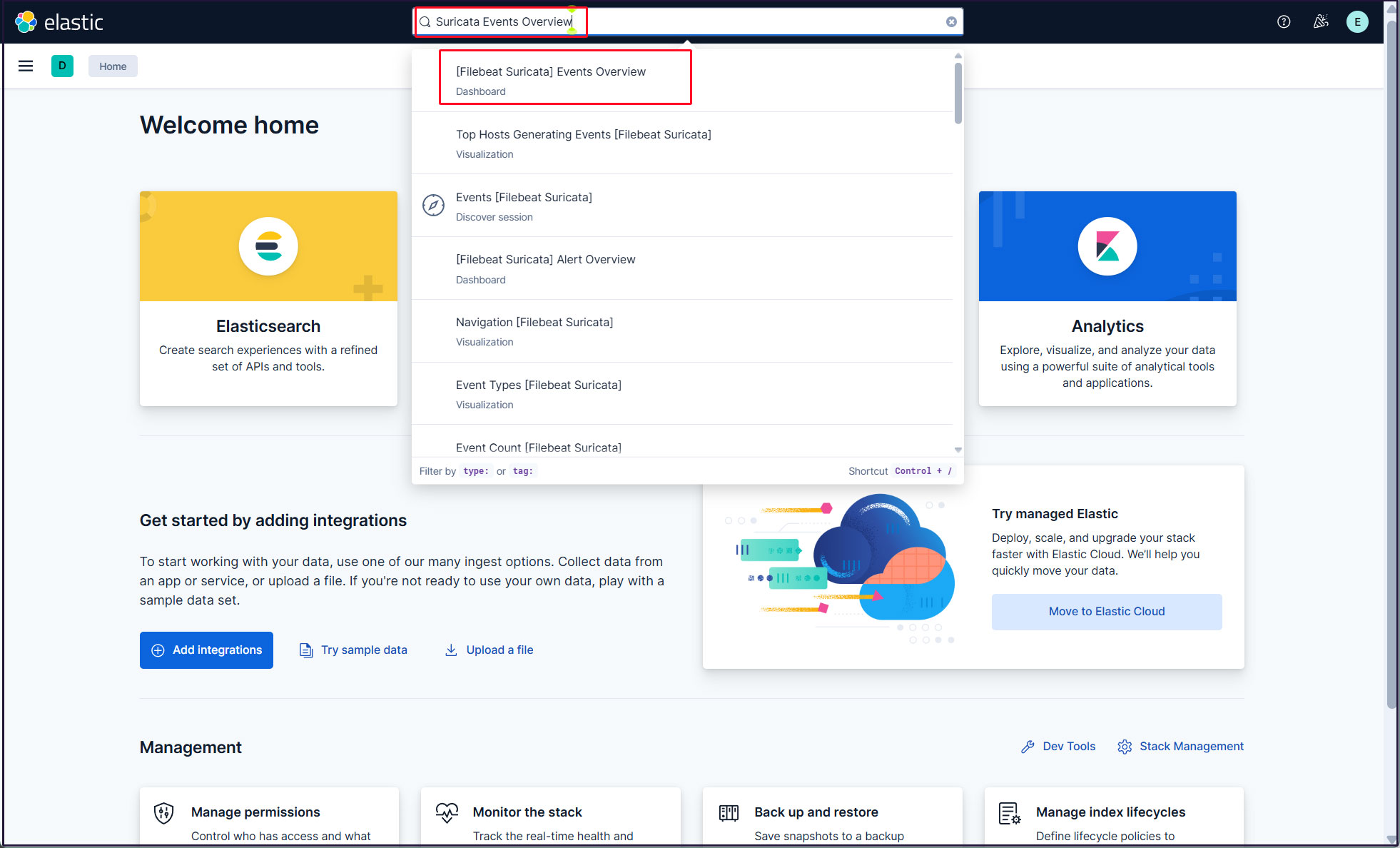
一番上の検索フィールドに「Suricata Events Overview」と入力し、[Filebeat Suricata]Events Overviewをクリック
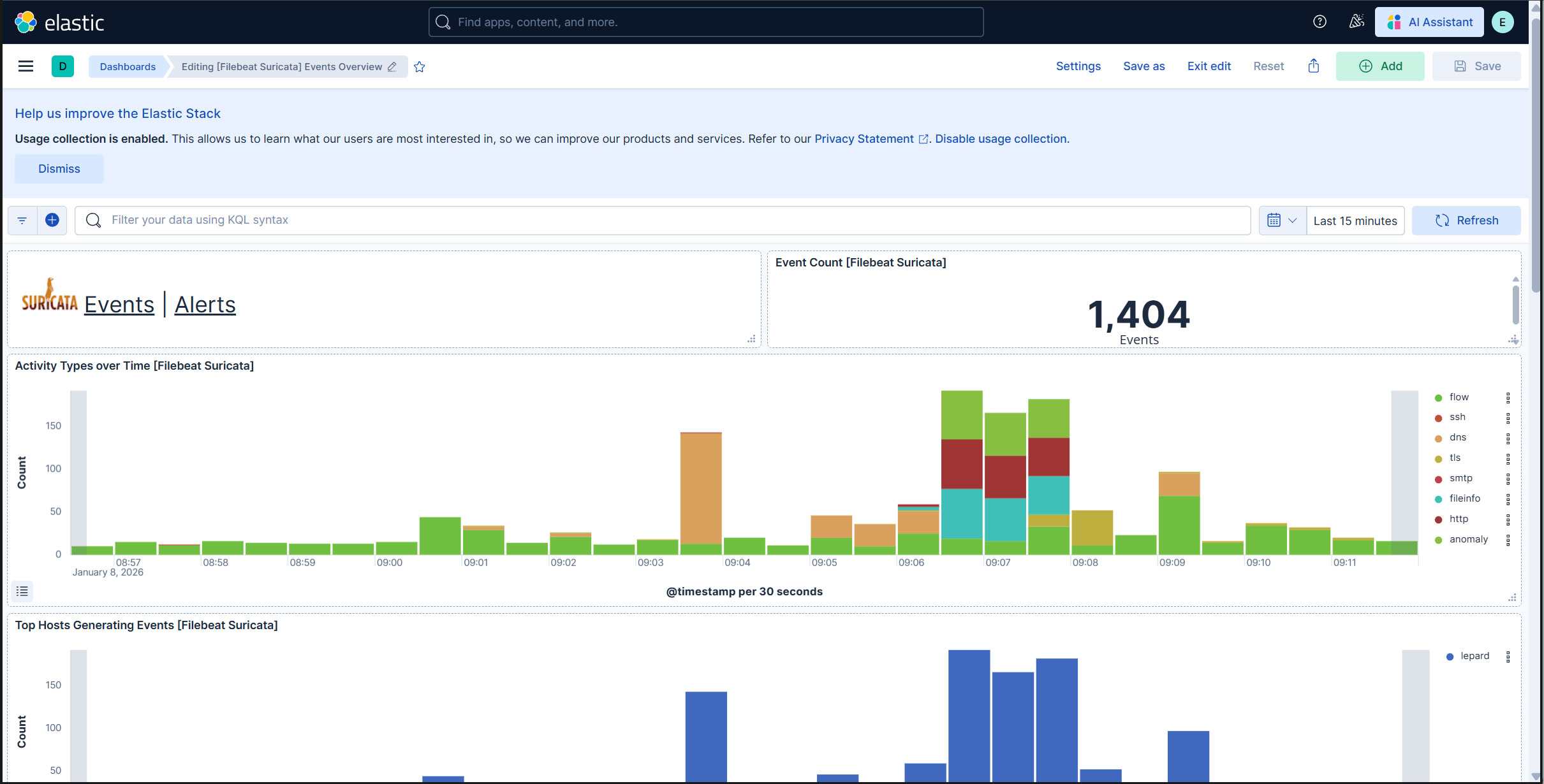
過去 15 分間のすべての Suricata イベントが表示されます
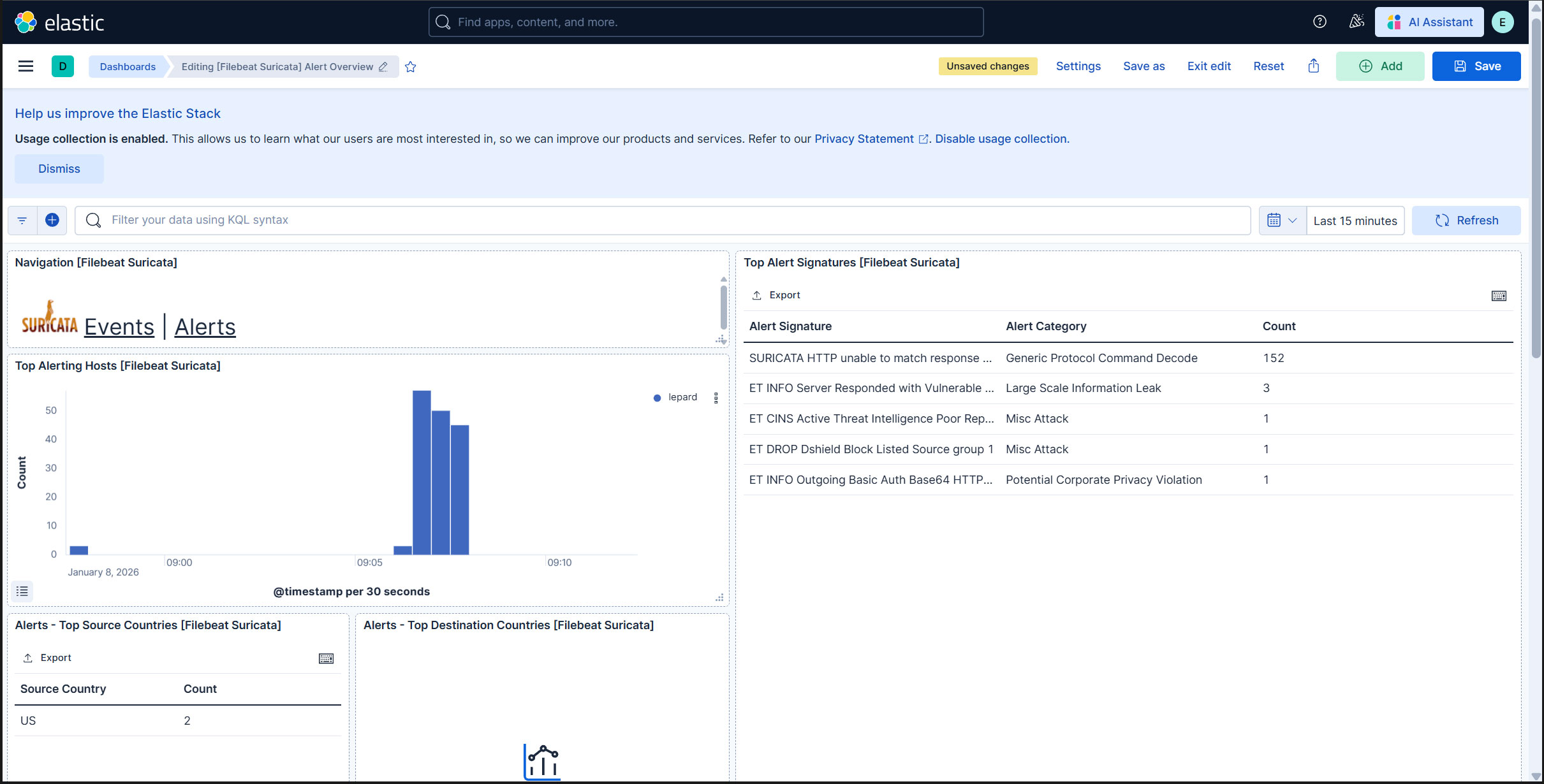
悪質なトラフィックのアラートを表示するにはSuricataロゴの横にあるAlertsテキストをクリック
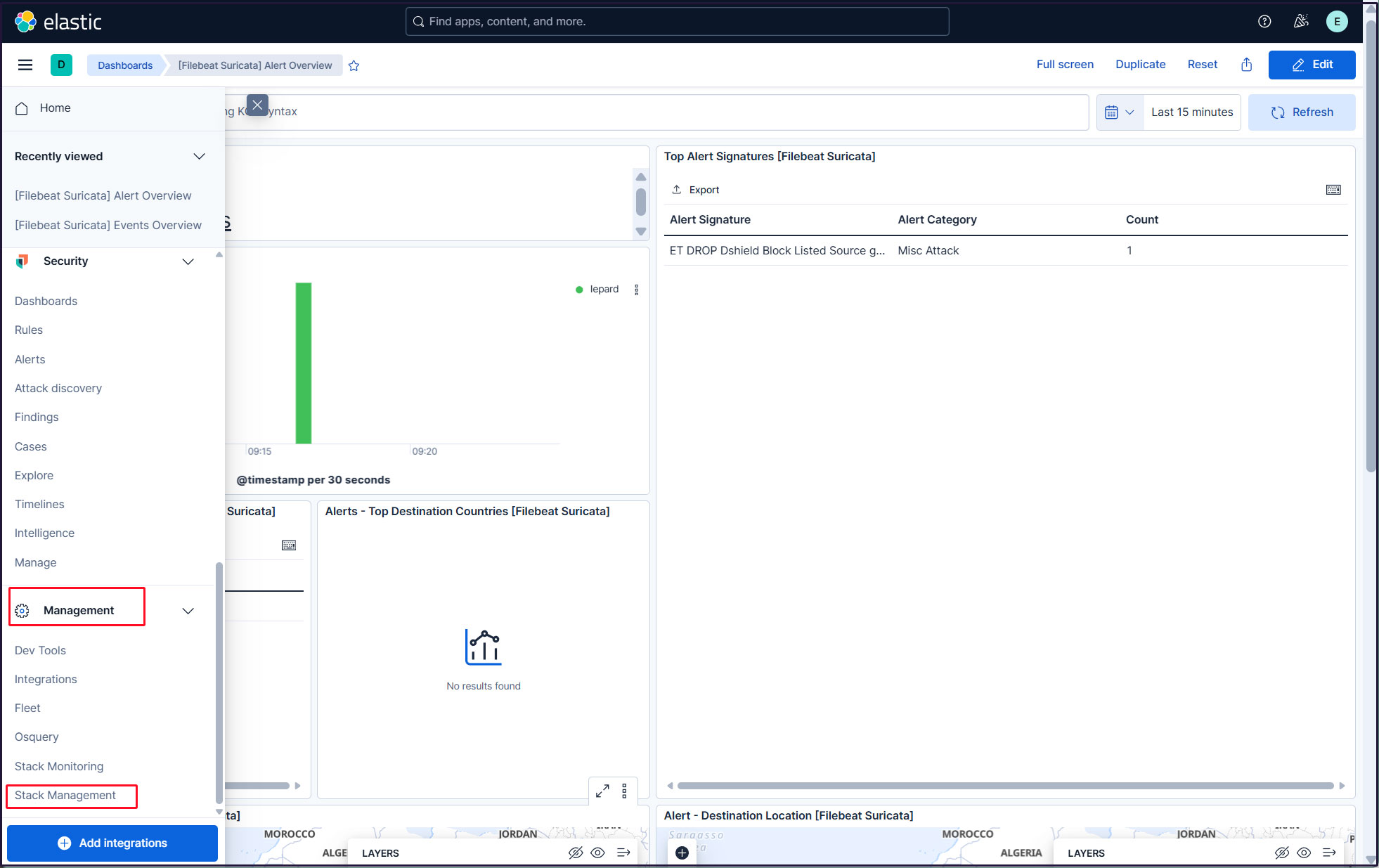
elasticスーパーユーザーアカウントを使う必要がないように、新しいユーザーアカウントを作成します。
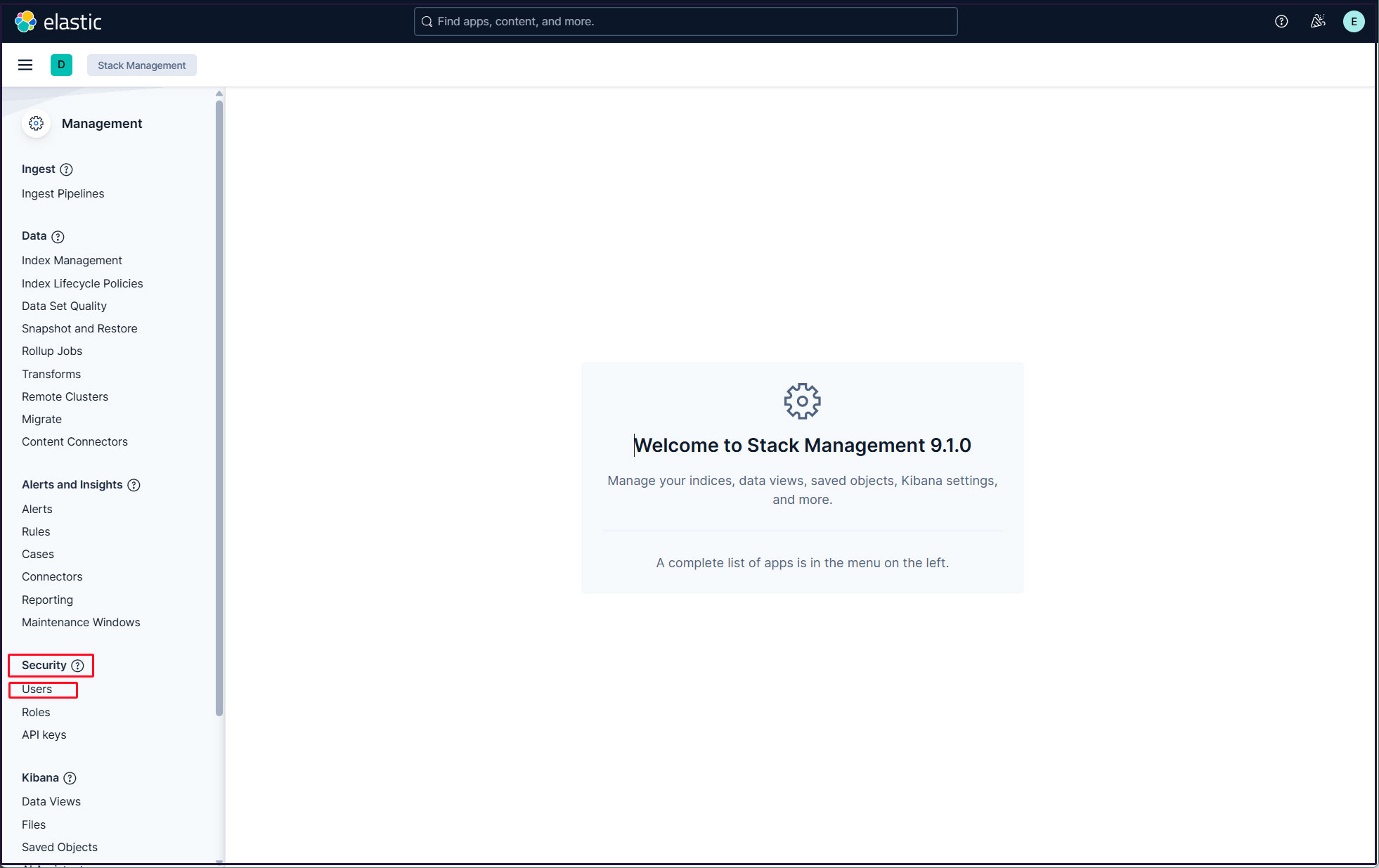
左上三本線マークをクリックし、[Management]の[Stack Management] を選択
「security」「Users」選択
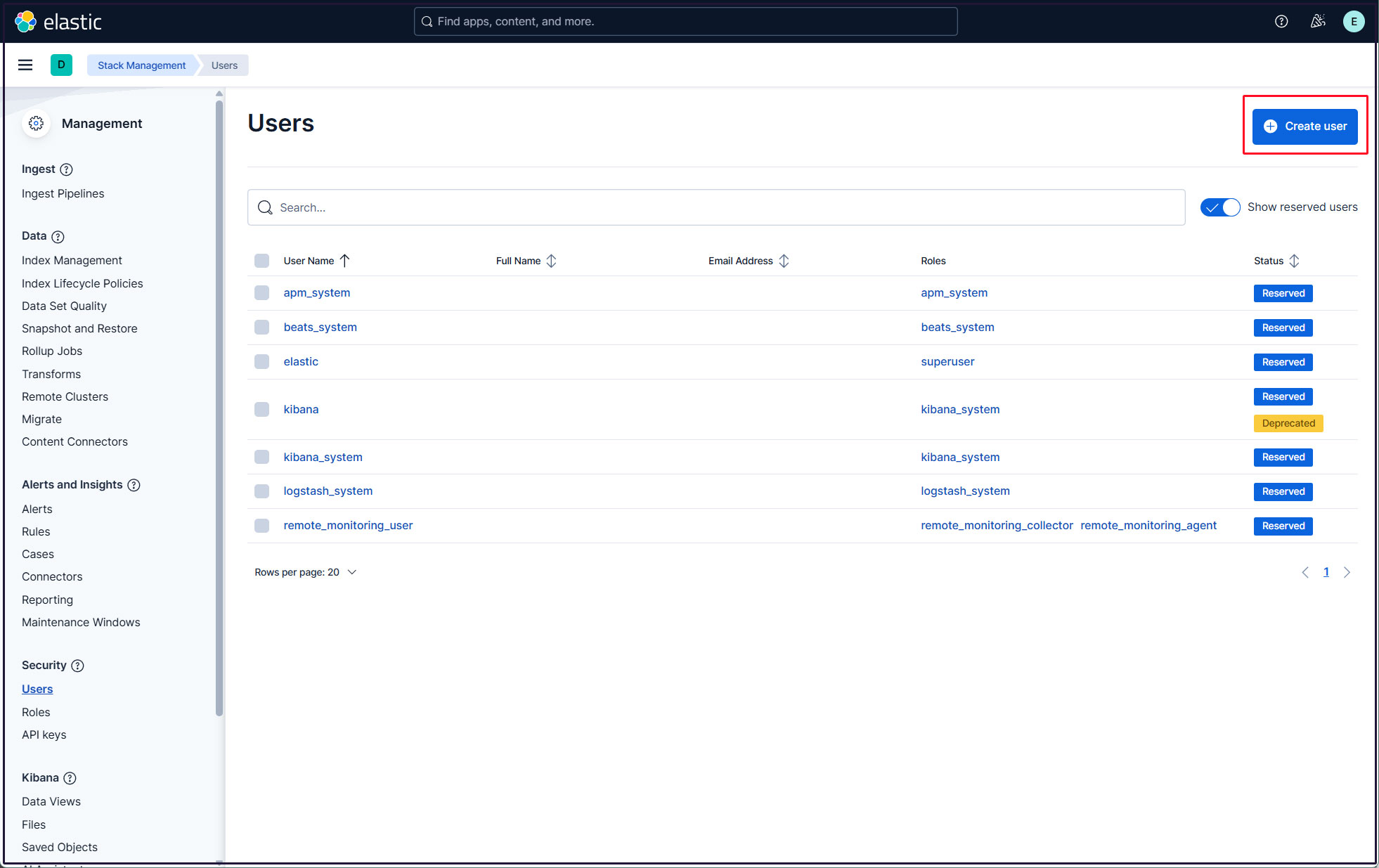
右上の"Create user"ボタンをクリック
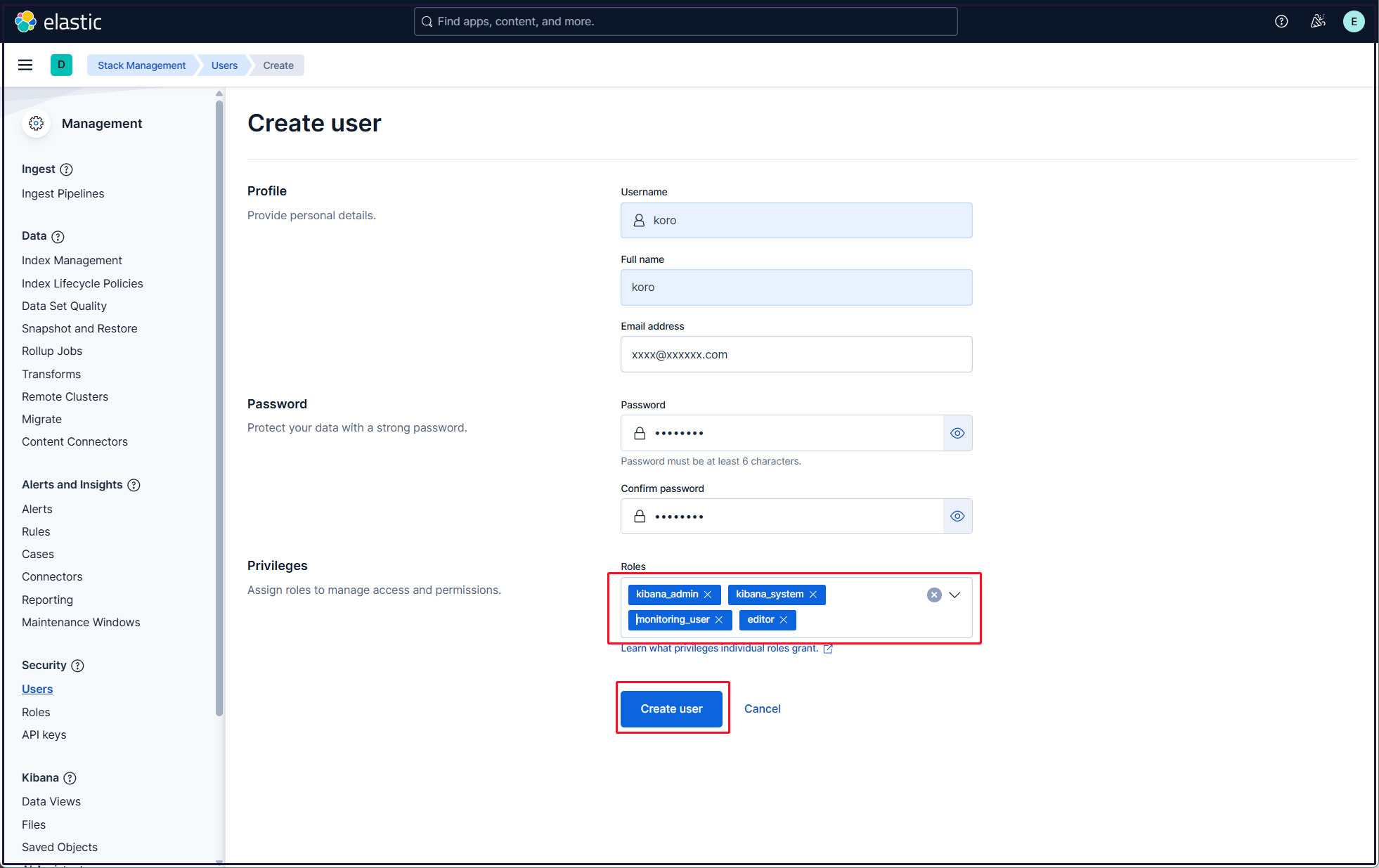
新規ユーザー情報を入力し、Privilegesでkibana_admin、kibana_system、monitoring_user、editorのロールを割り当て、最後に[Create user]をクリック
現在のプロファイルからログアウトし、新しく作成したユーザーアカウントでログインできることを確認する。