1.MySQLインストール
現時点ではmysql80,84,91,94がインストールできます。今回はmysql84をインストールします
|
1 |
# pkg install -y mysql84-client mysql84-server |
バージョンを確認
|
1 2 |
# mysql --version ysql Ver 8.4.7 for FreeBSD14.3 on amd64 (Source distribution) |
MySQL を有効にして起動
|
1 2 3 4 |
# sysrc mysql_enable=yes mysql_enable: -> yes # service mysql-server start Starting mysql. |
MySQL 起動確認
|
1 2 |
# service mysql-server status mysql is running as pid 2643. |
セキュリティ スクリプトの実行
|
1 2 3 4 5 6 7 8 9 10 11 12 13 14 15 16 17 18 19 20 21 22 23 24 25 26 27 28 29 30 31 32 33 34 35 36 37 38 39 40 41 42 43 44 45 46 47 48 49 50 51 52 53 54 55 56 57 58 59 60 61 62 63 64 65 66 |
# mysql_secure_installation Securing the MySQL server deployment. Connecting to MySQL using a blank password. VALIDATE PASSWORD COMPONENT can be used to test passwords and improve security. It checks the strength of password and allows the users to set only those passwords which are secure enough. Would you like to setup VALIDATE PASSWORD component? Press y|Y for Yes, any other key for No: y There are three levels of password validation policy: LOW Length >= 8 MEDIUM Length >= 8, numeric, mixed case, and special characters STRONG Length >= 8, numeric, mixed case, special characters and dictionary file Please enter 0 = LOW, 1 = MEDIUM and 2 = STRONG: 0 Please set the password for root here. New password: Re-enter new password: Estimated strength of the password: 100 Do you wish to continue with the password provided?(Press y|Y for Yes, any other key for No) : y By default, a MySQL installation has an anonymous user, allowing anyone to log into MySQL without having to have a user account created for them. This is intended only for testing, and to make the installation go a bit smoother. You should remove them before moving into a production environment. Remove anonymous users? (Press y|Y for Yes, any other key for No) : y Success. Normally, root should only be allowed to connect from 'localhost'. This ensures that someone cannot guess at the root password from the network. Disallow root login remotely? (Press y|Y for Yes, any other key for No) : y Success. By default, MySQL comes with a database named 'test' that anyone can access. This is also intended only for testing, and should be removed before moving into a production environment. Remove test database and access to it? (Press y|Y for Yes, any other key for No) : y - Dropping test database... Success. - Removing privileges on test database... Success. Reloading the privilege tables will ensure that all changes made so far will take effect immediately. Reload privilege tables now? (Press y|Y for Yes, any other key for No) : y Success. All done! |
以降mysqlサーバーにログインするには
mysql -u root -p
Enter password: 上記で設定したパスワード
|
1 2 3 4 5 6 7 8 9 10 11 12 13 14 15 |
# mysql -u root -p Enter password: 上記で設定したパスワード Welcome to the MySQL monitor. Commands end with ; or \g. Your MySQL connection id is 10 Server version: 8.4.7 Source distribution Copyright (c) 2000, 2025, Oracle and/or its affiliates. Oracle is a registered trademark of Oracle Corporation and/or its affiliates. Other names may be trademarks of their respective owners. Type 'help;' or '\h' for help. Type '\c' to clear the current input statement. mysql> |
2.WordPressインストール
2.1 データベース作成
Word Press 用のデータベースを作成します(例として今回はデータベース名を 「wp_db」、ユーザー名を「wp_user」、パスワードを「?Y123456y」)
|
1 2 3 4 5 6 7 8 9 10 11 12 13 14 15 16 17 18 19 20 21 22 23 24 25 26 27 28 29 |
# mysql -u root -p Enter password: Welcome to the MySQL monitor. Commands end with ; or \g. Your MySQL connection id is 10 Server version: 8.4.7 Source distribution Copyright (c) 2000, 2025, Oracle and/or its affiliates. Oracle is a registered trademark of Oracle Corporation and/or its affiliates. Other names may be trademarks of their respective owners. Type 'help;' or '\h' for help. Type '\c' to clear the current input statement. mysql> ^C mysql> CREATE DATABASE wp_db; Query OK, 1 row affected (0.01 sec) mysql> create user 'wp_user'@'localhost' identified by '?Y123456y'; Query OK, 0 rows affected (0.01 sec) mysql> grant all on wp_db.* to 'wp_user'@'localhost'; Query OK, 0 rows affected (0.00 sec) mysql> flush privileges; Query OK, 0 rows affected (0.00 sec) mysql> exit Bye |
2.2 WordPressダウンロードとインストール
①ダウンロードと展開
|
1 2 3 |
# cd /usr/local/www/apache24/data/[FQDN]/ # wget http://ja.wordpress.org/latest-ja.tar.gz # tar xvf latest-ja.tar.gz |
②Wordpress設定ファイルの編集
|
1 2 3 |
# cd wordpress/ # cp wp-config-sample.php wp-config.php # vi wp-config.php |
wp-config.phpの編集内容
|
1 2 3 4 5 6 7 8 9 10 11 12 13 |
// ** Database settings - You can get this info from your web host ** // /** The name of the database for WordPress */ define('DB_NAME', 'wp_db'); ←「2.1 データベース作成」で作成したデータベース名 /** Database username */ define('DB_USER', 'wp_user'); ←「2.1 データベース作成」で作成したユーザー名 /** Database hostname */ define('DB_PASSWORD', '?Y123456y'); ←「2.1 データベース作成」で作成したユーザー用パスワード また、最終行に以下の分を追加します。 これをしないと、プラグインを追加するときにFTP接続情報なるものを聞かれます。 define('FS_METHOD', 'direct'); |
③ファイルの移動
|
1 2 |
# cd /usr/local/www/apache24/data/<FQDN> # mv wordpress/* . |
移動されたことを確認後 wordpressディレクトリーとダウンロードしたlatest-ja.tar.gzを削除
|
1 2 |
# rm -R -f wordpress # rm latest-ja.tar.gz |
④wordpressディレクトリの所有者をapacheにします
|
1 |
# chown -R www:www /usr/local/www/apache24/data/<FQDN> |
⑤ブラウザからアクセスする
http://[FQDN]/wp-admin にアクセスします。
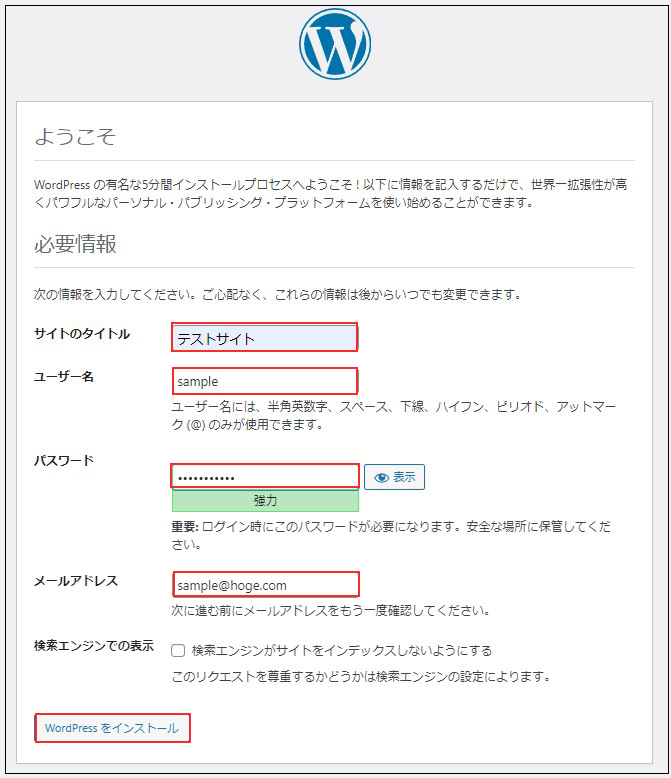
成功すると下記のWordpressインストール情報入力画面が出力されます。
「お使いのサーバーの PHP では WordPress に必要な MySQL 拡張を利用できないようです。」が表示されたら
MYSQLモジュールのインストール
|
1 |
# pkg install php84-mysqli |
php.iniを編集してextension=mysqliを有効にする
|
1 2 3 4 |
# vi /usr/local/etc/php.ini 930行目当たり : コメント解除 extension=mysqli |
まれにphp拡張機能zlibが不足のためエラーとなる場合があります
そのときは php84-zlibをインストールします
|
1 |
# pkg install php84-zlib |
インストールが完了したらApache、php-fpmを再起動をします。
|
1 2 |
# service php_fpm restart # service apache24 restart |
下記入力画面で
サイトのタイトル 任意の名称
ユーザー名 任意の名称
パスワード 任意のパスワード
メールアドレス 管理者用メールアドレス
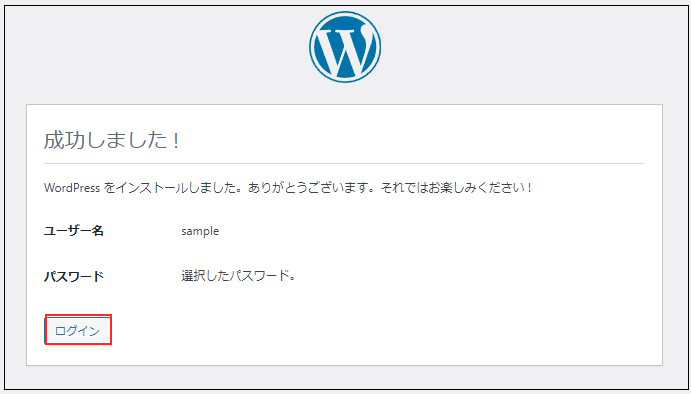
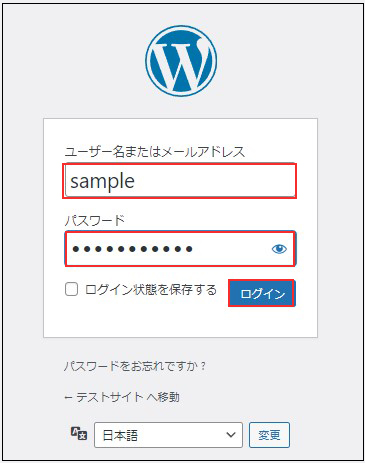
を入力し、「Wordpressインストール」をクリックする。「ユーザー名」「パスワード」はwordpress管理画面にアクセスするときに必要なため忘れないようにする。